How to Save or Download Gofile Files Before They Expire (2026)
Gofile share expiring soon? Save it to your own account and download it — or copy it straight into Google Drive, MEGA or Wasabi without a local download.
Introduction
A Gofile link works differently from most cloud shares: on a free account, content that stops being downloaded is removed after roughly 10 days. That timer is invisible until the link is already gone, which is why 'how do I keep this' is the first real question with any Gofile share worth holding onto. Gofile has no built-in way to move a folder into another cloud — you either download it locally, or route it through a connector that reads the Gofile API directly. This guide covers both: saving and downloading through Gofile itself, and copying a share straight into a durable cloud with CloudsLinker, with no local download in between.
Quick Navigation
Why Gofile Content Disappears
Gofile is built for fast, link-first sharing rather than long-term storage. On the free tier, an uploaded file or folder is kept for roughly 10 days by default; it survives longer only while people keep downloading it, and the countdown restarts each time it's fetched. Once downloads stop, Gofile automatically archives the content — the link goes dead with no warning email, and a free account has no reliable way to get an archived file back.
Premium accounts (from about $10.99/month) switch this off: storage becomes permanent instead of download-triggered. That is also the only tier with API access, which is what any migration tool — including CloudsLinker — needs to read a Gofile account programmatically. A free-account link can only be rescued manually, by downloading it before the timer runs out.
What You're Actually Working With
- No hard file-size cap: Gofile advertises no per-file limit, but free uploads are bandwidth-throttled — large files are slow to pull down on a free account.
- Every file gets a public link: Uploads work without an account, and every file is instantly shareable, which is why shares circulate widely and land with people who never made a Gofile account of their own.
- No official export tool: Gofile has nothing equivalent to Google Takeout — there is no built-in way to bulk-export a share into another cloud.
- Community reports of a ~1 TB soft ceiling: Even on Premium, users report warnings and per-GB surcharge requests once stored content passes roughly 1 TB — Gofile is a sharing layer, not a bottomless archive.
The Two Ways People Get Stuck
Saving a share into your own Gofile account is quick. What trips people up is what happens after that.
- Large folders are slow to pull down: A shared folder of multi-GB videos downloading one file at a time over a home connection can take hours, especially throttled on a free account.
- Local disk space runs out first: Downloading a big share to a laptop before deciding where it belongs long-term often fills the disk before the job finishes.
Where to Put It Once It's Saved
Once content is safely inside your own Gofile account, the real decision is where it should live permanently. A general-purpose cloud like Google Drive keeps things familiar and searchable. An encrypted cloud like MEGA suits anything sensitive. Cheap object storage like Wasabi suits a video archive you rarely touch but don't want to lose.
None of that requires downloading to a computer first. CloudsLinker reads a saved Gofile share over its API and writes directly into the destination cloud, so a multi-GB folder moves server-to-server instead of passing through your device twice.
What a Direct Copy Gets You
- No local download: Files move from Gofile straight to the destination cloud without touching your device's disk.
- Independent of the original link: Once copied, the files exist in your own cloud even if the original Gofile share is later deleted or expires.
- Frees up Gofile's soft storage ceiling: Moving a saved share out of Gofile after copying it elsewhere keeps you clear of the ~1 TB soft limit some Premium users hit.
- Runs unattended: The job continues after the browser tab closes — useful for a folder large enough to take hours.
Picking a Destination
- Google Drive: Familiar, searchable, and works from any device — the default choice for mixed documents and media. See our dedicated Gofile to Google Drive guide.
- MEGA: Zero-knowledge encrypted storage, a stronger fit for anything private. See our Gofile to MEGA guide.
- Wasabi: Flat-rate object storage with no egress fees, built for archives you rarely re-download. See our Gofile to Wasabi guide.
Save Locally or Copy to the Cloud?
Both routes start the same way — get the share into your own Gofile account before it expires. From there:
- Local download — for a few files: Fine for one or two items you want on your device right now.
- Direct cloud copy — for anything larger: Skips the local round trip entirely for a big folder or a video collection.
- A permanent, independent copy: Either way, the goal is a copy that survives after the Gofile link is gone.
- Stay under Gofile's soft ceiling: Clearing saved shares out to another cloud avoids the ~1 TB warning zone on Premium.
Use the Gofile web app directly for a quick, small download. Use a direct cloud-to-cloud copy once the share is big enough that downloading it locally first would just slow you down.
Before You Start
A couple of things determine which method is actually available to you:
- Check whether you have Gofile Premium: Saving a share to keep it works on any account. But the API — which CloudsLinker and every other third-party tool relies on — is Premium-only. Free accounts can download manually but cannot be connected programmatically.
- Save the share promptly: Open the shared link and use the green Import button to copy it into your own account. Do this as soon as you know you want to keep it — the retention clock does not pause for indecision.
- Decide on a destination: For a handful of files, your device is fine. For a large folder, pick a destination cloud ahead of time and confirm it has room.
With the share saved and a destination chosen, follow the matching method below.
How to Save or Download a Gofile Share
Method 1 saves and downloads through Gofile's own web app. Method 2 copies a saved share directly into a destination cloud with CloudsLinker, using Google Drive as the example — the same steps work for MEGA, Wasabi or any of CloudsLinker's other 140+ destinations.
Method 1: Save and Download Through Gofile
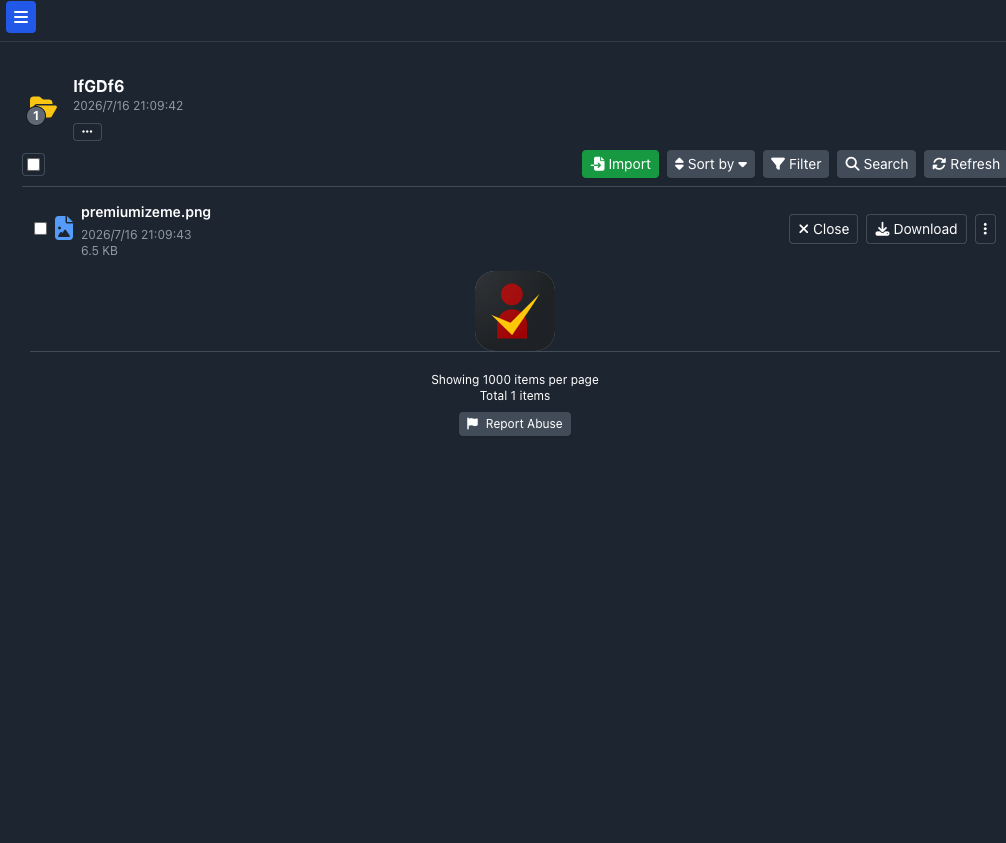
Step 1: Open the link and save it to your account
Open the Gofile link while signed in to your account. Use the green Import button to copy the shared files or folder into your own Gofile storage. This step matters even if you plan to download immediately — it detaches the content from the original share, which can be deleted by whoever created it at any time.
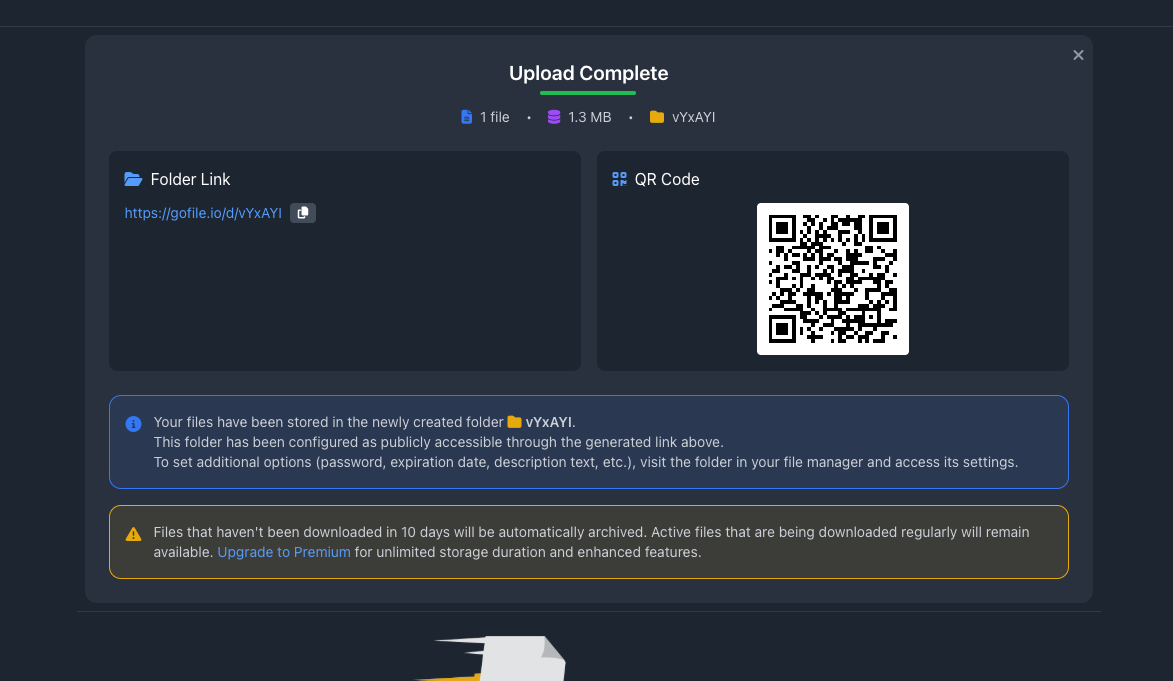
Step 2: Locate the saved content
Go to your Gofile file list and find the folder you just saved. Confirm the file count matches what the original share showed before it's gone for good.
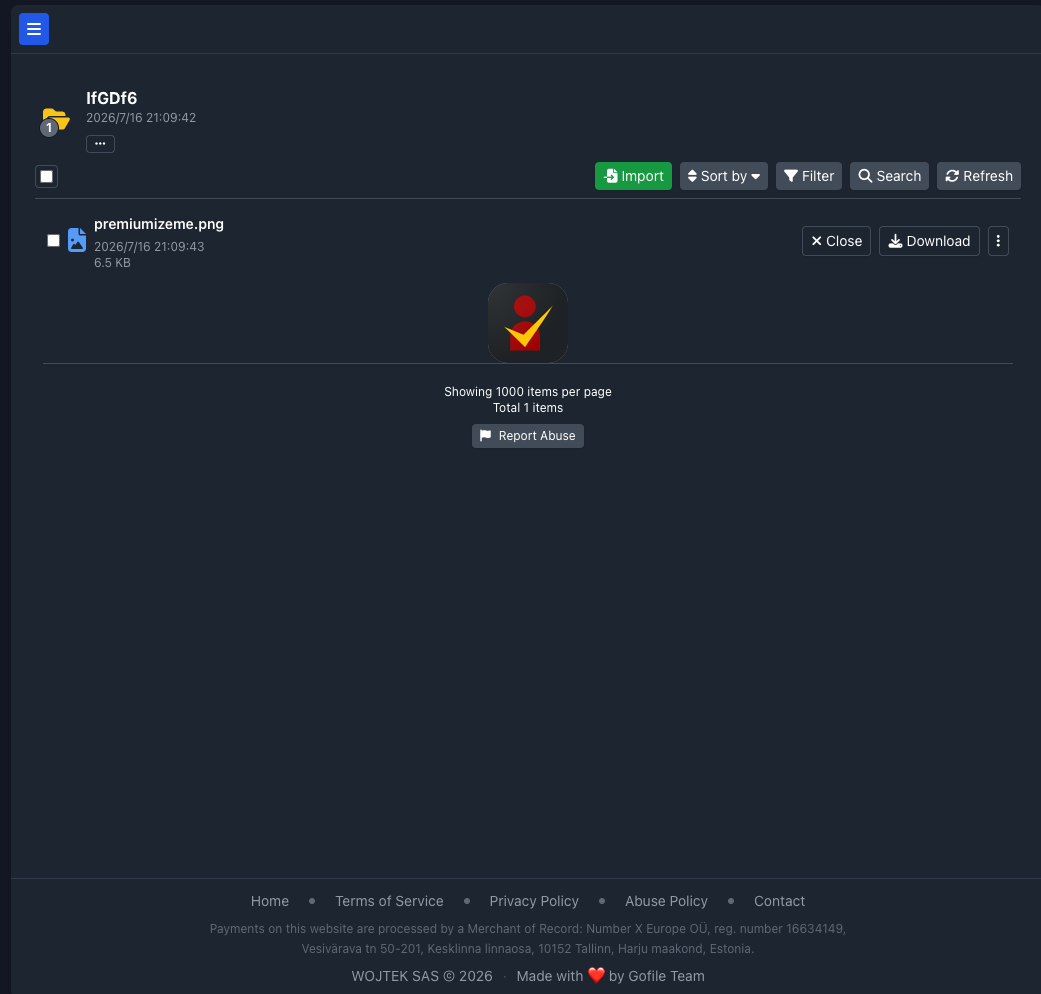
Step 3: Download to your device
Select the saved files and choose Download. On a free account, expect the download to be bandwidth-throttled — large folders can take a while.
This is the simplest route and needs no other tools, but every file crosses your own connection, and a big shared video collection can take hours and fill your disk before it finishes.
Method 2: Copy a Saved Gofile Share Directly to the Cloud
Server-to-server, straight from a saved share
CloudsLinker reads a saved Gofile share over its Premium-only API and writes directly into 140+ destination clouds. Nothing passes through your device, which matters most for large or slow shares that would otherwise sit downloading for hours.
Step 1: Save the share into your Gofile account
As in Method 1, open the link and use Import so the content lives in your own Gofile account, not just the public share. CloudsLinker connects to your account, not to a raw share URL.
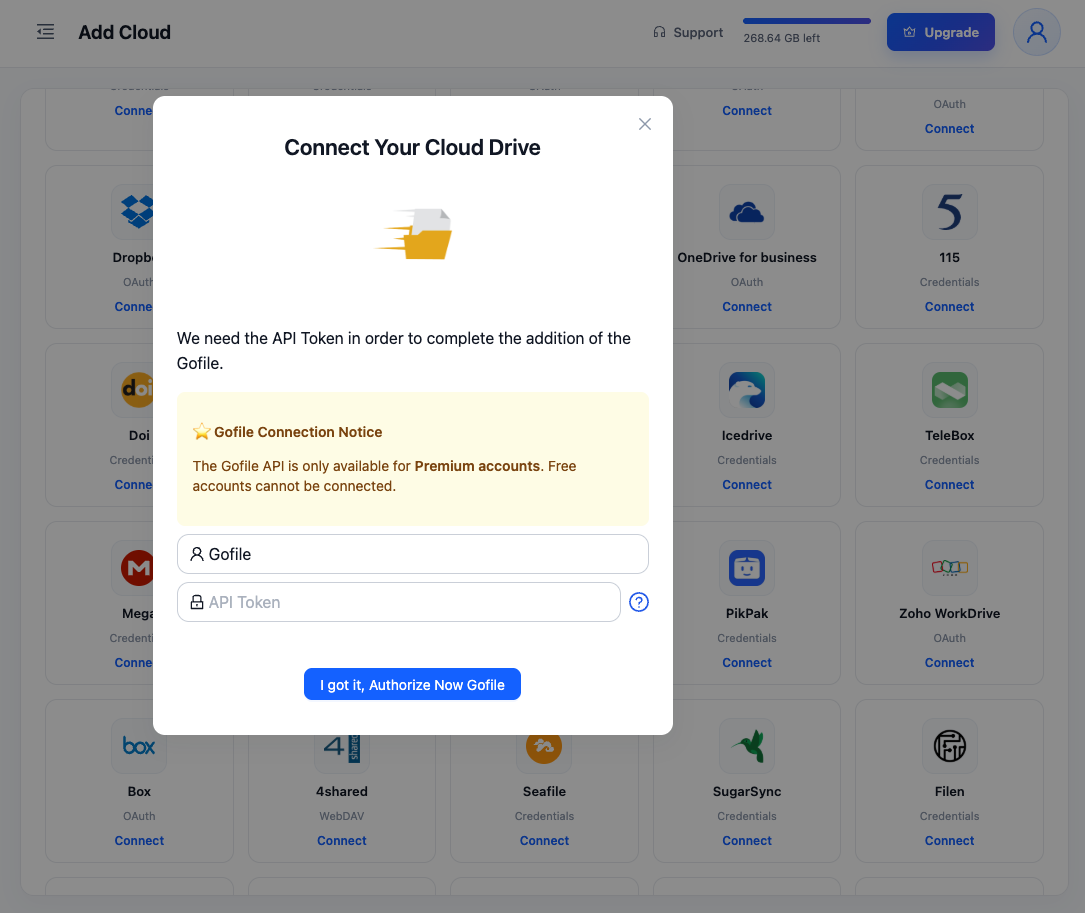
Step 2: Connect Gofile to CloudsLinker
In CloudsLinker, click Add Cloud → Gofile. The dialog asks for a display name (defaults to "Gofile") and your API Token — hover the (?) icon for a direct link to gofile.io/myProfile, where the token lives. This step only works on a Premium account; free accounts are rejected.
Step 3: Connect your destination cloud
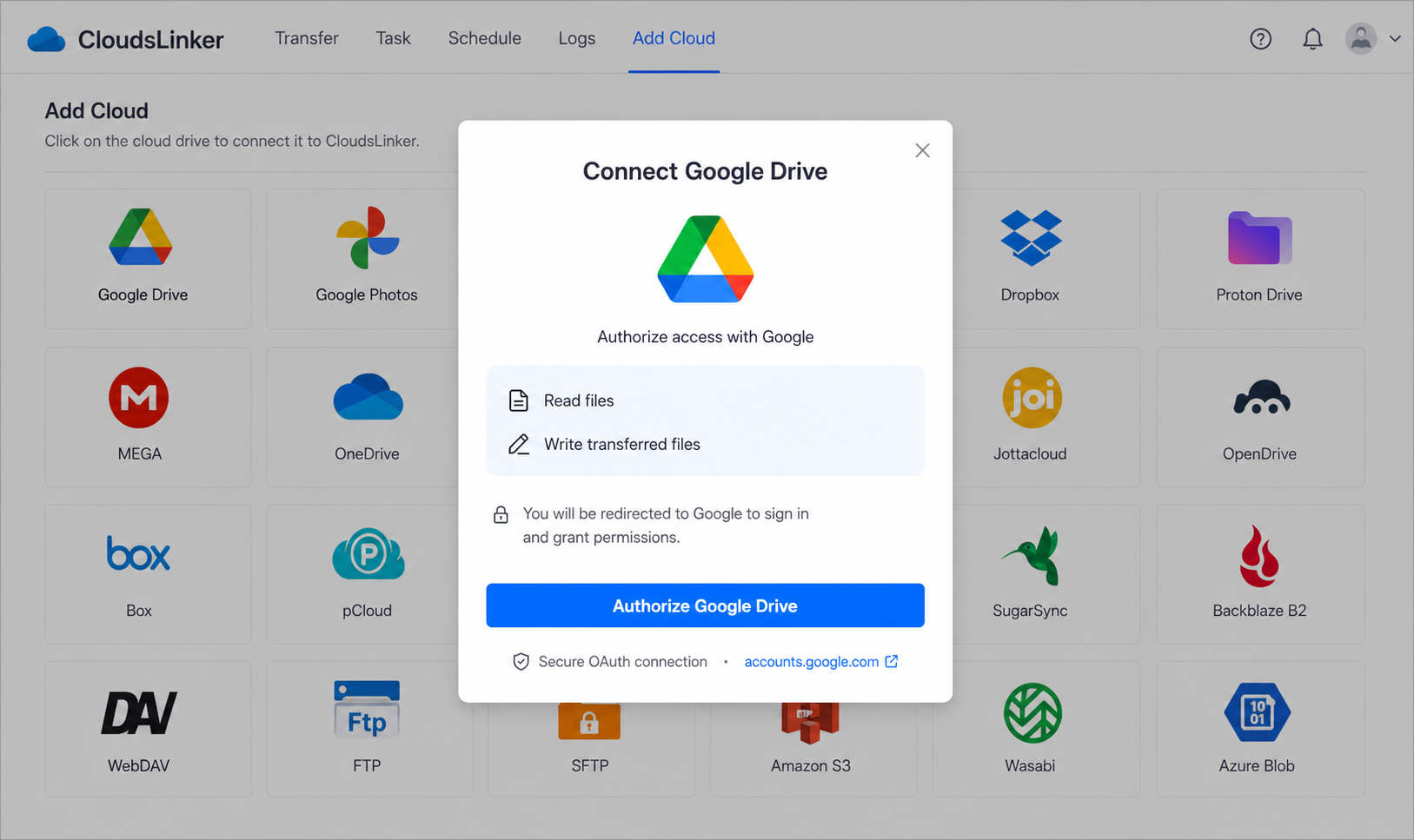
Click Add Cloud again and connect where the files should go — Google Drive via OAuth is shown here, but MEGA, Wasabi and 140+ others work the same way.
Step 4: Configure and start the transfer
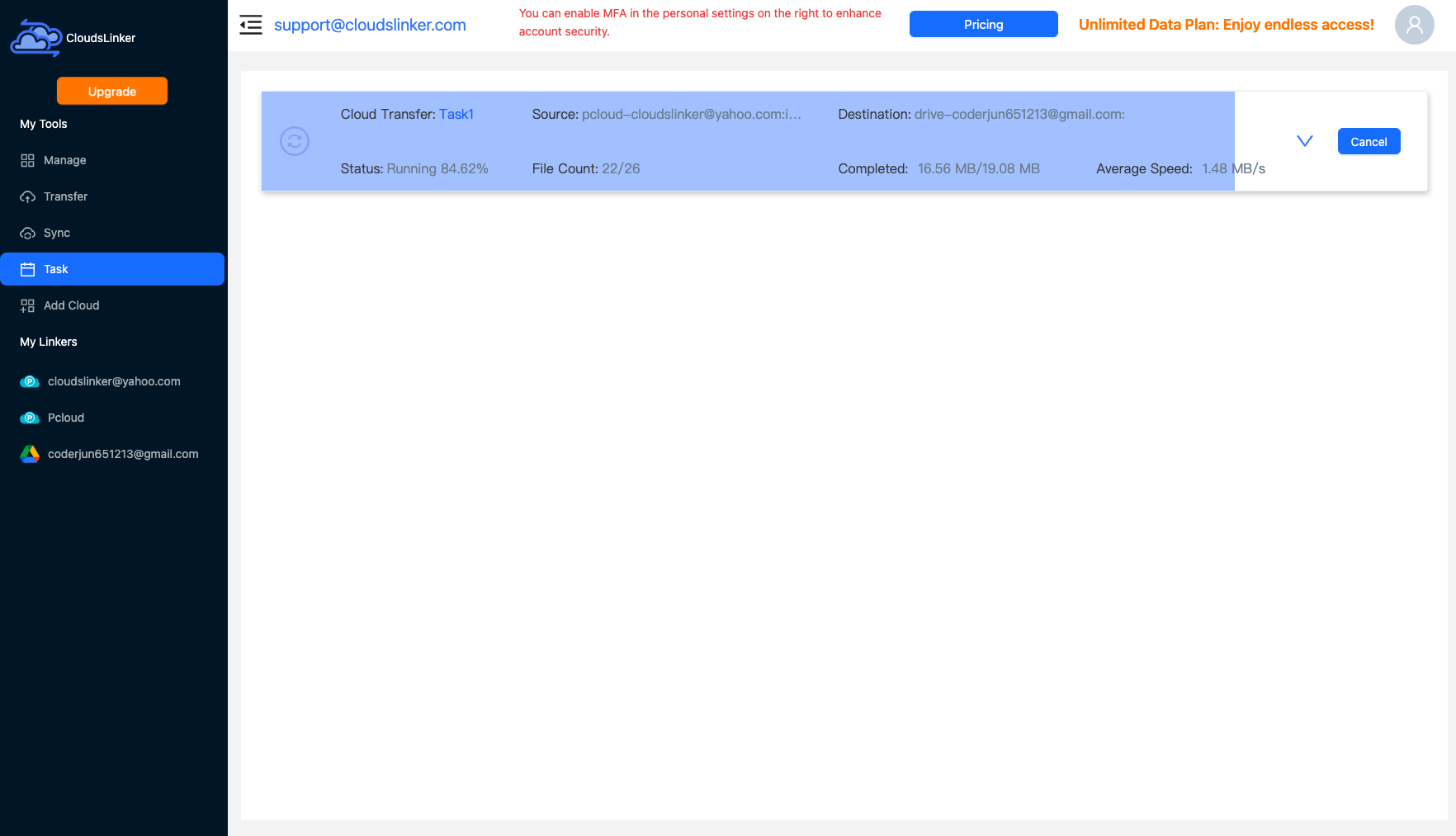
In the Transfer section, set Gofile as the source and select the saved folder; set your destination cloud and target directory. Start the job and track it in the Task List — it keeps running after you close the browser.
After the Files Are Safe
Verify before you rely on the copy
Confirm nothing was left behind:
- Compare file counts: Check the destination folder against the original share, especially for large sets of videos or images.
- Spot-check a few files: Open two or three files in the destination to confirm they are complete and not corrupted.
Clean up Gofile
Once the copy is confirmed, there's no reason to keep paying Gofile's soft storage ceiling:
- Delete the saved folder from Gofile: Frees space toward the ~1 TB soft ceiling some Premium accounts report hitting.
- Rotate your API token: If you're done migrating for now, regenerate the token from your Gofile profile so the old one stops working.
Gofile Expiring Files — Frequently Asked Questions
How long does Gofile keep files before deleting them?
Can I download a Gofile share without an account?
Do I need Gofile Premium to use a migration tool like CloudsLinker?
What happens if I don't save the share in time?
Where should I send a large Gofile video collection?
Is there a size limit on what I can save or download from Gofile?
Will the folder structure be preserved when I copy a share elsewhere?
Is my Gofile API token safe to give to CloudsLinker?
Watch: Save Gofile Files Before the Link Expires
How to import a Gofile share into your own account and copy it straight to Google Drive with CloudsLinker — including the honest caveat that Gofile's API requires a Premium account.
Conclusion
For one or two files, saving them into Gofile Premium and downloading through the web app is the fastest path. For a folder of any real size — especially video — download-then-reupload eats disk space and time, and a Premium account can hit its own soft storage ceiling while you're still transferring. Routing the share straight into Google Drive, MEGA or Wasabi with CloudsLinker skips the local round trip entirely. Whichever you pick, act before the retention clock runs out — a deleted Gofile share cannot be recovered.
Online Storage Services Supported by CloudsLinker
Transfer data between over 58 cloud services with CloudsLinker

OneDrive

Google Drive

Google Photos

Shared Drive

OneDrive for Business

Dropbox

Box

Mega

pCloud

Yandex

ProtonDrive

AWS

GCS

iDrive

Storj

DigitalOcean

Wasabi

1fichier

PikPak

TeleBox

OpenDrive

Backblaze B2

Fastmail file

SharePoint

Nextcloud

ownCloud

Premiumize me

HiDrive

Put.io

Sugar Sync

Jottacloud

Seafile

Ftp

SFtp

NAS

WebDav

4shared

Icedrive

Cloudflare R2

Scaleway

Hetzner Object Storage

Synology C2 Object Storage

S3 Compatible

Doi

iCloud Drive

iCloud Photos

FileLU

Zoho WorkDrive

Telia Cloud / Sky

Drime

Filen

TeraBox

Internxt

Degoo

Gofile

Pixeldrain

Shade

Koofr
Didn' t find your cloud service? Be free to contact: [email protected]
Further Reading
Effortless FTP connect to google drive: Transfer Files in 3 Easy Ways
Learn More >
Google Photos to OneDrive: 3 Innovative Transfer Strategies
Learn More >
Google Photos to Proton Drive: 3 Effective Transfer Techniques
Learn More >