How to Download or Save Files from a PikPak Shared Link (2026)
Got a PikPak shared link, or a folder shared by another user? Learn how to save and download its files — including large videos — to your device or straight to Google Drive.
Introduction
Someone sends you a PikPak shared link, or you open a shared folder full of videos, and the obvious question is how to actually get those files. PikPak is built around cloud downloads and in-browser video playback, so a share link is not a plain download — to keep its contents you first save the share to your own PikPak, then download it or move it elsewhere. That matters most for large shared video collections, where downloading everything to your laptop is slow and eats disk space. This guide covers two routes: saving and downloading through PikPak itself, and copying a saved share straight into your own cloud (Google Drive, OneDrive and others) without a local download.
Quick Navigation
PikPak Links Explained: Share Links, Shared Folders and 'Shared by'
PikPak is a cloud storage service known for cloud-based magnet/torrent downloads and smooth in-browser video playback. The PikPak links you run into come in a few forms: a share link to a single file, a share link to a whole shared folder, a folder that shows up in your account as shared by another user, and magnet or torrent links that PikPak fetches into your own storage. Only the last kind puts files in your account by itself — every share link points at files that still live in the sharer's storage.
Because PikPak is playback-first, opening a share often streams the video instead of downloading it. To keep the files you usually save the share to your own PikPak (sometimes shown as 'Save' or 'Add to My Cloud'), after which you can download, stream, or move them. Share links are not permanent: according to PikPak's help center the sharer can set a link to expire after a chosen number of days and can add password protection, and any link can be deleted at will — so saving promptly matters.
PikPak Link Types and What You Can Do With Each
- Share link to a single file: Downloadable after you save it — open the link signed in, choose Save / Add to My Cloud, then download the file or copy it to another cloud. Streaming in the browser does not keep a copy.
- Share link to a shared folder: Same rule, whole folder at once — Save copies the entire folder structure into your PikPak. For a big video folder, the server-to-server route in Method 2 beats downloading file by file.
- 'Shared by' folder inside your account: View only until saved — the files still sit in the other user's storage. Save it to make the copy yours; the label alone gives you nothing to download.
- Magnet or torrent link: Not a share at all — PikPak fetches the content into your own storage (its core cloud-download feature). Once it is there you download or move it exactly like any other file.
- Files saved via the Telegram bot: Already in your PikPak — treat them like your own files. The PikPak to Google Drive guide covers moving Telegram-saved folders in bulk.
- Password-protected or expiring share: Ask the sharer for the password and save it before the expiry date; once saved, your copy no longer depends on the link. PikPak's Android app also accepts a short share code instead of a link.
The Catch With Downloading Shares Locally
Saving a share to PikPak is quick, but pulling everything down to your device is where people get stuck — for two concrete reasons.
- Large videos are slow: Shared folders are often full of multi-GB videos; downloading them one by one over a home connection can take hours.
- Free-tier space pressure: A free PikPak account has limited storage, so a big saved share can fill it before you finish downloading.
Why Save a PikPak Share to Your Own Cloud
Instead of downloading a saved share to your computer, you can copy it directly into a cloud you already use — Google Drive, OneDrive, Dropbox, pCloud and more. The files live somewhere permanent under your control, and you skip the local download entirely.
This is the better fit for shared video libraries: the transfer runs server-to-server, so it is not limited by your home upload/download speed, and the content leaves PikPak's free-tier storage once it is safely in your own cloud. It also protects you from the share link being removed later — your copy is independent.
What You Gain by Saving to Your Cloud
- No local download: Files move from PikPak to your cloud without passing through your device or using its disk space.
- A permanent copy: Once in Google Drive or OneDrive, the content is yours even if the original share link is deleted.
- Faster for big folders: Server-to-server transfer is not bottlenecked by your home connection, which matters for GB-scale video shares.
- Frees PikPak space: Moving a saved share out of PikPak clears room on a limited free account.
Best Destinations for Saved Shares
- Google Drive / OneDrive: Familiar, searchable storage with apps on every device — ideal for documents and mixed shares.
- Dropbox / pCloud: Good for keeping a tidy, long-term archive of shared media you want to revisit.
- S3 / Wasabi: Cheap bulk object storage when you are saving very large shared video collections for the long run.
Download Locally or Save to Your Cloud?
Both routes start the same way — save the share to your PikPak first. They differ in where the files end up:
- Local download — for a few files: Saving to PikPak then downloading via the web app is fine for one or two items you need on your device now.
- Save to your cloud — for big folders: For a large shared folder, copy it server-to-server into Google Drive or OneDrive instead of downloading each file.
- Keep a permanent copy: Moving the content into your own cloud protects it from the share link being deleted or expiring.
- Avoid free-tier limits: Routing the share into your cloud keeps it off PikPak's limited free storage.
Use the PikPak web app for small, immediate downloads; use a server-to-server copy when the share is a large folder you want to keep without filling your disk or your free PikPak account.
Before You Start
A little setup makes both methods go smoothly:
- Create or sign in to a PikPak account: Saving a share to keep its files generally requires your own PikPak account. Sign up (the free tier works for small shares) before opening the link.
- Save the share promptly: Open the shared link and use Save / Add to My Cloud to copy it into your PikPak. Do this soon — the sharer can remove the link at any time.
- Decide where the files should end up: For a few files, your device is fine. For a large folder, pick a destination cloud (Google Drive, OneDrive, etc.) and make sure it has enough free space.
With the share saved to your PikPak and a destination chosen, follow the matching method below.
How to Download or Save a PikPak Shared Link
Method 1 saves and downloads through PikPak itself. Method 2 copies a saved share straight into your own cloud with CloudsLinker, with no local download.
Method 1: Save and Download Through PikPak
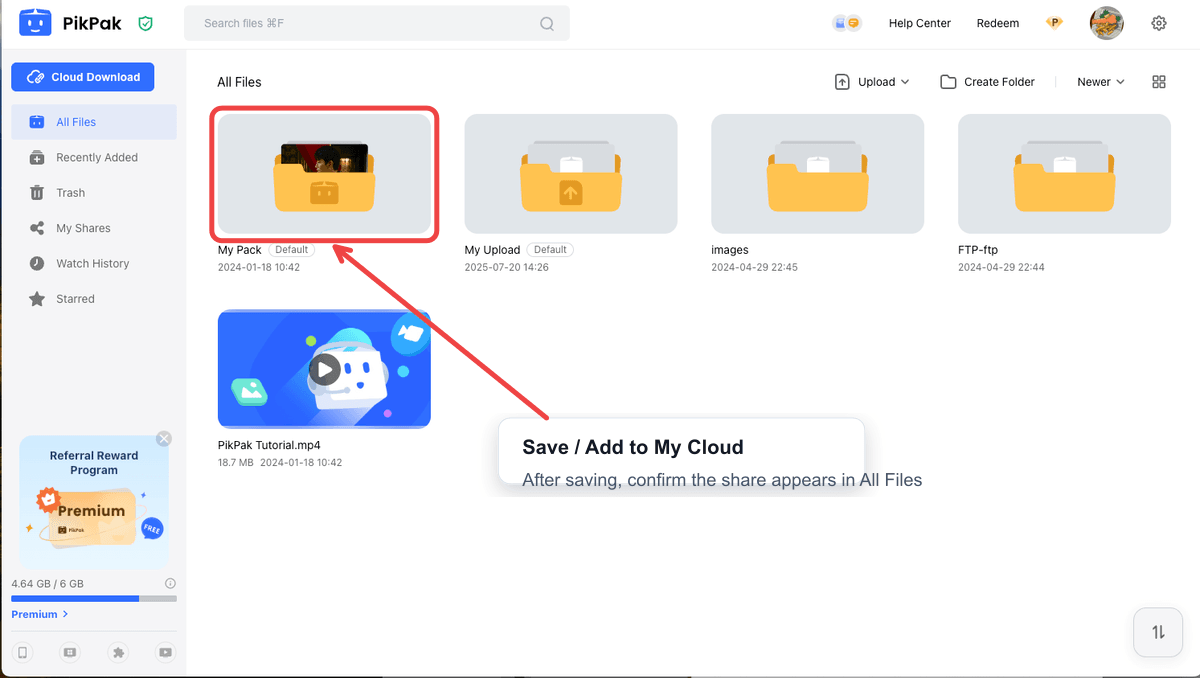
Step 1: Open the shared link and save it
Open the PikPak shared link in your browser or the PikPak app. Sign in to your account, then use Save / Add to My Cloud to copy the shared file or folder into your own PikPak. This keeps the content even if the original link is later removed.
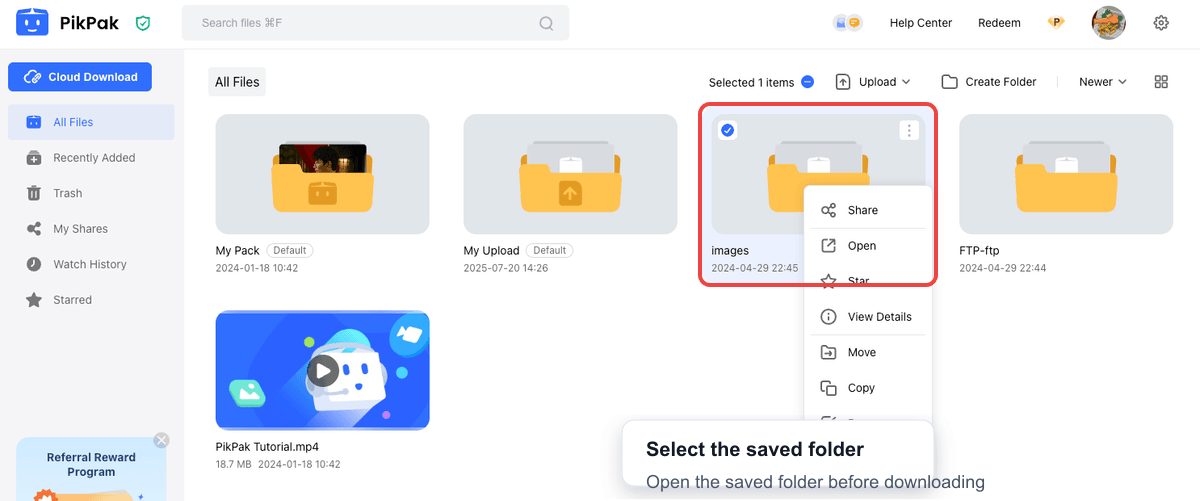
Step 2: Open the saved files in your PikPak
Go to your PikPak file list and find the folder you just saved. PikPak may show videos as streamable — that is normal. Select the specific files or the whole folder you want to keep.
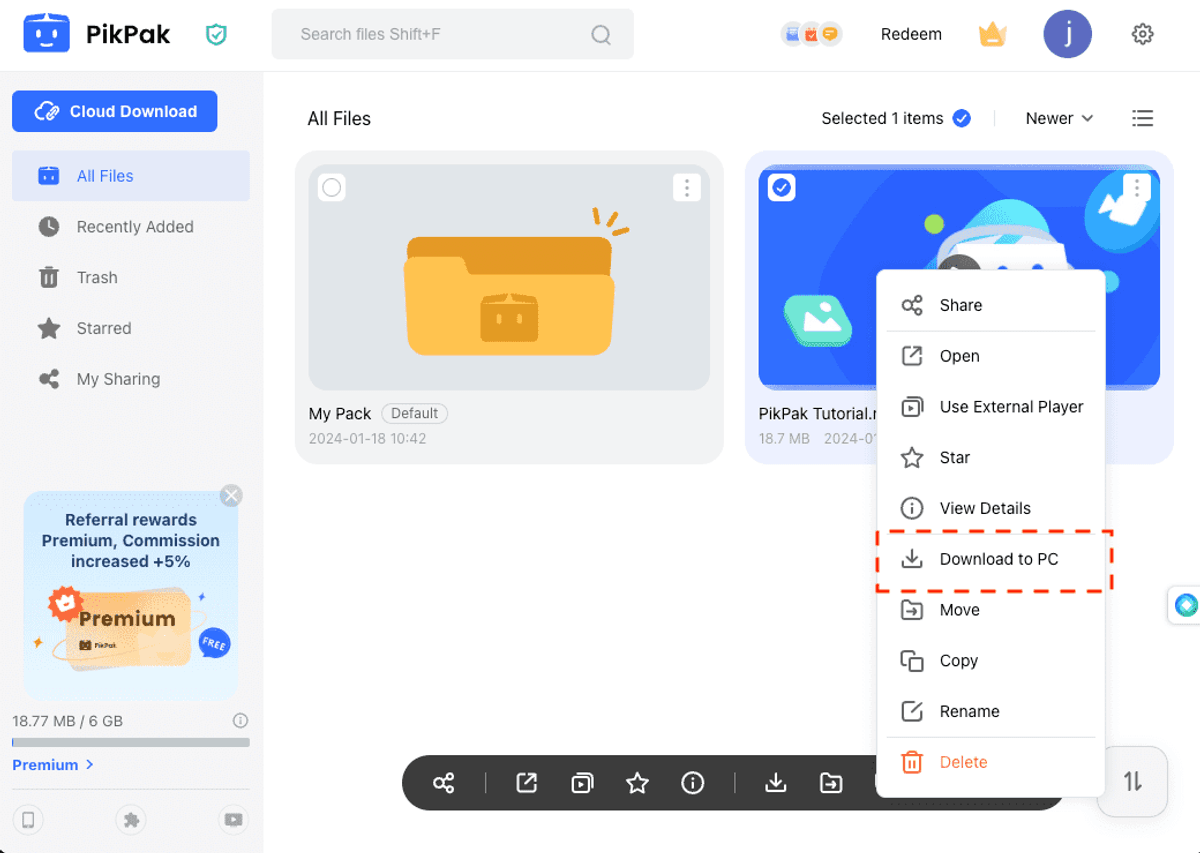
Step 3: Download to your device
Choose Download to save the selected files locally. For videos, download the original file rather than a recording of the stream.
This is the simplest route for a few files, but every file comes down over your home connection — a large shared video folder can take hours and a free PikPak account may run low on space while it holds the saved share.
Method 2: Save a PikPak Share Straight to Your Cloud with CloudsLinker
Server-to-server, no local download
CloudsLinker signs in to PikPak with your account email and password (WebDAV is only a fallback) and copies your saved share directly into Google Drive, OneDrive, Dropbox and 140+ other clouds. Nothing passes through your device, so a large shared video folder moves without filling your disk — useful when the local download in Method 1 is too slow.
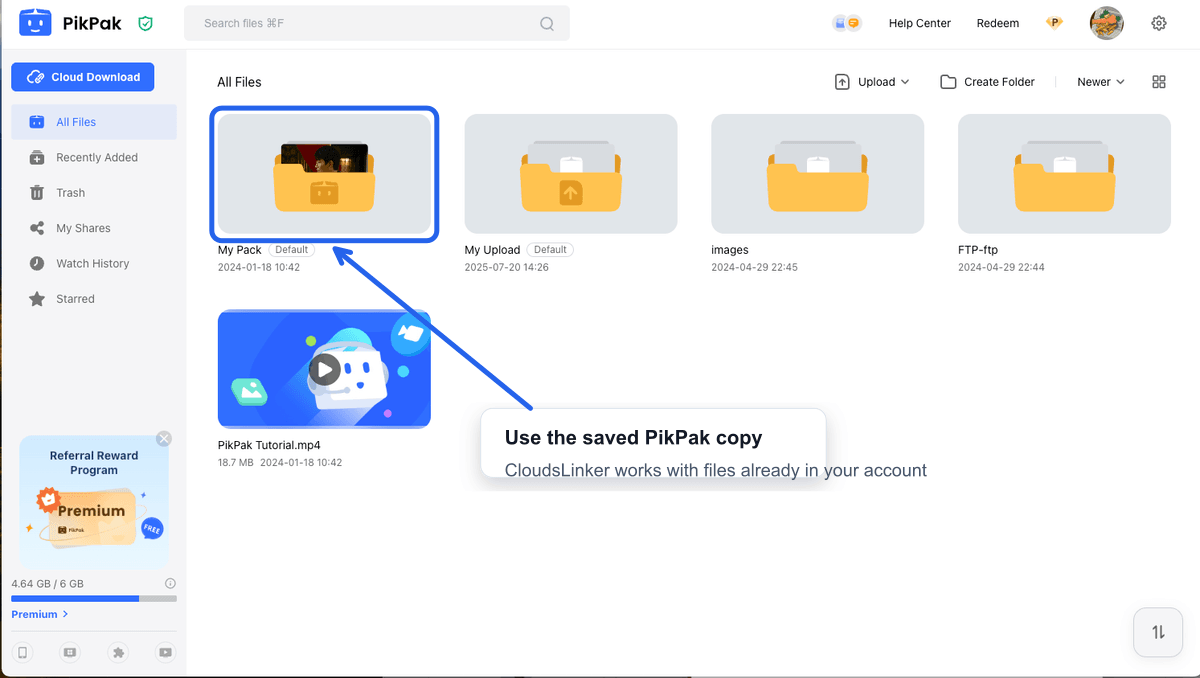
Step 1: Save the share into your PikPak
As in Method 1, open the shared link and use Save / Add to My Cloud so the shared files live in your own PikPak account. CloudsLinker works with your PikPak, not with the raw share link.
Step 2: (Optional) Prepare the WebDAV fallback
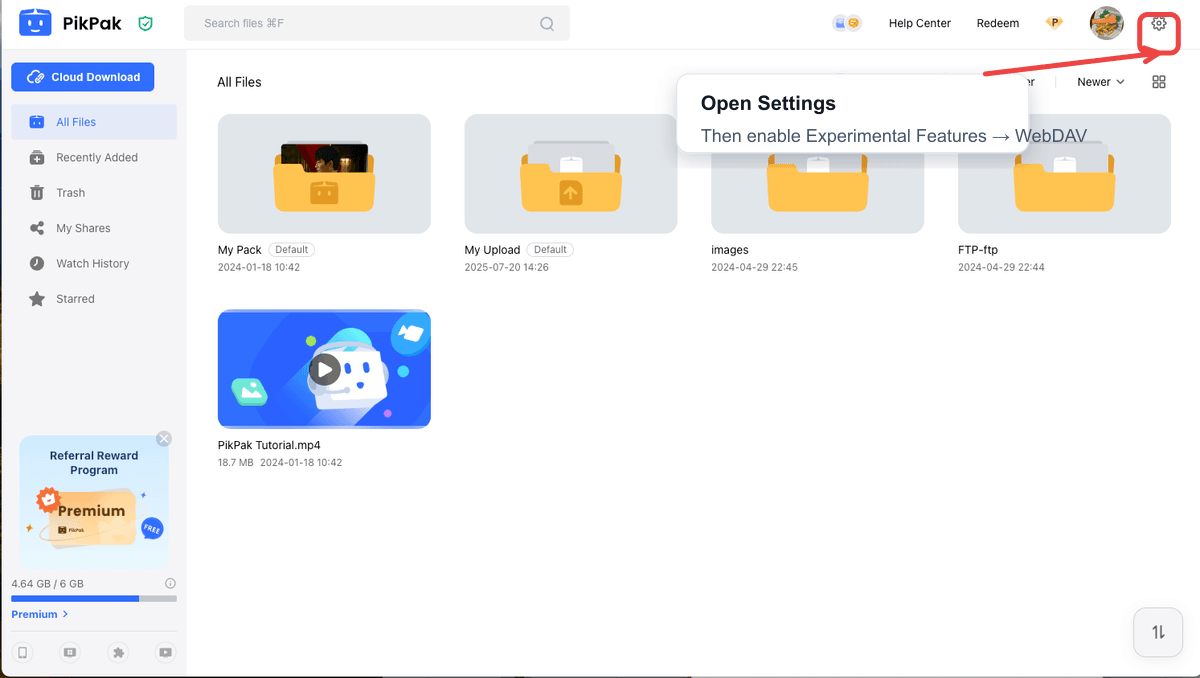
The direct connection in the next step usually just works. As a backup for the rare failure case, PikPak Premium members can open Settings → experimental features and enable WebDAV — PikPak generates dedicated credentials (separate from your normal login) to use with CloudsLinker's WebDAV method instead.
Step 3: Connect PikPak to CloudsLinker
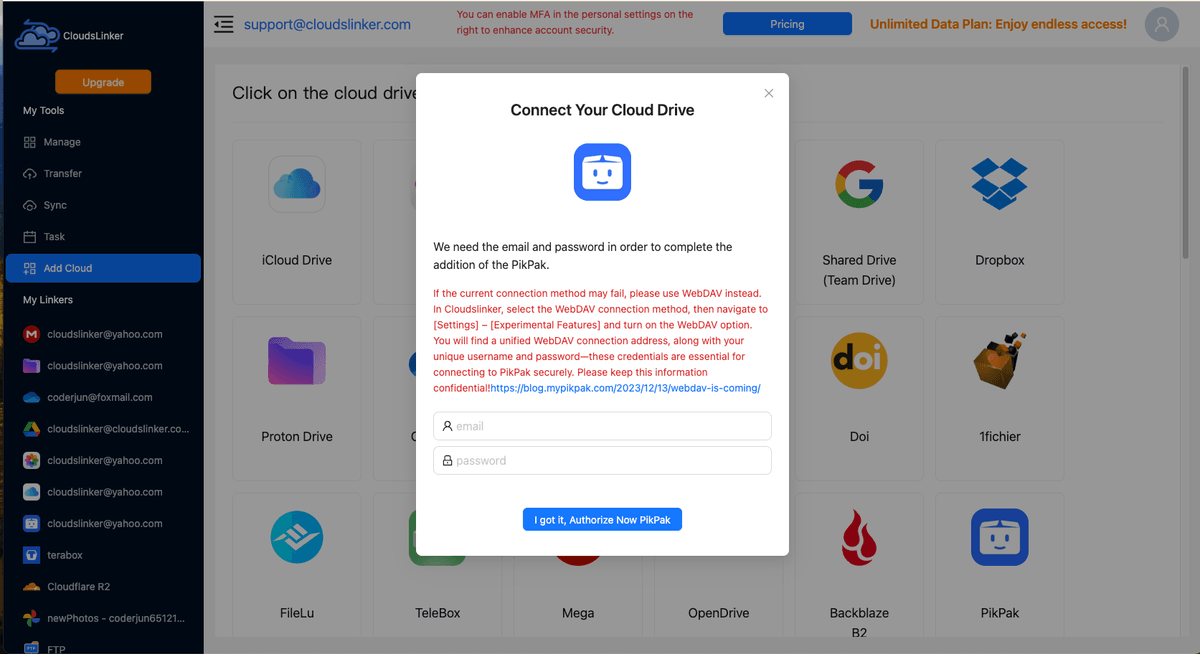
Sign in to CloudsLinker, click Add Cloud and choose PikPak. Enter your PikPak email and password to connect. If the direct connection fails, switch to the WebDAV method in CloudsLinker and use the dedicated WebDAV credentials prepared in the previous step.
Step 4: Connect your destination cloud
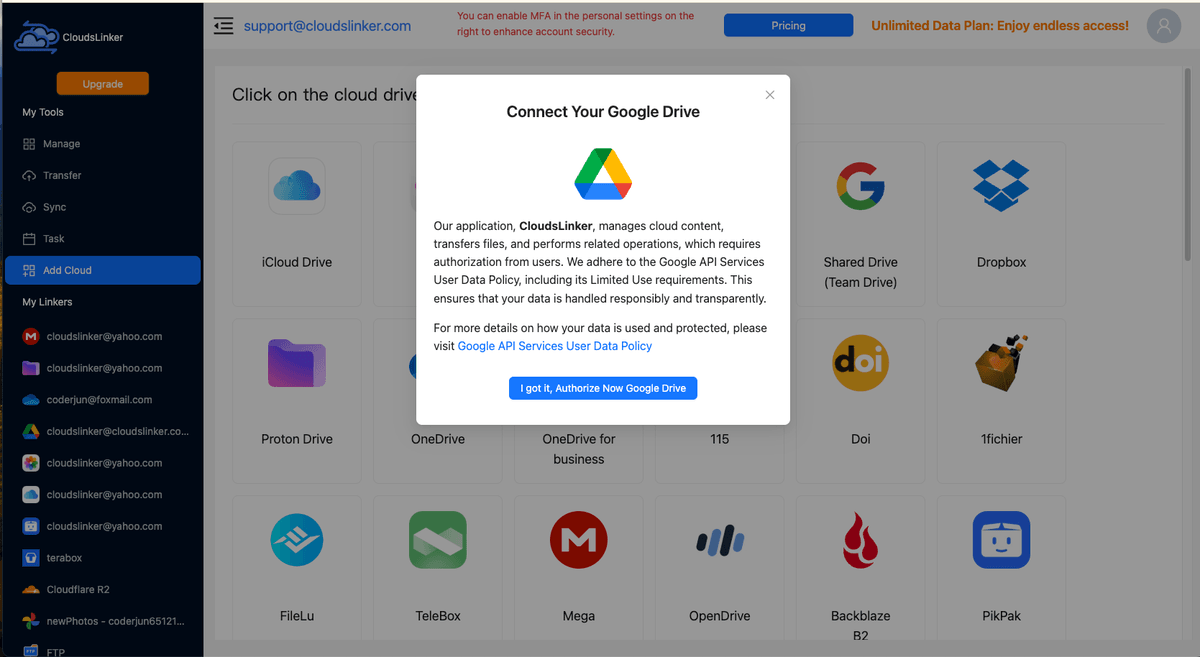
Click Add Cloud again and connect where the files should go — for example Google Drive or OneDrive via official OAuth, or an S3-compatible store with access keys.
Step 5: Configure and start the transfer
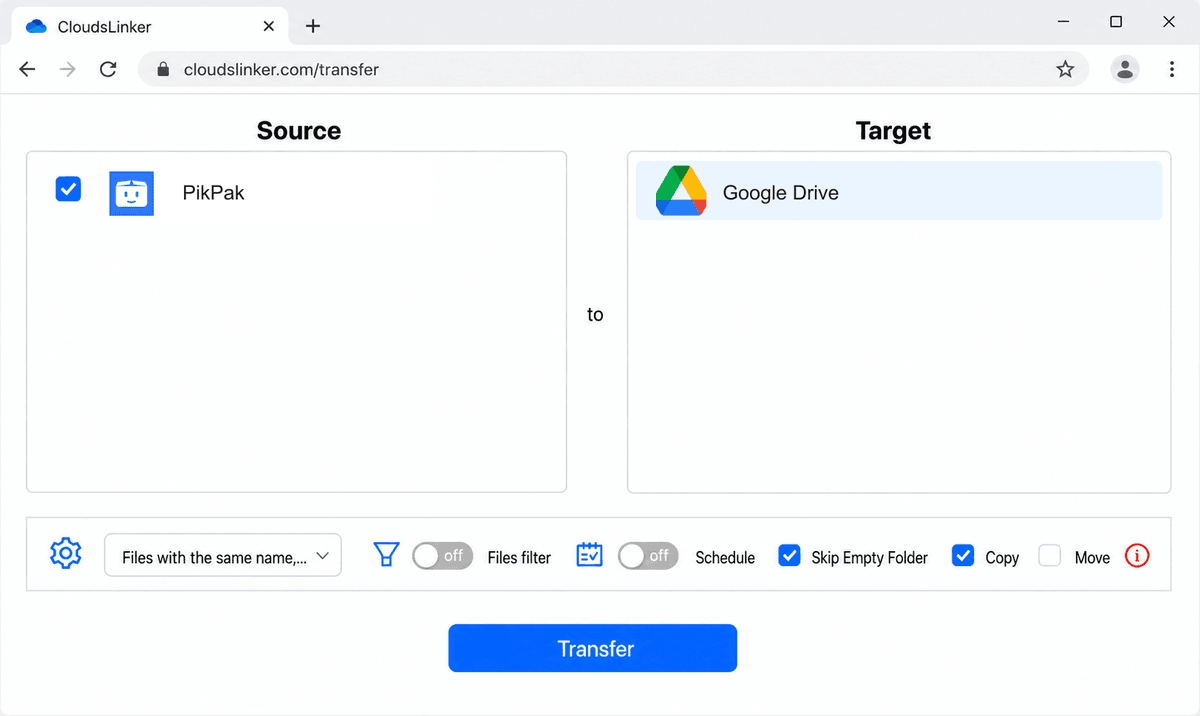
In the Transfer section, set PikPak as the source and browse to the saved shared folder; set your destination cloud and target directory. Optionally filter by file type (e.g. only videos), then start. Track progress in the Task List — the transfer runs in the cloud, so you can close the browser.
After You Save the Share
Verify the files landed correctly
Check the copy before relying on it or freeing space:
- Compare file counts: Confirm the number of files in the destination matches the saved PikPak folder, especially for large video sets.
- Spot-check a video: Open one or two videos in the destination cloud to confirm they play and are the full original files.
Free up PikPak space if needed
Once the content is safely in your own cloud, the saved share no longer has to sit in PikPak:
- Delete the saved folder from PikPak: Remove it from your PikPak to reclaim storage on a limited free account — your destination copy is independent.
- Keep the destination organized: Move the imported folder into a sensible location in Google Drive or OneDrive so you can find it later.
- Moving your whole PikPak library, not just one share?: The PikPak to Google Drive transfer guide covers a full-library migration — including Telegram-saved folders and PikPak's March 2026 inactive-account purge.
PikPak Shared Link — Frequently Asked Questions
Can I download from a PikPak shared link without an account?
How do I save a PikPak shared folder to my account?
What does 'Shared by' mean in PikPak, and where do those files actually live?
How do I move a folder shared by another PikPak user into Google Drive?
How do I download videos from a PikPak share?
Do PikPak share links expire?
Can I save PikPak shared files straight to Google Drive without downloading?
Is there a download speed or size limit on PikPak shares?
What kinds of PikPak links are there, and which ones can I download from?
How do I download a whole PikPak shared folder, not just one file?
Can I save files from a PikPak torrent or magnet link and move them to Google Drive?
How do I create and share a PikPak link myself?
How does CloudsLinker connect to PikPak?
Is this an official PikPak service?
Watch: Save PikPak Shared Links & "Shared by" Folders to Google Drive
A real-time walkthrough: opening a PikPak share, saving it to your own account, then copying the saved folder server-side into Google Drive with CloudsLinker — no local download involved.
Conclusion
For a couple of files, saving a PikPak share to your account and downloading from the web app is enough. For a large shared folder — especially videos — the local download is the slow part, and a free PikPak account can run out of space holding it. Saving the share and then copying it server-to-server into Google Drive or OneDrive with CloudsLinker skips both problems. Either way, save the shared content to your own PikPak first, since share links can expire or be removed by the person who created them.
Online Storage Services Supported by CloudsLinker
Transfer data between over 58 cloud services with CloudsLinker

OneDrive

Google Drive

Google Photos

Shared Drive

OneDrive for Business

Dropbox

Box

Mega

pCloud

Yandex

ProtonDrive

AWS

GCS

iDrive

Storj

DigitalOcean

Wasabi

1fichier

PikPak

TeleBox

OpenDrive

Backblaze B2

Fastmail file

SharePoint

Nextcloud

ownCloud

Premiumize me

HiDrive

Put.io

Sugar Sync

Jottacloud

Seafile

Ftp

SFtp

NAS

WebDav

4shared

Icedrive

Cloudflare R2

Scaleway

Hetzner Object Storage

Synology C2 Object Storage

S3 Compatible

Doi

iCloud Drive

iCloud Photos

FileLU

Zoho WorkDrive

Telia Cloud / Sky

Drime

Filen

TeraBox

Internxt

Degoo

Gofile

Pixeldrain

Shade

Koofr
Didn' t find your cloud service? Be free to contact: [email protected]
Further Reading
Effortless FTP connect to google drive: Transfer Files in 3 Easy Ways
Learn More >
Google Photos to OneDrive: 3 Innovative Transfer Strategies
Learn More >
Google Photos to Proton Drive: 3 Effective Transfer Techniques
Learn More >