TeleBox Links: How to Download or Save Files from a TeleBox Share (2026)
Found a TeleBox (Linkbox) shared link in a Telegram group or forum? Learn how to save it to your account, download the files, or copy them straight to Google Drive without a local download.
Introduction
TeleBox links are everywhere on Telegram: channels and forums pass files around as linkbox.to or telebox.online URLs because TeleBox uploads are free and links are easy to repost. Opening one usually shows a preview or a video player rather than the files themselves, and keeping the content follows the same pattern as other link-based drives — you save the share into your own TeleBox account first, then download it or move it somewhere permanent. That second step matters more here than on most services, because a new free TeleBox account starts with roughly 5 GB, and a single saved video folder can fill it at once. This guide covers both routes: saving and downloading inside TeleBox itself, and copying a saved share server-to-server into Google Drive or another cloud with CloudsLinker, connected with TeleBox's API token plus your account login, so nothing passes through your device.
Quick Navigation
Understanding TeleBox Share Links
TeleBox (formerly Linkbox) is a cloud storage service built around link sharing. Any file or folder can be turned into a public link, which is why telebox links circulate so widely in Telegram groups, Discord servers and forums — the uploader shares one URL and everyone with it can view the contents.
Opening a link is not the same as owning the files. TeleBox previews documents and streams video in the browser, and the dependable way to keep the contents is to save the share into your own TeleBox account first. From there you can download the files or move them to another cloud. Shares are only as permanent as their uploader: if the account, the link or the Telegram channel behind it is removed, the link dies with it.
How TeleBox Sharing Works
- One link, whole folders: A single TeleBox URL can point to one file or an entire folder of videos, archives and documents shared by another user.
- Save before you download: Keeping shared content reliably means adding it to your own TeleBox first, then downloading or transferring it.
- Telegram-first distribution: Most telebox links are found in Telegram channels and groups rather than sent person-to-person, so they can vanish when a channel is deleted.
- API token plus login: TeleBox shows an API token on your account page (linkbox.to/admin/account). Transfer tools such as CloudsLinker also sign in with your TeleBox email and password, because listing and downloading files needs that web login.
The Catch With Downloading Shares Locally
Saving a share into TeleBox takes one tap. Getting the files out to your device is where the friction starts, for two concrete reasons.
- Free space runs out fast: A new free TeleBox account starts with about 5 GB (invite and promo bonuses can raise it). One saved folder of videos can consume all of it before you finish downloading.
- Big files, home bandwidth: Multi-GB videos come down over your own connection, one file at a time — a large shared folder can occupy an evening.
Why Move a Saved TeleBox Share to Your Own Cloud
Instead of pulling a saved share down to your laptop, you can copy it directly into a cloud you already use — Google Drive, OneDrive, Dropbox, MEGA, pCloud or an S3 bucket. The transfer runs between the two services' servers, so your device, disk and bandwidth stay out of the job entirely.
For content that arrived through a Telegram link this is also the safer end state. Your copy in Google Drive is independent of the original uploader, immune to the share being taken down, and it stops occupying TeleBox's small free quota — Google Drive alone gives you 15 GB free, three times TeleBox's starting allowance.
What You Gain by Saving to Your Cloud
- No local download: Files move from TeleBox to the destination cloud server-to-server, without touching your device or its disk.
- A copy the uploader can't delete: Once the folder sits in your own Google Drive or OneDrive, removal of the original telebox link no longer affects you.
- Faster for video folders: Server-side transfer is not limited by your home connection, which is the bottleneck for GB-scale shares.
- Frees TeleBox's 5 GB: Moving saved content out immediately reclaims space on the small free tier, ready for the next share.
Best Destinations for Saved Shares
- Google Drive / OneDrive: 15 GB free on Google Drive and searchable, everywhere-synced storage make these the default choice for mixed shares.
- Dropbox / pCloud / MEGA: Good long-term homes for media collections you want to keep organized and revisit.
- S3 / Wasabi / Backblaze B2: Cheap object storage for archiving very large shared video sets you rarely open.
Download Locally or Save to Your Cloud?
Both routes begin identically — open the link and save the share into your own TeleBox. They part ways at the destination:
- Local download — for a few files: Save the share, open it in your TeleBox and download the items you need. Fine for documents and single videos.
- Save to your cloud — for whole folders: Copy the saved folder server-to-server into Google Drive or OneDrive instead of downloading gigabytes locally.
- Protect against dead links: Telegram channels and TeleBox accounts get removed; a copy in your own cloud survives that.
- Work around the 5 GB free tier: Routing shares onward keeps your small TeleBox quota free for saving the next link.
Use TeleBox's own download for small, immediate needs; use a server-to-server copy when the share is a folder you intend to keep — especially video, where local downloading is slowest.
Before You Start
Three minutes of setup prevents most dead ends:
- Create or sign in to a TeleBox account: Saving a share requires your own account. The free tier (about 5 GB to start) is enough to stage small and medium shares; sign up at telebox.online or in the app before opening the link.
- Save the share as soon as you open it: Use the Save option on the shared page to copy the file or folder into your TeleBox. Links found in Telegram groups are frequently taken down — save first, sort later.
- Pick where the files should live: For one or two files your device is fine. For folders, choose a destination cloud with room — Google Drive's free 15 GB covers most shares — and have that account ready to connect.
With the share saved into your TeleBox and a destination decided, continue with the method that matches your case.
How to Download or Save a TeleBox Shared Link
Method 1 stays inside TeleBox: save the share and download to your device. Method 2 connects your TeleBox to CloudsLinker with your API token and account login and copies the saved share straight into Google Drive or another cloud — no local download.
Method 1: Save and Download Through TeleBox
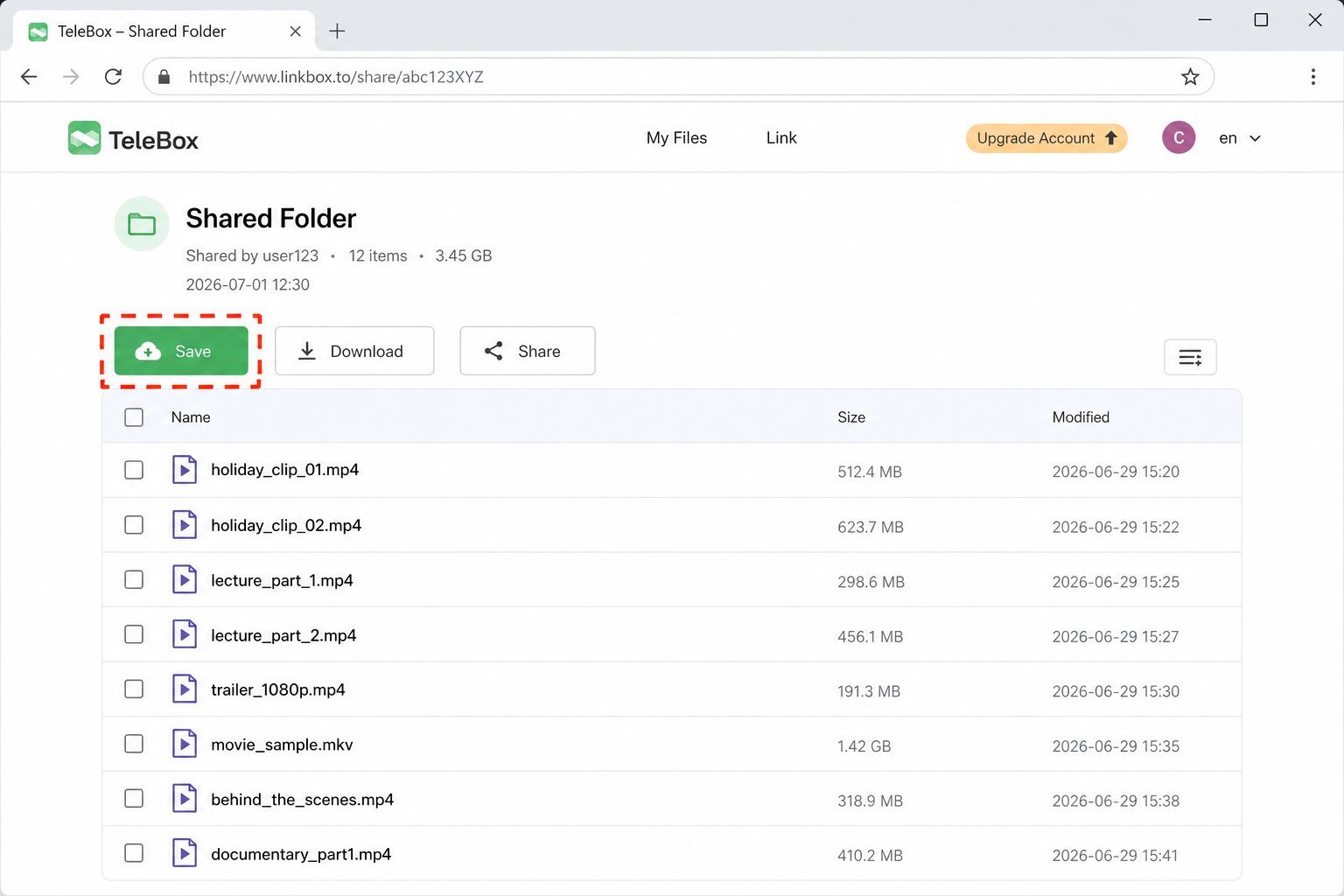
Step 1: Open the shared link and save it
Open the telebox link in your browser or the TeleBox app and sign in. Use Save to copy the shared file or folder into your own account. The share now lives in your TeleBox regardless of what happens to the original link.
Step 2: Find the saved files in your TeleBox
Open My Files and locate the folder you just saved. Videos may open in the built-in player when clicked — that is preview behavior, not the download. Select the files or the whole folder you want to keep.
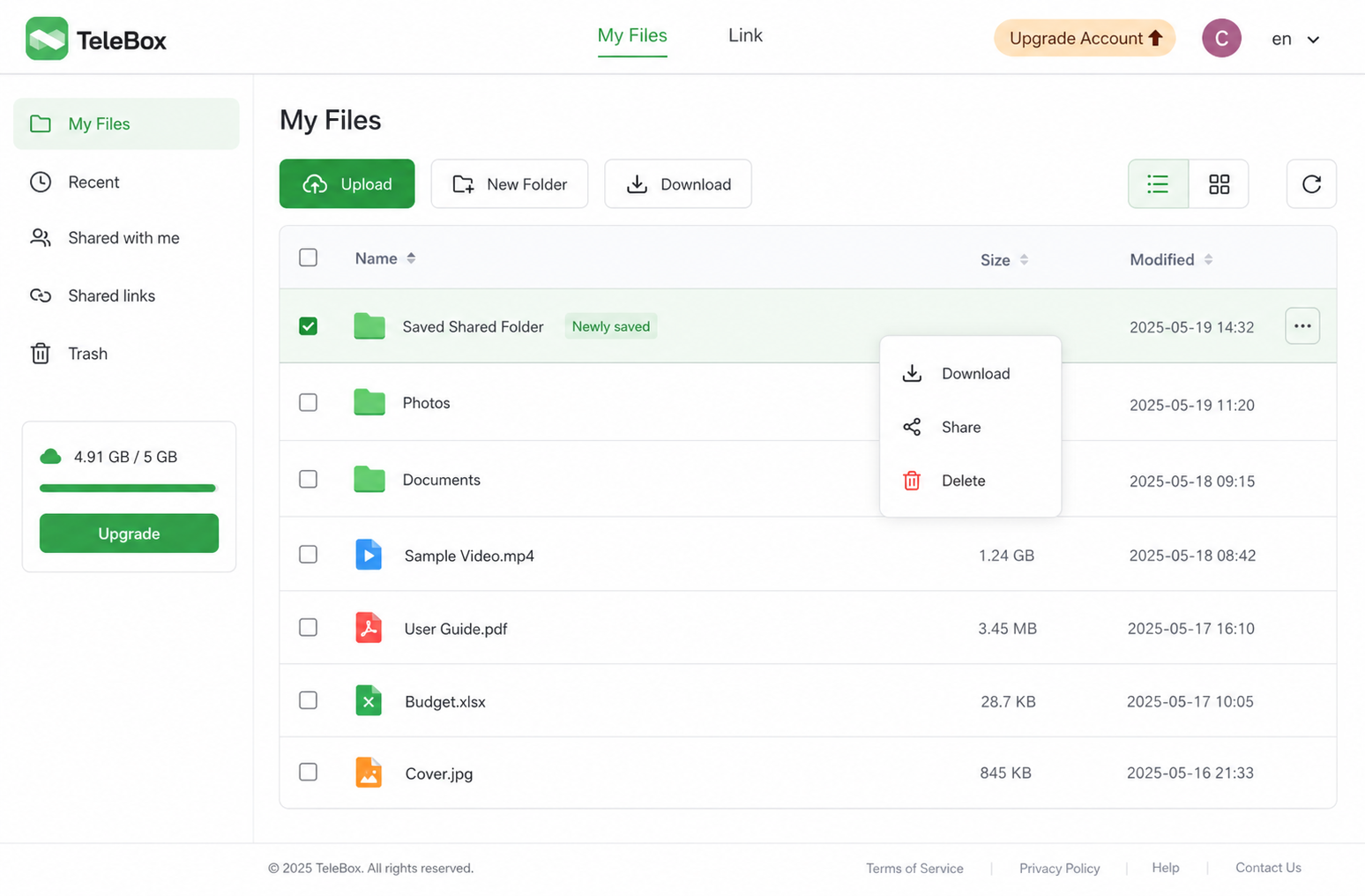
Step 3: Download to your device
Choose Download to pull the selected items to your device. On mobile, the app saves into its download area; on the web, files arrive through the browser one at a time.
Works well for a few files. For a large saved folder the limits stack up: every gigabyte crosses your home connection, and the saved share occupies your roughly 5 GB free quota the whole time. That combination is what Method 2 removes.
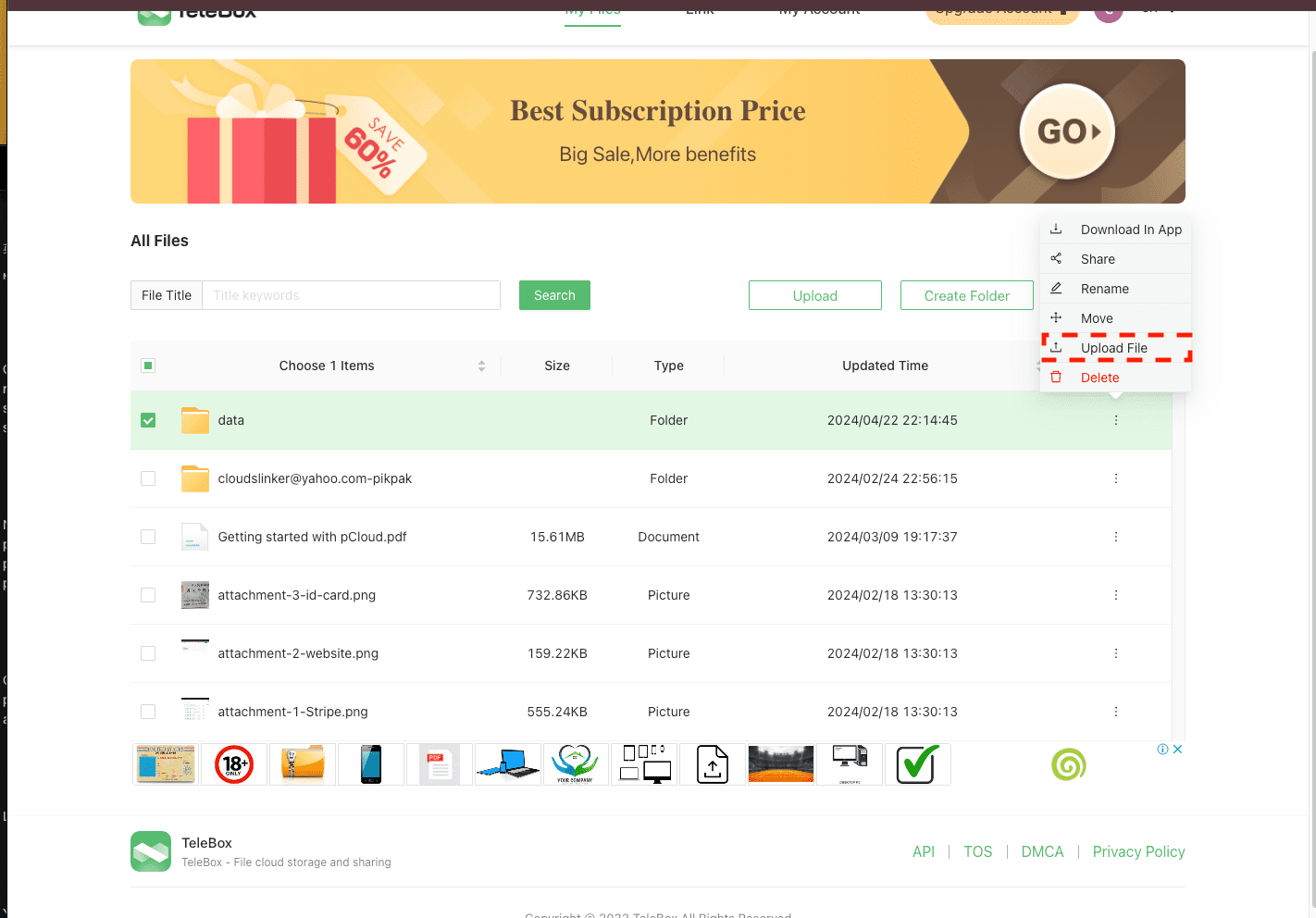
Method 2: Save a TeleBox Share Straight to Your Cloud with CloudsLinker
Token-and-login connection, server-to-server copy
CloudsLinker connects to TeleBox with the API token from your account page plus your TeleBox email and password (the password signs in to TeleBox's web API so downloads work) — no browser extension needed — and copies saved shares directly into Google Drive, OneDrive, Dropbox and 140+ other clouds. The transfer runs on CloudsLinker's servers, so a saved video folder leaves TeleBox without ever crossing your own connection, and the free tier's 10 GB of monthly transfer traffic covers a typical share.
Step 1: Save the share into your TeleBox
As in Method 1, open the telebox link and use Save so the shared folder exists in your own account. CloudsLinker reads your TeleBox files — it cannot open someone else's raw share URL directly.
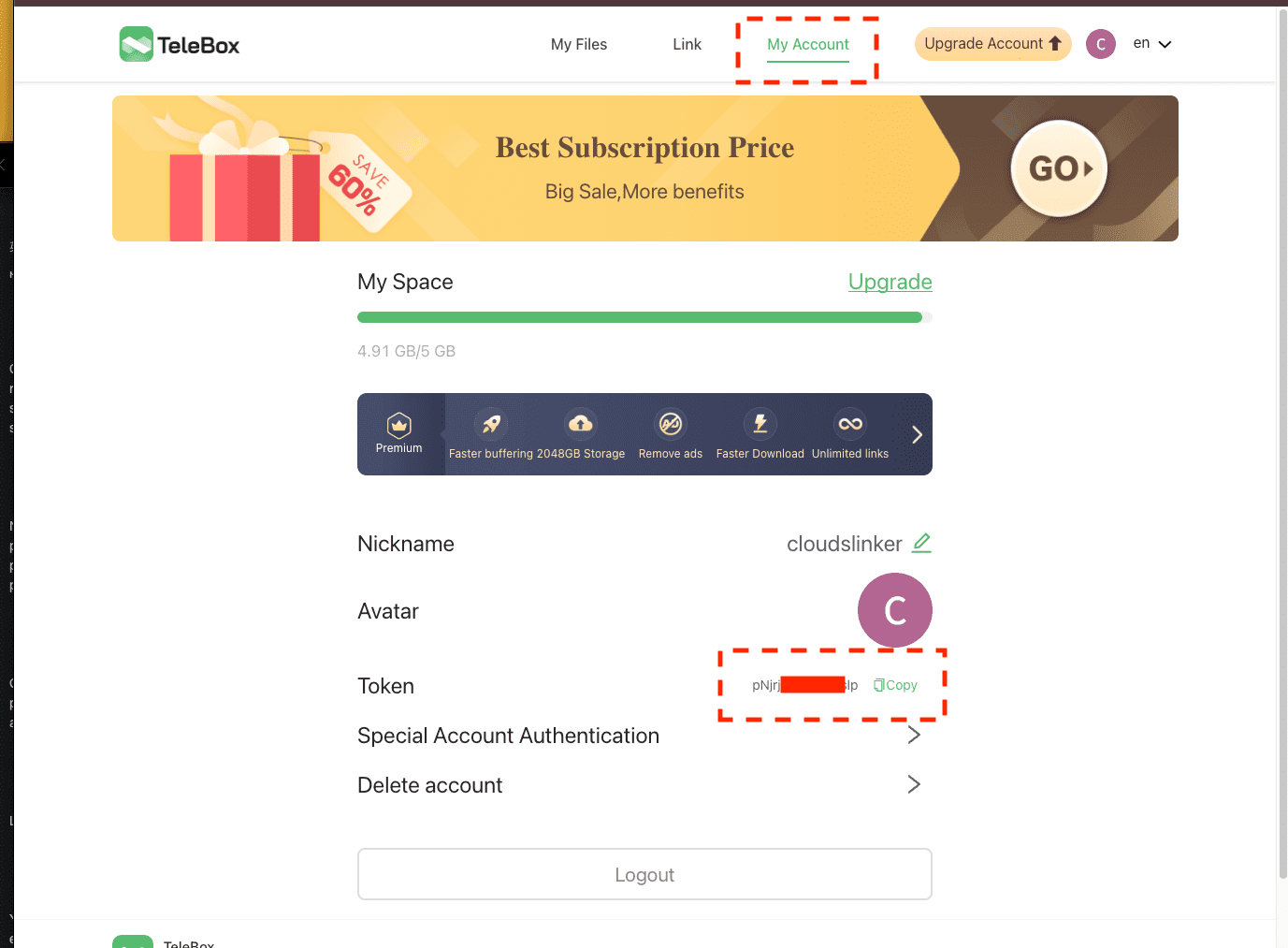
Step 2: Get your TeleBox API token
In TeleBox, open linkbox.to/admin/account, choose My Account and copy the value beside Token. Keep it private: together with your email and password it gives CloudsLinker access to your TeleBox files.
Step 3: Connect TeleBox to CloudsLinker
Sign in to CloudsLinker, click Add Cloud, choose TeleBox and enter a display name, the token, and your TeleBox account email and password. The dialog requires all three, and without the email and password file downloads fail. Your TeleBox file tree, including the saved share, appears in CloudsLinker.
Step 4: Connect your destination cloud
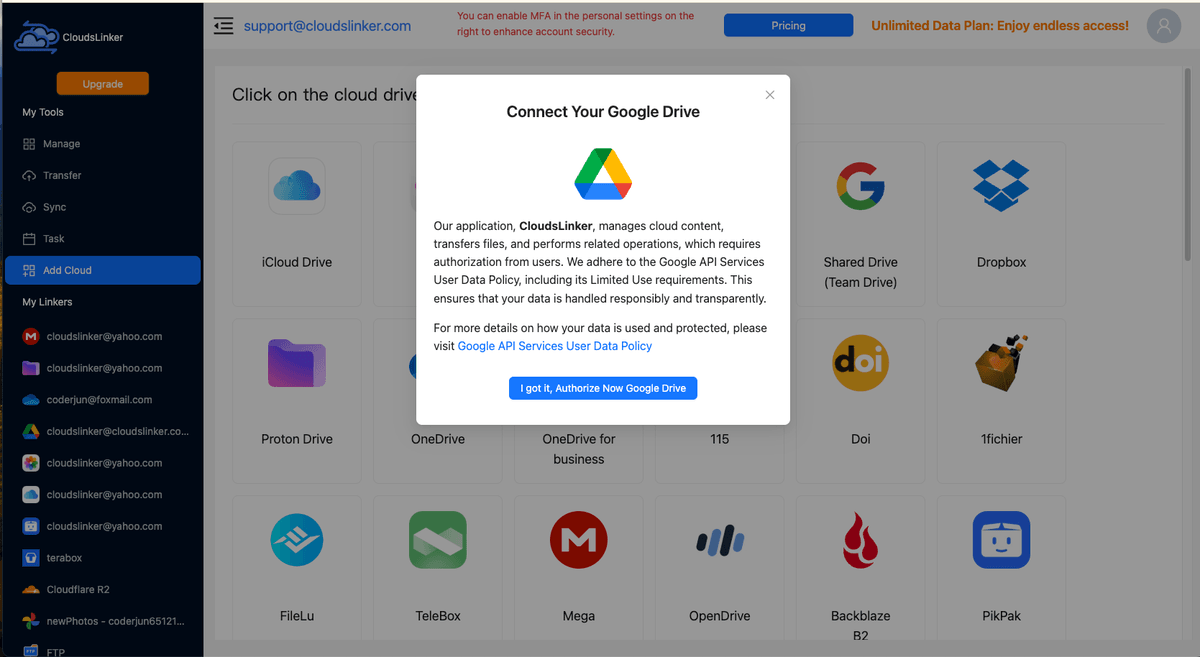
Click Add Cloud again and connect the target — Google Drive or OneDrive authorize through their official OAuth pages, S3-compatible stores take access keys. CloudsLinker never sees the destination password either way.
Step 5: Configure and start the transfer
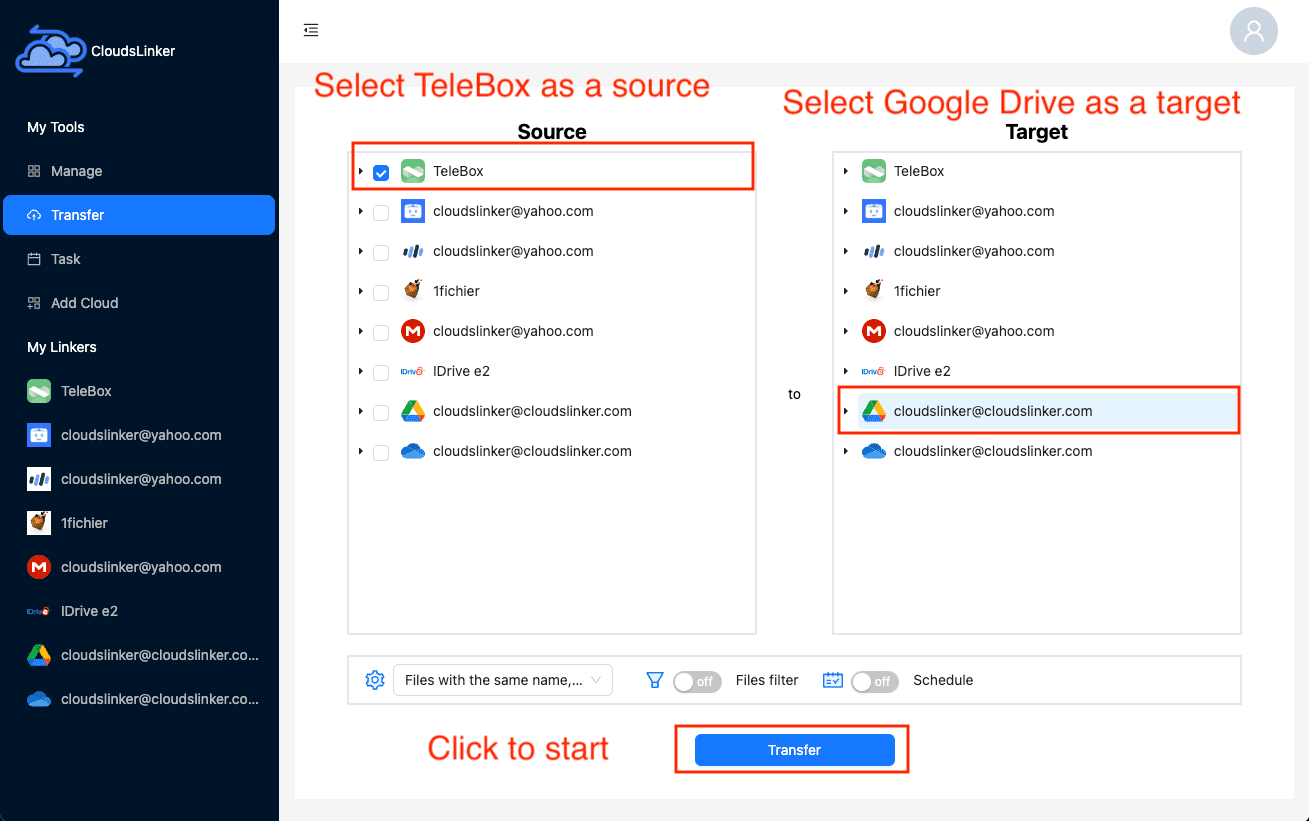
Open Transfer, set TeleBox as the source and browse to the saved shared folder; set the destination cloud and target directory. Filters let you take only certain file types — only the videos, for instance. Start the task and follow it in the Task List; it keeps running after you close the browser.
After You Save the Share
Verify the copy
Before deleting anything, confirm the destination received everything:
- Compare file counts: The destination folder should match the saved TeleBox folder item for item — worth checking on large video sets.
- Open one or two files: Play a video or open a document in the destination cloud to confirm the files are complete originals, not previews.
Reclaim your TeleBox space
The saved share has done its job once the copy is verified:
- Delete the saved folder from TeleBox: This frees your limited free-tier quota; the copy in your own cloud is unaffected.
- File the imported folder properly: Move it into a sensible place in Google Drive or OneDrive now — shares saved 'temporarily' have a way of becoming permanent clutter.
TeleBox Shared Link — Frequently Asked Questions
Can I download from a TeleBox link without an account?
How do I save a TeleBox shared link to my files?
Why do TeleBox links from Telegram stop working?
Is it safe to open TeleBox links?
What are TeleBox's storage limits, and what if a share doesn't fit?
Can I save TeleBox files straight to Google Drive without downloading them?
How does CloudsLinker connect to TeleBox?
Can I transfer only some files from a saved share?
Watch: Save TeleBox Links from Telegram Before They Disappear
A real-time walkthrough: opening a TeleBox (Linkbox) share from a Telegram group, saving it into your own account first, then connecting TeleBox to CloudsLinker with its API token and copying the saved folder server-side into Google Drive — no local download, and a copy that survives the channel being deleted.
Conclusion
A couple of documents from a TeleBox link are quickest to grab by saving the share and downloading from the web app. A multi-GB video folder is a different job: the local download is slow, and a 5 GB free TeleBox account may not even hold the saved share for long. Copying the saved content server-to-server into Google Drive or OneDrive with CloudsLinker sidesteps both limits, and the connection (an API token plus your TeleBox login) takes a few minutes to set up. Whichever route you choose, save the share into your own TeleBox as soon as you open it — links that circulate through Telegram channels have a habit of disappearing when the uploader or the channel gets removed.
Online Storage Services Supported by CloudsLinker
Transfer data between over 58 cloud services with CloudsLinker

OneDrive

Google Drive

Google Photos

Shared Drive

OneDrive for Business

Dropbox

Box

Mega

pCloud

Yandex

ProtonDrive

AWS

GCS

iDrive

Storj

DigitalOcean

Wasabi

1fichier

PikPak

TeleBox

OpenDrive

Backblaze B2

Fastmail file

SharePoint

Nextcloud

ownCloud

Premiumize me

HiDrive

Put.io

Sugar Sync

Jottacloud

Seafile

Ftp

SFtp

NAS

WebDav

4shared

Icedrive

Cloudflare R2

Scaleway

Hetzner Object Storage

Synology C2 Object Storage

S3 Compatible

Doi

iCloud Drive

iCloud Photos

FileLU

Zoho WorkDrive

Telia Cloud / Sky

Drime

Filen

TeraBox

Internxt

Degoo

Gofile

Pixeldrain

Shade

Koofr
Didn' t find your cloud service? Be free to contact: [email protected]
Further Reading
Effortless FTP connect to google drive: Transfer Files in 3 Easy Ways
Learn More >
Google Photos to OneDrive: 3 Innovative Transfer Strategies
Learn More >
Google Photos to Proton Drive: 3 Effective Transfer Techniques
Learn More >