Dropbox to Internxt: Move to Cheaper, Zero-Knowledge Storage (2026)
Leave Dropbox's recurring fees for Internxt's lifetime, post-quantum encrypted storage. Compare a manual browser move with a direct cloud-to-cloud transfer.
Introduction
Two things tend to push people off Dropbox: the price of the 2 TB Plus plan billed every year, and the fact that Dropbox can access your files. Internxt answers both — it sells stackable lifetime plans (a one-time €135–€585) and encrypts everything under zero-knowledge AES-256 with an added Kyber-512 post-quantum layer, so the provider can never read your data. If you are consolidating a long-term archive rather than a shared working folder, moving it from Dropbox to Internxt trades a subscription you keep paying for a vault you own outright. Below are two ways to do the move: a manual browser transfer and a direct cloud-to-cloud method.
Quick Navigation
Overview of Dropbox
Dropbox is one of the longest-running consumer cloud services, known for reliable file sync, polished desktop and mobile apps, and features like Smart Sync and shared team folders. Its paid plans start at 2 TB (Plus) and scale up for families and businesses, billed monthly or annually.
Where Dropbox is less competitive is price-per-terabyte and privacy. The 2 TB plan is expensive next to lifetime-storage rivals, and Dropbox — like most mainstream clouds — holds the encryption keys, so files are not zero-knowledge. Both gaps are what draw archive-focused users toward Internxt.
Key Features of Dropbox
- Dependable sync: Block-level sync and a mature desktop client make Dropbox fast at keeping folders mirrored across devices.
- Sharing and collaboration: Shared folders, file requests and Paper docs support team workflows.
- Smart Sync: Keep files online-only to save local disk space while still seeing them in your file manager.
- Wide integrations: Connects with Slack, Zoom, Office and hundreds of apps through the Dropbox API.
Where Dropbox Falls Short
Dropbox is convenient for shared, active files, but it is a recurring expense and not a zero-knowledge service.
- Subscription-only pricing: There is no lifetime option; you pay every year to keep the same storage, unlike Internxt's one-time plans.
- Provider-held keys: Dropbox can access file contents for indexing and policy enforcement; ordinary files are not end-to-end encrypted.
Why Internxt as the Destination
Internxt is an open-source, Spain-based cloud that encrypts files on your device before upload. Under its zero-knowledge model, passwords and keys never reach Internxt's servers in readable form, and in 2024 it became the first consumer cloud to add Kyber-512 post-quantum encryption on top of AES-256.
For cost, Internxt's lifetime plans are the draw: a one-time €135–€585 buys up to 5 TB that never renews, and plans stack to 100 TB. The free tier is 1 GB. The one caveat for migration is that rclone/API access — what transfer tools use — is limited to the Ultimate plan.
What Sets Internxt Apart
- Lifetime, no renewals: A one-time payment replaces Dropbox's annual bill — attractive for data you keep for years.
- Post-quantum encryption: Kyber-512 over AES-256 guards against future quantum decryption, a first among consumer clouds.
- Zero-knowledge storage: Files are encrypted client-side; Internxt cannot read them, unlike standard Dropbox.
- Open source and audited: Public client code on GitHub and a 2024 Securitum audit back up the privacy claims.
Benefits of Switching to Internxt
- Lower long-term cost: A lifetime plan ends recurring Dropbox fees for cold archive data you rarely change.
- Real privacy: Zero-knowledge encryption makes your files unreadable to the provider.
- EU data protection: Internxt operates under Spanish and EU GDPR rules.
Why Move from Dropbox to Internxt?
Migrating an archive off Dropbox changes both your bill and your privacy posture:
- Stop renewing: Replace Dropbox's annual charge with a one-time lifetime plan for long-term storage.
- Encrypt against the provider: Internxt's zero-knowledge model removes Dropbox's ability to read your files.
- Future-proof archives: Kyber-512 protects data you expect to keep well into the quantum era.
- Verifiable security: Open-source code lets you confirm how encryption works instead of trusting a black box.
Keep Dropbox for the shared folders your team edits daily, but for a private long-term archive, Internxt's lifetime pricing and encryption make the move worthwhile.
Preparing to Transfer from Dropbox to Internxt
Handle Internxt's plan and file-size rules before you begin:
- Upgrade to Internxt Ultimate: rclone access is Ultimate-only (annual or lifetime). Free, Essential and Premium accounts are blocked with a 'rclone access not allowed for this user tier' error, so upgrade before connecting any tool.
- Confirm enough storage: Check that your Internxt plan covers your Dropbox data. Ultimate is 5 TB; stack a lifetime plan for more.
- Split files over 40 GB: Internxt's rclone path caps single files at 40 GB. Archive or divide larger files first.
With Ultimate active and oversized files handled, either method below will complete cleanly.
How to Transfer Files from Dropbox to Internxt
The first method is a manual browser transfer; the second uses CloudsLinker to move files directly between the clouds.
Method 1: Manual Download and Upload via Browser
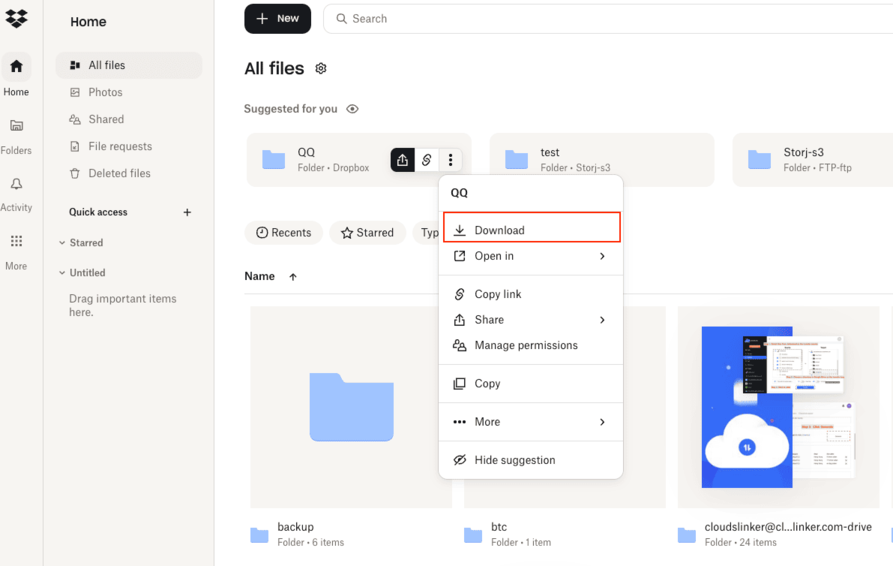
Step 1: Download from Dropbox
Sign in to Dropbox, select the files or folders to move, and choose Download. Folders download as ZIP archives; extract them once saved.
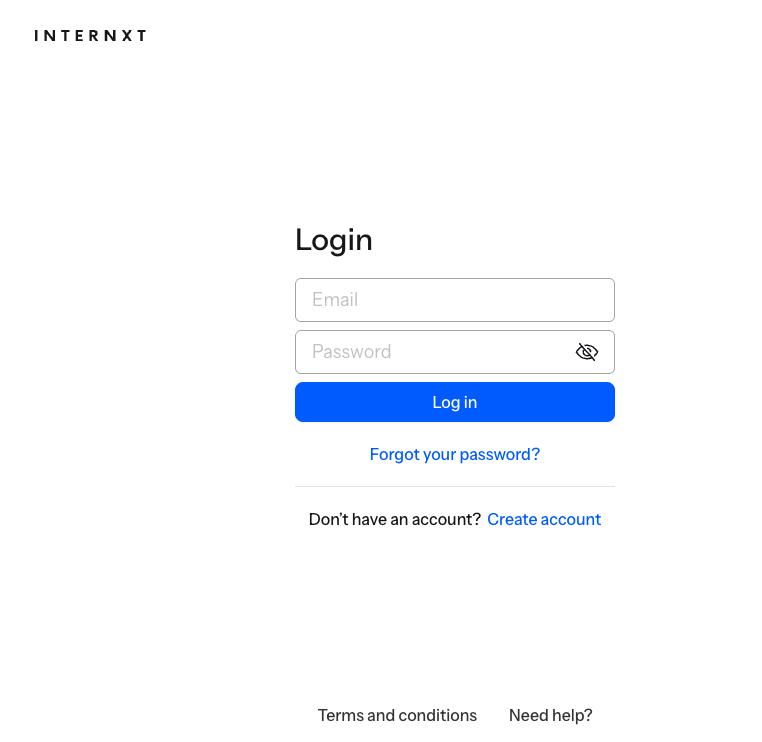
Step 2: Sign in to Internxt
Open drive.internxt.com and log into your Ultimate account. Turn on two-factor authentication if you have not yet.
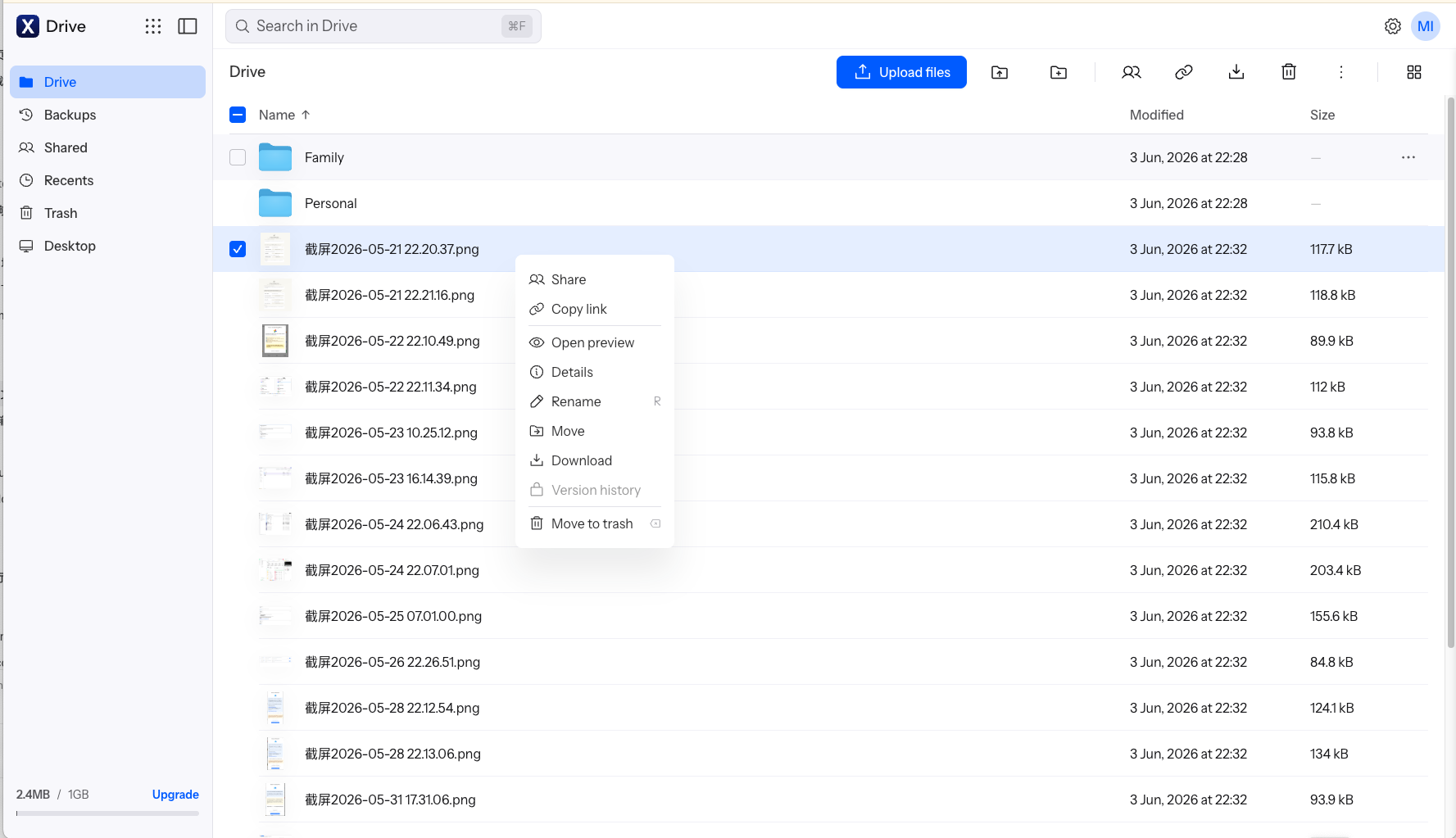
Step 3: Upload to Internxt
Drag the downloaded files into the Internxt web app or use the upload button. Files are encrypted in the browser before leaving your device; the web uploader accepts up to 40 GB per file. Upload in batches for large sets.
No extra software is needed, but each file is routed through your computer, so a large Dropbox account can take hours or days depending on your connection speed.
Method 2: Transfer Dropbox to Internxt Directly with CloudsLinker
Cloud-to-cloud transfer without local downloads
CloudsLinker copies files directly between Dropbox and Internxt on the server side. Nothing routes through your device, and the transfer continues after you close the browser.
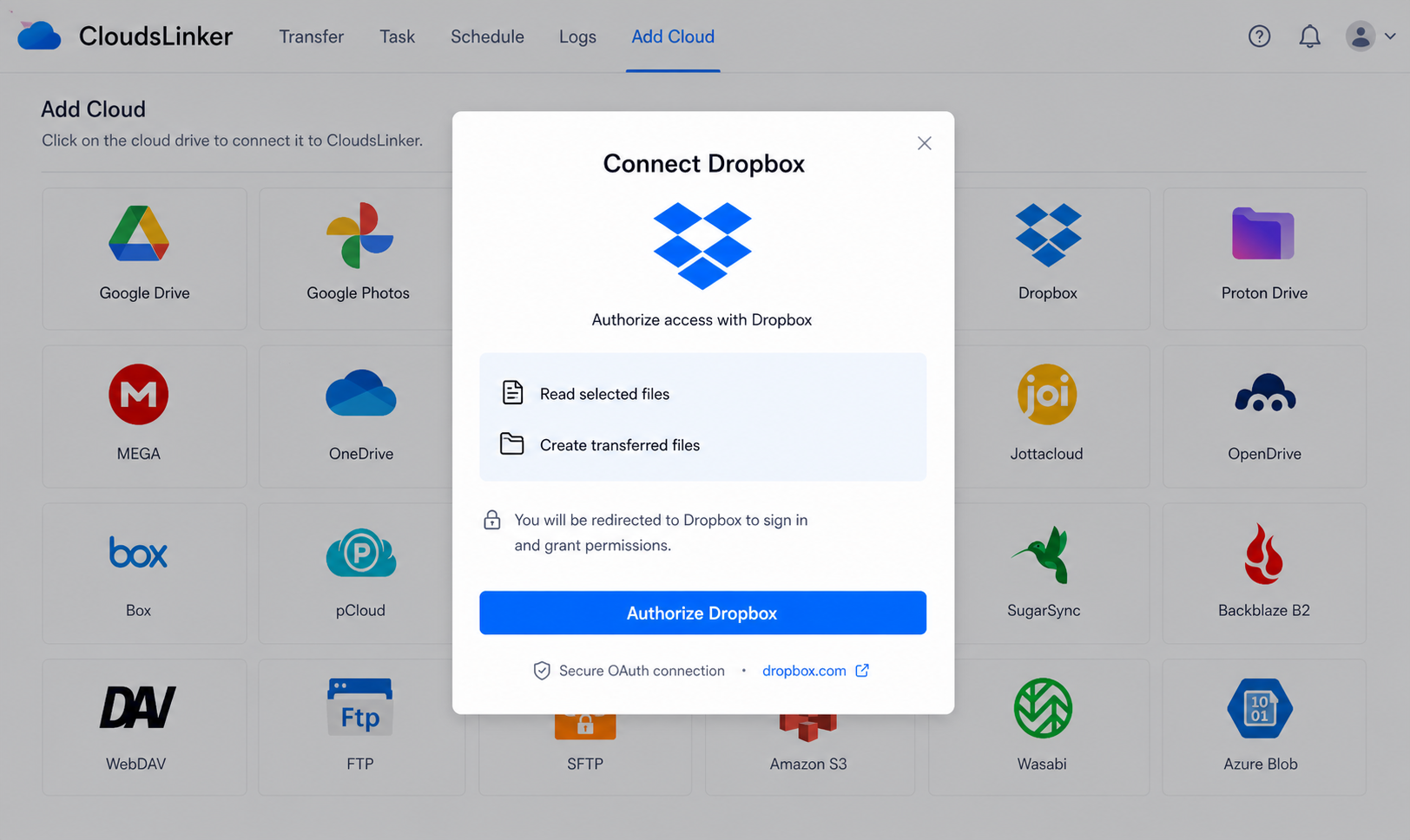
Step 1: Connect Dropbox
Sign in to CloudsLinker, click Add Cloud and choose Dropbox. You are redirected to Dropbox's official page at www.dropbox.com to authorize access, then returned to CloudsLinker.
Step 2: Connect Internxt
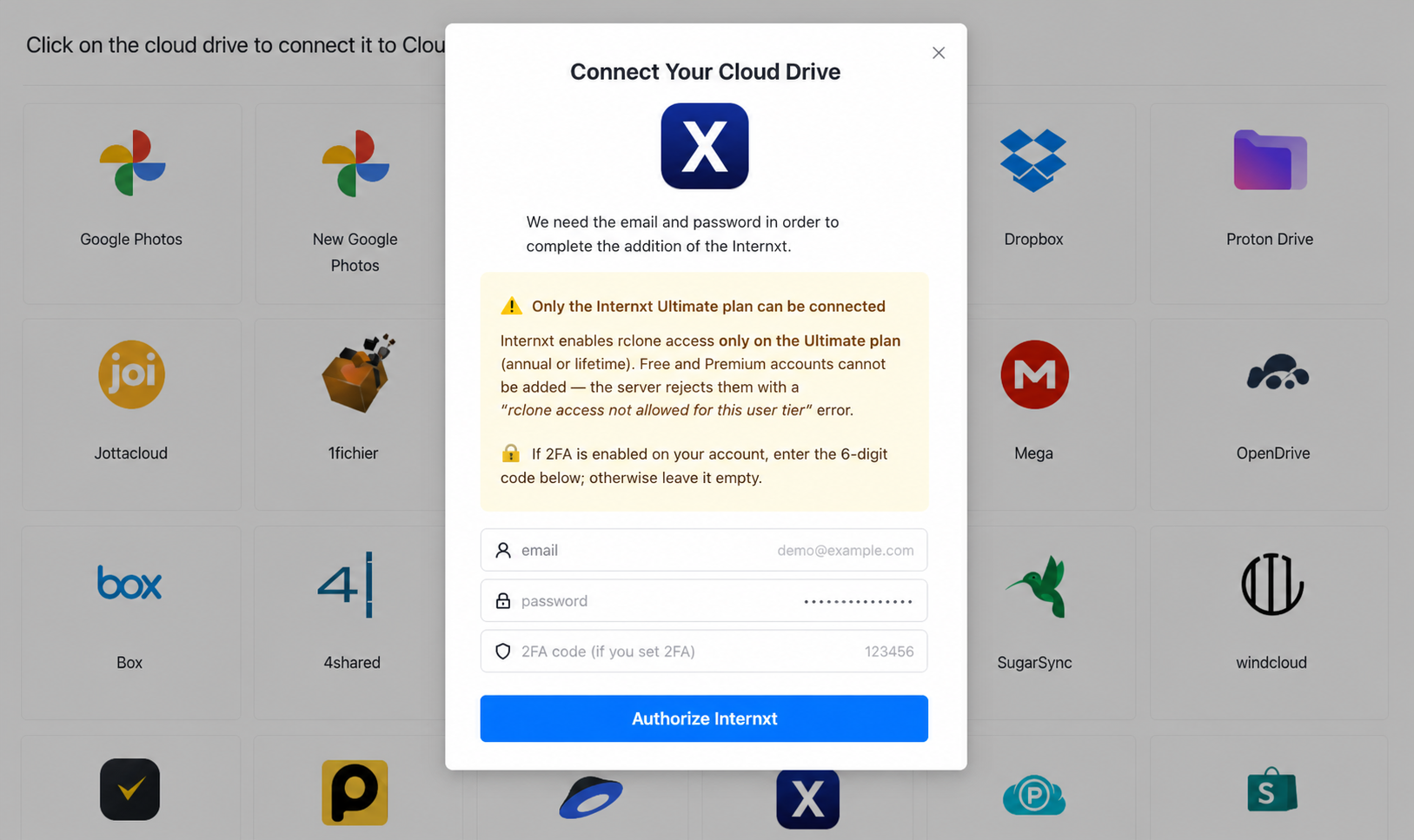
Click Add Cloud again, select Internxt, and enter your account email and password plus a 6-digit 2FA code if enabled. The account must be on Ultimate, or the connection is refused.
Step 3: Configure the transfer
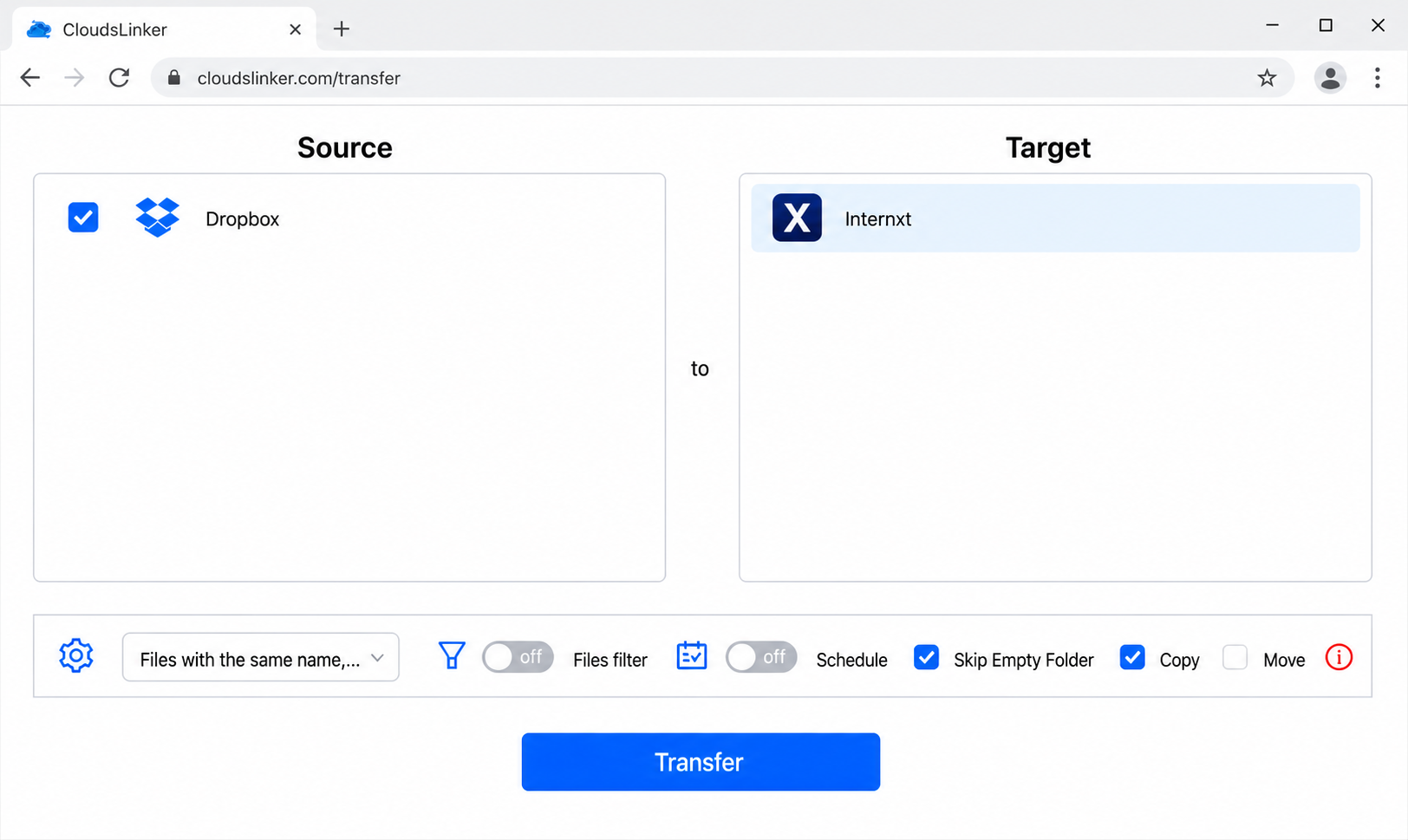
In the Transfer section, set Dropbox as the source and pick the folders to move; set Internxt as the destination. Apply optional type or date filters and choose Copy or Move.
Step 4: Start and monitor
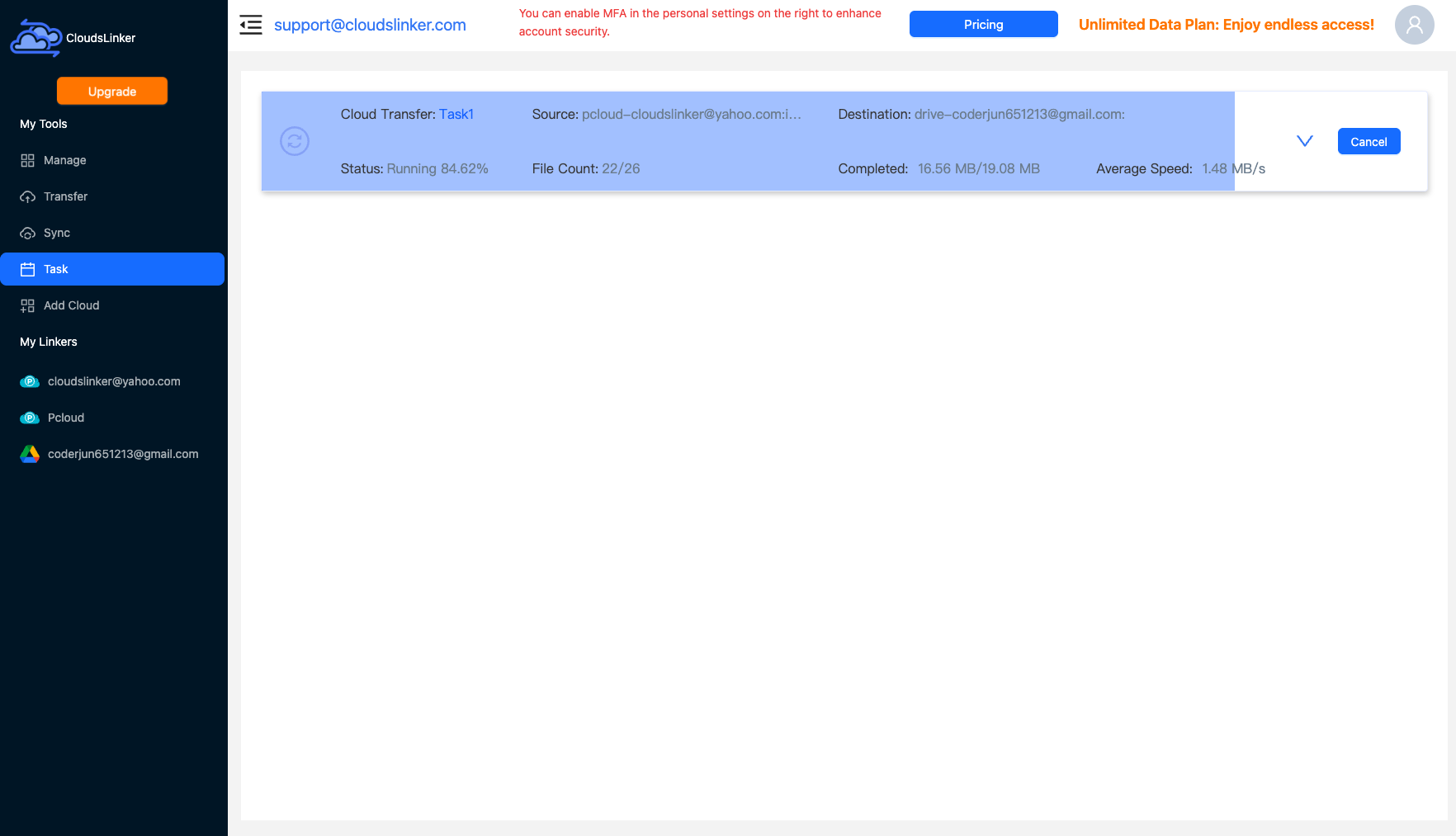
Begin the job and watch progress in the Task List. The transfer runs entirely in the cloud, so you can close your laptop while it finishes.
After Moving to Internxt
Confirm and tidy up
Verify the data before cancelling any Dropbox subscription:
- Compare folder counts: Check a sample of folders in Internxt against Dropbox to confirm a complete copy.
- Cancel or downgrade Dropbox: Once verified, drop the Dropbox plan you no longer need to capture the cost saving.
Secure the account
Protect the archive now living in Internxt:
- Enable 2FA: Add two-factor authentication in Internxt settings.
- Back up your mnemonic: Zero-knowledge means a lost recovery phrase equals lost files; store it offline.
Dropbox to Internxt — Frequently Asked Questions
Why is Internxt cheaper than Dropbox over time?
Do I need Internxt Ultimate to transfer in?
What is the maximum file size when moving to Internxt?
Is my folder structure preserved?
Can Dropbox still read files after the move?
How is the Dropbox connection secured?
Conclusion
Manual download-and-upload works for a handful of files but stalls on a large Dropbox account, and Internxt's rclone path limits single files to 40 GB. For anything beyond a few gigabytes, a direct CloudsLinker transfer is faster and runs on its own. Whichever you choose, upgrade to an Internxt Ultimate plan first — it is the only tier that allows the rclone access these tools rely on.
Online Storage Services Supported by CloudsLinker
Transfer data between over 58 cloud services with CloudsLinker

OneDrive

Google Drive

Google Photos

Shared Drive

OneDrive for Business

Dropbox

Box

Mega

pCloud

Yandex

ProtonDrive

AWS

GCS

iDrive

Storj

DigitalOcean

Wasabi

1fichier

PikPak

TeleBox

OpenDrive

Backblaze B2

Fastmail file

SharePoint

Nextcloud

ownCloud

Premiumize me

HiDrive

Put.io

Sugar Sync

Jottacloud

Seafile

Ftp

SFtp

NAS

WebDav

4shared

Icedrive

Cloudflare R2

Scaleway

Hetzner Object Storage

Synology C2 Object Storage

S3 Compatible

Doi

iCloud Drive

iCloud Photos

FileLU

Zoho WorkDrive

Telia Cloud / Sky

Drime

Filen

TeraBox

Internxt

Degoo

Gofile

Pixeldrain

Shade

Koofr
Didn' t find your cloud service? Be free to contact: [email protected]
Further Reading
Effortless FTP connect to google drive: Transfer Files in 3 Easy Ways
Learn More >
Google Photos to OneDrive: 3 Innovative Transfer Strategies
Learn More >
Google Photos to Proton Drive: 3 Effective Transfer Techniques
Learn More >