Is PikPak Safe? An Honest Look at Its Security, Privacy and Risks (2026)
PikPak is a legitimate Singapore-registered cloud service — but it is not end-to-end encrypted. What that means for your files, how to use it safely, and when to keep a backup elsewhere.
Introduction
PikPak sits in an odd trust position: it is genuinely popular for cloud downloads and video storage, yet most people first meet it through a link in a Telegram group, which is exactly the kind of introduction that makes you ask whether the service itself is safe. The short answer: PikPak is a legitimate, Singapore-registered cloud service with real infrastructure, a published transparency report and standard account security — it is not a scam. It is also not end-to-end encrypted, which means it is the wrong place for sensitive personal documents and a fine place for media libraries and cloud downloads. This page walks through what checks out, what to be careful about, how to lock down an account, and how to keep an independent backup of anything in PikPak you would mind losing.
Quick Navigation
Is PikPak Safe? The Short Answer
PikPak is operated by a Singapore-registered company and has run for years at consumer scale, with millions of users, published legal terms and a privacy policy. Independent site checkers such as ScamAdviser rate its domains as legitimate. Nothing about the service's structure resembles a scam: you get what the plans describe — 6 GB free (expandable through tasks and referrals) and a Premium tier with 10 TB at roughly $4/month on the yearly plan.
The honest limitation is the privacy model. PikPak does not offer client-side or end-to-end encryption: files are encrypted in transit and on PikPak's servers, but the company holds the keys and can technically access content — the same model as Google Drive or Dropbox. Its transparency report (covering July 2024–June 2025) states that privately stored files sit outside proactive monitoring, which is reassuring for everyday use but is a policy, not a mathematical guarantee.
What Checks Out
- A real, registered operator: Singapore-registered company with published terms, a privacy policy and a transparency report — verifiable, not anonymous.
- No proactive scanning of private files: Per its transparency report, privately stored content is outside the scope of routine monitoring.
- Revocable access everywhere: Third-party connections run through tokens or dedicated WebDAV credentials you can invalidate without changing your main password.
- Positive third-party signals: ScamAdviser and similar checkers rate pikpak.com and mypikpak.com as legitimate, with valid certificates.
Where to Be Careful
None of these make PikPak unsafe — they define what it is safe for.
- No end-to-end encryption: PikPak can technically access stored content and must comply with lawful requests. Sensitive personal documents belong in an E2E service instead.
- What you download is on you: Much PikPak content arrives from Telegram links and torrents. The storage is safe; an executable from an anonymous uploader is exactly as risky as it would be anywhere else.
What PikPak Is — and Isn't — the Right Place For
Used as designed, PikPak is a media vault: it fetches magnet links and Telegram files server-side, streams video well, and Premium's 10 TB absorbs large collections cheaply. For that job its security posture is entirely adequate — account credentials, encrypted transport, revocable integrations.
It is the wrong single home for anything irreplaceable. That is less about PikPak specifically than about any single cloud account: a lockout, a payment lapse on a free tier that expires content, or a policy change can separate you from your files. The fix is the same as everywhere — keep a second copy under your own control, which the backup method below automates.
Safe-Use Rules of Thumb
- Media and downloads: yes: Video libraries, cloud-fetched torrents and Telegram saves are the designed use case, and the 10 TB Premium tier is priced for it.
- Sensitive documents: no: IDs, contracts, tax records and anything confidential belong in an end-to-end encrypted service, not a standard-encryption cloud.
- Treat shares as untrusted: Opening a shared link previews safely in the browser; executables and archives from unknown uploaders deserve normal download hygiene.
- Back up what you'd miss: A saved collection that took months to assemble deserves a copy in a second cloud, independent of the PikPak account.
Related PikPak Guides
- Working with PikPak shares: How to save and download files from a PikPak shared link: the full walkthrough.
- Moving files out: Migrating a PikPak library to Google Drive step by step: transfer guide.
- Everything PikPak: Connection details, limits and all related tutorials on the PikPak support page.
Should Your Only Copy Live in PikPak?
The question behind 'is PikPak safe' is usually 'can I trust it with things I'd hate to lose'. Split that into the two risks that actually matter:
- Service risk — low: A registered operator with years of operation and transparency reporting is unlikely to vanish overnight. This risk is real but small.
- Account risk — the one to manage: Lockouts, credential leaks reused from other sites, and free-tier limits are far more common ways to lose access than the company failing.
- Privacy risk — know the model: Standard server-side encryption means PikPak could access content under legal compulsion. Store accordingly.
- The universal mitigation: A second copy in an unrelated account (Google Drive, OneDrive, an S3 bucket) neutralizes account risk regardless of what happens to PikPak.
Use PikPak freely for what it is good at; manage the account like any account that matters; and let a periodic server-to-server backup make the whole question boring.
Lock Down Your PikPak Account
Three settings-level habits cover most real-world risk:
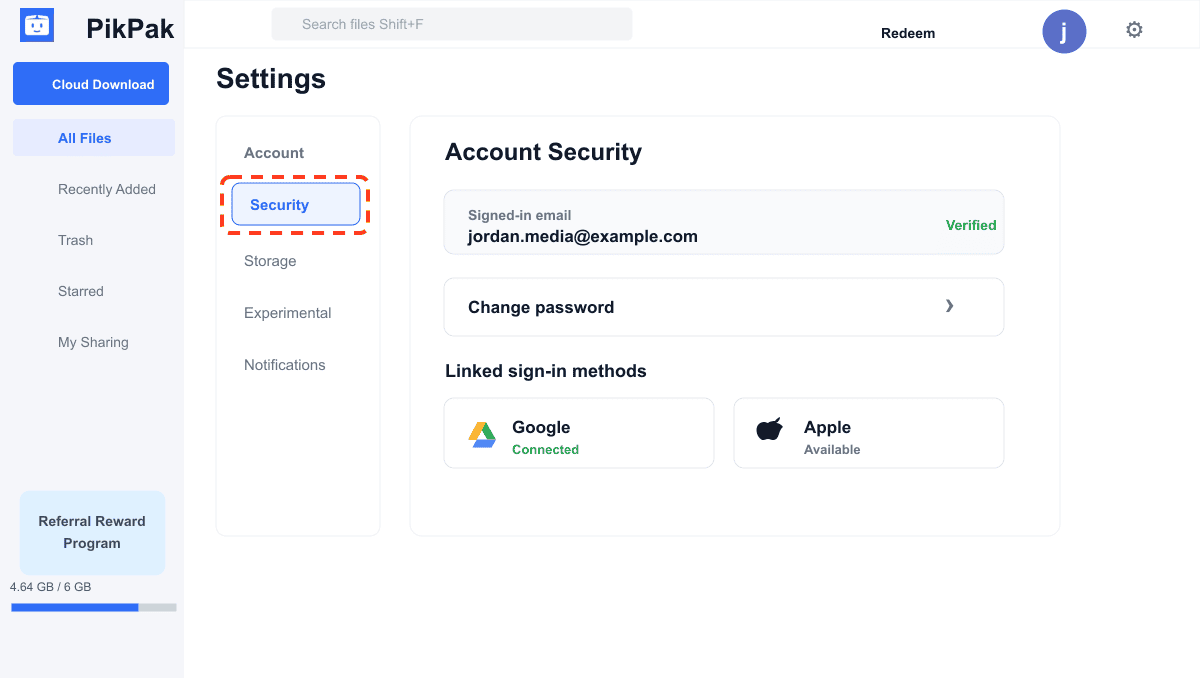
- Use a unique password: Most cloud-account compromises are password reuse, not provider breaches. Give PikPak its own generated password in your password manager, or sign in through Google/Apple and protect that account with two-factor authentication instead.
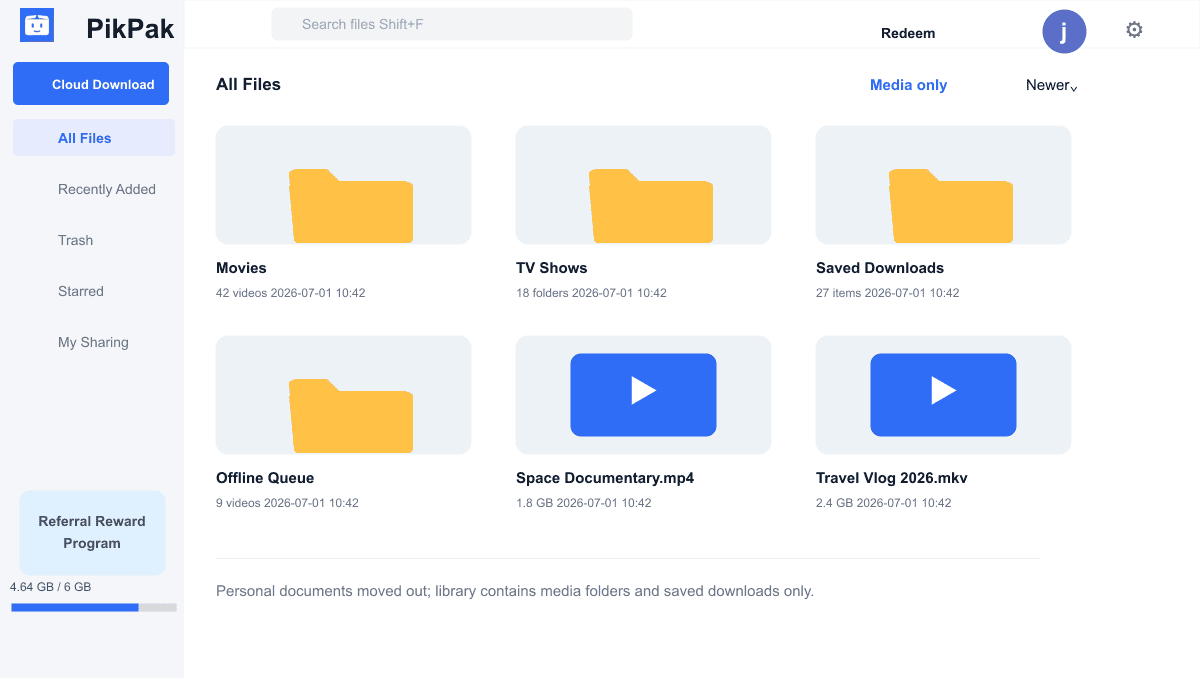
- Know exactly what you store: Sort by sensitivity once: media and downloads stay, anything you would not want a provider able to read moves to an end-to-end encrypted service. This single decision does more for your privacy than any setting.
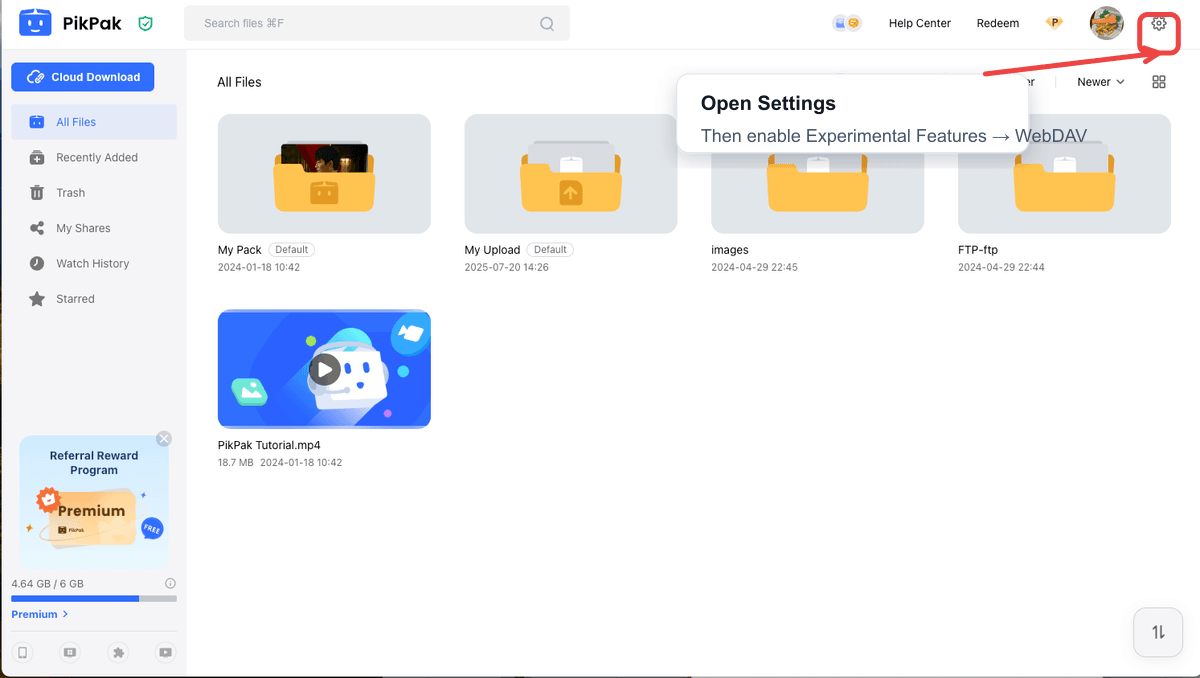
- Keep WebDAV off when idle: PikPak's WebDAV (Settings → Experimental Features, Premium only, read-only) issues separate credentials. Enable it for a backup or transfer job, then disable it — an unused open interface is surface you don't need.
With the account itself tidy, the remaining step is removing the single-copy risk.
How to Keep a Backup of Your PikPak Files
Method 1 is the account hygiene above. Method 2 creates the actual safety net: a server-to-server copy of your PikPak library into a cloud you control, using CloudsLinker — no local download, repeatable whenever the library grows.
Method 1: Reduce the Risks Inside PikPak
Step 1: Audit how you sign in
Open PikPak's account settings and check how the account is actually secured: a reused password is the number-one fixable risk. Switch to a unique generated password, or consolidate on Google/Apple sign-in backed by two-factor authentication.
Step 2: Separate media from sensitive files
Scan your file list once and move anything confidential out to an end-to-end encrypted service. What remains — media, saved shares, cloud downloads — matches PikPak's security model and can stay without worry.
Step 3: Treat integrations as switches, not fixtures
Know where Settings → Experimental Features → WebDAV lives: it issues dedicated read-only credentials (Premium accounts). Turn it on for a job, off afterwards — and the same revoke-when-done habit applies to any third-party token.
These steps handle the account. They do nothing about the scenario where you lose access to the account itself — that is what the backup in Method 2 is for.
Method 2: Back Up PikPak to Your Own Cloud with CloudsLinker
A second copy, server-to-server
CloudsLinker connects to your PikPak and copies its contents directly into Google Drive, OneDrive, Dropbox or 140+ other clouds — server-to-server, nothing routed through your device. Access is granted with your PikPak login or the dedicated read-only WebDAV credentials, both revocable in seconds, and the free tier's 10 GB of monthly transfer covers a first test run before you trust it with the whole library.
Step 1: Enable WebDAV in PikPak (or use direct login)
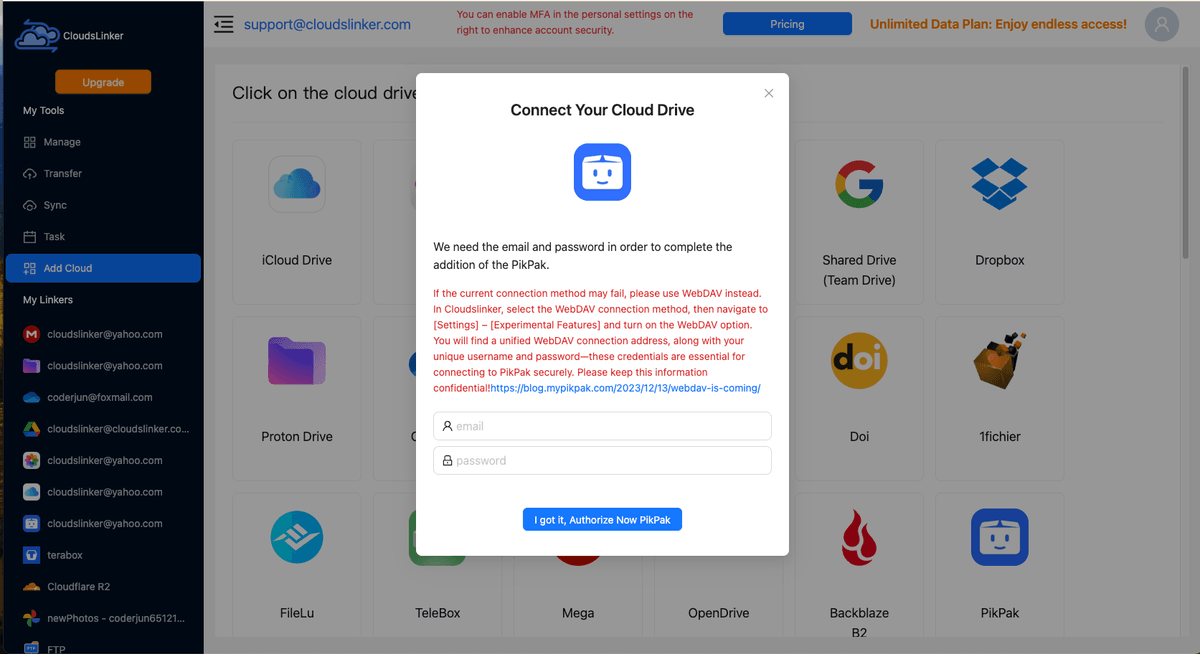
CloudsLinker connects to PikPak with your account email and password. If you prefer scoped access, enable Settings → Experimental Features → WebDAV (Premium, read-only) and use the dedicated credentials it generates instead — read-only is exactly the right permission level for a backup source.
Step 2: Connect PikPak to CloudsLinker
Sign in to CloudsLinker, click Add Cloud and choose PikPak. Enter the login or WebDAV credentials from the previous step; your file tree appears once connected.
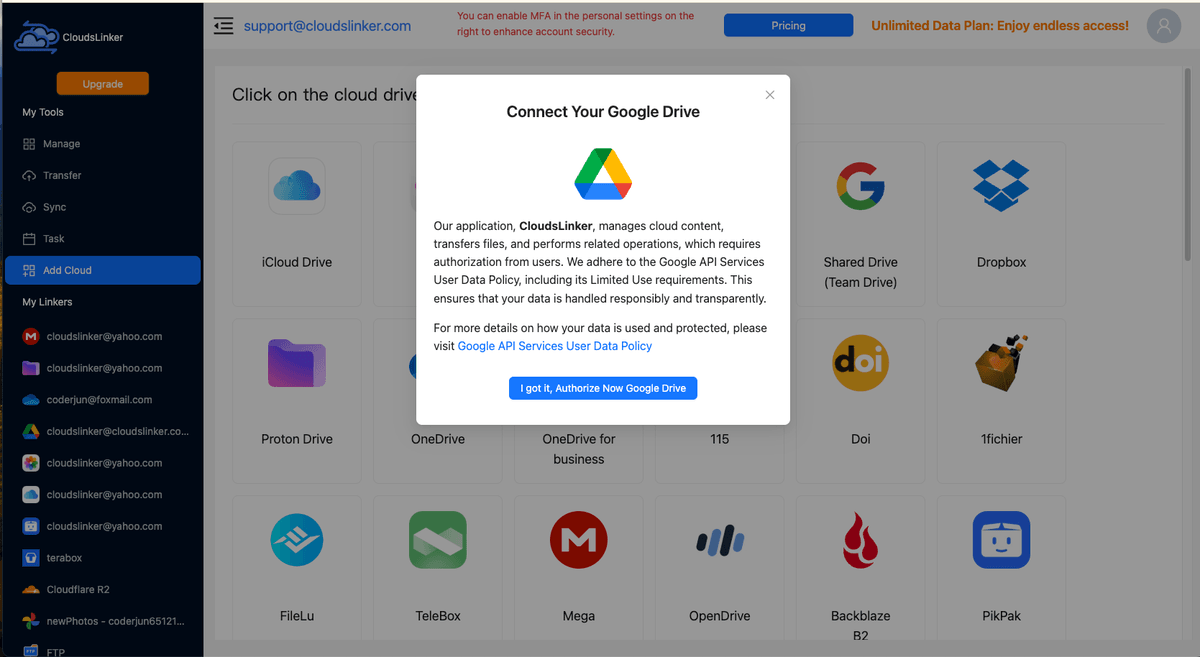
Step 3: Connect the backup destination
Click Add Cloud again and connect where the copy should live — Google Drive or OneDrive via official OAuth, or an S3-compatible bucket with access keys. An account you already secure with two-factor authentication makes the best backup home.
Step 4: Copy the library and repeat when it grows
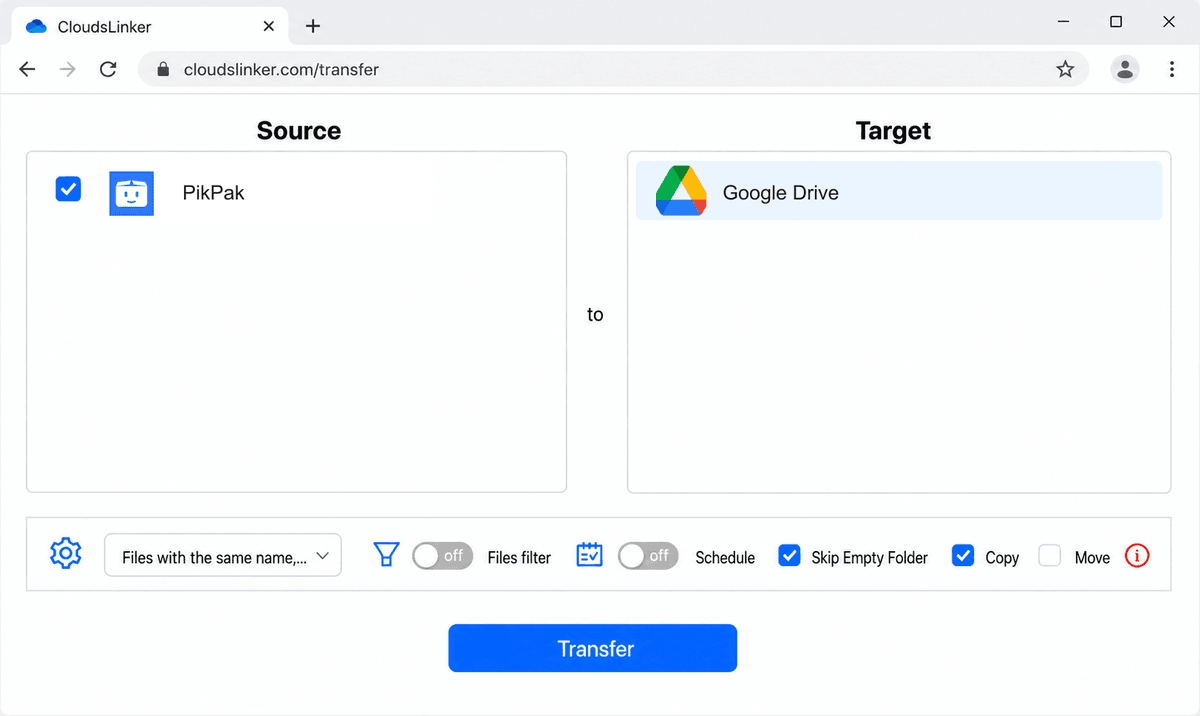
In Transfer, set PikPak as the source, select the folders worth protecting, choose the destination directory and start. Progress shows in the Task List and the job survives closing the browser. Re-run it after big additions — subsequent copies skip files that already exist at the destination.
After the Backup Exists
Verify, then relax
A backup you haven't opened is a hope, not a backup:
- Spot-check the copy: Open a couple of videos and compare folder counts in the destination cloud against PikPak.
- Disable idle access: If you used WebDAV for the job, switch it off until the next run; remove unused cloud connections from CloudsLinker as well.
Make it a habit
The setup only pays off if it stays current:
- Re-run after big saves: Added a large shared collection? Run the copy job again — already-transferred files are skipped.
- Review sign-in security yearly: Password unique, linked Google/Apple account on two-factor, no stale tokens — five minutes a year.
PikPak Safety — Frequently Asked Questions
Is PikPak legit or a scam?
Can PikPak see my files?
Is PikPak safe for sensitive documents like IDs or tax records?
Is the PikPak app safe to install?
Is it safe to open a PikPak shared link someone sent me?
What are PikPak's free account limits?
How do I back up my PikPak files to another cloud?
Is PikPak's WebDAV safe to enable?
Conclusion
Treat PikPak the way its design suggests: a capable media and download cloud run by a real company, with the same privacy model as mainstream storage — server-side encryption, no end-to-end secrecy. Judged on that basis it holds up: registered operator, transparency reporting, revocable credentials, no proactive scanning of private storage. Keep passwords unique, keep sensitive documents in an end-to-end encrypted service instead, and keep an off-PikPak copy of anything irreplaceable — the backup route through CloudsLinker takes a few minutes to set up and removes the single-account risk entirely.
Online Storage Services Supported by CloudsLinker
Transfer data between over 58 cloud services with CloudsLinker

OneDrive

Google Drive

Google Photos

Shared Drive

OneDrive for Business

Dropbox

Box

Mega

pCloud

Yandex

ProtonDrive

AWS

GCS

iDrive

Storj

DigitalOcean

Wasabi

1fichier

PikPak

TeleBox

OpenDrive

Backblaze B2

Fastmail file

SharePoint

Nextcloud

ownCloud

Premiumize me

HiDrive

Put.io

Sugar Sync

Jottacloud

Seafile

Ftp

SFtp

NAS

WebDav

4shared

Icedrive

Cloudflare R2

Scaleway

Hetzner Object Storage

Synology C2 Object Storage

S3 Compatible

Doi

iCloud Drive

iCloud Photos

FileLU

Zoho WorkDrive

Telia Cloud / Sky

Drime

Filen

TeraBox

Internxt

Degoo

Gofile

Pixeldrain

Shade

Koofr
Didn' t find your cloud service? Be free to contact: [email protected]
Further Reading
Effortless FTP connect to google drive: Transfer Files in 3 Easy Ways
Learn More >
Google Photos to OneDrive: 3 Innovative Transfer Strategies
Learn More >
Google Photos to Proton Drive: 3 Effective Transfer Techniques
Learn More >