OneDrive to Internxt: Leave the Microsoft Cloud for Private Storage (2026)
Move files from OneDrive to Internxt, an open-source cloud with zero-knowledge, post-quantum encryption. Manual upload vs a direct cloud-to-cloud transfer.
Introduction
OneDrive is woven into Windows and Microsoft 365, which is convenient until you want your files outside Microsoft's reach. Internxt takes the opposite stance: it is open source, encrypts every file on your device before upload, and since 2024 layers Kyber-512 post-quantum cryptography over AES-256 — so the provider holds no keys and can read nothing. People moving from OneDrive to Internxt are usually after exactly that independence, plus lifetime pricing instead of a 365 subscription. This guide shows two ways to make the move: a manual browser transfer and a direct cloud-to-cloud method that bypasses your computer.
Quick Navigation
Overview of OneDrive
OneDrive is Microsoft's cloud storage, bundled with Windows and Microsoft 365. It offers 5 GB free, 100 GB standalone, or 1 TB per user with a 365 subscription, and integrates tightly with Office apps, Windows File Explorer and the Microsoft account ecosystem.
Its strengths — Office co-authoring, Windows backup, Teams integration — are also its lock-in. Files sit inside Microsoft's ecosystem with provider-held keys, and the 1 TB allowance is tied to an ongoing 365 subscription. For users who want storage independent of Microsoft and genuinely private, Internxt is a natural target.
Key Features of OneDrive
- Office integration: Real-time co-authoring in Word, Excel and PowerPoint, with AutoSave straight to OneDrive.
- Windows backup: Back up Desktop, Documents and Pictures folders automatically on Windows.
- Files On-Demand: Show files in Explorer without downloading them until opened.
- 365 bundling: 1 TB of storage comes with a Microsoft 365 personal or family subscription.
Where OneDrive Falls Short
OneDrive is ideal inside the Microsoft world, but that is also its limitation for privacy-minded users.
- Ecosystem lock-in: Storage and features are tied to a Microsoft account and 365 subscription rather than standing alone.
- Provider-held keys: OneDrive is not zero-knowledge; Microsoft can access file contents, unlike Internxt's client-side model.
Why Internxt as the Destination
Internxt is an open-source cloud storage service from Valencia, Spain. Files are encrypted on your device under a zero-knowledge model — keys and passwords never reach the servers in readable form — and in 2024 Internxt became the first consumer cloud to add Kyber-512 post-quantum encryption on top of AES-256.
Storage spans a 1 GB free tier up to Ultimate (5 TB), with stackable lifetime plans at €135–€585 that extend to 100 TB and never renew. The relevant detail for migration is that rclone/API access — used by transfer tools — is enabled only on the Ultimate plan.
What Sets Internxt Apart
- Independent of big tech: Open-source storage with no tie to a Windows account or Office subscription.
- Post-quantum encryption: Kyber-512 over AES-256 future-proofs your files against quantum decryption.
- Zero-knowledge model: Internxt cannot read your files; only your password-derived key can.
- Audited and open: Public GitHub client and a 2024 Securitum audit support the privacy claims.
Benefits of Switching to Internxt
- Freedom from the Microsoft ecosystem: Your storage no longer depends on a 365 subscription or Microsoft account status.
- Provider-blind privacy: Zero-knowledge encryption keeps files unreadable to the host.
- One-time pricing: Lifetime plans replace recurring 365 storage costs for archival data.
Why Move from OneDrive to Internxt?
Leaving OneDrive for Internxt shifts your files out of Microsoft's ecosystem and into encrypted, independent storage:
- End the subscription tie: A lifetime Internxt plan stores archives without a renewing 365 bill.
- Gain zero-knowledge encryption: Files become unreadable to the provider, which OneDrive cannot offer for ordinary files.
- Quantum-resistant storage: Kyber-512 protects long-lived data against future decryption.
- Open and verifiable: You can audit Internxt's client code rather than trust a closed platform.
OneDrive is hard to beat for Office collaboration, but for private, independent, long-term storage, Internxt's encryption and lifetime plans make the switch compelling.
Preparing to Transfer from OneDrive to Internxt
Cover Internxt's plan and file-size requirements up front:
- Move to Internxt Ultimate: Only the Ultimate plan (annual or lifetime) allows the rclone access transfer tools need. Free, Essential and Premium accounts return a 'rclone access not allowed for this user tier' error.
- Verify storage capacity: Ensure your Internxt plan can hold your OneDrive data. Ultimate offers 5 TB; stack a lifetime plan if needed.
- Handle files over 40 GB: The rclone path caps single files at 40 GB. Archive or split anything larger beforehand.
With Ultimate active and large files prepared, both methods below run smoothly.
How to Transfer Files from OneDrive to Internxt
Method one is a manual browser transfer; method two uses CloudsLinker to copy files directly between the clouds.
Method 1: Manual Download and Upload via Browser
Step 1: Download from OneDrive
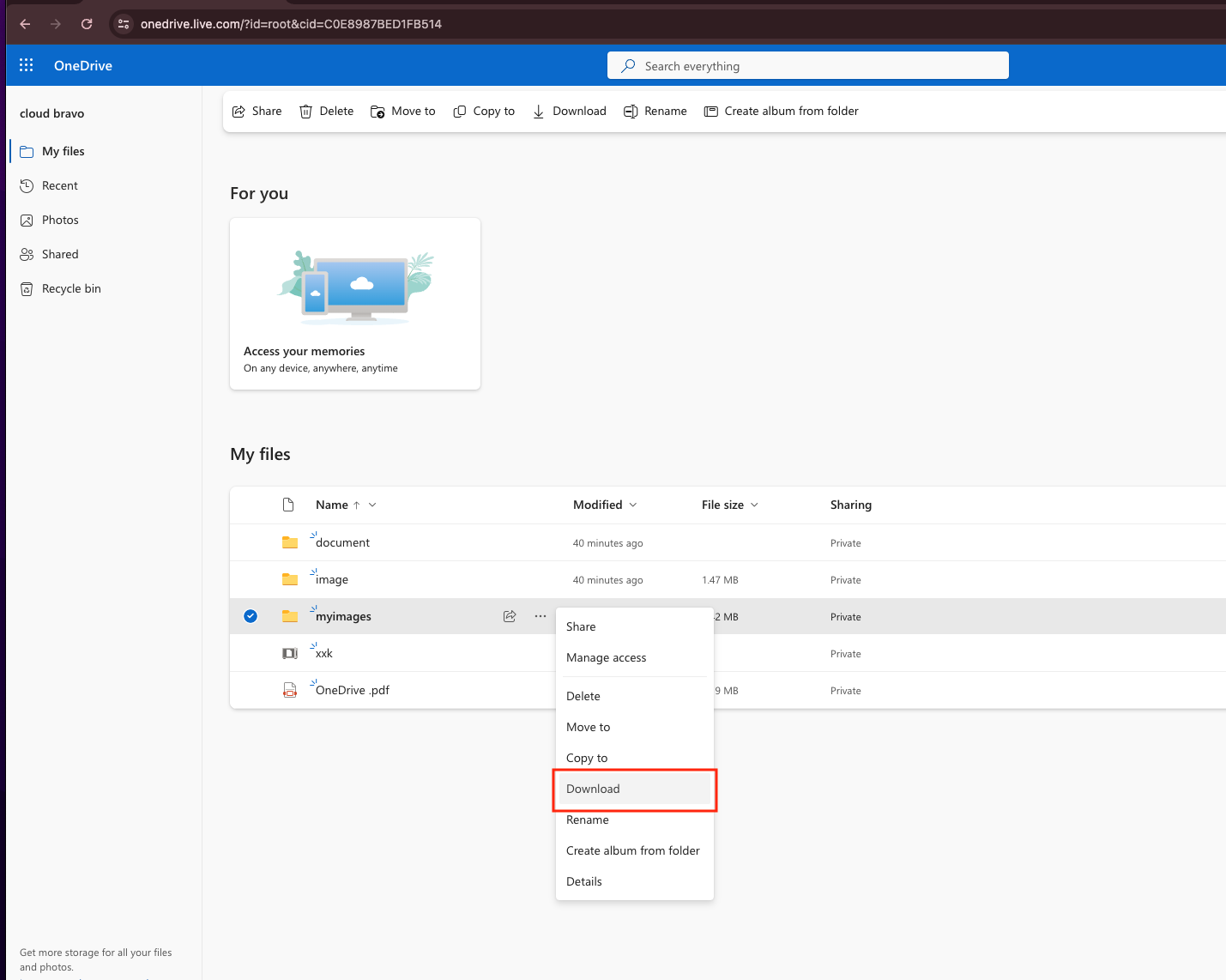
Sign in at onedrive.live.com, select the files or folders to move, and click Download. Folders are delivered as ZIP archives; extract them after saving.
Step 2: Sign in to Internxt
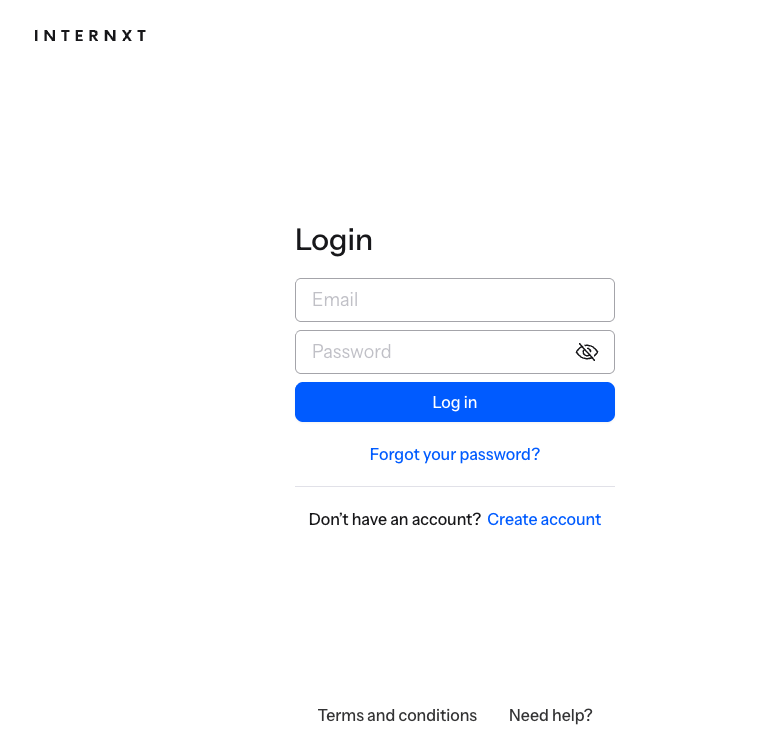
Open drive.internxt.com and log into your Ultimate account, enabling two-factor authentication if it is not already on.
Step 3: Upload to Internxt
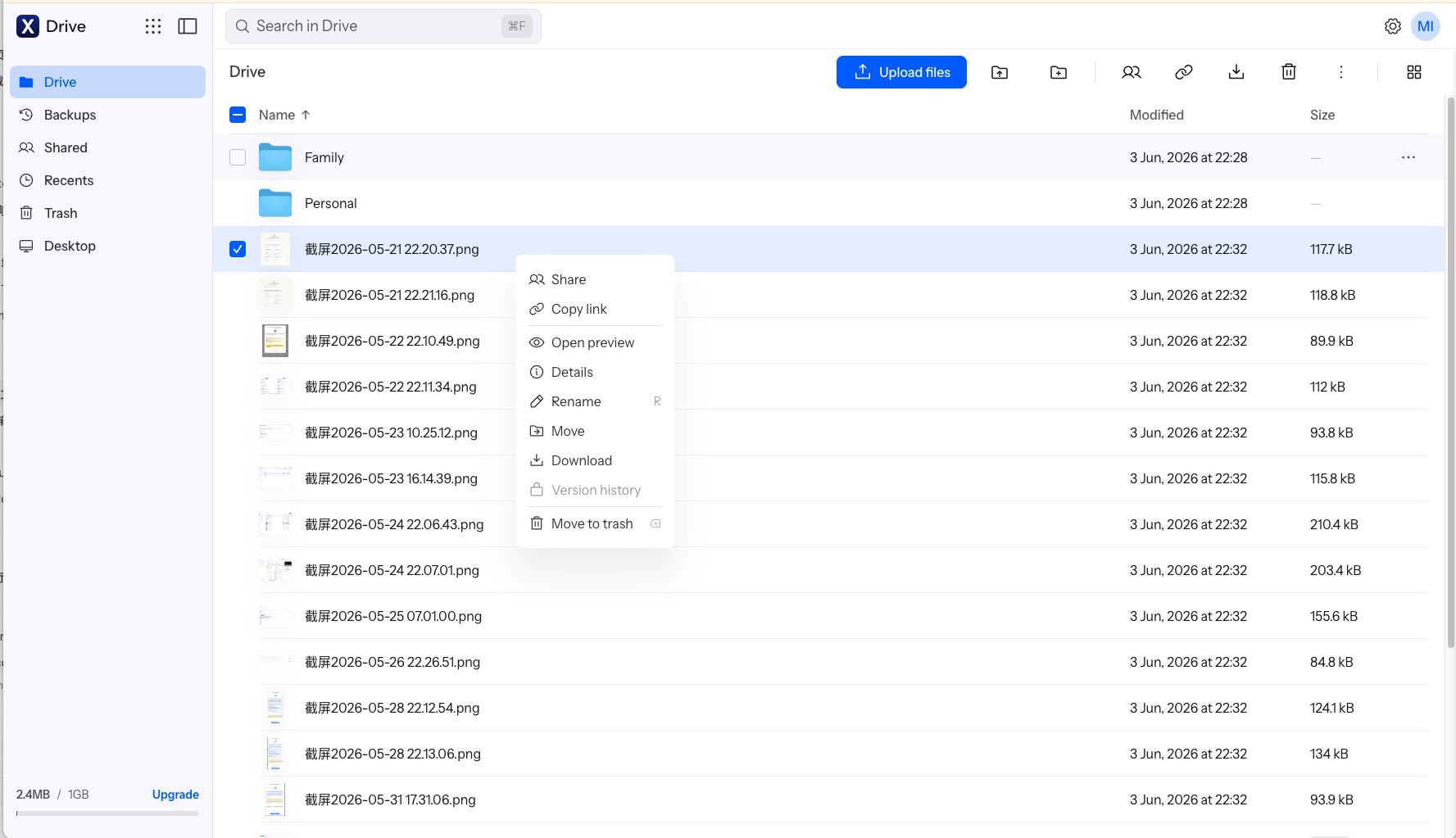
Drag the downloaded files into Internxt or use the upload button. Encryption happens in your browser before upload; the web uploader accepts up to 40 GB per file. Upload large collections in batches.
This route needs no extra tools, but every file passes through your computer, so a full OneDrive account can take a long time on a typical home connection.
Method 2: Transfer OneDrive to Internxt Directly with CloudsLinker
Cloud-to-cloud transfer without local downloads
CloudsLinker transfers files directly between OneDrive and Internxt on the server side. Data does not pass through your device, and the job keeps running after you close the browser.
Step 1: Connect OneDrive
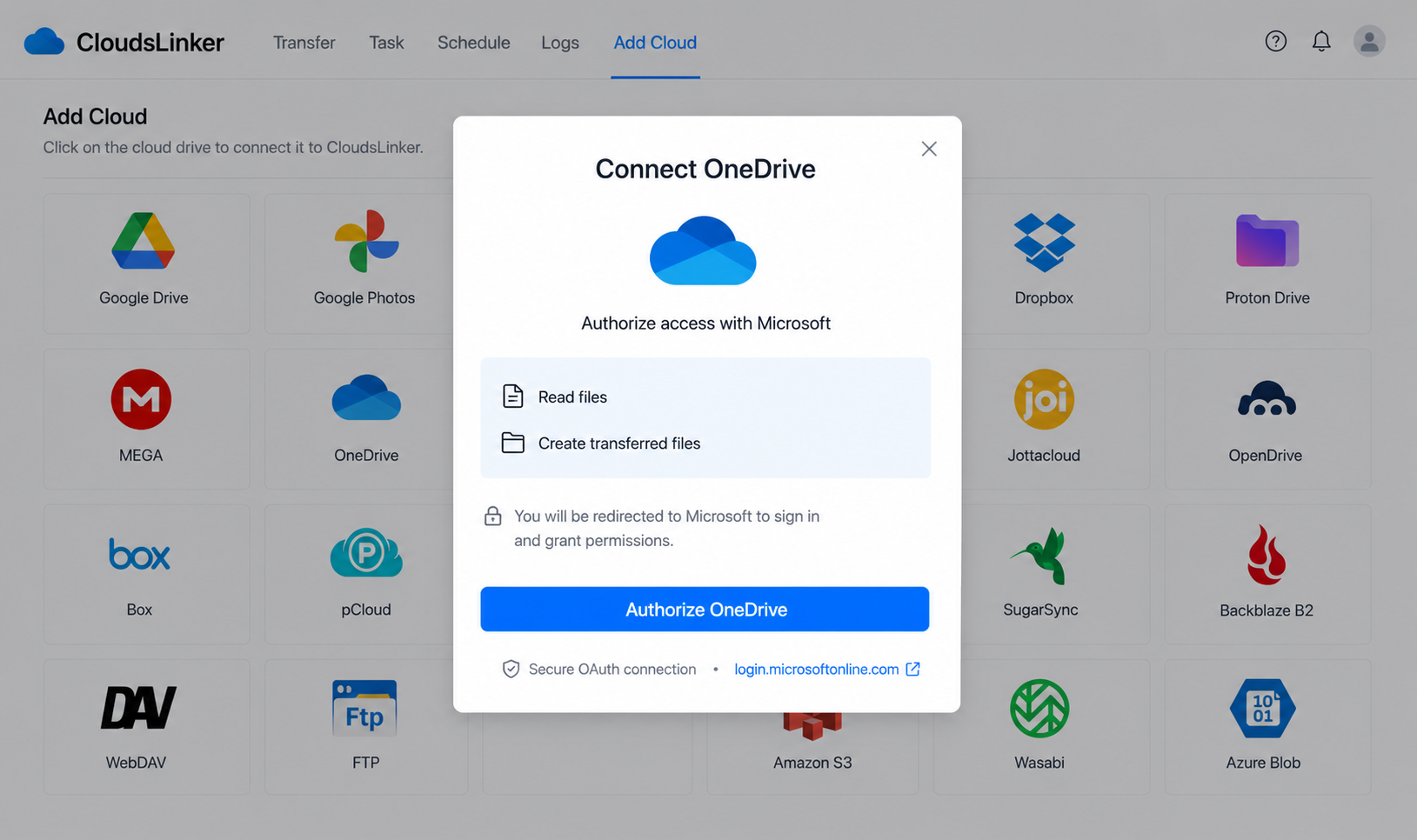
Sign in to CloudsLinker, click Add Cloud and choose OneDrive. Authorize through Microsoft's official sign-in at login.microsoftonline.com. If prompted, select the specific drive resource (personal or business) to connect.
Step 2: Connect Internxt
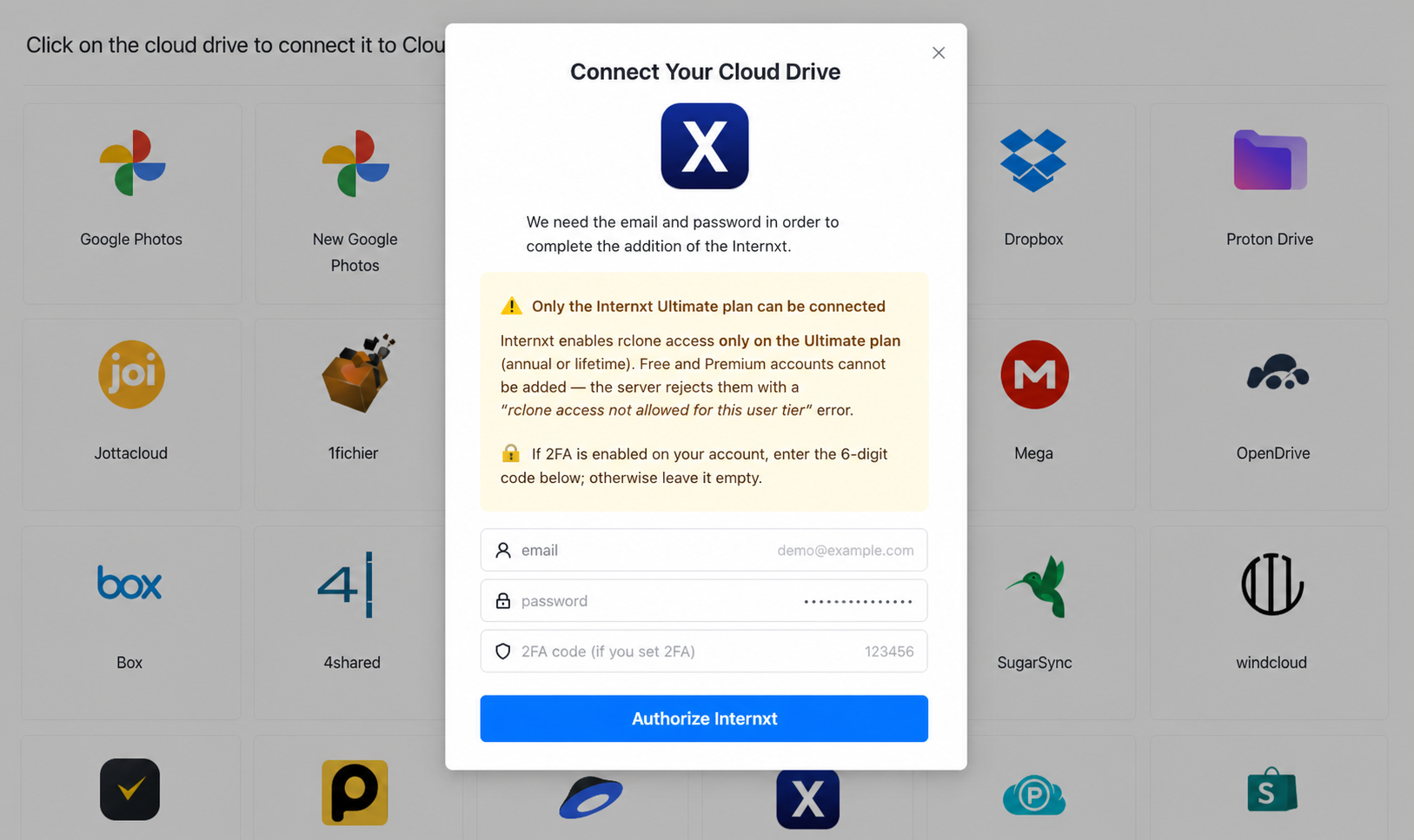
Click Add Cloud again, pick Internxt, and enter your email and password plus a 6-digit 2FA code if enabled. An Ultimate plan is required, or the connection is refused with a tier error.
Step 3: Configure the transfer
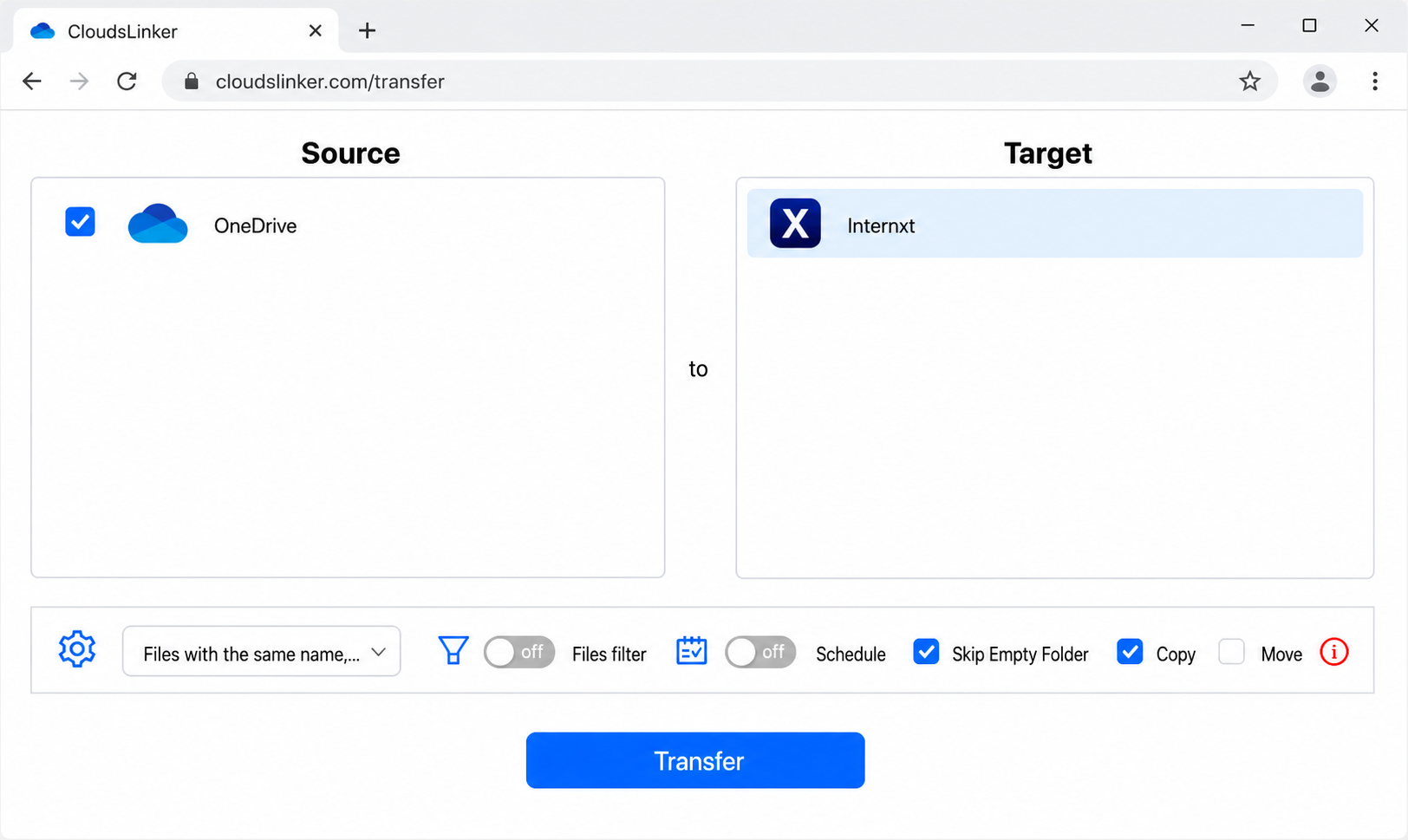
In the Transfer section, set OneDrive as the source and select folders to move; set Internxt as the destination. Optionally filter by type or date and choose Copy or Move mode.
Step 4: Start and monitor
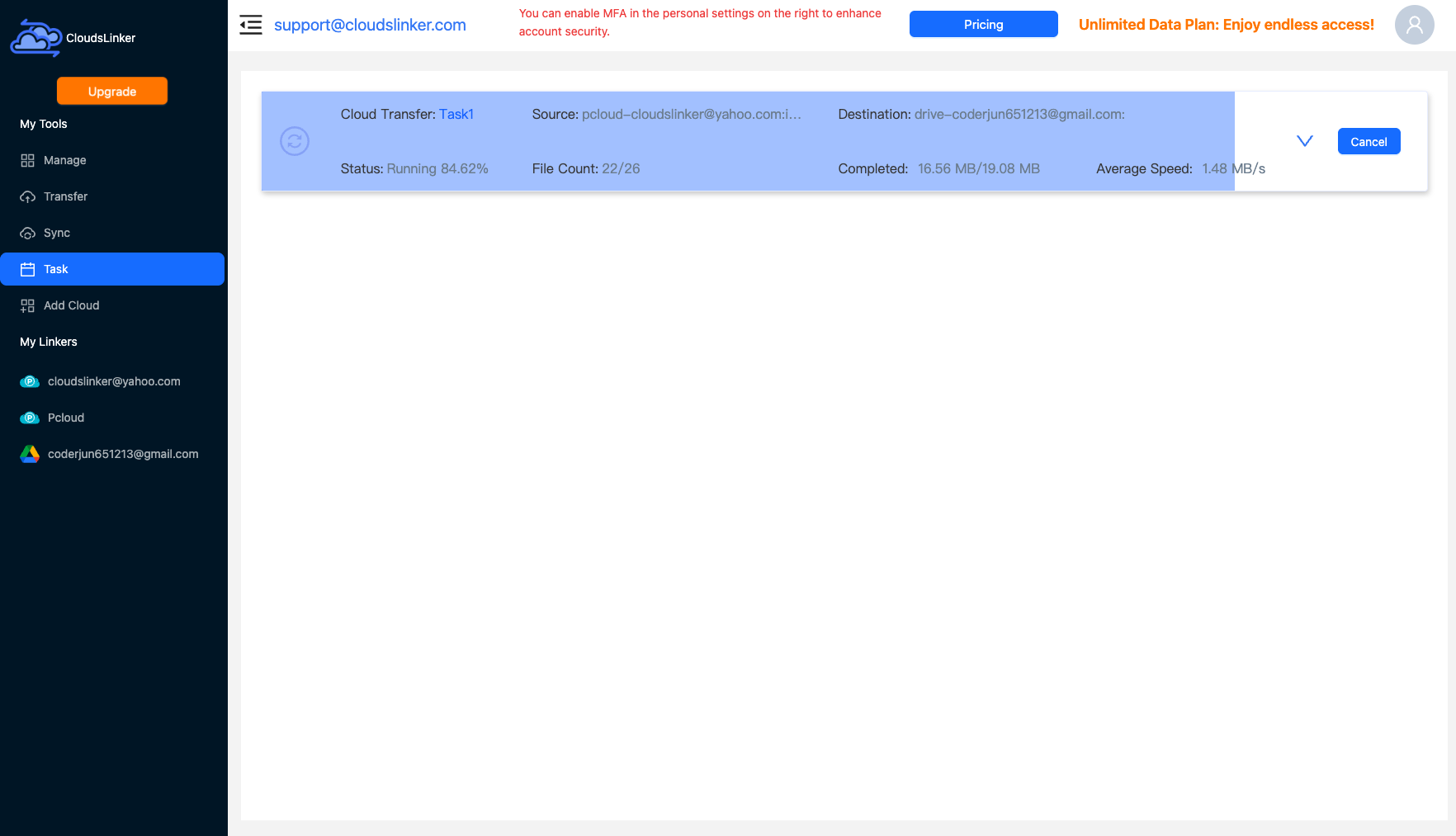
Start the transfer and follow progress in the Task List. Everything runs in the cloud, so your device need not stay online.
After Moving to Internxt
Verify the migration
Check the copy before removing files from OneDrive:
- Sample-check folders: Compare a few folders in Internxt with their OneDrive originals to confirm completeness.
- Decide on your 365 plan: If storage was your reason for 365, reassess the subscription once files are safely in Internxt.
Lock down the account
Secure the data now stored in Internxt:
- Turn on 2FA: Enable two-factor authentication in Internxt settings.
- Safeguard your mnemonic: With zero-knowledge encryption, losing the recovery phrase means losing access — store it offline.
OneDrive to Internxt — Frequently Asked Questions
Do I need an Internxt Ultimate plan to transfer files in?
What happens to my Microsoft 365 documents?
What is the largest file I can move to Internxt?
Does CloudsLinker preserve my folder structure?
Will Microsoft still have access to my files after the move?
How is the OneDrive connection secured?
Conclusion
A manual download from OneDrive and re-upload to Internxt is fine for a small set of files, but it leans on your local bandwidth and hits Internxt's 40 GB per-file rclone limit. For a full OneDrive library, a direct CloudsLinker transfer is faster and unattended. Either way, make sure your Internxt account is on the Ultimate plan first — it is the only tier where rclone-based tools can connect.
Online Storage Services Supported by CloudsLinker
Transfer data between over 58 cloud services with CloudsLinker

OneDrive

Google Drive

Google Photos

Shared Drive

OneDrive for Business

Dropbox

Box

Mega

pCloud

Yandex

ProtonDrive

AWS

GCS

iDrive

Storj

DigitalOcean

Wasabi

1fichier

PikPak

TeleBox

OpenDrive

Backblaze B2

Fastmail file

SharePoint

Nextcloud

ownCloud

Premiumize me

HiDrive

Put.io

Sugar Sync

Jottacloud

Seafile

Ftp

SFtp

NAS

WebDav

4shared

Icedrive

Cloudflare R2

Scaleway

Hetzner Object Storage

Synology C2 Object Storage

S3 Compatible

Doi

iCloud Drive

iCloud Photos

FileLU

Zoho WorkDrive

Telia Cloud / Sky

Drime

Filen

TeraBox

Internxt

Degoo

Gofile

Pixeldrain

Shade

Koofr
Didn' t find your cloud service? Be free to contact: [email protected]
Further Reading
Effortless FTP connect to google drive: Transfer Files in 3 Easy Ways
Learn More >
Google Photos to OneDrive: 3 Innovative Transfer Strategies
Learn More >
Google Photos to Proton Drive: 3 Effective Transfer Techniques
Learn More >