How to Migrate Files from Put.io to Google Drive in 2026
Learn how to transfer your files from Put.io to Google Drive seamlessly, ensuring a smooth transfer process with minimum downtime.
Introduction
With cloud storage evolving rapidly, many long-time Put.io users eventually look for a more universal storage system that integrates better with productivity tools. Google Drive is one of the strongest choices, thanks to its collaboration features, sharing controls, and deep ecosystem compatibility. This guide explains how to move your files from Put.io to Google Drive securely and without unnecessary delays.
Google Drive has become the go-to cloud platform for users who require more than remote storage. Beyond hosting files, it provides a collaborative workspace where documents, media libraries, and projects can be shared, edited, and organized across teams without constant downloading or emailing.
One of its biggest advantages lies in its seamless integration with the Google ecosystem — Google Docs, Sheets, Slides, Gmail, Google Photos, and thousands of third-party productivity tools. Rather than working in isolated apps, storing files in Google Drive keeps collaboration fluid and makes shared resources instantly accessible from any device.
- Live Collaboration: Multiple contributors can edit the same file at once, track changes, leave comments, and revert to earlier versions.
- Drive for Desktop: Stream files from the cloud to local devices without using storage — ideal for large collections of videos, datasets, or archives.
- Security and Data Control: Encryption at rest and in transit, granular access permissions, and detailed activity monitoring.
- Preview for 200+ File Types: Supports native previews for videos, documents, large images, CAD formats, PDFs, and more.
- Universal App Compatibility: Works smoothly with tools like Slack, Notion, Zoom, Canva, and Microsoft Office.
In short, Google Drive is more than a vault — it's a modern cloud workspace designed to make files useful, organized, and ready for collaboration at any scale.
Put.io is well-known for its cloud-based downloading feature and private media storage, making it especially popular for personal entertainment libraries. However, many users eventually outgrow Put.io when they need multi-device access, broader sharing options, and workplace-ready collaboration.
- Team-Ready Collaboration: Unlike Put.io’s private-library approach, Google Drive supports shared folders, live document editing, and version history for teamwork.
- Better Cross-Device Access: Google Drive works natively on phones, tablets, desktops, Chromebooks, and smart displays — with automatic file syncing.
- Long-Term Storage Strategy: Google Drive is built for retention and productivity, whereas Put.io focuses primarily on cloud downloading and personal storage.
For users who want to turn their stored media and files into something more accessible, shareable, and usable across both personal and professional environments, migrating to Google Drive becomes the natural next step.
Put.io is widely appreciated for its cloud-based downloading and private media storage. It excels at automatically fetching and organizing files without requiring a home computer to stay powered on. However, many users eventually need something more share-friendly — a service that allows files to be edited, synced across devices, and used collaboratively instead of remaining in a private archive.
- For Daily Productivity: Google Drive supports shared folders, live editing, comments, and activity tracking — features not built into Put.io.
- Better Device Accessibility: Files on Google Drive can be accessed from desktop, mobile, tablet, Chromebook and browser without manual downloading.
- App Integration: Google Drive works seamlessly with Google Docs, Sheets, Slides, and thousands of productivity apps, making it much easier to use stored files in everyday workflows.
Put.io remains excellent for automated downloads and private playback libraries, but once files shift from “media to watch” into “content you need to work with or share,” Google Drive offers a more convenient long-term home.
Google Drive’s recent upgrades — including Drive for Desktop file streaming, enhanced version protection, and ransomware recovery — make it easier for individuals and teams to maintain a clean, up-to-date workspace without eating local storage. These improvements are highlighted in the official Google Drive documentation.
In short, if your files mostly stay in a private cloud and are rarely touched, Put.io works well. If you frequently update files, share with others, switch devices, or need structured collaboration, migrating to Google Drive becomes the more practical choice.
Before transferring your files from Put.io to Google Drive, taking a few preparation steps will help ensure a smooth and predictable migration experience.
- Review the Files Stored on Put.io: Identify which media and documents need to be transferred and which can remain archived or deleted to avoid moving unnecessary data.
- Check File Compatibility: Google Drive supports most common file types, but if you have formats that require transcoding or conversion, consider handling them before migration to prevent upload interruptions later.
- Keep a Safety Backup: Before starting the migration, make a secondary backup of important files — either to another cloud service or an external drive — as an extra precaution in case something unexpected occurs during the transfer.
Completing these simple preparations ensures that your migration to Google Drive is smooth, secure, and free of surprises.
Beyond features, many users also evaluate the long-term cost difference between keeping libraries on Put.io versus moving everyday file management into Google Drive. Used correctly, the shift can reduce overall spending while making stored files easier to use across devices.
Understanding Put.io’s Pricing Model
Put.io follows a flat subscription-based pricing model: you pay monthly or yearly based on your chosen storage tier and features. There are no bandwidth charges or per-file access fees, which makes it appealing for users who primarily store and stream private media collections without frequent collaboration needs.
- Ideal for maintaining large private media libraries and automated cloud downloads.
- Costs are tied to the selected subscription tier rather than how many gigabytes you move or share.
- No extra fees for transfer bandwidth or API usage, which suits frequent ingestion and playback tasks.
How Google Drive Plans Are Structured
Google Drive uses a per-user / per-workspace subscription system under Google One and Google Workspace. Plans bundle storage, collaboration features, security controls, and productivity tools into a single license, with shared TB-level quotas for families or teams. In practice, you pay for storage and collaboration combined, rather than storage alone.
- Pool-based storage shared across family or team members under one plan.
- Features like shared drives, version history, and permission management included by default.
- Drive for Desktop file streaming reduces the need for additional third-party sync tools.
Avoid Using Put.io as a “Makeshift Collaboration Drive”
If Put.io is currently being used as shared storage for everyday collaboration, you may be paying for a private media–oriented platform while still lacking core essentials: online document editing, version rollback, structured team folders, and granular permission control. Those gaps are often patched with extra software, custom scripts, or manual workflows — all of which add hidden time and cost.
Moving active projects to Google Drive consolidates these requirements into one platform: instead of stitching tools around a download-centric cloud, your storage also becomes your collaboration hub.
Using CloudsLinker to Control Migration Costs
A common question is whether migrating files from Put.io to Google Drive will increase ongoing costs. The migration itself does not change your Google Drive subscription — pricing depends only on the plan and number of users, not on how the files were transferred.
CloudsLinker performs the migration entirely in the cloud and is billed separately based on its transfer plans. Many users choose to migrate only their frequently used content to Google Drive while leaving large archives in Put.io. In many situations, this “active content on Google Drive, archive on Put.io” approach leads to a more cost-efficient balance between productivity and long-term storage.
Before starting your move from Put.io to Google Drive, organizing your stored files and understanding how Google Drive manages folders and collaboration will make the transfer faster and easier.
Sort and Organize Your Files
-
Remove Unnecessary Files: Cleaning up outdated downloads in Put.io reduces your transfer size and helps keep your Google Drive folder structure tidy after migration. -
Organize by Category: Group files into folders before migration — by project, media type, or importance — so the same structure can be mirrored in Google Drive.
Understand Google Drive Capabilities
-
Get Familiar with Drive: Explore Google Drive’s web interface and desktop/mobile apps to make full use of shared folders, smart search, and real-time editing once the migration is complete. -
Plan Your Folder Layout: Decide in advance how you want your migrated files organized — the folder hierarchy you design will help keep Drive clean and easy to navigate in the long term.
Ensure Your Files Are Backed Up
- Always store a secondary backup of important files before migrating — whether on another cloud or a physical drive — to protect against accidental loss during transfer.
How to Migrate Files to Google Drive
Why Choose CloudsLinker for Cloud-to-Cloud Data Migration?
When moving from a download-focused storage service like Put.io to a collaboration-driven cloud such as Google Drive, traditional download-and-reupload methods can take days and risk file corruption or failed uploads. CloudsLinker prevents these issues with a secure cloud-to-cloud transfer channel that requires zero local bandwidth or manual supervision. It supports more than 20 services, including Google Drive, Put.io, Dropbox, OneDrive, MEGA, pCloud, and Proton Drive. Transfers are automatically queued, verified, and retried to make even multi-TB migrations stable and predictable.
Step 1: Adding Google Drive to CloudsLinker
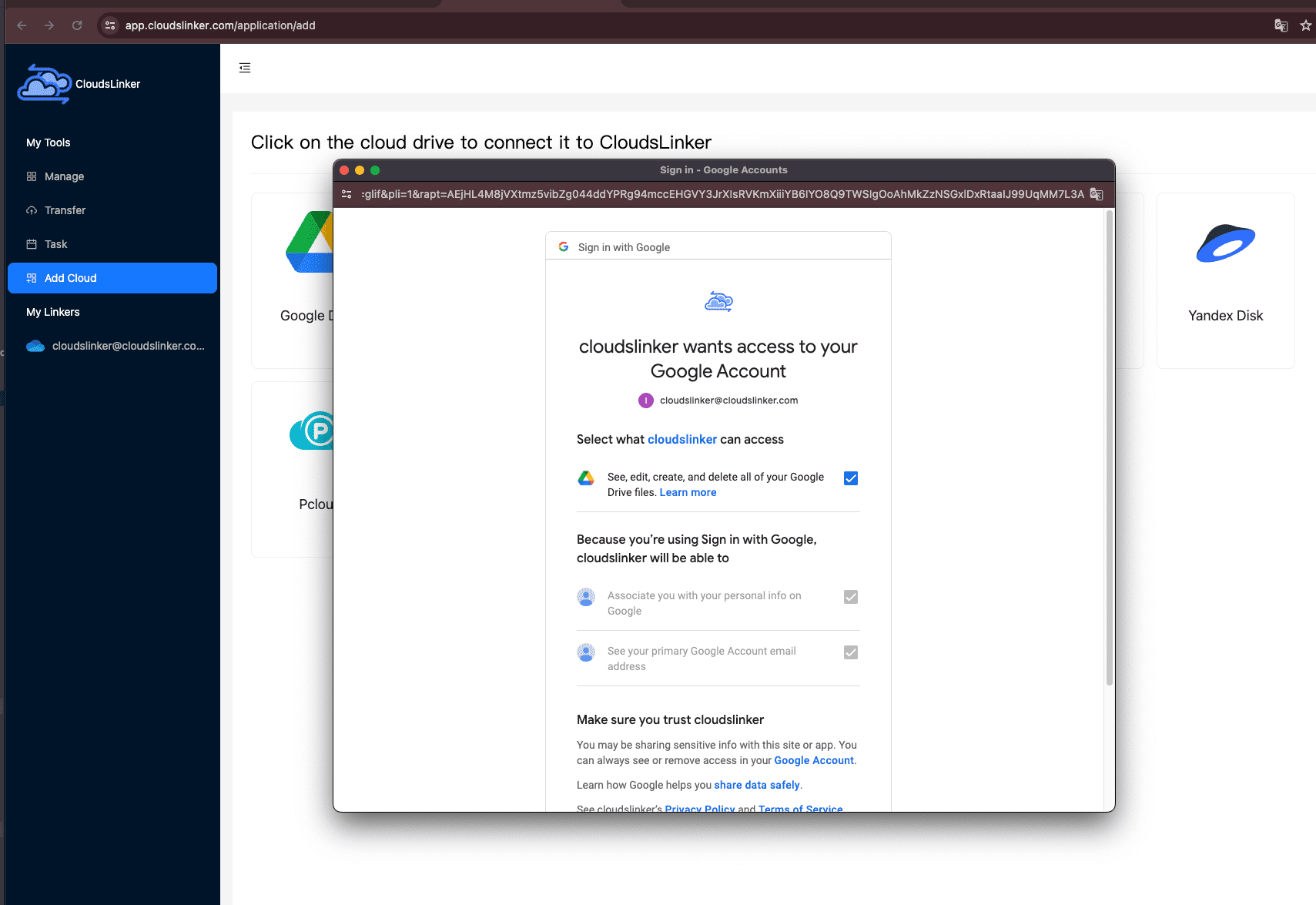
Begin by logging in to CloudsLinker. Navigate to Add Cloud and select Google Drive as your destination.
A new browser window will open for Google account authorization. Sign in and approve access to allow secure API-level file operations.
Once authorization completes, Google Drive will appear in your cloud list and can be set as the migration target.
Step 2: Adding Put.io to CloudsLinker
Next, add your Put.io account as the source storage. In the Add Cloud section, choose Put.io. CloudsLinker will open a Put.io authorization page in the browser.
Log in to your Put.io account, grant access, and once authorization returns to CloudsLinker, your Put.io drive will be added automatically with no manual key input required.

Step 3: Initiating the Migration
Open the Transfer panel and choose Put.io as the source and Google Drive as the destination. Select the folders or files to migrate and configure options such as:
- Copy / Move mode
- Skip duplicates or overwrite existing files
- Filter by file type (e.g., video, audio, documents)
Click Start Transfer to launch the migration job.
Step 4: Monitoring the Transfer
Track migration progress in real time in the Tasks panel. Transfers can be paused, resumed, or cancelled individually — particularly helpful when migrating large media libraries from Put.io.
Step 5: Verifying Completion
Once complete, verify your files directly in Google Drive. Browse folders to confirm the structure is preserved and preview sample files to verify data integrity. If needed, you may re-run a targeted transfer for specific folders rather than restarting the entire job.
With automated retries, scheduling, and high-speed parallel transfers, CloudsLinker makes moving from Put.io to Google Drive smooth and reliable — whether you are a personal user consolidating cloud accounts or a professional migrating large media libraries into a collaboration-ready workspace.
You don’t have to choose between Put.io and Google Drive. For many users, the most practical long-term approach is a hybrid cloud strategy: store long-term archives and untouched media on Put.io, while keeping daily working files on Google Drive.
When to Keep Data on Put.io
Put.io is designed for cloud-based downloading and private media storage. Its strengths are automation, streaming, and long-term library retention — where files are downloaded once and barely modified afterward. Because pricing is based on subscription tiers instead of per-use bandwidth, it works well for people who maintain large media collections that don’t require constant editing.
- Long-term personal libraries of movies, downloads, and media assets.
- Files that must be stored but rarely opened or modified.
- Collections intended for private streaming and playback rather than editing or team use.
When Google Drive Should Be Your “Working Area”
Google Drive, on the other hand, is built for everyday collaboration, version tracking, shared folders, and live document editing. Its permission controls and device-wide syncing make it ideal for files that change frequently and need to be accessed by multiple people.
- Active work documents, planning sheets, personal files and shared content.
- Files that multiple people need to edit, comment on, or review together.
- Content that must be searchable by filename, keyword, tag, or metadata.
A Practical Hybrid Example
A common workflow is to treat Google Drive as the “active workspace” and Put.io as the “archive shelf”:
- During a project, all working files stay in Google Drive for easy editing and sharing.
- When projects are completed, copies of the finished files can be exported back to Put.io for long-term storage.
- This keeps Google Drive fast and organized for daily productivity while Put.io retains the inexpensive storage layer for everything not in active use.
With CloudsLinker, parts of this hybrid strategy can be automated — for example, by periodically moving older Google Drive folders into Put.io for archive, or syncing selected content from Put.io back into Google Drive when it becomes active again.
Frequently Asked Questions
Conclusion
Although migrating files from Put.io to Google Drive may sound like a demanding task, following the right method makes the process smooth and predictable. By applying the steps outlined here, users can transfer their library to Google Drive safely and make full use of its collaboration and accessibility advantages.
Online Storage Services Supported by CloudsLinker
Transfer data between over 48 cloud services with CloudsLinker

OneDrive

Google Drive

Google Photos

Shared Drive

OneDrive for Business

Dropbox

Box

Mega

pCloud

Yandex

ProtonDrive

AWS

GCS

iDrive

Storj

DigitalOcean

Wasabi

1fichier

PikPak

TeleBox

OpenDrive

Backblaze B2

Fastmail file

SharePoint

Nextcloud

ownCloud

Premiumize me

HiDrive

Put.io

Sugar Sync

Jottacloud

Seafile

Ftp

SFtp

NAS

WebDav

4shared

Icedrive

Cloudflare R2

Scaleway

Doi

iCloud Drive

iCloud Photos

FileLU

Zoho WorkDrive

Telia Cloud / Sky

Drime

Filen
Didn' t find your cloud service? Be free to contact: [email protected]
Further Reading
Effortless FTP connect to google drive: Transfer Files in 3 Easy Ways
Learn More >
Google Photos to OneDrive: 3 Innovative Transfer Strategies
Learn More >
Google Photos to Proton Drive: 3 Effective Transfer Techniques
Learn More >