Box to Dropbox: Move Past Tiered File-Size Caps to a Flat 2 TB Limit
Move files from Box to Dropbox with four methods — browser, desktop sync, Rclone, and CloudsLinker — to bypass Box's per-plan upload ceilings.
Introduction
Dropbox applies the same 2 TB single-file ceiling to every paid tier, so the limit does not shrink just because an account sits on a cheaper plan. Box works the opposite way: a Business account tops out at 5 GB per upload, Business Plus at 15 GB, and the 500 GB ceiling only exists on Enterprise Advanced, a tier introduced in January 2025. A small team exporting a large video render or a database backup on a mid-tier Box plan can hit that wall well before running out of storage. Dropbox also carries a wider catalog of third-party integrations that do not depend on which admin console tier is active. Moving files out of Box removes the per-plan file-size ceiling; the methods below cover how.
Box is an enterprise content management platform built around admin-controlled governance. Upload size caps scale with the plan tier, from 250 MB on a free account up to 500 GB on Enterprise Advanced.
- Tiered upload caps: 250 MB (Free), 5 GB (Personal Pro / Business), 15 GB (Business Plus), 50 GB (Enterprise), 500 GB (Enterprise Advanced, since Jan 2025).
- Granular permissions: Folder-level access control tied to admin-managed user groups.
- Compliance tooling: Retention policies, legal holds, and audit logs for regulated industries.
- Metadata templates: Custom fields attached to files for workflow tracking.
- Box Drive: A virtual drive client that streams files on demand rather than syncing everything locally.
Dropbox is a cross-platform file hosting service with a flat 2 TB single-file limit that applies regardless of plan tier. Free Basic accounts include 2 GB, with paid plans starting at 2 TB.
- Flat file-size ceiling: 2 TB per file on every paid tier, not scaled by plan.
- Block-level sync: Re-uploads only the changed portion of a file after the first sync.
- Broad third-party integrations: Native connections to Slack, Zoom, Canva, and more.
- Flexible team plans: Standard starts at 3 TB pooled; Advanced starts at 15 TB pooled.
- File requests: Collect files from people who do not have a Dropbox account.
The clearest difference is how each service scales its file-size limit with the plan you pay for. Box ties the ceiling to the specific tier; Dropbox applies one flat ceiling across every paid plan.
| Feature | Box | Dropbox |
|---|---|---|
| Free Tier Upload Cap | 250 MB per file | 2 GB total storage, no special per-file cap below account limit |
| Mid-Tier Upload Cap | 5 GB (Business), 15 GB (Business Plus) | 2 TB per file (same as every paid tier) |
| Highest Upload Cap | 500 GB (Enterprise Advanced only, since Jan 2025) | 2 TB (Plus and above) |
| Entry Paid Plan | Personal Pro, storage varies by seat count | Plus, $9.99/month, 2 TB |
| Browser Upload Caveat | Governed by plan tier cap | Uploads above roughly 375 GB risk browser timeouts |
| Best Fit | Regulated, admin-governed content workflows | Cross-platform teams, broad app integrations |
Sources: Box file size limits, Dropbox file size limits
Teams typically leave Box for Dropbox once the admin governance stops paying for itself relative to the plan cost. Common reasons:
- A flat file-size ceiling: 2 TB per file applies the same on Plus as it does on Advanced, unlike Box's tier-locked caps.
- Simpler cross-platform sync: One consistent client behavior on Windows, macOS, and Linux without an admin console layer.
- Broader integration catalog: Native connections to Slack, Zoom, Figma, and Canva without needing enterprise-tier Box add-ons.
- Lower cost for small teams: Box's compliance and metadata tooling adds cost that a small team without regulatory needs does not use.
- File requests without an account: Collecting files from outside collaborators does not require them to hold a Dropbox login.
If the governance layer is more than your team needs, the next step is choosing a transfer method sized to your Box account.
Check which Box plan tier the account is on and note its upload cap, since that number does not apply to the move itself but tells you whether any files were awkwardly split or compressed to fit under it during upload. Review folder-level permissions too, since Box's collaboration groups will not carry over to Dropbox.
On the Dropbox side, confirm the plan has room for the incoming data. A free Basic account holds 2 GB, while Plus and Professional start at 2 TB and 3 TB. Compare that figure against your Box account's total usage before committing to a full transfer.
Decide whether the move happens all at once or gradually. A one-time migration suits a browser or cloud-based transfer; an ongoing side-by-side period suits running Box Drive and the Dropbox desktop app together, or a scheduled Rclone job.
Method 1: Transfer with a Web Browser
Step 1: Download Files from Box
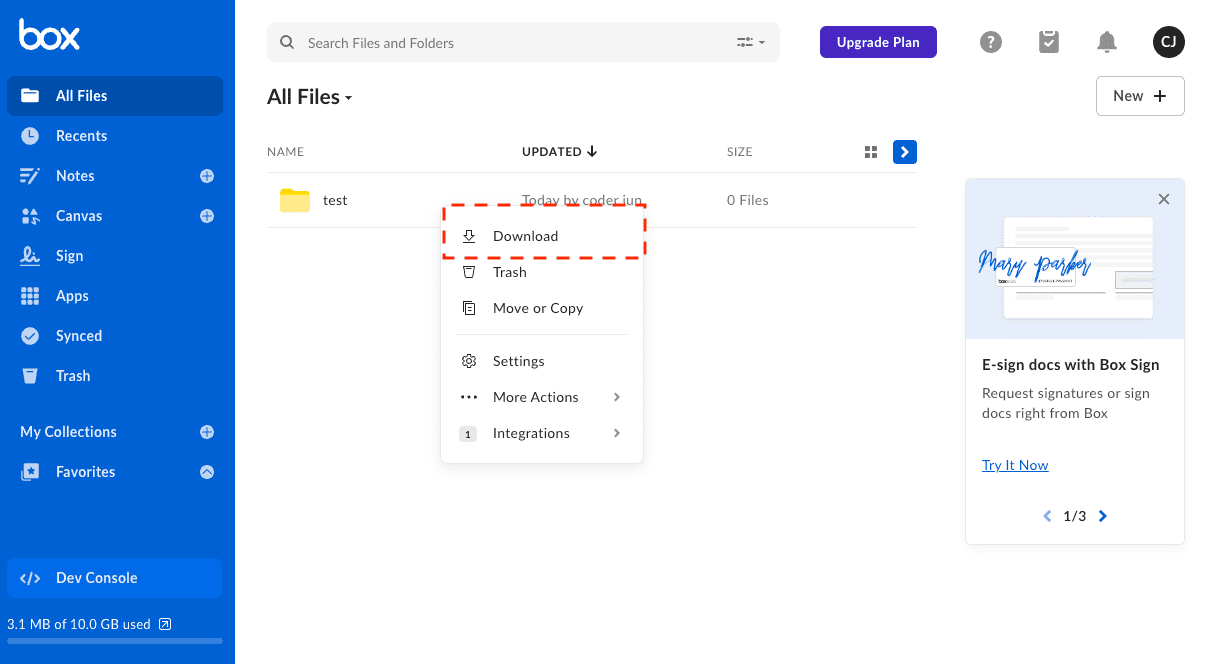
Open Box on the web and sign in. Select the files or folders to move, then choose Download. Box packages folders into a ZIP archive that must be extracted locally once the download finishes.
Step 2: Upload Files to Dropbox
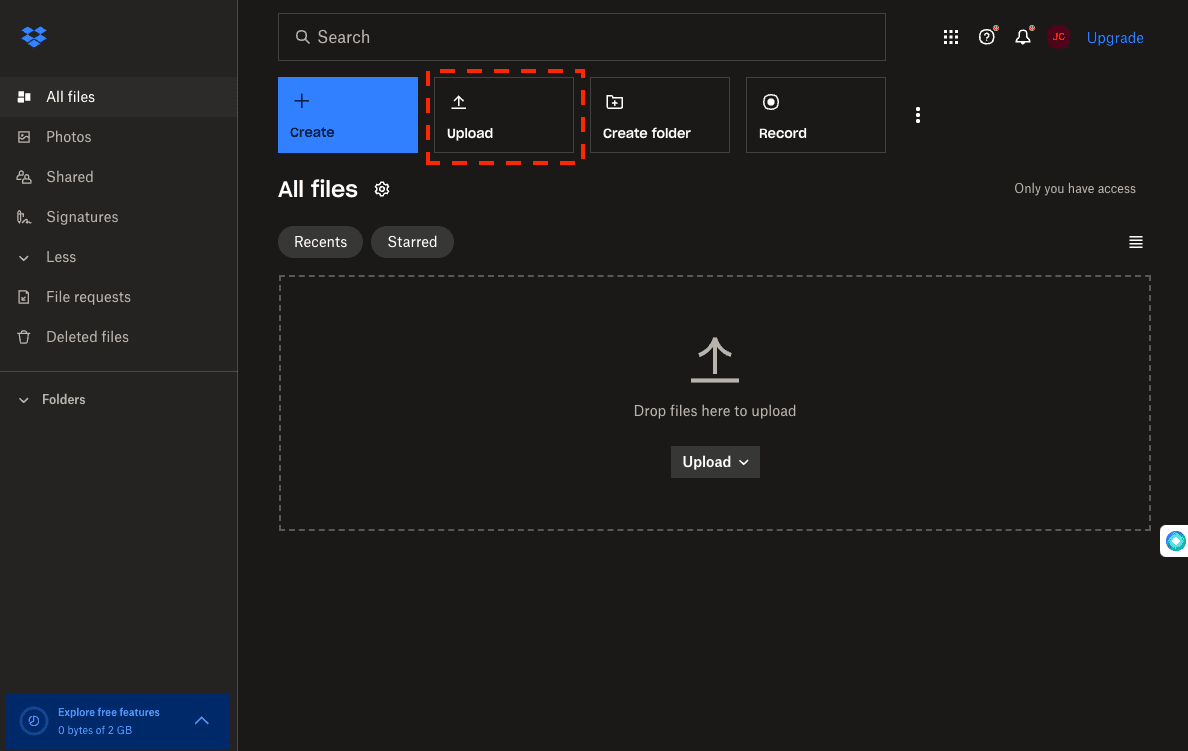
Open Dropbox on the web and sign in. Navigate to the destination folder, click Upload, and choose files or a folder, or drag the extracted items directly into the page.
Browser transfers work for a single project's worth of files. Because the same data downloads and re-uploads through your computer, a large Box account is slow this way and depends on a stable connection throughout.
Method 2: Use Box Drive and the Dropbox Desktop App
Step 1: Make Box Files Available Locally
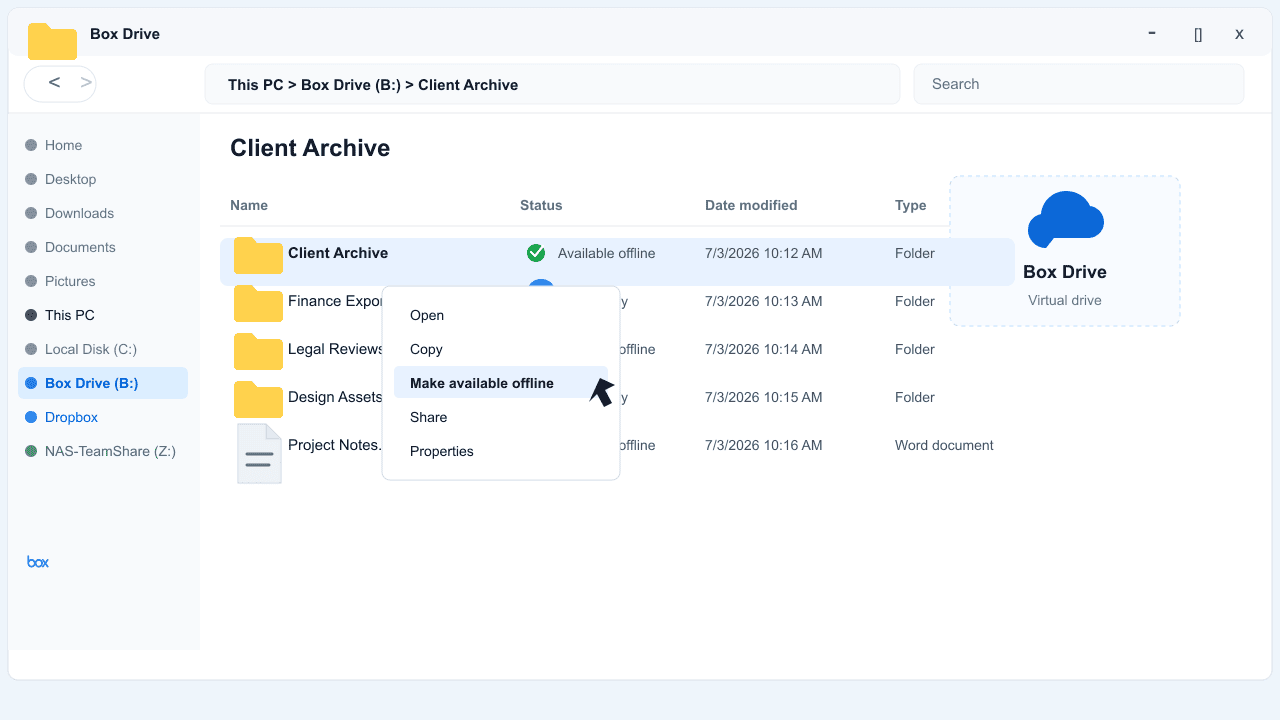
Install Box Drive and sign in. It mounts as a virtual drive rather than syncing every file to disk by default, so right-click the folders you plan to move and select the option to make them available offline.
Step 2: Copy Files into the Dropbox Folder
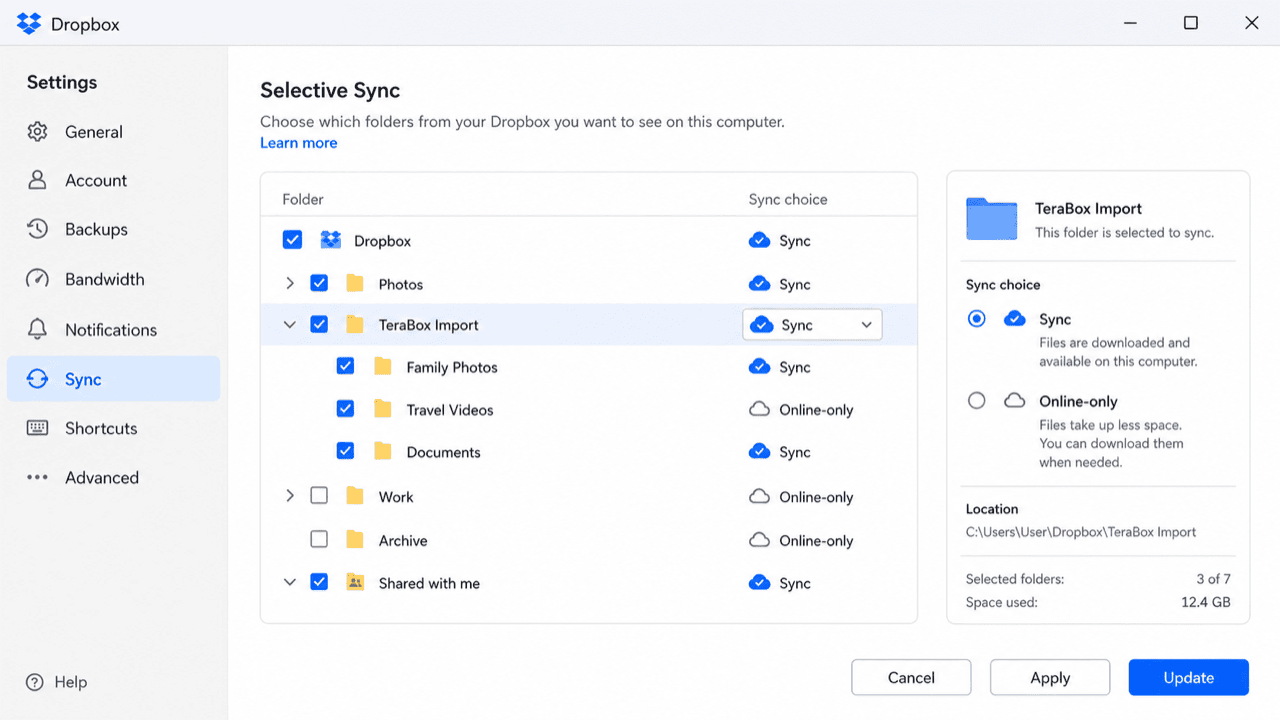
Install the Dropbox desktop app and sign in. Once the Box files are available offline, copy them into the local Dropbox folder, and the client uploads them in the background. Use Dropbox's selective sync settings if you only want certain folders staged locally during the move.
This approach suits a gradual or selective move and keeps a local copy as a side effect. Because Box Drive streams files on demand, confirm each folder is actually downloaded before copying, or the copy will be empty.
Method 3: Command-Line Transfer with Rclone
Step 1: Configure Box and Dropbox Remotes
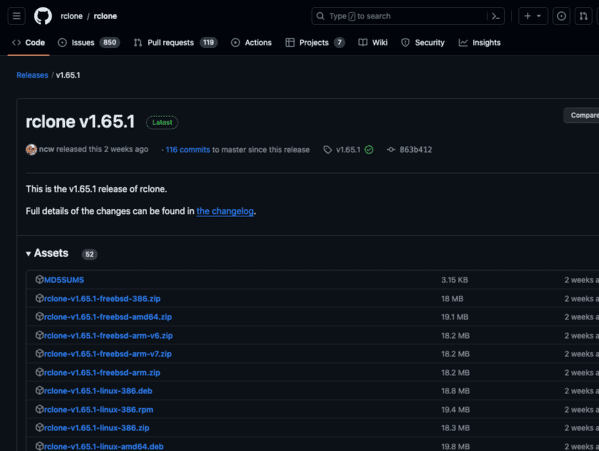
Rclone supports both services directly. After installing it, run rclone config and add a box remote and a dropbox remote. Each opens a browser window for the provider's OAuth sign-in.
Step 2: Run the Transfer Command
With both remotes configured, copy data directly between them:
rclone copy box:/Projects dropbox:/Projects --progressrclone sync box:/Archive dropbox:/Archive --progress --exclude "*.tmp"
The first command copies a folder; the second performs a one-way sync while skipping temporary files. Add --dry-run to preview the result before running it for real. Rclone supports bandwidth limits and can be scheduled through cron or Task Scheduler.
This method fits large or recurring migrations and technical users comfortable in a terminal. The trade-off is the initial setup and the lack of a visual progress view beyond the console output.
Method 4: Cloud-to-Cloud Transfer with CloudsLinker
Transfer Without Box's Per-Plan Upload Cap
CloudsLinker reads files directly from Box's servers and writes them to Dropbox, so a file that is already stored in Box moves regardless of the account's upload-side plan cap. The transfer runs server-side, and it connects to 40+ services including Box and Dropbox.
Step 1: Connect Box
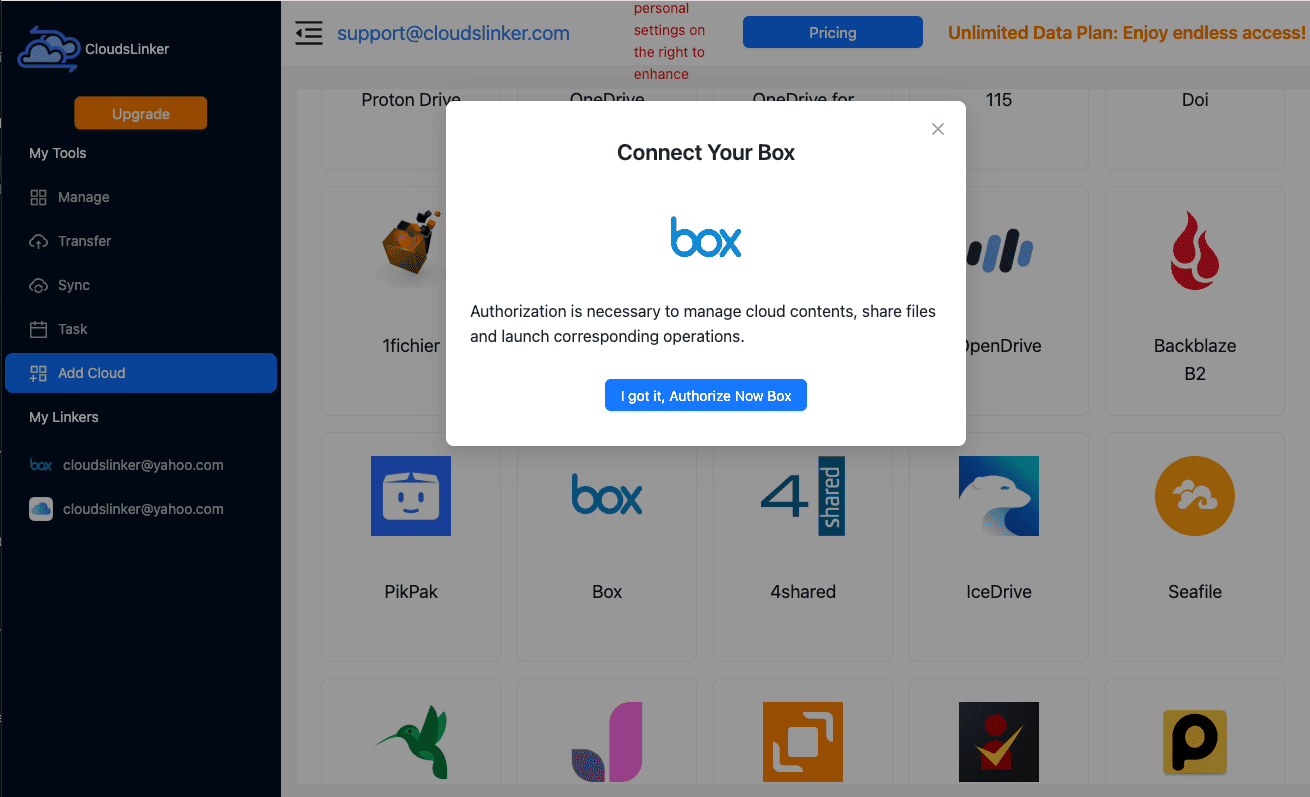
Sign in at app.cloudslinker.com, click Add Cloud, and select Box. Approve access on Box's official authorization page to link the account.
Step 2: Connect Dropbox
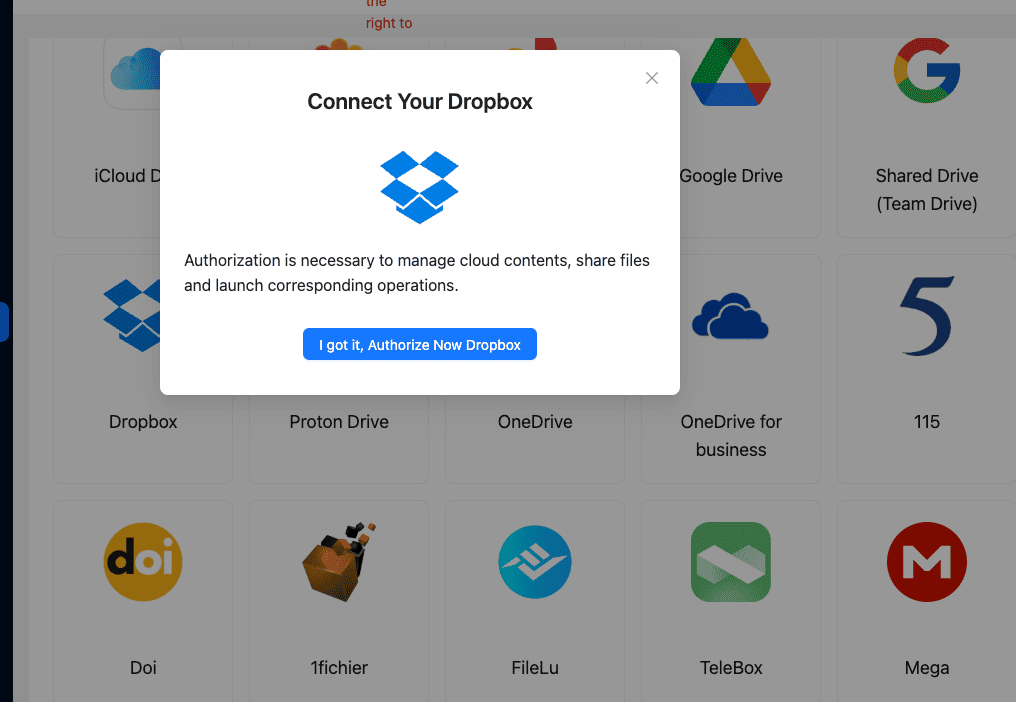
Click Add Cloud again and select Dropbox. You are redirected to Dropbox's official sign-in page; approve access to return to CloudsLinker with the account connected.
Step 3: Configure the Transfer
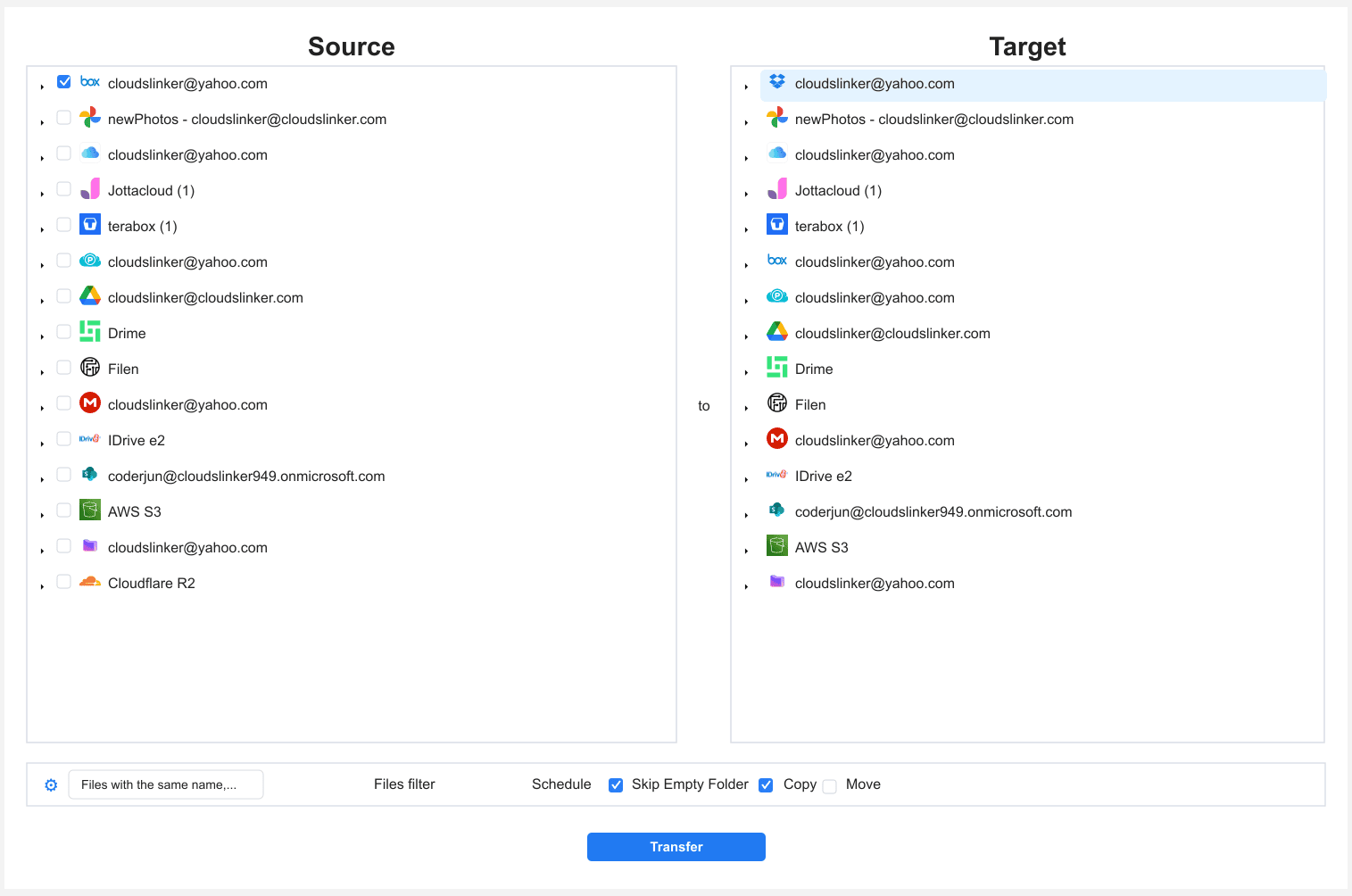
Open the Transfer section. Select Box as the source and browse to the files or folders to move. On the destination side, select Dropbox and choose the target folder.
Filters let you include only certain file types or a date range, and Copy or Move mode controls whether the Box originals remain.
Step 4: Start and Monitor the Transfer
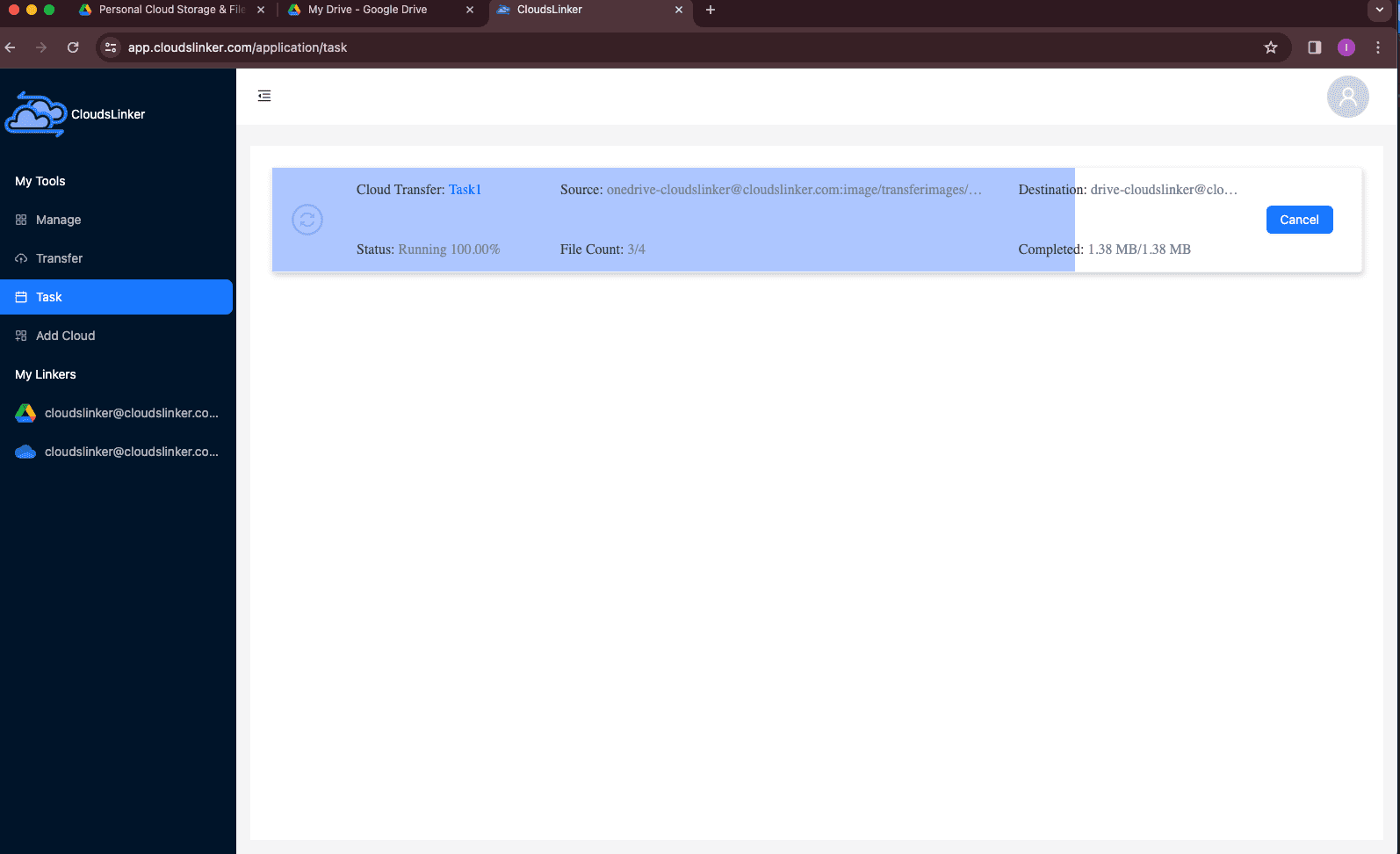
Start the task and track it in the Task List, which shows transferred size, speed, and any skipped items. The transfer runs in the cloud, so you can close the browser and check the result later.
Comparing the Ways to Transfer From Box to Dropbox
| Method | Ease of Use | Speed | Best For | Uses Local Bandwidth | Skill Level |
|---|---|---|---|---|---|
| Web Browser | ★★★★★ | ★★★☆☆ | A single project's files | Yes | Beginner |
| Box Drive + Dropbox Desktop | ★★★★☆ | ★★★☆☆ | Gradual or selective moves | Yes | Beginner |
| Rclone | ★★☆☆☆ | ★★★★☆ | Large or recurring migrations | Yes | Advanced |
| CloudsLinker | ★★★★★ | ★★★★★ | Full accounts, hands-off transfers | No | Beginner |
A browser copy is enough for one project. Box Drive paired with the Dropbox desktop app suits an ongoing switch. Rclone rewards technical users who want scripting and scheduling. For a full account move without local bandwidth, CloudsLinker runs server-side.
- Confirm Box Drive files are downloaded first: Box Drive streams files on demand; a folder that looks present may still need to finish downloading before a manual copy works.
- Note which files were split to fit Box's cap: Files awkwardly compressed or split to fit under a 5 GB or 15 GB Box plan cap can be re-combined once they land in Dropbox's 2 TB ceiling.
- Watch the 375 GB browser threshold on Dropbox's side: Very large files should go through the desktop app, API, or CloudsLinker rather than a browser upload.
- Review Box collaboration folders before moving: Folders shared through Box's collaborator groups do not carry those permissions into Dropbox; rebuild sharing manually afterward.
- Check Dropbox plan capacity: Compare your Box account's total usage to the Dropbox plan (2 GB Basic, 2 TB Plus, 3 TB Professional) before a full migration.
- Verify before deleting from Box: Use Copy mode, confirm the files open correctly in Dropbox, then remove them from Box.
Frequently Asked Questions
Conclusion
Match the method to how much is moving and how deep the folder structure runs. A browser copy handles a single project's worth of files. Running Box Drive and the Dropbox desktop app side by side suits an ongoing, selective move. Rclone gives scriptable control for large or repeated transfers. To move a full Box account without Box's per-plan file-size ceiling getting in the way and without tying up local bandwidth, CloudsLinker runs the transfer server-side. Pick based on data volume, not habit.
Online Storage Services Supported by CloudsLinker
Transfer data between over 58 cloud services with CloudsLinker

OneDrive

Google Drive

Google Photos

Shared Drive

OneDrive for Business

Dropbox

Box

Mega

pCloud

Yandex

ProtonDrive

AWS

GCS

iDrive

Storj

DigitalOcean

Wasabi

1fichier

PikPak

TeleBox

OpenDrive

Backblaze B2

Fastmail file

SharePoint

Nextcloud

ownCloud

Premiumize me

HiDrive

Put.io

Sugar Sync

Jottacloud

Seafile

Ftp

SFtp

NAS

WebDav

4shared

Icedrive

Cloudflare R2

Scaleway

Hetzner Object Storage

Synology C2 Object Storage

S3 Compatible

Doi

iCloud Drive

iCloud Photos

FileLU

Zoho WorkDrive

Telia Cloud / Sky

Drime

Filen

TeraBox

Internxt

Degoo

Gofile

Pixeldrain

Shade

Koofr
Didn' t find your cloud service? Be free to contact: [email protected]
Further Reading
Effortless FTP connect to google drive: Transfer Files in 3 Easy Ways
Learn More >
Google Photos to OneDrive: 3 Innovative Transfer Strategies
Learn More >
Google Photos to Proton Drive: 3 Effective Transfer Techniques
Learn More >