Box to TeraBox: Moving Team Files Into Low-Cost Archive Storage
Move files from Box to TeraBox with browser download, Box Drive, or CloudsLinker. Covers Box OAuth, TeraBox cookies, caps, and folders.
Introduction
TeraBox is useful as a low-cost archive destination when Box is no longer the place where a folder needs compliance controls, workflow metadata, or team collaboration. A finished project folder, exported media set, or legacy document archive may not justify staying in an unlimited Box Business tenant if the goal is simply storage. The limits still matter: Box can hold much larger files on paid tiers, while TeraBox Free rejects files above 4 GB and behaves more like a consumer archive than a governed content platform. This guide covers three practical ways to move files from Box to TeraBox and explains which Box-specific details do not survive the move.
Box is an enterprise content platform built around folder permissions, collaboration, governance, DLP, and integrations with Microsoft 365, Salesforce, Slack, and other business systems.
- Free plan: 10 GB storage with a 250 MB per-file cap.
- Business plans: paid tiers raise file limits to 5 GB, 50 GB, or 500 GB depending on plan.
- Connection: OAuth through Box's official authorization page.
- Admin controls: enterprise tenants may require app approval before OAuth succeeds.
- Metadata: comments, tasks, permissions, and some workflow data are Box-specific.
TeraBox is a consumer storage service operated by Flextech Inc. Its main appeal is the 1 TB free headline tier and a 2 TB Premium plan priced below many team cloud subscriptions.
- Free tier: 1 TB advertised, with a practical limit around 80 GB for large-file archives.
- Single-file cap: 4 GB Free / 20 GB Premium.
- Free download throttle: roughly 200-800 KB/s and one concurrent file.
- Connection: browser cookie, not OAuth.
- Collaboration model: basic sharing rather than Box-style permission governance.
Box and TeraBox solve different problems. Box is a governed collaboration system; TeraBox is a low-cost file archive with consumer-grade limits.
| Feature | Box | TeraBox |
|---|---|---|
| Typical use | Team document management and governance | Low-cost personal archive storage |
| Free tier | 10 GB, 250 MB max file | 1 TB advertised, about 80 GB practical for large files |
| Paid file-size ceiling | 5 GB to 500 GB depending on plan | 20 GB on Premium |
| Connection method | OAuth with possible admin approval | Browser cookie from logged-in session |
| Permissions | Granular collaborators, roles, policies | Basic file and folder sharing |
| Metadata portability | Box Notes, comments, tasks, workflow metadata | Stores plain files and folders only |
| Main migration risk | Box-only metadata and app approval | 4 GB cap, cookie expiry, and upload throttling |
Preparation matters because a Box export can contain file sizes and collaboration metadata that TeraBox does not support.
- Audit files above 4 GB. Box Enterprise folders may contain files that are far above TeraBox Free's upload cap. Filter or upgrade before transfer.
- Export Box Notes if needed. Box Notes are not ordinary files outside Box. Export them to
.docxor.pdfbefore moving to TeraBox. - Record sharing and permission needs. TeraBox will not preserve Box collaborator roles, comments, tasks, or governance labels.
- Check enterprise app approval. If your Box tenant blocks third-party OAuth apps, ask an admin to approve CloudsLinker before starting the server-side method.
- Use the international TeraBox account. Sign in at
www.terabox.combefore exporting the cookie.
Method 1: Browser Download from Box, Web Upload to TeraBox
Step 1: Download Files from Box
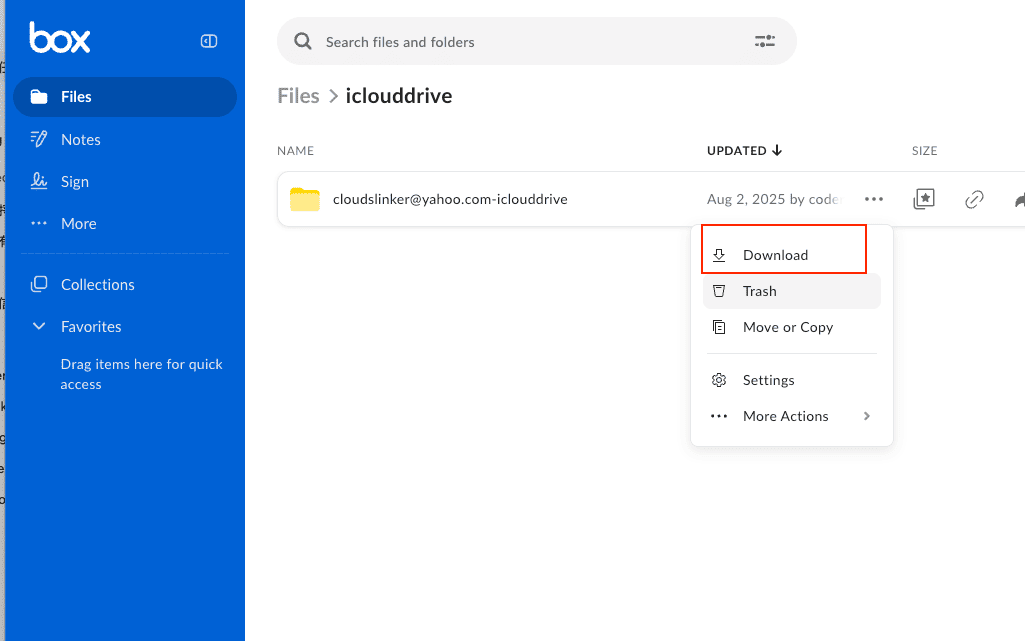
Sign in at app.box.com, select the files or folders, and choose Download. Box builds ZIP archives for folders. For large folders, split the export into smaller selections so failures are easier to retry.
Step 2: Review the Local Export
Extract the ZIP and confirm that the expected files are present. Check for files above 4 GB before uploading to a free TeraBox account. Box Notes, comments, tasks, and folder permissions will not become TeraBox metadata, so export or document those separately if they matter.
Step 3: Upload to TeraBox
Open terabox.com and upload the extracted folder. Keep the browser awake until the queue completes. If a file disappears from the queue, check its size first; the 4 GB free-tier cap is the most common cause.
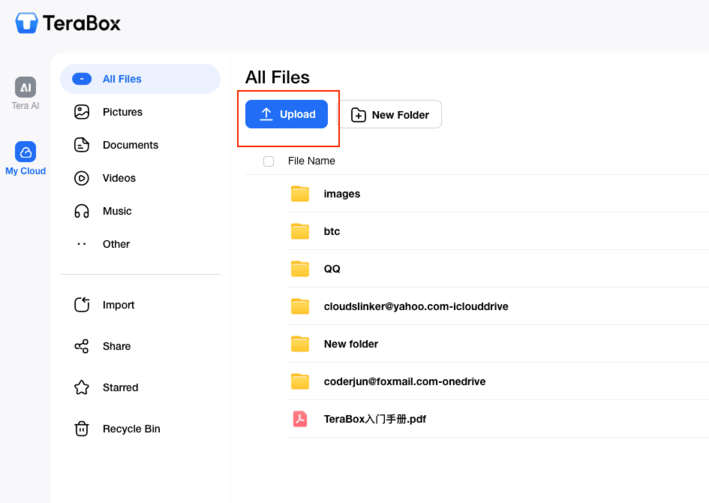
Browser download and upload works for small exports and folders with no special Box-only content. It is not efficient for large tenants because the data passes through your local machine.
Method 2: Box Drive Local Folder, Then Upload to TeraBox
Step 1: Materialize the Box Folder Locally
Install Box Drive and sign in. Navigate to the folder you want to archive, then make the needed files available offline so the upload reads real local content rather than placeholders.
Step 2: Stage the Export
Copy the materialized Box folder into a local staging folder. This gives you a place to remove temporary files, export Box Notes, and separate files over the TeraBox cap before upload.
Step 3: Upload the Staged Folder
Upload the staged folder to TeraBox using the web app or TeraBox desktop client. Keep Box Drive from changing the source while the upload is running; a stable local snapshot is easier to verify than a live collaboration folder.
Box Drive is useful when the folder is already part of a desktop workflow. It still consumes local storage and bandwidth, and it cannot preserve Box permissions on the TeraBox side.
Method 3: Transfer Box to TeraBox Directly in the Cloud
Cloud-to-Cloud Transfer Without Local Downloads
CloudsLinker copies Box file content to TeraBox server-side. The local computer does not need to download the archive or stay online during the transfer.
Step 1: Connect Box (OAuth)
In CloudsLinker, click Add Cloud and choose Box. The browser redirects to Box's OAuth authorization page. Sign in, review the requested file read/write permission, and approve. Enterprise tenants may require an admin to approve the app before the OAuth grant succeeds.
Step 2: Connect TeraBox (Browser Cookie)
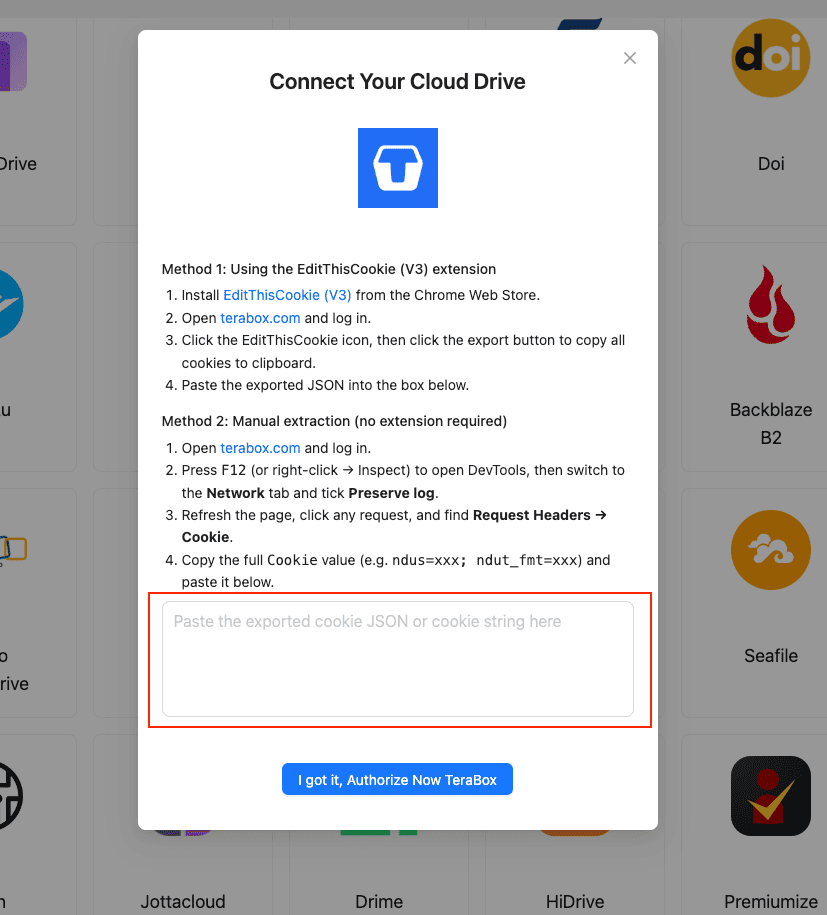
TeraBox does not provide OAuth. Sign in at www.terabox.com, export the browser cookies with EditThisCookie (V3), then paste the JSON into CloudsLinker under Add Cloud -> TeraBox. If you do not use an extension, copy the full Request Headers -> Cookie value from DevTools.
Step 3: Configure the Transfer
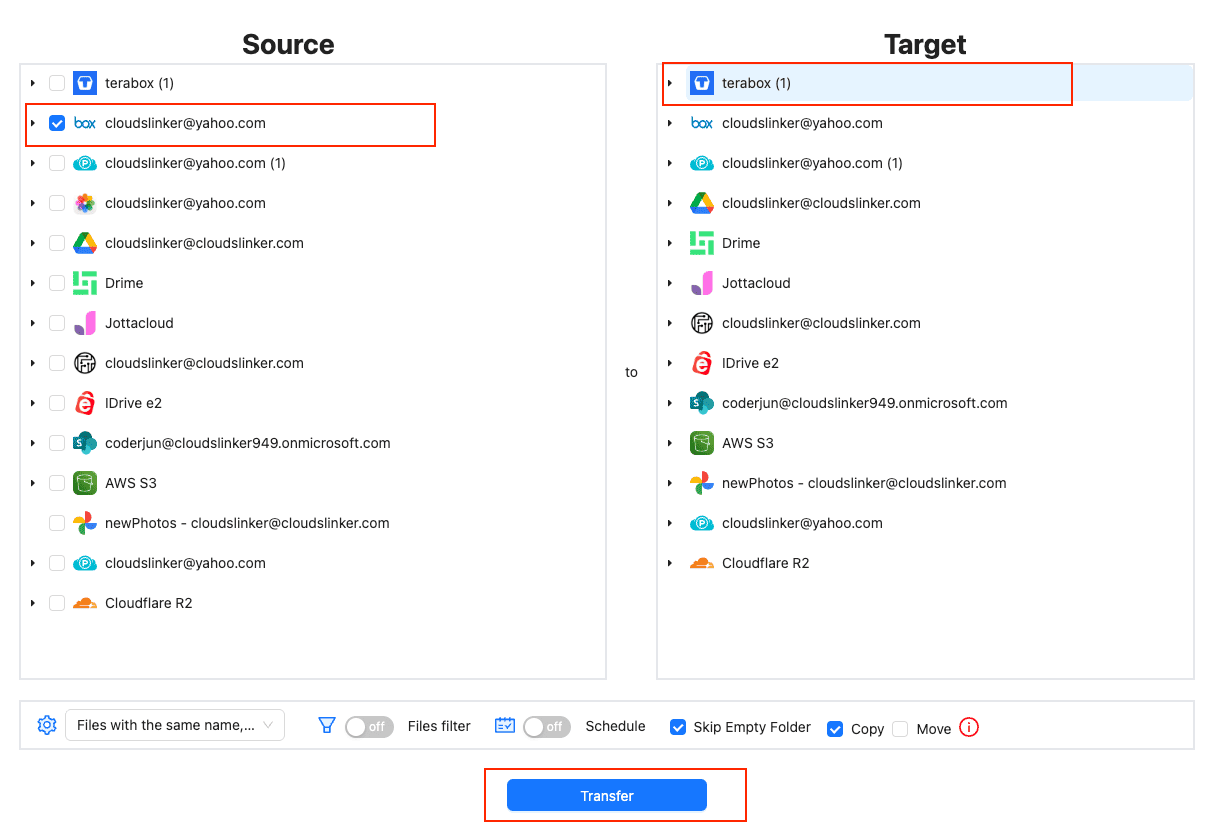
Open Transfer, select Box as the source, and choose the folders to archive. Select TeraBox as the destination and pick or create a folder. Add a size filter at 4 GB for TeraBox Free or 20 GB for Premium. Use Copy first so Box remains the source of truth until verification is complete.
Step 4: Start and Monitor the Transfer
Start the job and monitor it from the Task List. CloudsLinker logs file-level status, retries transient rate-limit responses, and pauses for re-authentication if the TeraBox cookie expires. After completion, export the task log for audit records if this is a business archive.
Comparing the Three Ways to Transfer Box to TeraBox
| Method | Ease of Use | Speed | Best For | Uses Local Bandwidth | Skill Level |
|---|---|---|---|---|---|
| Browser Download + TeraBox Upload | Low | Bound by local network | Small folders and simple exports | Yes | Beginner |
| Box Drive + Local Upload | Low | Bound by local disk and upload speed | Folders already synced or available offline | Yes | Beginner |
| CloudsLinker | Low | Server-side transfer | Large archives, filters, and unattended jobs | No | Beginner |
- Do not treat TeraBox as a Box replacement for active teams. Move finished archives, not folders that still depend on Box comments, tasks, workflows, or collaborator roles.
- Export Box Notes before transfer. Store them as
.docxor.pdfbeside the folder they belong to. - Filter files above TeraBox limits. Box Enterprise Advanced can hold 500 GB files; TeraBox Premium stops at 20 GB.
- Keep a permission record. If the archive needs access history, export or document Box permissions before moving files away.
- Use Copy mode first. Delete Box originals only after the TeraBox folder count and sample files check out.
- Revoke both connections after a one-shot archive. Remove CloudsLinker from Box authorized apps and invalidate the TeraBox cookie by logging out or changing the password.
Frequently Asked Questions
.docx or .pdf first. Large files need a TeraBox size check because Box paid tiers can support much larger files than TeraBox.Watch: Transfer Files from Box to TeraBox with CloudsLinker
A walkthrough of the cloud-to-cloud method, including connecting Box through OAuth, adding TeraBox with a browser cookie, applying size filters, and checking the transfer task.
Conclusion
For a small Box folder, browser download and TeraBox upload is enough. If Box Drive is already installed and the folder is materialized locally, uploading from that local mirror avoids repeated web ZIP exports. For larger archives, CloudsLinker is the cleaner route: it connects to Box through OAuth, connects to TeraBox by browser cookie, applies file-size filters before transfer, and keeps running server-side. Keep Box originals until you have verified file counts and opened sample files on TeraBox.
Online Storage Services Supported by CloudsLinker
Transfer data between over 58 cloud services with CloudsLinker

OneDrive

Google Drive

Google Photos

Shared Drive

OneDrive for Business

Dropbox

Box

Mega

pCloud

Yandex

ProtonDrive

AWS

GCS

iDrive

Storj

DigitalOcean

Wasabi

1fichier

PikPak

TeleBox

OpenDrive

Backblaze B2

Fastmail file

SharePoint

Nextcloud

ownCloud

Premiumize me

HiDrive

Put.io

Sugar Sync

Jottacloud

Seafile

Ftp

SFtp

NAS

WebDav

4shared

Icedrive

Cloudflare R2

Scaleway

Hetzner Object Storage

Synology C2 Object Storage

S3 Compatible

Doi

iCloud Drive

iCloud Photos

FileLU

Zoho WorkDrive

Telia Cloud / Sky

Drime

Filen

TeraBox

Internxt

Degoo

Gofile

Pixeldrain

Shade

Koofr
Didn' t find your cloud service? Be free to contact: [email protected]
Further Reading
Effortless FTP connect to google drive: Transfer Files in 3 Easy Ways
Learn More >
Google Photos to OneDrive: 3 Innovative Transfer Strategies
Learn More >
Google Photos to Proton Drive: 3 Effective Transfer Techniques
Learn More >