Leaving Degoo? How to Transfer Your Files to Google Drive
Two working ways to move files from Degoo to Google Drive — manual download around Degoo's free-tier limits, or a server-side copy with CloudsLinker.
Introduction
Degoo works as a cheap parking lot for photos and cold archives, but people tend to leave it for the same three reasons: the 90-day inactivity rule that deletes free-tier accounts, download limits that make getting files back out slow (the free plan caps large-file downloads at roughly 3 GB per file per day), and the absence of a desktop client to do a bulk export with. Google Drive is the usual destination — 15 GB free, a desktop app, document editing, and no activity requirement to keep your data alive. The catch is that the same limits that make Degoo cheap to fill make it awkward to empty. This guide covers the two routes that work: downloading through Degoo's apps by hand, and a server-side copy with CloudsLinker that moves everything without touching your devices.
Degoo is a Swedish consumer cloud aimed at cheap bulk storage and phone photo backup — 20 GB free, 500 GB for $2.99/mo, 5 TB for $9.99/mo. It is mobile-first by design: there is no desktop sync client, the web uploader is a paid feature, and free accounts are deleted after 90 days of inactivity.
- 20 GB free tier with ads
- 90-day inactivity deletion on free accounts
- Free downloads limited (~3 GB per file per day)
- No desktop client; apps are phone-first
Google Drive is the storage layer of a Google account: 15 GB free shared with Gmail and Photos, Google One upgrades from 100 GB at $1.99/mo to 2 TB at $9.99/mo, native document editing, and Drive for desktop on Windows and macOS. Accounts stay alive as long as the Google account does — there is no use-it-or-lose-it timer on stored files.
- 15 GB free, shared across Gmail / Drive / Photos
- Desktop sync client and full web app
- 5 TB max single file; strong search
- Docs / Sheets / Slides editing built in
| Feature | Degoo | Google Drive |
|---|---|---|
| Free storage | 20 GB (ads; 90-day inactivity rule) | 15 GB (shared with Gmail + Photos) |
| Download limits | Free plan: large files ~once/day (~3 GB) | None for your own files |
| Desktop client | None — mobile apps + paid web uploader | Drive for desktop (sync / stream) |
| Account inactivity policy | Free accounts deleted after 90 idle days | No file deletion for inactivity on active Google accounts |
| Client-side encryption | Top Secret folder (paid; app-only access) | None (server-side encryption only) |
| Connection in CloudsLinker | Account email + password | Google OAuth |
Sources: Degoo Help Center: Account limits, Degoo: plans, Google: storage and upload limits.
The reasons people leave Degoo are concrete, and most of them are policies rather than preferences:
- The 90-day rule is a standing risk: a free-tier archive you stop opening is an archive on a deletion timer. Google Drive has no activity requirement on stored files.
- Your data is easier to reach in Drive: desktop sync, a full web app, search, and no per-day download pacing — Degoo's free plan meters large downloads at roughly one per file per day.
- Documents become editable again: Degoo stores files as dead weight; Drive opens them in Docs, Sheets and Office-compatible editors directly.
- Lifetime-deal uncertainty: Degoo's business leans on promotional lifetime plans, and its free tier has been trimmed over the years — consolidating onto a mainstream provider removes that bet.
- One account fewer to keep alive: if Degoo was only ever the overflow bucket, folding it back into the Google account you use daily simplifies backups and inheritance planning.
The friction on the way out is Degoo's own design: no desktop client to bulk-export with, download limits on the free tier, and an app-only path for Top Secret files. Both methods below work around different parts of that.
Open the Degoo app and check how much you are actually storing — free accounts hold up to 20 GB, which does not fit into Google's free 15 GB shared with Gmail and Photos. Either prune first, or line up a Google One tier (100 GB at $1.99/mo covers most free-tier exits). List anything sitting in the Top Secret folder: those files are client-side encrypted and only the Degoo app can decrypt them, so plan to download them by hand. Finally, make sure the Degoo account credentials work on a fresh login — that is exactly how CloudsLinker will connect.
Method 1: Download From Degoo and Re-upload by Hand
Step 1: Download your files from Degoo
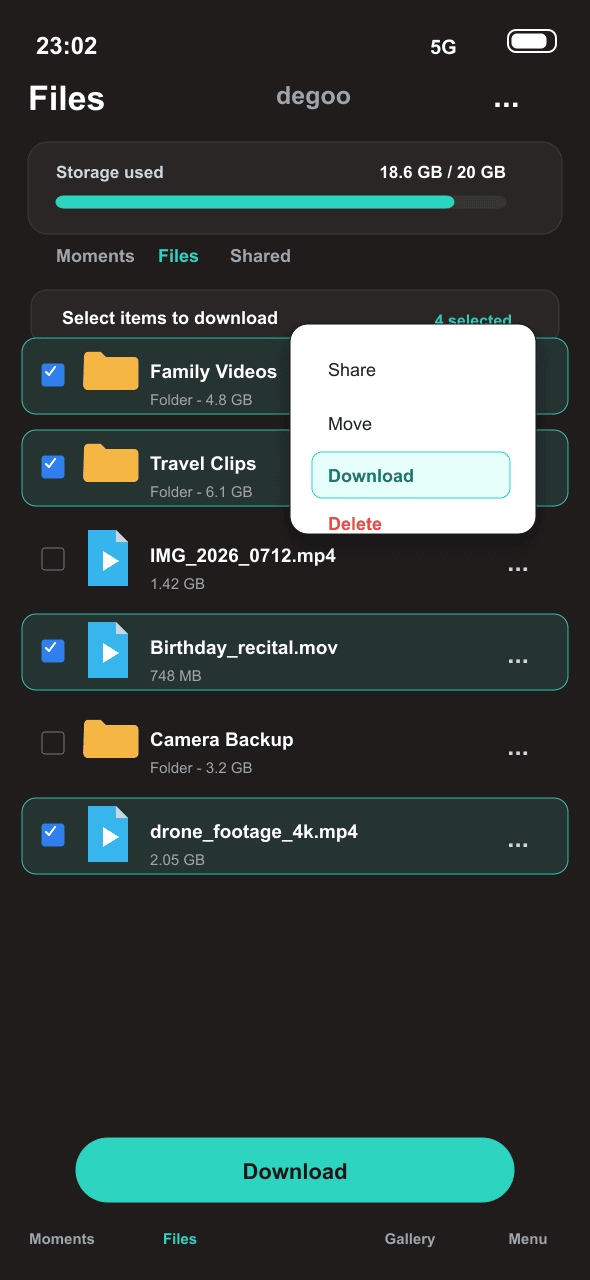
Select files or folders in the Degoo mobile app (or the web app on paid plans) and choose Download. On the free plan, expect pacing: large files are limited to roughly one download per day each, so a video-heavy archive comes out in daily installments. On a phone, downloads land in local storage first — mind the handset's free space.
Step 2: Upload to Google Drive
Upload the downloaded tree at drive.google.com (drag folders into the browser) or let Drive for desktop sync a local folder up. From a phone, the Google Drive app uploads the files Degoo just saved locally. Folder structure survives if you upload folders rather than loose files.
Workable for a few gigabytes. For a full account the math turns against you: every byte crosses your connection twice, Degoo's free-tier download pacing stretches the job across days, and a phone in the middle makes it worse.
Method 2: Copy Degoo to Google Drive in the Cloud
A bulk exit that works around Degoo's design
CloudsLinker logs in to Degoo with your account credentials — the same API the Degoo apps use, no desktop client required — and writes straight into Google Drive over OAuth. The copy runs on CloudsLinker's servers: nothing routes through your phone or laptop, and a job that Degoo's free-tier pacing stretches out simply keeps running unattended and resumes if throttled.
Step 1: Connect Degoo
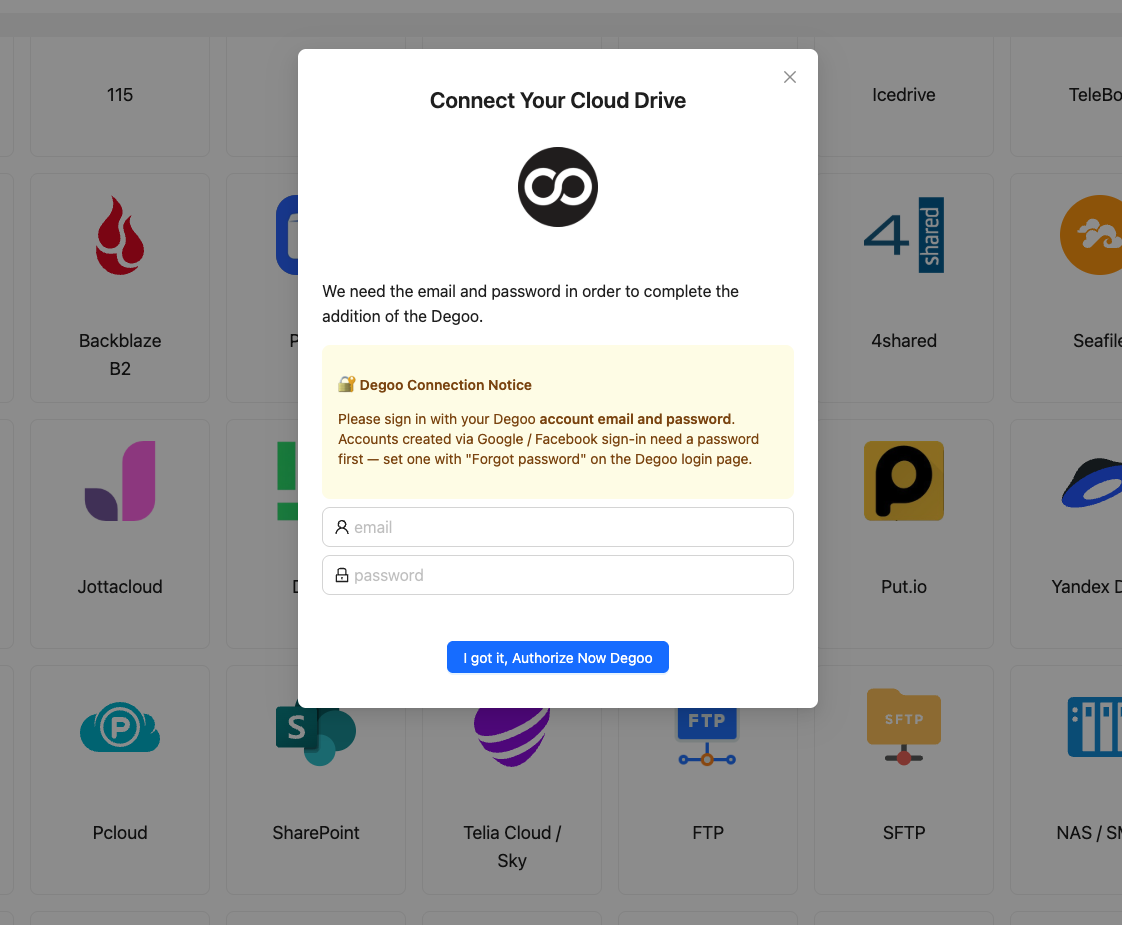
Click Add Cloud → Degoo and enter your Degoo email and password. Degoo offers no OAuth flow, so CloudsLinker authenticates against Degoo's own API and caches a session token for later jobs. Changing your Degoo password revokes the access whenever you want.
Step 2: Connect Google Drive
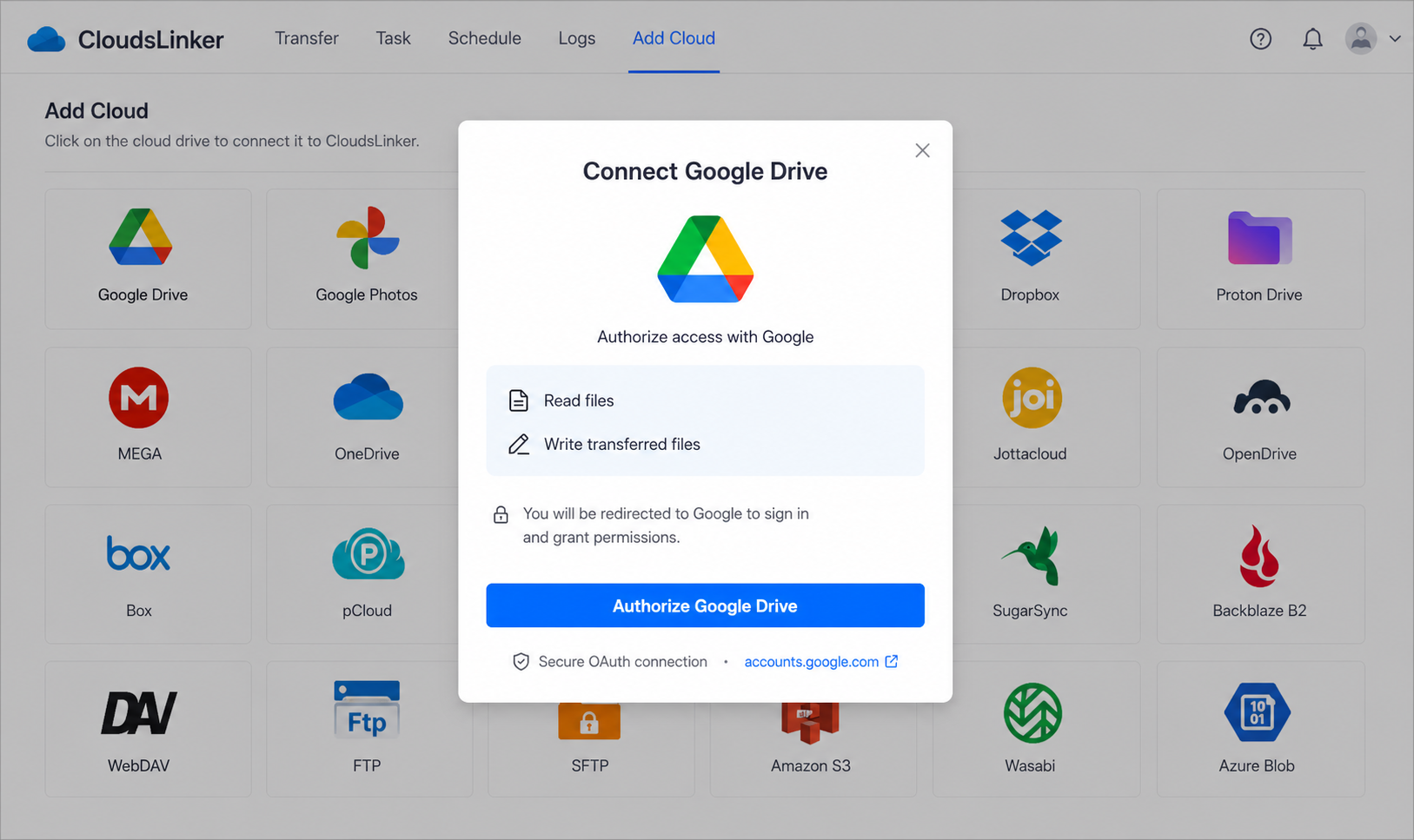
Click Add Cloud → Google Drive and approve access on Google's consent page at accounts.google.com. The grant is a revocable token; remove it later under myaccount.google.com → Security → Third-party access.
Step 3: Configure the Transfer
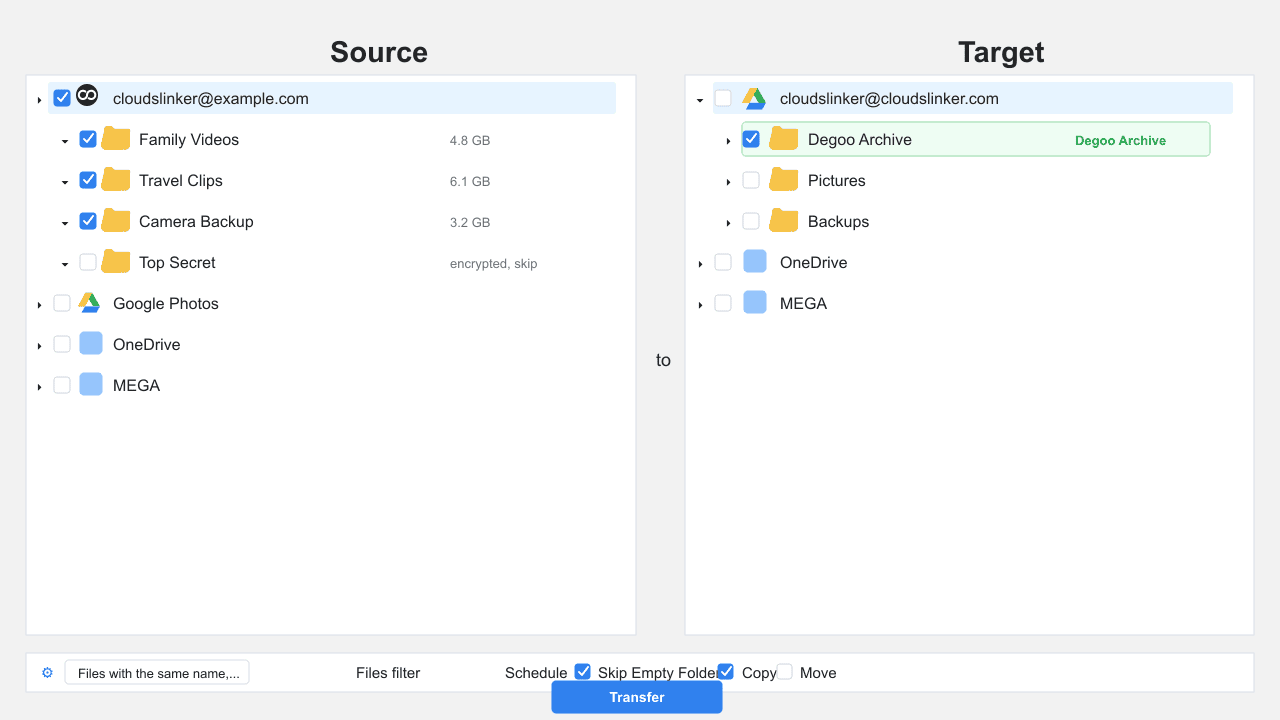
In the Transfer section, set Degoo as the source and tick the folders to move; pick or create a destination folder in Google Drive — a top-level Degoo Archive keeps the import contained.
Filters restrict the job by file type, size or date if you only want part of the account. Use Copy rather than Move: leave the Degoo originals alone until the Drive copy is verified, then clean up by hand.
Step 4: Start and Monitor the Transfer
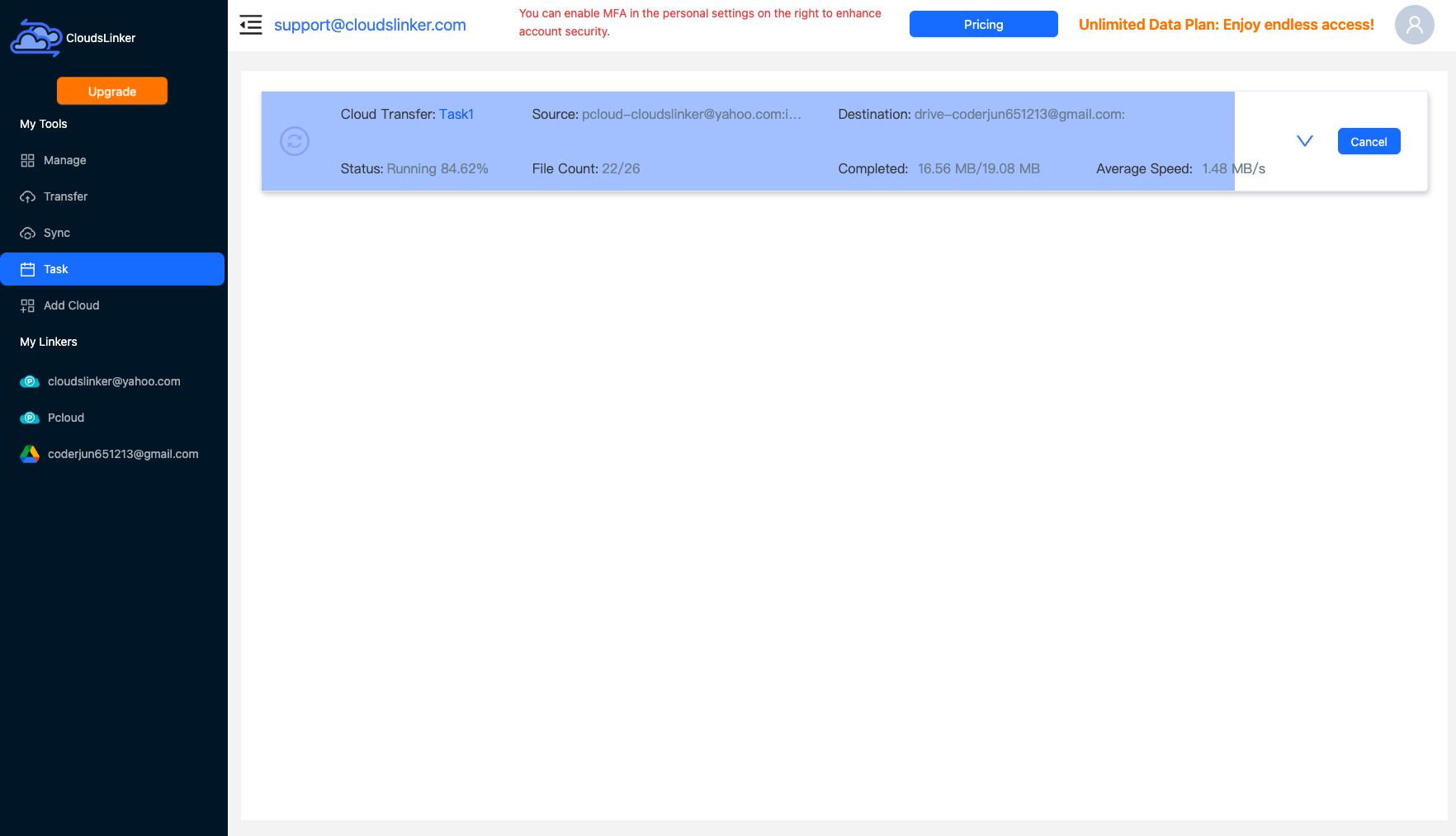
Start the job and watch it in the Task List — files done, current speed, anything skipped. The transfer continues after the browser closes; throttling on Degoo's side shows up as a slower task, not a failed one.
Comparing the Ways to Transfer From Degoo to Google Drive
| Method | Ease of Use | Speed | Best For | Uses Local Bandwidth | Skill Level |
|---|---|---|---|---|---|
| Manual download / upload | Medium (app-bound) | Slow (free-tier pacing) | A few folders; Top Secret files | Yes — twice | Basic |
| CloudsLinker | Easy | Fast (server-side, unattended) | Full-account exits and big archives | No | Basic |
- Start while the account is healthy: don't wait for a 90-day inactivity warning to begin an exit — a deletion clock plus free-tier download pacing is a bad combination.
- Handle Top Secret first and by hand: client-side encrypted files are invisible to any transfer tool. Download them through the Degoo app, then decide whether they go to Drive as-is or inside an encrypted archive.
- Size the Google side before starting: a 20 GB free Degoo doesn't fit 15 GB shared Google quota. Prune, or grab Google One's 100 GB at $1.99/mo before the job, not after it stalls.
- Copy, verify, then delete: run the transfer in Copy mode, compare folder sizes and spot-check a few videos in Drive, and only then clear the Degoo side.
- Expect referral-inflated quotas to overstate reality: Degoo accounts grown by bonuses often hold more than the base 20 GB — check actual usage in the app, not the plan name.
- Keep the Degoo app until the end: uninstalling it early costs you the only path to Top Secret files and the easiest activity signal that keeps the account alive mid-migration.
Frequently Asked Questions
Conclusion
Manually downloading works when you are pulling a handful of folders and can live with Degoo's free-tier download pacing. For a full exit — especially an archive built up over years — the server-side copy is the practical route: connect Degoo with your account credentials, connect Google Drive by OAuth, and let CloudsLinker drain the account into a Drive folder while you do something else. Two reminders whichever way you go: files in Degoo's Top Secret folder are client-side encrypted and must be downloaded through the Degoo app yourself, and don't close or abandon the Degoo account until you have spot-checked the copies that arrived in Google Drive.
Online Storage Services Supported by CloudsLinker
Transfer data between over 58 cloud services with CloudsLinker

OneDrive

Google Drive

Google Photos

Shared Drive

OneDrive for Business

Dropbox

Box

Mega

pCloud

Yandex

ProtonDrive

AWS

GCS

iDrive

Storj

DigitalOcean

Wasabi

1fichier

PikPak

TeleBox

OpenDrive

Backblaze B2

Fastmail file

SharePoint

Nextcloud

ownCloud

Premiumize me

HiDrive

Put.io

Sugar Sync

Jottacloud

Seafile

Ftp

SFtp

NAS

WebDav

4shared

Icedrive

Cloudflare R2

Scaleway

Hetzner Object Storage

Synology C2 Object Storage

S3 Compatible

Doi

iCloud Drive

iCloud Photos

FileLU

Zoho WorkDrive

Telia Cloud / Sky

Drime

Filen

TeraBox

Internxt

Degoo

Gofile

Pixeldrain

Shade

Koofr
Didn' t find your cloud service? Be free to contact: [email protected]
Further Reading
Effortless FTP connect to google drive: Transfer Files in 3 Easy Ways
Learn More >
Google Photos to OneDrive: 3 Innovative Transfer Strategies
Learn More >
Google Photos to Proton Drive: 3 Effective Transfer Techniques
Learn More >