Drime to Filen: Move European Storage to a Zero-Knowledge Encrypted Home
Migrate files from Drime to Filen for stricter client-side encryption. Covers browser download, desktop client bridge, and CloudsLinker cloud-to-cloud transfer.
Introduction
Drime and Filen both host data inside the EU, but they sit at different points on the privacy spectrum. Drime applies end-to-end encryption and markets around GDPR-aligned French hosting; Filen pushes further with a zero-knowledge design where filenames, folder names, and content are all encrypted client-side before upload. People typically move this direction when a workflow that started with shared files evolves into a private archive — tax records, personal photos, contracts — where even metadata exposure is unwanted. This guide covers two reliable migration paths: a manual browser download from the Drime web app followed by re-upload, and a direct cloud-to-cloud transfer through CloudsLinker using Drime's developer token.
Drime is a French cloud storage workspace with GDPR-aligned hosting, end-to-end encryption, and collaboration features such as password-protected sharing links. Files are organized as plain folders rather than an album or site structure.
- French data residency: servers in France under GDPR.
- End-to-end encryption: applied to stored and shared content.
- Share links: password-protected, expiring links.
- Cross-platform clients: web, desktop, and mobile apps.
- Developer tokens: for API-based integrations including migration tools.
Filen is a German end-to-end encrypted storage service. Encryption runs on the client before upload and covers filenames and folder names as well as content, so the service holds only ciphertext.
- Zero-knowledge architecture: keys never leave the client.
- AES-256 + RSA encryption: applied before anything leaves the device.
- Encrypted metadata: filenames and folder names are not visible to the server.
- 2FA-gated API: required for migration tools.
- EU hosting: servers in Germany.
Both services sit in the EU and both apply strong encryption, so choosing between them comes down to how much metadata exposure is acceptable and whether collaboration or pure archive storage is the main use case.
| Feature | Drime | Filen |
|---|---|---|
| Data residency | France (EU) | Germany (EU) |
| Encryption scope | End-to-end content encryption | Client-side content plus encrypted filenames and folder names |
| Sharing model | Password-protected expiring links | Per-file and per-folder share links |
| Collaboration focus | Workspace features, sharing-first interface | Storage-first, minimal collaboration features |
| Best-fit use case | Shared files and external deliverables | Private archive with minimal metadata exposure |
On the Drime side
- Check storage used: open Drime → account panel to see total consumption.
- Audit active share links: any Drime share links stop working after migration. List the ones that still need to be reissued on Filen.
- Generate a developer token: avatar → Settings → Developer → Create Token. Copy and store it — it is the CloudsLinker credential for Drime.
- Empty Trash if any deleted items remain; they count against quota until the retention period expires.
On the Filen side
- Pick a plan that fits: compare Drime usage against Filen tiers with a small buffer for growth.
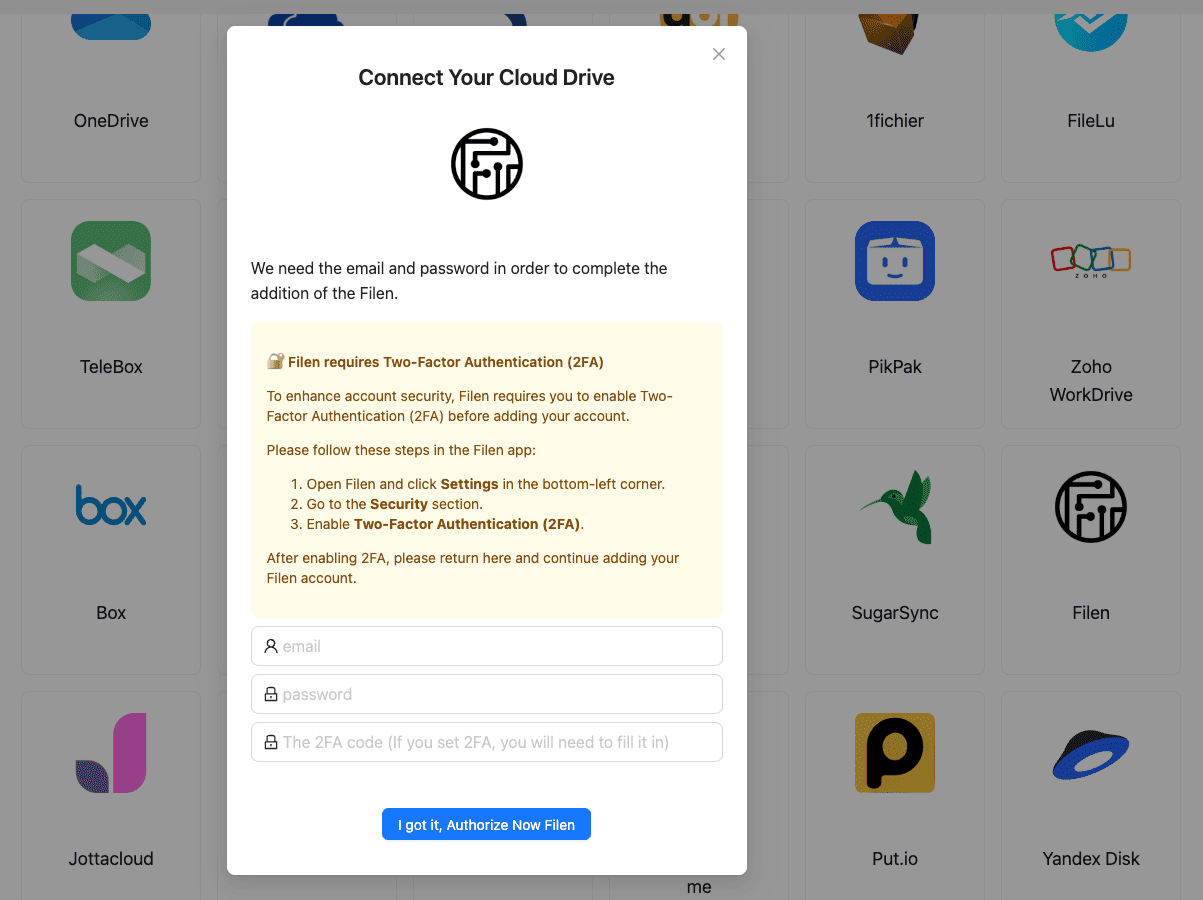
- Enable 2FA: required for CloudsLinker. Pair it with an authenticator app.
- Save the recovery key: zero-knowledge storage has no provider-side password reset.
- Plan folder structure: Filen uses plain folders, so decide whether to mirror Drime's layout or consolidate by project.
Method 1: Download from Drime and Upload to Filen
Step 1: Download Folders from the Drime Web App
Sign in to the Drime web dashboard. Select files or whole folders and click Download. Folder selections come down as ZIP archives. For large accounts, split the download into chunks to keep archives at a manageable size.
Step 2: Extract Locally
Unzip the archive. Drime preserves folder hierarchy in its downloads. Modification timestamps usually carry over; creation timestamps depend on the archive tool used.
Step 3: Upload to Filen
Open the Filen web app or desktop client, sign in, and drag the extracted folder into the chosen destination. Filen encrypts files on the client before upload, so upload throughput depends on CPU alongside upstream bandwidth. Interrupted uploads resume automatically.
Method 2: Cloud-to-Cloud Transfer with CloudsLinker
Move Drime Content Directly Into Filen
CloudsLinker connects Drime through a developer token and Filen through email, password, and 2FA. Files move directly between the two services without a local detour, which matters once the data passes the point where a download-and-upload cycle becomes impractical.
Step 1: Connect Drime
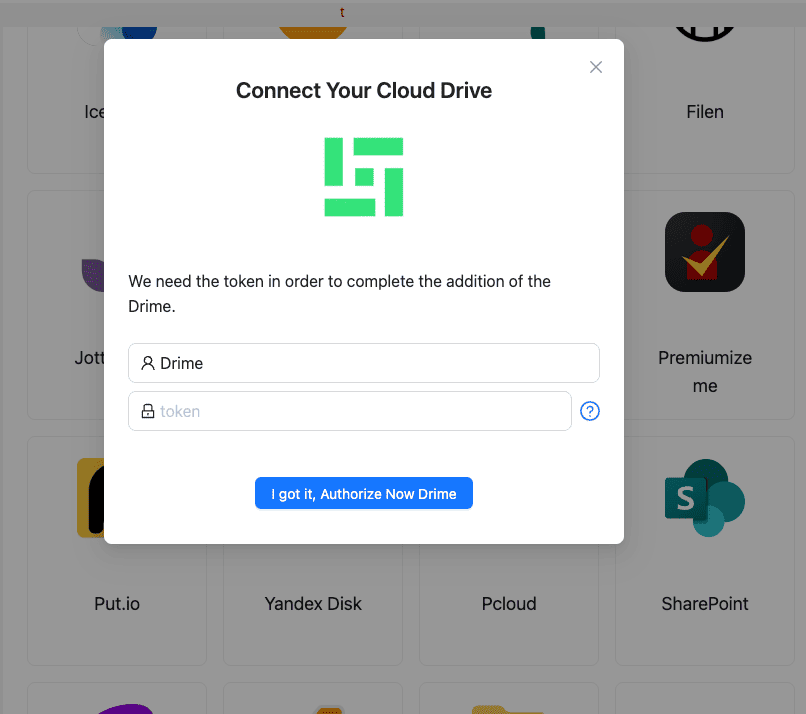
Sign in to Drime. Click the account avatar → Settings → Developer → Create Token. Copy the token. In CloudsLinker, click Add Cloud → Drime, paste the token, and confirm. Drime appears as a connected source.
Step 2: Connect Filen
Click Add Cloud again and select Filen. Enter the Filen account email and master password, followed by the 2FA code from an authenticator app. After authentication, Filen shows up as a connected destination. CloudsLinker uses the credentials only to authenticate against Filen's API — stored content remains zero-knowledge.
Step 3: Configure the Transfer
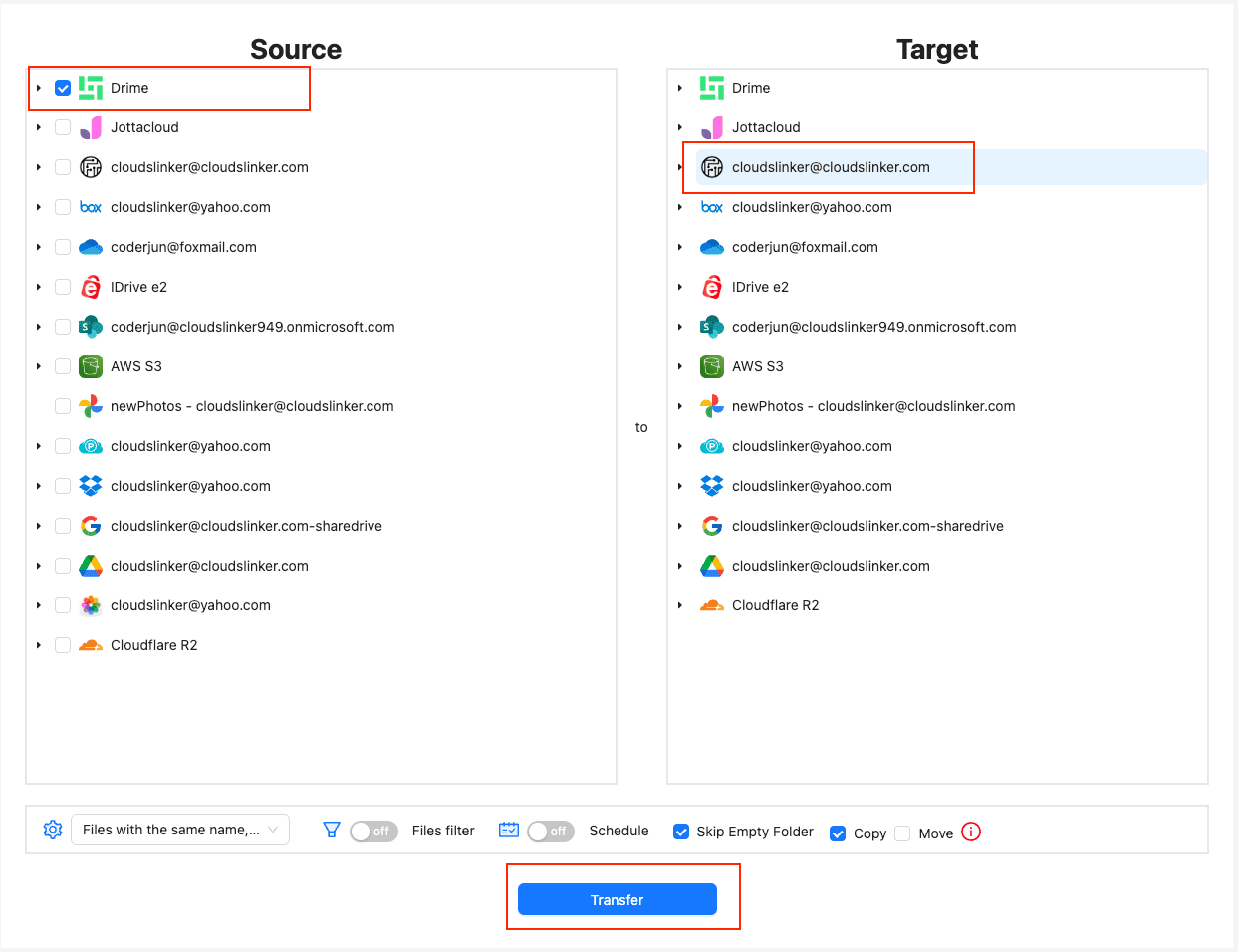
Open the Transfer section. Choose the Drime connection as the source and browse the folders to migrate. Set the destination to the target Filen folder. Filters support file type, path pattern, and modification date for selective transfers.
Use Copy for the first pass so Drime stays intact as a fallback. A later Move pass can clean up the Drime side once the Filen copy has been verified.
Step 4: Start and Monitor
Start the task. The Task List shows transferred size, current speed, and items remaining. The job runs on CloudsLinker servers, so closing the browser or suspending a laptop does not interrupt it. Once the task finishes, open Filen and verify a sample of folders before making changes on the Drime side.
Comparing the Ways to Transfer From Drime to Filen
| Method | Ease of Use | Speed | Best For | Uses Local Bandwidth | Skill Level |
|---|---|---|---|---|---|
| Browser Download + Upload | ★★★★☆ | ★★☆☆☆ | Small folders, under 20 GB | Yes | Beginner |
| CloudsLinker | ★★★★★ | ★★★★★ | Larger archives and unattended migrations | No | Beginner |
- Revoke the Drime developer token when finished: once migration completes, remove the token from Drime → Settings → Developer. A revoked token cannot be reused if it is ever exposed.
- Reissue shares on the Filen side: Drime share links stop working after migration. Build Filen share links for recipients who still need access and communicate the new URLs.
- Keep an eye on metadata exposure: Drime encrypts content; Filen extends encryption to filenames and folder names. If filename sensitivity is part of the reason for the migration, rename files on Drime before transfer only if that is easier than renaming them in bulk on Filen afterwards.
- Save the Filen recovery key: zero-knowledge storage cannot be recovered by the provider. Store the recovery key offline or in a password manager.
- Preserve modification timestamps: CloudsLinker carries timestamps into Filen. Browser ZIP exports may reset creation timestamps — if timestamps are important, use the CloudsLinker path.
- Run a test folder first: migrate a single folder end to end, confirm the files open correctly in Filen, and only then migrate the rest of the account.
Frequently Asked Questions
Conclusion
For a small Drime footprint, downloading through the web app and uploading to Filen is straightforward. When the data is in the tens of gigabytes or more, CloudsLinker avoids the download bottleneck by connecting Drime through its developer token and Filen through email, password, and 2FA. Verify a sample of files in Filen before removing anything from Drime, and store the Filen recovery key somewhere safe — with zero-knowledge storage, the provider cannot restore access if the password is lost.
Online Storage Services Supported by CloudsLinker
Transfer data between over 58 cloud services with CloudsLinker

OneDrive

Google Drive

Google Photos

Shared Drive

OneDrive for Business

Dropbox

Box

Mega

pCloud

Yandex

ProtonDrive

AWS

GCS

iDrive

Storj

DigitalOcean

Wasabi

1fichier

PikPak

TeleBox

OpenDrive

Backblaze B2

Fastmail file

SharePoint

Nextcloud

ownCloud

Premiumize me

HiDrive

Put.io

Sugar Sync

Jottacloud

Seafile

Ftp

SFtp

NAS

WebDav

4shared

Icedrive

Cloudflare R2

Scaleway

Hetzner Object Storage

Synology C2 Object Storage

S3 Compatible

Doi

iCloud Drive

iCloud Photos

FileLU

Zoho WorkDrive

Telia Cloud / Sky

Drime

Filen

TeraBox

Internxt

Degoo

Gofile

Pixeldrain

Shade

Koofr
Didn' t find your cloud service? Be free to contact: [email protected]
Further Reading
Effortless FTP connect to google drive: Transfer Files in 3 Easy Ways
Learn More >
Google Photos to OneDrive: 3 Innovative Transfer Strategies
Learn More >
Google Photos to Proton Drive: 3 Effective Transfer Techniques
Learn More >