Transfer Files from Dropbox to Box for Stronger Compliance and Permission Control
Four practical methods to move files from Dropbox to Box, covering browser transfers, desktop sync, Rclone CLI, and CloudsLinker cloud-to-cloud migration.
Introduction
Box holds HIPAA, FedRAMP, and SOC 2 certifications out of the box, and its seven-level permission model gives administrators precise control over who can view, edit, or share every folder. Organizations that have outgrown Dropbox's link-based sharing often find that Box's governance features close the gaps they have been working around. This guide covers four ways to move your files from Dropbox to Box, from a simple browser download to a fully cloud-based transfer through CloudsLinker, so you can choose the method that fits the size and sensitivity of your data.
- Method 1: Download from Dropbox and Upload to Box via Browser
- Method 2: Desktop Sync with Dropbox Desktop and Box Drive
- Method 3: Transfer with Rclone CLI
- Method 4: Cloud-to-Cloud Transfer with CloudsLinker
- Method Comparison Table
- Practical Tips for Dropbox to Box Migration
- FAQ: Dropbox to Box Transfer
Dropbox is one of the earliest mainstream cloud storage services, used by individuals and teams for file syncing, sharing, and collaboration. Free accounts start with 2 GB, and paid plans scale to 3 TB or more.
- Reliable sync engine: Block-level sync keeps files updated across Windows, macOS, Linux, iOS, and Android with minimal bandwidth usage.
- Shared links and folders: Generate view-only or editable links with optional passwords and expiration dates.
- Dropbox Paper: A built-in collaborative document editor for notes, meeting agendas, and lightweight project tracking.
- Smart Sync: Mark files as online-only to free local disk space while keeping them accessible on demand.
- Version history: Restore previous file versions for up to 30 days on free plans, or 180 days on business plans.
Box is a cloud content management platform built around enterprise security, compliance, and structured collaboration. Free personal accounts include 10 GB of storage.
- Compliance certifications: Meets HIPAA, FedRAMP, SOC 2, and GDPR requirements, making it suitable for regulated industries.
- Seven permission levels: Assign roles from Viewer to Co-Owner on every folder, giving granular control over who can upload, download, edit, or share.
- Metadata templates: Attach structured key-value metadata to files for classification, retention, and automated workflows.
- Watermarked previews: Preview sensitive documents with a visible watermark to discourage unauthorized screenshots.
- Vendor-neutral integrations: Works natively with Microsoft 365, Google Workspace, Slack, Salesforce, and over 1,500 other apps.
Both Dropbox and Box offer reliable cloud storage and cross-platform apps. The differences show up in how each platform handles permissions, compliance, and content governance at scale.
| Feature | Dropbox | Box |
|---|---|---|
| Free Storage | 2 GB | 10 GB (with free personal plan) |
| Platform Support | Windows, macOS, Linux, iOS, Android, Web | Windows, macOS, iOS, Android, Web (Linux via WebDAV or third-party clients) |
| Compliance Certifications | SOC 2, ISO 27001 on Business plans | HIPAA, FedRAMP, SOC 2, GDPR, GxP across business and enterprise plans |
| Sharing Model | Link-based sharing with optional passwords and expiration; folder-level access for team members | Folder-level invitations with seven distinct permission roles; link sharing available but secondary to structured access |
| Permission Granularity | Editor or Viewer per shared folder | Seven levels: Viewer, Previewer, Uploader, Previewer-Uploader, Viewer-Uploader, Editor, Co-Owner |
| Integrations | Strong with Slack, Zoom, Google Workspace, and Dropbox-native tools | 1,500+ integrations including Microsoft 365, Google Workspace, Salesforce, and Slack via Box Platform |
Dropbox's link-centric sharing model is fast and intuitive for small teams. Box's folder-based permission hierarchy suits organizations where access must be tightly scoped by role, department, or project phase.
Dropbox works well for straightforward file sharing, but teams in healthcare, government, finance, or legal sectors often need the governance controls that Box provides by default. Below are the most common reasons organizations make the switch.
- Compliance Certifications: Box maintains HIPAA, FedRAMP, SOC 2, and GDPR certifications, which simplifies audits and satisfies regulatory requirements without bolt-on third-party tools.
- Seven Permission Levels: Instead of a binary Editor/Viewer model, Box offers roles from Previewer to Co-Owner. This means an external auditor can preview documents without downloading them, while a project lead retains full editing control.
- Metadata Templates: Attach custom metadata to files and folders for automated classification, retention policies, and workflow triggers. Dropbox lacks a built-in equivalent.
- Watermarked Previews: Sensitive files can be previewed with an overlay showing the viewer's email address and timestamp, discouraging unauthorized redistribution.
- Vendor-Neutral Integrations: Box connects with Microsoft 365, Google Workspace, Salesforce, ServiceNow, and Slack equally, avoiding the tighter coupling to any single productivity suite that Dropbox sometimes favors.
These features matter most when your file-sharing needs extend beyond a single team and involve external collaborators, regulated data, or multi-department approval chains.
Before starting any migration, audit your Dropbox account to understand how much data needs to move. Check your storage usage under Settings > Plan, and note any folders shared with external collaborators or linked through Dropbox Spaces.
On the Box side, confirm your available quota. The free personal plan provides 10 GB with a 250 MB per-file upload limit. Business plans raise that limit to 5 GB or 15 GB per file depending on the tier. If your Dropbox contains files larger than the Box limit for your plan, you will need to upgrade or split those files before transferring.
Take a few minutes to clean up your Dropbox folders. Remove old duplicates, clear the trash, and decide whether Dropbox Paper documents need to be exported as .docx files before the move, since Paper docs do not have a direct equivalent in Box. Creating a clear folder hierarchy now saves time reorganizing inside Box later.
Method 1: Download from Dropbox and Upload to Box via Browser
Step 1: Download Files from Dropbox
Log in to dropbox.com and navigate to the folder you want to transfer. Select the files or folders by checking the boxes next to each item, then click Download in the toolbar. Dropbox compresses multi-file downloads into a single ZIP archive.
After the download completes, extract the ZIP on your local machine to restore the original folder structure. Verify that no files were skipped due to naming conflicts or character restrictions, particularly if your Dropbox contains files with special characters in their names.

Step 2: Upload Files to Box
Open app.box.com and sign in. Click the Upload button in the top-right area and choose either Files or Folder, or drag and drop items directly into the browser window.
Recreate your Dropbox folder hierarchy inside Box before uploading if you want to preserve the original structure. For large batches, upload one top-level folder at a time so you can spot failures early without restarting the entire transfer.
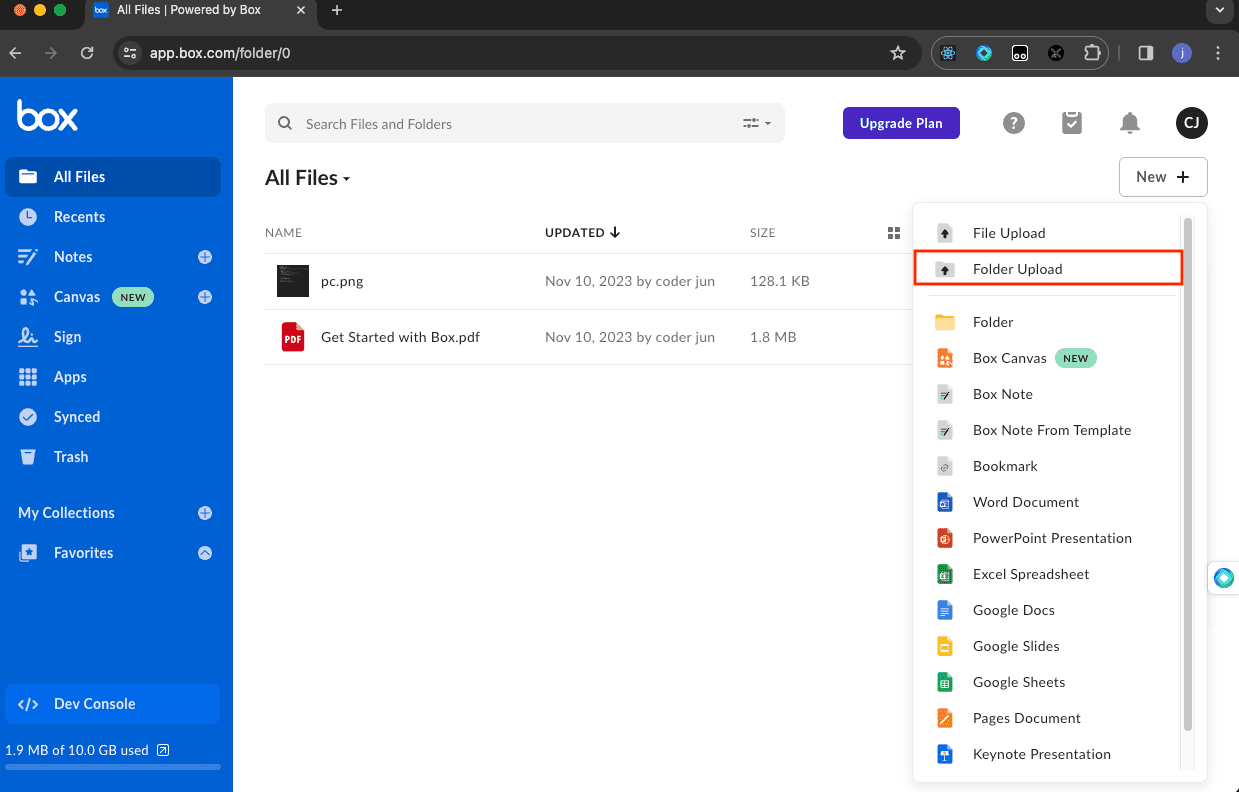
Browser-based transfers suit small datasets or occasional moves. For anything over a few gigabytes, one of the methods below will save time and reduce the risk of interrupted uploads.
Method 2: Desktop Sync with Dropbox Desktop and Box Drive
Step 1: Install Both Desktop Clients
Download and install the Dropbox desktop app and Box Drive on the same computer. Sign in to each application with the appropriate account credentials. Both apps create local mount points: Dropbox typically appears under your user folder, while Box Drive mounts as a separate drive letter on Windows or a volume on macOS.
Step 2: Configure Selective Sync
If your Dropbox account contains more data than your local disk can hold, enable Selective Sync in Dropbox preferences to download only the folders you intend to transfer. On the Box Drive side, no special configuration is needed; files copied into the Box Drive folder upload to Box automatically.
Step 3: Copy Files Between Mount Points
Open your file manager (Finder on macOS, File Explorer on Windows) and copy the target folders from the Dropbox directory into the Box Drive directory. The Dropbox client serves the files from the cloud, and Box Drive uploads them as they land on the local disk.
Use Copy rather than Move to keep the originals in Dropbox until you have confirmed the transfer completed successfully on the Box side. Monitor the Box Drive sync icon in the system tray or menu bar to verify that all files have finished uploading.
This method takes advantage of the sync engines both services already provide. It works best when you have enough free disk space to stage the files locally, or when the total transfer size is moderate (under ~50 GB). Larger migrations benefit from Rclone or CloudsLinker, which bypass the local disk entirely.
Method 3: Transfer Files from Dropbox to Box with Rclone
Step 1: Install Rclone and Configure Remotes
Rclone is
an open-source command-line tool that supports both Dropbox and Box as remote backends.
Download the latest version from the
official download page, then run
rclone config to set up your remotes.
-
Dropbox remote: Select
dropboxas the storage type. Rclone will open a browser window for OAuth authentication. Sign in to your Dropbox account and approve the connection. See the Rclone Dropbox documentation for detailed options. -
Box remote: Select
boxas the storage type. Complete the OAuth flow the same way. Refer to the Rclone Box documentation for additional settings like upload chunk size.
Step 2: Run the Transfer Command
With both remotes configured, copy files directly from Dropbox to Box:
rclone copy dropbox: box:DropboxBackup --progress
This command copies everything in your Dropbox root into a folder called
DropboxBackup on Box. To transfer a specific subfolder, specify the path:
rclone copy dropbox:Work/Reports box:DropboxBackup/Reports --progress
Append --dry-run to preview which files will be copied without actually
transferring them. Use --transfers 4 to run four parallel file transfers
and speed up the process on fast connections.
Step 3: Verify the Transfer
After the copy finishes, run the check command to compare source and destination:
rclone check dropbox: box:DropboxBackupRclone lists any files that differ in size or checksum. Resolve mismatches by re-running the copy command, which only transfers changed or missing files.
Rclone is well suited for large or recurring migrations. You can schedule it with a cron
job or Task Scheduler, throttle bandwidth with --bwlimit, and filter files
by name, size, or date using --include and --exclude flags.
Method 4: Cloud-to-Cloud Transfer with CloudsLinker
Overview: Transfer Directly Between Clouds
CloudsLinker moves files between Dropbox and Box entirely server-side. Nothing downloads to your computer, your local bandwidth stays free, and transfers continue even when your browser is closed.
Step 1: Connect Your Dropbox Account
Go to app.cloudslinker.com and sign in or create a free account. From the dashboard, click Add Cloud and select Dropbox. Your browser will redirect to the Dropbox authorization page. Sign in with your Dropbox credentials and approve the requested permissions. Once authorized, the browser returns you to CloudsLinker where Dropbox now appears in your cloud list.

Step 2: Connect Your Box Account
Click Add Cloud again and choose Box from the list. The browser redirects to the Box OAuth login page. Sign in and approve the connection. After returning to CloudsLinker, Box will appear alongside Dropbox in your connected cloud list.

Step 3: Configure and Start the Transfer
Navigate to the Transfer section. Set Dropbox as the source and Box as the destination. Browse your Dropbox file tree to select specific folders or files. You can also use filter options to exclude file types or limit the transfer to items modified after a certain date.

Click Start Transfer to begin the migration. CloudsLinker queues the selected items and processes them on its servers.
Step 4: Monitor and Verify
Open the Task List to track progress. Each task shows the number of files transferred, the current file, and any errors. Files that fail due to permission issues or unsupported names are flagged individually so you can address them without restarting the entire job.
After the transfer completes, log in to Box and verify that folder structure and file counts match. CloudsLinker preserves the directory hierarchy from Dropbox, so your files should appear in the same relative paths on the Box side.
Dropbox to Box Transfer: Method Comparison
Choosing the right method depends on your data volume, technical comfort, and whether you need the transfer to run unattended. Here is a side-by-side comparison of the four approaches.
| Method | Ease of Use | Speed | Best For | Uses Local Bandwidth | Skill Level |
|---|---|---|---|---|---|
| Browser Download + Upload | High | Slow for large datasets | Small, one-time transfers | Yes (download + upload) | Beginner |
| Desktop Sync (Dropbox + Box Drive) | Moderate | Moderate | Users already running both desktop clients | Yes (local staging) | Beginner |
| Rclone CLI | Low (command-line) | Fast (server-to-server) | Large or recurring migrations, scripted workflows | No | Intermediate to Advanced |
| CloudsLinker | High | Fast (server-to-server) | Any size, hands-off cloud-to-cloud transfer | No | Beginner |
Practical Tips for Dropbox to Box Migration
- Export Dropbox Paper documents first. Paper docs are stored in a proprietary format and do not transfer as regular files. Export them as .docx or .md from the Paper interface before starting the migration, then upload the exported versions to Box.
- Shared link behavior differs between platforms. Dropbox shared links will stop working once files are removed. Box uses its own shared link system with separate permission and expiration settings. Notify collaborators of new Box links after the transfer.
- File request workflows need rebuilding. Dropbox File Requests and Box File Request are independent features with different URLs and settings. Recreate any active file request forms on the Box side after migration.
- Check Box upload limits for your plan. Free personal accounts cap individual file uploads at 250 MB. Business Starter allows up to 2 GB, and Business and Enterprise plans support 5 GB or 15 GB per file. Confirm your plan limits before transferring large media or archive files.
- Test with a sample folder. Run one small folder through your chosen method before committing to the full migration. Check that filenames, nested folder structure, and file metadata arrive intact on the Box side.
- Handle Dropbox Spaces and team folders carefully. Dropbox Spaces (team spaces) may contain files owned by other team members. Verify you have download permissions for all items before migrating shared team content, and coordinate with folder owners if access is restricted.
FAQ: Dropbox to Box Transfer
Conclusion
Each method outlined here serves a different scale and skill level. Browser transfers and desktop sync work well for small, one-off moves. Rclone suits admins who want scripted, repeatable migrations. CloudsLinker handles the transfer entirely in the cloud, keeping local bandwidth free and preserving folder structure automatically. Whichever path you take, verify file counts and spot-check a few documents on the Box side before removing anything from Dropbox.
Online Storage Services Supported by CloudsLinker
Transfer data between over 48 cloud services with CloudsLinker

OneDrive

Google Drive

Google Photos

Shared Drive

OneDrive for Business

Dropbox

Box

Mega

pCloud

Yandex

ProtonDrive

AWS

GCS

iDrive

Storj

DigitalOcean

Wasabi

1fichier

PikPak

TeleBox

OpenDrive

Backblaze B2

Fastmail file

SharePoint

Nextcloud

ownCloud

Premiumize me

HiDrive

Put.io

Sugar Sync

Jottacloud

Seafile

Ftp

SFtp

NAS

WebDav

4shared

Icedrive

Cloudflare R2

Scaleway

Doi

iCloud Drive

iCloud Photos

FileLU

Zoho WorkDrive

Telia Cloud / Sky

Drime

Filen
Didn' t find your cloud service? Be free to contact: [email protected]
Further Reading
Effortless FTP connect to google drive: Transfer Files in 3 Easy Ways
Learn More >
Google Photos to OneDrive: 3 Innovative Transfer Strategies
Learn More >
Google Photos to Proton Drive: 3 Effective Transfer Techniques
Learn More >