Paying $11.99 for Dropbox's 2 TB? How to Move It to Degoo's 5 TB Plan
Migrate files from Dropbox to Degoo and swap a $11.99/mo 2 TB subscription for 5 TB at $9.99 — manual route and server-side CloudsLinker transfer compared.
Introduction
Degoo Ultimate undercuts Dropbox on raw storage price: 5 TB for $9.99 a month against Dropbox Plus at $11.99 for 2 TB — two and a half times the space for two dollars less. Dropbox earns its premium through sync, sharing and team features; if what you actually keep there is a personal archive of photos, video projects and old backups that nobody collaborates on, that premium buys nothing. Moving the archive to Degoo and downgrading (or closing) the Dropbox subscription is a straightforward saving. Two methods follow: the manual download-and-upload path, and a direct cloud-to-cloud copy with CloudsLinker that never touches your local disk.
Dropbox is the veteran sync-and-share service: 2 GB free, Plus at $11.99/mo for 2 TB, Professional at $19.99/mo for 3 TB. Its strengths are the polished desktop sync client, selective sync, and sharing controls — features aimed at active collaboration rather than cold storage.
- 2 GB free; 2 TB Plus at $11.99/mo
- 2 TB max file (desktop); 350 GB via API
- Mature desktop sync and selective sync
- 30-day version history on Plus
Degoo is a Swedish bulk-storage cloud aimed at consumers who want space, not collaboration: 20 GB free, 500 GB at $2.99/mo, 5 TB at $9.99/mo. Access is through mobile apps and a web app for paying users — there is no desktop sync client, which suits archives better than active working sets.
- 5 TB for less than Dropbox's 2 TB price
- Zero-knowledge Top Secret folder (paid)
- No sync client — archive-oriented access
- 90-day inactivity deletion on free tier only
| Feature | Dropbox | Degoo |
|---|---|---|
| Free storage | 2 GB | 20 GB |
| ~$10–12/mo buys | 2 TB (Plus, $11.99) | 5 TB (Ultimate, $9.99) |
| Max single file | 2 TB desktop / 350 GB API / 375 GB web | 256 MB free / 50 GB subscription |
| Desktop sync | Yes — core feature | No client |
| Version history | 30 days (Plus) / 180 days (Business) | None user-facing |
| Connection in CloudsLinker | Dropbox OAuth | Account email + password |
Sources: Dropbox: upload limitations, Dropbox plans, Degoo: plans, Degoo Help Center: Account limits.
Take stock of what's actually in the account. Shared folders you don't own won't migrate with you, Paper documents need a separate export, and files above 50 GB won't fit any Degoo tier. Buy or confirm the Degoo plan before starting — a 2 TB Dropbox needs Ultimate — and if you sync Dropbox to a desktop, note that Degoo won't replace that workflow: plan for web/mobile access or a cloud-to-cloud tool for future moves. Finally, freeze changes: a migration under active edits produces mismatched copies.
Method 1: Download from Dropbox, Upload to Degoo
Step 1: Download your Dropbox content
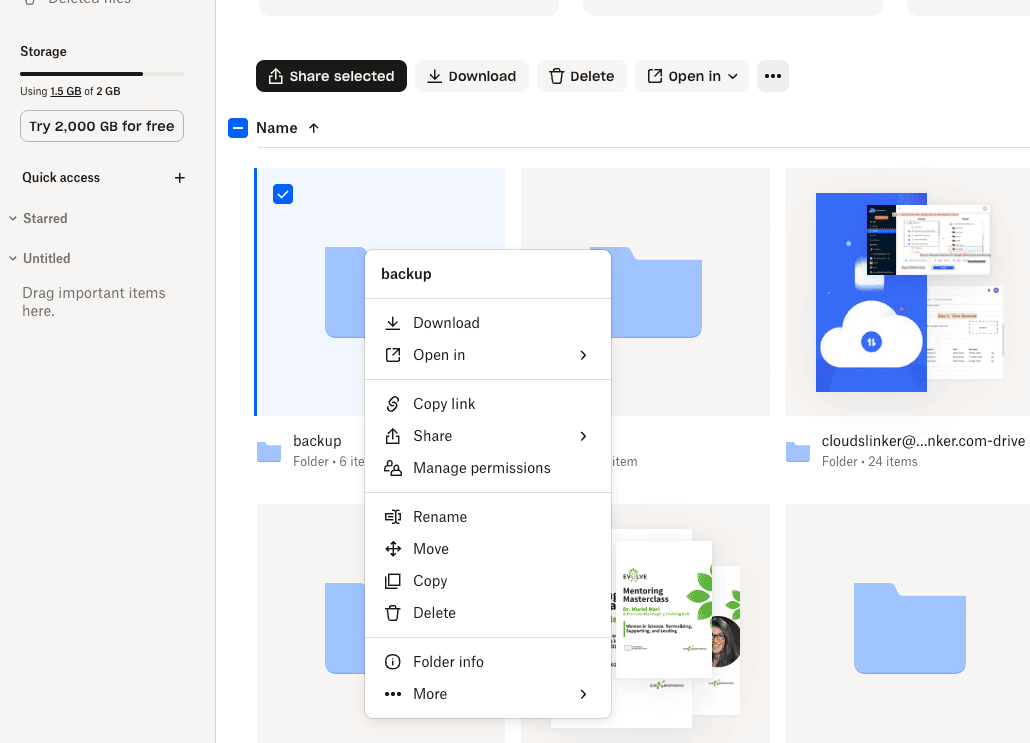
At dropbox.com, select folders and click Download — the web interface zips them (folder downloads cap out around a few GB per ZIP, so big trees need several passes). If you run the Dropbox desktop app, the synced local folder is an alternative source that skips the ZIP step.
Step 2: Upload into Degoo
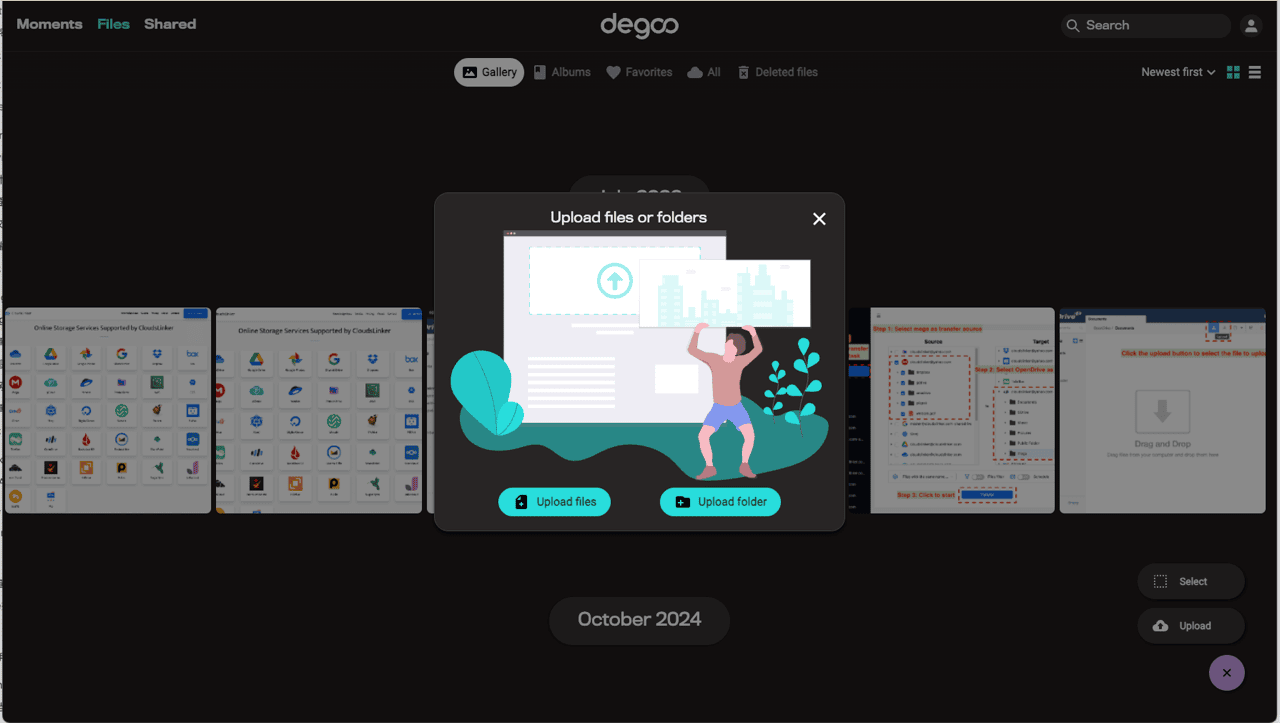
Push the extracted files up through Degoo's web app at app.degoo.com (paid plans) or the mobile app (free plan). Uploads re-consume your bandwidth, and each file must clear the plan's per-file cap — a 4 GB video is fine on Ultimate, rejected on free.
At 2 TB scale this is a multi-day, two-direction bandwidth commitment. It exists as a fallback; the next method is built for this size.
Method 2: Cloud-to-Cloud Transfer with CloudsLinker
2 TB without touching your connection
CloudsLinker streams files from Dropbox's API (which allows single files up to 350 GB — far beyond anything Degoo accepts, so the practical constraint is Degoo's 50 GB cap, which the size filter handles) directly into Degoo. Dropbox's per-endpoint rate limits are managed with automatic back-off; the whole 2 TB archive migrates as one unattended job while your Dropbox desktop sync stays untouched.
Step 1: Connect Dropbox
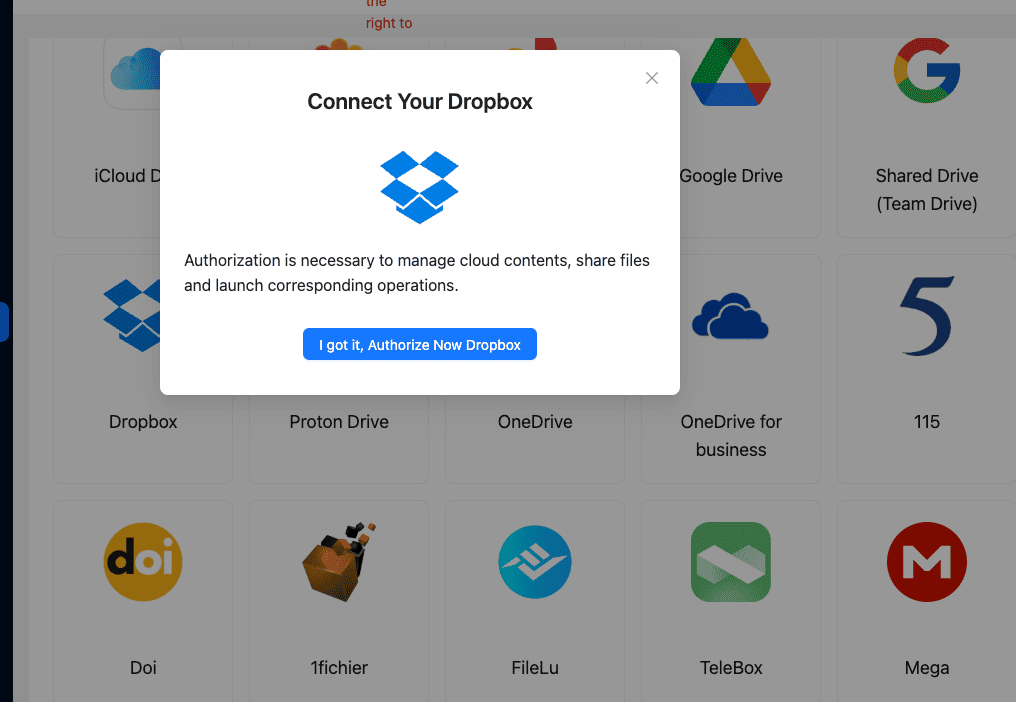
Click Add Cloud → Dropbox. The browser opens Dropbox's authorization page at www.dropbox.com; sign in and approve. The connection shows up under Dropbox's Connected apps, removable there at any time.
Step 2: Connect Degoo
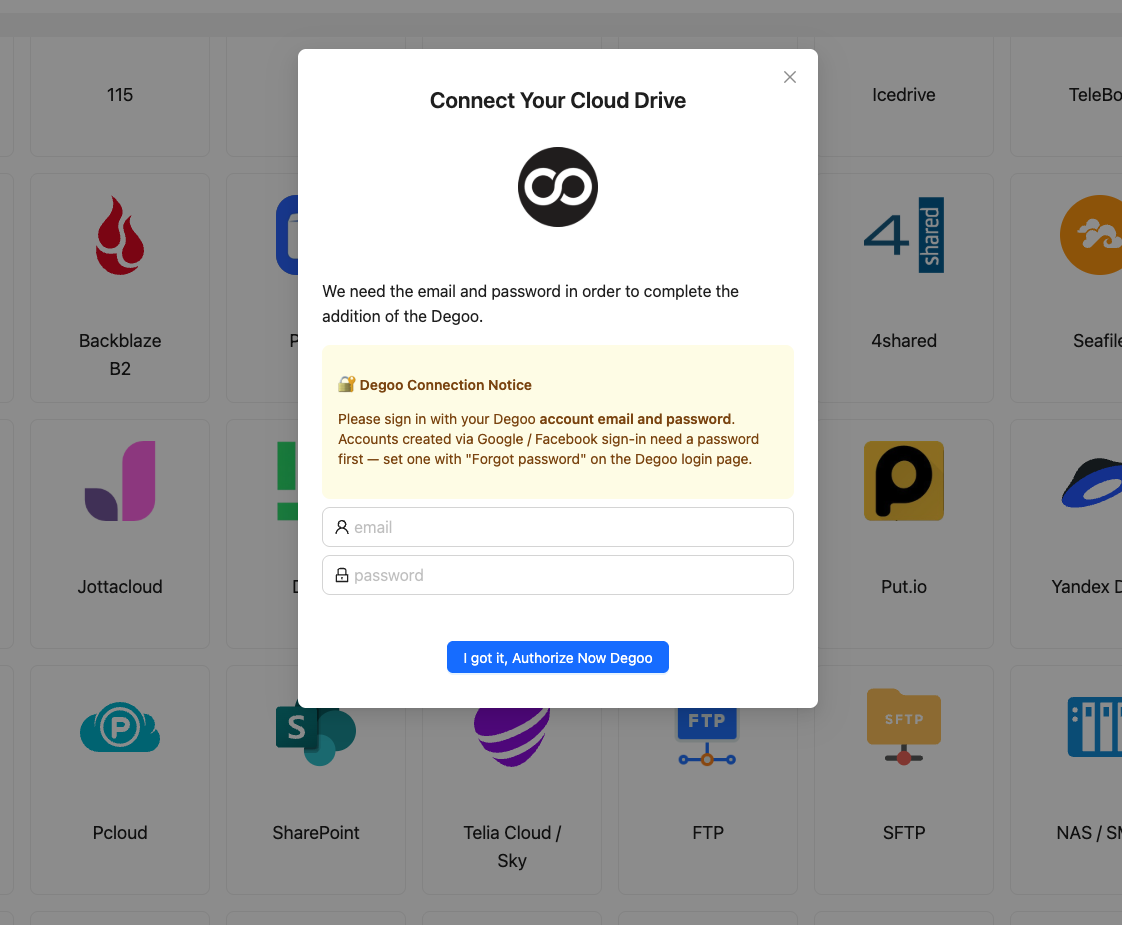
Click Add Cloud → Degoo and sign in with your Degoo email and password — the same credentials as the mobile app. CloudsLinker holds a cached session token afterwards; changing the Degoo password revokes it instantly.
Step 3: Configure the Transfer
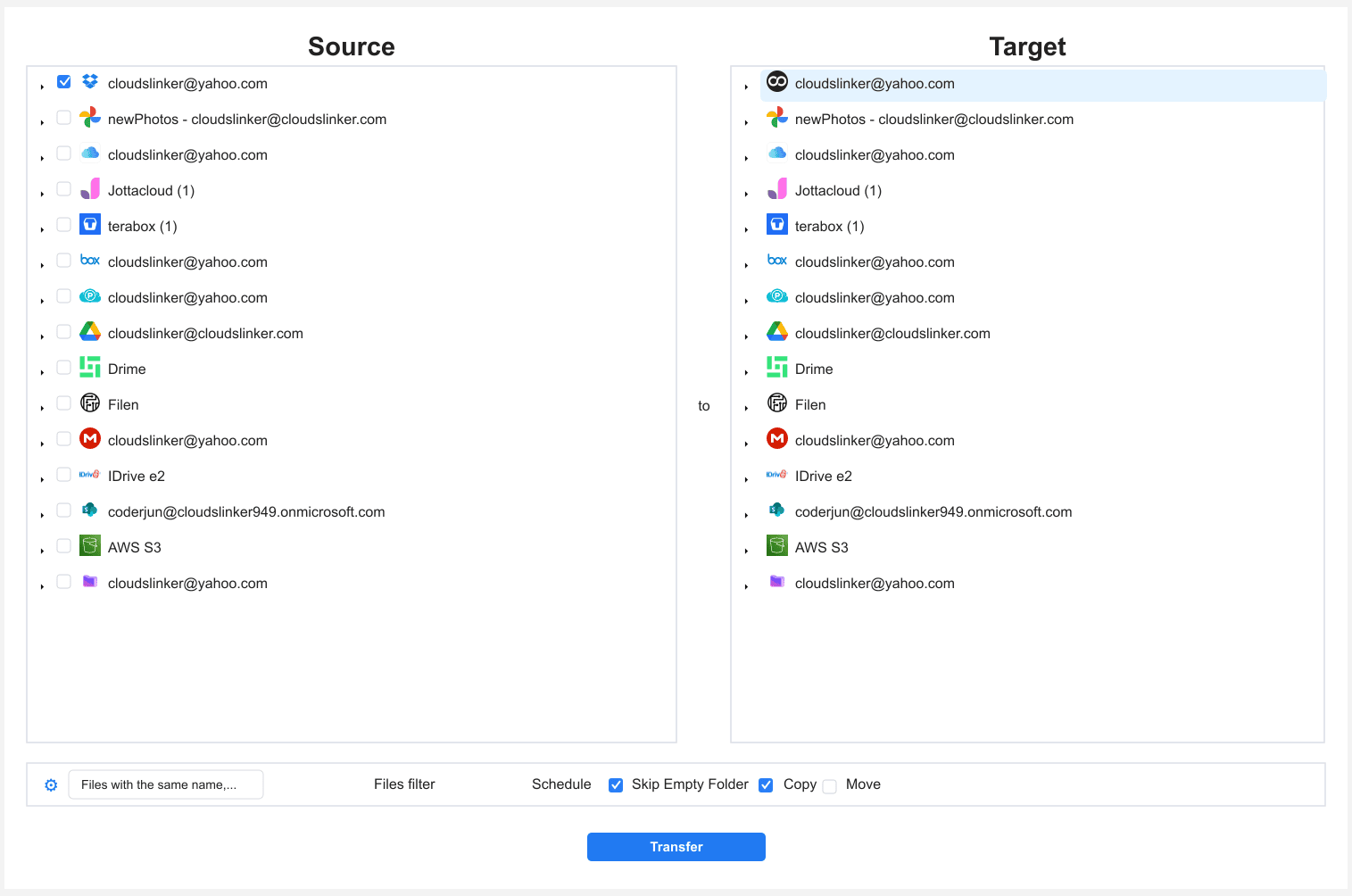
Open Transfer, choose Dropbox as source and mark the folders to migrate. Pick the destination folder in Degoo.
Add a size filter at your Degoo plan's cap so oversized files are skipped and logged instead of failing the job. Use Copy mode — keep Dropbox intact until you've verified the result, then downgrade the subscription.
Step 4: Start and Monitor the Transfer
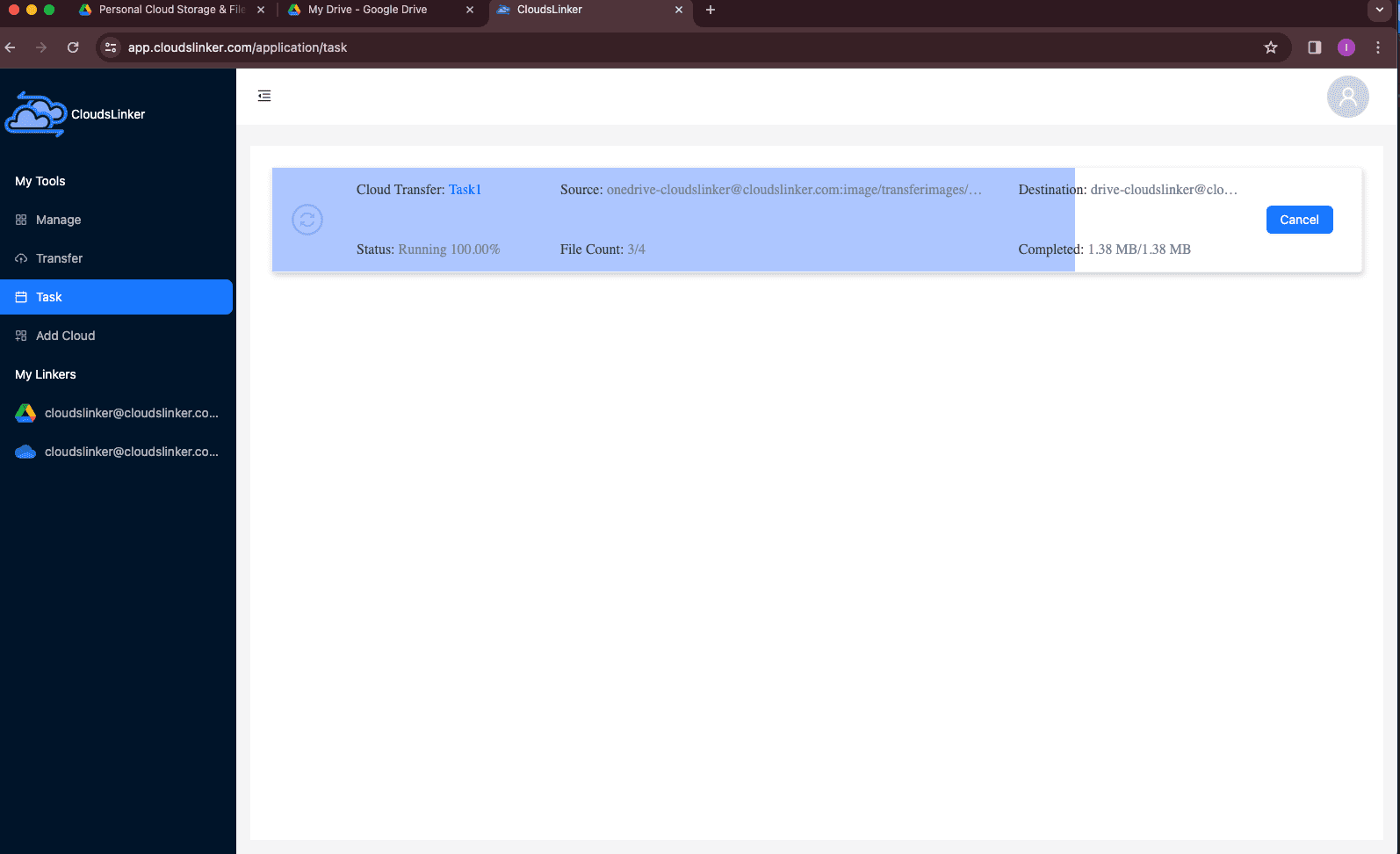
Launch and watch the Task List: size done, current rate, files left. Multi-terabyte jobs survive rate-limit pauses and resume on their own — no browser tab required.
Comparing the Ways to Transfer From Dropbox to Degoo
| Method | Ease of Use | Speed | Best For | Uses Local Bandwidth | Skill Level |
|---|---|---|---|---|---|
| Manual download / upload | Medium | Slow at scale | Small archives under ~10 GB | Yes — both directions | Basic |
| CloudsLinker | Easy | Fast (server-side) | Full 2 TB migrations, unattended | No | Basic |
- Export Dropbox Paper first: Paper documents aren't files and won't be in the transfer. File → Export each doc (or use Paper's bulk export) before the account is downgraded.
- Scan for files over 50 GB: sort by size in Dropbox's web UI. Disk images and long video exports exceed Degoo's subscription cap and need another home.
- Screenshot shared-folder memberships: collaboration doesn't migrate. Knowing who had access lets you re-share from wherever those working files land next.
- Time the subscription switch: run the migration inside the current Dropbox billing cycle, verify, then downgrade — re-upgrading later to recover a missed folder costs a month.
- Timestamps become upload dates in Degoo: if date-based organization matters, encode dates in folder names before migrating.
- Selective sync users — check for online-only gaps: the cloud copy is the complete one; migrate from the cloud side (as CloudsLinker does), not from a partially synced local folder.
Watch: Move Dropbox Files to Degoo with CloudsLinker
The cloud-to-cloud method on screen: connecting Dropbox via OAuth and Degoo with account credentials, picking the folders to move, and watching the transfer run server-side in the Task List — no local download step involved.
Frequently Asked Questions
Conclusion
If your Dropbox holds a few gigabytes, download it and push it into Degoo by hand — done in an afternoon. For the 2 TB scenario this article is about, the manual route means days of saturated home bandwidth and a pile of ZIP files; CloudsLinker moves the same data server-side in one configured job. Keep Dropbox read-only until the CloudsLinker task report shows matching file counts, then downgrade the plan — Dropbox's 30-day version history won't help you after the account closes.
Online Storage Services Supported by CloudsLinker
Transfer data between over 58 cloud services with CloudsLinker

OneDrive

Google Drive

Google Photos

Shared Drive

OneDrive for Business

Dropbox

Box

Mega

pCloud

Yandex

ProtonDrive

AWS

GCS

iDrive

Storj

DigitalOcean

Wasabi

1fichier

PikPak

TeleBox

OpenDrive

Backblaze B2

Fastmail file

SharePoint

Nextcloud

ownCloud

Premiumize me

HiDrive

Put.io

Sugar Sync

Jottacloud

Seafile

Ftp

SFtp

NAS

WebDav

4shared

Icedrive

Cloudflare R2

Scaleway

Hetzner Object Storage

Synology C2 Object Storage

S3 Compatible

Doi

iCloud Drive

iCloud Photos

FileLU

Zoho WorkDrive

Telia Cloud / Sky

Drime

Filen

TeraBox

Internxt

Degoo

Gofile

Pixeldrain

Shade

Koofr
Didn' t find your cloud service? Be free to contact: [email protected]
Further Reading
Effortless FTP connect to google drive: Transfer Files in 3 Easy Ways
Learn More >
Google Photos to OneDrive: 3 Innovative Transfer Strategies
Learn More >
Google Photos to Proton Drive: 3 Effective Transfer Techniques
Learn More >