Moving Files from Dropbox to Drime: Practical Paths That Make Sense
Transferring data from Dropbox into Drime is less about clicking the right buttons and more about choosing a process that won’t break halfway through. File count, folder depth, and how often data changes all affect which approach is actually reliable. Some workflows are fine for a few gigabytes, while others are built for unattended, long-running transfers where stability matters more than convenience.
Introduction
From an engineering perspective, migrating data out of Dropbox is rarely a purely manual task. Once you move beyond a handful of folders, the usual pain points start to surface: interrupted uploads, inconsistent folder states, and processes that require constant supervision. Drime has gained attention as a destination not because it simplifies migration, but because it offers a different operational model once the data is there. The real challenge is getting files across in a way that preserves structure, minimizes retries, and doesn’t depend on keeping a laptop awake for hours. In practice, the right migration strategy depends on how predictable the transfer needs to be. Some users can tolerate a hands-on, one-time copy. Others need something that can resume cleanly, handle large directories, and run without local resources. Rather than presenting a single ‘best’ solution, it’s more useful to evaluate how each transfer method behaves under load, during interruptions, and over time. The following sections break down several proven ways to move files from Dropbox to Drime, with an emphasis on automation, fault tolerance, and long-term stability.
Dropbox is often treated as a simple file-sync tool, but under the hood it behaves more like a continuously running file distribution system. Its strength lies in fast synchronization, predictable APIs, and broad third-party support. Over time, however, large folder trees, historical versions, and shared workspaces can introduce complexity when data needs to move elsewhere.
- Reliable sync engine: Designed for near-real-time updates across devices.
- Mature API ecosystem: Widely supported by automation and migration tools.
- Version history: Useful for recovery, but increases migration scope.
- Shared folder inheritance: Permissions can propagate in non-obvious ways.
- Scale-oriented storage: Commonly used for large, long-lived datasets.
Drime is structured around a different set of assumptions. Instead of optimizing for deep platform integration, it prioritizes encrypted storage, controlled collaboration, and clear data boundaries. From an engineering standpoint, this means fewer hidden dependencies—but also a stronger emphasis on getting the migration right the first time.
- End-to-end encryption: Data remains encrypted beyond server storage.
- Clear workspace separation: Fewer implicit links to external services.
- Modern collaboration layer: Comments, previews, and shared spaces.
- Cross-platform access: Web and desktop clients without ecosystem lock-in.
- EU-based infrastructure: Designed with data protection regulations in mind.
While both platforms solve the problem of cloud storage, they approach it from very different engineering angles. Dropbox is optimized for continuous synchronization and broad compatibility, whereas Drime focuses on encrypted storage and controlled collaboration. These design choices directly affect how migrations behave under load and during interruptions.
| Aspect | Dropbox | Drime |
|---|---|---|
| Primary Design Goal | Fast, continuous file synchronization | Secure, privacy-first collaboration |
| Encryption Strategy | Server-side encryption | End-to-end encrypted storage |
| Automation Support | Extensive API and tooling ecosystem | External automation and controlled sync |
| Dependency Model | Often embedded into existing workflows | Independent workspace architecture |
| Migration Complexity | Increases with shared and versioned data | More predictable once structure is defined |
For many teams, the move from Dropbox to Drime isn’t driven by storage capacity, but by a desire to reduce long-term dependency on always-on sync models and gain tighter control over data access.
Before starting any transfer, it’s worth auditing what actually lives inside your Dropbox. Large migrations often fail not because of bandwidth, but because of unexpected edge cases— deeply nested folders, stale shared links, or legacy data that no longer needs to exist.
On the Drime side, preparation is mostly structural. Define folder layouts, test uploads with representative files, and confirm how sharing permissions behave. This reduces surprises once automated transfers begin handling larger datasets.
The choice of transfer method should be made early. Manual downloads may work for limited data, but they don’t scale or recover well from interruptions. Automated, browser-based solutions like CloudsLinker enable direct cloud-to-cloud transfers that run independently of local machines. Running a small test migration first is often the fastest way to validate assumptions before committing to a full move.
Method 1: Manual Export from Dropbox and Upload into Drime
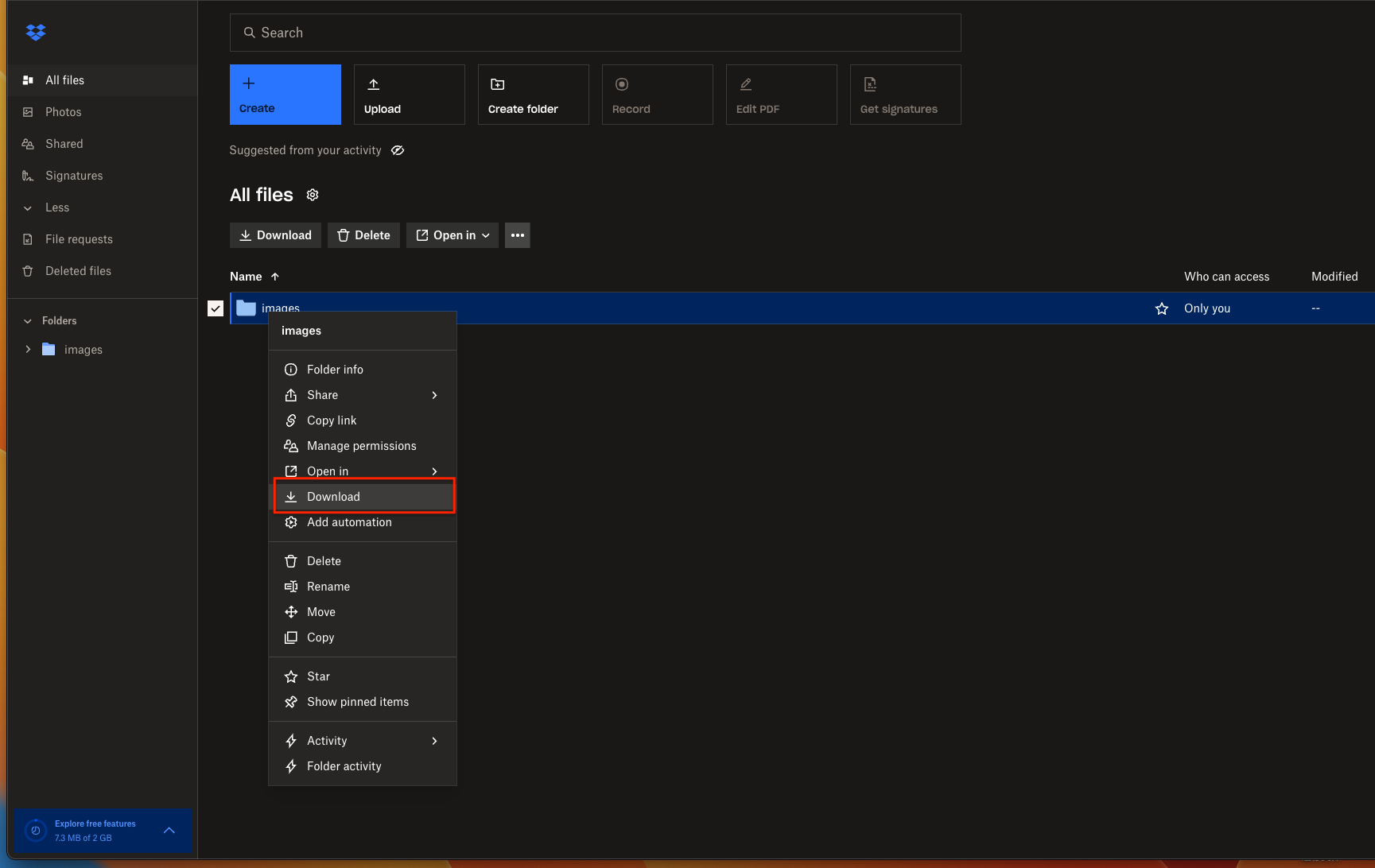
Step 1: Exporting Data from Dropbox via Web Access
Start by signing in to the
Dropbox web
interface
using the account that owns the files you intend to migrate. From a browser, navigate through the
folder
hierarchy and identify the datasets you want to move. For multi-file or multi-folder selections,
standard
modifier keys (Ctrl on Windows or Command on macOS) allow batch selection.
Once selected, use the Download option. Dropbox packages folders into compressed archives before delivering them to your local system. This packaging step preserves directory structure, but it also introduces a dependency on local disk space and browser stability—factors that become increasingly relevant as file counts and archive size grow.
Step 2: Uploading the Extracted Files into Drime
After extracting the downloaded archive locally, log in to your Drime workspace. At this stage, it’s often helpful to create a temporary import directory so migrated data can be validated before being merged into an active project structure.
Files can be uploaded either through drag-and-drop in the browser or by using Drime’s file selection controls. While this approach offers full visibility into the upload process, it relies entirely on the local network connection and browser session. Interruptions, throttling, or browser timeouts will typically require restarting the upload from scratch.
From an engineering standpoint, this method is best reserved for small, static datasets or one-off moves where simplicity outweighs efficiency. As data volume increases, the manual download-and-upload loop quickly becomes fragile and time-intensive. For recurring transfers, large folder trees, or unattended execution, automated and cloud-based migration methods provide far greater reliability and operational consistency.

Method 2: Automated OneDrive to Drime Transfer with CloudsLinker
Overview: Move Files from OneDrive to Drime Without Local Downloads
CloudsLinker is designed for direct cloud-to-cloud transfers, meaning files are moved between services without passing through your computer. Transfers run on remote servers, so tasks can continue in the background even if you close your browser or disconnect your device. This approach is especially useful for large OneDrive libraries or time-sensitive migrations into Drime.
Step 1: Sign In and Add OneDrive as the Source
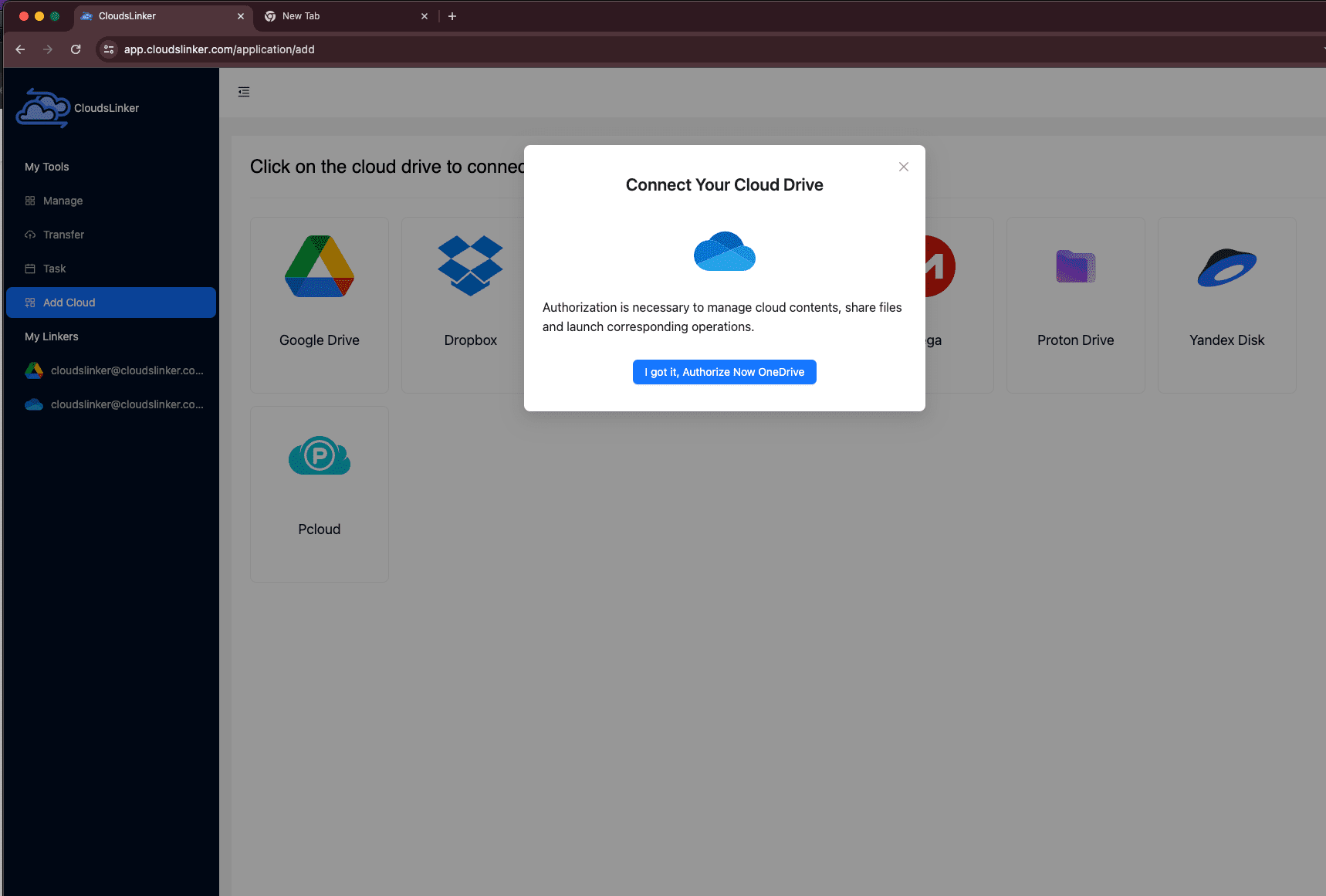
Start by visiting app.cloudslinker.com and logging into your account. If you’re new to the platform, registration takes only a short moment. From the main dashboard, click Add Cloud and select OneDrive from the list of supported services.
CloudsLinker will open Microsoft’s official authorization page in a new window. After you approve access, the system checks whether your Microsoft account contains multiple OneDrive-backed cloud spaces. If so, you’ll be prompted to choose which one to add. Once confirmed, the selected OneDrive appears in your cloud list and is ready to be used as a transfer source.
Step 2: Connect Drime as the Destination
To add Drime, you’ll need an authorization token generated from your Drime account. Log in to the Drime web interface, open Settings, and navigate to the Developer section. From there, create a new access token with the appropriate permissions.
Copy the token and return to CloudsLinker. Click Add Cloud, choose Drime, and paste the token into the authorization field. This token-based connection allows secure access without exposing your Drime login credentials.

Step 3: Set Up the Transfer Task
Open the Transfer section and select your connected OneDrive as the source. Browse through the directory tree and choose the files or folders you want to migrate. For the destination, select Drime and define the target folder where the data should be placed.

Optional filters let you fine-tune what gets transferred. You can exclude certain file types, limit transfers by modification date, or focus only on specific directories. This is particularly useful when you want to move active projects without copying archived or redundant data.
Step 4: Run the Transfer and Monitor Progress
Once the task is configured, start the transfer and track its status from the Task List. Progress indicators show completed files, current speed, and estimated time remaining. Because the transfer runs entirely on remote servers, it continues even if you close your browser or shut down your computer.
After the task finishes, a summary report highlights completed items and flags any files that may need review. Your data will now be available in Drime, organized according to the folder structure you selected during setup.
For users who prefer a hands-off migration — without relying on local bandwidth or managing long browser uploads — CloudsLinker provides a practical and scalable way to move files from OneDrive to Drime.
Need to Move Data Between Other Cloud Services?
In addition to OneDrive and Drime, CloudsLinker supports a wide range of cloud platforms, including Dropbox, MEGA, WebDAV, and S3-compatible storage. All transfers run cloud-to-cloud, making it possible to automate migrations without tying up local resources.
Comparing Two Reliable Ways to Move Files from Dropbox to Drime
From a practical standpoint, migrating files from Dropbox to Drime is less about finding a “best” tool and more about understanding how each approach behaves under real conditions. Some workflows tolerate manual steps and local dependencies, while others demand unattended execution and predictable recovery. The two options below reflect how these trade-offs typically play out in production.
| Execution Model | Initial Setup | Operational Stability | Failure Recovery | Local Resource Dependency | Typical Use Case |
|---|---|---|---|---|---|
| Browser Download & Upload | Minimal | Moderate | Manual restart | High | Small, one-time data moves |
| CloudsLinker (Cloud-to-Cloud) | Minimal | High | Automatic resume | None | Large libraries, repeatable migrations |
Manual browser-based transfers offer transparency, but they tie progress to local network stability and active supervision. Once datasets grow or migrations need to run unattended, server-side tools such as CloudsLinker tend to behave more predictably, especially when interruptions or retries are expected.
Most transfer issues don’t come from the tools themselves, but from unexamined assumptions about the data being moved. A short review beforehand can eliminate many common failure points:
- Check dataset scope: Archived versions, shared folders, and legacy content can significantly increase transfer size without adding value.
- Define destination structure: Decide how folders should map into Drime before starting, rather than reorganizing mid-transfer.
- Prepare Drime credentials: Token-based access should be generated and stored securely if automation tools are used.
- Account for execution context: Browser uploads depend on local uptime, while server-side transfers do not.
- Run a controlled test: Migrating a small but representative folder often reveals naming, permission, or hierarchy issues early.
- Plan for retries: Larger migrations should assume interruptions and choose tools that can resume without manual intervention.
Treating the migration as a controlled process—rather than a bulk copy—makes the transition into Drime far more predictable and easier to audit after completion.
Frequently Asked Questions
Watch Our Step-by-Step Video Tutorial
Learn how to transfer files from Dropbox to Drime with our clear, visual walkthrough. This tutorial is perfect for anyone—whether you're new to cloud storage or just looking for the easiest method. We’ll guide you through every step, from accessing your files in Dropbox to migrating them to Drime using Cloudslinker for a seamless cloud-to-cloud transfer. Get expert tips, avoid common mistakes, and simplify your cloud migration process. Watch now and move your files with confidence!
Conclusion
Moving data from Dropbox to Drime is ultimately a trade-off between control and resilience. Manual exports can work for small, static datasets, but they don’t scale well and offer little protection against interruptions. Sync- based tools provide visibility and flexibility, though they rely heavily on local system stability. For larger or repeatable migrations, automated and server-side approaches tend to be more robust, especially when uptime and consistency matter. Regardless of the method, validating the process with a limited test run is a practical safeguard. Catching edge cases early—such as permission mismatches or deeply nested paths—can save significant time once the full transfer is underway and help ensure Drime becomes a stable part of the workflow rather than another migration problem.
Online Storage Services Supported by CloudsLinker
Transfer data between over 48 cloud services with CloudsLinker

OneDrive

Google Drive

Google Photos

Shared Drive

OneDrive for Business

Dropbox

Box

Mega

pCloud

Yandex

ProtonDrive

AWS

GCS

iDrive

Storj

DigitalOcean

Wasabi

1fichier

PikPak

TeleBox

OpenDrive

Backblaze B2

Fastmail file

SharePoint

Nextcloud

ownCloud

Premiumize me

HiDrive

Put.io

Sugar Sync

Jottacloud

Seafile

Ftp

SFtp

NAS

WebDav

4shared

Icedrive

Cloudflare R2

Scaleway

Doi

iCloud Drive

iCloud Photos

FileLU

Zoho WorkDrive

Telia Cloud / Sky

Drime

Filen
Didn' t find your cloud service? Be free to contact: [email protected]
Further Reading
Effortless FTP connect to google drive: Transfer Files in 3 Easy Ways
Learn More >
Google Photos to OneDrive: 3 Innovative Transfer Strategies
Learn More >
Google Photos to Proton Drive: 3 Effective Transfer Techniques
Learn More >