Dropbox to Filen: 3 Practical Ways to Move Your Files (Fast, Clean, and Secure)
If you’re moving out of Dropbox and into Filen, you’ve got a few solid options depending on how much data you have and how hands-on you want to be. This guide walks through three real-world methods — manual browser transfers, a more controlled approach with Rclone, and fully automated cloud-to-cloud migration using CloudsLinker — so you can pick the workflow that fits your time, bandwidth, and comfort level.
Introduction
Dropbox has been the default “drop files here” space for years — especially for sharing, collaboration, and keeping folders synced across devices. But if privacy and data ownership are becoming higher priorities, Filen is an appealing destination thanks to its zero-knowledge, end-to-end encrypted design. The tricky part isn’t choosing Filen — it’s choosing the migration path that won’t waste your time. A small folder move can be done in minutes from the browser. A larger library may benefit from a tool that can resume, log progress, and avoid babysitting. Below, you’ll find three reliable ways to transfer from Dropbox to Filen, including a manual browser route, a command-line workflow using Rclone, and a cloud-hosted option via CloudsLinker that moves data without routing files through your computer.
How to Transfer Files from Dropbox to Filen
Three realistic ways to move your data — from simple browser steps to automated cloud-to-cloud migration.
Dropbox is a mainstream cloud storage service best known for smooth syncing and easy sharing. It’s often used for collaborative folders, client deliveries, and “always available” file access across devices.
- Simple sharing: links and folders are easy to distribute.
- Sync-first workflow: desktop clients keep folders mirrored.
- Team-friendly: common in small businesses and project collaboration.
Tip: If you’re downloading folders through the web UI, Dropbox has an official help page explaining the steps. See how Dropbox downloads folders.
Filen is built around zero-knowledge, end-to-end encryption. In plain terms: files are encrypted on your device before upload, so the service itself can’t read your content.
- Client-side encryption: protection starts before data leaves your device.
- Zero-knowledge model: the platform can’t inspect stored files.
- Cross-platform apps: web + desktop + mobile support.
If you want to lock down your account before migration, Filen documents the steps to enable 2FA: Filen web settings.
Method 1: Download from Dropbox and Upload to Filen (Manual)
Trade-off: your internet connection does the heavy lifting (download + upload).
Step 1: Download your files from Dropbox
Open the Dropbox web dashboard
and sign in. Browse to the folders you want to move. To select multiple items, use Ctrl (Windows)
or Command (macOS) while clicking.
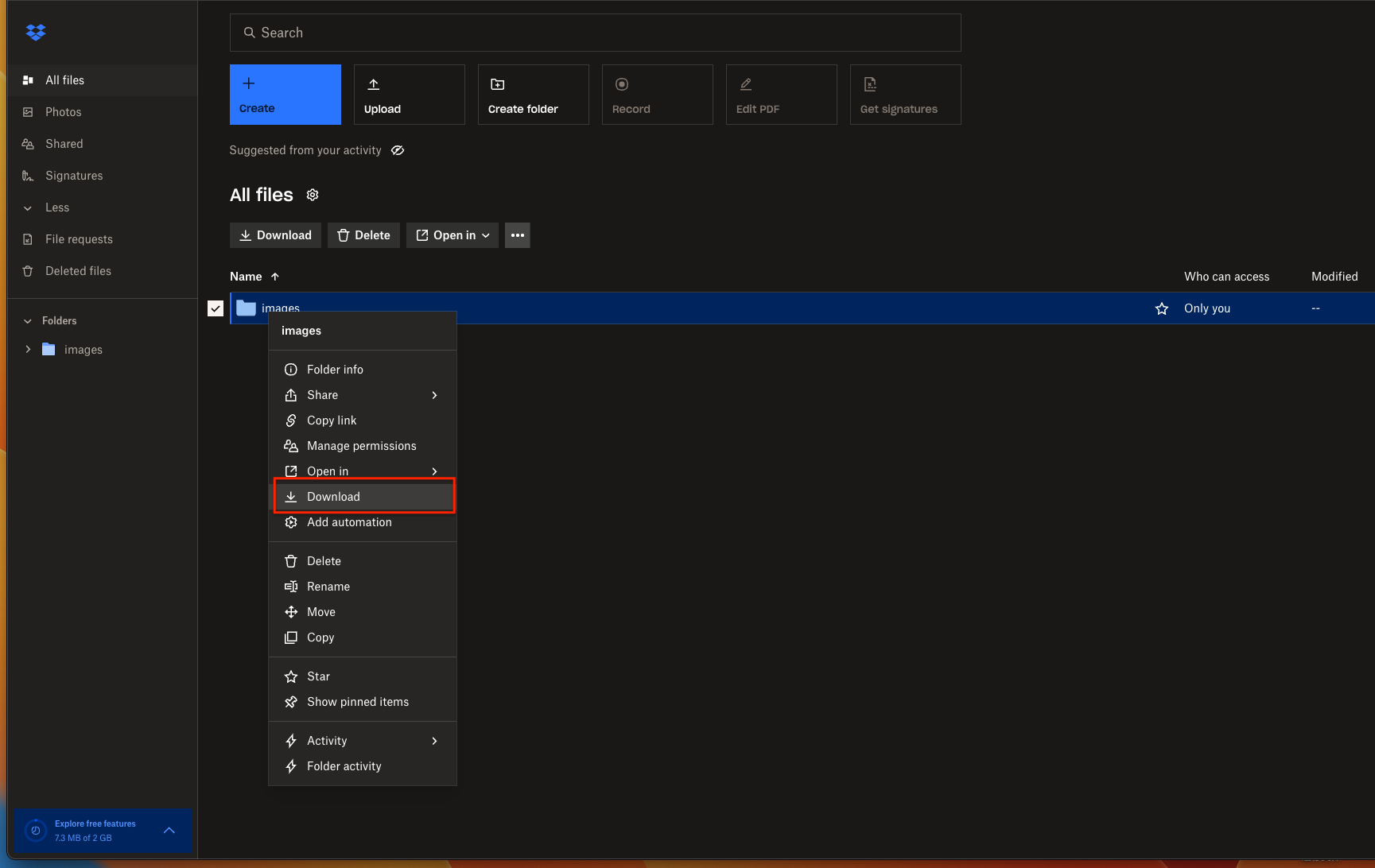
Click Download. If you select a folder, Dropbox will typically prepare a ZIP archive for you. After the download finishes, extract the ZIP on your computer so the folder structure is ready to upload.
Step 2: Upload into Filen
Log in to the Filen web app and open the destination folder (or create a new folder dedicated to this migration).
Drag and drop the extracted files into the browser, or use Filen’s upload control to select files and folders. Filen encrypts data locally before upload, so your files are protected as they leave your device.

If your transfer is small, this is usually the fastest way to be done. If you’re moving tens or hundreds of GB, the “download then upload” loop can feel slow — that’s where the next two methods are more comfortable.
Method 2: Transfer with Rclone (More Control, Better for Big Moves)
Trade-off: takes a little setup (command line).
Rclone is a command-line tool that can connect to many cloud providers, including Dropbox, and can also upload to destinations through supported backends or compatible workflows. It’s popular because it can resume, filter, and provide detailed logs — features that manual browser uploads don’t do well.
How this method typically looks
- Connect Dropbox in Rclone using the interactive authorization flow.
- Choose your destination strategy (depending on how you access Filen in your workflow).
- Run a test copy on a small folder to confirm naming, structure, and speed.
- Scale up and use logs / filters to keep the migration clean.
If you want a hands-on workflow where you can fine-tune retries, exclude patterns, or move only recent files, Rclone is usually the most “engineering-friendly” route.
Method 3: Automated Cloud-to-Cloud Transfer with CloudsLinker
Overview: Dropbox → Filen, without local downloads
CloudsLinker runs transfers in the cloud. That means you can move data from Dropbox to Filen without tying up your own internet connection for hours (or keeping your computer online). It’s especially useful for long-running jobs.
Step 1: Sign in and connect Dropbox
Open app.cloudslinker.com and sign in. From the dashboard, click Add Cloud and select Dropbox.
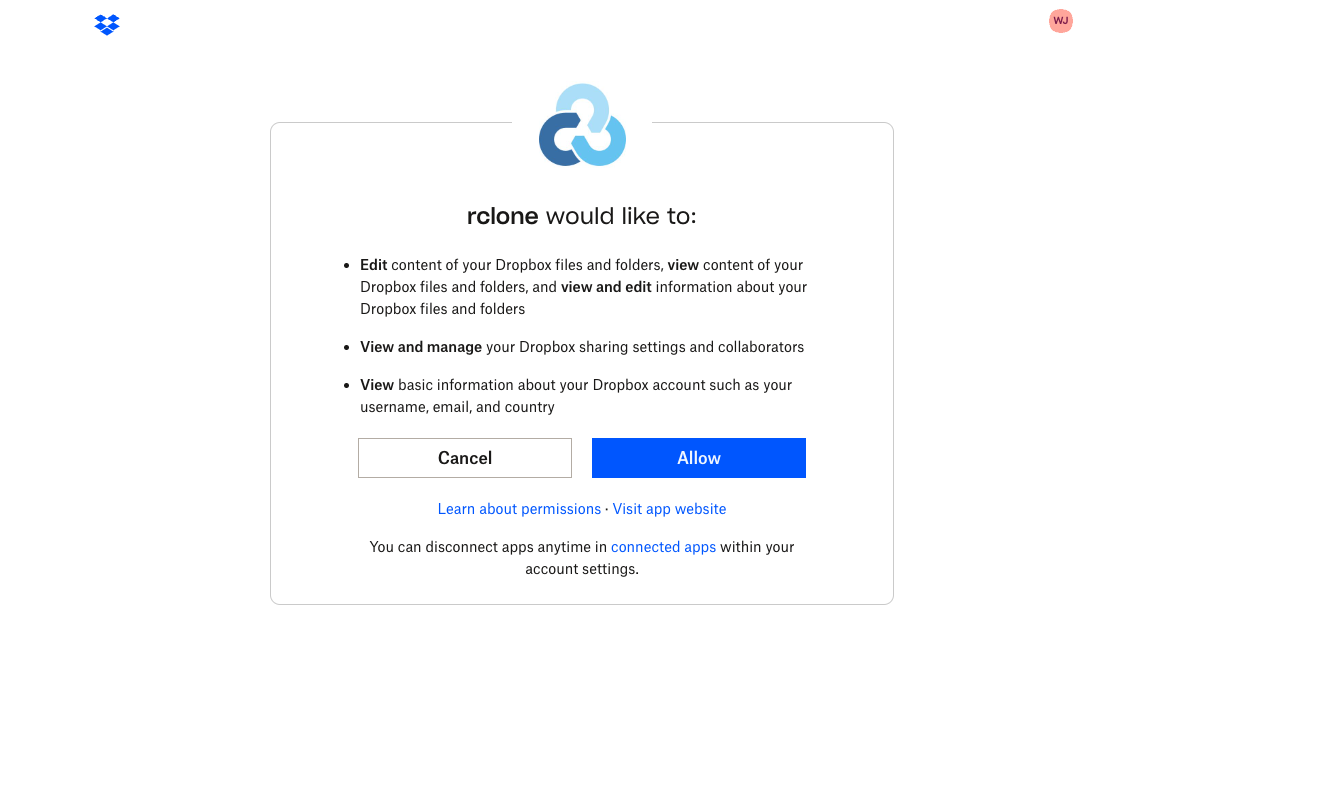
You’ll be redirected to Dropbox’s official authorization screen. Approve access, then return to CloudsLinker — your Dropbox storage will appear as a connected source.
Step 2: Add Filen as the destination (2FA recommended)
Click Add Cloud again, choose Filen, then sign in using your Filen credentials. If you want extra protection before migrating, enable two-factor authentication (2FA) in Filen first. Filen documents this under Security settings.

Step 3: Create the transfer task
Go to Transfer. Select Dropbox as the source and pick the folders/files to move. On the destination side, choose Filen and select the target folder.

Use filters or exclusions if you only want to migrate active project folders (for example, skipping archives, temp folders, or certain file extensions).
Step 4: Run and monitor
Start the task and track progress in the Task List. You’ll see status, speed, and transferred size. Transfers continue running in the cloud even if you close your browser.
After completion, review the report for any files that need attention. Once done, your Dropbox data will be sitting in Filen under its encrypted storage model.
Need to migrate between other cloud services?
CloudsLinker also supports providers like OneDrive, Google Drive, MEGA, WebDAV, and S3-compatible storage. The same “cloud-to-cloud” approach applies: start a task, then let it finish without babysitting uploads.
Comparing the 3 Ways to Transfer from Dropbox to Filen
The right method depends on how much data you’re moving and how patient you want to be. If you’re migrating a small set of folders, manual transfers are perfectly fine. If you need reliability and control, Rclone is a better fit. And if you want the least friction (especially for large moves), cloud-to-cloud transfers tend to feel the smoothest.
| Method | Ease of Use | Speed | Best For | Uses Local Bandwidth | Skill Level |
|---|---|---|---|---|---|
| Browser (Download + Upload) | ★★★★★ | ★★★☆☆ | Small moves, quick one-time transfers | Yes | Beginner |
| Rclone | ★★★☆☆ | ★★★★☆ | Large libraries, retries, filters, logs | Usually yes | Intermediate |
| CloudsLinker (Cloud-to-Cloud) | ★★★★★ | ★★★★★ | Big migrations, unattended transfers, long-running jobs | No | Beginner |
If your computer or internet connection is the bottleneck, go with CloudsLinker. If you want scripting and control, choose Rclone. If you’re just moving a small folder today, the browser method is usually enough.
A little prep can save you from redoing uploads or chasing missing files later:
- Sanity-check what you’re moving: Remove duplicates, old exports, and “junk” folders before migration.
- Watch for huge ZIP downloads: If Dropbox packages large folders into ZIP archives, extraction can take time.
- Plan your Filen folder layout first: Reorganizing after uploading a large library is rarely fun.
- Enable Filen security: Turn on 2FA before big transfers (see Filen’s security settings).
- Test with a small folder: Confirm filenames, structure, and expectations before migrating everything.
- Choose a method that matches volume: For very large libraries, prioritize resume support, logging, and long-running stability.
Frequently Asked Questions
Step-by-Step Video: Transfer Files from Dropbox to Filen
If you prefer learning by watching, this video walks you through the complete process of transferring files from Dropbox to Filen. It shows how to connect both cloud accounts, choose source folders, adjust transfer options when needed, and finish the migration without downloading files to your local device. This method is efficient, stable, and works well for both personal file collections and larger data libraries.
Conclusion
There’s no single “best” way to migrate from Dropbox to Filen — it depends on how much data you have and how involved you want to be. For a small one-time move, downloading from Dropbox and uploading to Filen works fine. If you want more control and better reliability, Rclone is a strong option. And if you’d rather avoid local bandwidth limits entirely (or don’t want your laptop running for hours), a cloud-to-cloud transfer using CloudsLinker is the most hands-off approach. Whichever method you choose, start with a small test folder first — it’s the easiest way to confirm structure, naming, and expectations before committing to a full migration.
Online Storage Services Supported by CloudsLinker
Transfer data between over 48 cloud services with CloudsLinker

OneDrive

Google Drive

Google Photos

Shared Drive

OneDrive for Business

Dropbox

Box

Mega

pCloud

Yandex

ProtonDrive

AWS

GCS

iDrive

Storj

DigitalOcean

Wasabi

1fichier

PikPak

TeleBox

OpenDrive

Backblaze B2

Fastmail file

SharePoint

Nextcloud

ownCloud

Premiumize me

HiDrive

Put.io

Sugar Sync

Jottacloud

Seafile

Ftp

SFtp

NAS

WebDav

4shared

Icedrive

Cloudflare R2

Scaleway

Doi

iCloud Drive

iCloud Photos

FileLU

Zoho WorkDrive

Telia Cloud / Sky

Drime

Filen
Didn' t find your cloud service? Be free to contact: [email protected]
Further Reading
Effortless FTP connect to google drive: Transfer Files in 3 Easy Ways
Learn More >
Google Photos to OneDrive: 3 Innovative Transfer Strategies
Learn More >
Google Photos to Proton Drive: 3 Effective Transfer Techniques
Learn More >