Dropbox Storage Getting Expensive? Moving Files to PikPak's 10 TB Plan
Transfer files from Dropbox to PikPak: cloud-download from a share link, manual download and upload, or a direct copy with CloudsLinker.
Introduction
A 3 TB Dropbox Professional plan and a 10 TB PikPak Premium plan solve overlapping problems at different price points, and the gap matters once a media library outgrows what Dropbox's paid tiers offer. PikPak adds a capability Dropbox doesn't have at all: pasting a magnet link, torrent file, or Telegram forward and having the file download directly onto PikPak's servers. For someone who already relies on that cloud-download workflow, keeping a second archive in Dropbox means paying for two subscriptions to manage one library. Dropbox has no migration path aimed at PikPak, so files move by hand, through PikPak's own link-based downloader, or through a connector that handles both accounts directly.
Dropbox is a long-established file sync service known for desktop sync, Dropbox Paper docs, and Smart Sync for on-demand file access.
- Free tier: 2 GB. Paid tiers: 2 TB (Plus), 3 TB (Professional), 5 TB+ pooled (Business).
- Max file size: 2 TB via desktop app, 350 GB via API.
- Integration: Slack, Zoom, Microsoft 365, Google Workspace.
- Access: OAuth 2.0.
PikPak is a cloud-side downloader: paste a magnet link, torrent, or direct URL, and the file downloads on PikPak's servers instead of a local device.
- Free tier: 6 GB. Premium unlocks 10 TB.
- Cloud download: magnet, torrent, and URL sources; most complete in under 60 seconds.
- Telegram bot: forwards saved media directly into PikPak.
- Access: account email and password.
Dropbox is built for sync and team collaboration. PikPak is built for capturing content from links and holding it at a larger scale than Dropbox's consumer tiers.
| Feature | Dropbox | PikPak |
|---|---|---|
| Primary strength | Desktop sync and team collaboration | Cloud-side downloading from magnet/torrent/Telegram |
| Free tier | 2 GB | 6 GB |
| Paid storage ceiling | 2 TB (Plus), 3 TB (Professional), 5 TB+ pooled (Business) | 10 TB (Premium) |
| Max file size | 2 TB (desktop app), 350 GB (API) | 4 GB web upload / 20 GB desktop client upload |
| Access method | OAuth 2.0 | Account email + password |
| Best for | Synced team files and shared folders | Media libraries and downloaded content |
Dropbox and PikPak overlap only partly, but a few situations make consolidating into PikPak worthwhile:
- 10 TB on the Premium tier: above Dropbox Plus's 2 TB and Professional's 3 TB, often at a lower monthly cost for pure storage.
- Cloud-side downloading: PikPak pulls files directly from magnet links, torrents, or Telegram forwards — Dropbox has no equivalent.
- "Save to PikPak" Telegram bot: useful for media that already arrives through Telegram chats and channels.
- One consolidated library: instead of paying for Dropbox storage and a separate downloader app for the same kind of content.
- No per-seat Dropbox Business pricing: PikPak's Premium tier is priced per account, not per team seat.
Dropbox still wins on collaboration: shared team folders, Dropbox Paper, and version history don't have a PikPak equivalent. The move fits archive and media content better than active team files.
On the Dropbox side
- Separate active team files from archive content: shared folders and files under active version history are usually better left in Dropbox.
- Export Dropbox Paper docs first: Paper documents don't exist outside Dropbox and need to be exported as .docx or Markdown before the move.
On the PikPak side
- Confirm free space: the free tier caps at 6 GB; larger archives need a Premium plan.
- Set a direct password if the PikPak account was created through Google or Facebook sign-in — third-party tools need real account credentials, not a social login token.
Method 1: PikPak Cloud Download From a Dropbox Share Link
Step 1: Generate a Share Link in Dropbox
Open dropbox.com, select the file or folder, and click Share → Create link. Copy the generated link — folders download as a ZIP when fetched through it.

Step 2: Add the Link to PikPak's Cloud Download
In the PikPak app or at mypikpak.com, open Cloud Download and paste the Dropbox link. PikPak fetches the file directly onto its own servers.

This suits a handful of shared files. For a full Dropbox account or many folders, Method 3 handles the volume better.
Method 2: Manual Download From Dropbox and Upload to PikPak
Step 1: Download From Dropbox
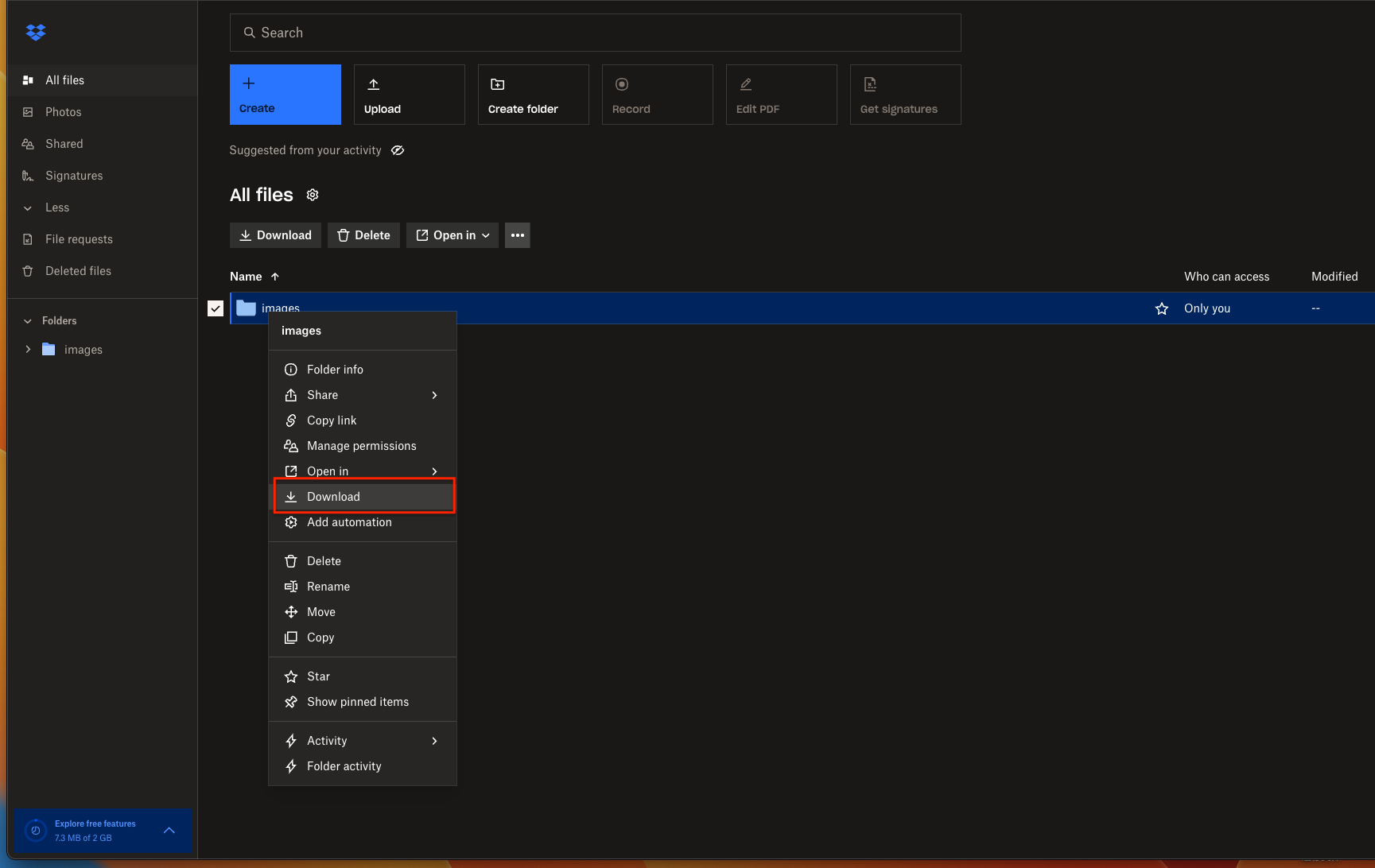
Select the files or folder at dropbox.com and click Download. Large folders package as ZIP archives, bounded by Dropbox's browser download limits.
Step 2: Upload to PikPak
Extract the ZIP if needed, then upload through PikPak's web client or app. The web client stops at 4 GB per file; the desktop client raises that ceiling to 20 GB.

Method 3: Cloud-to-Cloud Transfer With CloudsLinker
Move Dropbox to PikPak Without Local Downloads
CloudsLinker connects Dropbox through OAuth and PikPak through account credentials, then transfers files directly between the two servers. Nothing routes through a local device, and the job continues after the browser closes.
Step 1: Connect Dropbox
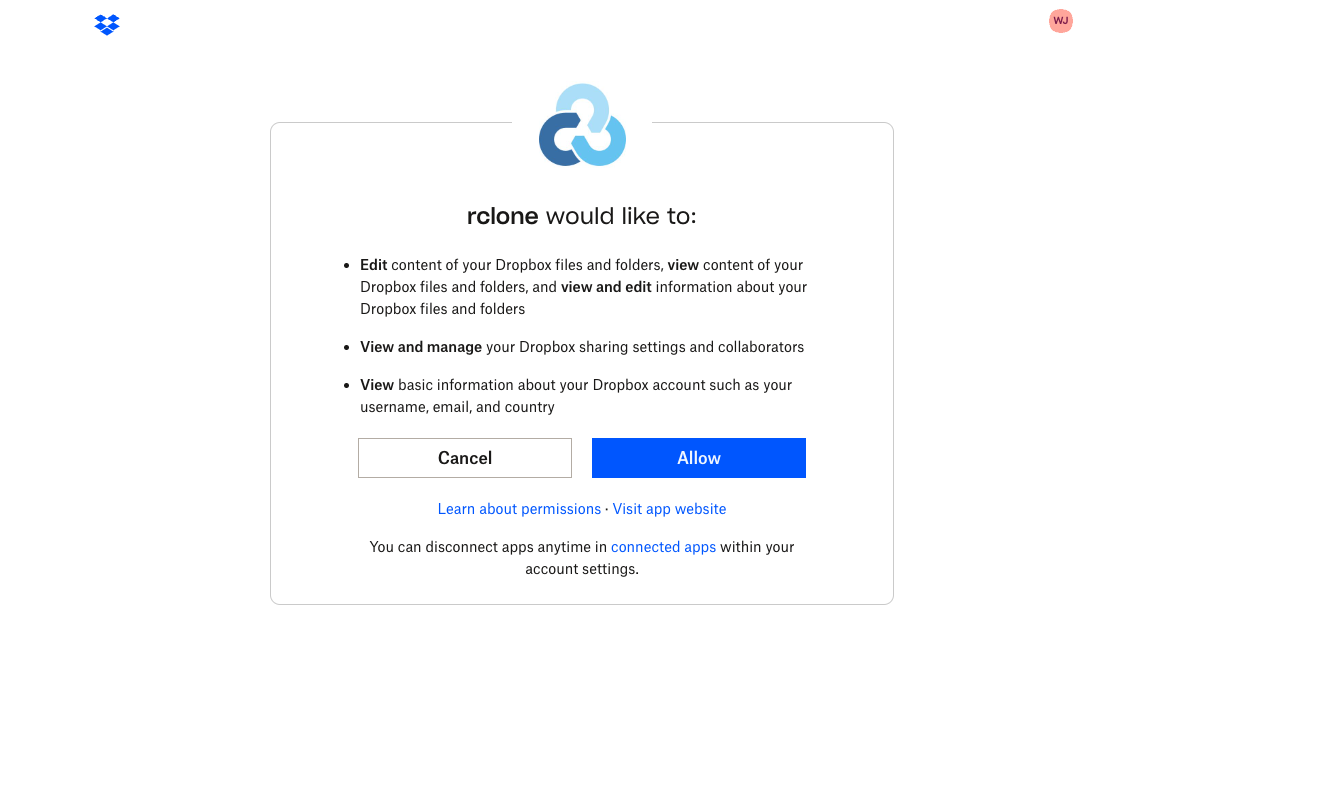
In CloudsLinker, click Add Cloud and select Dropbox. Sign in on Dropbox's official authorization page and approve the requested permissions.
Step 2: Connect PikPak
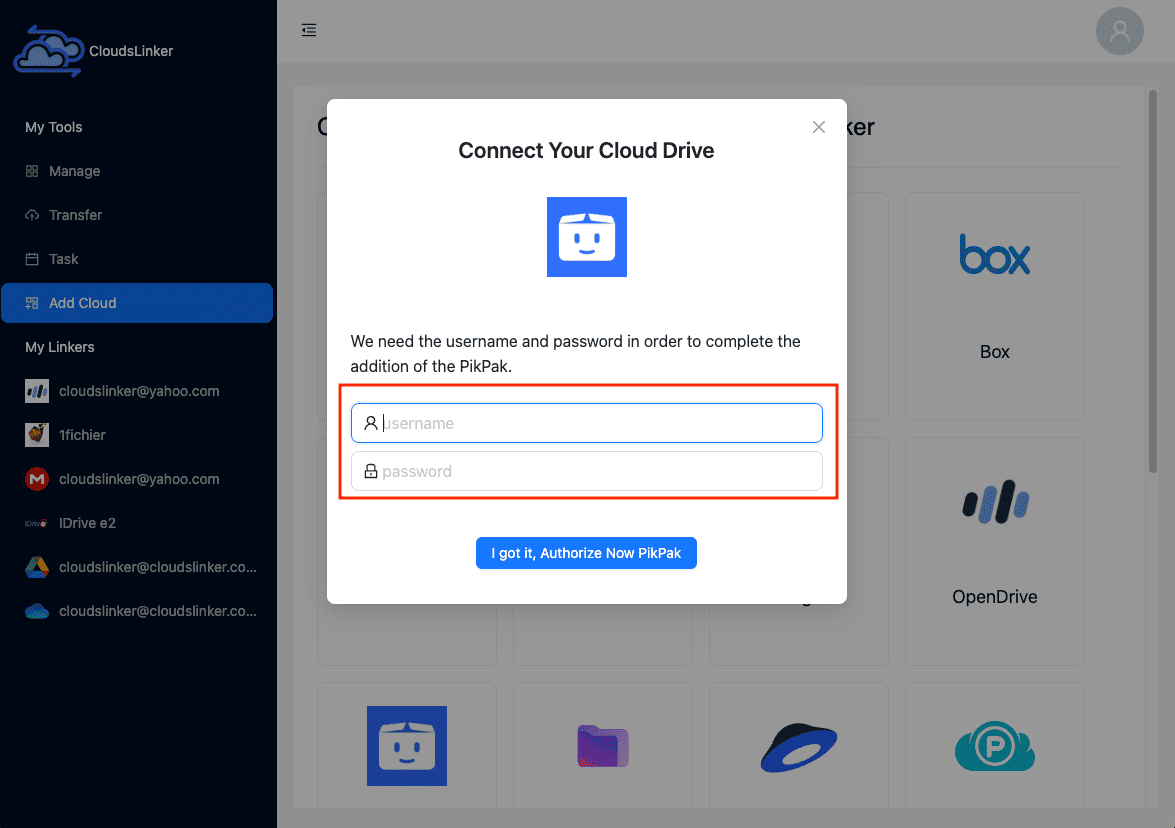
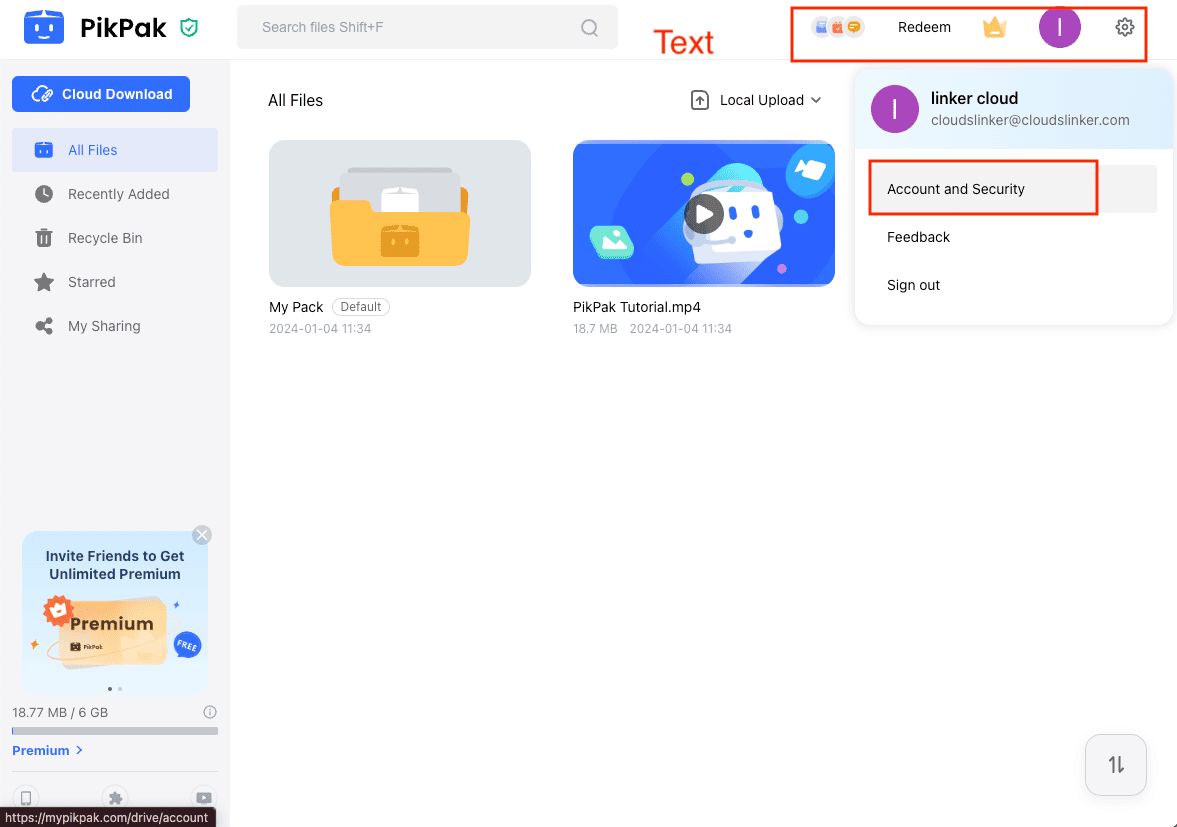
Click Add Cloud and select PikPak. Enter the PikPak account email and password. If the account was created through Google or Facebook sign-in, set a direct password first: PikPak avatar → Account and Security → Password.
Step 3: Configure the Transfer
Open the Transfer section. Select Dropbox as the source and browse to the folders to move. Select PikPak as the destination and pick the target folder. Filter by file type or size if only part of the account needs to move, and use Copy to leave the Dropbox originals untouched.

Step 4: Start and Monitor
Click start and track progress from the Task List. The transfer runs on CloudsLinker's servers, independent of the local connection. Spot-check a few files in PikPak once it finishes before clearing anything out of Dropbox.
Comparing the Ways to Transfer From Dropbox to PikPak
| Method | Ease of Use | Speed | Best For | Uses Local Bandwidth | Skill Level |
|---|---|---|---|---|---|
| PikPak Cloud Download (link) | ★★★★☆ | ★★★★☆ | A few shared files or folders | No | Beginner |
| Manual Download + Upload | ★★★☆☆ | ★★☆☆☆ | Small one-off transfers | Yes | Beginner |
| CloudsLinker | ★★★★★ | ★★★★★ | Full folders, entire Dropbox accounts | No | Beginner |
- Export Dropbox Paper docs before moving: Paper documents don't transfer as files — export them as .docx or Markdown first.
- Check PikPak's free space: the free tier is 6 GB — a Premium plan is needed for anything close to a full Dropbox archive.
- Mind the upload caps: PikPak's web client stops at 4 GB per file; the desktop client raises that to 20 GB.
- Watch the 1,000-files-per-day limit: large folders with many small files may need to be split across days for manual uploads.
- Set a direct PikPak password early: accounts created via Google or Facebook sign-in need a dedicated password before a third-party tool can connect.
- Leave shared team folders in Dropbox: PikPak has no equivalent to Dropbox's shared-folder permissions model.
- Verify after transfer: open a sample of files in PikPak to confirm content and folder structure before removing anything from Dropbox.
Frequently Asked Questions
Conclusion
A small batch of files is fastest moved by downloading from Dropbox and uploading through PikPak's web client, keeping the 4 GB per-file cap in mind. If the files already have a Dropbox share link, PikPak's Cloud Download feature can pull them in without a local hop at all. For a full Dropbox account or a folder with thousands of files, CloudsLinker connects both accounts directly and runs the copy server-to-server. Check PikPak's remaining storage before a large move, and confirm a sample of files opens correctly before clearing anything out of Dropbox.
Online Storage Services Supported by CloudsLinker
Transfer data between over 58 cloud services with CloudsLinker

OneDrive

Google Drive

Google Photos

Shared Drive

OneDrive for Business

Dropbox

Box

Mega

pCloud

Yandex

ProtonDrive

AWS

GCS

iDrive

Storj

DigitalOcean

Wasabi

1fichier

PikPak

TeleBox

OpenDrive

Backblaze B2

Fastmail file

SharePoint

Nextcloud

ownCloud

Premiumize me

HiDrive

Put.io

Sugar Sync

Jottacloud

Seafile

Ftp

SFtp

NAS

WebDav

4shared

Icedrive

Cloudflare R2

Scaleway

Hetzner Object Storage

Synology C2 Object Storage

S3 Compatible

Doi

iCloud Drive

iCloud Photos

FileLU

Zoho WorkDrive

Telia Cloud / Sky

Drime

Filen

TeraBox

Internxt

Degoo

Gofile

Pixeldrain

Shade

Koofr
Didn' t find your cloud service? Be free to contact: [email protected]
Further Reading
Effortless FTP connect to google drive: Transfer Files in 3 Easy Ways
Learn More >
Google Photos to OneDrive: 3 Innovative Transfer Strategies
Learn More >
Google Photos to Proton Drive: 3 Effective Transfer Techniques
Learn More >