Between Dropbox's 2 GB Free and 2 TB Paid? Pixeldrain Fills the Gap
Move Dropbox files to Pixeldrain's metered €4/TB filesystem instead of paying for a 2 TB tier you barely use. Manual and cloud-to-cloud methods.
Introduction
Dropbox pricing has a hole in the middle: the free Basic plan stops at 2 GB, and the next stop is Plus at 2 TB for $11.99/month — there is nothing in between. Pixeldrain's Prepaid filesystem is priced for exactly that middle ground: €4 per terabyte per month, metered to what you actually store, so 150 GB of old project files costs well under a euro rather than a full Dropbox subscription. The trade-offs are real — the filesystem is a Pro feature, and downloads from it are billed per TB — which makes Pixeldrain a home for data you keep rather than data you sync daily. Below are two ways to make the move: a manual browser transfer and a server-side copy with CloudsLinker.
Dropbox is a sync-first cloud drive with a mature desktop client and sharing tools. Its plan ladder is short: Basic is 2 GB free, then Plus jumps straight to 2 TB at $11.99/month (less on annual billing).
- 2 GB free; next tier is 2 TB ($11.99/mo)
- 350 GB max upload via web, 2 TB via desktop app
- Block-level sync, strong desktop integration
- OAuth access for transfer tools
Pixeldrain is a Netherlands-based storage service whose Pro filesystem offers metered pricing: €4 per TB per month for storage on Prepaid, billed to actual usage, with per-TB charges on downloads.
- €4/TB/month, metered — no fixed tiers
- Filesystem is Pro-only; free tier is link sharing
- All filesystem egress billed (~€1–2/TB)
- API-key access, EU hosting
| Feature | Dropbox | Pixeldrain |
|---|---|---|
| Pricing model | Fixed: 2 GB free → 2 TB $11.99/mo | Metered: €4/TB/mo Prepaid; Pro covers up to 2 TB |
| Cost for ~200 GB | $11.99/mo (forced onto the 2 TB tier) | ≈ €0.80/mo |
| Max single file | 350 GB (web) / 2 TB (desktop app) | No published cap on paid filesystem |
| Egress fees | None | ~€1/TB Prepaid, €2/TB shared dirs |
| Sync client | Desktop + mobile, block-level sync | None — web filesystem and API |
| Connection in CloudsLinker | OAuth | API key (Pro plan) |
Sources: Dropbox: file size limits, Dropbox: plans, Pixeldrain: Filesystem guide, Pixeldrain: pricing.
Decide what this move is for: a full exit from a Plus subscription, or trimming an overfull free account. List which folders are genuinely cold — Pixeldrain's billed egress means anything you re-open weekly should stay in Dropbox. Check which files carry shared links others depend on, since those links won't follow the files. On the Pixeldrain side, activate Pro or load a Prepaid balance and create an API key at pixeldrain.com/user/api_keys; without a paid plan there is no filesystem to receive the data.
Method 1: Download and Re-upload by Hand
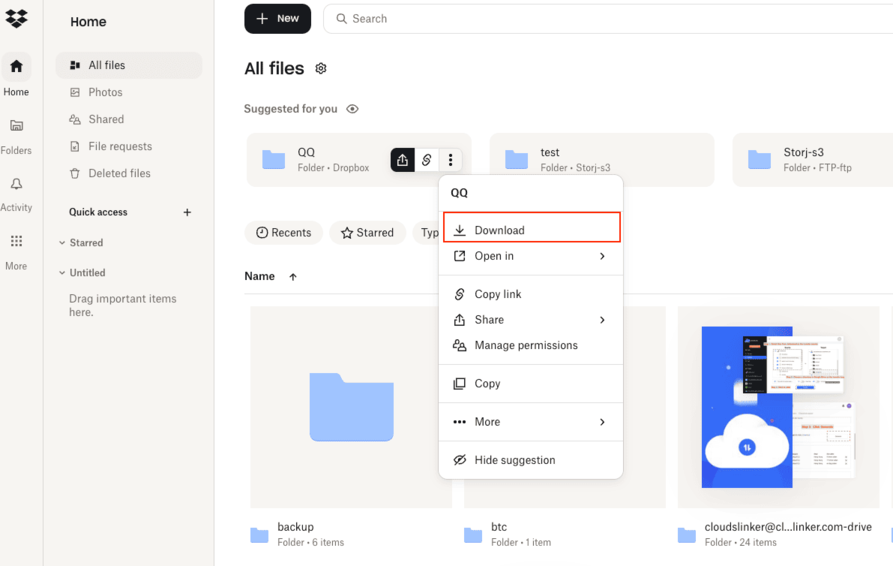
Step 1: Download from dropbox.com
Select folders at dropbox.com and choose Download — Dropbox delivers them as ZIP archives. Large selections split into several ZIPs and can take a while on a home connection.
Step 2: Upload into the Pixeldrain filesystem
Sign in to Pixeldrain, open the filesystem, create a destination directory and upload the extracted folders through the web interface.
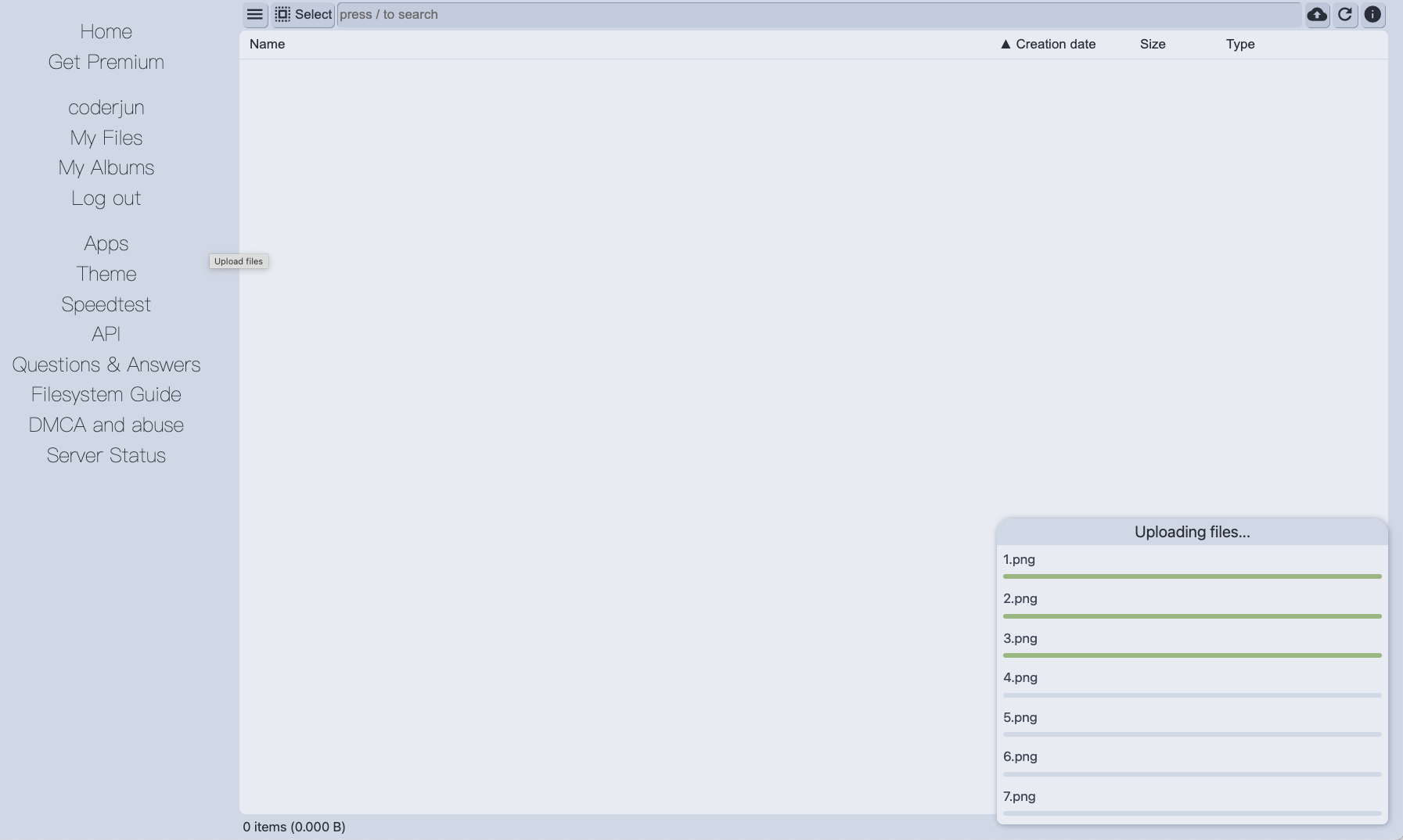
Fine for a small archive. For 100 GB+, the double crossing of your own connection — down from Dropbox, up to Pixeldrain — is the bottleneck.
Method 2: Copy Dropbox to Pixeldrain in the Cloud
Exit the 2 TB tier without a local round trip
CloudsLinker connects Dropbox through OAuth and the Pixeldrain filesystem by API key, then copies folder trees server-to-server — no ZIP downloads, no re-uploads, and no dependence on Dropbox's 350 GB web-upload ceiling since files move through the API.
Step 1: Connect Dropbox
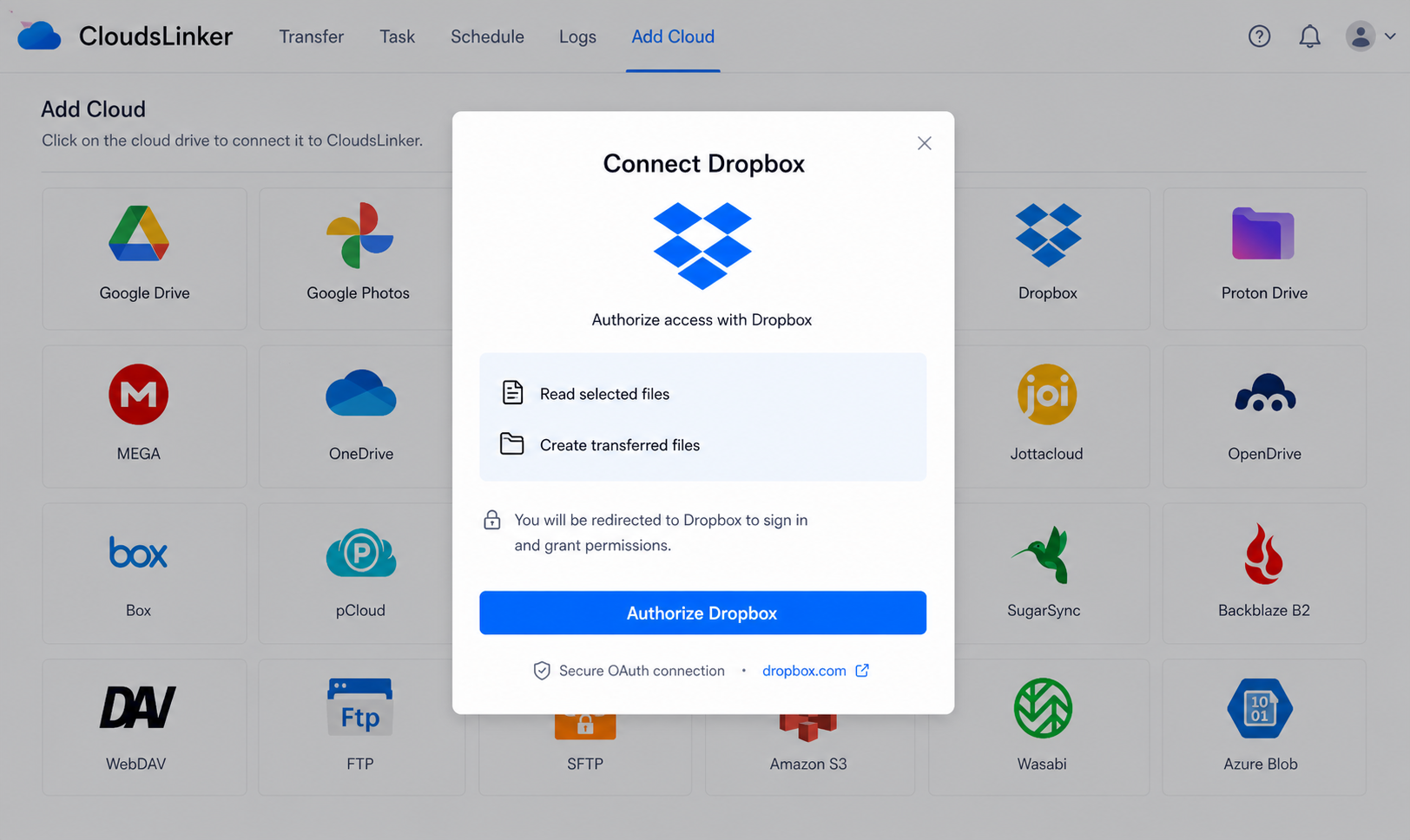
Click Add Cloud → Dropbox. Authorize on Dropbox's official page at www.dropbox.com; CloudsLinker receives a revocable token you can cancel anytime from Dropbox's connected-apps settings.
Step 2: Connect Pixeldrain
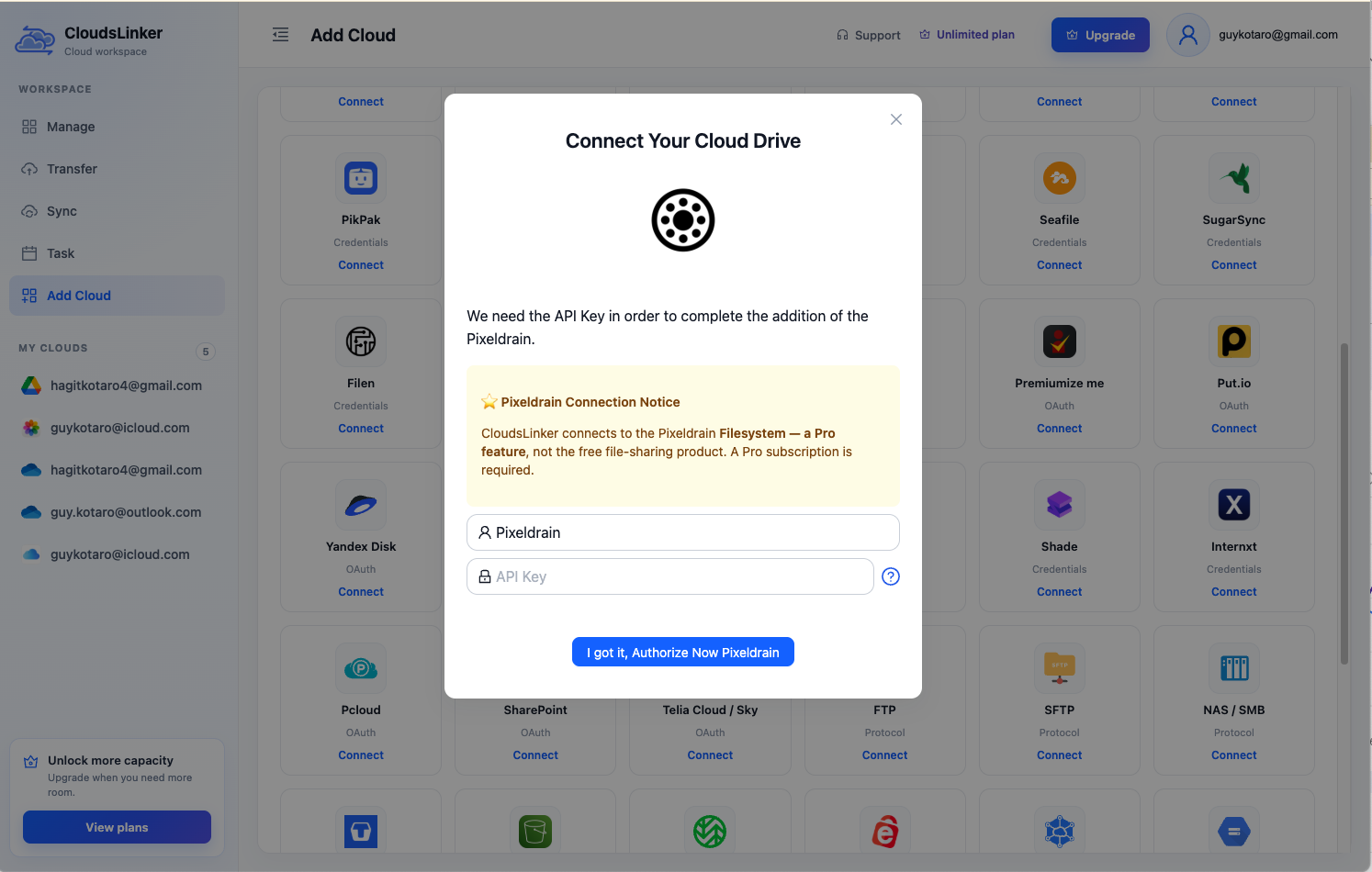
Click Add Cloud → Pixeldrain, enter a display name and paste an API key from pixeldrain.com/user/api_keys — the (?) icon in the dialog links straight to that page. A Pro plan (or Prepaid balance) must be active.
Step 3: Configure the Transfer
Set Dropbox as the source in the Transfer section and tick the folders to retire. Choose a Pixeldrain filesystem directory as the destination. Apply type, size or date filters if only part of the tree should move, and prefer Copy mode until you've verified the result.
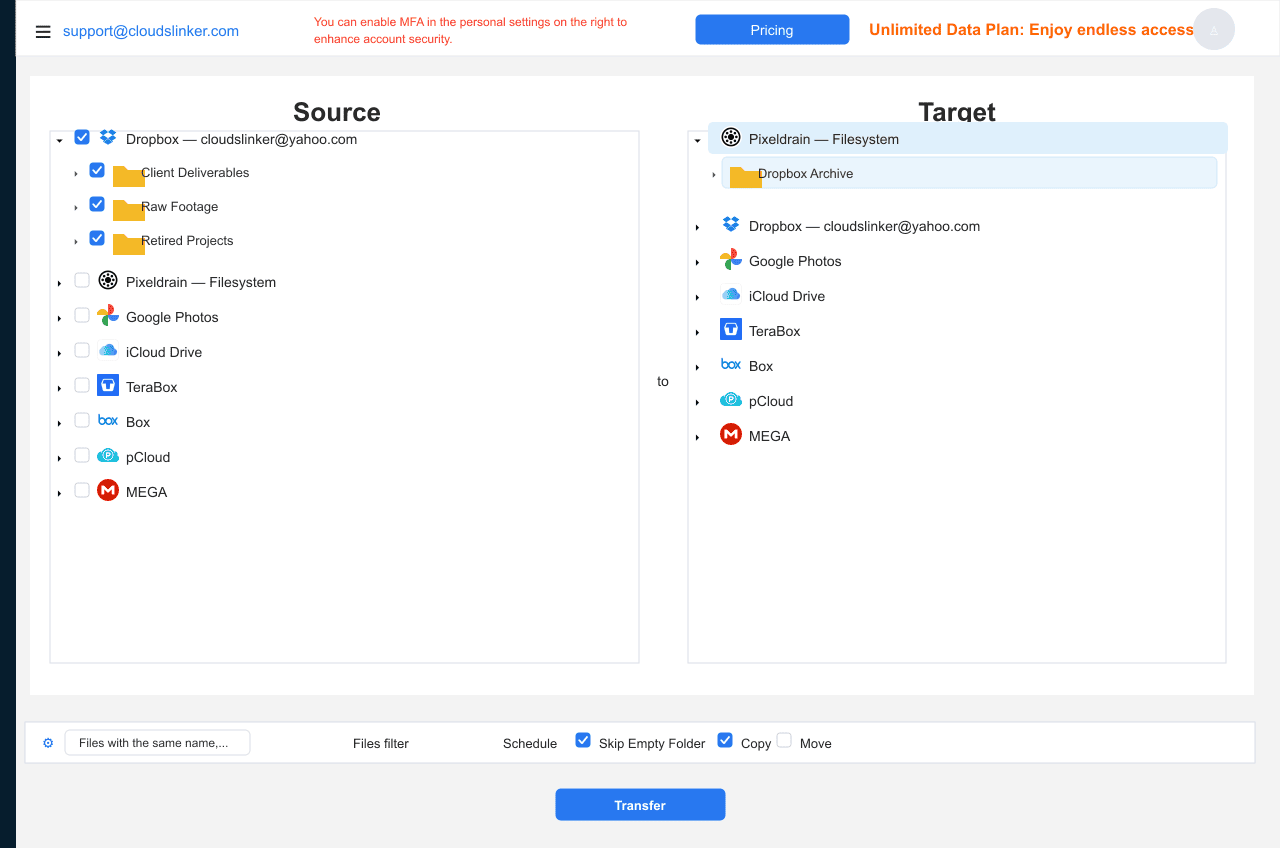
Step 4: Start and Monitor the Transfer
Start the job and watch the Task List for bytes moved and files remaining. The transfer runs entirely on CloudsLinker's servers, so closing the browser changes nothing.
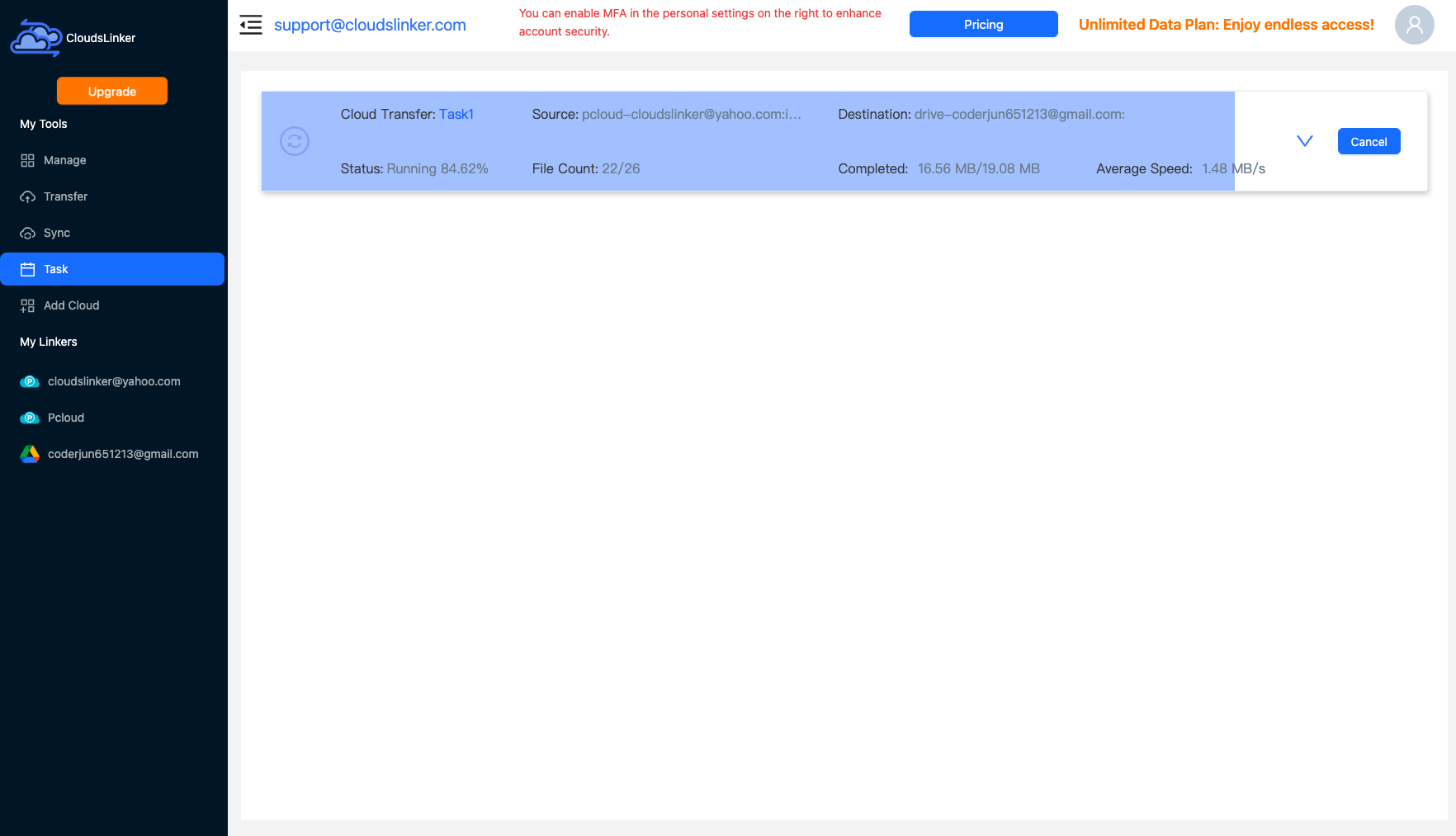
Comparing the Ways to Transfer From Dropbox to Pixeldrain
| Method | Ease of Use | Speed | Best For | Uses Local Bandwidth | Skill Level |
|---|---|---|---|---|---|
| Manual download / upload | Medium | Slow | A small archive | Yes — twice | Basic |
| CloudsLinker | Easy | Fast (server-side) | Full plan exits, 100 GB+ moves | No | Basic |
- Do the arithmetic first: metered wins below roughly 1 TB of real usage (€4/TB vs $11.99 flat); at close to 2 TB stored, Dropbox Plus is competitive again.
- Keep synced working files in Dropbox: Pixeldrain has no desktop sync client — it's a web filesystem, not a folder on your machine.
- Recreate shared links deliberately: Dropbox links die with the originals, and Pixeldrain shared-directory downloads bill at €2/TB — share sparingly from the archive.
- Filter out what shouldn't retire: a date filter (untouched for 12 months) is a clean way to separate archive from active.
- Verify before downgrading: spot-check file counts and open a few files in Pixeldrain before cancelling or downgrading the Dropbox plan.
- Use a dedicated Pixeldrain API key: one key per tool, revocable independently at pixeldrain.com/user/api_keys.
Frequently Asked Questions
Conclusion
A couple of folders move fine by hand: download from dropbox.com, upload into the Pixeldrain filesystem. Anything bigger is better copied server-side — CloudsLinker connects Dropbox over OAuth and Pixeldrain by API key, and the job runs without your bandwidth in the loop. Downgrade or trim the Dropbox plan only after verifying the copy, and remember Pixeldrain's metered egress: this is where files retire, not where they commute.
Online Storage Services Supported by CloudsLinker
Transfer data between over 58 cloud services with CloudsLinker

OneDrive

Google Drive

Google Photos

Shared Drive

OneDrive for Business

Dropbox

Box

Mega

pCloud

Yandex

ProtonDrive

AWS

GCS

iDrive

Storj

DigitalOcean

Wasabi

1fichier

PikPak

TeleBox

OpenDrive

Backblaze B2

Fastmail file

SharePoint

Nextcloud

ownCloud

Premiumize me

HiDrive

Put.io

Sugar Sync

Jottacloud

Seafile

Ftp

SFtp

NAS

WebDav

4shared

Icedrive

Cloudflare R2

Scaleway

Hetzner Object Storage

Synology C2 Object Storage

S3 Compatible

Doi

iCloud Drive

iCloud Photos

FileLU

Zoho WorkDrive

Telia Cloud / Sky

Drime

Filen

TeraBox

Internxt

Degoo

Gofile

Pixeldrain

Shade

Koofr
Didn' t find your cloud service? Be free to contact: [email protected]
Further Reading
Effortless FTP connect to google drive: Transfer Files in 3 Easy Ways
Learn More >
Google Photos to OneDrive: 3 Innovative Transfer Strategies
Learn More >
Google Photos to Proton Drive: 3 Effective Transfer Techniques
Learn More >