Move Your Team's Footage from Dropbox into Shade's AI-Searchable Drives
Migrate a creative team's media library from Dropbox to Shade — AI search over dialogue and visuals, editor panels, review tools. Two migration methods.
Introduction
Shade indexes video the way search engines index text: dialogue, on-screen content and visual elements become searchable in plain English, with no manual tagging. For a creative team whose footage library lives in Dropbox folders, that is the difference between scrubbing through clips to find 'the take where she mentions the deadline' and just typing it. Dropbox stores the files reliably but knows nothing about what's inside them — no frame-accurate review, no Premiere Pro or Resolve panel, no dialogue search. Moving the media library into a Shade drive ($20 per seat/month with 500 GB of active storage per seat) is a one-time bulk transfer, and Shade's drive-scoped API makes it scriptable. This guide covers the manual route and a server-side copy with CloudsLinker.
Dropbox is a general-purpose sync service — reliable folders on every machine, 2 TB per user on Plus ($11.99/mo). It stores media files without understanding them: no content indexing, no review tools, no editor integration.
- 2 TB per user (Plus); general file storage
- Strong desktop sync, mature sharing
- No media AI search or frame-accurate review
- OAuth access for transfer tools
Shade is cloud storage plus media asset management for creative teams: natural-language AI search across footage, review and approval, full-resolution streaming, and panels inside Premiere Pro and DaVinci Resolve. Team plans run $20 per seat/month.
- $20/seat/mo — 500 GB active storage per seat
- Unlimited drives and AI indexing; 15 seats, 150 guests
- SOC 2 Type II, TPN, GDPR
- API key + per-drive Drive ID access
| Feature | Dropbox | Shade |
|---|---|---|
| Built for | General file sync | Creative/video team media libraries |
| Content search | Filename and text-doc search | AI search over dialogue and visuals |
| Pricing | Plus: 2 TB per user, $11.99/mo | $20/seat/mo, 500 GB active per seat |
| Editor integration | None native | Premiere Pro and Resolve panels; mountable drives |
| Compliance posture | General business certifications | SOC 2 Type II + TPN (media industry) |
| Connection in CloudsLinker | OAuth | API key + Drive ID (one drive per connection) |
Sources: Dropbox: plans, Dropbox: file size limits, Shade: official site, Capterra: Shade pricing.
Map the library to Shade's drive model first: one drive per client, per show, or per department — team plans include unlimited drives, and permissions live at the drive level. Check the seat math: 500 GB of active storage per seat means a 5-seat team has 2.5 TB of working space, so decide what counts as the active library versus archive before the move, not after. In Shade, create the target drives, then generate an API key in account settings and note each drive's Drive ID from its settings page. On the Dropbox side, tidy the folder tree — the structure you migrate is the structure editors will navigate.
Method 1: Download and Re-upload by Hand
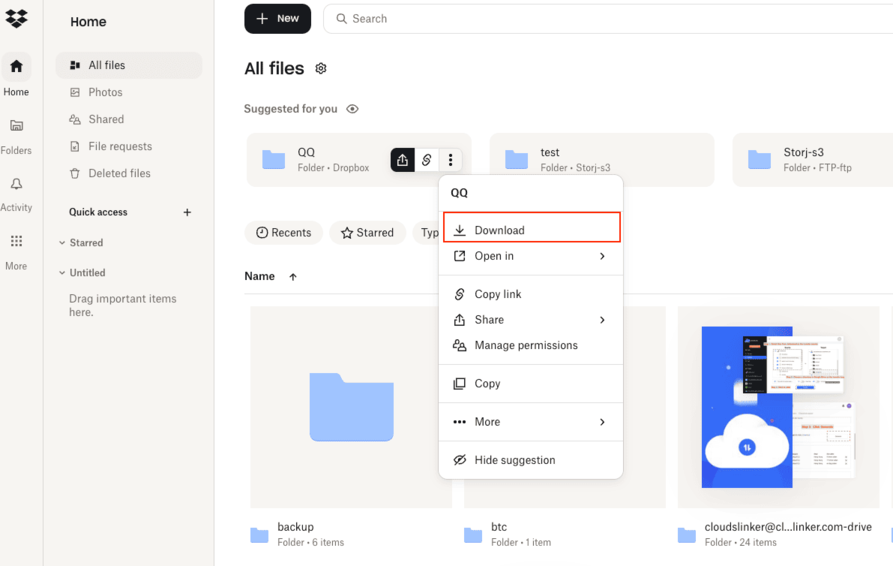
Step 1: Download from dropbox.com
Select the media folders at dropbox.com and choose Download. Footage-sized selections arrive as multiple large ZIPs — plan for local disk space equal to the library.
Step 2: Upload into the Shade drive
Open the target drive in Shade's web app, recreate the top-level structure, and upload the extracted folders. Shade begins AI-indexing files as they arrive. On an office connection, a multi-terabyte library will occupy the uplink for days — the practical ceiling of this method.
Method 2: Copy Dropbox to Shade in the Cloud
Bulk-load the library while the team keeps editing
CloudsLinker connects Dropbox over OAuth and the target Shade drive through its drive-scoped API (key + Drive ID), then copies the folder tree server-to-server. No workstation stays tied up mounting drives and pushing terabytes through the office uplink, and Shade indexes each file as it lands.
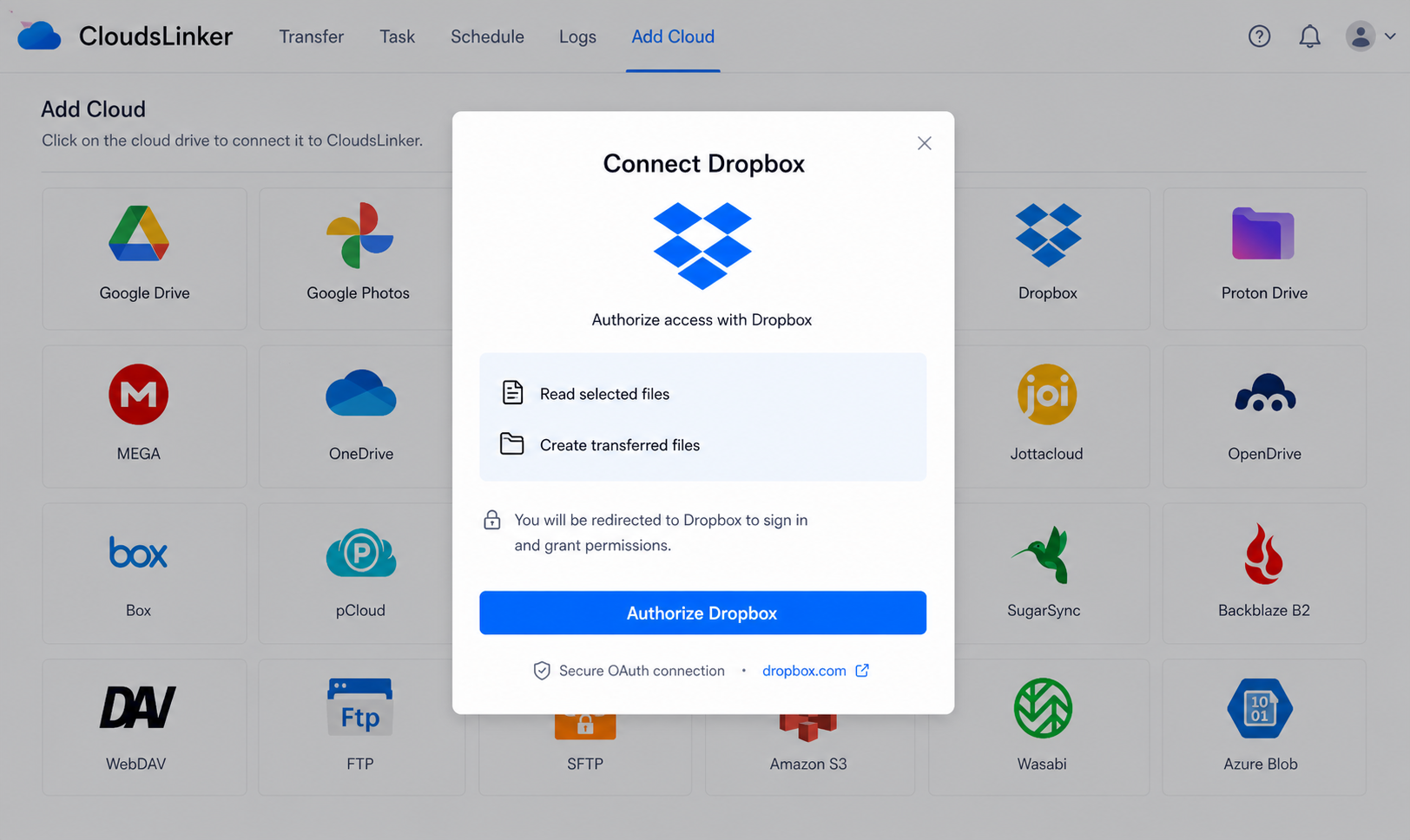
Step 1: Connect Dropbox
Click Add Cloud → Dropbox and authorize on Dropbox's official OAuth page at www.dropbox.com. The token is revocable from Dropbox's connected-apps settings.
Step 2: Connect Shade
In Shade, create an API key from account settings and copy the target drive's Drive ID from its settings page.
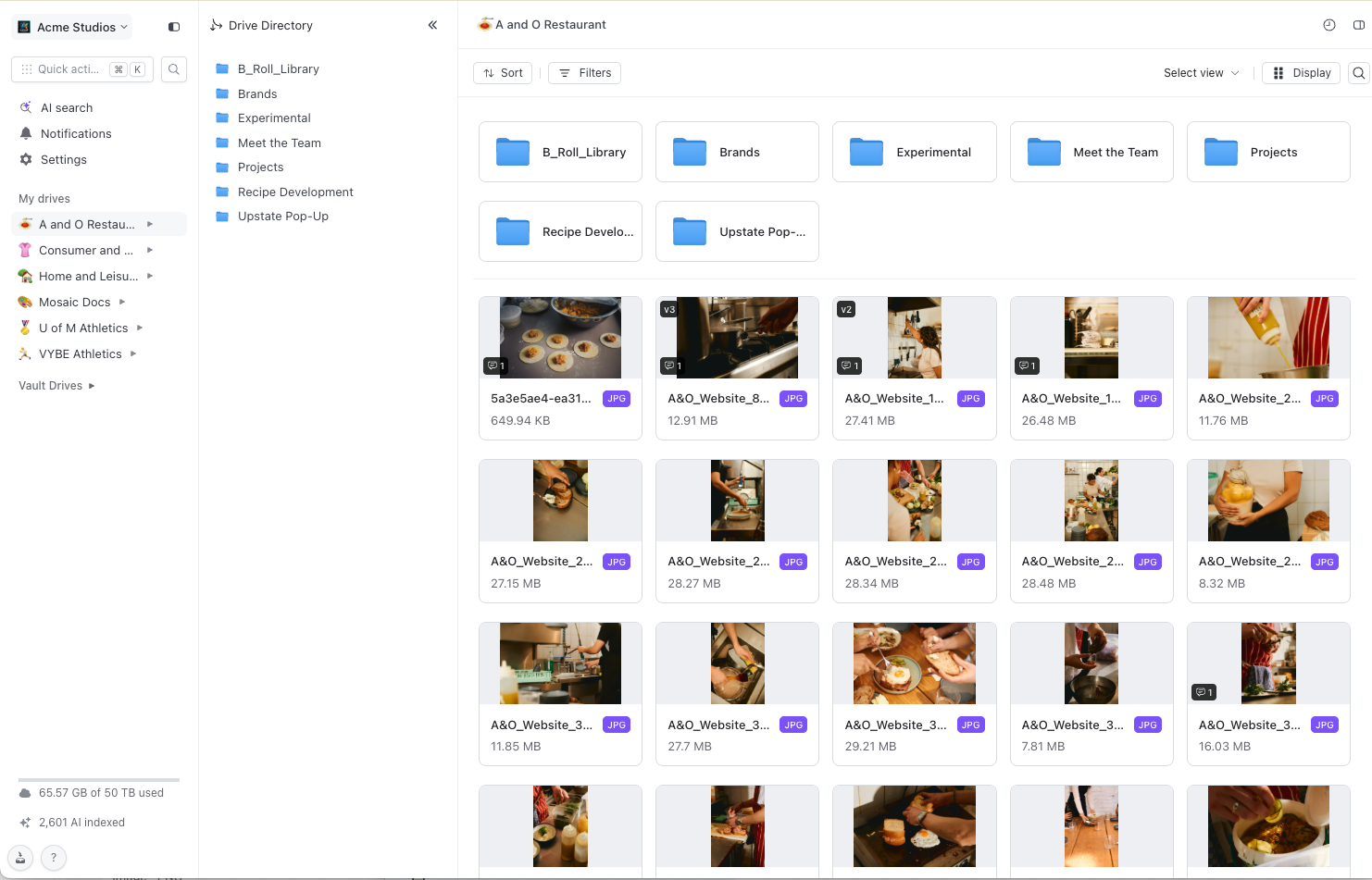
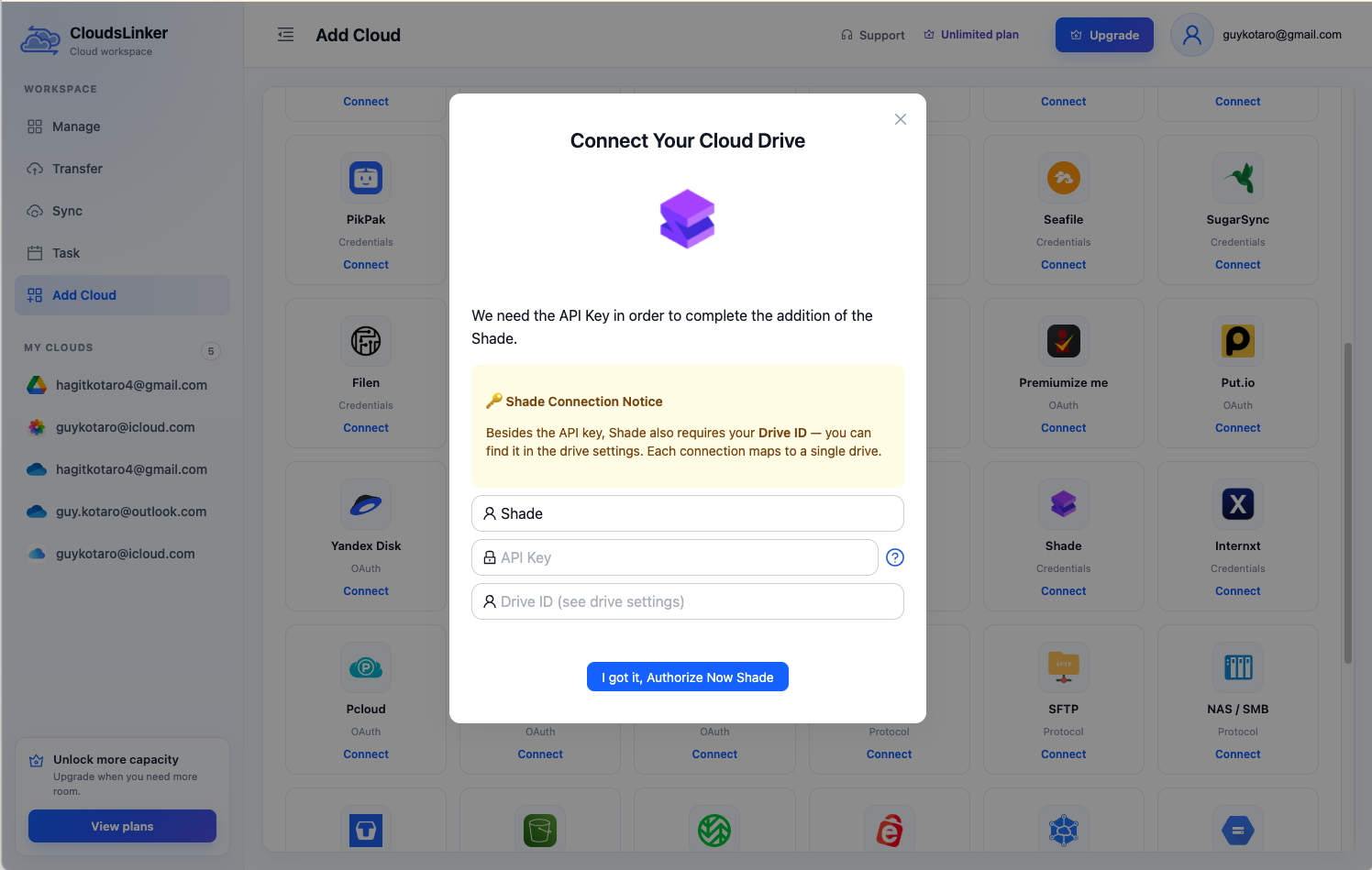
Then in CloudsLinker, click Add Cloud → Shade, paste the API key and the Drive ID. Each connection maps to exactly one drive — repeat per drive for multi-drive migrations.
Step 3: Configure the Transfer
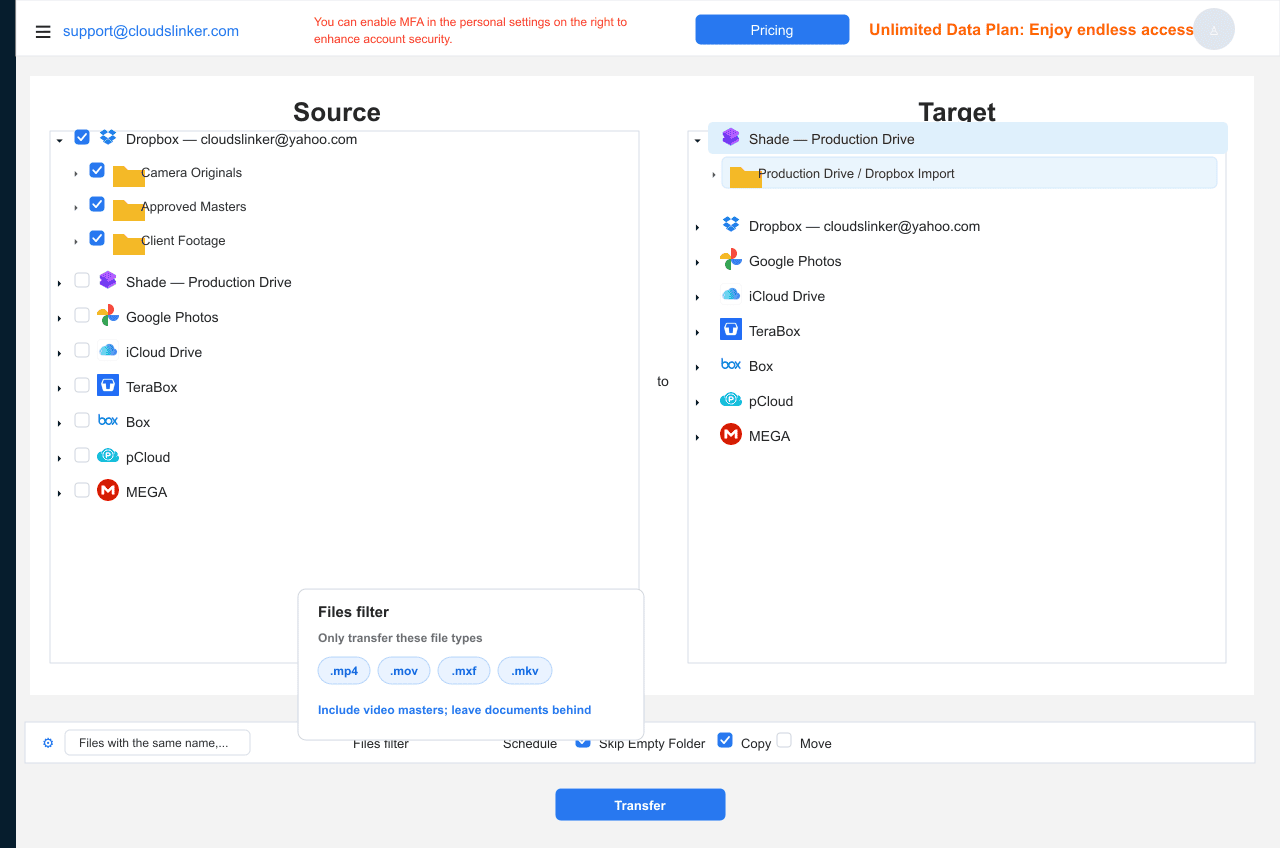
Set Dropbox as the source and tick the media folders; set the Shade drive as the destination. Filter by format or size to bring only masters and camera originals — proxies can be regenerated, so leaving them behind keeps seats under their 500 GB active allowance.
Step 4: Start and Monitor the Transfer
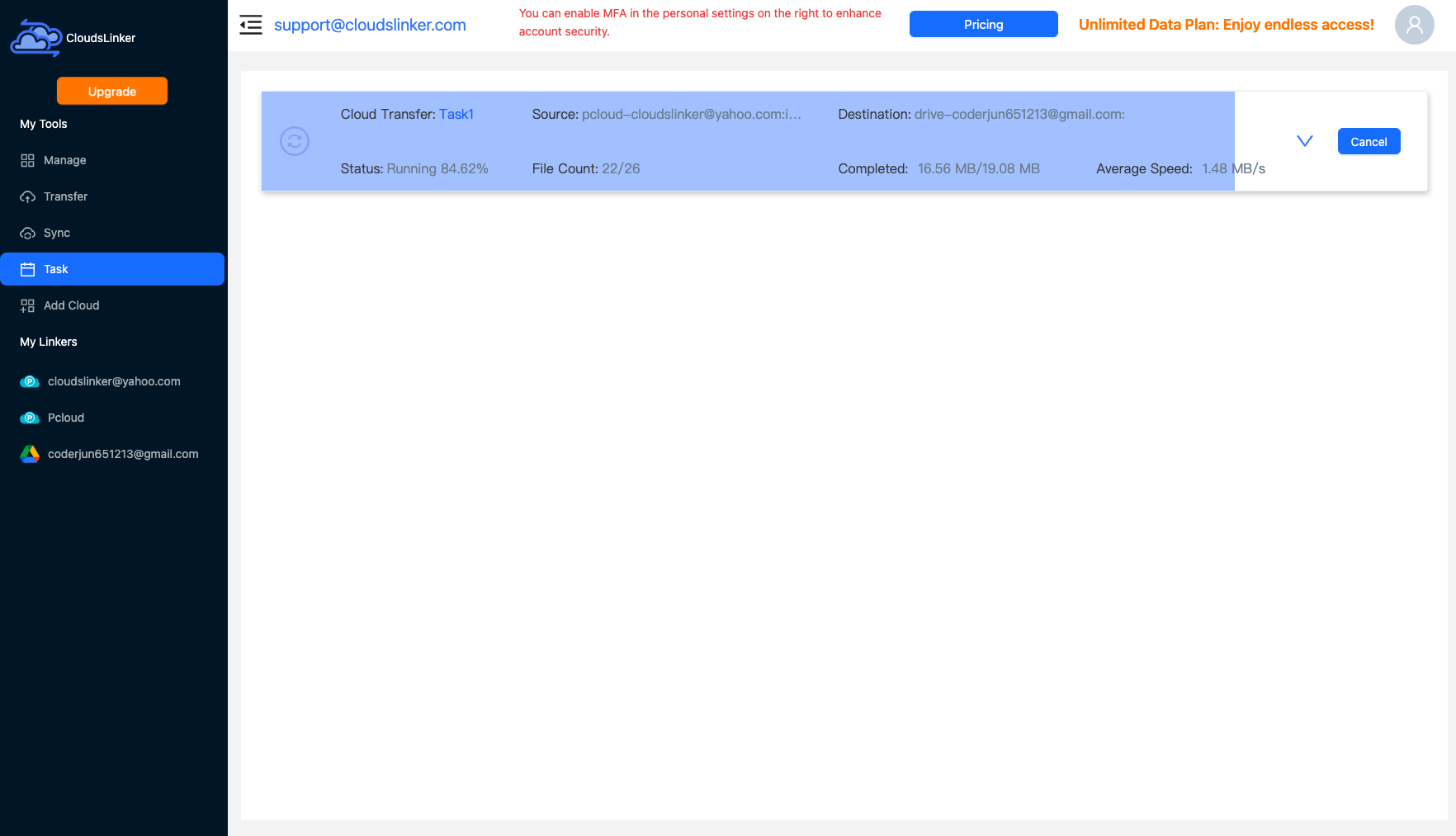
Start the job and follow the Task List. The copy runs server-side; by the time it finishes, Shade's dialogue and visual indexing is already searchable on the earlier files.
Comparing the Ways to Transfer From Dropbox to Shade
| Method | Ease of Use | Speed | Best For | Uses Local Bandwidth | Skill Level |
|---|---|---|---|---|---|
| Manual download / upload | Medium | Slow (office uplink) | One small project folder | Yes — twice | Basic |
| CloudsLinker | Easy | Fast (server-side) | Full library migrations, TB scale | No | Basic |
- Design drives before migrating: permissions live at the drive level in Shade — a drive per client or show maps cleanly, and unlimited drives means structure is free.
- Bring masters, not proxies: filter the transfer to camera originals and finished masters; proxies regenerate and only eat the 500 GB/seat active allowance.
- Migrate one drive at a time: each CloudsLinker connection is scoped to a single Drive ID — sequential drive-by-drive moves keep verification simple.
- Let indexing finish before judging search: AI indexing runs on arrival; give a large import time before the team tests dialogue search.
- Keep Dropbox until editors sign off: verify structure and spot-play files in Shade, then retire the Dropbox folders.
- Rotate the API key after the project: Shade keys are account-level — delete the migration key in account settings once done.
Frequently Asked Questions
Conclusion
A small project folder moves fine by hand. A real library — seasons of footage, client folders, terabytes of takes — is a server-side job: CloudsLinker connects Dropbox over OAuth and the target Shade drive by API key + Drive ID, then copies the tree while the team keeps working. Migrate drive by drive, let Shade's AI indexing run on arrival, and keep Dropbox until editors confirm the new library is complete.
Online Storage Services Supported by CloudsLinker
Transfer data between over 58 cloud services with CloudsLinker

OneDrive

Google Drive

Google Photos

Shared Drive

OneDrive for Business

Dropbox

Box

Mega

pCloud

Yandex

ProtonDrive

AWS

GCS

iDrive

Storj

DigitalOcean

Wasabi

1fichier

PikPak

TeleBox

OpenDrive

Backblaze B2

Fastmail file

SharePoint

Nextcloud

ownCloud

Premiumize me

HiDrive

Put.io

Sugar Sync

Jottacloud

Seafile

Ftp

SFtp

NAS

WebDav

4shared

Icedrive

Cloudflare R2

Scaleway

Hetzner Object Storage

Synology C2 Object Storage

S3 Compatible

Doi

iCloud Drive

iCloud Photos

FileLU

Zoho WorkDrive

Telia Cloud / Sky

Drime

Filen

TeraBox

Internxt

Degoo

Gofile

Pixeldrain

Shade

Koofr
Didn' t find your cloud service? Be free to contact: [email protected]
Further Reading
Effortless FTP connect to google drive: Transfer Files in 3 Easy Ways
Learn More >
Google Photos to OneDrive: 3 Innovative Transfer Strategies
Learn More >
Google Photos to Proton Drive: 3 Effective Transfer Techniques
Learn More >