Moving from Dropbox to SharePoint: 3 Practical Ways to Transfer Your Files
Moving data from Dropbox into Microsoft SharePoint often sounds simple, but in practice it can raise a few unexpected challenges. Dropbox works best as a flexible file-sharing platform, while SharePoint is built around structured libraries, permissions, and collaboration within Microsoft 365. Once team folders, shared links, or large business archives are involved, copying files manually can become time-consuming or unreliable. In this guide, we break down three approaches people commonly use in real workflows: downloading files from Dropbox and uploading them to SharePoint through a web browser, automating the transfer with rclone, or using CloudsLinker to move files directly between Dropbox and SharePoint without passing data through a local computer.
Introduction
For many teams, Dropbox is where everything starts. It is easy to set up, simple to share with external partners, and works well across devices with minimal configuration. Over time, however, companies that adopt Microsoft 365 often decide to consolidate their documents into SharePoint. The reasons are usually practical rather than technical: centralized permission control, version history tied to user accounts, compliance requirements, or closer integration with tools like Teams and OneDrive. When that decision is made, the question quickly becomes how to move existing files out of Dropbox and into SharePoint without disrupting ongoing work. There is no official migration bridge between the two platforms, so users have to rely on alternative methods. In day-to-day use, most migrations fall into three patterns. Some people export files manually from the Dropbox web interface and upload them into SharePoint document libraries. Others prefer command-line automation with tools such as rclone to handle large or repeatable transfers. A growing number of users choose cloud-to-cloud services like CloudsLinker, which perform the transfer online and avoid local bandwidth limits altogether. Before starting, it is worth reviewing Dropbox’s official documentation on file sharing and storage, as well as Microsoft’s SharePoint guidance on document libraries and permissions, to understand how folder structures and access rules may change after the move.
Dropbox is widely used for its simplicity and fast file syncing across devices. It is often chosen by individuals and teams who need an easy way to share files, collaborate externally, and keep folders in sync without dealing with complex configuration.
- Simple file syncing: Changes appear quickly across linked devices.
- Familiar folder experience: Files behave much like a local drive.
- Strong sharing features: Shared folders and links for internal and external use.
- Version history: Restore previous file versions when mistakes happen.
- Broad platform support: Available on web, desktop, and mobile.
Microsoft SharePoint is not just a storage service but a document management platform built for collaboration inside Microsoft 365. Files live within sites and document libraries, where access rules, versioning, and workflows are centrally controlled.
- Library-based structure: Content is organized by sites and libraries.
- Native Microsoft 365 integration: Works seamlessly with Teams, OneDrive, and Office apps.
- Granular access control: Permissions can be applied at multiple levels.
- Built-in version tracking: Review edits and roll back when needed.
- Compliance and governance tools: Designed for business and enterprise use.
Before transferring data, it helps to understand that Dropbox and SharePoint solve different problems. Dropbox focuses on fast access and easy sharing, while SharePoint is designed to support structured collaboration within organizations.
| Aspect | Dropbox | Microsoft SharePoint |
|---|---|---|
| Main Purpose | File syncing and sharing | Team collaboration and document management |
| Organization Model | Traditional folder structure | Sites and document libraries |
| Access Control | Folder- and link-based sharing | Role-based and policy-driven permissions |
| Integration | Works independently | Deeply embedded in Microsoft 365 |
| Typical Users | Individuals, freelancers, small teams | Departments and enterprise environments |
In short, Dropbox feels like a flexible shared drive, while SharePoint functions as a structured workspace. This difference is usually the main reason organizations choose to migrate.
Before starting a Dropbox to SharePoint migration, take time to map out where your folders should live. SharePoint does not mirror Dropbox’s flat folder layout, so deciding on sites and document libraries in advance helps prevent confusion later.
You should also confirm that you have sufficient permissions on the SharePoint side. Upload rights are controlled at the site and library level, and missing permissions can cause uploads to fail or land in the wrong location.
Finally, consider the size of your data set. Small collections of files can be moved manually, but larger transfers are often more reliable when handled through automation or a cloud-to-cloud solution that does not rely on your browser or local disk.
Method 1: Download and Upload Files Manually
Step 1: Export Files from Dropbox
Begin by signing in to the
Dropbox web
interface.
Navigate through your folders and locate the files or directories you want to move into SharePoint.
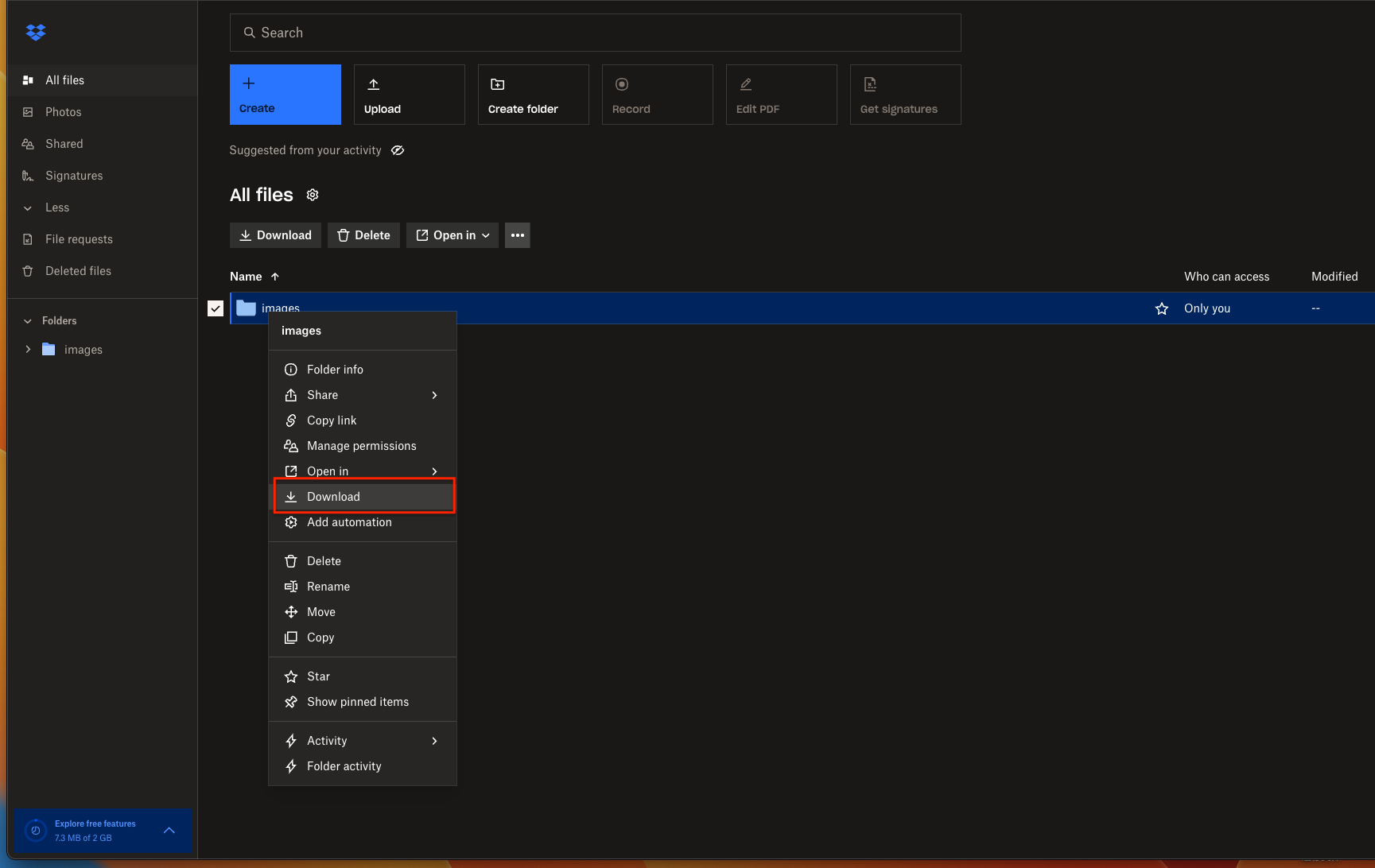
Dropbox allows you to download individual files or select multiple items at once using
Ctrl (Windows) or Command (macOS).
Once selected, use the download option from the toolbar or right-click menu. When you download folders, Dropbox packages them into a compressed ZIP archive. After the download finishes, extract the archive on your computer so the files are ready for the next step.
⬇️ Save the selected files from Dropbox to your local device
Step 2: Upload Files into SharePoint
Next, open your destination SharePoint site in a browser and go to the document library where the files should be stored. You can use the Upload button in the toolbar or drag and drop files directly into the library window.
This is a good opportunity to reorganize your content. Unlike Dropbox’s flat folder structure, SharePoint is built around sites and libraries. Taking a few minutes to align folders with project libraries or team sites can make collaboration much easier later on.
⬆️ Upload your files to the correct SharePoint document library
Manual download and upload works best for small batches of files or one-time moves. If you are dealing with large folders, unstable network connections, or repeated migrations, this method can quickly become slow and error-prone. In those cases, an automated or cloud-to-cloud approach is usually a better fit.
Method 2: Command-Line Transfer with Rclone
Step 1: Install Rclone and Connect Dropbox with SharePoint
For users who prefer working outside the browser, rclone offers a highly flexible way to move data directly between cloud platforms. It supports both Dropbox and Microsoft SharePoint, making it possible to transfer files without manually downloading and re-uploading them through a web interface.
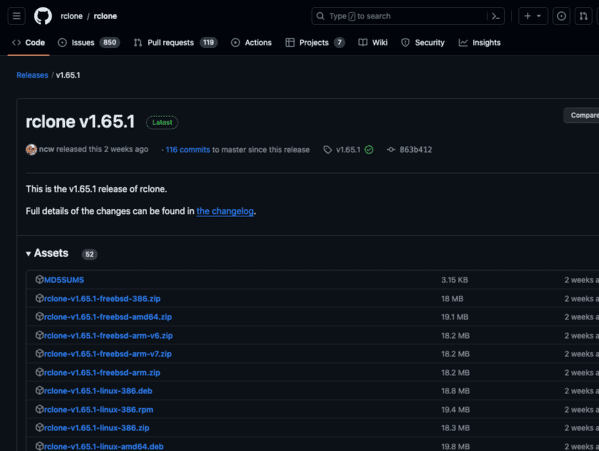
Start by downloading the latest rclone build from the official site and installing it
on your system. After installation, open a terminal (or Command Prompt on Windows) and
run rclone config. This command launches an interactive setup where each
cloud service is defined as a separate “remote.”
-
Dropbox remote:
When prompted to choose a provider, select
dropbox. Rclone will guide you through a browser-based authorization flow. Once completed, you will have a remote (for example,dropbox:) that allows command-line access to your Dropbox folders. -
SharePoint remote:
To connect SharePoint, choose
onedriveas the backend. During configuration, rclone asks which Microsoft storage type you want to use—select SharePoint. After signing in with your Microsoft 365 account, you can select the target site and document library that will receive your files.
Step 2: Run the Transfer Commands
With both remotes in place, file transfers can be started using standard rclone commands. A basic copy operation from Dropbox to SharePoint might look like this:
rclone copy dropbox:/Projects sharepoint:/SharedDocuments/Projects --progress
This command copies the contents of the Projects folder in Dropbox into
the specified SharePoint document library. If your goal is to keep the destination in
sync with the source—rather than performing a one-time copy—you can switch to a sync
operation:
rclone sync dropbox:/Archives sharepoint:/Archives --progress --exclude "*.tmp"
Before running large or destructive operations, adding the --dry-run flag
is strongly recommended. It shows exactly what rclone would change, without moving or
deleting any files.
This approach works especially well for technically inclined users who want automation, repeatable workflows, or scheduled transfers. Rclone supports advanced filtering, bandwidth limits, and unattended execution through cron jobs or the Windows Task Scheduler. The main trade-off is setup complexity—mapping the correct SharePoint site and library requires attention—but once configured, rclone becomes a powerful long-term solution.
Method 3: Cloud-to-Cloud Transfer with CloudsLinker
Overview: Transfer Files from Dropbox to SharePoint Online
CloudsLinker is designed for situations where you do not want your computer involved in the transfer process at all. Files are moved directly from Dropbox to Microsoft SharePoint through the cloud, meaning the task continues even if you close your browser or shut down your device.
Step 1: Connect Dropbox as the Source
Sign in to app.cloudslinker.com and access your dashboard. Click Add Cloud and select Dropbox from the list of supported services.
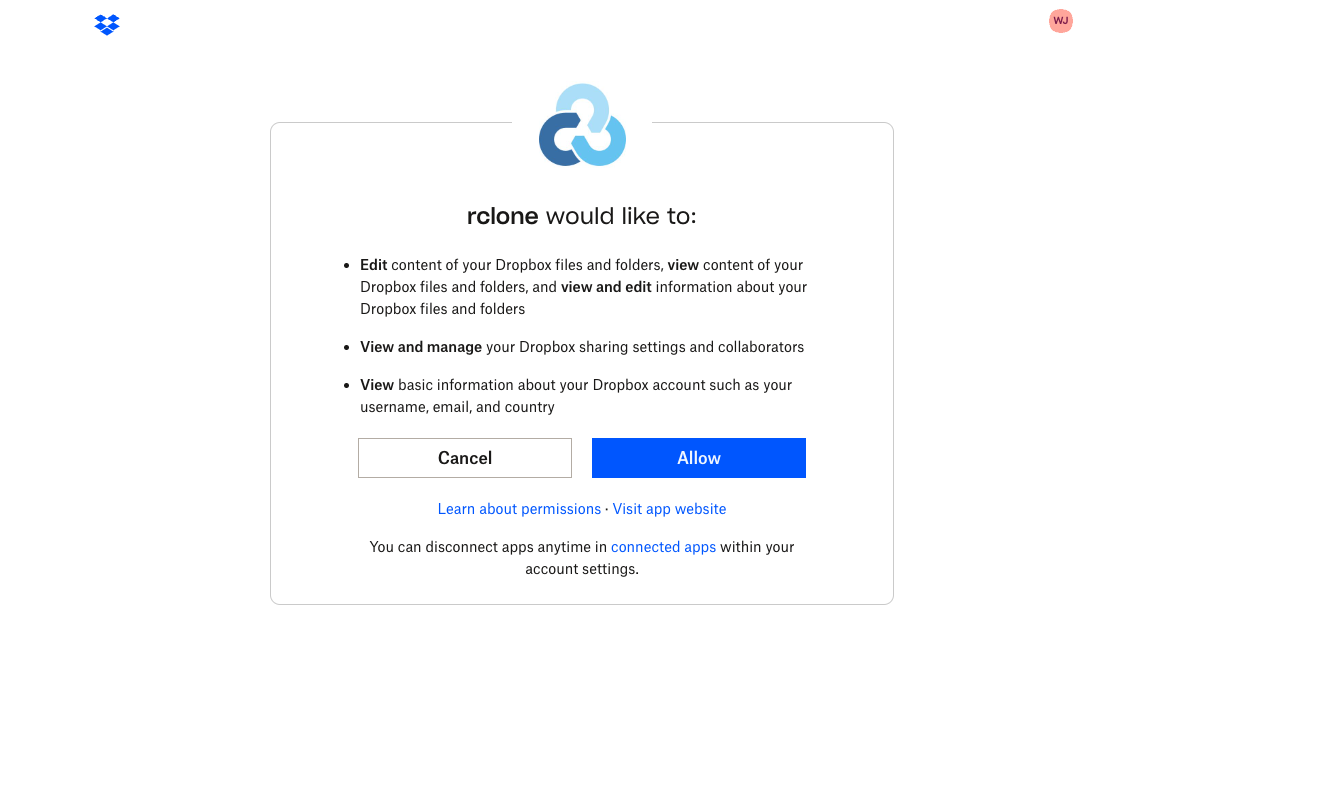
You will be redirected to Dropbox to authorize access. Once permission is granted, Dropbox appears in your cloud list and can be selected as the source for your transfer.
Step 2: Add SharePoint as the Destination
Add Microsoft SharePoint as the destination cloud. Sign in using your Microsoft 365 account and confirm the SharePoint site that will receive the files.
If the selected site contains multiple document libraries, CloudsLinker allows you to choose the exact library in advance. This helps ensure files end up in the correct team or project space.

Step 3: Choose Files and Map the Destination Folder
Open the Transfer page. On the left panel, select your connected Dropbox account and choose the folders or files you want to move. On the right panel, select SharePoint and define the folder where the data should be placed.
This step gives you full control over how Dropbox folders translate into SharePoint’s library structure. If you want to reorganize content during migration, this is the best moment to do so.

Step 4: Launch the Task and Monitor Progress
Start the transfer and monitor its progress from the task panel. CloudsLinker displays real-time status updates, transferred file counts, and any errors encountered along the way. Tasks can be paused and resumed if needed.
After completion, a summary report shows which files were successfully transferred. Your data will then be available inside SharePoint, ready for team access and collaboration.
For large migrations, shared team folders, or business-critical data, this approach removes much of the manual effort. CloudsLinker handles the transfer entirely online, without using local storage, browser uploads, or persistent desktop connections.
Moving Data Between Other Cloud Services?
In addition to SharePoint, CloudsLinker supports transfers across many popular platforms such as OneDrive, Box, WebDAV, MEGA, and others — all handled online without requiring your computer to stay connected.
Comparing Three Ways to Move Files from Dropbox to SharePoint
When planning a migration from Dropbox to Microsoft SharePoint, the “best” approach depends less on tools and more on context. File volume, available time, tolerance for technical setup, and whether the transfer needs to run unattended all influence the decision. The comparison below highlights how the three most common methods differ in practice.
| Approach | Learning Curve | Transfer Performance | Typical Scenarios | Relies on Local Network | Skill Level |
|---|---|---|---|---|---|
| Manual Download & Upload | Very Low | Moderate | Small folders or one-off moves | Yes | Beginner |
| Rclone (CLI-Based) | Medium | High | Scripted or repeat migrations | Yes | Advanced |
| CloudsLinker (Cloud-to-Cloud) | Low | High | Large accounts or unattended transfers | No | Beginner |
If you are moving only a handful of files, manual download and upload is often sufficient. It requires no setup and works well for quick, low-volume tasks. Rclone becomes attractive when consistency, filters, or scheduling matter, although it assumes comfort with command-line tools and a stable local environment.
For larger migrations—or when you prefer the transfer to continue without tying up your computer—a cloud-based option such as CloudsLinker stands out. Data moves directly between Dropbox and SharePoint online, avoiding local bandwidth limits and long-running browser sessions.
Moving files from Dropbox into Microsoft SharePoint is usually straightforward, but a bit of preparation can prevent unnecessary interruptions— especially when shared folders, permissions, or large datasets are involved.
- Check Access to All Dropbox Folders: Ensure you have full access to every folder you intend to migrate. Shared or externally owned folders may require additional permissions.
- Design the SharePoint Destination First: SharePoint organizes files by sites and document libraries, not a flat folder tree. Planning the destination structure in advance helps avoid post-migration cleanup.
- Decide Where the Transfer Will Run: Browser uploads and rclone jobs depend on your local device and network. For long-running or unstable connections, a cloud-based option like CloudsLinker keeps the process running entirely online.
- Review File Naming and Path Lengths: Although SharePoint supports large files, very long paths or special characters can still cause issues. Identifying them early helps prevent failed uploads.
- Confirm SharePoint Permissions: Verify that your Microsoft 365 account has upload rights to the correct site and document library. Permission issues are a common cause of failed migrations.
- Think Beyond the First Migration: If future transfers are likely, features such as retry logic, progress reporting, and unattended execution become increasingly valuable.
A small amount of upfront planning often makes the difference between a smooth migration and a frustrating one. Understanding how SharePoint stores content—and choosing a method that matches your data volume and workflow—helps ensure a clean transition from Dropbox.
Dropbox to SharePoint Migration FAQ
Step-by-Step Video: Move Dropbox Files to SharePoint
This step-by-step video explains how to transfer your data from Dropbox to Microsoft SharePoint easily and securely. You’ll learn how to connect Dropbox and SharePoint, configure transfer rules, automate scheduled tasks, and ensure your files stay organized throughout the migration process.
Conclusion
Choosing how to migrate files from Dropbox to SharePoint is less about finding a perfect method and more about matching the approach to your situation. Manual download and upload remains a reasonable option for small, occasional transfers, but it does not scale well. Rclone gives technically inclined users fine-grained control and automation, at the cost of setup time and maintenance. For larger data sets or business environments where reliability matters more than hands-on control, a cloud-to-cloud solution like CloudsLinker can simplify the process by handling the transfer remotely. In the end, the best choice depends on how much data you are moving, how often you need to migrate, and how much effort you want to invest in managing the process yourself.
Online Storage Services Supported by CloudsLinker
Transfer data between over 48 cloud services with CloudsLinker

OneDrive

Google Drive

Google Photos

Shared Drive

OneDrive for Business

Dropbox

Box

Mega

pCloud

Yandex

ProtonDrive

AWS

GCS

iDrive

Storj

DigitalOcean

Wasabi

1fichier

PikPak

TeleBox

OpenDrive

Backblaze B2

Fastmail file

SharePoint

Nextcloud

ownCloud

Premiumize me

HiDrive

Put.io

Sugar Sync

Jottacloud

Seafile

Ftp

SFtp

NAS

WebDav

4shared

Icedrive

Cloudflare R2

Scaleway

Doi

iCloud Drive

iCloud Photos

FileLU

Zoho WorkDrive

Telia Cloud / Sky

Drime

Filen
Didn' t find your cloud service? Be free to contact: [email protected]
Further Reading
Effortless FTP connect to google drive: Transfer Files in 3 Easy Ways
Learn More >
Google Photos to OneDrive: 3 Innovative Transfer Strategies
Learn More >
Google Photos to Proton Drive: 3 Effective Transfer Techniques
Learn More >