Dropbox to TeraBox: Cutting the Subscription Bill With 1 TB Free Storage
Move files from Dropbox (2 GB free, $9.99/mo for 2 TB) to TeraBox (1 TB free, $2.99/mo for 2 TB). Three honest methods, real per-file caps, full walkthrough.
Introduction
Dropbox's free Basic tier hands you 2 GB — enough for a few high-resolution photo sets and not much else — and the upgrade jump to 2 TB on Plus costs $9.99 per month. TeraBox's pitch sits on the opposite end of the same axis: a 1 TB free tier and a 2 TB Premium plan at $2.99 per month, which works out to roughly $36 a year against Dropbox Plus's $120. The catch is that TeraBox's free tier silently caps any single file at 4 GB, the practical free archive ceiling lands around 80 GB once the 20-large-file limit bites, and free downloads throttle to 200–800 KB/s with one concurrent file at a time. This guide covers three migration paths that actually work, including which one to pick at which dataset size and the limits on either side that shape the choice.
Dropbox is one of the longest-running consumer-and-team cloud sync services. The free Basic tier provides 2 GB; paid plans run from Plus at $9.99/month for 2 TB, Family at $16.99/month for 2 TB shared by up to six people, and Professional at $16.58/month for 3 TB.
- Per-file upload cap: 50 GB via the website on paid plans; no fixed cap via the desktop client or API.
- OAuth-based access: third-party tools authenticate through
www.dropbox.com, with revocable tokens. - Block-level sync: the desktop client only re-uploads the parts of a file that changed, which keeps recurring backups of large files cheap.
- Trash retention: 30 days (Plus / Family) or 180 days (Professional / Business).
- Shared-link bandwidth: 20 GB/day on Basic, 200 GB/day on paid — the cap that bites if you publish links to many recipients.
TeraBox is a consumer cloud-storage service operated by Flextech Inc., the international spin-off of Baidu Netdisk. As of 2026 it reports more than 700 million registered users, concentrated in South and Southeast Asia, and markets a 1 TB free tier as its headline differentiator.
- Free tier: 1024 GB advertised, capped to roughly 20 large files of 4 GB each — practical ceiling ~80 GB.
- Premium: $2.99/month for 2 TB and a 20 GB single-file limit; Premium+ at $3.33/month.
- Free download throttle: ~200–800 KB/s with one concurrent file at a time.
- Connection: no public OAuth — third-party tools authenticate using the browser login cookie (
ndus,ndut_fmt) exported from a logged-in session. - Service split:
terabox.com(international) and Baidu Netdisk (China) are separate accounts on separate infrastructure.
Dropbox optimizes for workflow polish and integration; TeraBox optimizes for a low headline cost and large nominal capacity. The table below frames the migration trade-offs directly.
| Feature | Dropbox | TeraBox |
|---|---|---|
| Free tier | 2 GB | 1 TB advertised; ~80 GB practical (20 × 4 GB cap) |
| Mid-tier plan | Plus: 2 TB at $9.99/month | Premium: 2 TB at $2.99/month (annual) |
| Annual cost for 2 TB | ~$120/year | ~$36/year |
| Max single file | 50 GB via the web; effectively unlimited via desktop client / API | 4 GB (Free) / 20 GB (Premium) |
| Connection method | OAuth via www.dropbox.com |
Browser cookie (EditThisCookie or DevTools export) |
| Block-level sync | Yes, on the desktop client | No |
| Free download speed | No published throttle | ~200–800 KB/s, one file at a time |
| Shared-link bandwidth cap | 20 GB/day (Basic) / 200 GB/day (paid) | Not publicly documented |
| Trash retention | 30 days (Plus) / 180 days (Professional) | Not publicly documented |
| Region / jurisdiction | US (CLOUD Act applies) | Singapore / Asia infrastructure; HQ in BVI |
A few minutes of inventory and account hygiene up front will save the most time later, especially because TeraBox surfaces some failures quietly and the cookie connection has rougher edges than a standard OAuth grant.
- Inventory Dropbox files larger than 4 GB. They will not upload to a free TeraBox account. In the Dropbox web app, sort the file view by size, or run
dropbox find . -size +4Gif you have the desktop client mounted. Either upgrade to TeraBox Premium ($2.99/month for 2 TB and a 20 GB cap) or split the offending files locally before transferring. - Decide what to do with Dropbox-only formats. Dropbox Paper documents (
.paper) live inside Dropbox's web app and do not export as standalone files. Convert them to.docxor.pdffrom inside Paper before the migration; otherwise they will not be readable on TeraBox. - Sign in to
www.terabox.com, not Baidu Netdisk. The international and Chinese services run on separate accounts; the cookie fromterabox.comonly authenticates the international one. - Estimate whether TeraBox Premium is cheaper than the alternative. If your Dropbox uses more than ~80 GB, the free TeraBox tier won't actually fit it. Premium at $2.99/month is still a fraction of Dropbox Plus and usually cheaper than rebuilding the upload around the 4 GB cap.
- Quiet the Dropbox desktop client during the move. If you use selective sync or LAN sync, pausing the client prevents files from re-downloading mid-migration and competing with the upload to TeraBox for bandwidth.
Method 1: Browser Download from Dropbox, Web Upload to TeraBox
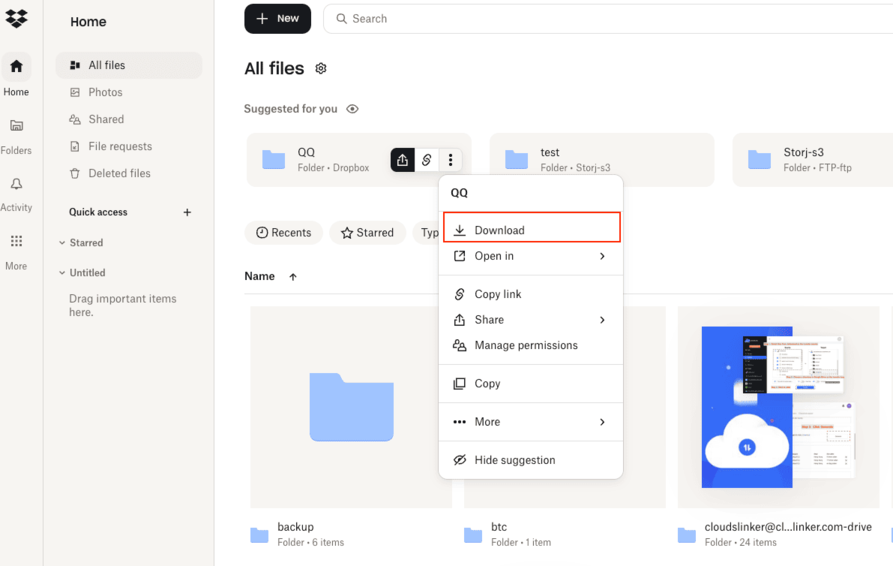
Step 1: Select and Download Files from Dropbox
Sign in at dropbox.com and open the file browser. Tick the checkboxes next to files or folders, then click Download. Dropbox bundles folder downloads into a ZIP archive on the fly. The web download path imposes a soft 20 GB / 10,000-file cap per ZIP build — anything above that needs to be split into smaller selections, or pulled through the desktop client (Method 2).
Dropbox Paper documents and shared files owned by other users behave differently in the download. Paper exports as .docx when downloaded individually but is skipped in bulk-folder ZIPs; files shared into your account but owned by others may require explicit copy-to-my-Dropbox before they appear in your export.
Step 2: Verify and Extract the Local Archive
After the ZIP arrives, extract it locally and run a quick file count against what Dropbox showed. On macOS or Linux, find ./dropbox-export -type f | wc -l; on Windows, sort the extracted folder by file count via the Properties dialog. This is the only step where you can spot a partial Dropbox export before the data crosses to TeraBox, and it is worth doing for any folder above a few hundred files.
Step 3: Upload to TeraBox via the Web App
Open terabox.com and sign in. Use Upload → Upload Folder for batches, or drag and drop into the file list. Free-tier accounts reject any single file above 4 GB with a non-obvious error — if a file silently disappears from the upload queue, the per-file cap is almost always the cause. Premium accounts can push files up to 20 GB.
Background tabs and locked screens both pause TeraBox uploads after a few minutes of inactivity. Plug the laptop in, set the screen to never sleep during the upload, and avoid switching to another tab on the same browser profile until the queue drains.
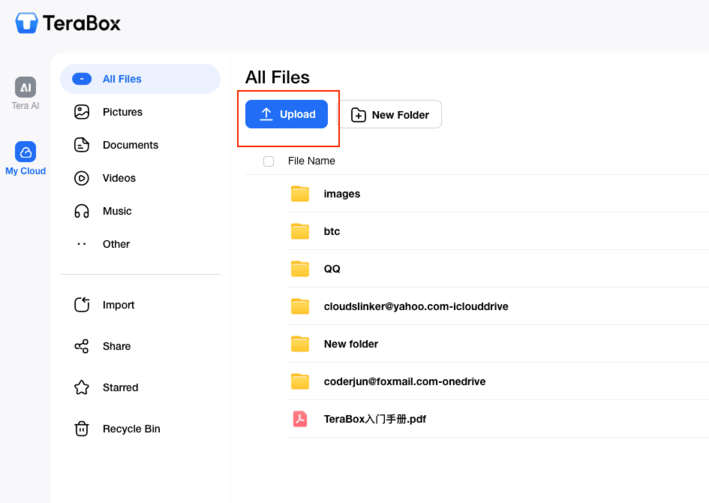
The browser-only path works for working folders in the low-tens-of-gigabytes range. It needs no extra accounts and no tooling, but the data crosses your home network twice — once down from Dropbox, once back up to TeraBox — and the browser must stay awake throughout.
Method 2: Dropbox Desktop Client, Then Upload from a Local Folder
Step 1: Install the Dropbox Desktop Client and Sync the Source
Install the Dropbox desktop client if it is not already running. Sign in with the account you want to migrate from. The client mirrors your Dropbox into a local folder (typically ~/Dropbox on macOS / Linux, %USERPROFILE%\Dropbox on Windows), pulling files in the background.
For accounts above the local disk's free space, use Selective Sync (Preferences → Sync → Selective Sync) to pull only the folders you plan to migrate. The desktop client uses block-level sync, so even after the initial pull, only changed parts of files re-download — that is the single largest reason this method beats the web ZIP path on big accounts.
Step 2: Verify the Local Mirror
Once the client reports "All files up to date", spot-check the sync. Open three or four sample files from inside the local Dropbox folder to confirm they are real (not online-only placeholder smart-sync files). On Windows, online-only files show a cloud icon in Explorer; right-click → Always keep on this device to materialize them locally before the upload to TeraBox can include them.
Step 3: Upload the Local Folder to TeraBox
Open terabox.com in a browser and drag the synced folder (or subfolders of it) into the upload area. From TeraBox's perspective, this is a normal folder upload — it does not know or care that the source is a Dropbox mirror. The same 4 GB free-tier per-file cap and screen-awake behavior described in Method 1 apply.
If you have a TeraBox desktop client installed, you can drop the folder into its watched directory instead of using the web upload — that pipeline is generally less prone to browser pauses on long runs.
This route avoids the web ZIP build entirely, which is the big win on Dropbox accounts that exceed the 20 GB / 10,000-file ZIP cap. The trade-off is local disk: you need enough free space to hold the working set, plus IO budget for the desktop client and the TeraBox upload to run in parallel.
Method 3: Transfer Dropbox to TeraBox Directly in the Cloud
Cloud-to-Cloud Transfer Without Local Downloads
CloudsLinker moves files directly between Dropbox and TeraBox on its own servers. Your machine does not need to be online for the duration, and TeraBox's per-session free-tier throttle does not apply because the read happens inside the data center, not over your home connection.
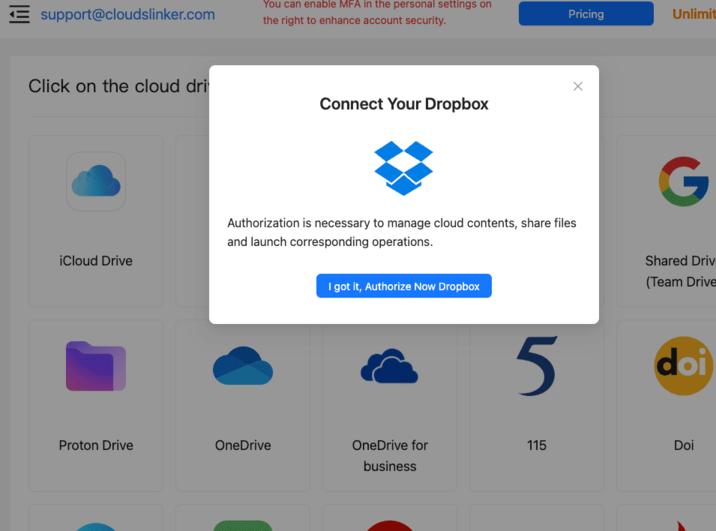
Step 1: Connect Dropbox (OAuth)
In CloudsLinker, click Add Cloud → Dropbox. The browser redirects to www.dropbox.com for the standard OAuth consent screen. Sign in, review the requested scopes (read and write file content under the connected app's folder scope or full Dropbox depending on plan), and approve. The token is account-scoped and revocable from www.dropbox.com/account/connected_apps at any time.
For Dropbox Business / Team accounts, an admin may need to allow CloudsLinker as an approved app from the Dropbox Business admin console before the OAuth grant succeeds. Personal accounts do not have this layer.
Step 2: Connect TeraBox (Browser Cookie)
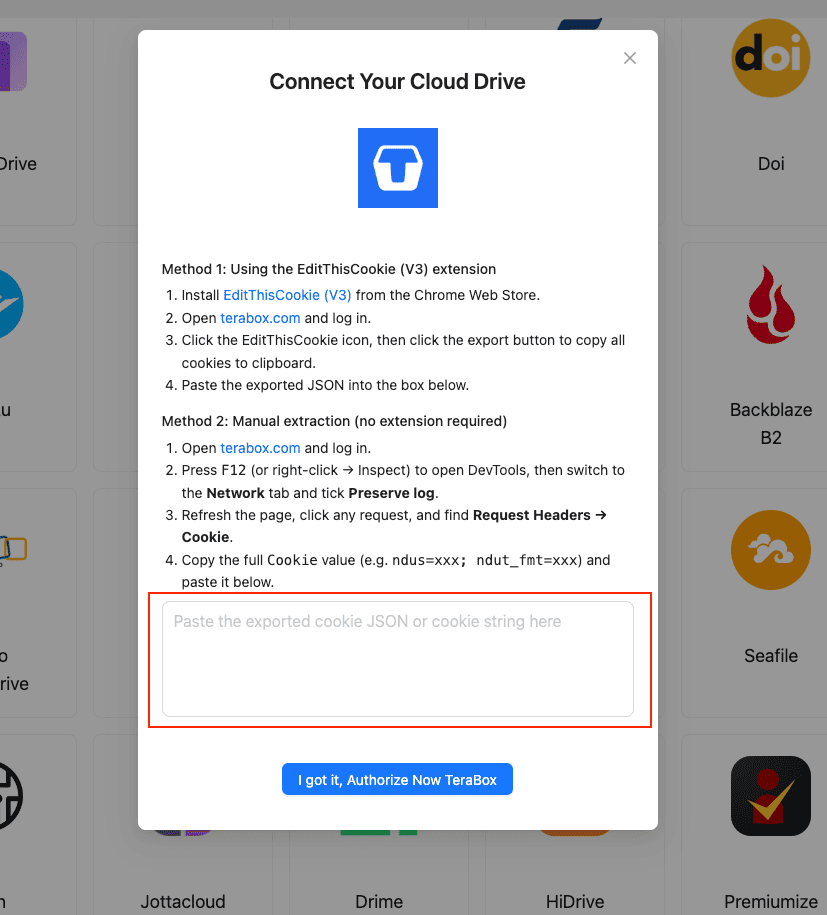
TeraBox does not publish an OAuth or developer API, so the connection uses the same browser session cookie your logged-in TeraBox tab already has. The recommended path is the EditThisCookie (V3) Chrome extension:
- Install EditThisCookie (V3) from the Chrome Web Store.
- Open
www.terabox.comin the same browser and confirm you are logged in. - Click the EditThisCookie icon → Export. The cookie set is copied to your clipboard as JSON.
- In CloudsLinker, click Add Cloud → TeraBox → enter a display name → paste the JSON → Confirm.
Without an extension, the DevTools fallback works: open DevTools (F12) → Network tab → tick Preserve log → refresh the page → click any request → copy the full Cookie header value (typically ndus=...; ndut_fmt=...) and paste that string into CloudsLinker.
Step 3: Configure the Transfer
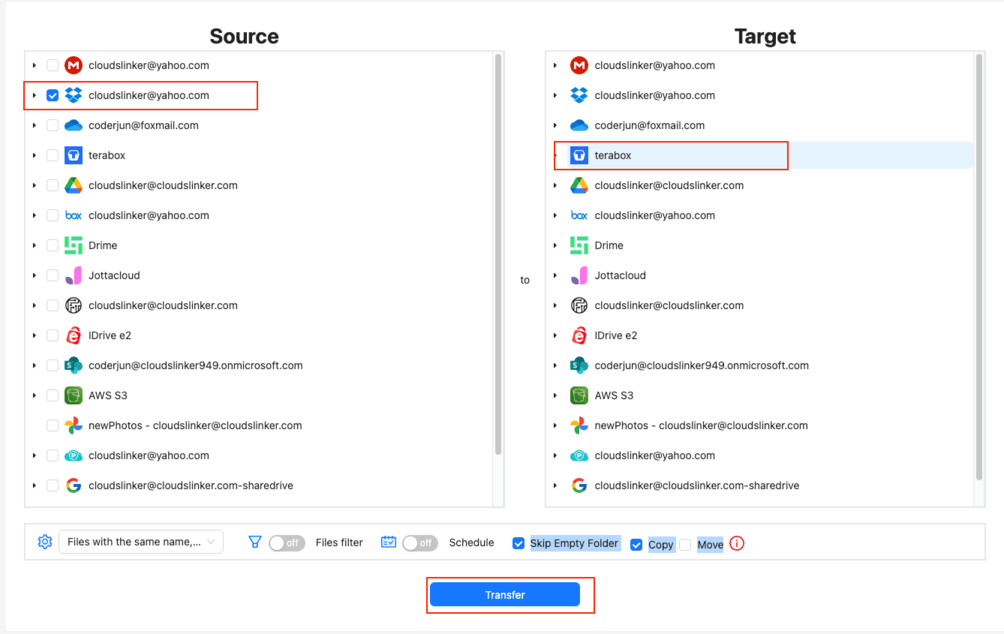
Open the Transfer section. Select your connected Dropbox as the source and browse to the folders you want to move. On the destination side, select TeraBox and pick or create a target directory.
Apply filters to keep oversized files out of a free TeraBox account: a file-size cap at 4 GB for free or 20 GB for Premium catches anything that would fail at the destination. Modification-date filters are useful for archive runs (for example, only files older than 12 months). Pick Copy to leave Dropbox originals in place, or Move to delete them after a successful transfer.
Step 4: Start and Monitor the Transfer
Click Start. The Task List shows transferred size, current speed, files-per-second, and remaining items. The transfer runs entirely in the cloud — closing the browser does not stop it. If your TeraBox cookie expires mid-job (logout, password change, or extended inactivity), the task pauses and CloudsLinker emails you to paste a fresh cookie instead of failing every queued file.

Practical throughput is shaped mostly by Dropbox's per-app rate limits (generous for read-only listing and download workloads) and TeraBox's undocumented rate behavior. CloudsLinker handles HTTP 429 with exponential backoff so a long job survives transient throttles instead of failing. After the run, download the transfer log (CSV with file path, size, status, timestamp) for your records.
Comparing the Three Ways to Transfer Dropbox to TeraBox
None of the methods is uniformly better — they trade off in different ways. The table below shows where each one fits.
| Method | Ease of Use | Speed | Best For | Uses Local Bandwidth | Skill Level |
|---|---|---|---|---|---|
| Browser Download + TeraBox Web Upload | Very Low | Bound by home upload | Working files under ~20 GB / 10,000 files | Yes | Beginner |
| Dropbox Desktop Client + Local Folder Upload | Low | Bound by home upload; uses block-level sync | Accounts above the 20 GB ZIP cap; slow links | Yes | Beginner |
| CloudsLinker (Cloud-to-Cloud) | Low | Server-side; bypasses TeraBox throttle | Datasets above ~50 GB or unattended jobs | No | Beginner |
Method 1 wins on simplicity for working folders. Method 2 is the cleaner pick when the Dropbox is too large for the web ZIP path or when a flaky link makes a single ZIP download impractical. Method 3 (CloudsLinker) is the right choice once you cross ~50 GB or want the migration to run unsupervised — it bypasses TeraBox's free-tier 200–800 KB/s throttle by virtue of running inside the data center rather than over your home connection.
- Run a 1 GB representative test before the bulk move. Pick one folder with mixed file types and migrate it end-to-end. The TeraBox free tier silently drops files over 4 GB; a small dry run surfaces that and any cookie-handling glitches before the real upload.
-
Convert Dropbox Paper documents first.
.paperfiles are not real files — they live inside Dropbox's web app and need to be exported as.docxor.pdfbefore the migration. Methods 1 and 3 silently skip them; only the in-Paper export captures the content. - Pause Dropbox sync during the transfer. If you have the desktop client running on a second machine, pause it or LAN sync to keep concurrent re-downloads from competing for bandwidth and triggering Dropbox's per-app rate limits during the migration.
- Treat the TeraBox cookie like a password. It is account-equivalent for API access. Do not paste it into a screenshot or commit it; rotate the TeraBox password if you suspect the cookie leaked, since a password change invalidates the old session immediately.
- Keep Dropbox originals until you have spot-checked TeraBox. Open three or four files from the destination after the transfer to confirm they downloaded and opened correctly. Dropbox's 30-day (Plus) or 180-day (Professional) trash is the safety net while you verify.
-
Plan around TeraBox's international vs Chinese split. Cookies from
terabox.comonly authenticate the international service. If your account lives on Baidu Netdisk, neither this guide nor CloudsLinker's TeraBox connector covers it — the migration path is different. -
Revoke access cleanly after a one-shot move. On Dropbox:
www.dropbox.com/account/connected_apps→ find CloudsLinker → Disconnect. On TeraBox: log out of the source browser session or change the TeraBox password — both invalidate the exported cookie immediately.
Frequently Asked Questions
.paper) documents are not standard files — they exist only inside Dropbox's web app. Export them to .docx or .pdf from inside Paper before the migration. CloudsLinker and the bulk web ZIP download both treat unexported Paper files as zero-byte placeholders, so converting in advance is the only way to get the content onto TeraBox.
www.dropbox.com. You see a Dropbox-hosted consent screen showing the requested scopes, and the resulting token is account-scoped and revocable from www.dropbox.com/account/connected_apps at any time. CloudsLinker does not see your Dropbox password — Dropbox authenticates you and returns a token. Revoking is one click and instantly cuts CloudsLinker's access.
www.terabox.com in the source browser or change the TeraBox password; either action invalidates the cookie on TeraBox's side instantly.
Watch: Transfer Files from Dropbox to TeraBox with CloudsLinker
A walkthrough of the cloud-to-cloud method, including connecting Dropbox via OAuth, pasting the TeraBox cookie, configuring filters for the 4 GB free-tier cap, and monitoring the transfer in the Task List.
Conclusion
For working folders under a few tens of gigabytes, the browser download plus TeraBox web upload route is the simplest — it just spends your home upload bandwidth twice and needs no extra tools. If your Dropbox is already mirrored locally through the desktop client, the local-folder upload path skips one of those round trips. Anything past about 50 GB, or any case where leaving a browser tab open for hours is impractical, is a better fit for CloudsLinker: it pulls from Dropbox over Dropbox's official OAuth and pushes into TeraBox using your exported browser cookie, with retries and backoff on TeraBox's undocumented rate-limit responses. Whatever the path, audit Dropbox files larger than 4 GB before starting — they will not fit on a free TeraBox account, and TeraBox surfaces those rejections quietly.
Online Storage Services Supported by CloudsLinker
Transfer data between over 58 cloud services with CloudsLinker

OneDrive

Google Drive

Google Photos

Shared Drive

OneDrive for Business

Dropbox

Box

Mega

pCloud

Yandex

ProtonDrive

AWS

GCS

iDrive

Storj

DigitalOcean

Wasabi

1fichier

PikPak

TeleBox

OpenDrive

Backblaze B2

Fastmail file

SharePoint

Nextcloud

ownCloud

Premiumize me

HiDrive

Put.io

Sugar Sync

Jottacloud

Seafile

Ftp

SFtp

NAS

WebDav

4shared

Icedrive

Cloudflare R2

Scaleway

Hetzner Object Storage

Synology C2 Object Storage

S3 Compatible

Doi

iCloud Drive

iCloud Photos

FileLU

Zoho WorkDrive

Telia Cloud / Sky

Drime

Filen

TeraBox

Internxt

Degoo

Gofile

Pixeldrain

Shade

Koofr
Didn' t find your cloud service? Be free to contact: [email protected]
Further Reading
Effortless FTP connect to google drive: Transfer Files in 3 Easy Ways
Learn More >
Google Photos to OneDrive: 3 Innovative Transfer Strategies
Learn More >
Google Photos to Proton Drive: 3 Effective Transfer Techniques
Learn More >