Filen to OneDrive: Move From Zero-Knowledge Storage Into Microsoft 365
Transfer Filen files to OneDrive for Office integration and Microsoft 365 workflows. Browser download or cloud-to-cloud transfer through CloudsLinker.
Introduction
OneDrive's value is Microsoft 365 integration — Office co-editing, Teams sharing, and a Sync client across platforms. Filen takes the opposite stance, encrypting files client-side so even the provider cannot read them. Work that lives in Word, Excel and Teams is awkward to keep behind Filen's zero-knowledge wall, where every file has to be exported and re-uploaded. Moving the active set into OneDrive removes that round trip. Filen connects with account credentials and a 2FA code; OneDrive uses Microsoft OAuth. This guide covers two paths — a manual browser download and upload, and a cloud-to-cloud transfer through CloudsLinker.
Filen is a German cloud storage service built around zero-knowledge, client-side encryption. Files are encrypted on your device before upload, so the provider cannot read them.
- Zero-knowledge encryption: client-side, provider has no access.
- German hosting: data centers in Germany under GDPR.
- Open source: client apps are publicly auditable.
- Free tier: 10 GB.
- Access: account credentials with a 2FA code.
OneDrive is Microsoft's cloud storage, integrated with Microsoft 365. It supports Office co-editing, a Sync client across platforms, and 5 GB of free storage with paid upgrades.
- Office integration: native Word, Excel, PowerPoint co-editing.
- Free tier: 5 GB; more via Microsoft 365 plans.
- Sync client: Windows, Mac, mobile.
- Sharing: links and permissions tied to Microsoft accounts.
- Access: Microsoft OAuth for transfer tools.
Filen is built for zero-knowledge privacy; OneDrive is built for Microsoft 365 workflows. The migration trades client-side encryption and EU residency for Office integration.
| Feature | Filen | OneDrive |
|---|---|---|
| Primary strength | Zero-knowledge private storage | Microsoft 365 integration |
| Encryption | Client-side, zero-knowledge | Server-side |
| Data residency | Germany, GDPR | Microsoft tenant region |
| Office co-editing | No | Native |
| Third-party access | Account credentials + 2FA | Microsoft OAuth |
On the Filen side
- Separate active work from sensitive archive: move what you edit in Office; keep zero-knowledge-critical files in Filen.
- Prepare credentials: have your Filen email, password, and 2FA code ready.
- Note shared links — they break once files are removed.
On the OneDrive side
- Check storage: the free tier is only 5 GB. Confirm room or use a Microsoft 365 plan.
- Pick the right account: personal OneDrive and OneDrive for Business are separate.
- Plan a destination folder such as
/Filen-Import/.
Method 1: Browser Download from Filen and Upload to OneDrive
Step 1: Download from Filen
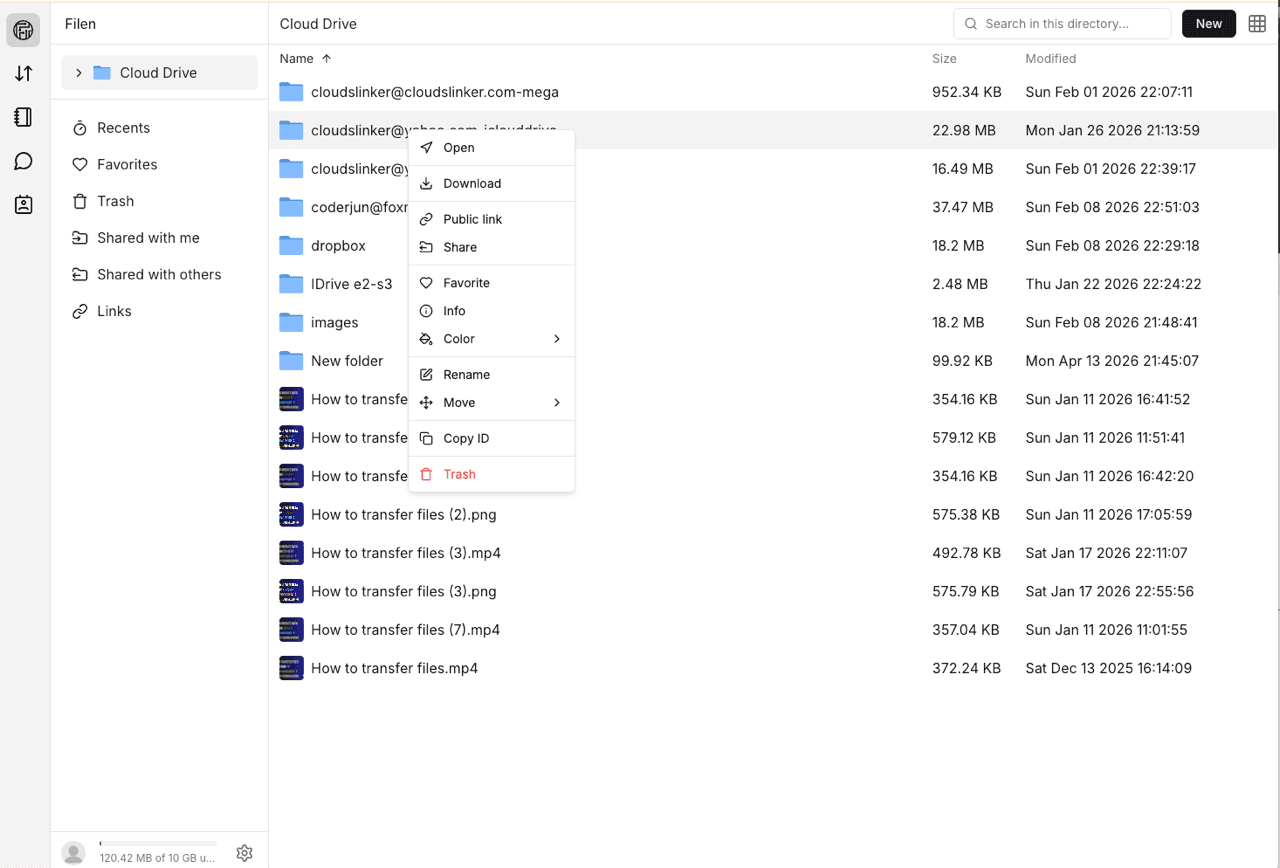
Open the Filen web app and sign in. Filen decrypts files in-browser using your key. Select files or folders and download them; folders package as ZIP archives. Work folder by folder for large libraries.
Step 2: Upload to OneDrive
Open onedrive.live.com (or office.com for a work account), extract the ZIP, and drag the folders into your target location. Office files become editable in Office for the Web automatically.
Method 2: Cloud-to-Cloud Transfer with CloudsLinker
Move Filen to OneDrive Without Local Downloads
CloudsLinker connects Filen through your account credentials and OneDrive through Microsoft OAuth, then transfers server-side.
Step 1: Connect Filen
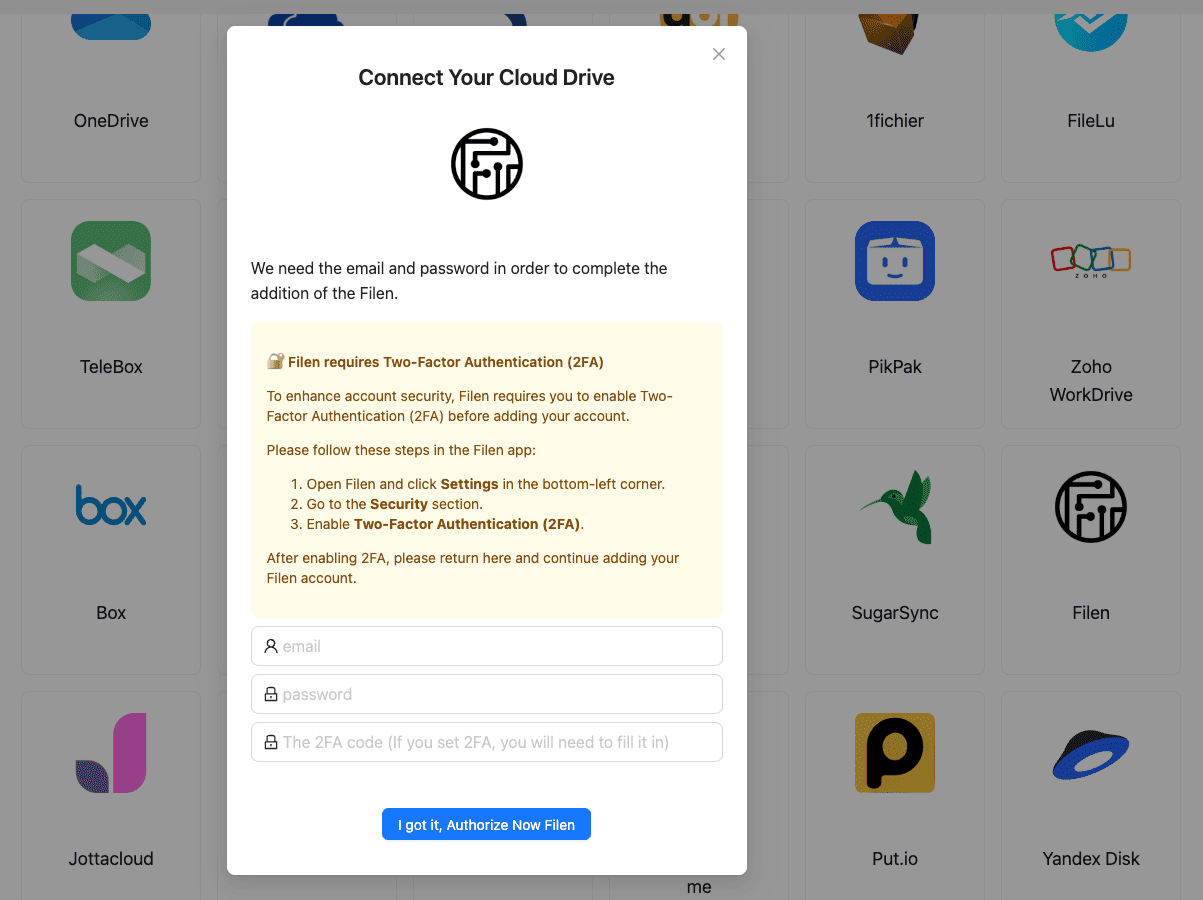
In CloudsLinker, click Add Cloud and select Filen. Enter your Filen email and password, then the 2FA code from your authenticator app. Confirm.
Step 2: Connect OneDrive
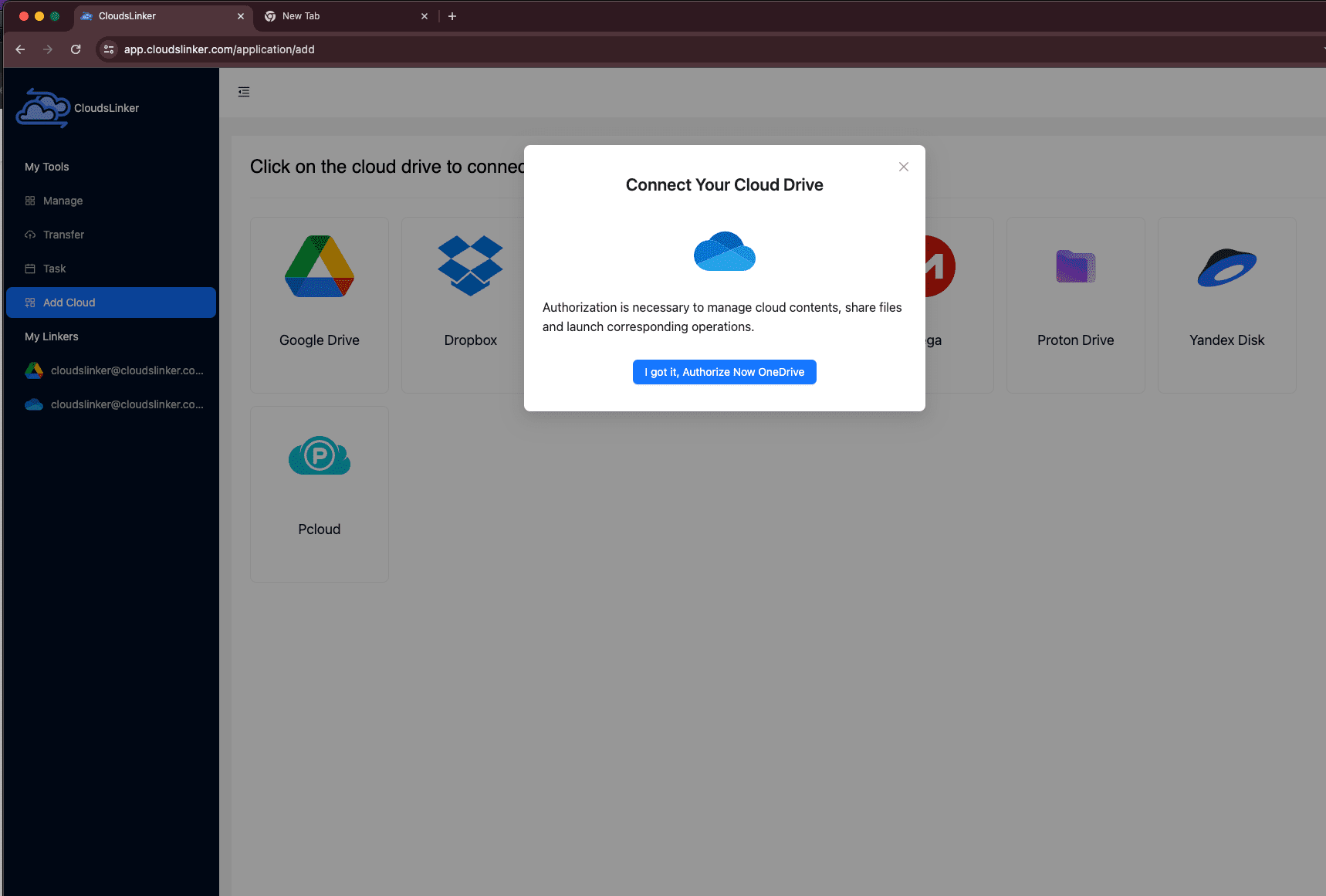
Click Add Cloud and select OneDrive. Approve the Microsoft OAuth sign-in. If prompted, choose the drive resource. OneDrive appears as a connected destination.
Step 3: Configure the Transfer
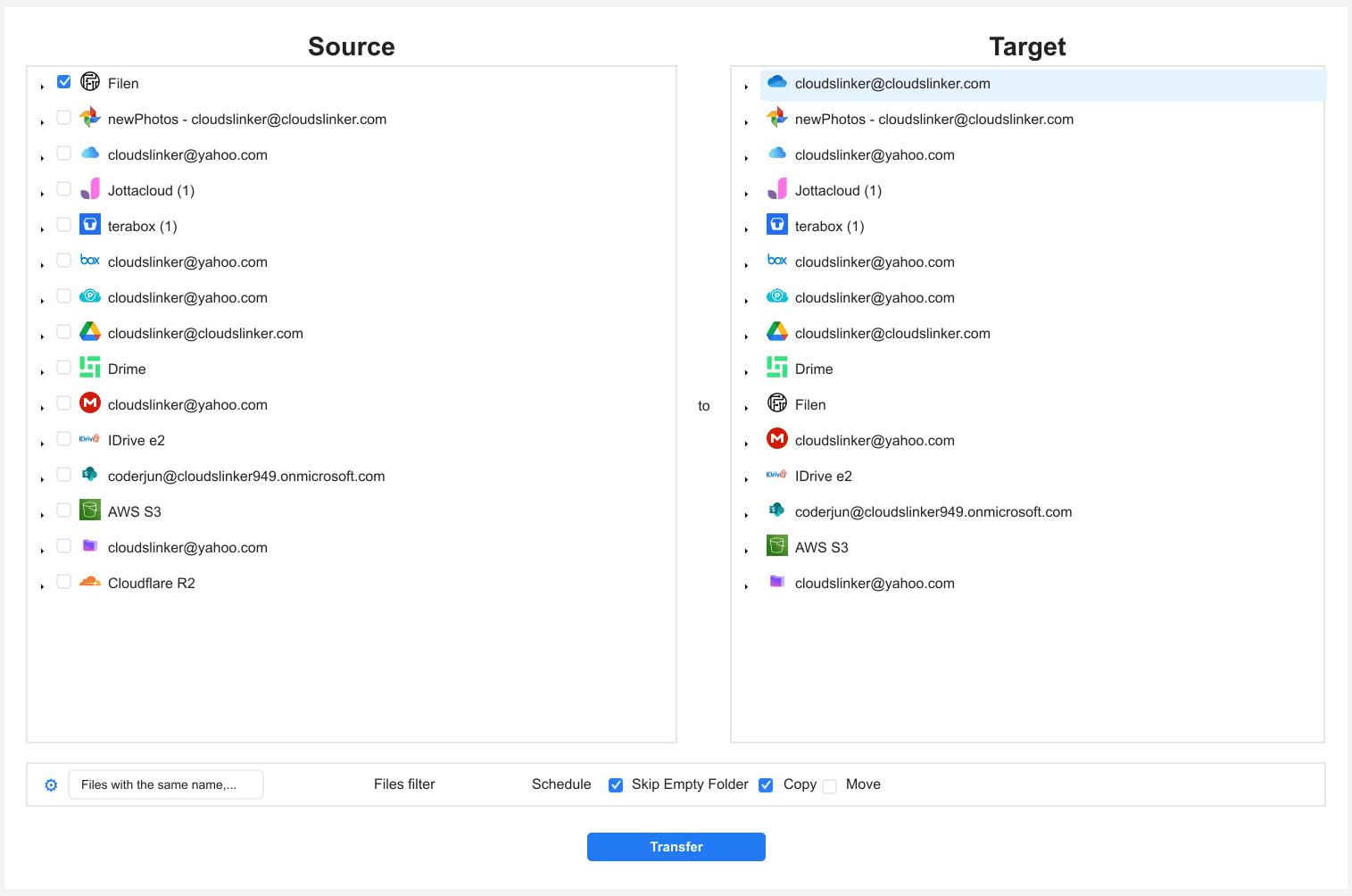
Open the Transfer section. Select Filen as the source and browse your folders. Select OneDrive as the destination and choose the target folder. Filter by file type, size or date if needed. Use Copy to keep the Filen originals.
Step 4: Start and Monitor
Click start. The Task List shows transferred size and remaining items. The transfer runs on CloudsLinker servers even if you close the browser. Verify a sample in OneDrive before clearing Filen.
Method Comparison
| Method | Ease of Use | Speed | Best For | Uses Local Bandwidth | Skill Level |
|---|---|---|---|---|---|
| Browser Download + Upload | ★★★★☆ | ★★☆☆☆ | A few documents for Office/Teams | Yes | Beginner |
| CloudsLinker | ★★★★★ | ★★★★★ | Larger working sets, hands-off moves | No | Beginner |
- Understand the security change: Filen is zero-knowledge; OneDrive is not. Keep anything that must stay unreadable to the provider in Filen.
- Connect the correct OneDrive: personal and Business accounts are distinct. Pick the one your work lives in.
- Shorten long paths: OneDrive struggles with very long file paths. Shorten deep folder names before transfer.
- Recreate share links: Filen links do not migrate. Reissue access through OneDrive sharing.
- Change your Filen password afterward: rotate it once the migration is verified.
- Test a folder first: move one folder, confirm it appears in OneDrive, then queue the rest.
Frequently Asked Questions
Conclusion
For a few documents headed into Office or Teams, the browser download and upload is quick. For a larger working set, CloudsLinker connects Filen through your account credentials and OneDrive through Microsoft OAuth, moving files server-side. Keep the Filen copy until OneDrive is verified, and be deliberate about the security trade: OneDrive is server-side encrypted, so files leaving Filen lose the zero-knowledge guarantee. Keep anything truly sensitive in Filen.
Online Storage Services Supported by CloudsLinker
Transfer data between over 58 cloud services with CloudsLinker

OneDrive

Google Drive

Google Photos

Shared Drive

OneDrive for Business

Dropbox

Box

Mega

pCloud

Yandex

ProtonDrive

AWS

GCS

iDrive

Storj

DigitalOcean

Wasabi

1fichier

PikPak

TeleBox

OpenDrive

Backblaze B2

Fastmail file

SharePoint

Nextcloud

ownCloud

Premiumize me

HiDrive

Put.io

Sugar Sync

Jottacloud

Seafile

Ftp

SFtp

NAS

WebDav

4shared

Icedrive

Cloudflare R2

Scaleway

Hetzner Object Storage

Synology C2 Object Storage

S3 Compatible

Doi

iCloud Drive

iCloud Photos

FileLU

Zoho WorkDrive

Telia Cloud / Sky

Drime

Filen

TeraBox

Internxt

Degoo

Gofile

Pixeldrain

Shade

Koofr
Didn' t find your cloud service? Be free to contact: [email protected]
Further Reading
Effortless FTP connect to google drive: Transfer Files in 3 Easy Ways
Learn More >
Google Photos to OneDrive: 3 Innovative Transfer Strategies
Learn More >
Google Photos to Proton Drive: 3 Effective Transfer Techniques
Learn More >