How to Transfer Files from FTP to Amazon S3 (2026): Manual, rclone, and Cloud-to-Cloud
Move files from an FTP/SFTP server into an Amazon S3 bucket three ways — manual download and console upload, rclone with the S3 backend, or a server-side copy with CloudsLinker — with the IAM keys, region and bucket settings each route needs.
Introduction
Short answer: the cleanest way to move files from an FTP or SFTP server into Amazon S3 is a server-to-server copy — connect the FTP endpoint and the S3 bucket to a cloud transfer service and let the data move between data centres while you do something else. The typical job is an exit from self-managed infrastructure: a hosting account closing, a CCTV or DVR box that has pushed years of footage to an FTP folder, an instrument or partner that only knows how to drop files on FTP. S3 is the archive people reach for because storage is cheap and durable — Standard costs $0.023 per GB-month, about $23.55 per TB (checked July 2026), and lifecycle rules can move cold data into cheaper Glacier classes automatically. The one number to know before you start is the exit fee: getting data back out of S3 costs $0.09 per GB after the first 100 GB each month, roughly $83 per TB, so plan S3 as a destination you archive into, not a staging area you round-trip through. This guide covers three routes: a manual download-and-upload, an rclone job for command-line users, and a cloud-to-cloud transfer with CloudsLinker. It also lists what each side needs — IAM access keys and a region on the S3 side, and the one hard requirement for any cloud-run method: your FTP/SFTP endpoint must be reachable from the public internet.
Why Move FTP Files into Amazon S3?
An FTP or SFTP server is a box someone has to keep running. Amazon S3 is storage nobody has to administer — eleven nines of durability, versioning, lifecycle rules — and the move usually happens when the box is on its way out:
- A hosting account is closing. cPanel and Plesk hosts expose the site tree over FTP; when the contract ends or the site goes static, years of uploads need a permanent home.
- A CCTV or DVR box has filled its disk. Cameras push daily footage to an FTP folder; archiving it into S3 and letting lifecycle rules tier it into Glacier keeps it for cents per GB.
- An instrument or partner only speaks FTP. Scientific data drops and B2B file exchanges land on FTP; moving them into a bucket puts them where Athena, BigQuery-style tooling or a data pipeline can read them.
- Cost that scales with bytes, not with a server. $23.55 per TB-month on Standard, $4 per TB-month on Glacier Instant Retrieval — with no hardware to replace.
The honest counterweight: S3 charges to get data back out — about $83 per TB of egress. It is the right destination for archives and pipelines, and the wrong one for files you plan to move again next quarter.
On the FTP/SFTP side
- Endpoint and port: the hostname or IP, plus the port — commonly
21for FTP,22for SFTP. - Credentials: a username and password with read access to the folders you are moving.
- Public reachability (cloud methods only): the endpoint must accept connections from the internet, not just your LAN.
- Real folder sizes:
du -shper folder tells you the storage bill and how long the copy will take.
On the S3 side
- A bucket in a chosen region — note the region; every tool asks for it.
- An IAM user with access keys: permission to list and put objects in that bucket, and an Access Key ID + Secret Access Key generated for it. A dedicated migration user is easiest to revoke later.
- A lifecycle rule if the data is an archive: transition to Glacier Instant Retrieval or Deep Archive after N days, set before the first object lands.
- A prefix plan:
s3://bucket/server-archive/2026/beats dumping everything at the root.
Method 1: Manual Download and Console Upload
Step 1: Download from the Server with an FTP Client
Connect with FileZilla, Cyberduck or any FTP/SFTP client using the endpoint, port and credentials above, select the folders and download them to a local staging directory. Fine for a handful of folders; for tens of gigabytes it becomes a two-leg job through your own connection.
Step 2: Upload to the S3 Bucket
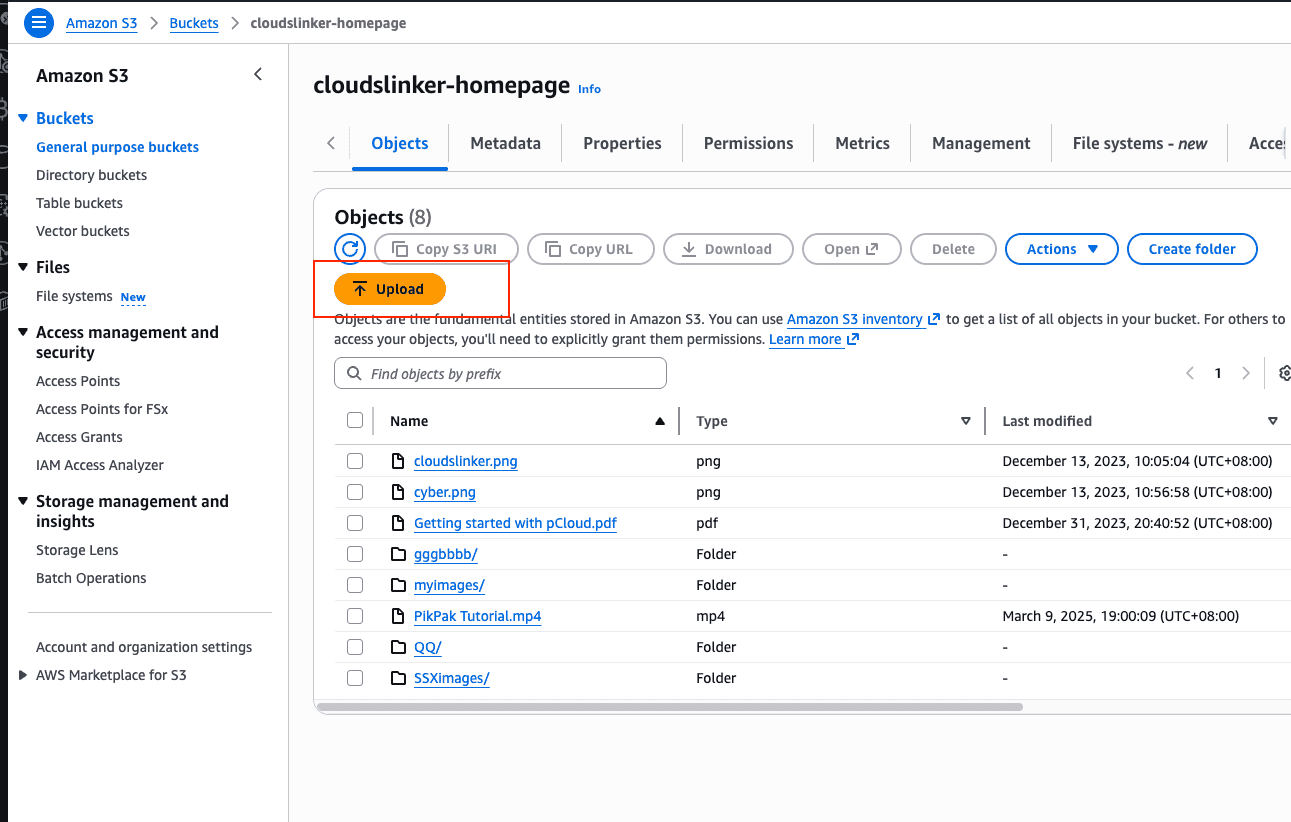
Open the bucket in the S3 console, choose Upload and drag the staging folder in; the console preserves the folder tree as key prefixes. Browser uploads are the weakest link here — large batches stall, and files over 5 GB need multipart handling that the console manages but a flaky connection does not.
Method 2: rclone with the S3 Backend
For command-line users
rclone speaks FTP, SFTP and S3 natively and handles multipart uploads on its own. One thing to be clear about: a copy between an FTP remote and an S3 remote streams the data through the machine running rclone. Run it on a box with real bandwidth — an EC2 instance in the bucket's region is the classic choice — or accept that it uses your home connection like Method 1 does.
Step 1: Configure Both Remotes
Run rclone config twice: once for an ftp or sftp remote
with the server's endpoint, port and credentials, and once for an s3 remote with
provider AWS, your Access Key ID, Secret Access Key and the bucket's region.
Step 2: Run the Copy
rclone copy ftpsrv:/var/www/uploads s3:my-archive-bucket/server-archive/uploads --progress
rclone check afterwards compares sizes between the FTP tree and the bucket.
Interrupted runs can be repeated; objects already present are skipped.
Method 3: Cloud-to-Cloud Transfer with CloudsLinker
Move a Server into a Bucket Without Local Staging
CloudsLinker connects the FTP/SFTP server and the S3 bucket directly and runs the copy on its own servers — nothing routes through your computer, closing the browser does not stop the job, and multipart uploads for large files are handled for you.
Step 1: Connect the FTP/SFTP Server
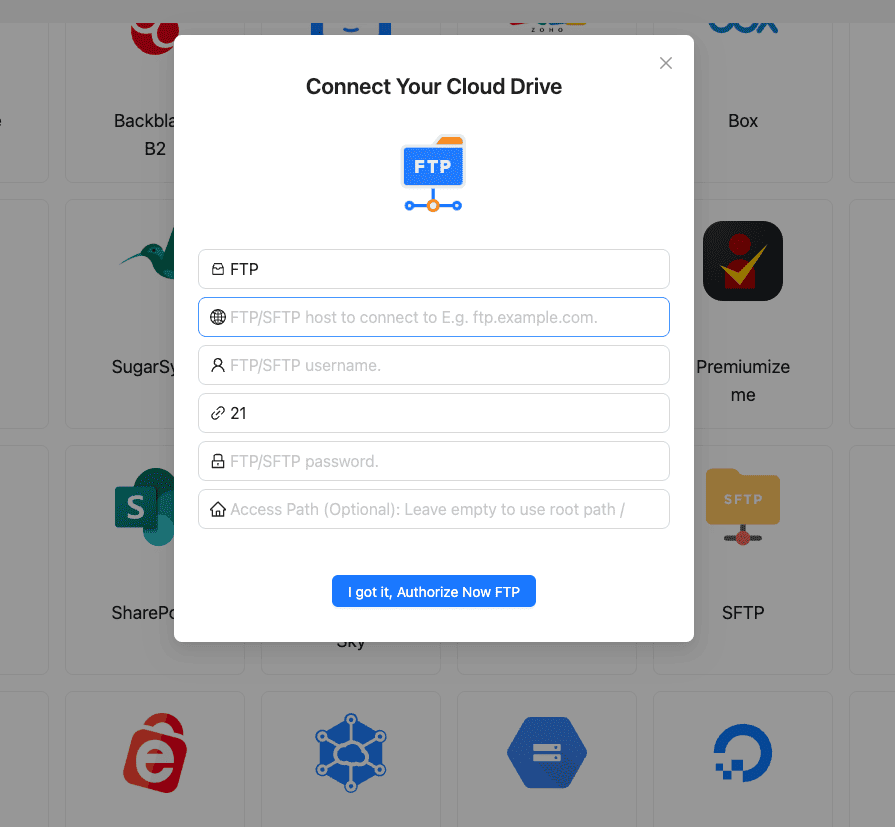
In CloudsLinker, click Add Cloud and select FTP (or SFTP). Enter the server address, port and credentials; an optional Access Path scopes the connection to one directory. Remember the hard requirement: the endpoint must be reachable from the public internet.
Step 2: Connect Amazon S3 with an IAM Access Key
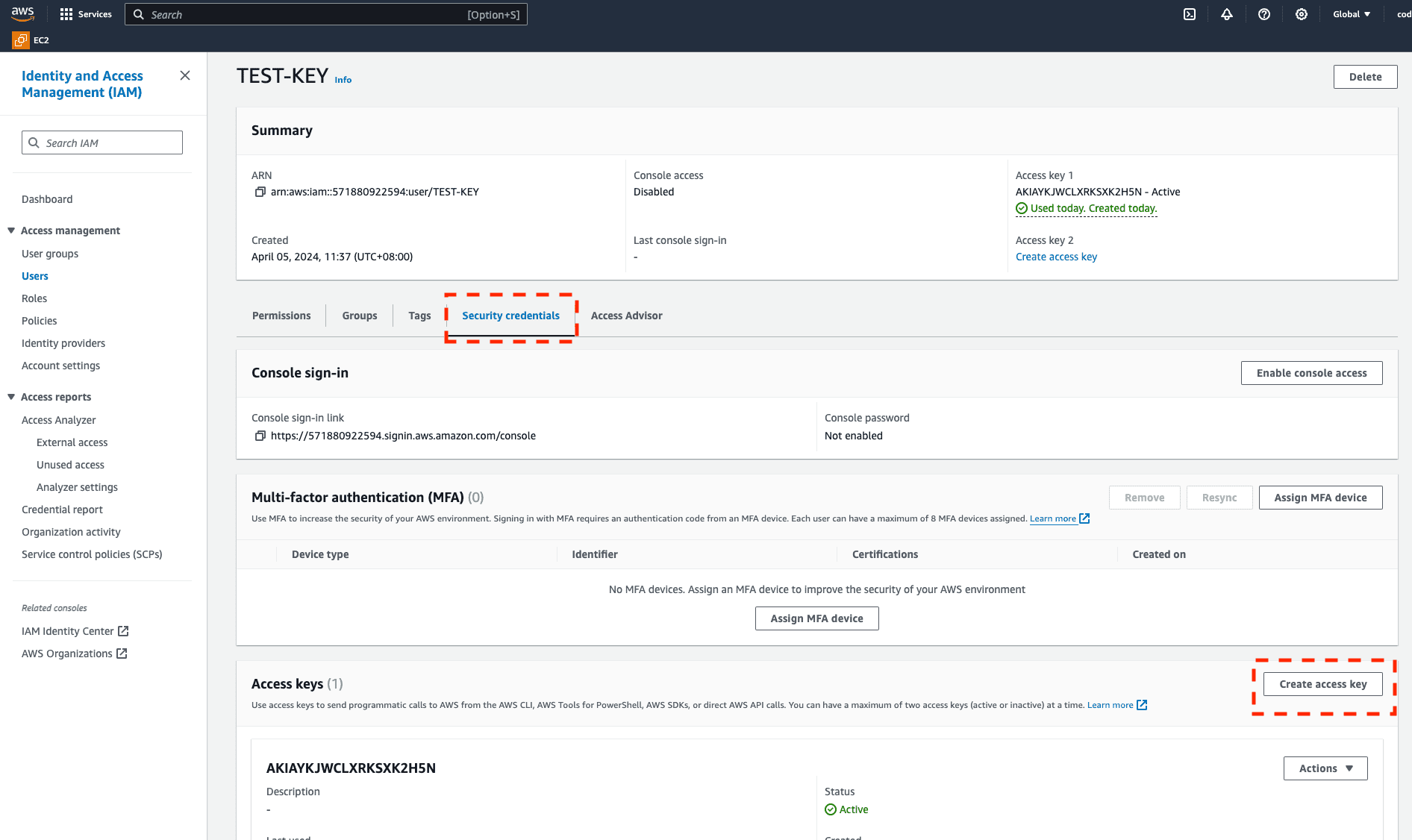
In the AWS console, create an IAM user for the migration and generate an access key for it.
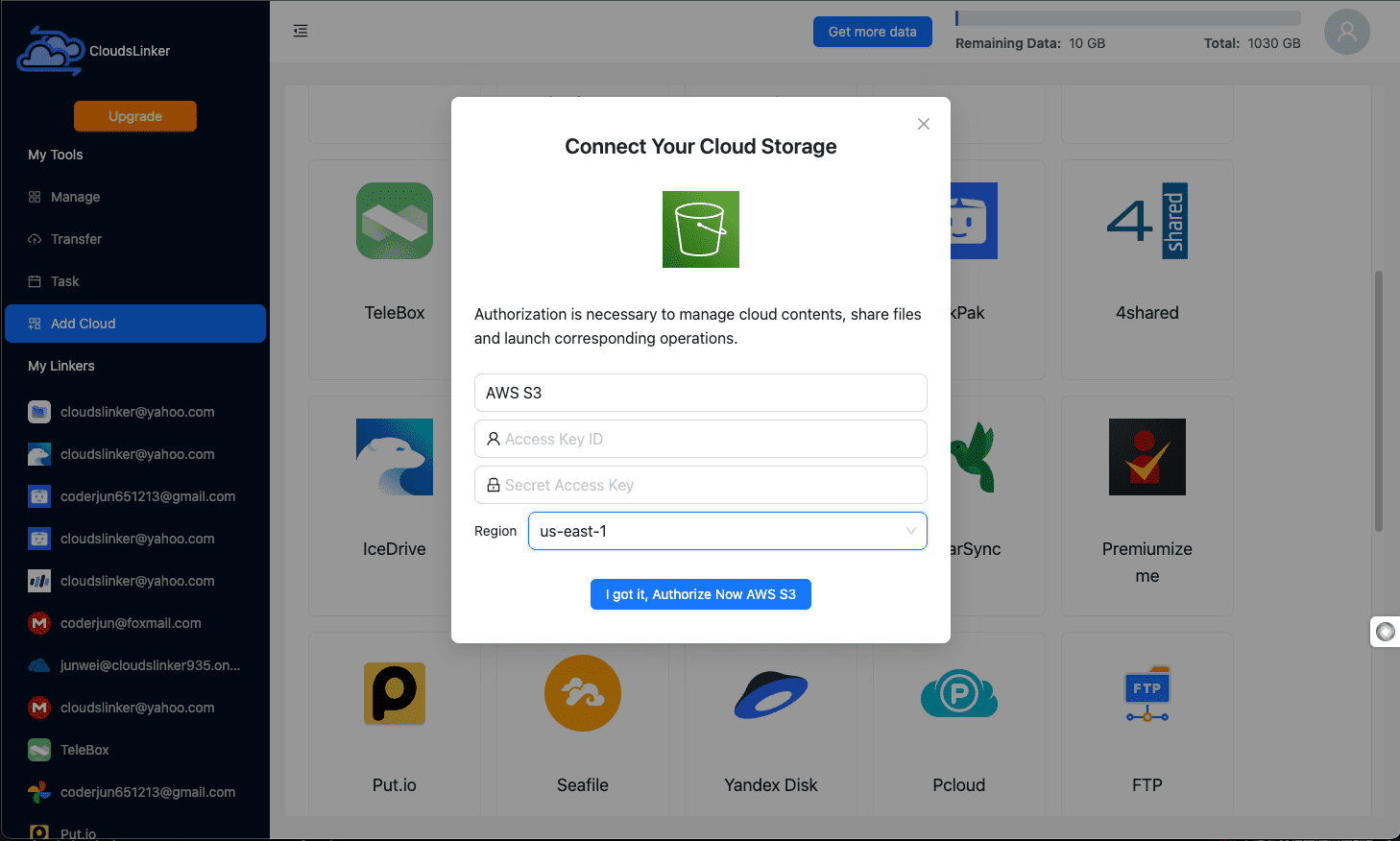
Back in CloudsLinker, click Add Cloud and pick AWS S3. Choose the region your bucket lives in (us-east-1 is the default), paste the Access Key ID and Secret Access Key, and enter the bucket name if the key is scoped to one bucket.
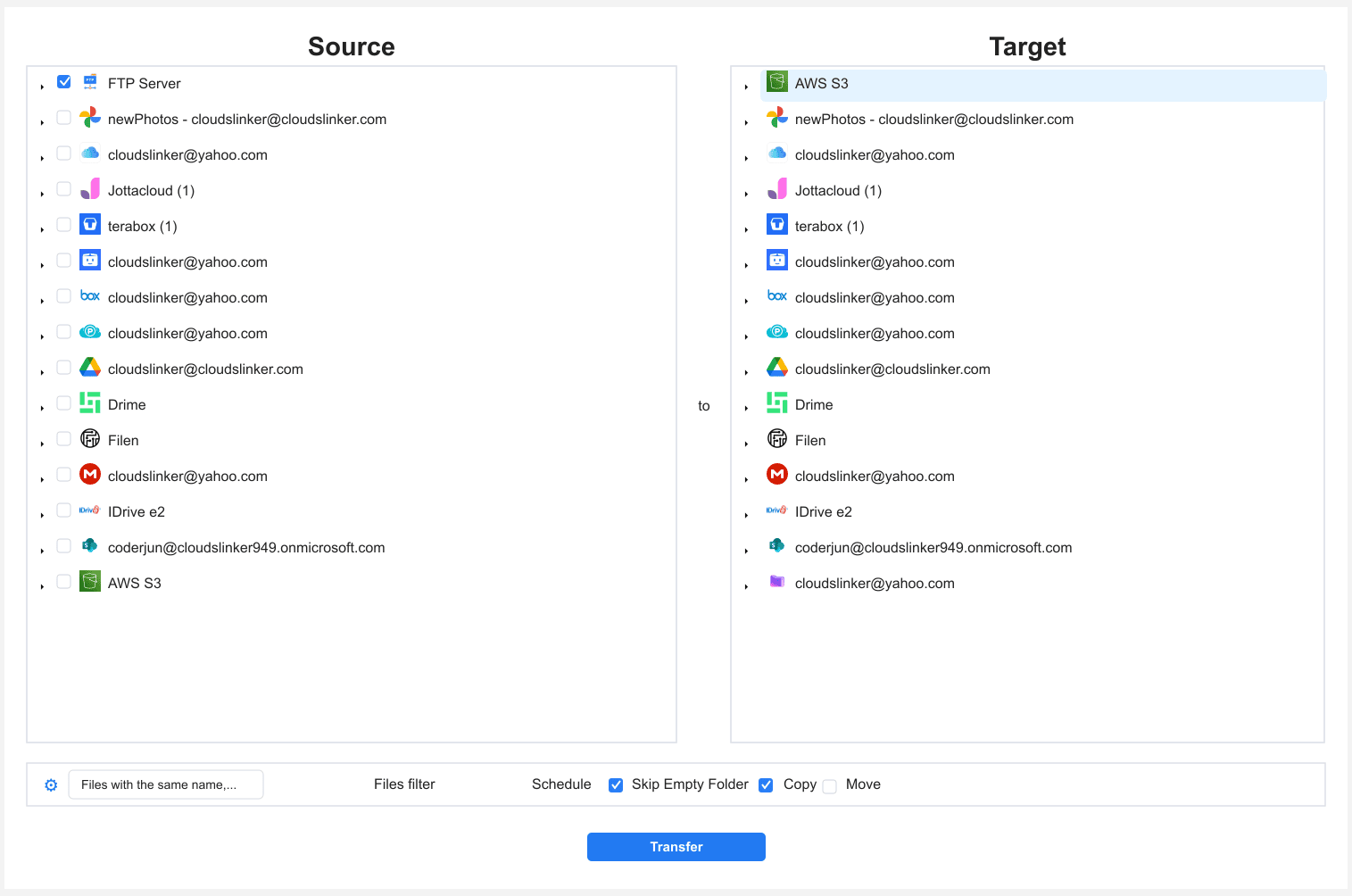
Step 3: Configure the Transfer
In the Transfer section, pick the FTP connection as the source and browse to the
folders to move; pick the S3 bucket and the prefix to write under as the target. Filters by file
type and size let you skip .tmp files or partial uploads. Use Copy
mode for the first pass so the server copy stays intact until you have verified the bucket.
Step 4: Start and Monitor
Start the transfer and track it from the Task List. Failed files retry automatically and are listed per task, so a flaky server connection costs a retry rather than a restart. One task per top-level folder keeps retries and reconciliation fine-grained; when a task finishes, compare object counts in the bucket against the FTP folder before deleting anything.
Method Comparison
| Method | Uses Your Bandwidth | Multipart for Large Files | Best For | Skill Level |
|---|---|---|---|---|
| Manual (FTP client + S3 console) | Yes — twice (down, then up) | Console-managed, fragile on slow links | A few folders, one-off moves | Beginner |
| rclone (S3 backend) | Yes — on whatever machine runs it | Automatic | Command-line users, EC2-adjacent jobs | Advanced |
| CloudsLinker | No — runs server-side, unattended | Automatic | Server-sized archives, hands-off migrations | Beginner |
- Set the lifecycle rule first: a transition to Glacier Instant Retrieval after 30 days configured before the migration means the archive prices itself at $4 per TB-month without a second pass.
- Prefer SFTP over plain FTP: same transfer, but credentials and data are encrypted in transit — which matters more, not less, when a cloud service logs in across the public internet.
- Scope the IAM key to the bucket: a policy limited to one bucket (list, get, put) means a leaked migration key cannot touch anything else. Delete the key when the job is verified.
-
Scope the FTP connection with Access Path: pointing it at
/var/www/uploadsinstead of/keeps system directories out of the bucket. - Enable bucket versioning for anything you will overwrite later: cheap insurance against a re-run clobbering a good copy.
- Reconcile before decommissioning: compare per-folder counts between the FTP server and the bucket prefix. Only retire the server once the numbers match — and remember egress pricing means S3 is the copy you keep, not the one you shuffle.
Frequently Asked Questions
Conclusion
Moving an FTP server into S3 is a question of scale and of who does the waiting. A few folders: download them with FileZilla and drag them into the S3 console. Comfortable in a terminal: rclone talks to both ends, though every byte streams through the machine running it. For server-sized folders, a cloud-to-cloud copy with [CloudsLinker](https://www.cloudslinker.com) is the only route where nothing touches your own connection — the FTP server connects with its endpoint, port and credentials, S3 connects with an IAM access key, region and bucket, and the copy runs unattended with retries and a task log. Whatever the route, set the bucket's lifecycle rule before the data lands, and remember that $83-per-TB egress figure before you treat S3 as a temporary stop. Prefer a bucket with no exit fee? The same source works with [FTP to Cloudflare R2](/guides/transfer-files-from-ftp-to-cloudflare-r2/). For the same destination from a consumer cloud, see [Google Drive to Amazon S3](/guides/transfer-files-from-google-drive-to-aws-s3/); for a per-TB cost comparison across object stores, the [cloud storage pricing comparison](/projects/cloud-storage-pricing-comparison/). Connector details live on the [FTP](/support-clouds/ftp/) and [Amazon S3](/support-clouds/aws-s3/) support pages.
Online Storage Services Supported by CloudsLinker
Transfer data between over 58 cloud services with CloudsLinker

OneDrive

Google Drive

Google Photos

Shared Drive

OneDrive for Business

Dropbox

Box

Mega

pCloud

Yandex

ProtonDrive

AWS

GCS

iDrive

Storj

DigitalOcean

Wasabi

1fichier

PikPak

TeleBox

OpenDrive

Backblaze B2

Fastmail file

SharePoint

Nextcloud

ownCloud

Premiumize me

HiDrive

Put.io

Sugar Sync

Jottacloud

Seafile

Ftp

SFtp

NAS

WebDav

4shared

Icedrive

Cloudflare R2

Scaleway

Hetzner Object Storage

Synology C2 Object Storage

S3 Compatible

Doi

iCloud Drive

iCloud Photos

FileLU

Zoho WorkDrive

Telia Cloud / Sky

Drime

Filen

TeraBox

Internxt

Degoo

Gofile

Pixeldrain

Shade

Koofr
Didn' t find your cloud service? Be free to contact: [email protected]
Further Reading
Effortless FTP connect to google drive: Transfer Files in 3 Easy Ways
Learn More >
Google Photos to OneDrive: 3 Innovative Transfer Strategies
Learn More >
Google Photos to Proton Drive: 3 Effective Transfer Techniques
Learn More >