From FTP/SFTP to Cloudflare R2: A Smarter Way to Move Files to Object Storage
Running important workflows on FTP or SFTP servers? This article explores why more teams are shifting from traditional file servers to Cloudflare R2 object storage, and how to transfer data securely while keeping folder structures and operations intact.
Introduction
FTP and SFTP servers still quietly power a huge amount of modern infrastructure. They deliver media assets, feed data pipelines, handle nightly exports, and act as handoff points between systems that don’t talk to each other very well. For engineers and IT teams, they’re familiar, dependable, and easy to automate. But familiarity doesn’t always mean efficiency. As data volumes grow and cloud-native architectures become the norm, protocol-based file servers are increasingly showing their age. They scale vertically rather than elastically, require constant maintenance, and sit awkwardly between on-prem systems and modern object storage. At the same time, more companies are standardizing on S3-compatible storage for backups, analytics, CDN pipelines, and application assets. Cloudflare R2 is part of that shift. It offers durable object storage designed for global access, tight integration with Cloudflare’s network, and cost models that better match high-egress workloads. For teams still relying on FTP or SFTP endpoints, moving data into R2 is not about abandoning existing processes overnight. It’s about gradually relocating files into an environment that’s built for cloud workloads, large datasets, and API-driven systems. This article looks at why organizations are transitioning from FTP/SFTP servers to Cloudflare R2, what to consider before migrating, and how to complete the transfer efficiently—without pulling terabytes of data down to a local machine first.
File Transfer Protocol (FTP) and Secure File Transfer Protocol (SFTP) are long-standing network protocols used to copy files between computers over a network. They’re popular in server automation, legacy system integrations, nightly batch jobs, and partners exchanging large files where reliability and scripting support matter.
- Protocol-oriented access: Files are reached via credentials and an endpoint, not via identity tokens.
- Automation-ready: Commonly embedded in scripts, scheduled tasks, and CI/CD workflows.
- Direct filesystem view: Clients see directory hierarchies directly.
- Security via transport: SFTP adds encryption over SSH for secure sessions.
- No built-in cloud semantics: These protocols know nothing about cloud object storage models.
Cloudflare R2 is a modern object storage service that speaks the S3 protocol, designed for cloud-native workloads and large unstructured datasets. It provides scalable storage that avoids data egress fees, a common cost when moving files out of cloud storage. Learn more
- S3-compatible API: Integrates with existing tools and libraries that support S3. Docs
- No egress fees: R2’s pricing model avoids typical bandwidth egress charges. Pricing
- Global performance: Built on Cloudflare’s network for low-latency access. Overview
- Object-centric model: Files are stored as objects in buckets rather than traditional directory trees.
- Programmable and extensible: Combine with edge compute (e.g., Workers) for advanced workflows. Workers
FTP and SFTP protocols and object storage like Cloudflare R2 both handle files, but they’re built with very different goals. Protocols like FTP/SFTP focus on straightforward transport between endpoints, while R2 is fundamentally a cloud storage service optimized for scalability, API access, and integration with cloud applications.
| Aspect | FTP / SFTP | Cloudflare R2 |
|---|---|---|
| Core Purpose | Protocol for moving files | Cloud-native object storage |
| Access Model | Credentials + host endpoint | S3-compatible API with tokens |
| Cost Structure | No storage cost built in | Storage + operations, no egress fees |
| Scalability | Depends on server capacity | Elastic, cloud-scale by design |
| Typical Use Case | System-to-system file exchange | Cloud asset storage & delivery |
In simple terms, FTP/SFTP gets data from point A to point B, while R2 provides a service endpoint where files can live alongside cloud applications, analytics systems, and global delivery networks.
When shifting files from an FTP or SFTP server into Cloudflare R2, it’s important to rethink how data is stored and accessed. R2 does not natively support FTP or SFTP as a server target — access is through an S3-compatible API. :contentReference[oaicite:5]{index=5}
Because FTP/SFTP presents data as a directory tree and R2 is object storage, consider how your applications will reference the data after migration. Planning around object keys, API access patterns, and integration points helps avoid refactoring late in the process.
Finally, evaluate tool options and transfer scale. Large datasets benefit from cloud-hosted data-movement services that can run independently of a single local machine’s network stability. Automated transfers improve reliability and reduce manual effort.
Method 1: Download from FTP/SFTP and Upload to Cloudflare R2 Manually
Step 1: Pull Files from the FTP or SFTP Server
Start by connecting to your FTP or SFTP server using a desktop client such as FileZilla, WinSCP, or any internal tool already used in your workflow. Authenticate with your account credentials or SSH keys, then browse the server’s directory structure to identify the folders or datasets you plan to migrate.
Download the selected files to a local working directory. For small collections, this is usually straightforward. For larger archives, transfer time will depend on both the FTP/SFTP server’s throughput and the reliability of your own network. Once the download completes, it’s worth spot-checking file sizes or counts to ensure the local copy accurately reflects the source.
⬇️ Retrieve data from the FTP/SFTP server onto your local machine
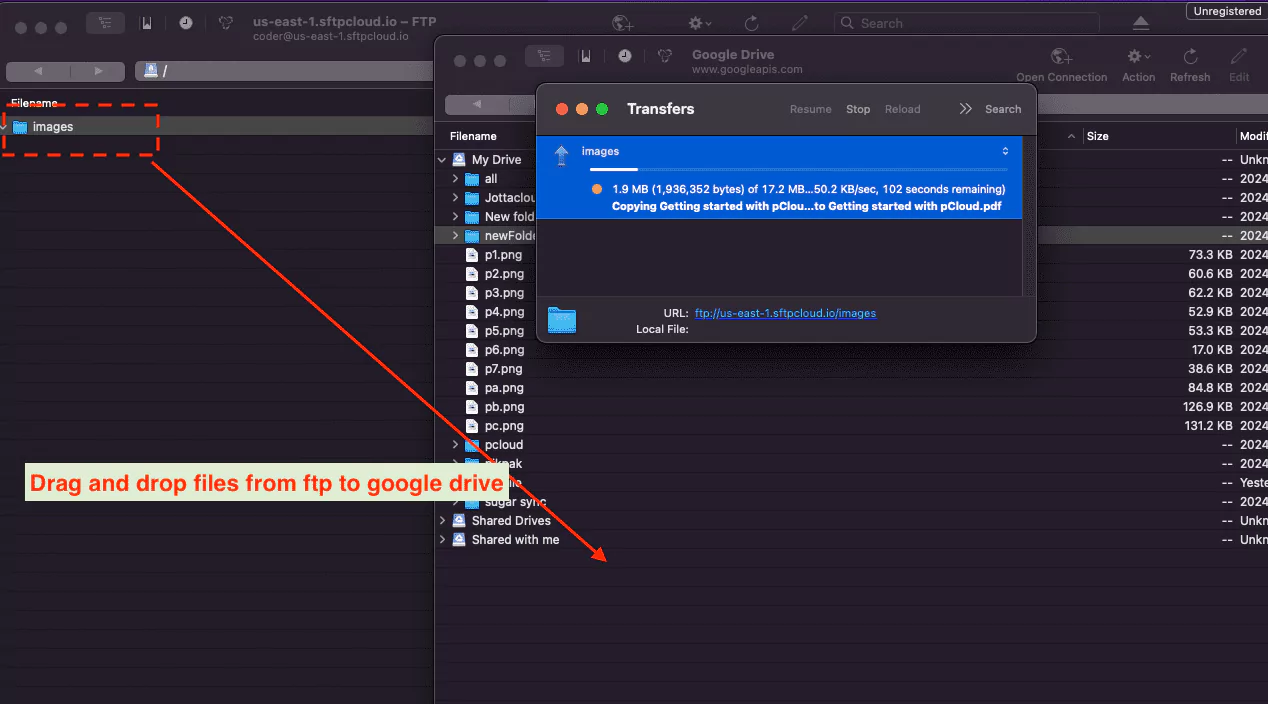
Step 2: Upload Local Files into Cloudflare R2
Cloudflare R2 is an object storage service and does not provide native FTP or SFTP endpoints. Uploads are performed through S3-compatible tools or web-based consoles. A popular desktop option is Cyberduck, which supports S3-compatible storage and can connect to R2 using access keys.
After configuring your R2 bucket connection, open it like a normal remote drive. From there, you can drag local folders into the bucket or use the upload actions provided by the client. Unlike traditional file servers, R2 stores data as objects, so what appears as “folders” is technically a key structure rather than a true directory tree.
This difference is worth keeping in mind. FTP servers usually reflect operational layouts designed around machines or jobs, while object storage is often organized around applications, environments, or data categories. Renaming or regrouping files during upload can make later integration work much easier.
⬆️ Push local files into your Cloudflare R2 bucket
The manual approach works well for small transfers, testing, or one-time moves. However, once file counts grow or migrations become recurring, its drawbacks become obvious: limited local disk space, unstable long-running connections, and the need to keep a workstation powered on for hours or days. In those situations, automated or cloud-based transfer methods are typically more reliable and easier to maintain.
Method 2: Transfer Files from FTP/SFTP to Cloudflare R2 with Rclone
Step 1: Install Rclone and Configure Two Remotes (FTP/SFTP + R2)
If your team is comfortable living in a terminal, rclone is one of the most practical ways to move data from a classic FTP/SFTP server into modern object storage. The key idea is simple: rclone treats each endpoint as a “remote” and lets you copy between them directly, without turning the browser into your upload tool.
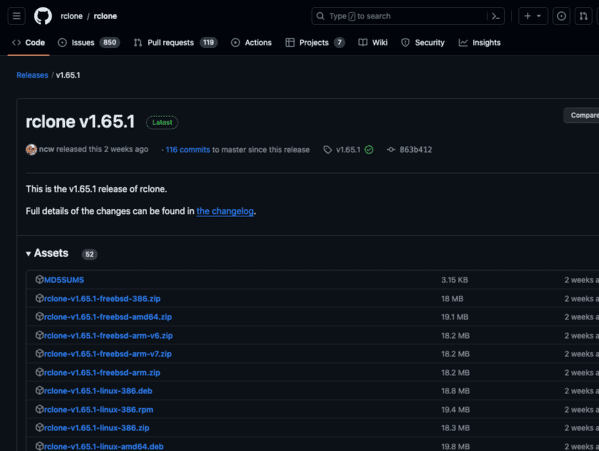
First, install rclone on a machine with stable connectivity, then run rclone config to
create two
remotes: one for your FTP/SFTP server and one for Cloudflare R2. If you’re working with R2 specifically,
Cloudflare
notes you should use rclone v1.59 or newer for best S3 compatibility. (Cloudflare R2 rclone guide)
-
FTP or SFTP remote:
Choose
ftporsftpduring setup and enter your host, port, and authentication details. FTP is typically username/password, while SFTP commonly uses SSH credentials (password or key-based auth). The official backend pages are handy if you want the exact prompt meanings: rclone FTP docs and rclone SFTP docs. -
Cloudflare R2 remote:
In rclone, R2 is configured through the S3 backend. In the wizard you typically select
s3(Amazon S3 compatible), then pick Cloudflare R2 as the provider and enter an R2 Access Key ID / Secret. Cloudflare’s example config also uses an endpoint in the formathttps://<accountid>.r2.cloudflarestorage.com. (Cloudflare R2 endpoint example) If you’re using object-scoped tokens, Cloudflare mentions you may needno_check_bucket = trueto avoid bucket check errors. (Cloudflare notes on object-level permissions)
Step 2: Run Copy (Safe Transfer) or Sync (Exact Mirror)
Once both remotes exist, the transfer is just a command. In most migrations, copy is the
“safer”
default because it uploads what’s missing or changed, but it won’t delete anything in the destination.
Cloudflare’s
R2 example even highlights rclone copy for moving objects in and out of buckets. (R2 + rclone copy example)
Example: copy a folder from SFTP into an R2 bucket prefix:
rclone copy sftp:/data/projects r2:my-bucket/projects --progress
If your goal is a strict mirror (destination becomes “exactly like” the source), then sync
is the right
tool — but it can delete destination files that no longer exist at the source. Rclone’s own
sync docs
explicitly warn: if you don’t want deletions, use copy instead. (rclone
sync docs)
Example: mirror an FTP export directory into R2 (and filter out logs):
rclone sync ftp:/exports r2:my-bucket/exports --progress --exclude "*.log"
Before you run anything large, use --dry-run to preview what rclone would upload and (for
sync) what it
would remove. It’s a quick way to catch path mistakes, filters that are too broad, or a destination
prefix that
doesn’t match your expected layout.
Rclone is excellent when you want repeatable transfers you can script, schedule, and tune (filters, retries, rate limits, etc.). The trade-off is that you’re managing credentials and command execution yourself, and long runs are still tied to the machine you execute them on. For teams that don’t want to babysit a terminal session—or need transfers to keep running even if a laptop sleeps—cloud-based transfer options can be a better operational fit.
Method 3: Cloud-to-Cloud Transfer from FTP/SFTP to Cloudflare R2 with CloudsLinker
Overview: Move FTP/SFTP Data into R2 Without Using Your Computer as the Pipeline
CloudsLinker is built for situations where you don’t want a laptop sitting in the middle of a multi-hour migration. The transfer runs in the cloud: files move from your FTP/SFTP endpoint directly into Cloudflare R2, without downloading everything to a local machine first. Once a task is started, it continues running even if you close the browser tab or your device goes offline.
Step 1: Add FTP or SFTP as the Source
Sign in to app.cloudslinker.com and open your dashboard. Click Add Cloud, then choose FTP or SFTP from the supported list.
Enter your server endpoint (host/IP). The endpoint must be reachable from the public internet — if it only exists inside a private network, CloudsLinker’s cloud workers won’t be able to connect. Then fill in the port (SFTP typically uses 22 by default), along with your username and password.
If your account is intentionally scoped (or you want extra safety), set the Access Path to the specific folder you want to migrate. It’s a simple way to keep the task focused and avoid accidentally pulling data outside the intended directory tree.

Step 2: Connect Cloudflare R2 as the Destination
Next, add Cloudflare R2 as the destination cloud. R2 is accessed through S3-compatible credentials, so you’ll need three pieces of information from your Cloudflare account: Access Key ID, Secret Access Key, and the R2 endpoint.
In CloudsLinker, paste the Access Key ID and Secret Access Key into the credential fields, then enter your R2 endpoint (the interactive S3 endpoint Cloudflare provides for your account). After authorization, select the target bucket where the data should land.
If you maintain multiple buckets (for example: backups, media, exports), choosing the bucket up front keeps the migration clean and avoids the “everything went into the wrong place” problem that shows up later in production.


Step 3: Pick the Source Data and Define the R2 Target Path
Open the Transfer page. On the left, select your connected FTP/SFTP source and browse to the folders you want to move. On the right, select Cloudflare R2, choose the destination bucket, and set the target folder (prefix) inside that bucket.
This is the moment where it helps to think “object storage” instead of “file server.” FTP/SFTP directories usually reflect operational history—dates, batch runs, system modules, partner drops. In R2, you can map those same folders into clearer prefixes that match how the data will be used later (by application, environment, customer, or pipeline stage).

Step 4: Start the Task and Monitor Progress
Start the transfer and monitor it from the task panel. CloudsLinker shows status updates, transferred file counts, and error details if anything fails mid-way. You can pause and resume when needed—useful when you want to adjust filters, re-scope a path, or reduce load on the source server.
When the task completes, you’ll get a summary of what succeeded and what was skipped or retried. Your data will be available inside your Cloudflare R2 bucket, ready for use in storage, delivery, or downstream processing workflows.
If you’re moving a large dataset—or you simply don’t want a desktop upload to be the weakest link—this approach removes the usual friction: no local downloads, no fragile long-running terminal sessions, and no keeping a workstation awake for hours. Everything runs online through CloudsLinker.
Need to Move Data Across More Platforms?
In addition to Cloudflare R2, CloudsLinker supports transfers across many services (including OneDrive, WebDAV, MEGA, and more) — all executed in the cloud, so you don’t have to run long, fragile migrations from a local computer.
Migrating from an FTP/SFTP server into Cloudflare R2 often sounds trivial at first — “just move the files.” In practice, the moment you leave traditional file servers and step into object storage, questions appear quickly. Are you moving a few archives or multiple terabytes? Is this a one-time cleanup or the start of an ongoing pipeline? Do you want to supervise every step, or should the migration run on its own? The comparison below highlights how the three most common approaches behave outside of theory.
| Approach | Learning Curve | Transfer Performance | Best Fit Scenarios | Depends on Local Network | Technical Skill |
|---|---|---|---|---|---|
| Manual Download & Upload | Very Low | Moderate | Small folders, tests, one-time moves | Yes | Beginner |
| Rclone (Command Line) | Medium | High | Scripted jobs, automation, repeatable sync flows | Yes | Advanced |
| CloudsLinker (Cloud-to-Cloud) | Low | High | Large datasets, long-running or unattended transfers | No | Beginner |
If you are only moving a handful of folders, the manual approach can be perfectly adequate. Download locally, upload into R2 using a desktop S3 client, confirm the result, and move on. The limitation becomes obvious once volume grows: your computer, your disk space, and your network connection become the bottleneck.
Rclone is attractive when you need repeatability and control — filters, schedules, retries, and integration into scripts. With Cloudflare R2, rclone connects using its S3 backend and can copy or sync directly from FTP/SFTP into R2 buckets. The trade-off is operational: credentials live locally, jobs depend on one machine, and someone usually owns monitoring and recovery.
When the priority is to remove local infrastructure from the equation, a cloud-run transfer is often the smoothest option. With CloudsLinker, files move from your FTP/SFTP endpoint straight into Cloudflare R2 online, without routing through your computer. Transfers continue even if your browser closes or your device disconnects. (The only hard requirement: your FTP/SFTP server must be reachable from the public internet.)
Moving data from FTP/SFTP into Cloudflare R2 is usually very achievable, but a bit of planning prevents painful clean-ups later — especially when deep directory trees, mixed ownership, or application dependencies are involved.
- Confirm the FTP/SFTP server is externally reachable: Cloud-based tools require a public endpoint. If the server lives inside a private network, you’ll need a secure exposure method or a locally executed transfer.
- Scope access intentionally: Use restricted accounts or fixed base paths so the migration cannot wander into unrelated directories.
- Design your R2 bucket layout first: Object storage is not a traditional filesystem. Decide how prefixes (paths) should represent environments, applications, customers, or pipelines before you start moving data.
- Review naming and application constraints: While R2 itself is flexible, downstream tools or consuming applications may not be. Identifying problematic file names or extreme nesting early avoids silent failures.
- Validate credentials and permissions: Test that your R2 Access Key can create objects in the target bucket before launching a large task.
- Choose a method that fits how you operate: Local tools give control. Cloud-run transfers reduce maintenance. Pick the model that matches your reliability and staffing reality.
The smoothest migrations treat Cloudflare R2 as what it is: an object platform designed for scale and integration — not simply “another disk.” When structure is planned up front, the technical move becomes much easier.
FTP/SFTP to Cloudflare R2 Migration FAQ
Step-by-Step Video: Transfer FTP / SFTP Files to Cloudflare R2
This video demonstrates how to transfer files from FTP or SFTP servers directly into Cloudflare R2. You’ll see how to connect your FTP/SFTP source, authenticate Cloudflare R2 using access keys and endpoint, configure transfer options, and complete the migration without downloading data locally. Ideal for teams moving large datasets into cloud object storage.
Conclusion
Moving from FTP or SFTP to Cloudflare R2 is more than a storage upgrade; it’s a change in how data fits into your infrastructure. Files stop being isolated drops on a single server and become objects that can plug directly into applications, delivery pipelines, and analytics systems. Instead of relying on manual downloads or fragile one-off scripts, teams can shift data directly between environments in the cloud. With Cloudslinker, files can be transferred from FTP or SFTP servers straight into Cloudflare R2 without routing everything through a local computer. Directory structures are preserved, long-running transfers continue even if your machine goes offline, and large archives can move steadily without consuming local bandwidth. For organizations modernizing their storage stack, transferring files from FTP/SFTP to Cloudflare R2 with a cloud-based transfer approach offers a practical path forward—efficient, low-maintenance, and designed for scale.
Online Storage Services Supported by CloudsLinker
Transfer data between over 48 cloud services with CloudsLinker

OneDrive

Google Drive

Google Photos

Shared Drive

OneDrive for Business

Dropbox

Box

Mega

pCloud

Yandex

ProtonDrive

AWS

GCS

iDrive

Storj

DigitalOcean

Wasabi

1fichier

PikPak

TeleBox

OpenDrive

Backblaze B2

Fastmail file

SharePoint

Nextcloud

ownCloud

Premiumize me

HiDrive

Put.io

Sugar Sync

Jottacloud

Seafile

Ftp

SFtp

NAS

WebDav

4shared

Icedrive

Cloudflare R2

Scaleway

Doi

iCloud Drive

iCloud Photos

FileLU

Zoho WorkDrive

Telia Cloud / Sky

Drime

Filen
Didn' t find your cloud service? Be free to contact: [email protected]
Further Reading
Effortless FTP connect to google drive: Transfer Files in 3 Easy Ways
Learn More >
Google Photos to OneDrive: 3 Innovative Transfer Strategies
Learn More >
Google Photos to Proton Drive: 3 Effective Transfer Techniques
Learn More >