How to Transfer Files from FTP to Drime (2026): Manual, rclone, and Cloud-to-Cloud
Move files from an FTP/SFTP server into Drime three ways: manual download, rclone with the Drime backend, or a server-side copy with CloudsLinker — with the exact connection settings each route needs.
Introduction
Short answer: the cleanest way to move files from an FTP or SFTP server into Drime is a server-to-server copy — connect both ends to a cloud transfer service and let the data move between data centres while you do something else. The typical job here is getting content off self-managed infrastructure: a seedbox, a NAS export, an old hosting server whose contract is ending. Drime is a common landing spot for exactly that — a French cloud with encrypted storage, password-protected share links, and flat pricing that starts at 20 GB free and reaches 2 TB for €4.40/month on the annual plan. This guide covers three routes: the manual download-and-upload, an rclone job for command-line users (rclone has a native Drime backend), and a cloud-to-cloud transfer with CloudsLinker. It also lists the connection details each method needs — including the one hard requirement for any cloud-run method: your FTP/SFTP endpoint must be reachable from the public internet.
Why Move FTP Files into Drime?
An FTP or SFTP server is raw storage: it holds files, and everything else — sharing, previews, mobile access, backups of the box itself — is your problem. The move to Drime usually happens when one of those problems gets old:
- The server is going away. A hosting contract ends, a seedbox subscription lapses, a NAS is being retired — and years of accumulated files need a new home that nobody has to administer.
- Sharing by FTP credentials is a liability. Drime replaces "here's the FTP login" with password-protected, expiring share links.
- You want an encrypted, hosted copy in the EU. Drime stores data in France with encryption on stored files — a reasonable landing spot for personal archives leaving self-managed hardware.
- The price fits archives. Flat tiers instead of per-seat licensing: 20 GB free to test the waters, 500 GB at €2.39/month or 2 TB at €4.40/month on annual billing.
What does not carry over: FTP servers have no share links or app ecosystem to migrate — this is a pure file move, which makes it simpler than most cloud-to-cloud migrations. The only real decisions are how the data travels and who does the waiting.
On the FTP/SFTP side
- Endpoint and port: the hostname or IP, plus the port — commonly
21for FTP,22for SFTP. - Credentials: a username and password with read access to the folders you are moving.
- Public reachability (cloud methods only): the endpoint must accept connections from the internet, not just your LAN. A quick test from outside your network settles it.
- Real folder sizes: run
du -shper folder (or check in your FTP client) so you know which Drime tier you actually need.
On the Drime side
- An account with room: 20 GB free, paid tiers from 500 GB to 6 TB.
- A developer token (rclone and CloudsLinker methods): log in to Drime, click your avatar ➔ Settings ➔ Developer ➔ Create Token.
- A target folder: create a top-level folder (for example
/Server-Archive/) so the incoming tree stays in one place.
Method 1: Manual Download and Upload
Step 1: Download from the Server with an FTP Client
Connect to the server with FileZilla, Cyberduck or any FTP/SFTP client, using the endpoint,
port and credentials above. Select the folders to migrate and download them to a local staging
folder such as ~/Desktop/FTP-Migration/.
This is the right method for a handful of folders. For tens of gigabytes it turns into a two-leg job — everything comes down your connection, then goes back up — and any interruption means re-checking what actually arrived.
Step 2: Upload to Drime
Open the Drime web app and drag the staging folder into your target directory. Drime preserves the folder structure and encrypts files on arrival. Spot-check a few files, then delete the staging copy to reclaim disk space.
Method 2: rclone with the Drime Backend
For command-line users
rclone ships a native Drime backend that authenticates with the same developer token. One thing to be clear about: an rclone copy between two remotes streams the data through the machine running rclone — it is not a server-side copy. Run it on a box with good bandwidth (a VPS near the FTP server is ideal), or accept that it uses your home connection like Method 1 does.
Step 1: Configure Both Remotes
Run rclone config twice: once to create an ftp (or
sftp) remote with the server's endpoint, port and credentials, and once to create
a drime remote, pasting the developer token when prompted.
Step 2: Run the Copy
A typical job looks like this:
rclone copy ftpsrv:/data/media drime:Server-Archive/media --progress
Two backend caveats worth knowing before you rely on it: the Drime backend supports neither
modification times nor hashes, so rclone sync compares by file size only — fine
for a one-shot migration, weak for ongoing incremental syncs. Filenames are also limited to
255 bytes of UTF-8.
Method 3: Cloud-to-Cloud Transfer with CloudsLinker
Move Server Libraries Without Local Staging
CloudsLinker connects the FTP/SFTP server and Drime directly and runs the copy on its own servers — nothing routes through your computer, and closing the browser does not stop the job. This is the route for server-sized folders, slow home uplinks, and transfers you want to schedule rather than supervise.
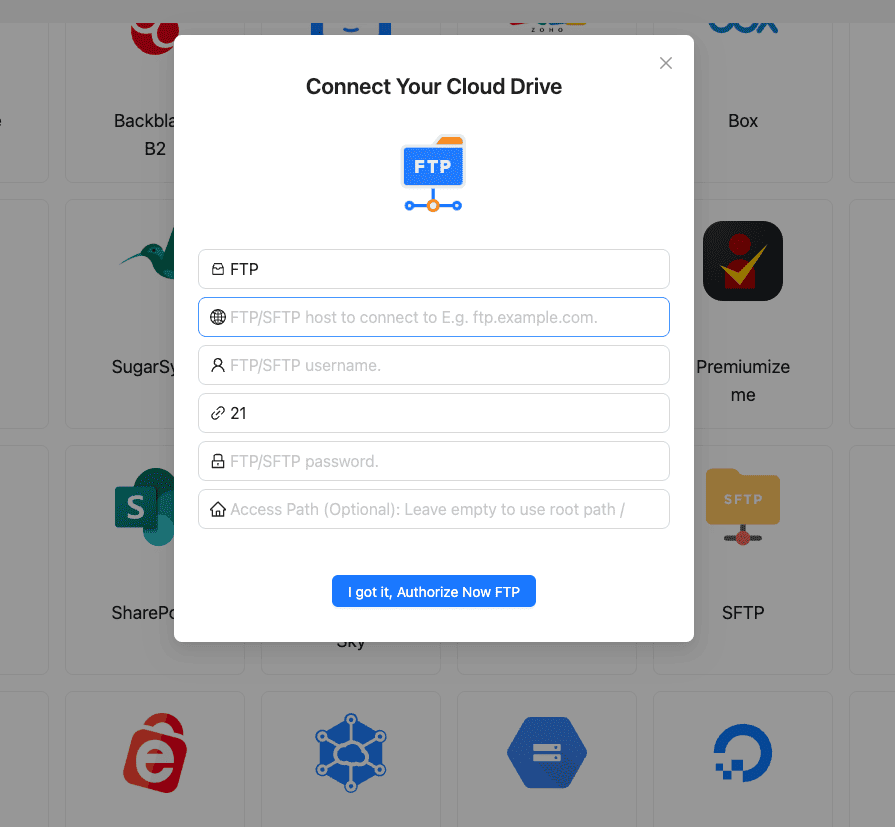
Step 1: Connect the FTP/SFTP Server
In CloudsLinker, click Add Cloud and select FTP (or SFTP). Enter the server address, port and credentials; an optional Access Path scopes the connection to one directory, which keeps the rest of the server out of reach. Remember the hard requirement: the endpoint must be reachable from the public internet.
Step 2: Connect Drime with a Developer Token
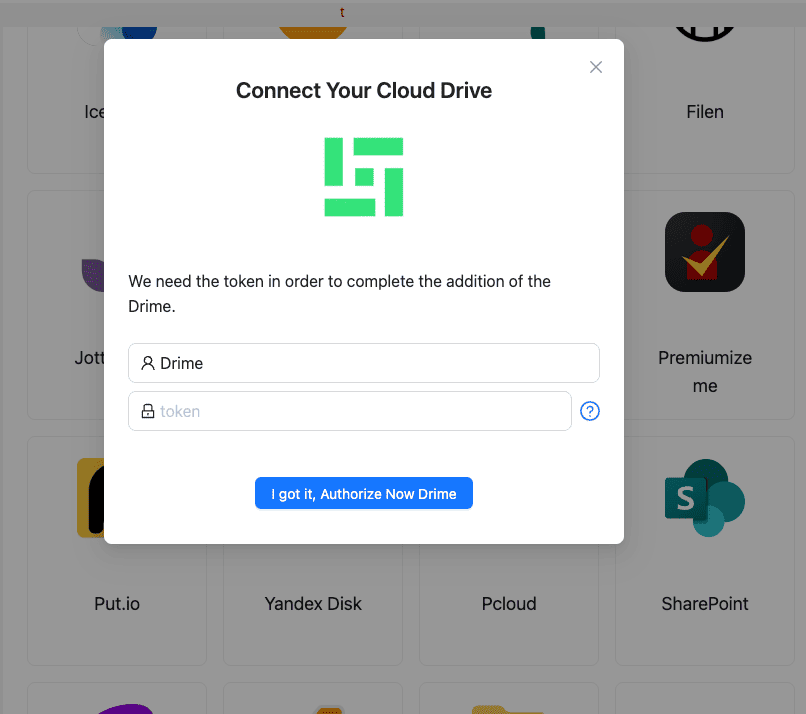
Click Add Cloud and pick Drime. Paste the token from Drime ➔ Settings ➔ Developer and click Verify Token, then choose which workspace this connection should use. Each connection maps to one workspace — for several workspaces, add one connection per workspace with the same token.
Step 3: Configure the Transfer
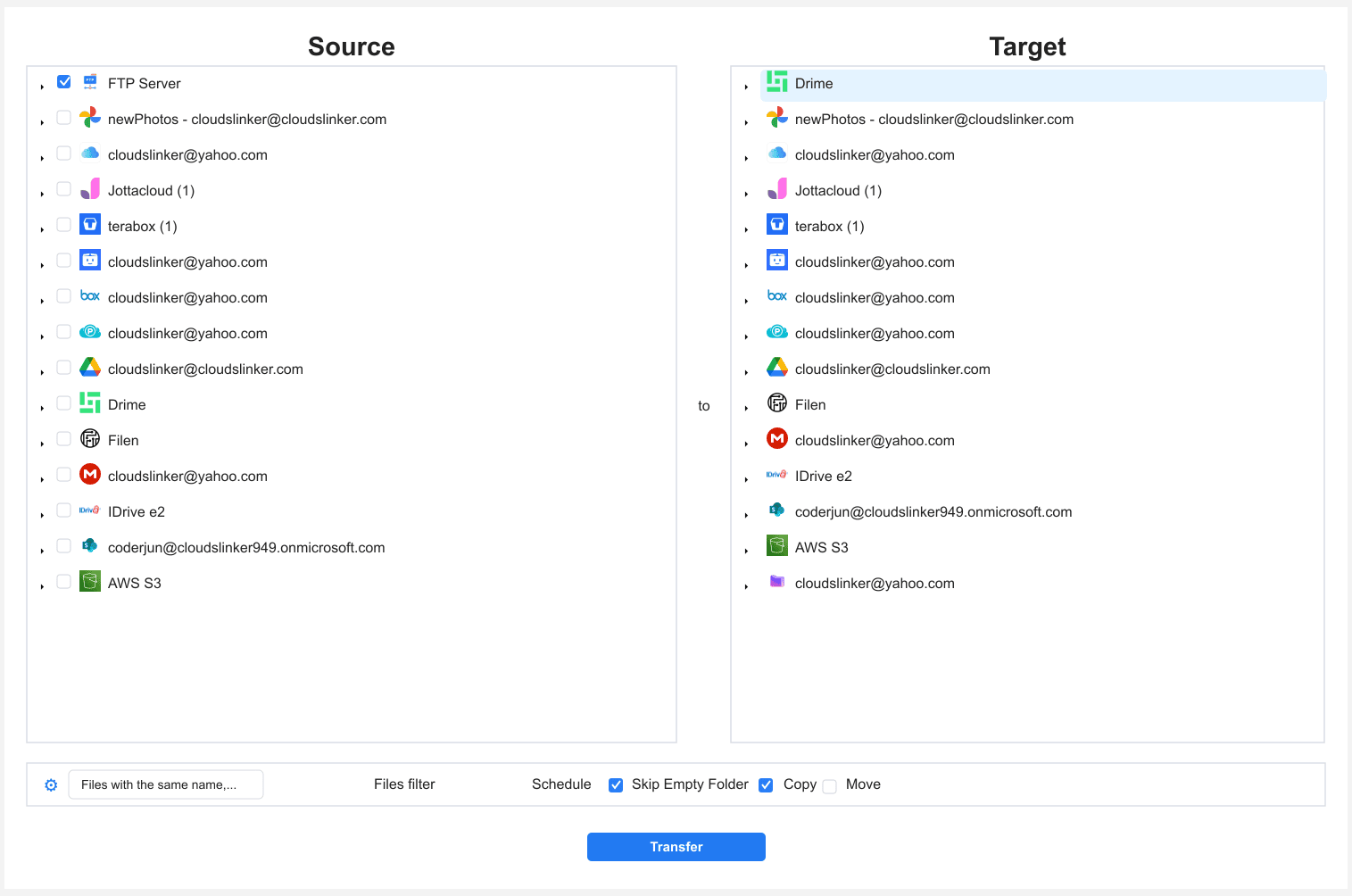
In the Transfer section, pick the FTP connection as the source and browse to the
folders you want to move; select the Drime target folder on the destination side. File-type and
size filters let you skip junk like .tmp files or partial downloads. Use
Copy mode for the first pass so the server copy stays intact until you have
verified the result in Drime.
Step 4: Start and Monitor
Start the transfer and track it from the Task List. Failed files retry automatically and are listed per task, so a flaky server connection costs a retry rather than a restart. For a multi-folder migration, one task per top-level folder keeps retries fine-grained.
Method Comparison
| Method | Ease of Use | Uses Your Bandwidth | Best For | Skill Level |
|---|---|---|---|---|
| Manual (FTP client + web upload) | ★★★★☆ | Yes — twice (down, then up) | A few folders, one-off moves | Beginner |
| rclone (Drime backend) | ★★★☆☆ | Yes — on whatever machine runs it | Command-line users, VPS-adjacent jobs | Advanced |
| CloudsLinker | ★★★★★ | No — runs server-side, unattended | Server-sized folders, scheduled or hands-off moves | Beginner |
- Prefer SFTP over plain FTP: same transfer, but credentials and data are encrypted in transit — which matters more, not less, when a cloud service logs in across the public internet.
-
Size the destination before you start: 20 GB free covers a test run,
not a server. Check real usage with
du -shand pick the tier one size up from what you measure. -
Scope the FTP connection with Access Path: pointing the connection at
/data/mediainstead of/means a misclick can never drag system directories into the transfer. - Do a test folder first: run one small folder end-to-end, open a few files in Drime, then launch the full job with settings you have already proven.
- Reconcile counts before retiring the server: compare per-folder file counts between the FTP server and Drime. Only decommission the box once the numbers match — a copy you can still re-run is cheap insurance.
- Rotate the token afterwards: the developer token exists for the migration. Once the job is verified, revoke it in Drime ➔ Settings ➔ Developer and issue a fresh one if you plan to keep the connection.
Frequently Asked Questions
du -sh on the FTP host beats guessing.
Watch: Transfer Files from FTP to Drime with CloudsLinker
A real-time walkthrough of the cloud-to-cloud route: connecting an FTP server with its endpoint and credentials, adding Drime with a developer token and workspace selection, then running the copy server-side while the Task List tracks progress — no local download involved.
Conclusion
Moving files from FTP into Drime is mostly a question of scale and babysitting tolerance. A few folders: download with FileZilla and drag them into the Drime web app. Comfortable in a terminal: rclone talks to both ends, though the data streams through whatever machine runs it. For server-sized jobs, a cloud-to-cloud copy with [CloudsLinker](https://www.cloudslinker.com) is the only route where nothing touches your own connection — the FTP server connects with its endpoint, port and credentials, Drime connects with a developer token, and the copy runs unattended in the cloud with retries and a task log. Planning the rest of the move? See [Google Drive to Drime](/guides/transfer-files-from-google-drive-to-drime/) for the same destination from a consumer cloud, or the same source pointed elsewhere in [FTP/SFTP to PikPak](/guides/transfer-files-from-ftp-sftp-to-pikpak/). Details on the destination live on the [Drime support page](/support-clouds/drime/).
Online Storage Services Supported by CloudsLinker
Transfer data between over 58 cloud services with CloudsLinker

OneDrive

Google Drive

Google Photos

Shared Drive

OneDrive for Business

Dropbox

Box

Mega

pCloud

Yandex

ProtonDrive

AWS

GCS

iDrive

Storj

DigitalOcean

Wasabi

1fichier

PikPak

TeleBox

OpenDrive

Backblaze B2

Fastmail file

SharePoint

Nextcloud

ownCloud

Premiumize me

HiDrive

Put.io

Sugar Sync

Jottacloud

Seafile

Ftp

SFtp

NAS

WebDav

4shared

Icedrive

Cloudflare R2

Scaleway

Hetzner Object Storage

Synology C2 Object Storage

S3 Compatible

Doi

iCloud Drive

iCloud Photos

FileLU

Zoho WorkDrive

Telia Cloud / Sky

Drime

Filen

TeraBox

Internxt

Degoo

Gofile

Pixeldrain

Shade

Koofr
Didn' t find your cloud service? Be free to contact: [email protected]
Further Reading
Effortless FTP connect to google drive: Transfer Files in 3 Easy Ways
Learn More >
Google Photos to OneDrive: 3 Innovative Transfer Strategies
Learn More >
Google Photos to Proton Drive: 3 Effective Transfer Techniques
Learn More >