FTP to TeraBox: Retire a Legacy Server for a 1 TB Cloud Archive
Move FTP server contents into TeraBox using an FTP client or a cloud-to-cloud transfer with CloudsLinker. Honest limits — 4 GB per-file free cap, cookie auth, throttle.
Introduction
TeraBox provides 1 TB of advertised free storage with paid plans that scale to 2 TB, which makes it a workable destination for the contents of an old FTP server that nobody wants to keep maintaining. FTP itself is still common — a colocation box, an old NAS shipped with FTP enabled, a hosted web server — but it transmits in plaintext, lacks modern sharing controls, and ties files to a host that someone has to keep running. Moving the directory tree into TeraBox swaps server upkeep for a consumer cloud quota. Two paths handle the move: an FTP client like FileZilla as a local bridge, and a cloud-to-cloud transfer through CloudsLinker that connects to FTP with standard server parameters and to TeraBox with its session cookie.
FTP (File Transfer Protocol) is a long-standing protocol for moving files between a client and a server over a TCP connection. It runs in plaintext by default (FTPS adds TLS), uses port 21 for control and an additional port for data, and exposes a Unix-style directory tree.
- Authentication: username and password, or anonymous on public servers.
- Default port: 21 for control; data port varies (active vs passive).
- Encryption: none by default; FTPS adds TLS.
- Typical hosts: legacy NAS, shared web hosting, old corporate file servers.
- Limitations: no fine-grained sharing, no quota visibility, no co-editing.
TeraBox is a consumer cloud storage service operated by Flextech Inc., the international branch of Baidu Netdisk. It advertises a 1 TB free tier and paid plans with larger per-file caps and faster downloads.
- Free tier: 1024 GB advertised; ~80 GB practical given the 20 large-file cap.
- Per-file cap: 4 GB free; 20 GB on Premium.
- Download throttle: roughly 200–800 KB/s on free.
- Connection: no public OAuth — third-party tools use the browser session cookie (
ndus,ndut_fmt). - Service split:
terabox.com(international) is separate from Baidu Netdisk.
FTP is a transport protocol exposing a server's filesystem; TeraBox is a consumer cloud product with quotas, web sharing, and a 1 TB free tier. The migration replaces a server and a protocol with an account and a managed UI.
| Feature | FTP | TeraBox |
|---|---|---|
| Encryption in transit | None (plain FTP); TLS with FTPS | TLS |
| Storage model | Server filesystem, sized by disk | 1 TB free tier, paid up to 2 TB |
| Sharing | Account-based; no link sharing | Public share links with passwords |
| Maintenance | You run the server | None — managed service |
| Per-file cap | Depends on filesystem (typically multi-TB) | 4 GB free / 20 GB Premium |
On the FTP side
- Confirm credentials and access mode: host, port (21 default), username, password, and whether the server uses passive mode.
- Inventory by file size: identify any file over 4 GB. These need either a TeraBox Premium plan or splitting before upload.
- Resolve dead links and broken symlinks: FTP exposes whatever the filesystem has, including broken targets that will fail on transfer.
- Prefer FTPS where available: if the server supports FTPS, use it — plain FTP transmits credentials in clear.
On the TeraBox side
- Create a TeraBox account at terabox.com. Baidu Netdisk is a different service.
- Pick a tier: free if everything fits under 4 GB per file, Premium otherwise.
- Create top-level folders (for example,
/FTP-Archive/) to keep the imported tree contained.
Method 1: FTP Client (FileZilla) as a Local Bridge
Step 1: Pull Files from the FTP Server
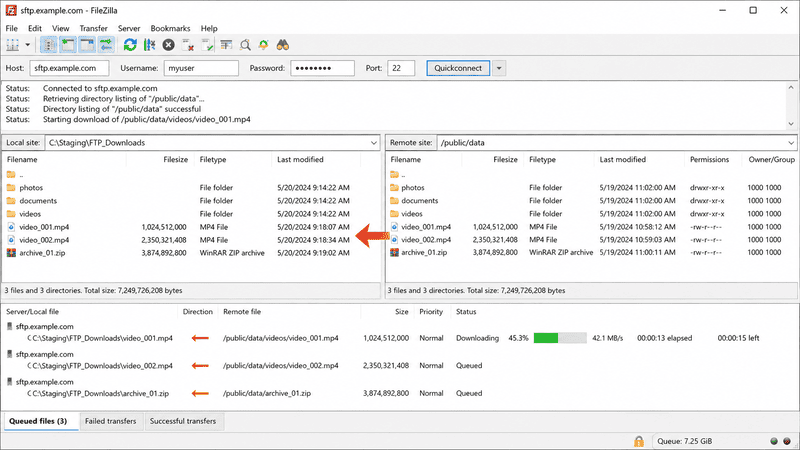
Install FileZilla (or any FTP client). Connect with the host, username, password, and port. Browse to the directory you want to migrate and drag the files into a local staging folder.
For large trees, enable Transfer queue → Reconnect and resume so the client survives transient disconnects. Plain FTP is sensitive to NAT and firewalls — switch to passive mode if active transfers stall.
Step 2: Filter Oversized Files
Sort the local staging folder by file size. Anything above 4 GB is a fail on a free TeraBox
account. Move those files aside, upgrade TeraBox, or split them with an archiver (
7z a -v3.9g archive.7z largefile produces 3.9 GB pieces).
Step 3: Upload to TeraBox
Open terabox.com, navigate to your target folder, and upload the staging folder. Free-tier upload speeds are lower than Premium; multi-gigabyte uploads will take time. Watch for per-file failures inline rather than after the queue finishes.
Method 2: Cloud-to-Cloud Transfer with CloudsLinker
Move FTP to TeraBox Without a Local Staging Disk
CloudsLinker connects to the FTP server with host, port and credentials, and to TeraBox with the session cookie. The transfer runs server-side, so a slow home connection or a soon-to-be-decommissioned workstation does not block the migration.
Step 1: Connect the FTP Server
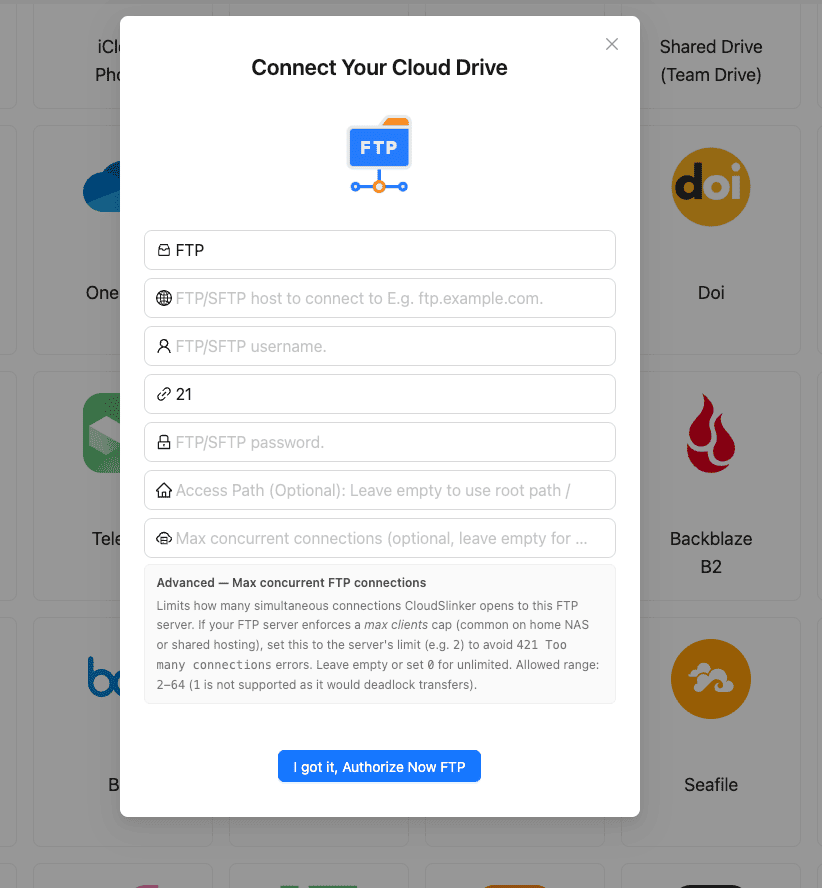
In CloudsLinker, click Add Cloud and select FTP. Enter:
- Display name (anything you choose)
- Host — IP or DNS name of the FTP server
- User and Password
- Port — 21 by default
- Path (optional) — initial directory
The FTP host must be reachable from the public internet. If the server is behind a firewall, open the port to CloudsLinker's address range (documented in their network notes) or expose it through a jump host.
Step 2: Connect TeraBox (Browser Cookie)
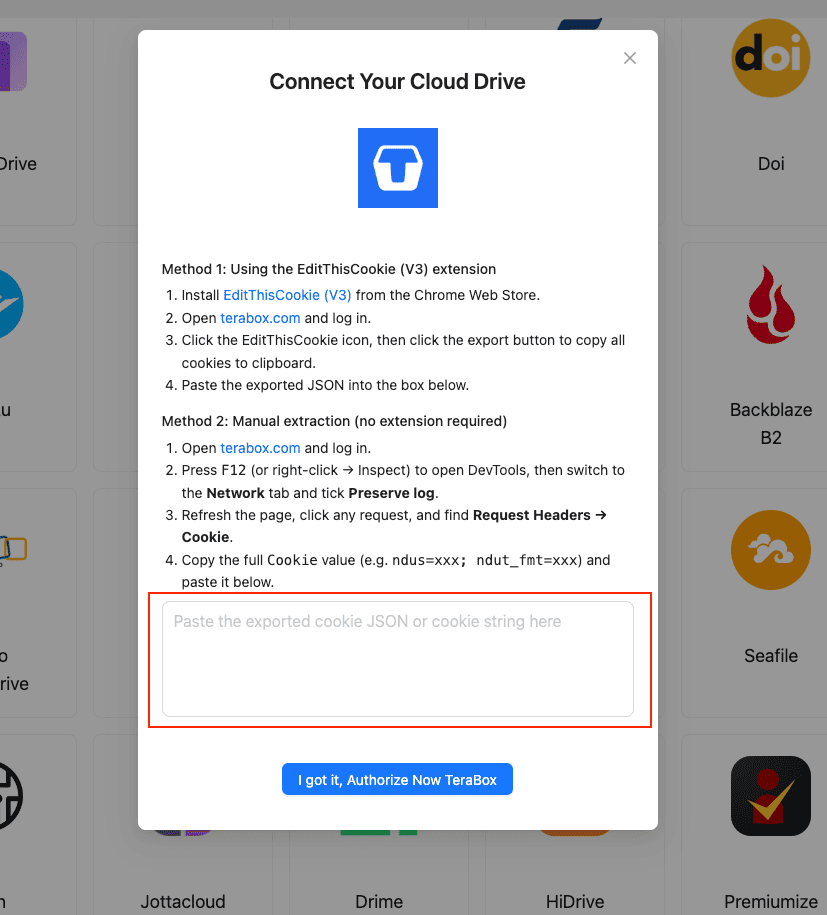
TeraBox has no public OAuth, so the connection uses the cookie from your logged-in TeraBox browser tab. The cleanest method is the EditThisCookie (V3) extension:
- Install EditThisCookie (V3).
- Open
www.terabox.comin the same browser and confirm you are signed in. - Click the EditThisCookie icon → Export. The cookie JSON copies to your clipboard.
- In CloudsLinker, click Add Cloud → TeraBox → enter a display name → paste the JSON → Confirm.
Without an extension, open DevTools (F12) → Network, refresh the
page, and copy the full Cookie header (ndus=...; ndut_fmt=...) into
CloudsLinker.
Step 3: Configure the Transfer
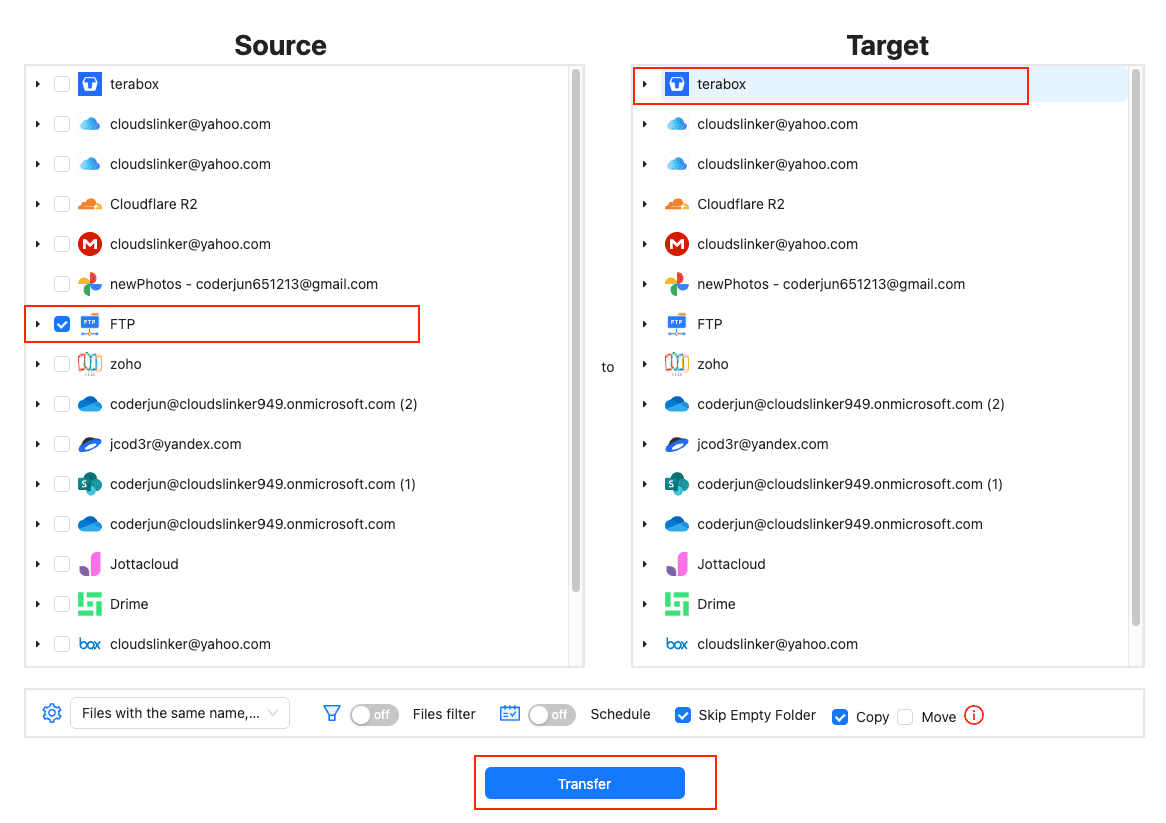
Open the Transfer section. Select the FTP source and browse the directory tree you want to move. On the destination side, select TeraBox and pick the target directory.
Apply a file size filter at 4 GB for free TeraBox, or 20 GB for Premium. Use
extension filters to skip things you do not want (for example, exclude .tmp,
.bak, or old log files). Copy mode preserves the FTP server contents
until you have verified TeraBox.
Step 4: Start and Monitor
Click start. The Task List reports transferred volume, current speed and remaining items. If the TeraBox cookie expires mid-job, the task pauses and CloudsLinker prompts you to paste a fresh cookie. Download the completion CSV log for audit.
Method Comparison
| Method | Ease of Use | Speed | Best For | Uses Local Bandwidth | Skill Level |
|---|---|---|---|---|---|
| FTP Client + Web Upload | ★★★☆☆ | ★★☆☆☆ | Small trees, one-off pulls | Yes (download + upload) | Beginner-Intermediate |
| CloudsLinker | ★★★★★ | ★★★★★ | Decommissioning a server, multi-gigabyte trees | No | Beginner-Intermediate |
- Test connectivity from CloudsLinker first: some FTP servers sit behind NAT or restrictive firewalls. If the test connection fails, switch to passive mode or open the port to CloudsLinker's address range.
-
Skip server metadata files: directories often contain
.htaccess,.ftpquota,.nfs*and similar. Filter them at the CloudsLinker task level rather than cleaning up TeraBox afterward. - Watch for symbolic links: FTP exposes symlinks as references. Tools may follow them and re-download the target; others fail. Resolve symlinks on the server before transfer if possible.
- Choose passive mode unless you control NAT: passive FTP uses a client-initiated data connection that traverses NAT more reliably than active mode.
- Plan for the 4 GB cap: if the FTP server holds large database backups or video masters, split them or upgrade TeraBox before queuing the run.
- Preserve modification timestamps where it matters: CloudsLinker keeps timestamps when the protocol exposes them. If file dates matter for audit, verify a sample after the run.
Frequently Asked Questions
Watch: Transfer FTP Files to TeraBox with CloudsLinker
A walkthrough of connecting an FTP server with host, port and credentials and TeraBox via its session cookie, then running the cloud-to-cloud transfer with a 4 GB file-size filter.
Conclusion
For a small FTP tree under a few gigabytes, FileZilla onto a local disk and a TeraBox web upload is straightforward. For multi-gigabyte archives, deep directory trees, or any case where the FTP host is being decommissioned soon, CloudsLinker connects both sides without a staging download. Whichever path you take, audit anything over 4 GB on the FTP server before the run — TeraBox's free per-file cap will reject those uploads unless you upgrade or split them.
Online Storage Services Supported by CloudsLinker
Transfer data between over 58 cloud services with CloudsLinker

OneDrive

Google Drive

Google Photos

Shared Drive

OneDrive for Business

Dropbox

Box

Mega

pCloud

Yandex

ProtonDrive

AWS

GCS

iDrive

Storj

DigitalOcean

Wasabi

1fichier

PikPak

TeleBox

OpenDrive

Backblaze B2

Fastmail file

SharePoint

Nextcloud

ownCloud

Premiumize me

HiDrive

Put.io

Sugar Sync

Jottacloud

Seafile

Ftp

SFtp

NAS

WebDav

4shared

Icedrive

Cloudflare R2

Scaleway

Hetzner Object Storage

Synology C2 Object Storage

S3 Compatible

Doi

iCloud Drive

iCloud Photos

FileLU

Zoho WorkDrive

Telia Cloud / Sky

Drime

Filen

TeraBox

Internxt

Degoo

Gofile

Pixeldrain

Shade

Koofr
Didn' t find your cloud service? Be free to contact: [email protected]
Further Reading
Effortless FTP connect to google drive: Transfer Files in 3 Easy Ways
Learn More >
Google Photos to OneDrive: 3 Innovative Transfer Strategies
Learn More >
Google Photos to Proton Drive: 3 Effective Transfer Techniques
Learn More >