Copy Gofile Files Into OneDrive Before the 10-Day Archive Hits
Move Gofile files to OneDrive before free-tier storage archives them — a browser rescue for small batches or a server-side copy for whole accounts.
Introduction
OneDrive holds files indefinitely, previews them in the browser, and syncs them into Windows Explorer — everything a Gofile link is not designed to do. Gofile is a transfer pipe: free-tier files that nobody opens are automatically archived after roughly 10 days, at which point the download link stops working. If a client sent deliverables, a teammate shared raw footage, or your own uploads are sitting on a countdown, the move to permanent storage has to happen while the links are still hot. This guide shows both exits into OneDrive: downloading through the browser and re-uploading for a file or two, and a server-side copy with CloudsLinker that empties a whole Gofile account without the round-trip through your machine.
Gofile is a share-first file service: unlimited-size uploads, instant links, no account required. The trade-off is persistence — free-tier files unaccessed for about 10 days are automatically archived, and API access for tools is a Premium feature.
- Free unlimited-size uploads with instant links
- ~10-day inactivity archive on the free tier
- Premium (~$11–15/mo) keeps files hot, unlocks the API
- Green Import button saves shared links to your account
OneDrive is Microsoft's persistent cloud storage: 5 GB free, 1 TB with Microsoft 365 Personal ($6.99/mo), native sync in Windows Explorer, and browser previews with Office editing on top.
- 5 GB free; 1 TB via Microsoft 365 Personal
- 250 GB maximum single file
- No expiry — files persist while the account exists
- OAuth access for transfer tools
| Feature | Gofile | OneDrive |
|---|---|---|
| File persistence | ~10-day inactivity archive (free tier) | Indefinite while the account is active |
| Free allowance | Unlimited uploads, expiring storage | 5 GB, permanent |
| Paid tier | Premium ~$11–15/mo, hot storage + API | 1 TB with Microsoft 365 Personal ($6.99/mo) |
| Max single file | No published cap | 250 GB |
| Ecosystem | Web links and browser access | Windows sync, Office editing, previews |
| Connection in CloudsLinker | API token (Premium accounts) | Microsoft OAuth |
Sources: Gofile: Premium and storage policy, Microsoft: OneDrive restrictions and limitations.
Triage by clock first: anything approaching the 10-day mark gets rescued before anything else, because archived files are beyond every method on this page. Shared links from other people need one extra step — open each while signed in and click Import so the contents live in your own Gofile account. Decide the route by volume: a few files fit through the browser; account-scale rescues need the API, which means Gofile Premium. On the OneDrive side, check free-tier headroom (5 GB) against what's coming, and create a landing folder such as Gofile Rescue so imports stay separated from your existing files.
Method 1: Browser Download and Re-upload
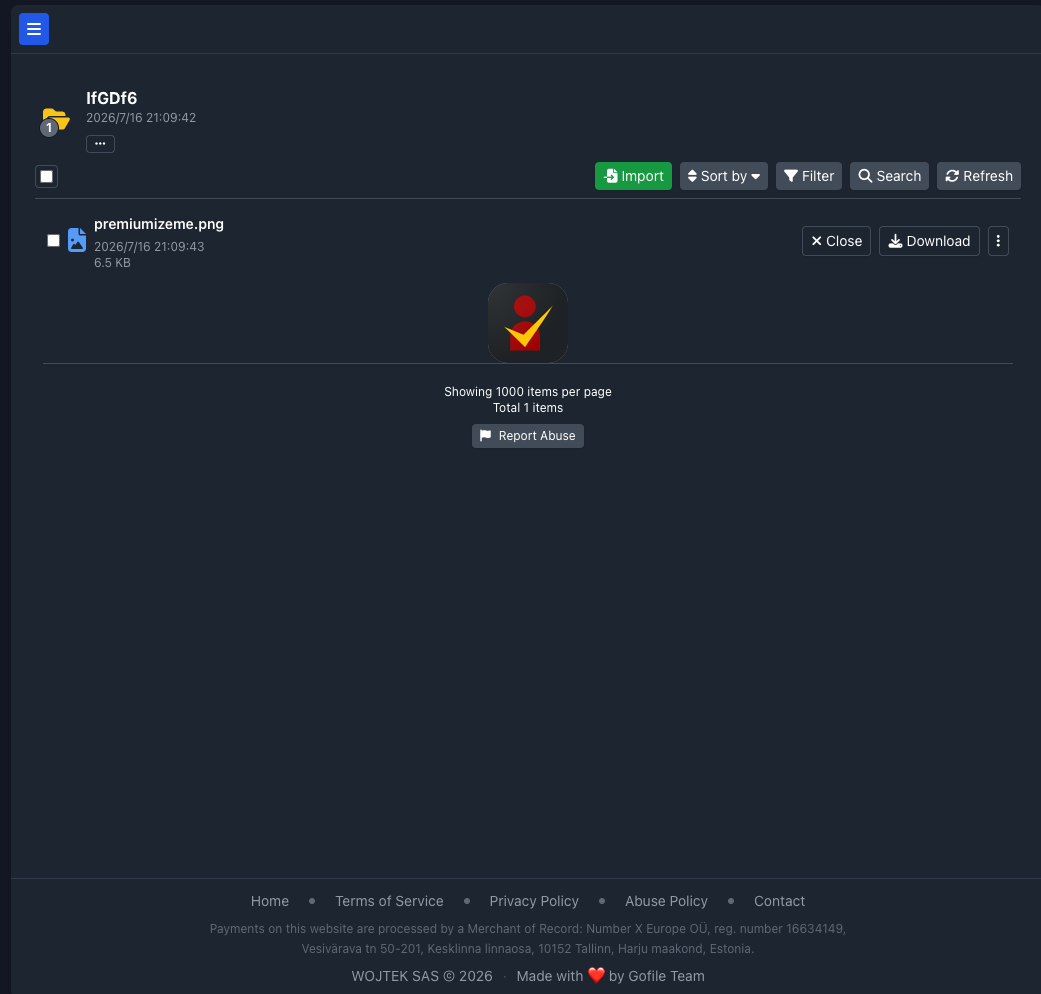
Step 1: Download from Gofile
Open the Gofile link or your account's file list, select the files and download. The browser fetches directly from Gofile's storage servers — start promptly, since a link that archives mid-queue cannot be resumed.
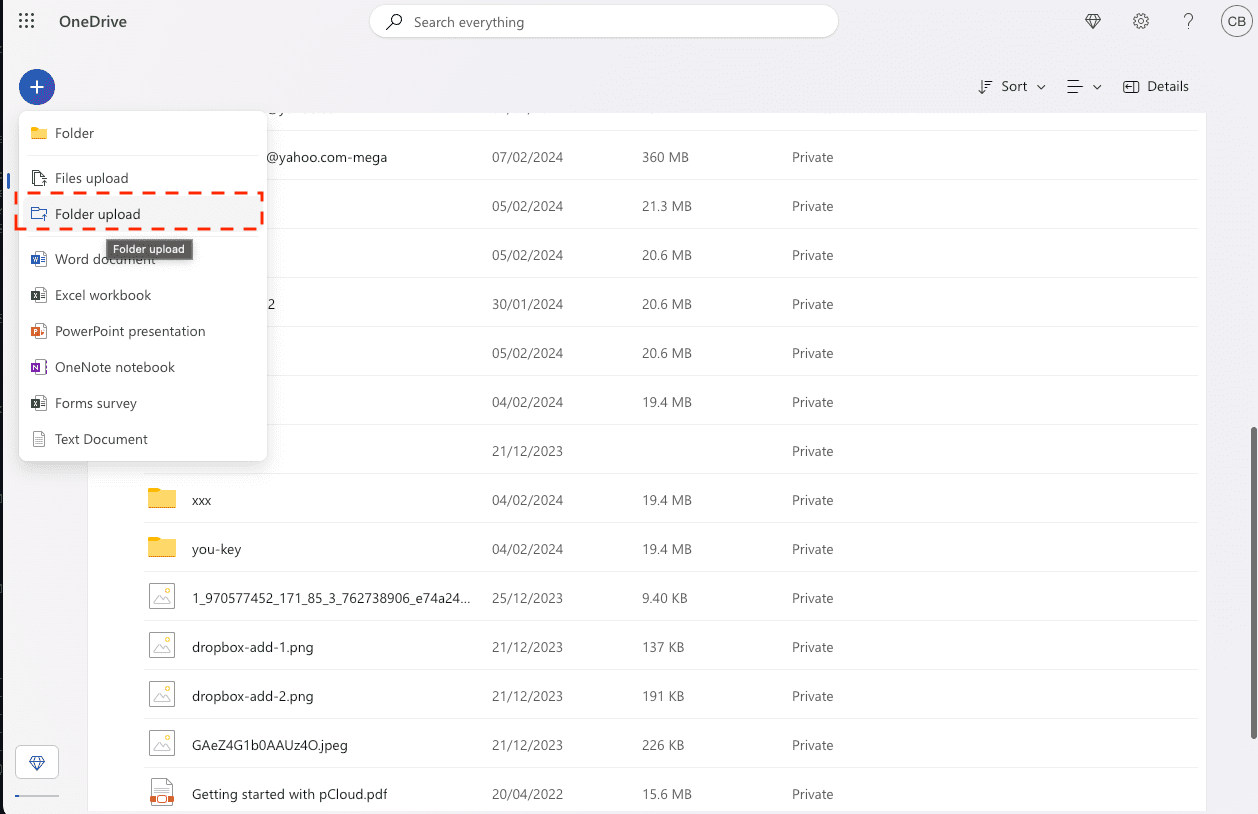
Step 2: Upload into OneDrive
At onedrive.live.com, open the destination folder and drag the downloaded files in — or drop them into the OneDrive folder in Windows Explorer and let the sync client push them up.
Perfect for a handful of files. For a full account or multi-GB video deliverables, the double pass across your connection is the bottleneck — and the archive clock doesn't pause for slow uploads.
Method 2: Copy Gofile to OneDrive in the Cloud
Beat the archive clock without babysitting downloads
CloudsLinker connects to Gofile through its Premium API token and streams files straight into OneDrive over Microsoft's OAuth API — server to server, no local disk staging. An entire account's folder tree copies in one job, which is the difference that matters when the deadline is measured in days of inactivity.
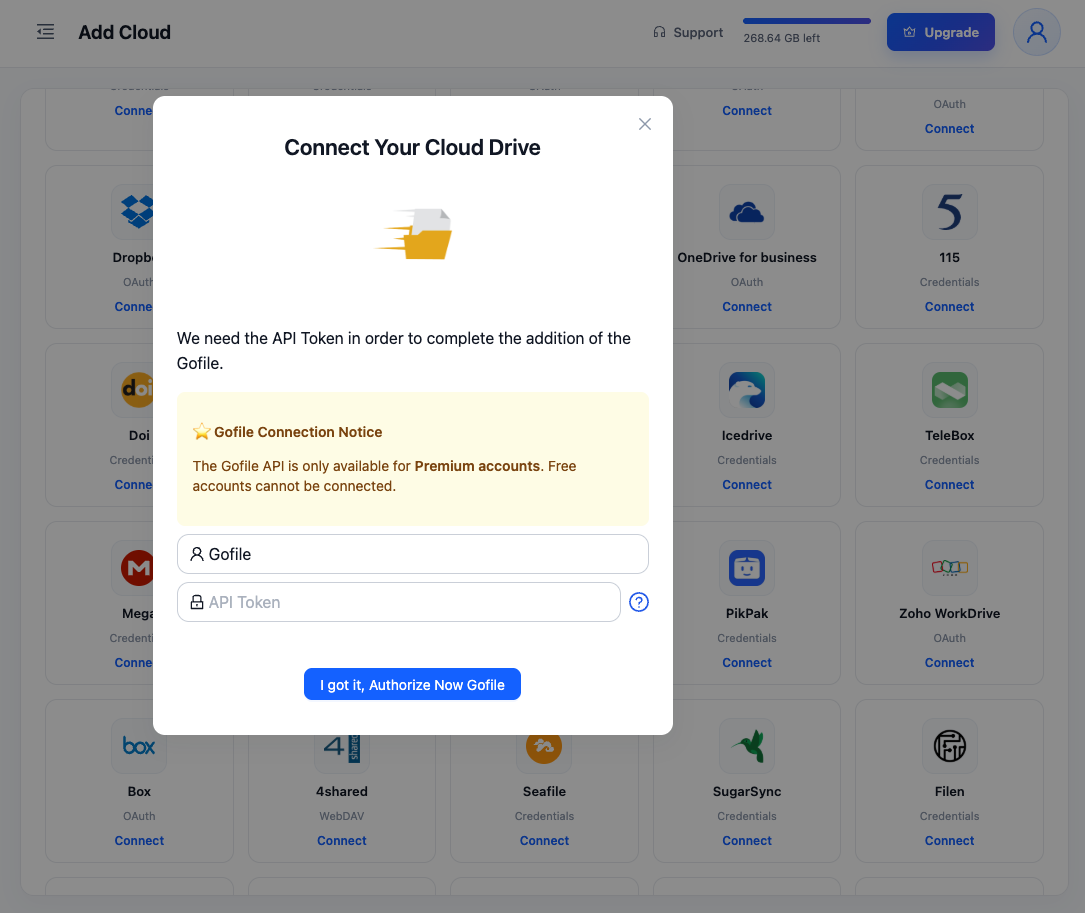
Step 1: Connect Gofile
Click Add Cloud → Gofile. Enter a display name and paste the API token from gofile.io/myProfile. The token exists on Premium accounts — Gofile gates its API to that tier.
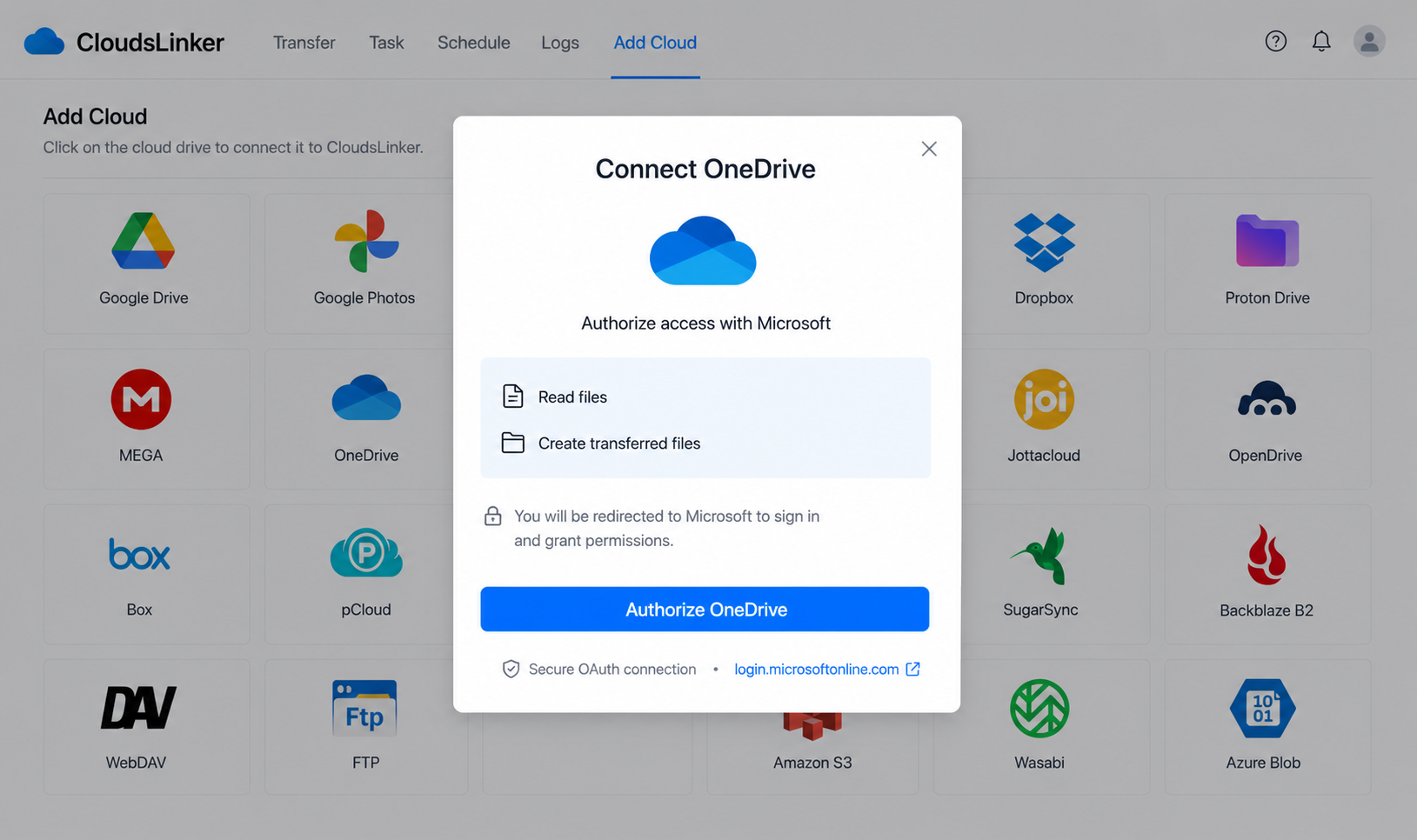
Step 2: Connect OneDrive
Click Add Cloud → OneDrive, sign in on Microsoft's consent page and approve. If the account exposes multiple drive resources, choose the personal drive.
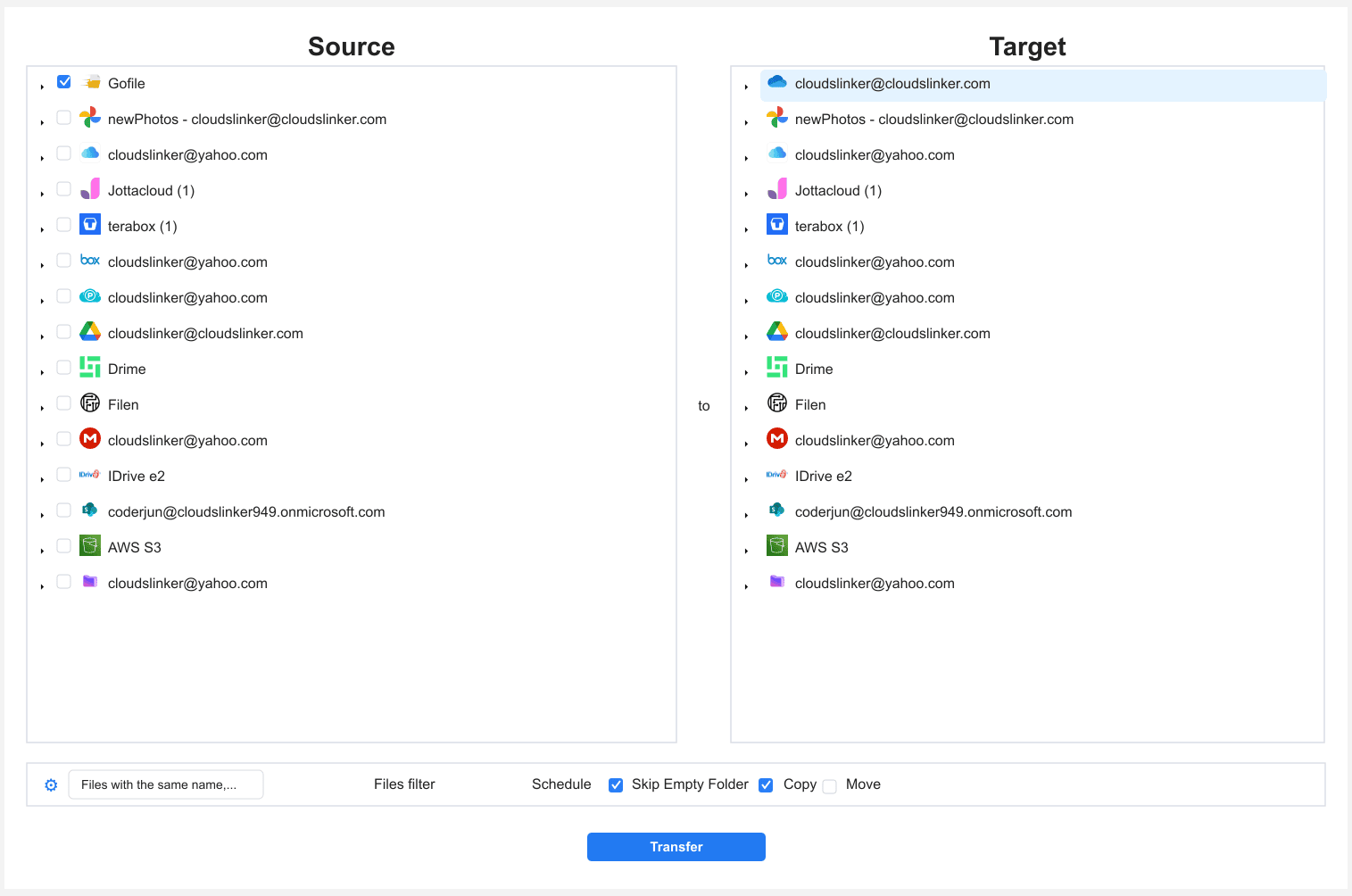
Step 3: Configure the Transfer
Set Gofile as the source — your own folders plus anything saved via Import — and OneDrive as the destination, pointed at the rescue folder. Filters narrow by type, size or date if only part of the account matters. Copy mode is the sensible default; Gofile's archive process will clean up the source on its own schedule anyway.
Step 4: Start and Monitor the Transfer
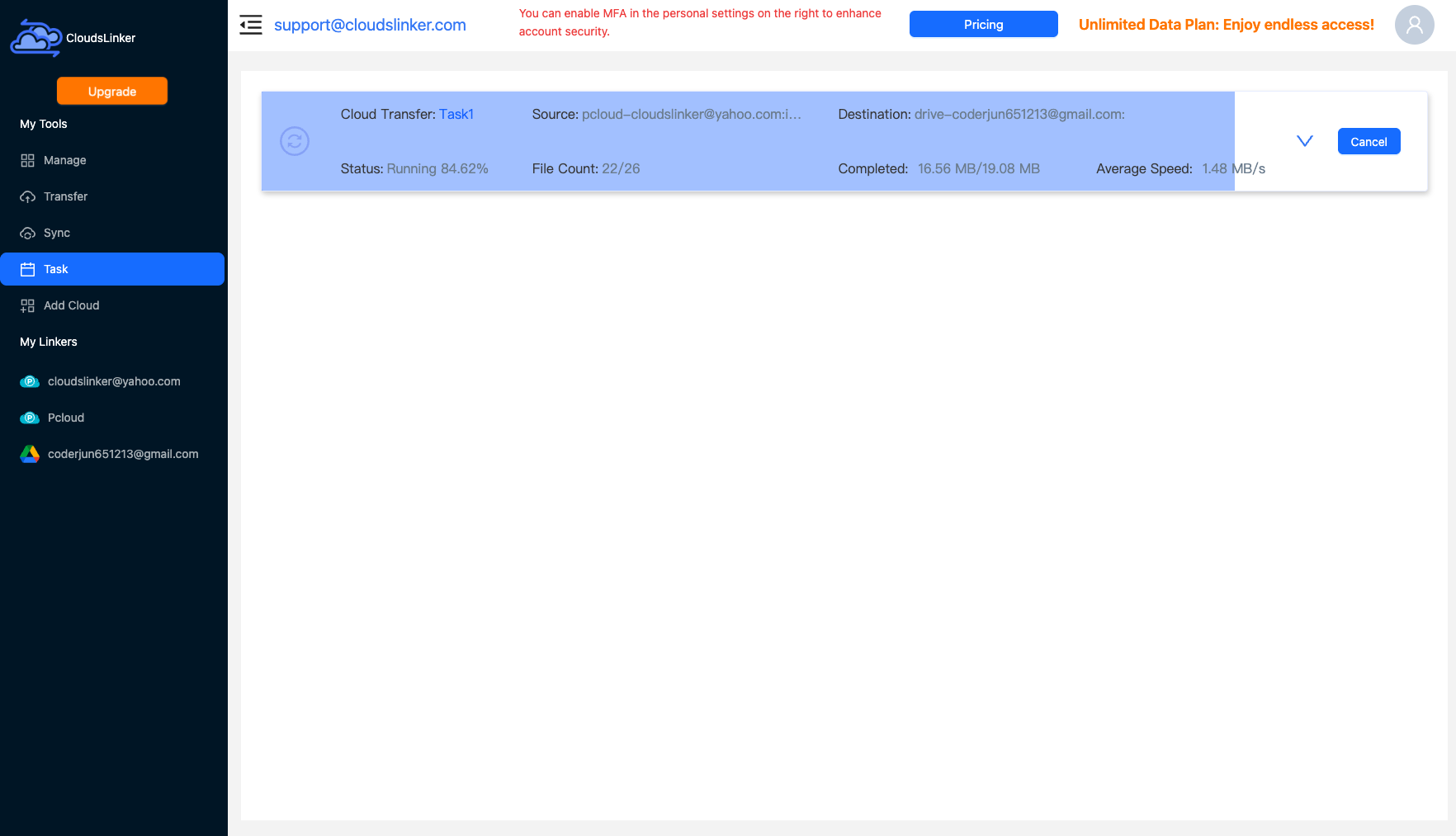
Start the job and follow the Task List — files completed, speed, anything skipped. The copy runs on CloudsLinker's servers, so closing the laptop doesn't stop the rescue.
Comparing the Ways to Transfer From Gofile to OneDrive
| Method | Ease of Use | Speed | Best For | Uses Local Bandwidth | Skill Level |
|---|---|---|---|---|---|
| Browser download / upload | Easy | Slow (double pass) | A few files, free Gofile accounts | Yes — twice | Basic |
| CloudsLinker | Easy | Fast (server-side) | Whole accounts, folder trees, deadlines | No | Basic |
- Rescue by deadline, not by folder order: the ~10-day archive clock runs per file from last access. Oldest untouched uploads go first.
- Import shared links before they die: the green Import button only works on live links. Sweep through everything teammates or clients have sent and import it all — storage is not the constraint, time is.
- Match the OneDrive tier to the payload: 5 GB free absorbs documents; video deliverables usually need the 1 TB that comes with Microsoft 365 Personal.
- One month of Premium can be the cheap option: if a free account holds too much for browser rescue, a single month of Gofile Premium (~$11–15) unlocks the API for a complete server-side evacuation — often cheaper than the time spent shepherding downloads.
- Verify in OneDrive before relaxing: spot-check file sizes and open a few videos. Gofile's archive process won't wait for you to discover a partial copy.
- Reset the API token afterwards: the token grants full account access. After the migration, regenerate it at gofile.io/myProfile so no stale copy exists anywhere.
- Turn on OneDrive's own guardrails: once files land, OneDrive's version history and recycle bin (30 days) become your safety net — a categorical upgrade over storage that expires by design.
Frequently Asked Questions
Conclusion
One or two files inside the free window: download in the browser, drag into onedrive.live.com, done. A folder tree of client deliverables or a Premium account holding active projects: connect Gofile by API token and OneDrive by OAuth, and let CloudsLinker copy server-side into a drive Microsoft won't archive out from under you. Remember the entry requirement — Gofile's API is a Premium feature, so the CloudsLinker route needs a Premium account on the Gofile side. Whichever method, act while the links still resolve; archived files are out of reach of every method here.
Online Storage Services Supported by CloudsLinker
Transfer data between over 58 cloud services with CloudsLinker

OneDrive

Google Drive

Google Photos

Shared Drive

OneDrive for Business

Dropbox

Box

Mega

pCloud

Yandex

ProtonDrive

AWS

GCS

iDrive

Storj

DigitalOcean

Wasabi

1fichier

PikPak

TeleBox

OpenDrive

Backblaze B2

Fastmail file

SharePoint

Nextcloud

ownCloud

Premiumize me

HiDrive

Put.io

Sugar Sync

Jottacloud

Seafile

Ftp

SFtp

NAS

WebDav

4shared

Icedrive

Cloudflare R2

Scaleway

Hetzner Object Storage

Synology C2 Object Storage

S3 Compatible

Doi

iCloud Drive

iCloud Photos

FileLU

Zoho WorkDrive

Telia Cloud / Sky

Drime

Filen

TeraBox

Internxt

Degoo

Gofile

Pixeldrain

Shade

Koofr
Didn' t find your cloud service? Be free to contact: [email protected]
Further Reading
Effortless FTP connect to google drive: Transfer Files in 3 Easy Ways
Learn More >
Google Photos to OneDrive: 3 Innovative Transfer Strategies
Learn More >
Google Photos to Proton Drive: 3 Effective Transfer Techniques
Learn More >