Gofile to Wasabi: Archiving Shared Files Before They're Gone
Move a Gofile share into Wasabi for cheap, zero-egress long-term archive storage. Manual download or a direct cloud-to-cloud copy with CloudsLinker.
Introduction
Wasabi solves a problem Gofile's free tier makes urgent in a different way: it's built to hold data indefinitely at a flat $6.99 per TB per month, with no fee for downloading it back out later. That combination — cheap storage, free egress — fits a Gofile rescue especially well when what you're saving is a large archive you don't expect to touch often: raw footage, a completed project's assets, a batch of files someone shared once and won't re-share. Gofile itself has no bulk-export tool, so the files have to either come down to a device first or be read directly through Gofile's API. This guide covers both routes into Wasabi.
Gofile is a link-first file sharing service with no signup required to upload. Free-tier content is temporary — kept roughly 10 days unless it keeps being downloaded — while Premium (from about $10.99/mo) makes storage permanent and unlocks the API.
- Free content expires after ~10 days of no downloads
- No hard per-file size cap, but free uploads are throttled
- API access is Premium-only
- No official export or migration tool
Wasabi is S3-compatible object storage built for archival: a flat $6.99 per TB per month with no egress fees, and a 1 TB minimum monthly charge per bucket.
- $6.99/TB/month flat rate; no download fees
- 1 TB minimum monthly charge
- 5 TB max object size
- Access via Access Key + Secret Key (S3-compatible)
| Feature | Gofile | Wasabi |
|---|---|---|
| Retention | ~10 days (free), permanent (Premium) | Permanent until deleted |
| Pricing model | ~$10.99–$14.99/mo Premium | $6.99/TB/month, 1 TB minimum |
| Egress / download fees | N/A (sharing service) | None, within fair-use policy |
| Max single file / object | No hard cap; free uploads throttled | 5 TB |
| Storage model | Folders | Buckets with key prefixes |
| Connection in CloudsLinker | API token (Premium only) | Access Key + Secret Key (S3) |
Sources: Gofile: Premium, rclone.org: Gofile backend, Wasabi: Pricing, Wasabi Docs: Service limits.
Open the Gofile link and use the green Import button to copy it into your own account before doing anything else — the original share can be deleted by its owner at any time. If you'll use CloudsLinker, confirm your Gofile account is on Premium first. On the Wasabi side, create a bucket if you don't already have one, and generate an Access Key / Secret Key pair from the Wasabi console. Since Wasabi bills a 1 TB minimum per month, this move makes the most financial sense for an archive that's reasonably close to that size, not a handful of small files.
Method 1: Download and Upload via the Wasabi Console
Step 1: Save and download from Gofile
Open the Gofile link while signed in, use the green Import button to copy it into your account, then select the files and choose Download. Free-tier downloads are bandwidth-throttled, so a large archive takes a while.
Step 2: Upload to a Wasabi bucket via the console
Sign in to the Wasabi console, open your target bucket, and drag the downloaded folders into the upload area. The console preserves folder structure as key prefixes.
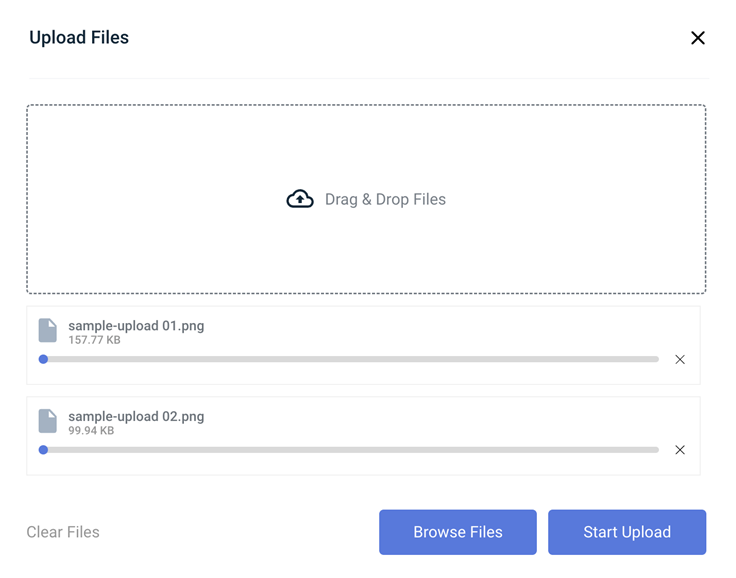
Workable for a modest archive; for a large one, the double transfer — down from Gofile, back up to Wasabi — is the slow part, and Wasabi's console is not built for resuming interrupted uploads of very large batches gracefully.
Method 2: Copy Gofile to Wasabi in the Cloud
Archive a large share without the double download
CloudsLinker reads a saved Gofile share over its Premium-only API and writes directly into a Wasabi bucket using S3-compatible credentials. For an archive-sized transfer, this avoids both Gofile's free-tier throttling and a manual console upload of a large folder tree.
Step 1: Connect Gofile
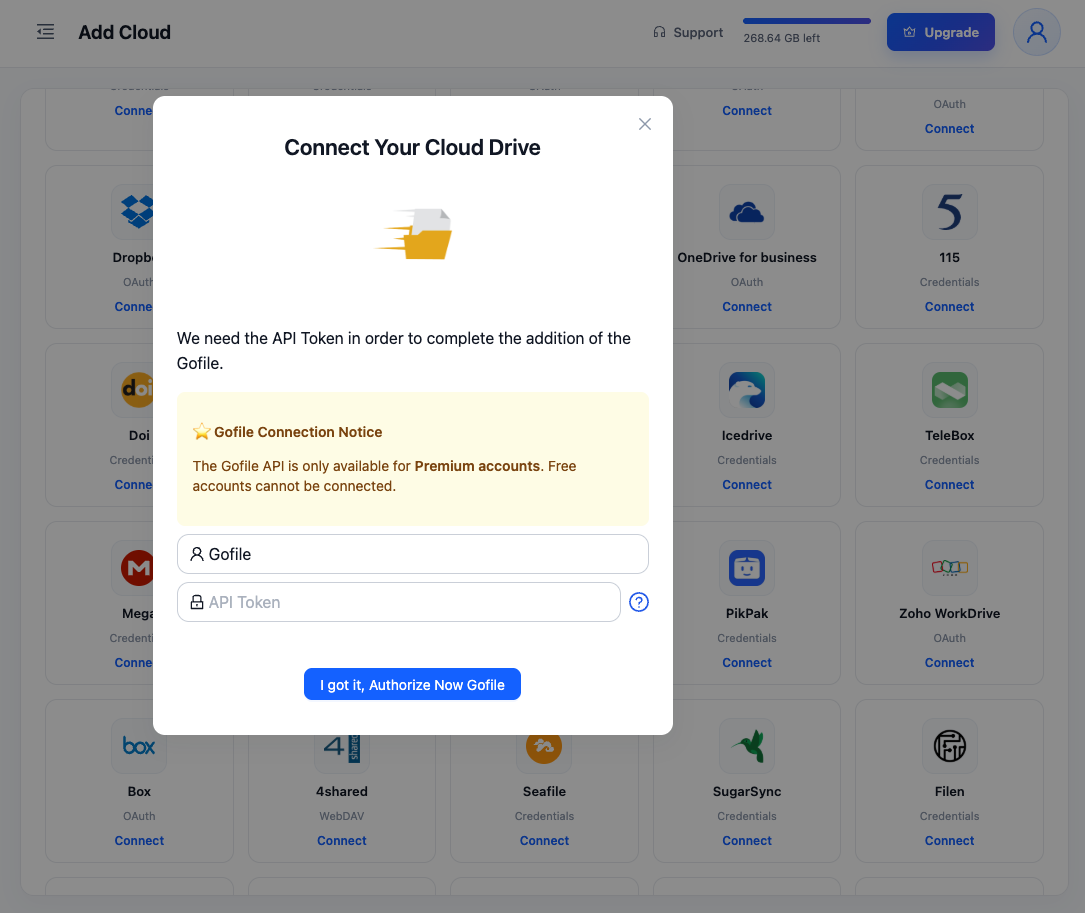
Click Add Cloud → Gofile. Enter a display name and your API Token from gofile.io/myProfile — hover the (?) icon in the dialog for the direct link. This only works on a Gofile Premium account.
Step 2: Connect Wasabi
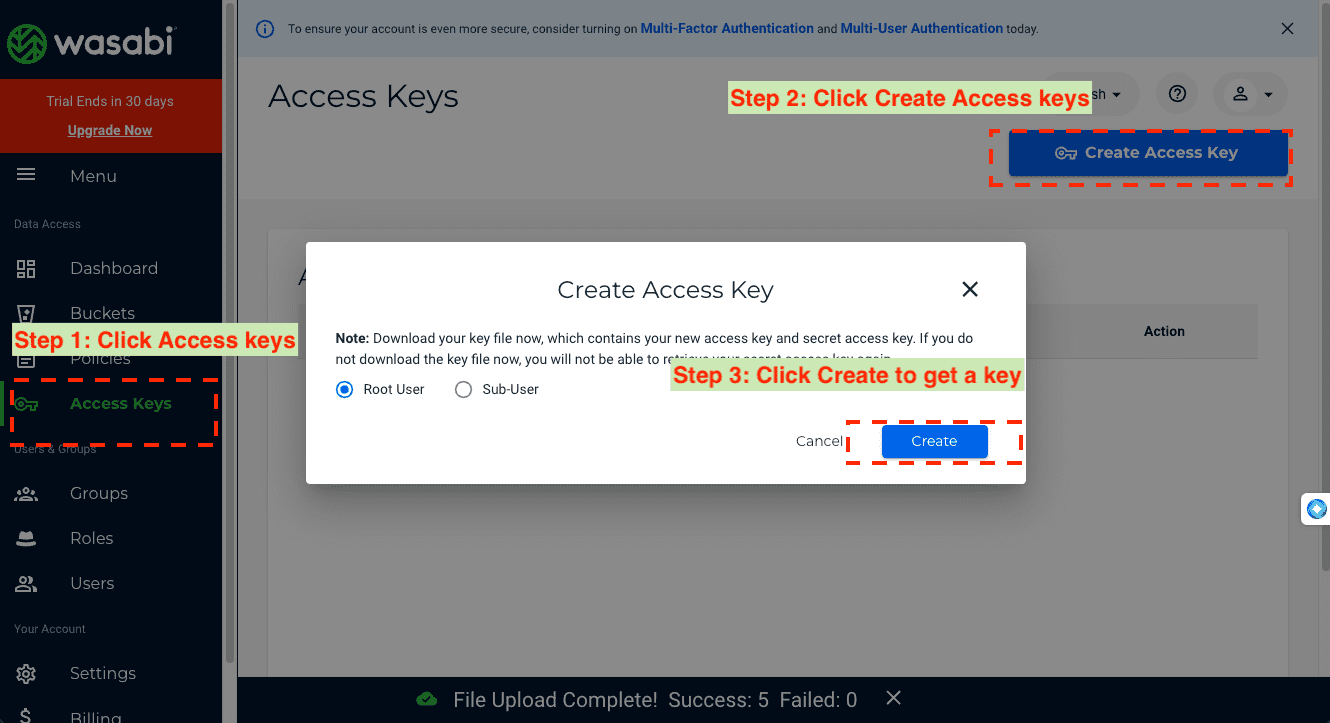
First, generate an Access Key and Secret Key in the Wasabi console under Access Keys.
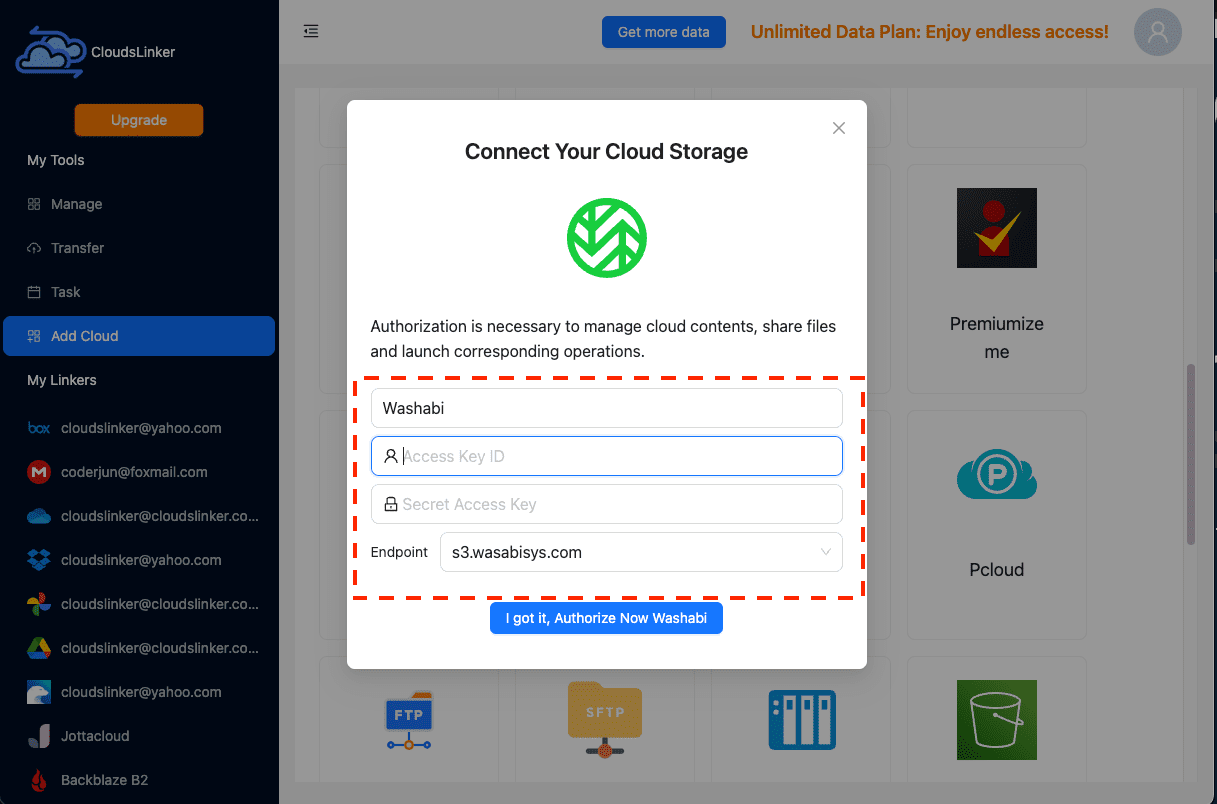
Then in CloudsLinker, click Add Cloud → Wasabi, enter a display name, paste the Access Key ID and Secret Access Key, and select the region/endpoint matching your bucket (for example s3.us-east-1.wasabisys.com).
Step 3: Configure the Transfer
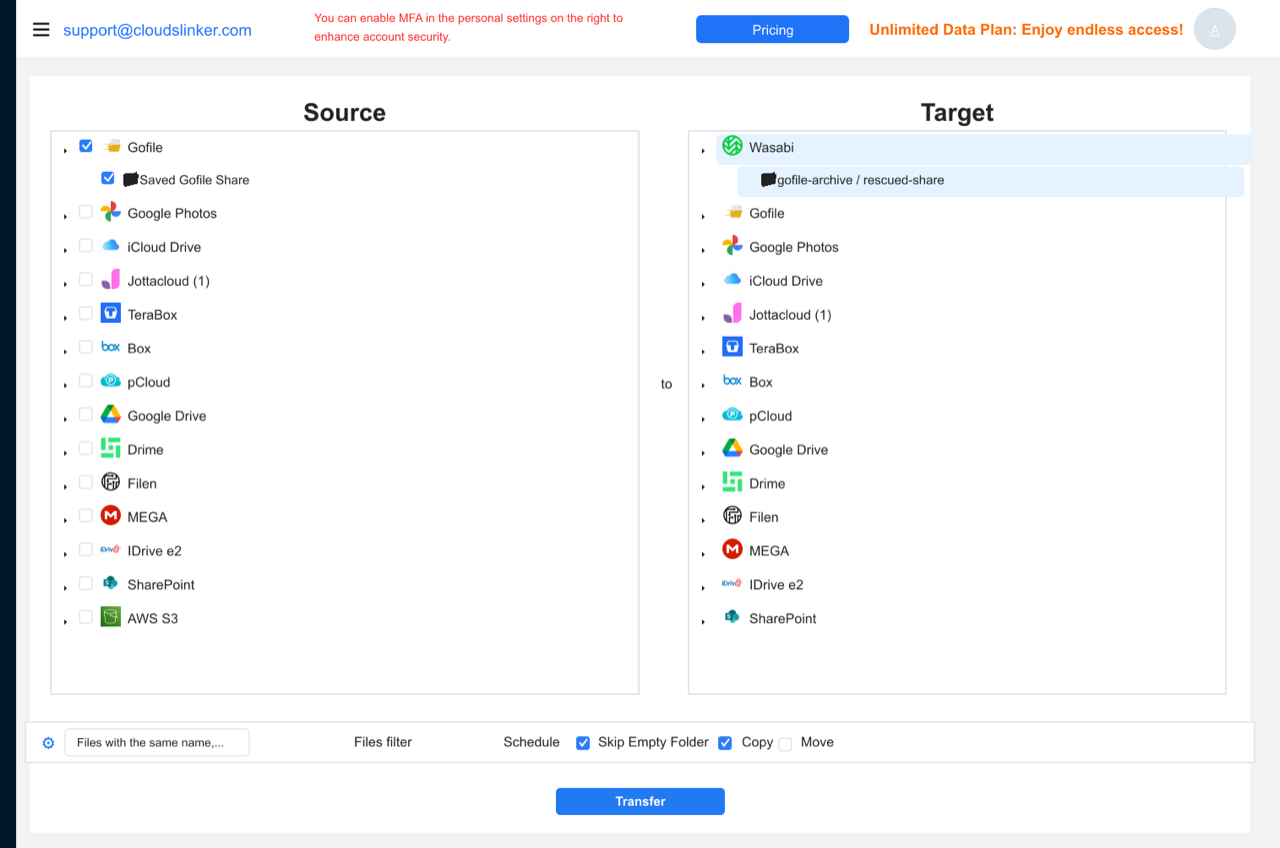
In the Transfer section, set Gofile as the source and select the saved folder. Set Wasabi as the destination and choose the target bucket and key prefix. Filters can restrict the job by file type, size or date.
Step 4: Start and Monitor the Transfer
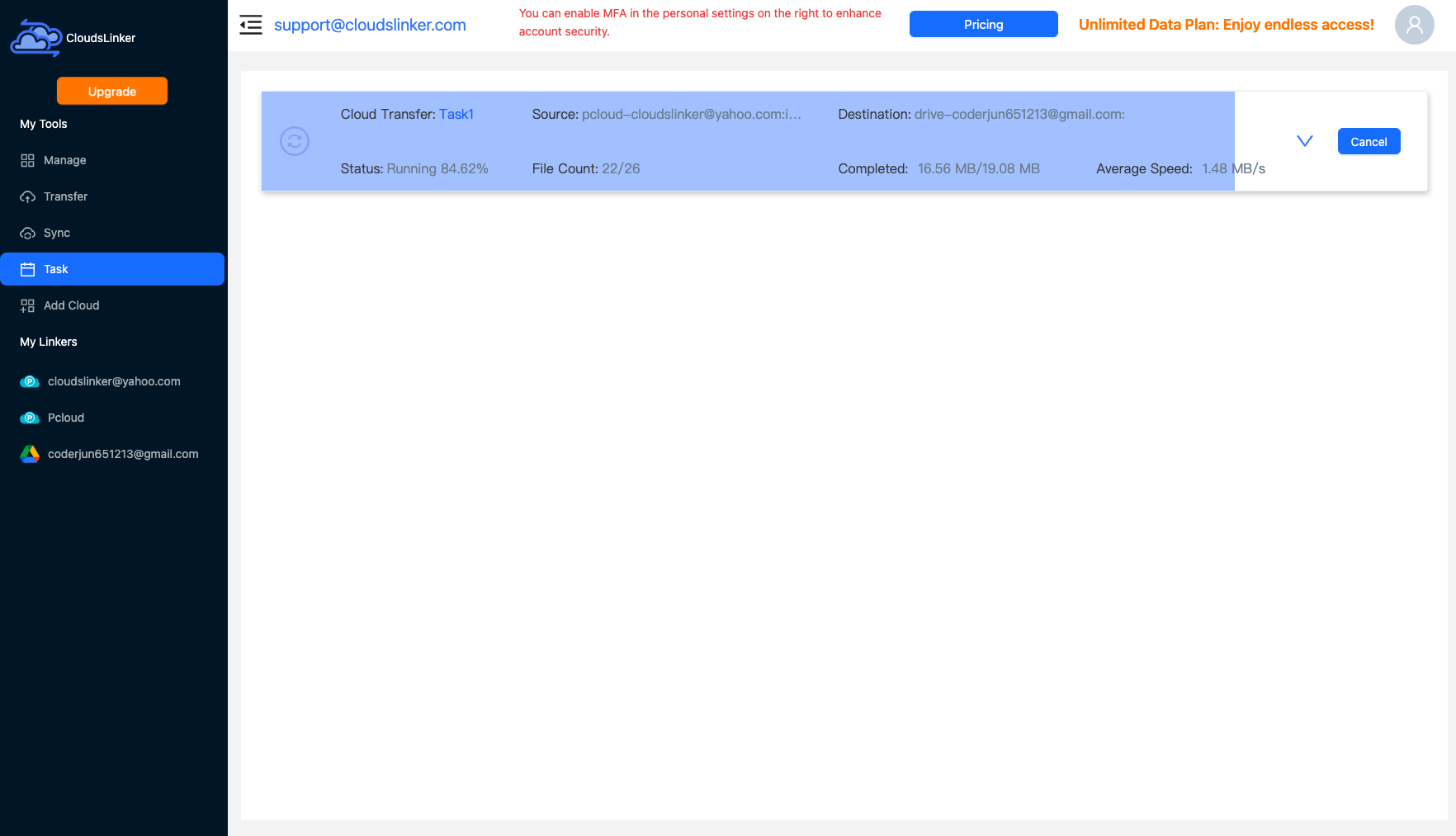
Start the job and follow it in the Task List — transferred size, speed, and remaining items. The transfer runs on CloudsLinker's servers even if you close the browser.
Comparing the Ways to Transfer From Gofile to Wasabi
| Method | Ease of Use | Speed | Best For | Uses Local Bandwidth | Skill Level |
|---|---|---|---|---|---|
| Wasabi console upload | Medium | Slow (throttled + console) | A modest, one-time archive | Yes — twice | Basic |
| CloudsLinker | Easy | Fast (server-side) | Large archive-sized shares | No | Basic |
- Save before you plan: a Gofile share can be deleted by its owner at any moment. Save it to your own account the moment you decide to keep it.
- Premium is required for the API route: a free Gofile account can be downloaded from manually but not connected to CloudsLinker.
- Mind Wasabi's 1 TB minimum bill: the pricing favors larger, consolidated archives — bundle several small Gofile rescues into one bucket rather than paying the minimum repeatedly.
- Decide on a key-prefix scheme up front: Wasabi has no true folders, so plan a naming convention (like
gofile-import/2026-07/) before the transfer, not after. - Never use your Wasabi root account keys: create a scoped Access Key pair for this integration so it can be revoked independently later.
- Clear Gofile afterward: once verified in Wasabi, delete the saved folder from Gofile to stay clear of its ~1 TB soft storage ceiling.
- Rotate the Gofile token when done: regenerate it from your Gofile profile once the migration is finished.
Frequently Asked Questions
Conclusion
For a small share, downloading from Gofile and uploading through Wasabi's console works fine. For a larger archive — the kind Wasabi's pricing actually rewards — CloudsLinker reads the saved Gofile content over its API and writes straight into a Wasabi bucket, so the transfer isn't gated by Gofile's free-tier bandwidth throttling on your own connection. Either way, save the share into your own Gofile account before you do anything else — a public link can vanish the moment its owner deletes it.
Online Storage Services Supported by CloudsLinker
Transfer data between over 58 cloud services with CloudsLinker

OneDrive

Google Drive

Google Photos

Shared Drive

OneDrive for Business

Dropbox

Box

Mega

pCloud

Yandex

ProtonDrive

AWS

GCS

iDrive

Storj

DigitalOcean

Wasabi

1fichier

PikPak

TeleBox

OpenDrive

Backblaze B2

Fastmail file

SharePoint

Nextcloud

ownCloud

Premiumize me

HiDrive

Put.io

Sugar Sync

Jottacloud

Seafile

Ftp

SFtp

NAS

WebDav

4shared

Icedrive

Cloudflare R2

Scaleway

Hetzner Object Storage

Synology C2 Object Storage

S3 Compatible

Doi

iCloud Drive

iCloud Photos

FileLU

Zoho WorkDrive

Telia Cloud / Sky

Drime

Filen

TeraBox

Internxt

Degoo

Gofile

Pixeldrain

Shade

Koofr
Didn' t find your cloud service? Be free to contact: [email protected]
Further Reading
Effortless FTP connect to google drive: Transfer Files in 3 Easy Ways
Learn More >
Google Photos to OneDrive: 3 Innovative Transfer Strategies
Learn More >
Google Photos to Proton Drive: 3 Effective Transfer Techniques
Learn More >