Google Drive to AWS S3: Full Control Over Storage, Permissions, and Lifecycle
Three methods to transfer files from Google Drive to AWS S3 — browser download, AWS CLI, and CloudsLinker cloud-to-cloud — with IAM setup and bucket tips.
Introduction
AWS S3 gives developers and data teams granular control that consumer-grade storage cannot match — IAM policies scoped to individual prefixes, bucket-level lifecycle rules, cross-region replication, and object-level versioning are all standard. Google Drive works well for everyday document collaboration, but it falls short when files need to feed into CI/CD pipelines, serve as static assets behind CloudFront, or land in a data lake with strict retention policies. Moving files from Google Drive to S3 bridges that gap. The three methods below cover manual browser transfers, scripted CLI workflows, and fully managed cloud-to-cloud migration.
Google Drive is Google's cloud storage and collaboration platform, bundled with every Google Workspace subscription. Personal accounts include 15 GB of shared storage across Drive, Gmail, and Google Photos.
- Real-time collaboration: Multiple users can edit Docs, Sheets, and Slides simultaneously.
- Search and organization: Full-text search, AI-powered suggestions, and priority labels across all stored files.
- Sharing controls: Link-based sharing with viewer, commenter, and editor roles.
- Cross-platform access: Native apps on Windows, macOS, iOS, and Android, plus a full web interface.
Amazon S3 (Simple Storage Service) is an object storage service designed for durability, scalability, and programmatic access. It stores data as objects inside buckets, with no limit on total capacity.
- IAM policies: Fine-grained access control at the bucket, prefix, or object level using JSON policies.
- Storage classes: Standard, Infrequent Access, Glacier, and Deep Archive tiers for cost optimization.
- Versioning: Every object can retain full version history, with optional MFA-delete protection.
- Event-driven integration: S3 events trigger Lambda functions, SQS queues, or SNS notifications automatically.
| Feature | Google Drive | AWS S3 |
|---|---|---|
| Storage Model | User-based quota (15 GB free, pooled with Gmail/Photos) | Pay-per-use, no fixed quota — billed per GB stored and per request |
| Access Control | Link sharing with viewer/commenter/editor roles | IAM policies, bucket policies, ACLs, pre-signed URLs |
| Versioning | 30-day version history (100 versions max) | Unlimited version history per object, configurable per bucket |
| Storage Tiers | Single tier | Standard, Infrequent Access, Glacier, Deep Archive |
| API & CLI | REST API, limited CLI tooling | Full REST API, official AWS CLI, SDKs for 10+ languages |
| Best Fit | Document collaboration, personal file storage | Data pipelines, static asset hosting, backups, archival |
Google Drive is built around document editing and sharing. When your workflow requires programmatic access, automated processing, or infrastructure-level storage controls, S3 is a more appropriate foundation.
- IAM policies with prefix-level scope: S3 lets you write IAM policies that restrict specific users or services to exact bucket prefixes. A data pipeline can write to
s3://my-bucket/raw/without accessing anything ins3://my-bucket/processed/, which is not possible with Google Drive's folder-level sharing model. - Lifecycle rules for cost management: Transition objects from S3 Standard to Infrequent Access after 30 days, then to Glacier after 90 days, then delete after a year — all configured once and applied automatically. Google Drive has no equivalent tiered storage mechanism.
- Object versioning with deletion protection: Enable versioning on a bucket to retain every version of every object. Combined with MFA-delete, this prevents accidental or malicious permanent deletion — a level of protection Google Drive's trash-based recovery cannot match.
- CDN integration via CloudFront: Serve S3 objects through Amazon CloudFront with edge caching, custom domains, and signed URLs. Static sites, media files, and software distributions all benefit from this pairing without additional infrastructure.
- Pay-per-use pricing without per-seat licenses: S3 charges for storage consumed and requests made, regardless of how many users or services access the data. For teams that store large volumes but need many access points, this model is often cheaper than per-user Google Workspace plans.
The three methods below cover manual transfers, CLI-based workflows, and managed cloud-to-cloud migration.
Start on the AWS side. If you do not already have an AWS account, create one at aws.amazon.com. Then open the S3 Console and create a bucket. Choose a region close to your primary users or downstream services, and give the bucket a descriptive name (bucket names are globally unique).
Next, set up IAM credentials. In the
IAM Console,
create a dedicated IAM user (or use an existing one) with a policy that grants
s3:PutObject, s3:GetObject, and s3:ListBucket
permissions scoped to your target bucket. Generate an Access Key ID and Secret Access
Key under Security Credentials for that user. Store these credentials
securely — you will need them for the AWS CLI and for CloudsLinker.

On the Google Drive side, review your storage usage at drive.google.com. Identify which folders and files need to move. Google-native formats (Docs, Sheets, Slides) will be exported as their Microsoft Office equivalents (.docx, .xlsx, .pptx) during download, so factor in any format considerations before starting.
Method 1: Download from Google Drive, Upload via AWS S3 Console
Step 1: Download Files from Google Drive
Open Google Drive
in your browser and sign in. Navigate to the folder containing the files you want to transfer.
Select files individually with Ctrl (Windows) or Command (Mac),
or right-click a folder and choose Download.
Google Drive packages multiple files into a ZIP archive. For single files, the download starts directly. Google Docs, Sheets, and Slides are automatically converted to .docx, .xlsx, and .pptx formats respectively. Extract the ZIP after download to preserve the original folder hierarchy.
Step 2: Upload to AWS S3 via the Console
Open the S3 Console, navigate to your target bucket, and open the prefix (folder path) where you want the files to land. Click Upload, then Add files or Add folder. Drag and drop also works.
Before confirming, expand the Properties section to set the storage class (Standard is the default). You can also add metadata or tags at upload time. Click Upload to start the transfer. The console shows progress for each file.

This approach works for small, infrequent transfers. The S3 Console has a practical limit of about 160 GB per upload session. For larger datasets or recurring workflows, the CLI or CloudsLinker methods below are more efficient.
Method 2: AWS CLI (aws s3 cp / aws s3 sync)
Step 1: Install and Configure the AWS CLI
Download the AWS CLI from the
official installation guide.
After installation, run aws configure and enter the Access Key ID, Secret Access Key,
and default region you set up during the preparation step. The CLI stores these credentials in
~/.aws/credentials.
aws configure
# AWS Access Key ID: AKIA...
# AWS Secret Access Key: ********
# Default region name: us-east-1
# Default output format: json
Step 2: Download Files from Google Drive
Download the target files from Google Drive to a local directory. You can use the browser
method described above, or use
Google Takeout
for a bulk export. Place all downloaded files in a single local folder, for example
~/google-drive-export/.
Step 3: Upload to S3 with aws s3 cp or aws s3 sync
To copy an entire directory to S3, use aws s3 cp with the --recursive flag:
aws s3 cp ~/google-drive-export/ s3://my-bucket/google-drive-import/ --recursive
For subsequent transfers where only changed files should be uploaded, aws s3 sync
is more efficient. It compares file sizes and timestamps, skipping anything already present:
aws s3 sync ~/google-drive-export/ s3://my-bucket/google-drive-import/
Before running either command on a large dataset, add --dryrun to preview which
files would be transferred without actually uploading:
aws s3 sync ~/google-drive-export/ s3://my-bucket/google-drive-import/ --dryrun
You can also specify a storage class at upload time with the --storage-class flag:
aws s3 cp ~/google-drive-export/ s3://my-bucket/archive/ --recursive --storage-class STANDARD_IA
The AWS CLI handles large files with automatic multipart uploads and supports bandwidth
throttling via ~/.aws/config. Combined with cron or a task scheduler, it
enables fully automated, repeatable transfers. The trade-off is that data still passes
through your local machine.
Method 3: Cloud-to-Cloud Transfer with CloudsLinker
Cloud-to-Cloud Transfer Without Local Downloads
CloudsLinker transfers files directly between Google Drive and AWS S3 servers. Data does not pass through your local device, and the process continues even if you close the browser or shut down your computer.
Step 1: Connect Google Drive
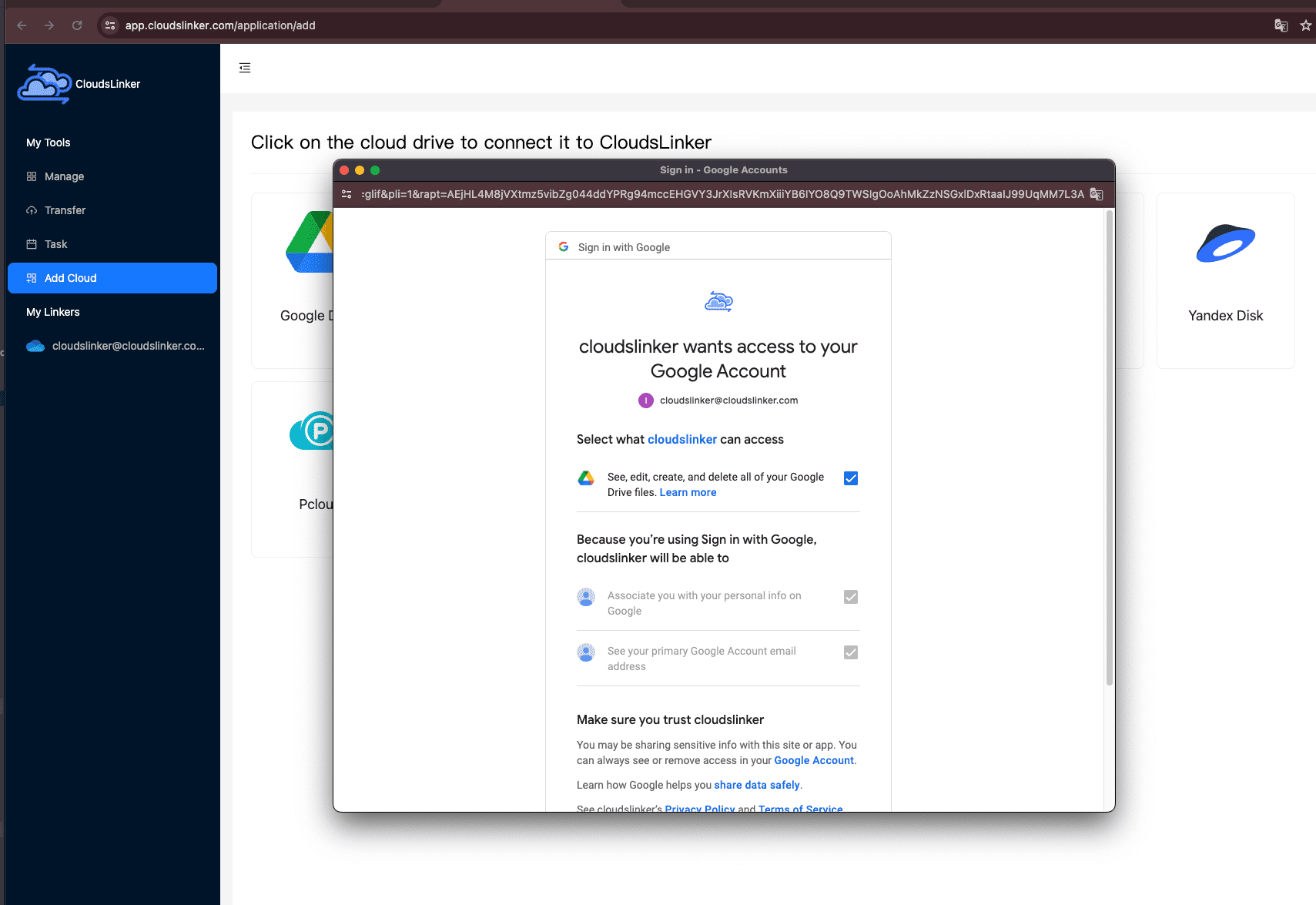
Sign in to CloudsLinker and click Add Cloud. Select Google Drive from the list. Your browser will redirect to Google's authorization page. Sign in with your Google account and approve the requested permissions. Once authorized, Google Drive appears as an available source in the CloudsLinker dashboard.
Step 2: Connect AWS S3
Click Add Cloud again and select AWS S3. CloudsLinker
prompts for three fields: your Access Key ID, Secret Access Key,
and Region (for example, us-east-1). These are the IAM credentials
you generated during preparation. Enter them and confirm. CloudsLinker verifies the connection
and lists your available buckets.
To create the access key, open the IAM Console, navigate to Users, select your IAM user, go to Security Credentials, and click Create Access Key. Copy the key pair immediately — the Secret Access Key is only shown once.
Step 3: Configure the Transfer
Open the Transfer section. Select your connected Google Drive as the source and browse to the files or folders you want to move. On the destination side, select AWS S3, choose the target bucket, and specify a prefix (folder path) if needed.
CloudsLinker supports file filtering by type or modification date, and offers both Copy and Move modes. Move mode deletes the source files from Google Drive after a successful transfer — use it only when you are certain the data is no longer needed in Drive.

Step 4: Start and Monitor the Transfer
Click start. Track progress from the Task List, which shows transferred size, current speed, and remaining items. The transfer runs entirely on CloudsLinker's servers — your device does not need to stay online. You can cancel an in-progress task from the same page if needed.
After the transfer completes, open the S3 Console and verify that objects have arrived in the expected bucket and prefix.
Transferring Between Other Clouds?
CloudsLinker also supports OneDrive, Dropbox, iCloud Drive, other S3-compatible storage, WebDAV servers, and many other services. All transfers run cloud-to-cloud without consuming local bandwidth.
Comparing the Three Ways to Transfer from Google Drive to AWS S3
| Method | Ease of Use | Speed | Best For | Uses Local Bandwidth | Skill Level |
|---|---|---|---|---|---|
| Browser Download + S3 Console | ★★★★★ | ★★☆☆☆ | Small one-time transfers under a few GB | Yes | Beginner |
| AWS CLI (cp / sync) | ★★★☆☆ | ★★★★☆ | Large datasets, scripted or scheduled transfers | Yes | Intermediate |
| CloudsLinker (Cloud-to-Cloud) | ★★★★★ | ★★★★★ | Bulk migrations without tying up a local machine | No | Beginner |
-
Apply least-privilege IAM policies:
Create a dedicated IAM user for the migration with permissions limited to
s3:PutObjectands3:ListBucketon the target bucket only. Revoke or rotate the access key after the transfer is complete. - Choose a region close to your users or services: S3 pricing and latency vary by region. Select the region where your applications or end users are located to minimize data transfer costs and access time.
- Pick the right storage class: Use S3 Standard for frequently accessed data. For files you rarely read after upload (backups, archives), S3 Standard-IA or S3 Glacier Instant Retrieval can reduce costs by 40-70%.
- Set up lifecycle rules before uploading: Configure lifecycle policies on your bucket to automatically transition objects to cheaper tiers or delete them after a retention period. Doing this before the migration means every uploaded object is covered from day one.
- Test with a small batch first: Transfer a single folder to verify that file names, paths, and special characters are handled correctly. Check the S3 Console to confirm objects appear at the expected prefix.
- Check bucket permissions and Block Public Access: AWS enables Block Public Access by default on new buckets. Verify this setting is active unless you specifically need public access. Review bucket policies after migration to ensure no unintended exposure.
Frequently Asked Questions
google-drive-import/projects/
and google-drive-import/documents/. Create separate buckets only
when you need different regions, access policies, or lifecycle rules.
Projects/2024/report.pdf in Google Drive becomes
s3://my-bucket/prefix/Projects/2024/report.pdf in S3.
--exclude and
--include flags for pattern-based filtering. CloudsLinker lets you
browse your Google Drive tree, select specific folders or files, and apply filters
by file type or date.
Conclusion
Browser downloads paired with the S3 Console handle small, one-off transfers without any tooling. The AWS CLI adds scripting, automation, and precise control over storage classes and metadata. CloudsLinker removes the local machine from the equation entirely, moving data server-to-server between Google Drive and S3. Pick the method that matches your transfer size, frequency, and comfort with the command line.
Online Storage Services Supported by CloudsLinker
Transfer data between over 48 cloud services with CloudsLinker

OneDrive

Google Drive

Google Photos

Shared Drive

OneDrive for Business

Dropbox

Box

Mega

pCloud

Yandex

ProtonDrive

AWS

GCS

iDrive

Storj

DigitalOcean

Wasabi

1fichier

PikPak

TeleBox

OpenDrive

Backblaze B2

Fastmail file

SharePoint

Nextcloud

ownCloud

Premiumize me

HiDrive

Put.io

Sugar Sync

Jottacloud

Seafile

Ftp

SFtp

NAS

WebDav

4shared

Icedrive

Cloudflare R2

Scaleway

Doi

iCloud Drive

iCloud Photos

FileLU

Zoho WorkDrive

Telia Cloud / Sky

Drime

Filen
Didn' t find your cloud service? Be free to contact: [email protected]
Further Reading
Effortless FTP connect to google drive: Transfer Files in 3 Easy Ways
Learn More >
Google Photos to OneDrive: 3 Innovative Transfer Strategies
Learn More >
Google Photos to Proton Drive: 3 Effective Transfer Techniques
Learn More >