Transfer Google Drive to Degoo: 3 Ways to Escape the 15 GB Cap
Transfer Google Drive to Degoo and free up Google's shared 15 GB — manual download, Google Takeout, or a server-side copy that converts Docs automatically.
Introduction
Google gives every account 15 GB, shared between Drive, Gmail and Photos — and once it fills, even incoming email stops. Degoo attacks exactly that pain point with 20 GB free and a 5 TB Ultimate plan at $9.99 a month, cheaper per terabyte than Google One's 2 TB tier at the same price. Shifting rarely-opened Drive folders — old coursework, finished projects, raw video — into Degoo clears Google quota without paying Google more. Below are three routes that actually work: downloading and re-uploading by hand, exporting everything at once with Google Takeout, and a server-side copy with CloudsLinker that handles the Google Docs format problem automatically.
Google Drive is the storage layer of every Google account — 15 GB free shared with Gmail and Google Photos, expandable through Google One (100 GB at $1.99/mo up to 2 TB at $9.99/mo). It's the default home of Google Docs, Sheets and Slides, which exist only as cloud-native formats.
- 15 GB free, shared across Gmail / Drive / Photos
- 5 TB max single file; 750 GB/day upload cap
- Google Docs / Sheets / Slides native formats
- Deep Workspace and Android integration
Degoo is a consumer cloud from Sweden focused on cheap bulk space and phone photo backup. The free tier starts at 20 GB — already a third more than Google's — and the paid ladder is short: 500 GB for $2.99/mo, 5 TB for $9.99/mo, with periodic lifetime deals on top. Apps are mobile-first; there's no desktop sync client.
- 20 GB free vs Google's shared 15 GB
- 5 TB for the price of Google One's 2 TB
- AI-driven photo rediscovery feed
- Per-file caps: 256 MB free / 50 GB subscription
| Feature | Google Drive | Degoo |
|---|---|---|
| Free storage | 15 GB (shared with Gmail + Photos) | 20 GB (ads; 90-day inactivity rule) |
| Price of ~2 TB+ | 2 TB — $9.99/mo (Google One) | 5 TB — $9.99/mo (Ultimate) |
| Max single file | 5 TB | 256 MB free / 50 GB subscription |
| Native document formats | Docs / Sheets / Slides (cloud-only) | None — stores files as uploaded |
| Desktop client | Drive for desktop (sync / stream) | None — mobile apps + paid web uploader |
| Connection in CloudsLinker | Google OAuth | Account email + password |
Sources: Google: storage and upload limits, Google Drive API limits, Degoo: plans, Degoo Help Center: Account limits.
The case is mostly arithmetic, with a couple of practical wrinkles:
- Quota relief without paying Google: a full 15 GB blocks new Gmail messages. Offloading cold Drive folders to Degoo's free 20 GB (or $2.99 Pro) restores headroom immediately.
- 2.5× the storage at the same price: $9.99/mo buys 2 TB from Google One but 5 TB from Degoo Ultimate — relevant once video archives enter the picture.
- A second provider for real redundancy: keeping the only copy of anything inside one Google account is a single point of failure; a Degoo mirror diversifies both vendor and jurisdiction (Sweden vs US).
- Zero-knowledge option for sensitive files: Degoo's paid Top Secret folder offers client-side encryption Google Drive doesn't have — upload sensitive material there manually after the bulk move.
- Photo-first destination for camera dumps: Degoo's apps are built around photo browsing and AI rediscovery, a better fit for image archives than Drive's file-manager view.
The catch to plan around is Degoo's per-file cap — 50 GB even on paid subscriptions, far below Drive's 5 TB ceiling — and the missing desktop client, which shapes which methods below are practical.
Start at one.google.com/storage to see what's actually eating your quota — often it's Gmail attachments or Photos, not Drive. Then decide the destination plan: the selection must fit Degoo's tier (20 GB free / 500 GB / 5 TB) and every individual file must clear the per-file cap. Note which folders contain Google-native Docs and Sheets, since those get converted to Office formats on the way out. Finally, if the archive will sleep for months, avoid the free Degoo tier or set reminders — 90 days of inactivity deletes free-account files.
Method 1: Download and Re-upload by Hand
Step 1: Download from drive.google.com
Select folders at drive.google.com and choose Download. Google zips the selection and converts native Docs/Sheets/Slides to Office formats inside the archive. Large selections produce multiple ZIPs and can take hours on a home connection.
Step 2: Extract and upload to Degoo
Unzip locally, then upload via app.degoo.com (paid plans) or the Degoo mobile app (free plan — which means getting the files onto your phone first). Keep every file under your plan's cap: 256 MB free, 50 GB on subscriptions.
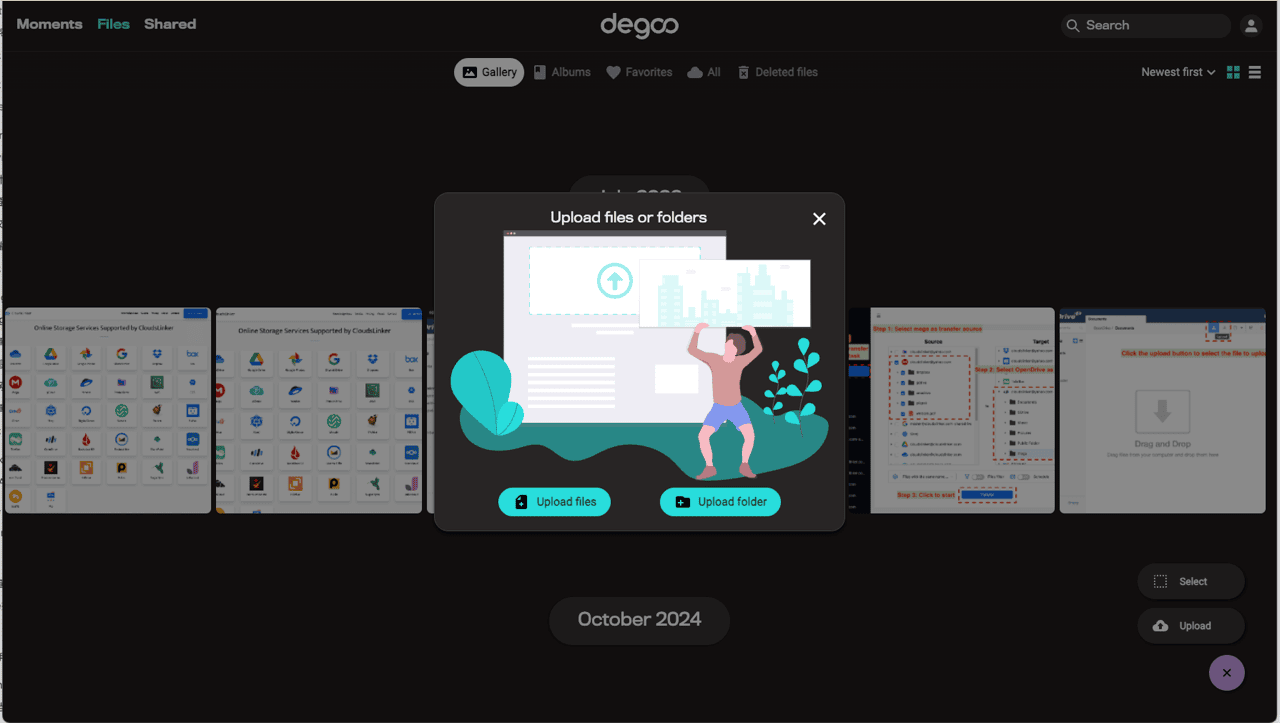
Fine for a folder of documents; painful for anything bigger, because every byte crosses your connection twice and the free tier funnels uploads through a phone.
Method 2: Bulk Export with Google Takeout
Step 1: Request a Drive export
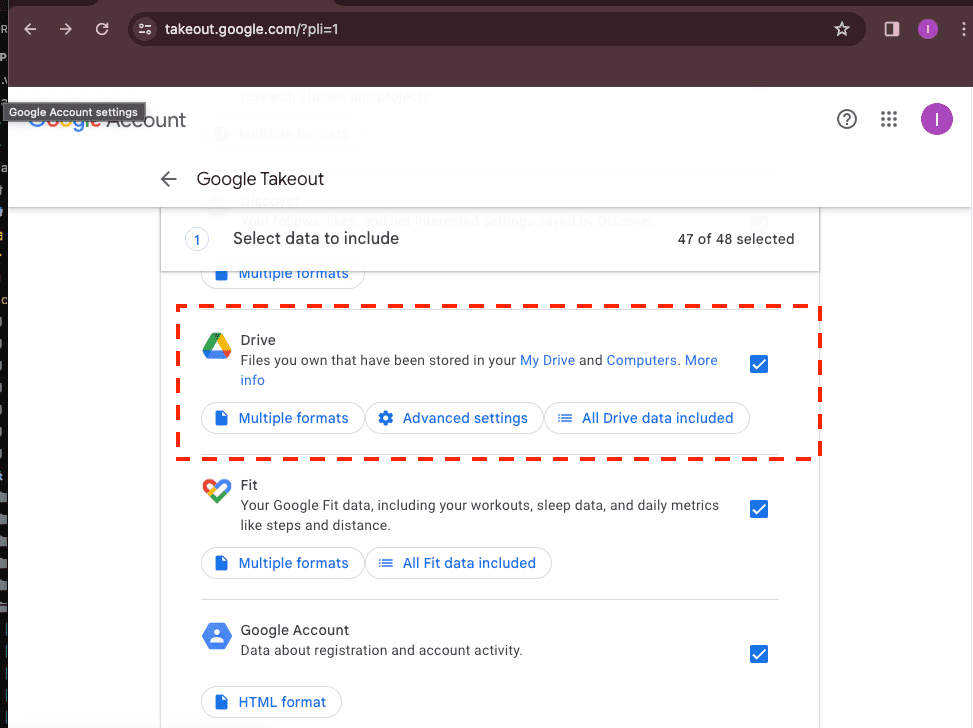
At takeout.google.com, deselect everything except Drive, pick ZIP as the format and a segment size (2 GB–50 GB), and request the export. Google emails a set of download links when the archive is ready — usually within hours, sometimes a day or two for large accounts. Native Google files are converted to Office/PDF formats automatically.
Step 2: Download the archives and upload to Degoo
Download each ZIP segment (they expire after about a week), extract, and upload the tree to Degoo through the web app or mobile app. Folder structure survives inside the ZIPs, but you're re-assembling and re-uploading everything yourself — and Takeout is all-or-nothing per product, so there's no folder-level selectivity.
Takeout is the right tool when you want a complete offline copy anyway; as a Drive→Degoo pipeline it's the slowest route with the most manual steps.
Method 3: Copy Google Drive to Degoo in the Cloud
Selective, server-side, and Docs-aware
CloudsLinker reads your Drive over Google's API and writes straight into Degoo, converting Docs, Sheets and Slides to Office formats on the fly — the same conversion Takeout does, but folder-by-folder instead of whole-account, and without ZIP archives passing through your machine. Google's API rate limits are handled with automatic back-off, so a several-hundred-GB Drive empties into Degoo unattended.
Step 1: Connect Google Drive
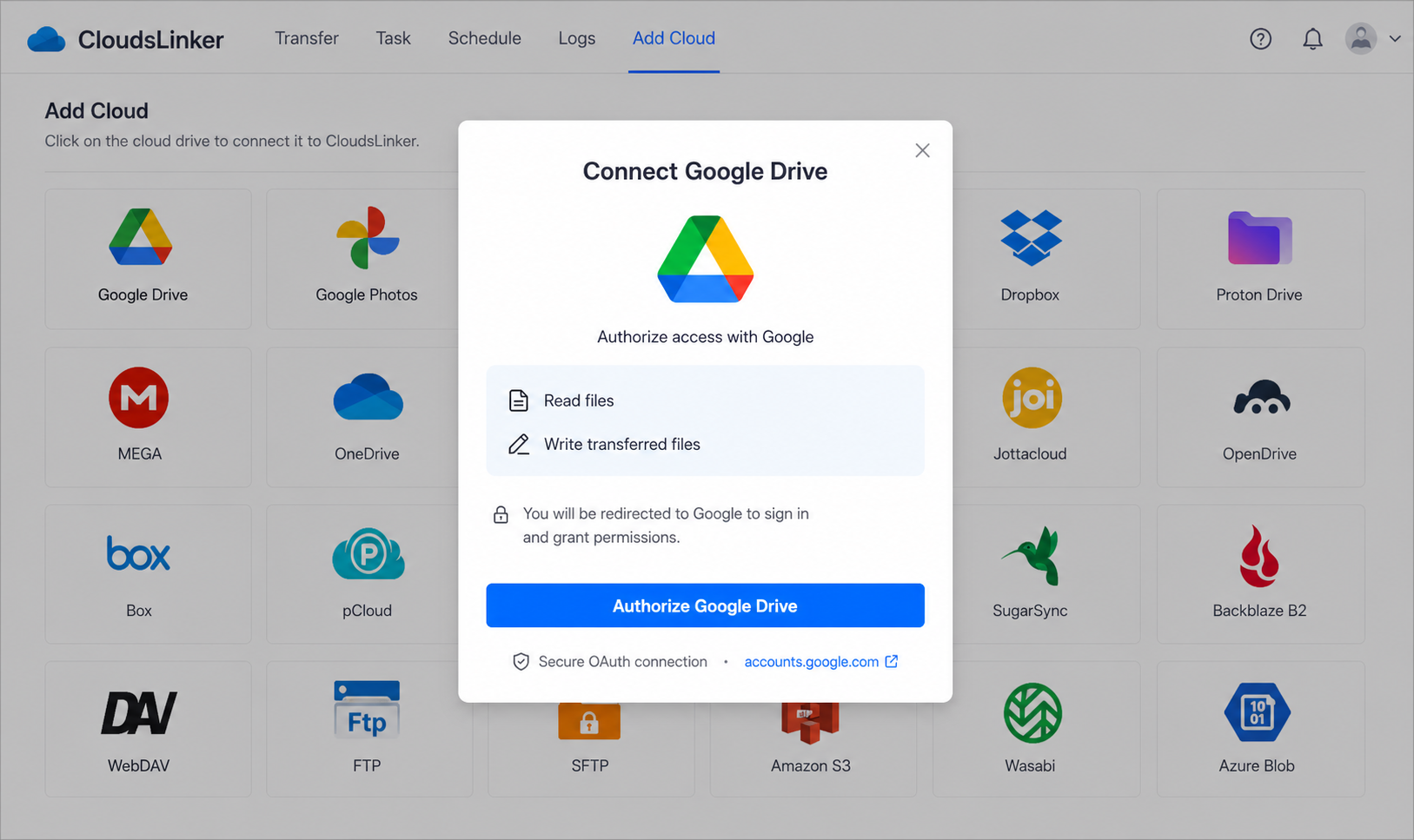
Click Add Cloud → Google Drive. Sign in on Google's consent page at accounts.google.com and approve Drive access. The grant is a revocable token — manage it later under your Google account's third-party access settings.
Step 2: Connect Degoo
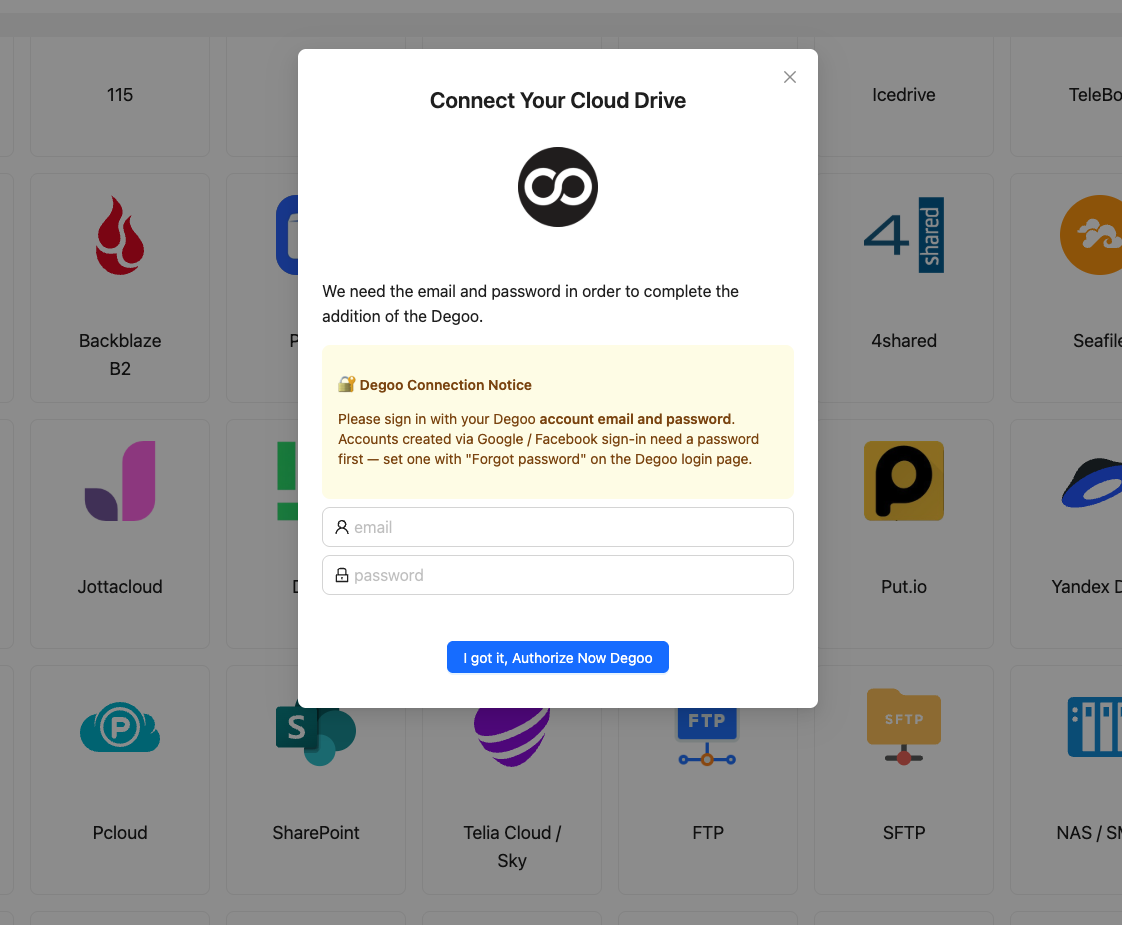
Click Add Cloud → Degoo, then enter your Degoo email and password. There's no OAuth flow on Degoo's side; CloudsLinker logs in against Degoo's own API and reuses a cached session for later jobs. Change your Degoo password whenever you want to revoke access.
Step 3: Configure the Transfer
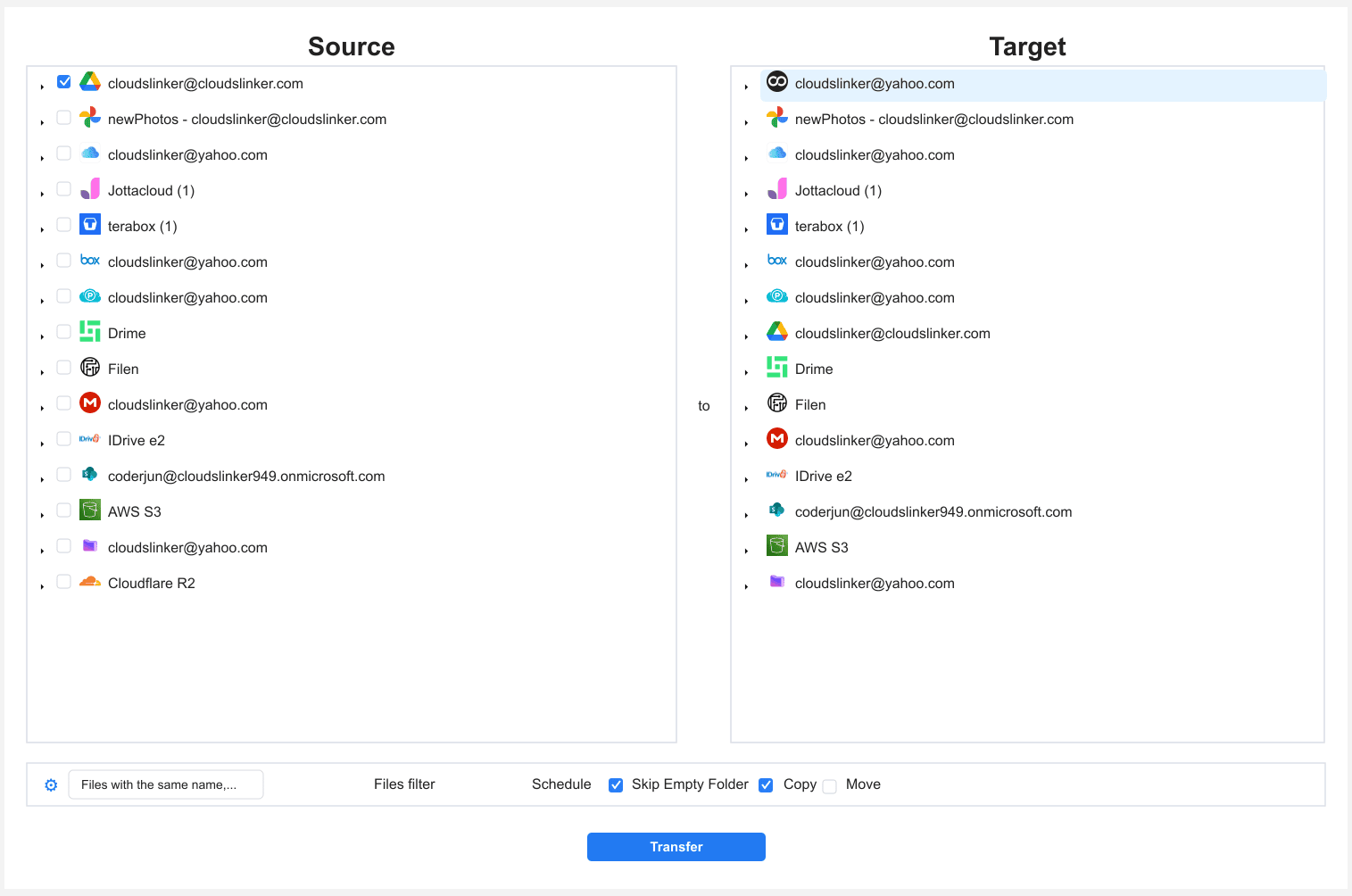
In the Transfer section, set Google Drive as the source and tick the folders to move — old coursework, finished projects, camera dumps. Select the destination folder in Degoo.
Filters can exclude files over the Degoo per-file cap or restrict the job to certain types (video only, for example). Copy leaves Drive untouched; Move deletes source files after successful transfer — safer to copy first and clean up Drive manually.
Step 4: Start and Monitor the Transfer
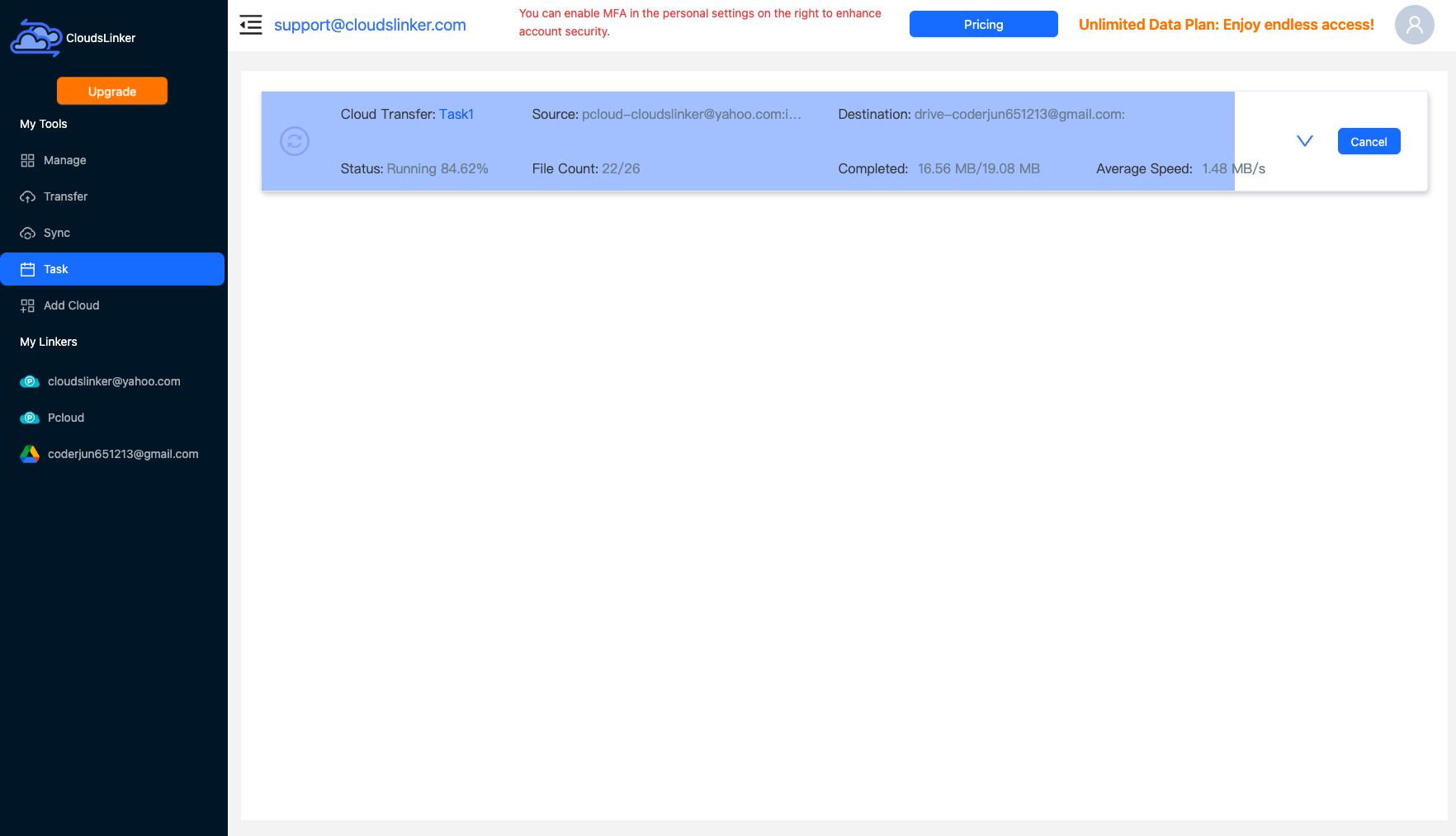
Start the job and follow it in the Task List — bytes moved, current speed, files remaining. Everything runs on CloudsLinker's servers; the browser tab can close and the job keeps going.
Comparing the Ways to Transfer From Google Drive to Degoo
| Method | Ease of Use | Speed | Best For | Uses Local Bandwidth | Skill Level |
|---|---|---|---|---|---|
| Manual download / upload | Medium | Slow | One or two folders | Yes — twice | Basic |
| Google Takeout | Medium (multi-step) | Slow (wait + re-upload) | Full-account export you also want offline | Yes — twice | Basic |
| CloudsLinker | Easy | Fast (server-side) | Selective or bulk moves, unattended | No | Basic |
- Audit quota before moving anything: one.google.com/storage breaks usage down by product — if Gmail is the hog, moving Drive files won't fix the problem.
- Expect Office formats on arrival: Docs → .docx, Sheets → .xlsx, Slides → .pptx. Complex Apps Script or linked-sheet features don't survive conversion; keep truly interactive documents in Google.
- Respect Degoo's per-file cap: Drive tolerates files up to 5 TB, Degoo subscriptions stop at 50 GB. Set the size filter accordingly and route bigger files elsewhere.
- Handle 'Shared with me' explicitly: shared items aren't in your My Drive and won't be picked up — copy anything important into your own tree first.
- Choose the Degoo tier by media type: documents fit in Pro's 500 GB; phone-video archives grow fast and usually justify Ultimate's 5 TB at the price of Google One's 2 TB.
- Free Degoo accounts need a heartbeat: open the app at least every couple of months — free-tier files are deleted after 90 days of inactivity.
- Empty Drive's trash after cleanup: deleted Drive files keep counting against Google quota for 30 days unless you empty the trash manually.
Watch: Transfer Google Drive Files to Degoo with CloudsLinker
A walkthrough of the cloud-to-cloud method: authorizing Google Drive via OAuth, connecting Degoo with account credentials, choosing the folders to move, and following the server-side transfer in the Task List.
Frequently Asked Questions
403 userRateLimitExceeded responses, so multi-hundred-GB exports finish without manual intervention.
Conclusion
Takeout suits a one-time full-account export if you don't mind babysitting multi-gigabyte ZIP files and re-uploading them yourself. Manual download works for a folder or two. For everything else — selective moves, Google Docs conversion, free Degoo accounts without the web uploader — CloudsLinker does the copy server-side: connect both clouds, filter what you don't want, and let the job run. Whichever route you choose, keep the Drive originals until you've spot-checked the files that arrived in Degoo.
Online Storage Services Supported by CloudsLinker
Transfer data between over 58 cloud services with CloudsLinker

OneDrive

Google Drive

Google Photos

Shared Drive

OneDrive for Business

Dropbox

Box

Mega

pCloud

Yandex

ProtonDrive

AWS

GCS

iDrive

Storj

DigitalOcean

Wasabi

1fichier

PikPak

TeleBox

OpenDrive

Backblaze B2

Fastmail file

SharePoint

Nextcloud

ownCloud

Premiumize me

HiDrive

Put.io

Sugar Sync

Jottacloud

Seafile

Ftp

SFtp

NAS

WebDav

4shared

Icedrive

Cloudflare R2

Scaleway

Hetzner Object Storage

Synology C2 Object Storage

S3 Compatible

Doi

iCloud Drive

iCloud Photos

FileLU

Zoho WorkDrive

Telia Cloud / Sky

Drime

Filen

TeraBox

Internxt

Degoo

Gofile

Pixeldrain

Shade

Koofr
Didn' t find your cloud service? Be free to contact: [email protected]
Further Reading
Effortless FTP connect to google drive: Transfer Files in 3 Easy Ways
Learn More >
Google Photos to OneDrive: 3 Innovative Transfer Strategies
Learn More >
Google Photos to Proton Drive: 3 Effective Transfer Techniques
Learn More >