Google Drive to Filen: 3 Real-World Ways to Move Your Files
Transferring your data from Google Drive into Filen doesn’t need to be clunky or slow. This walkthrough breaks down four effective approaches — from straightforward manual exports to cloud-based automation — to help you migrate securely and efficiently.
Introduction
With privacy-first cloud storage gaining traction, many users are choosing Filen for its robust client-side encryption and intuitive file management interface. As you plan a migration from Google Drive to Filen, the size of your dataset and your preferred workflow will influence which method works best. Casual users might only have a few folders to shift, while power users or teams could be working with hundreds of gigabytes of data. In the sections below, we’ll explore four reliable ways to move your files from Google Drive into Filen — ranging from simple browser-based uploads to advanced cloud-to-cloud operations using tools such as [Rclone](https://rclone.org/) and server-handled transfers via [CloudsLinker](https://www.cloudslinker.com). Each strategy has distinct trade-offs around speed, control, and convenience, so you can pick what matches your needs.
Google Drive is one of the most widely used cloud storage services, built around Google’s productivity ecosystem. It allows individuals and teams to store documents online, collaborate in real time, and keep files synchronized across devices. A standard account comes with 15 GB of shared storage across Drive, Gmail, and Google Photos, with paid upgrades available through Google One.
- Cross-platform access: Web, desktop clients, Android, and iOS apps.
- Live editing: Native integration with Docs, Sheets, and Slides.
- Automation-friendly: Broad third-party and API ecosystem.
- Background sync: Desktop apps keep folders mirrored automatically.
- Large file capability: Individual files can reach multiple terabytes on supported plans.
Filen is a privacy-focused cloud storage platform designed around zero-knowledge, end-to-end encryption. Unlike traditional office-suite clouds, Filen’s core goal is to give users full ownership of their data, with encryption happening before files ever leave the device. It supports secure storage, sharing, and cross-device sync without exposing file contents to the service provider.
- Client-side encryption: Files are encrypted before upload.
- Zero-knowledge architecture: The platform cannot read your data.
- Cross-platform apps: Windows, macOS, Linux, Android, iOS, and web access.
- Secure sharing: Password-protected and encrypted file links.
- Modern sync model: Designed for private backups and long-term storage.
Although both platforms store files in the cloud, they are built on very different philosophies. Google Drive emphasizes collaboration and productivity workflows, while Filen is centered on privacy, encryption, and user-controlled storage. Understanding this distinction helps clarify why migration tools and strategies can differ.
| Feature | Google Drive | Filen |
|---|---|---|
| Core Focus | Collaboration, productivity, sharing | Privacy, encrypted storage, data ownership |
| Encryption Model | Server-side encryption | End-to-end, client-side encryption |
| Ecosystem | Deep integration with Google Workspace | Independent storage platform with sync apps |
| Third-Party Tools | Very broad integration support | Primarily desktop and API-driven workflows |
| Typical Use Case | Teams, documents, shared workspaces | Private backups, secure file storage, encrypted sharing |
If your priority is privacy, long-term backups, or storing sensitive material outside of large productivity ecosystems, Filen offers a fundamentally different environment compared to Google Drive.
Before starting any transfer, spend a little time auditing your current Google Drive data. Check how much space your files occupy, identify folders you no longer need, and note whether you rely on shared drives or personal storage. This helps determine whether a lightweight browser upload is sufficient or if a more structured migration method is necessary.
On the Filen side, make sure your account is set up with the desktop client or web dashboard, and verify that you can create folders, upload files, and manage encryption settings. If you plan to move a large dataset, testing with a small sample folder first is strongly recommended.
Cleaning up filenames, flattening unnecessary subfolders, and deciding on your migration method early can save hours later. Some users prefer exporting data via Google Takeout, others rely on Rclone for technical control, while those who want a browser-only, cloud-hosted workflow often choose CloudsLinker to automate the process. A small amount of planning helps preserve structure and avoid repeated uploads.
Method 1: Move Files Manually Through the Browser
Step 1: Export Files from Google Drive
Begin by visiting the
Google Drive web
dashboard
and logging into the account that holds your data. Browse through your folders and locate the files
you want
to move into Filen. If you need to select more than one item, hold Ctrl (Windows) or
Command (macOS) while clicking.
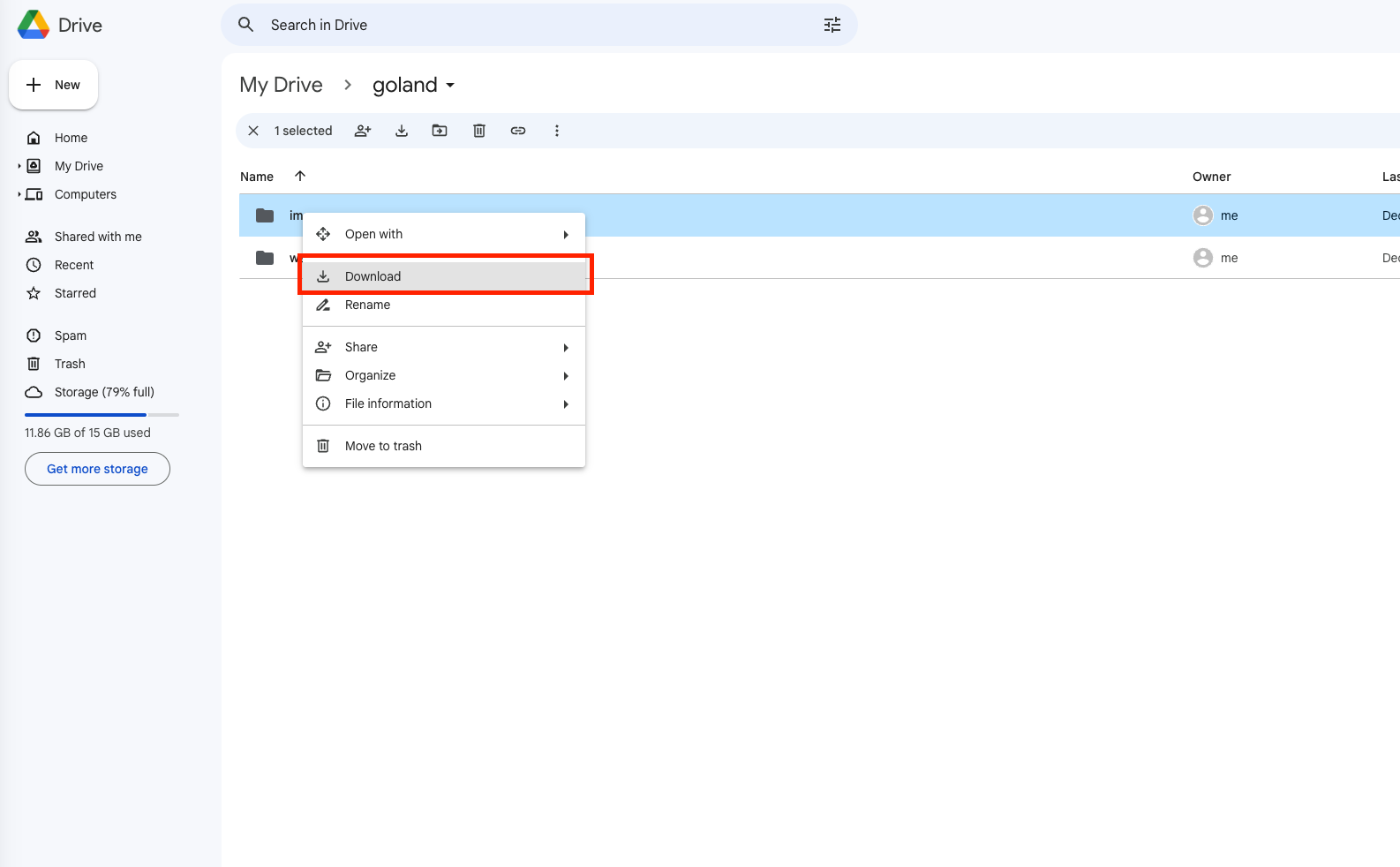
Once selected, right-click and choose Download. Google Drive will automatically package folders into ZIP archives. After the download finishes, extract the archive on your computer so the original files and folder structure are ready for the next step.
Step 2: Upload Files into Filen
Open the Filen web app and sign in to your account. Navigate to the folder where you want your Google Drive data to be stored, or create a new directory to keep the migration organized.
From here, you can drag and drop the extracted files directly into the browser window, or use Filen’s upload button to select files and folders manually. Filen will encrypt your data locally before it’s sent to the cloud, ensuring your content is protected from the moment it leaves your device.
This browser-based approach works well for small transfers, one-time moves, or users who prefer a fully manual workflow. However, if you’re migrating a large Drive library or want to avoid repeated downloads and uploads, tools like Rclone or a hosted cloud-to-cloud transfer service are usually faster, more stable, and better suited for long-running jobs.

Method 2: Archive with Google Takeout, Then Upload to Filen
Step 1: Create a Full Google Drive Export Using Google Takeout
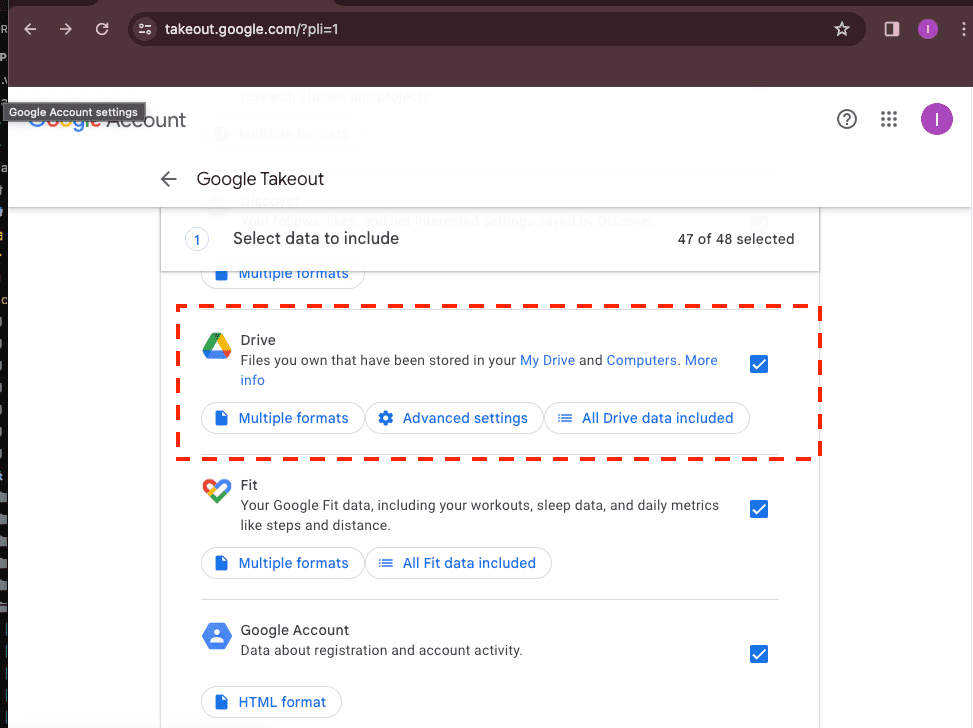
If you want a complete offline copy of your Google Drive before moving anything into a new platform, Google Takeout is the most reliable way to generate it. After signing in, click “Deselect all,” then enable only Google Drive. From there, you can export your entire Drive or narrow it down to specific folders if you’re only migrating part of your data.
Once the request is submitted, Google will prepare one or more downloadable archives, usually packaged as ZIP files. The processing time depends on how much data you have — smaller Drives may finish within minutes, while larger accounts can take several hours. When your export is ready, download the archive files and extract them on your local machine.
Step 2: Import the Exported Data into Filen
After unzipping the Takeout archives, open the Filen web interface and log in to your account. Navigate to the destination folder where you want to store the migrated files, or create a new directory to keep the imported data clearly separated.
Upload your extracted folders either by dragging them into the browser window or by using Filen’s upload controls. Because Filen encrypts files locally before transfer, the initial upload may take longer than standard cloud storage services — but this process ensures your data is protected from the start.
This method is particularly useful if you want a verified local backup, need to reorganize files before uploading, or are planning a one-time migration. For very large Takeout exports, however, manually uploading hundreds of gigabytes can become tedious. In those scenarios, command-line tools such as Rclone or browser-based automation services like CloudsLinker are usually better suited.
Method 3: Automated Cloud-to-Cloud Transfer with CloudsLinker
Overview: Move Google Drive Data into Filen — No Local Downloads
CloudsLinker
is a browser-based cloud transfer platform that moves data directly between storage services without
routing
files through your computer. Tasks run entirely in the cloud and support
40+ storage providers,
including Google Drive and Filen.
Step 1: Log in and Connect Google Drive
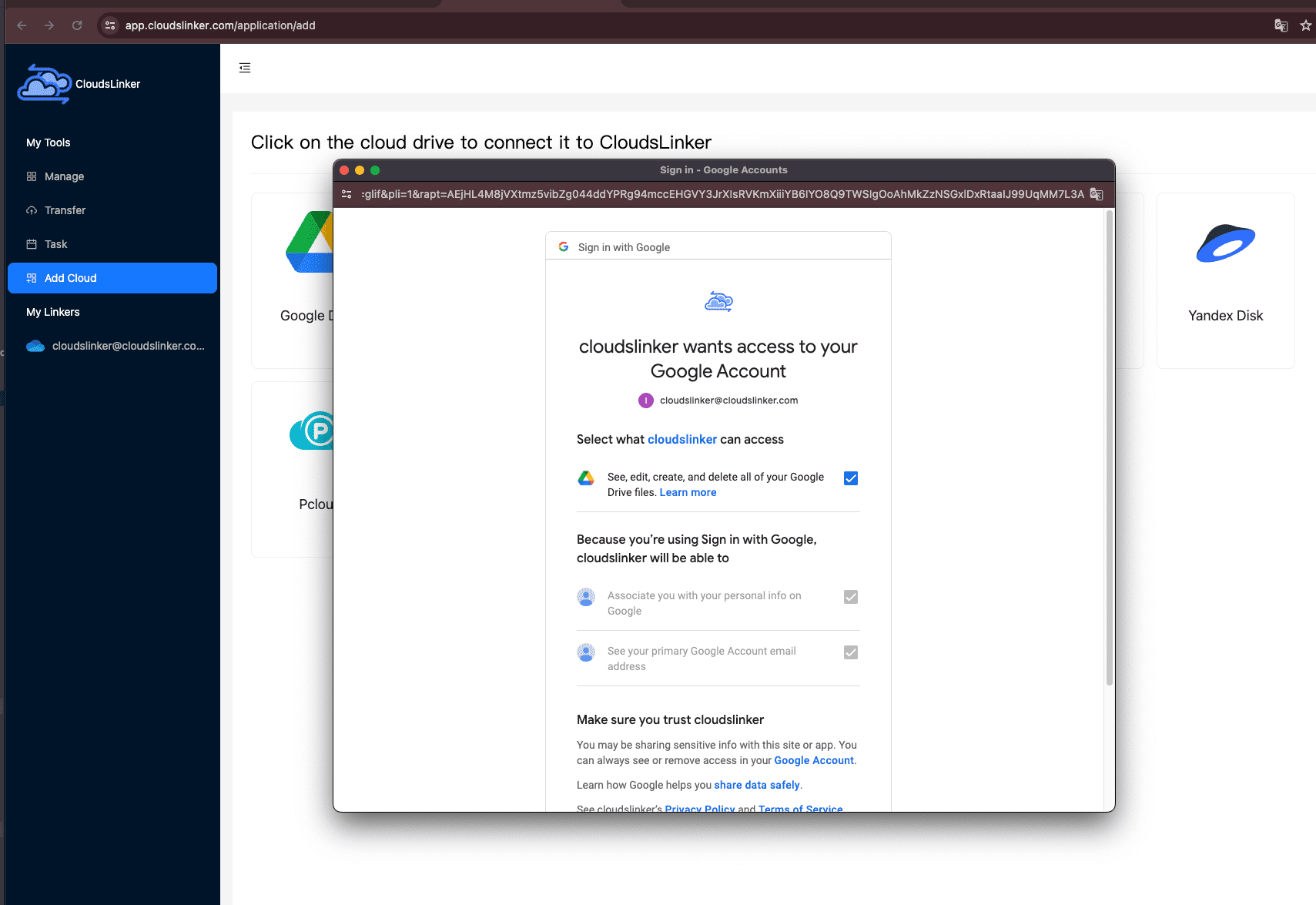
Open app.cloudslinker.com and sign in to your account. If this is your first time using CloudsLinker, registration only takes a moment. From the dashboard, click Add Cloud and choose Google Drive.
You’ll be redirected to Google’s official authorization page, where you can securely approve access. Once confirmed, your Google Drive will appear inside CloudsLinker as a connected source.
Step 2: Add Filen (Enable 2FA for Better Security)
Next, connect Filen as your destination cloud. Click Add Cloud, select Filen, and enter the email address and password associated with your Filen account.
For security reasons, it is strongly recommended to enable two-factor authentication (2FA) in Filen before authorizing access. You can do this by opening Filen, clicking the settings icon in the lower-left corner, navigating to Personal Settings → Security, and enabling 2FA.
After login, Filen will be added as a connected storage target in CloudsLinker.

Step 3: Build Your Transfer Task
Go to the Transfer section. Choose Google Drive as the source and browse the folders or files you want to migrate. On the destination side, select your connected Filen storage and choose the folder where the data should be placed.

You can refine the task using built-in options such as file filters, extension exclusions, or modified-time rules. This is helpful if you only want to migrate active projects rather than your entire Drive archive.
Step 4: Run the Task and Monitor Progress
Start the transfer and monitor it from the Task List. You’ll be able to view real-time progress, speed, transferred size, and estimated completion time. Tasks continue running in the cloud even if you close your browser.
After completion, CloudsLinker provides a detailed report showing successful transfers and any files that may need attention. Your Google Drive content will now be stored in Filen, protected under its end-to-end encryption model.
For users who want a hands-off migration experience — without local bandwidth limits, long downloads, or unstable browser uploads — CloudsLinker offers one of the most efficient ways to move data from Google Drive into Filen.
Need to Transfer Between Other Cloud Services?
In addition to Google Drive and Filen, CloudsLinker supports OneDrive, Dropbox, MEGA, WebDAV, S3-compatible storage, and many more. All transfers are handled cloud-to-cloud, so you can start a task and let it run independently in the background.
Comparing the 3 Ways to Transfer from Google Drive to Filen
Moving files from Google Drive into Filen is not a one-size-fits-all process. Some users only need to move a few folders once, while others are migrating entire archives into a privacy-focused environment. The three methods below represent the most practical options, each suited to a different type of workflow.
| Method | Ease of Use | Speed | Best For | Uses Local Bandwidth | Skill Level |
|---|---|---|---|---|---|
| Web Browser (Manual) | ★★★★★ | ★★★☆☆ | Small moves, quick one-time transfers | Yes | Beginner |
| Google Takeout + Upload | ★★★★☆ | ★★☆☆☆ | Full exports, offline backups, pre-migration review | Yes | Beginner |
| CloudsLinker (Cloud-to-Cloud) | ★★★★★ | ★★★★★ | Large libraries, long-running migrations, recurring transfers | No | Beginner |
If you only need to move a few folders, browser downloads are usually enough. If you want a verified local archive before uploading into Filen, Google Takeout offers an official export route. For larger migrations or situations where you don’t want your computer involved at all, CloudsLinker is typically the most efficient option since transfers run fully in the cloud.
Moving data into an end-to-end encrypted storage platform like Filen is usually straightforward, but a little preparation can prevent failed uploads, missing files, or unnecessary rework:
- Confirm file availability: Make sure Google Drive files are fully accessible and not restricted to “online-only” placeholders before exporting or downloading.
- Review folder organization: Decide in advance how your data should be structured inside Filen to avoid reorganizing large uploads later.
- Enable Filen security settings: Turn on two-factor authentication (2FA) and confirm your account access before starting large transfers.
- Consider local limitations: Browser uploads depend on your internet connection and device stability. If your network is slow or unreliable, a cloud-based transfer tool can prevent interruptions.
- Test with a small batch: Always migrate a sample folder first to confirm filenames, encryption behavior, and folder layout.
- Plan for volume: For very large libraries, choose a method that supports resume, logging, and long-running tasks.
Whether you are migrating a personal archive or years of stored project data, understanding both Google Drive’s export behavior and Filen’s encrypted upload model will make the transition smoother and more predictable.
Frequently Asked Questions
Step-by-Step Video: Transfer Files from Google Drive to Filen
This video demonstrates how to transfer files directly from Google Drive to Filen. You’ll see how to connect your Google Drive account, authenticate Filen securely, configure transfer options such as copy or move, and complete the migration without downloading or uploading files locally. Ideal for users who want a fast, private, and reliable cloud-to-cloud transfer experience.
Conclusion
There isn’t a one-size-fits-all solution for migrating data to Filen — it’s about matching your priorities with the right approach. For a handful of files, manually downloading and uploading may suffice. If you want a local sync with your desktop, Filen’s apps streamline that process. For those comfortable with command-line tools, Rclone gives flexibility and scriptable control. And for a hands-off, browser-based transfer running entirely in the cloud, services like CloudsLinker can automate the migration without eating up your bandwidth. Whatever route you choose, planning ahead and testing with a small batch of data will help ensure a smoother transition into Filen’s encrypted environment.
Online Storage Services Supported by CloudsLinker
Transfer data between over 48 cloud services with CloudsLinker

OneDrive

Google Drive

Google Photos

Shared Drive

OneDrive for Business

Dropbox

Box

Mega

pCloud

Yandex

ProtonDrive

AWS

GCS

iDrive

Storj

DigitalOcean

Wasabi

1fichier

PikPak

TeleBox

OpenDrive

Backblaze B2

Fastmail file

SharePoint

Nextcloud

ownCloud

Premiumize me

HiDrive

Put.io

Sugar Sync

Jottacloud

Seafile

Ftp

SFtp

NAS

WebDav

4shared

Icedrive

Cloudflare R2

Scaleway

Doi

iCloud Drive

iCloud Photos

FileLU

Zoho WorkDrive

Telia Cloud / Sky

Drime

Filen
Didn' t find your cloud service? Be free to contact: [email protected]
Further Reading
Effortless FTP connect to google drive: Transfer Files in 3 Easy Ways
Learn More >
Google Photos to OneDrive: 3 Innovative Transfer Strategies
Learn More >
Google Photos to Proton Drive: 3 Effective Transfer Techniques
Learn More >