Back Up Google Drive to IDrive e2: Low-Cost S3-Compatible Archive Storage
Learn how to transfer files from Google Drive to IDrive e2 for affordable S3-compatible backup and archive storage using manual or cloud-to-cloud methods.
Introduction
IDrive e2 offers S3-compatible object storage at a fraction of the cost of mainstream cloud providers, starting at $0.004/GB per month with no egress fees. For users sitting on large Google Drive libraries that rarely change, moving that data into IDrive e2 can cut long-term storage costs significantly. Google Drive works well for daily collaboration, but its per-user pricing model becomes expensive when the primary need is archival or cold backup rather than active editing. This guide covers two practical ways to move files from Google Drive into IDrive e2 — a manual browser-based method and a cloud-to-cloud transfer using CloudsLinker.
Google Drive is a widely used cloud storage and collaboration platform tied to the Google Workspace ecosystem. A free account includes 15 GB shared across Drive, Gmail, and Google Photos, with paid plans available through Google One.
- Real-time editing: Native integration with Docs, Sheets, and Slides.
- Cross-platform sync: Web, desktop, Android, and iOS clients.
- Sharing controls: Granular permissions for files and folders.
- API access: Broad third-party integration support.
- Large file support: Individual files up to 5 TB on supported plans.
IDrive e2 is an S3-compatible object storage service designed for backup, archival, and infrastructure-level storage at low cost. It uses the Amazon S3 API, making it compatible with most tools that support S3 protocols.
- S3 compatibility: Works with any client that supports the S3 API.
- Pricing: Starts at $0.004/GB per month with no egress or API fees.
- Encryption: TLS in transit, optional server-side encryption at rest.
- Global regions: Data centers in the US, Canada, UK, France, and Germany.
- Free tier: First 10 GB at no cost.
These two services serve fundamentally different purposes. Google Drive is built around collaboration and productivity, while IDrive e2 targets developers and administrators who need affordable, API-driven object storage for backup and archival workloads.
| Feature | Google Drive | IDrive e2 |
|---|---|---|
| Storage Model | Per-user plans (15 GB free, paid tiers via Google One) | Pay-per-GB object storage ($0.004/GB/month, 10 GB free) |
| Primary Use Case | File collaboration, document editing, sharing | Backup, archival, application storage, cold data |
| Access Protocol | Web UI, desktop sync, Google APIs | S3 API, web console, CLI tools |
| Egress Fees | None for standard usage | None |
| Encryption | Server-side encryption by default | TLS in transit, optional server-side encryption |
| Third-Party Tool Support | Broad (Google Workspace ecosystem) | Any S3-compatible client (rclone, Cyberduck, etc.) |
When the goal is long-term retention at minimal cost rather than active collaboration, IDrive e2 provides a more cost-effective storage layer than keeping everything inside Google Drive's per-user plans.
Before starting, review your Google Drive contents and set up your IDrive e2 environment. A few minutes of preparation can prevent failed uploads and duplicated work.
On the Google Drive Side
Audit your storage: Check total usage in Google Drive settings. Identify folders that are candidates for archival versus those still in active use.Remove duplicates: Delete redundant copies and empty folders to reduce the volume of data you need to transfer.Note Google-native formats: Files created in Google Docs, Sheets, or Slides will be converted to .docx, .xlsx, or .pptx on export. Verify that this conversion is acceptable for your use case.
On the IDrive e2 Side
Create a bucket: Log into the IDrive e2 dashboard and create a storage bucket in your preferred region.Generate access keys: Navigate to Access Keys in the IDrive e2 dashboard. Record your Access Key ID, Secret Access Key, and Endpoint URL — you will need these for both manual CLI tools and CloudsLinker.Plan your folder structure: Decide whether to mirror your Google Drive hierarchy or reorganize into a flatter bucket layout suited to object storage conventions.
Method 1: Browser Download from Google Drive and Manual Upload to IDrive e2
Step 1: Download Files from Google Drive
Open Google Drive
in your browser and sign into the account containing the files you want to archive. Navigate to
the folders or files you plan to move. Select multiple items by holding Ctrl
(Windows) or Command (macOS) while clicking.
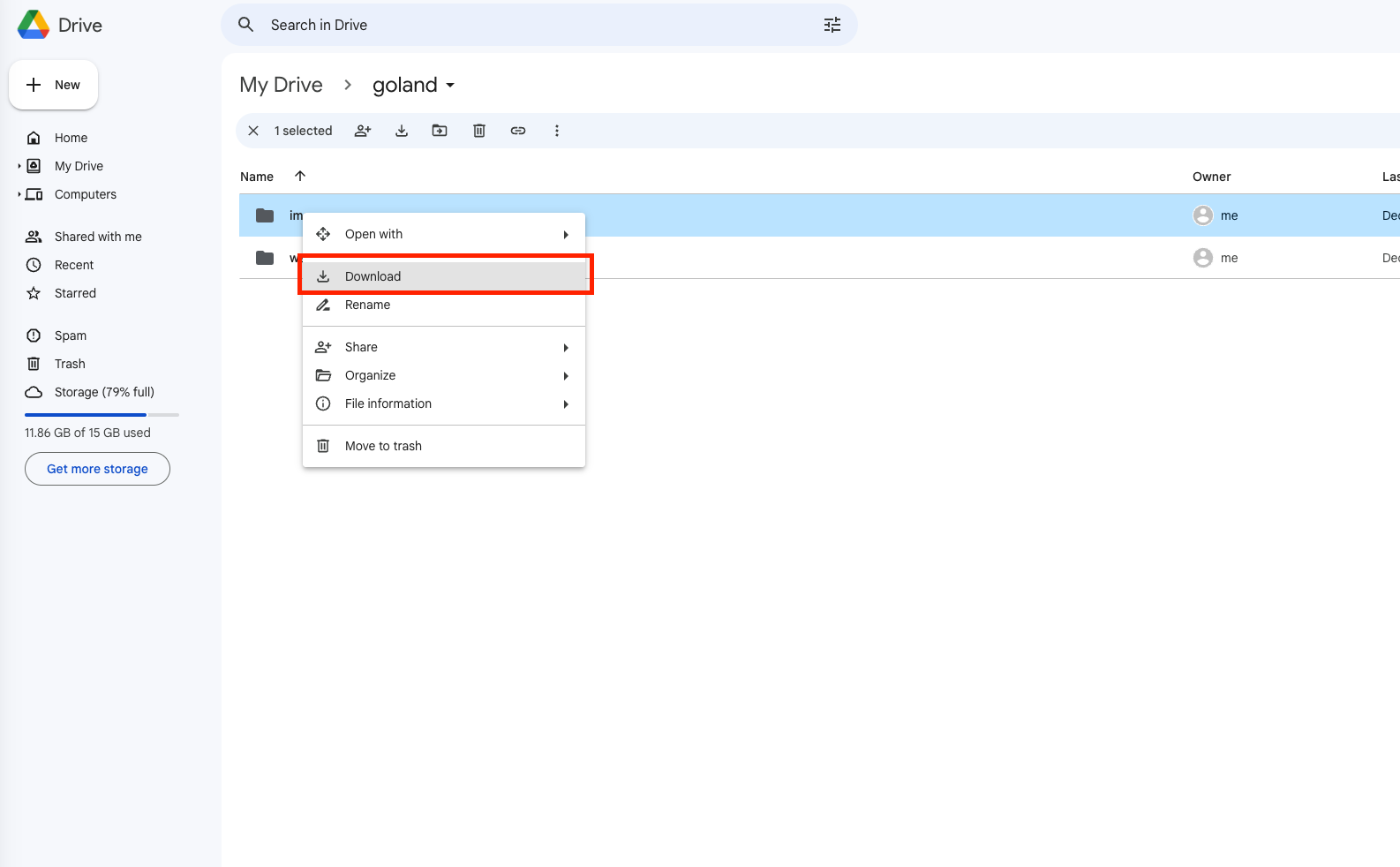
Right-click the selection and choose Download. Google Drive packages folders into ZIP archives automatically. Once the download completes, extract the archive on your local machine so individual files are ready for upload.
Step 2: Upload Files to IDrive e2
Log into the IDrive e2 web console and open the bucket where you want to store the transferred files. Click Upload and select the extracted files or folders from your local machine.
The upload speed depends on your local internet connection and the total file size. For datasets larger than a few gigabytes, browser uploads can be slow and are vulnerable to interruptions from network drops or system sleep. In those cases, using an S3-compatible CLI tool or a cloud-to-cloud transfer service is more reliable.

Method 2: Cloud-to-Cloud Transfer with CloudsLinker
Transfer Google Drive to IDrive e2 Without Local Downloads
CloudsLinker
is a browser-based transfer platform that moves data directly between cloud storage services.
It supports 40+ providers, including Google Drive and S3-compatible endpoints
like IDrive e2. Transfers run on CloudsLinker's servers, so your local machine and bandwidth
are not involved.
Step 1: Connect Your Google Drive Account
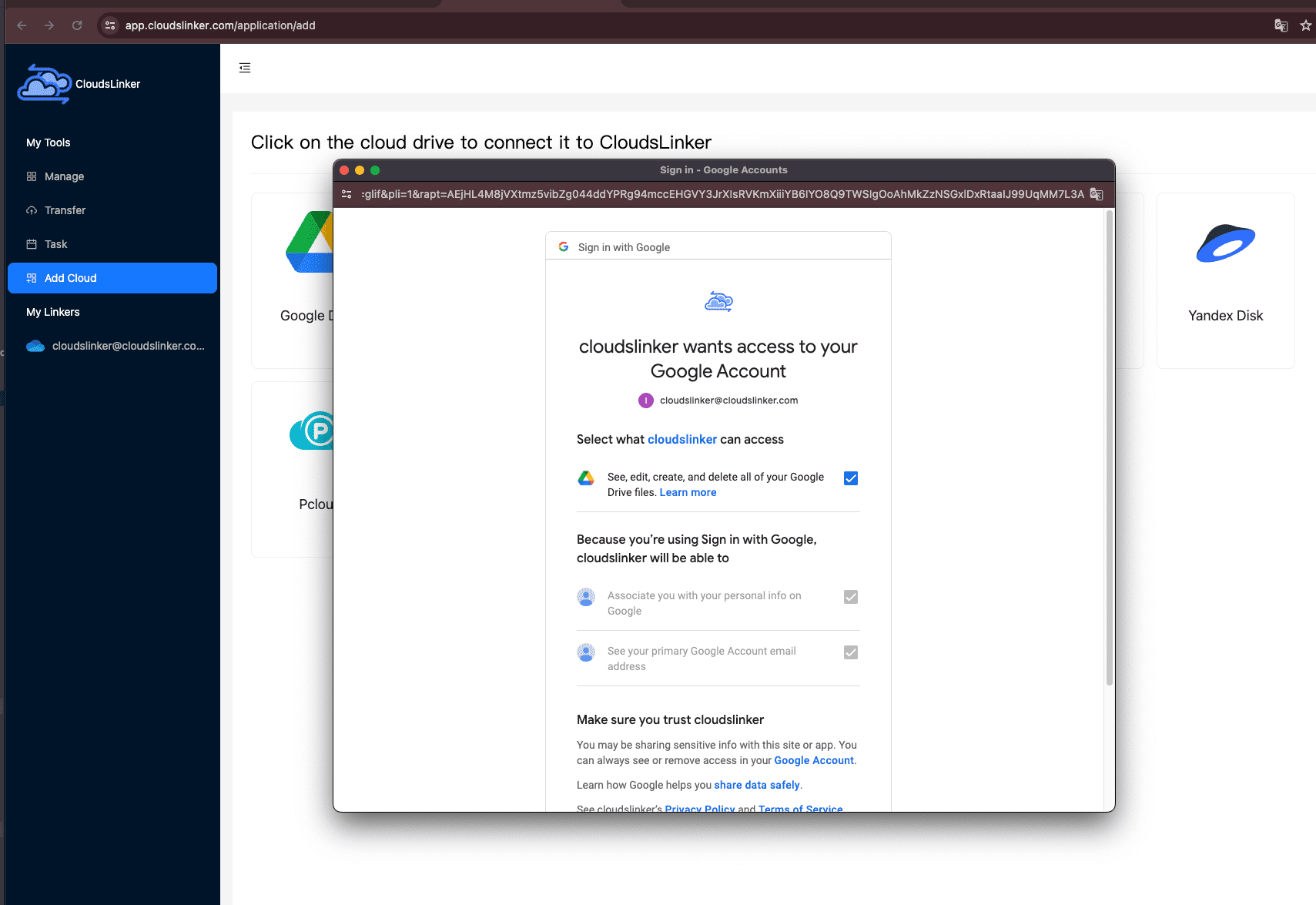
Open app.cloudslinker.com and sign in. From the dashboard, click Add Cloud and select Google Drive.
Your browser redirects to Google's OAuth authorization page. Sign in with the Google account that holds your data and approve the requested permissions. After authorization, Google Drive appears as a connected source in CloudsLinker.
Step 2: Add IDrive e2 as the Destination
Click Add Cloud again and choose IDrive e2 (listed under S3-compatible storage). You will need to enter three values from your IDrive e2 dashboard:
- Access Key ID
- Secret Access Key
- Endpoint (found under Access Keys in the IDrive e2 Dashboard)
After entering these credentials and confirming, IDrive e2 appears as a connected destination in CloudsLinker.

Step 3: Configure the Transfer Task
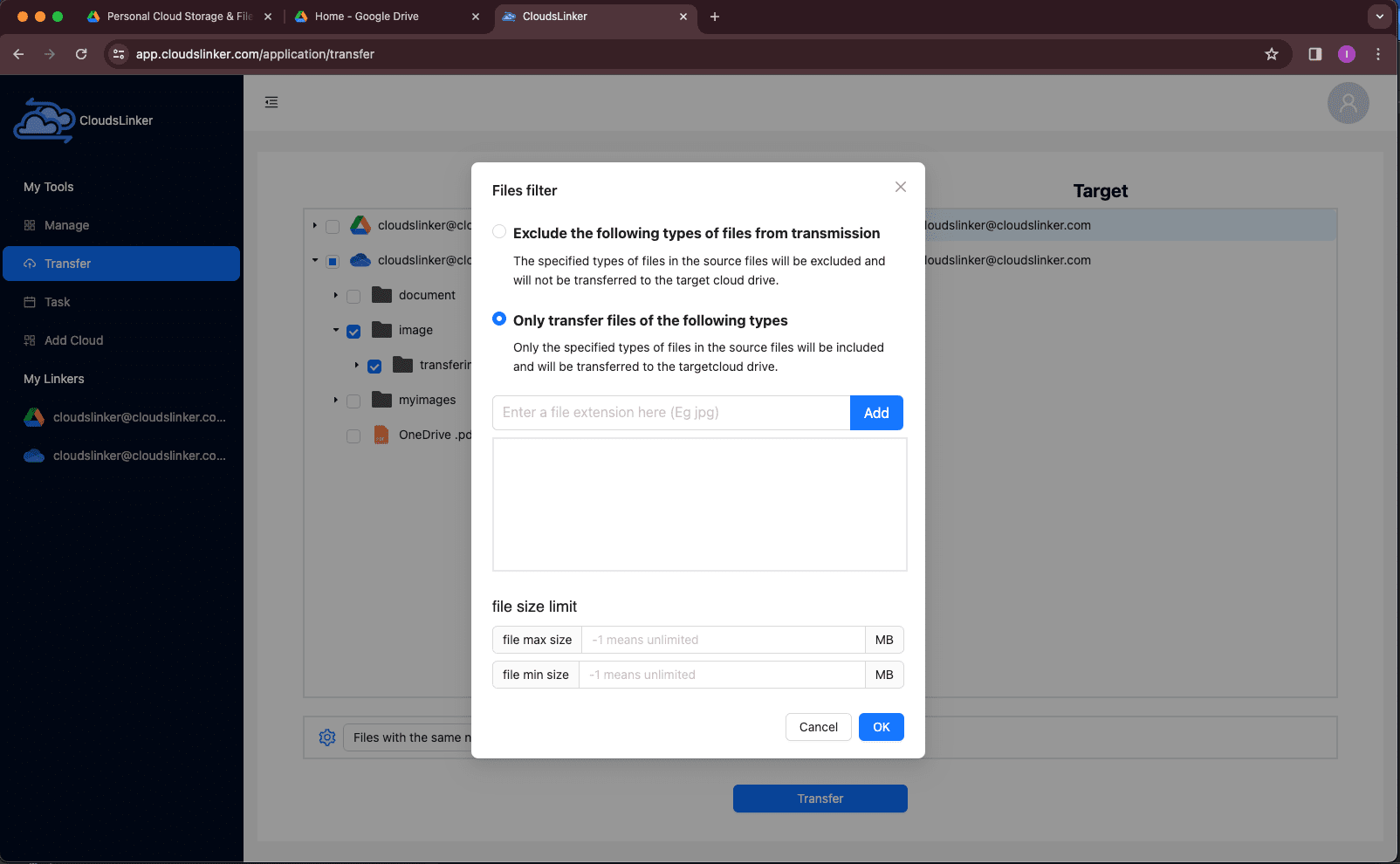
Go to the Transfer section. Select Google Drive as the source and browse to the folders or files you want to archive. On the destination side, select your connected IDrive e2 bucket and choose the target path.
CloudsLinker provides filtering options to include or exclude files by extension, size, or modification date. This is useful if you only want to archive specific file types rather than your entire Drive.

Step 4: Start the Transfer and Monitor Progress
Click Start to begin the transfer. The Task List view shows real-time progress including transferred size, file count, and estimated time remaining. Tasks continue running on CloudsLinker's servers even if you close your browser.
After the transfer completes, verify the data in your IDrive e2 bucket through the web console or an S3 client. CloudsLinker provides a completion report listing any files that encountered errors during transfer.
Method Comparison
Both methods achieve the same result, but they differ in how much manual effort and local resources are required.
| Criteria | Browser Download + Upload | CloudsLinker |
|---|---|---|
| Ease of Use | ★★★★☆ | ★★★★★ |
| Speed | ★★☆☆☆ | ★★★★★ |
| Best For | Small one-time transfers under a few GB | Large archives, recurring backups, hands-off transfers |
| Uses Local Bandwidth | Yes (download + upload) | No |
| Skill Level | Beginner | Beginner |
Manual browser transfers work for small, infrequent moves. For anything over a few gigabytes or for recurring backup schedules, CloudsLinker avoids the download-then-upload bottleneck entirely.
-
Use bucket naming conventions: Name your IDrive e2 buckets
descriptively (e.g.,
gdrive-archive-2026) so you can identify the source and purpose of data at a glance. - Enable server-side encryption: Turn on SSE in your IDrive e2 bucket settings if the archived data contains anything sensitive. This adds encryption at rest without changing your upload workflow.
- Handle Google-native files deliberately: Google Docs, Sheets, and Slides are stored as cloud-only references in Drive. On export, they convert to Office formats (.docx, .xlsx, .pptx). Confirm that these converted files meet your archival requirements.
- Choose the right region: When creating your IDrive e2 bucket, pick a data center region close to your location or your users to reduce latency during any future retrieval operations.
- Test with a sample folder: Before migrating your entire Drive, transfer a small test folder to verify that file paths, names, and contents arrive correctly in IDrive e2.
- Keep a local backup temporarily: If this is a one-way archival move, retain a local copy of the data until you have confirmed the integrity of the IDrive e2 upload. Delete the local copy only after verification.
Frequently Asked Questions
work-documents bucket and a media-archive
bucket rather than dumping everything into a single bucket. Within each bucket, use
folder prefixes to mirror your original Drive structure if that hierarchy is still
useful for retrieval.
Projects/Report.pdf in Google
Drive appears at the same path inside the destination bucket. Manual uploads
preserve structure only if you upload the extracted folders intact.
Conclusion
For a small number of files or a one-time export, downloading from Google Drive and uploading through the IDrive e2 console is straightforward. When dealing with larger datasets, recurring backups, or situations where local bandwidth is limited, CloudsLinker handles the transfer server-side without tying up your machine. Choose the method that fits the volume you need to move and how often you plan to repeat it.
Online Storage Services Supported by CloudsLinker
Transfer data between over 48 cloud services with CloudsLinker

OneDrive

Google Drive

Google Photos

Shared Drive

OneDrive for Business

Dropbox

Box

Mega

pCloud

Yandex

ProtonDrive

AWS

GCS

iDrive

Storj

DigitalOcean

Wasabi

1fichier

PikPak

TeleBox

OpenDrive

Backblaze B2

Fastmail file

SharePoint

Nextcloud

ownCloud

Premiumize me

HiDrive

Put.io

Sugar Sync

Jottacloud

Seafile

Ftp

SFtp

NAS

WebDav

4shared

Icedrive

Cloudflare R2

Scaleway

Doi

iCloud Drive

iCloud Photos

FileLU

Zoho WorkDrive

Telia Cloud / Sky

Drime

Filen
Didn' t find your cloud service? Be free to contact: [email protected]
Further Reading
Effortless FTP connect to google drive: Transfer Files in 3 Easy Ways
Learn More >
Google Photos to OneDrive: 3 Innovative Transfer Strategies
Learn More >
Google Photos to Proton Drive: 3 Effective Transfer Techniques
Learn More >