Move Google Drive to Koofr Without the 1 GB/Day Bridge Limit
Transfer Google Drive files into Koofr's EU storage in one pass — why the built-in bridge takes months for big libraries, and the server-side route around it.
Introduction
Koofr sells what the big drives don't: EU-jurisdiction storage in ISO 27001-certified German data centres, no limit on individual file size, and one-time lifetime plans that end the subscription treadmill — which is exactly why people buy a 1 TB lifetime deal and then want their Google Drive moved in. Koofr even ships a built-in bridge that links your Google Drive into its interface, and that is where migrations stall: copying through the bridge is metered at 1 GB per day on free accounts (10 GB/day on the smallest paid plan), so a 500 GB Drive library would drip across many months. This guide covers both routes — the official bridge for small moves, and a server-side copy with CloudsLinker that reads Drive over OAuth, writes through the Koofr API, and finishes a lifetime-deal consolidation in one job.
Google Drive is the default cloud for most people — 15 GB free shared with Gmail and Photos, subscription tiers through Google One, and native Docs/Sheets/Slides formats that exist only inside Google's ecosystem.
- 15 GB free, shared with Gmail + Photos
- Subscription only — no lifetime option
- 5 TB max single file; 750 GB/day upload cap
- US jurisdiction; OAuth for transfer tools
Koofr is a Slovenian cloud (running since 2013) storing all data in ISO 27001-certified German data centres: 10 GB free for life, paid plans from 25 GB (€0.5/mo) to 20 TB, popular one-time lifetime deals, and no limit on individual file size.
- 10 GB free for life; lifetime plans via StackSocial
- EU jurisdiction, German ISO 27001 data centres
- No per-file size limit
- External-cloud bridge metered at 1–10+ GB/day
| Feature | Google Drive | Koofr |
|---|---|---|
| Pricing model | Subscription (Google One tiers) | 25 GB–20 TB yearly, or one-time lifetime plans |
| Free allowance | 15 GB (shared with Gmail + Photos) | 10 GB, for life |
| Max single file | 5 TB | No published limit |
| Jurisdiction | United States | EU (Slovenia; data in Germany, ISO 27001) |
| Cross-cloud transfers | None built in | Built-in bridge, metered 1 GB/day free · 10 GB/day smallest paid tier |
| Connection in CloudsLinker | Google OAuth | Email + app password (Koofr API) |
Sources: Google: storage and upload limits, Koofr: features and pricing, Koofr: help — connected clouds transfer limits.
Size the move first: check your Drive usage at one.google.com/storage and match it against the Koofr plan (a 1 TB lifetime deal holds a lot, but the job stops at quota). Decide what stays behind — Google-native Docs you co-edit daily are better left in Drive, since they convert to Office formats on the way out. Then generate the credential CloudsLinker needs: sign in at app.koofr.net, open Preferences → Password, and create an app password — Koofr rejects the normal login password for third-party tools by design. Finally, if you were planning to use Koofr's own Google Drive connection for the move, check the daily-transfer table for your plan first; that limit is the reason this guide exists.
Method 1: Koofr's Built-in Google Drive Bridge
Step 1: Link Google Drive inside Koofr
In Koofr's web app, open Connect → Google Drive and authorize your Google account. Your Drive appears as a browsable location inside Koofr's interface alongside Koofr's own storage — genuinely convenient for viewing everything in one place.
Step 2: Copy folders across — within the daily allowance
Select folders in the linked Drive and copy them into Koofr storage. Here the meter runs: bridge transfers are capped per day by plan — 1 GB/day on free accounts, 10 GB/day on the smallest paid tier, rising with larger plans. A photo folder fits; a 500 GB library becomes a project measured in months. There is no way to pay a one-time fee to lift the cap for a single migration.
Verdict: use the bridge for browsing and occasional small copies. For consolidation-scale moves, it is the bottleneck.
Method 2: Copy Google Drive to Koofr in the Cloud
The whole library in one job, not 1 GB a day
CloudsLinker reads Google Drive over OAuth and writes into Koofr through the Koofr API with an app password — a different path from the metered bridge entirely. The copy runs server-side on data-center bandwidth, converts Google-native documents to Office formats in flight, and recreates your folder tree in Koofr in a single scheduled job.
Step 1: Connect Google Drive
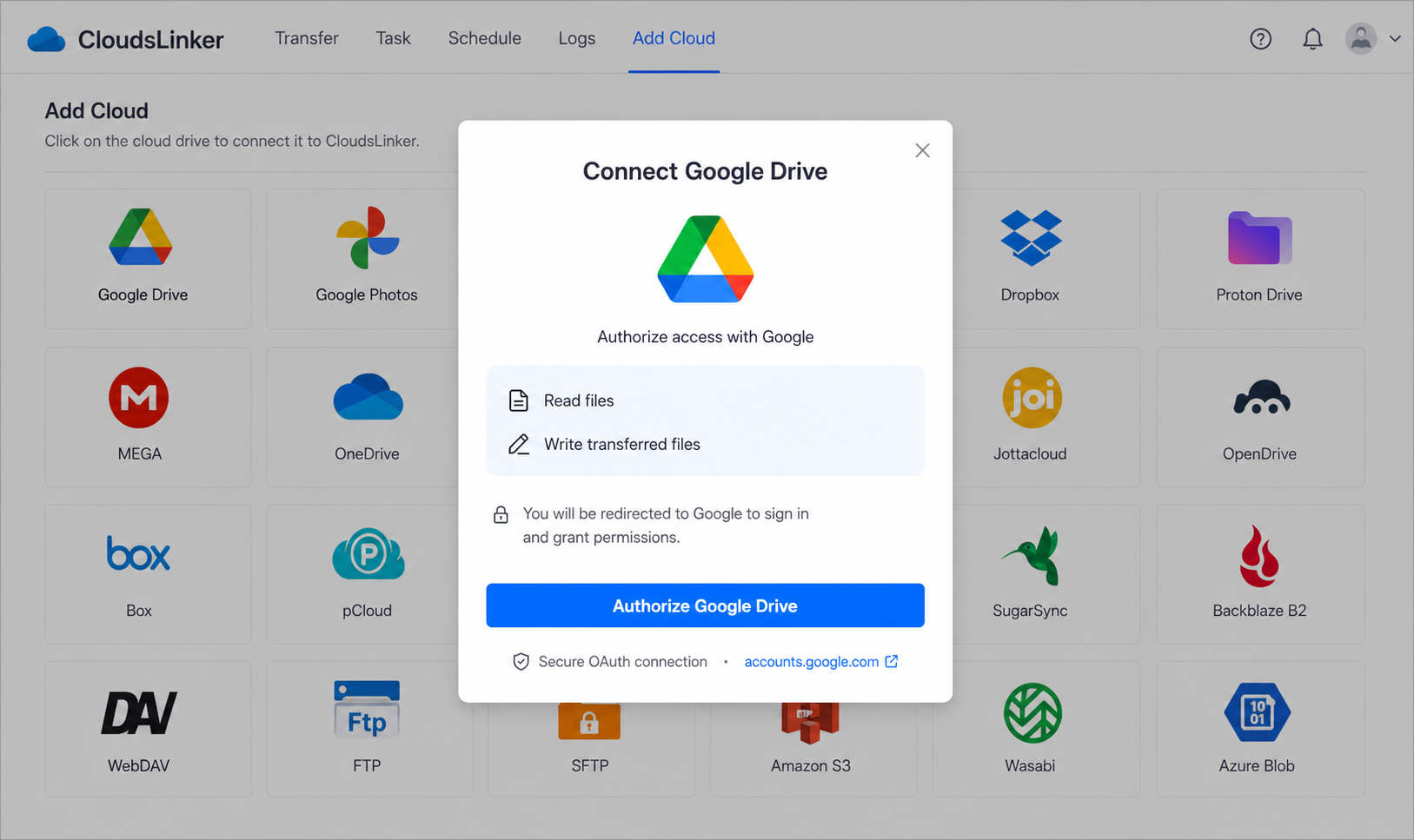
Click Add Cloud → Google Drive, sign in on Google's consent page and approve Drive access. The grant is a revocable token managed from your Google account's security settings.
Step 2: Connect Koofr
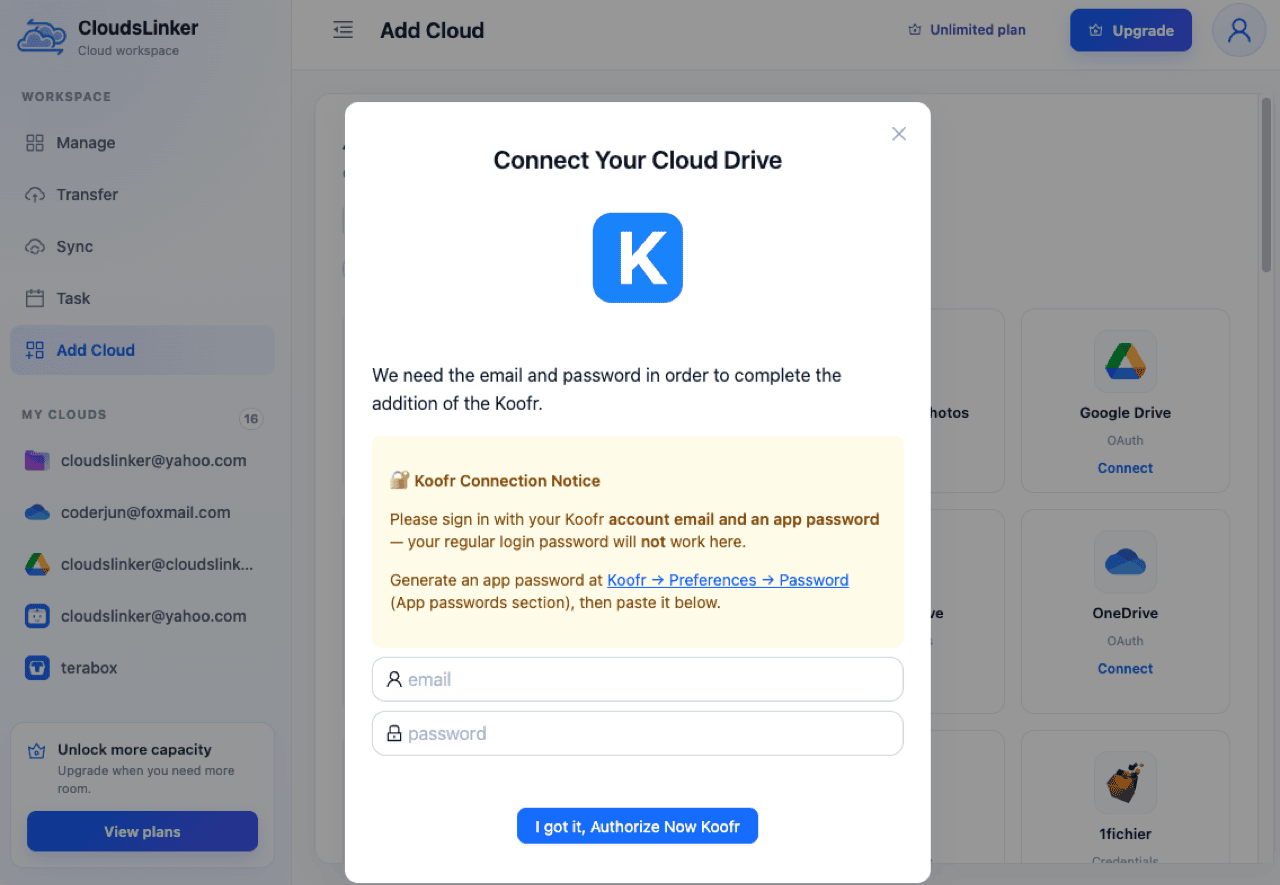
Click Add Cloud → Koofr. Enter your Koofr account email and the app password generated at app.koofr.net under Preferences → Password — the dialog's built-in notice links straight to that page. The regular login password is rejected; Koofr gates third-party access to per-tool app passwords you can revoke individually.
Step 3: Configure the Transfer
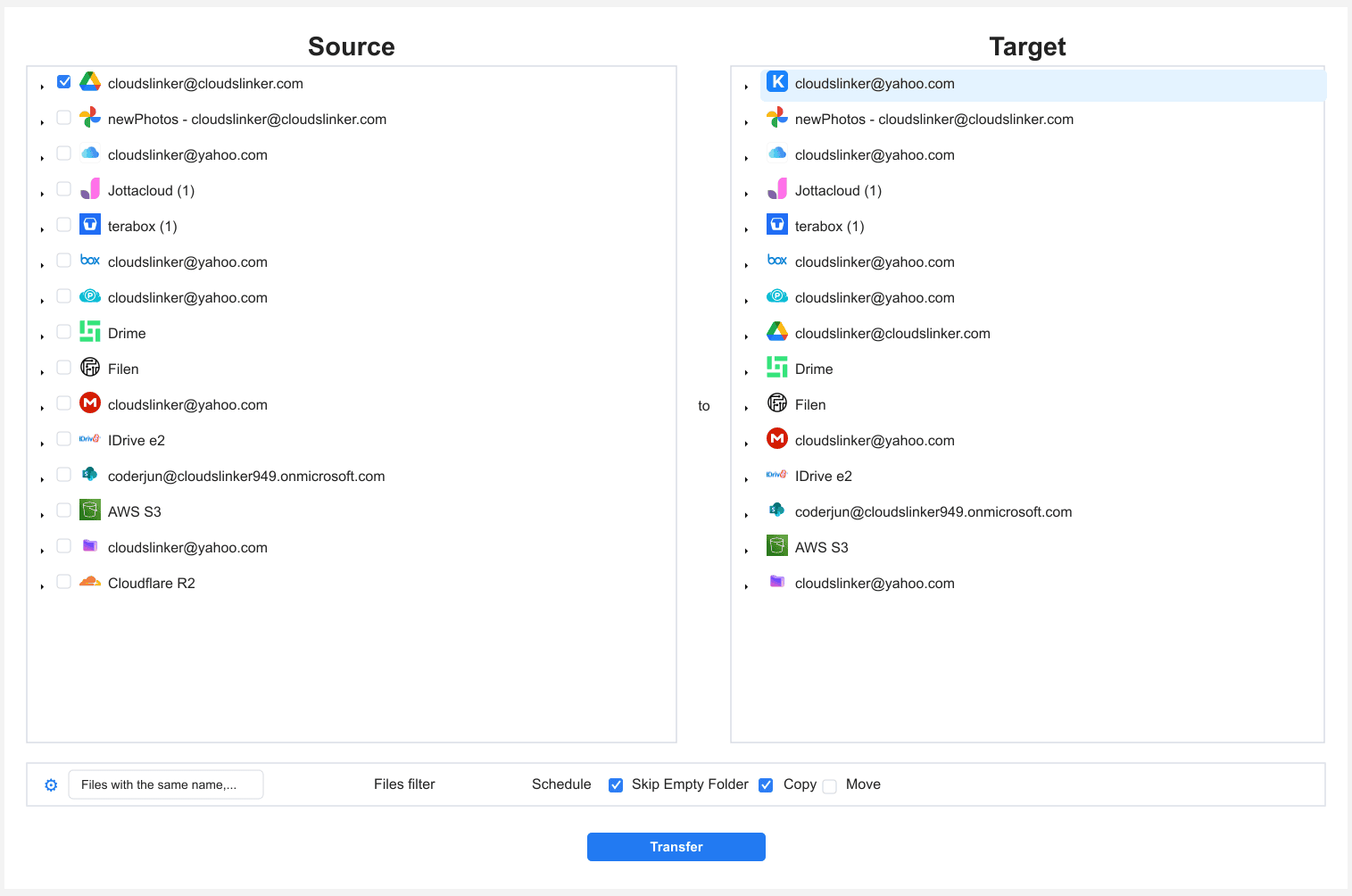
In the Transfer section, set Google Drive as the source and tick the folders to consolidate. Set Koofr as the destination and choose a target folder. Filters by type, size or date keep regenerable bulk (installers, caches) off the lifetime plan. Copy mode leaves Drive untouched until you have verified the landing.
Step 4: Start and Monitor the Transfer
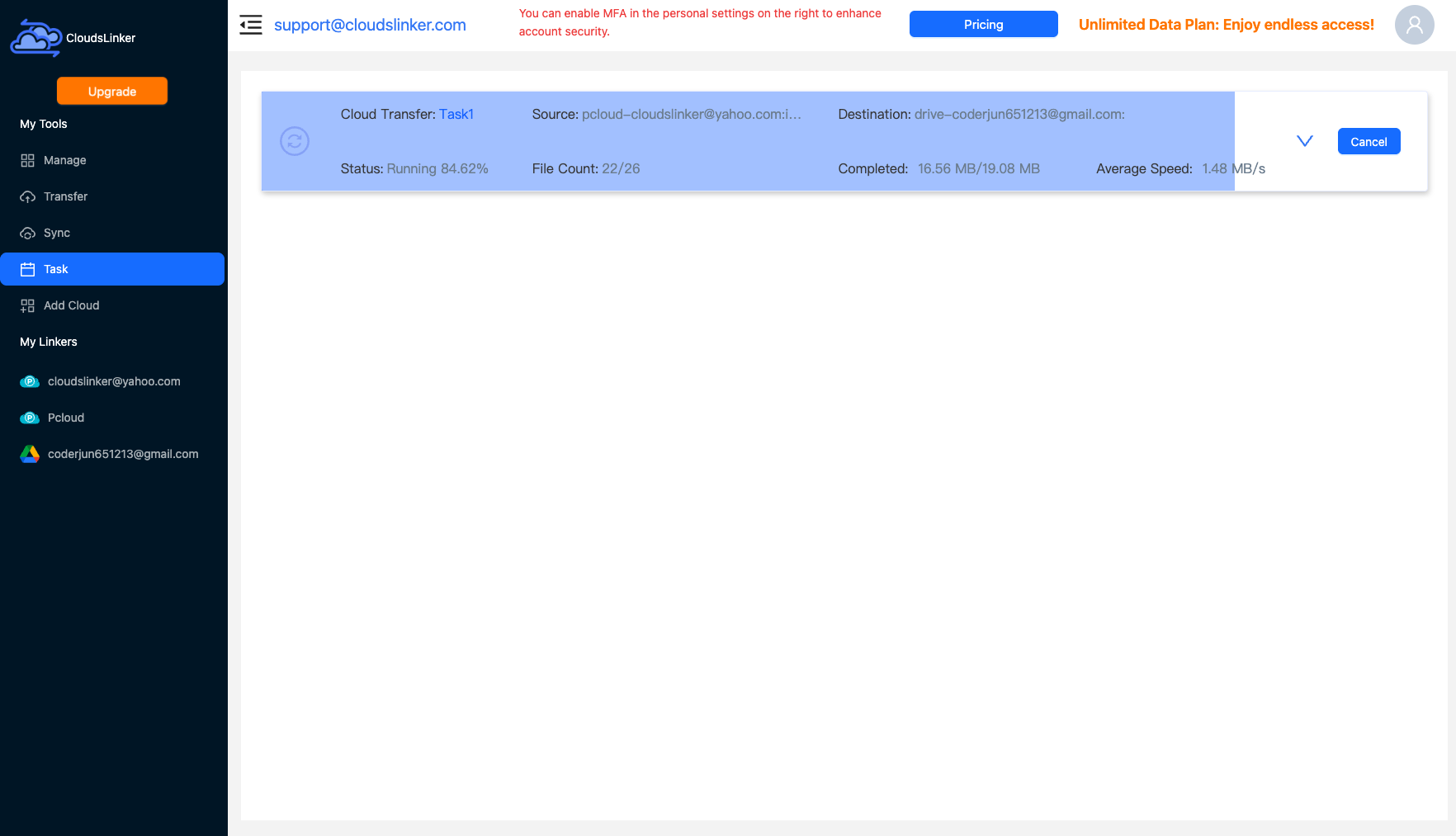
Start the job and follow it in the Task List — bytes moved, speed, files remaining. The transfer continues on CloudsLinker's servers after you close the browser, and no daily meter interrupts it.
Comparing the Ways to Transfer From Google Drive to Koofr
| Method | Ease of Use | Speed | Best For | Uses Local Bandwidth | Skill Level |
|---|---|---|---|---|---|
| Koofr's built-in bridge | Easy | Metered: 1–10+ GB per day by plan | Browsing; occasional small copies | No | Basic |
| CloudsLinker | Easy | Fast (server-side, no daily meter) | Lifetime-deal consolidations, EU repatriation | No | Basic |
- Do the math on the bridge first: divide your Drive size by your plan's daily bridge allowance. If the answer is measured in months, that is your decision made.
- Filter before you fill a lifetime plan: one-time storage is worth curating — exclude installers, exports and node_modules-style bulk with a type filter so the terabyte holds files that matter.
- Expect Office formats on arrival: Docs → .docx, Sheets → .xlsx, Slides → .pptx. Keep actively co-edited documents in Drive rather than converting them mid-collaboration.
- Use a dedicated app password: create one Koofr app password just for the migration and revoke it in Preferences afterward — your login password is never involved.
- Handle 'Shared with me' explicitly: only your own My Drive transfers; add shortcuts or copies of critical shared items into My Drive before starting.
- Mind Koofr's short free-tier trash: deletions on free accounts are recoverable for only 7 days (30 on paid). Verify the copy in Koofr before cleaning up either side.
- Consider Koofr Vault for sensitive folders: after the migration, Koofr's free open-source Vault adds client-side encryption (rclone-crypt compatible) for the subset that needs it.
Frequently Asked Questions
Conclusion
Use the built-in bridge for what it is good at: browsing your Google Drive inside Koofr and copying the occasional folder within the daily allowance. The moment the move is measured in hundreds of gigabytes — a lifetime-plan consolidation, an EU repatriation — the bridge's 1–10 GB/day metering makes it the wrong tool, and the server-side copy becomes the practical route: Google Drive by OAuth, Koofr by app password, Docs converted to Office formats on the way, folder tree intact. Keep the Drive originals until you have spot-checked what arrived; Koofr's free-tier trash keeps deletions for only 7 days.
Online Storage Services Supported by CloudsLinker
Transfer data between over 58 cloud services with CloudsLinker

OneDrive

Google Drive

Google Photos

Shared Drive

OneDrive for Business

Dropbox

Box

Mega

pCloud

Yandex

ProtonDrive

AWS

GCS

iDrive

Storj

DigitalOcean

Wasabi

1fichier

PikPak

TeleBox

OpenDrive

Backblaze B2

Fastmail file

SharePoint

Nextcloud

ownCloud

Premiumize me

HiDrive

Put.io

Sugar Sync

Jottacloud

Seafile

Ftp

SFtp

NAS

WebDav

4shared

Icedrive

Cloudflare R2

Scaleway

Hetzner Object Storage

Synology C2 Object Storage

S3 Compatible

Doi

iCloud Drive

iCloud Photos

FileLU

Zoho WorkDrive

Telia Cloud / Sky

Drime

Filen

TeraBox

Internxt

Degoo

Gofile

Pixeldrain

Shade

Koofr
Didn' t find your cloud service? Be free to contact: [email protected]
Further Reading
Effortless FTP connect to google drive: Transfer Files in 3 Easy Ways
Learn More >
Google Photos to OneDrive: 3 Innovative Transfer Strategies
Learn More >
Google Photos to Proton Drive: 3 Effective Transfer Techniques
Learn More >