Google Drive to pCloud: Move to Lifetime Storage with Swiss Privacy
Move files from Google Drive to pCloud with four methods: web browser, desktop apps, Rclone, and cloud-to-cloud transfer via CloudsLinker.
Introduction
Storage you buy once, not every month — that is pCloud's main draw. A single payment covers 500 GB, 2 TB, or 10 TB that never renews, held in data centers you choose in the EU (Luxembourg) or the US. For an archive of photos and finished projects you want to keep but rarely open, paying once changes the cost equation against a subscription. pCloud also offers Crypto, client-side encryption where only you hold the key. Google Drive runs on a recurring plan, shares its 15 GB free tier with Gmail and Photos, and stores data under US-based terms. Moving a static library to pCloud swaps a monthly bill for capacity you own outright. The methods below cover the transfer, from manual uploads to a cloud-based move.
Google Drive is Google's subscription-based cloud storage. A free account includes 15 GB shared with Gmail and Google Photos, with more space sold through Google One on a monthly or yearly plan.
- Workspace integration: Built around Docs, Sheets, and Slides.
- Cross-platform access: Web, Android, iOS, Windows, and macOS.
- Real-time collaboration: Multiple editors in the same document.
- Recurring pricing: Paid storage renews monthly or annually.
- Large file support: Up to 5 TB per file on supported plans.
pCloud is a Swiss-based cloud storage service known for one-time lifetime plans. Capacity is sold as a single purchase, with data centers selectable in the EU or the US.
- Lifetime plans: Pay once for 500 GB, 2 TB, or 10 TB with no renewal.
- Region choice: Store data in Luxembourg (EU) or the US.
- pCloud Crypto: Optional client-side encryption with a key only you hold.
- Media playback: Built-in audio and video players.
- Cross-platform clients: Windows, macOS, Linux, Android, and iOS.
The two services differ most in how you pay and where data lives. Google Drive is a subscription tightly tied to Google Workspace. pCloud sells capacity once and lets you pick an EU or US data region, with optional client-side encryption.
| Feature | Google Drive | pCloud |
|---|---|---|
| Pricing Model | Monthly or yearly subscription | One-time lifetime purchase or subscription |
| Free Tier | 15 GB shared with Gmail and Photos | Up to 10 GB through referrals |
| Data Region | Google-managed, US-based terms | Choice of EU (Luxembourg) or US |
| Client-Side Encryption | Not offered for general files | pCloud Crypto (optional add-on) |
| Collaboration | Real-time co-editing in Workspace | File sharing and links, no live co-editing |
| Best Fit | Active collaboration | Long-term archives, privacy |
The shift usually comes down to cost structure and privacy rather than day-to-day collaboration. Common reasons:
- Pay once for archives: A lifetime plan replaces a recurring Google One bill for data you keep long term.
- EU data residency: Choosing Luxembourg puts files under European data protection rules.
- Client-side encryption: pCloud Crypto keeps the key on your device, so the provider cannot read those files.
- Free up the Google free tier: Offloading old files relieves the 15 GB shared with Gmail and Photos.
- Built-in media handling: Native players make pCloud practical for large photo and video libraries.
If owned capacity and privacy fit your needs better than live collaboration, the next step is choosing a transfer method for your data size.
Check how much data sits in Google Drive and how it is structured. Native Google formats — Docs, Sheets, Slides — are not regular files, so decide whether to export them to Office or PDF before moving, since pCloud stores them as static files rather than editable documents.
On the pCloud side, pick your data region when you create the account, because it cannot be changed afterward. Confirm your plan has room for the incoming data; lifetime plans come in 500 GB, 2 TB, and 10 TB tiers.
If you intend to use pCloud Crypto, plan for it as a second step. Transfers land in your regular space first, and you move sensitive files into the Crypto folder yourself afterward. For the move itself, choose a browser, Rclone, or CloudsLinker based on volume.
Method 1: Transfer with a Web Browser
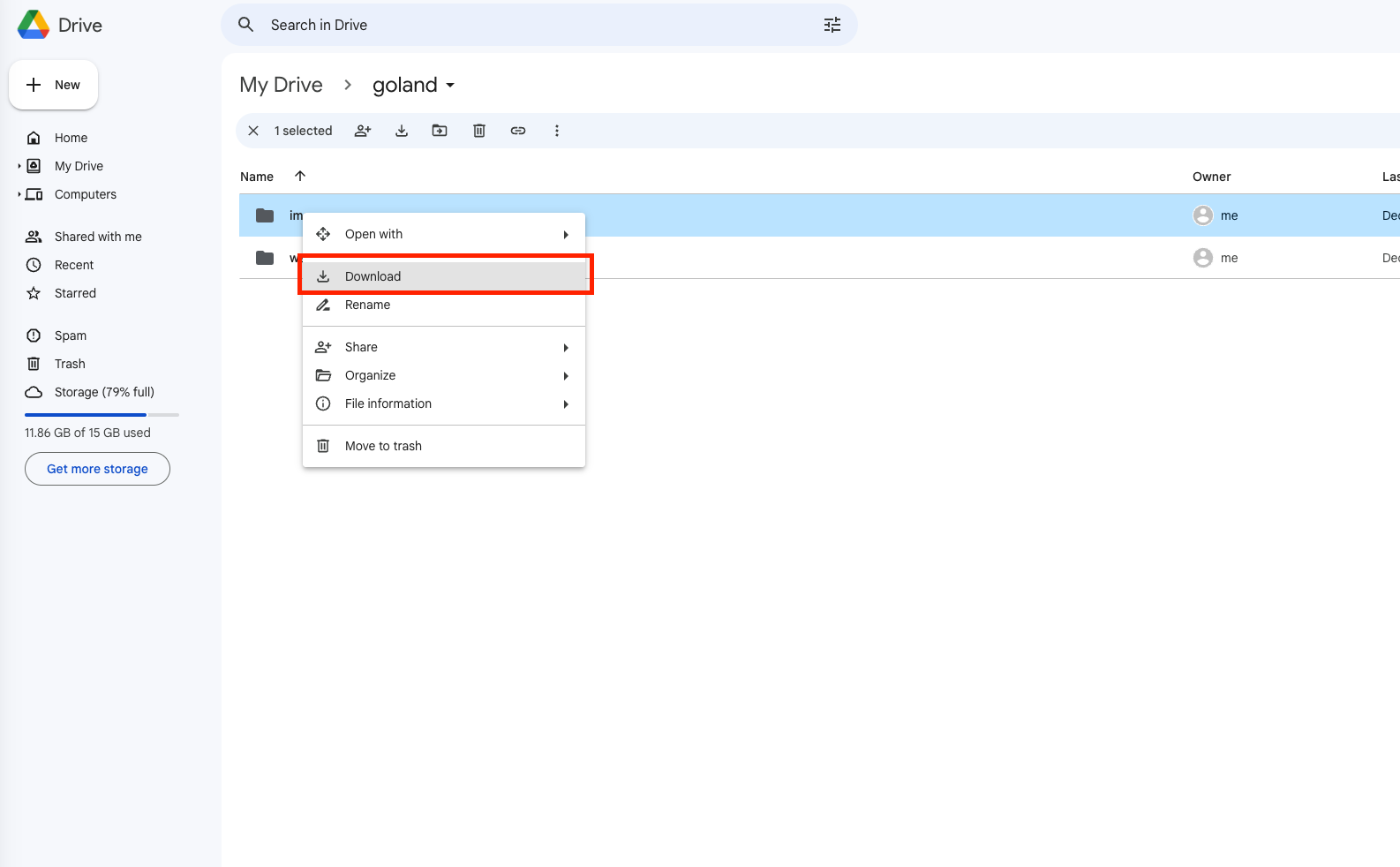
Step 1: Download Files from Google Drive
Open Google Drive and sign in. Select the files or folders you want to move and choose Download. Drive packs folders into a ZIP archive; extract it on your computer once the download finishes.
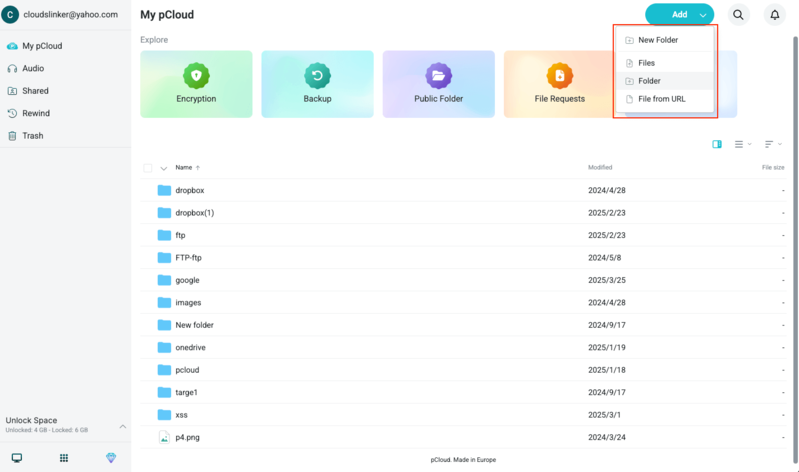
Step 2: Upload Files to pCloud
Sign in to pCloud on the web. Open the destination folder, then use Upload or drag the extracted files into the page. Recreate your folder layout as you go.
Browser transfers suit a small archive. The data downloads to your computer and uploads again, so a large Drive takes time and depends on a steady connection.
Method 2: Use Google Drive for Desktop and pCloud Drive
Step 1: Make Google Drive Files Available Locally
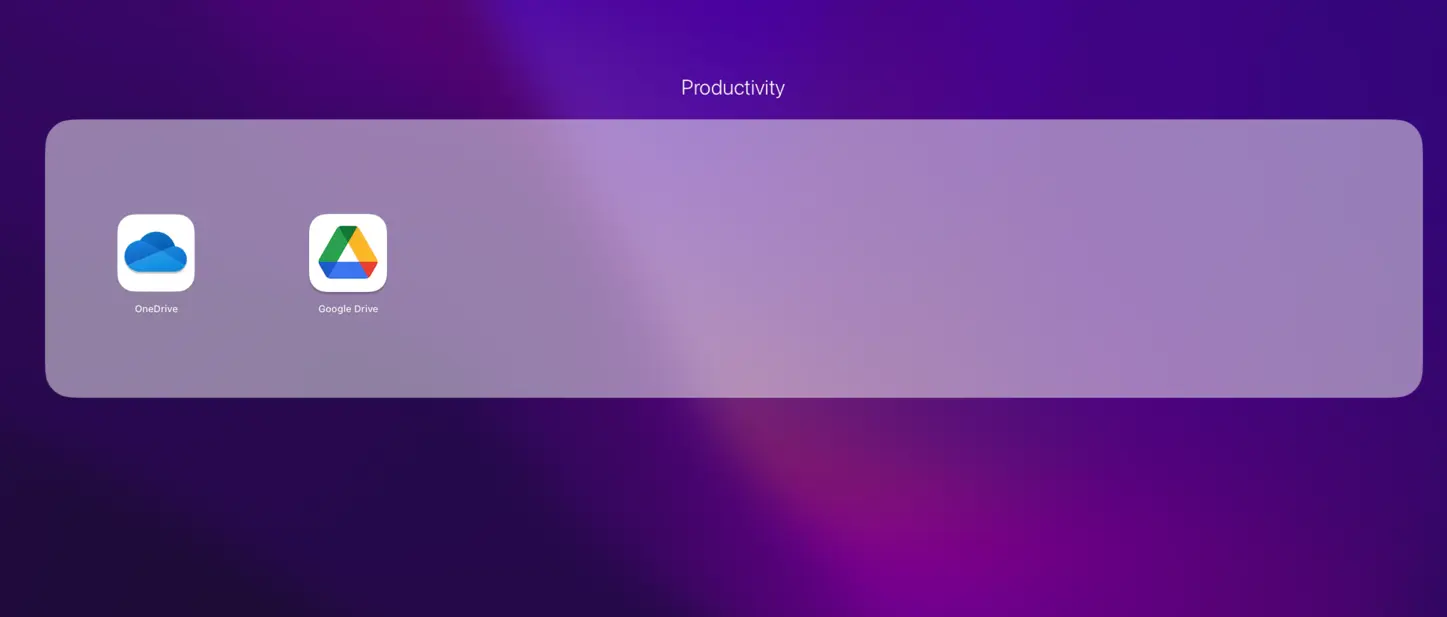
Install Google Drive for desktop and sign in. Set the folders you are moving to be available offline so they download fully rather than stream on demand.
Step 2: Copy Files into pCloud Drive
Install pCloud Drive and sign in. It mounts as a virtual drive on your system. Copy the downloaded Google Drive files into the pCloud Drive location, and the client uploads them in the background.
This approach fits a gradual, selective move and keeps a local copy in passing. The files route through your machine, so allow for disk space and upload time during the handoff.
Method 3: Command-Line Transfer with Rclone
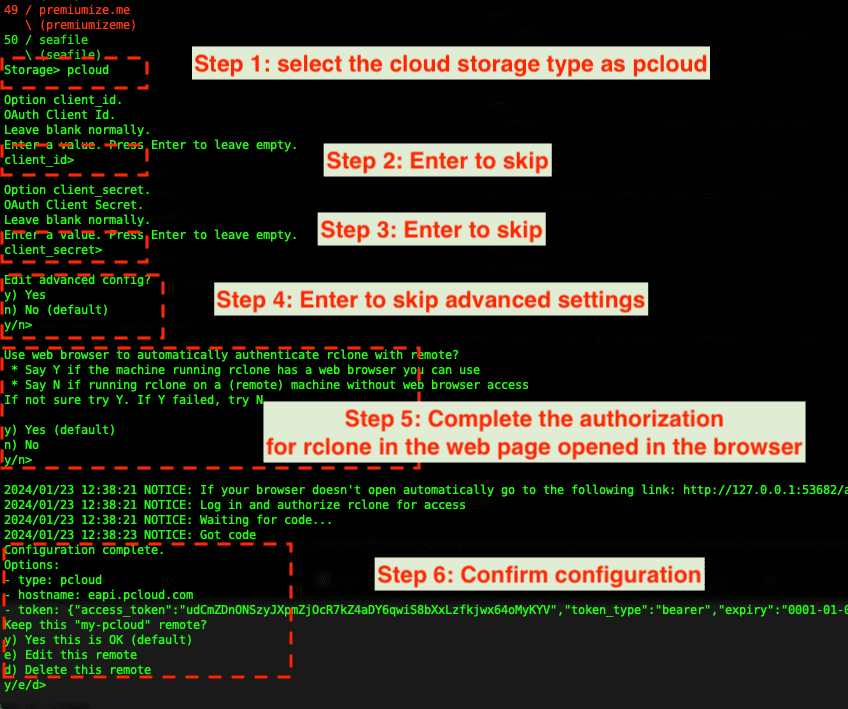
Step 1: Configure Google Drive and pCloud Remotes
Rclone supports both services directly. Run rclone config, add a drive remote for Google Drive and a pcloud remote for pCloud. Each opens a browser window for OAuth, and pCloud asks you to confirm the data region during setup.
Step 2: Run the Transfer Command
With both remotes ready, copy data between them:
rclone copy gdrive:/Archive pcloud:/Archive --progressrclone sync gdrive:/Photos pcloud:/Photos --progress --exclude "*.tmp"
The first command copies a folder; the second performs a one-way sync that skips temporary files. Add --drive-export-formats docx,xlsx,pdf to control how native Google files export, and --dry-run to preview first.
Rclone fits large archives and scheduled jobs, with fine control over filters and export formats. The cost is the terminal-based setup.
Method 4: Cloud-to-Cloud Transfer with CloudsLinker
Transfer Without Local Downloads
CloudsLinker moves files directly between cloud servers. Data does not pass through your computer, and the task keeps running after you close the browser. It connects to 40+ services, including Google Drive and pCloud.
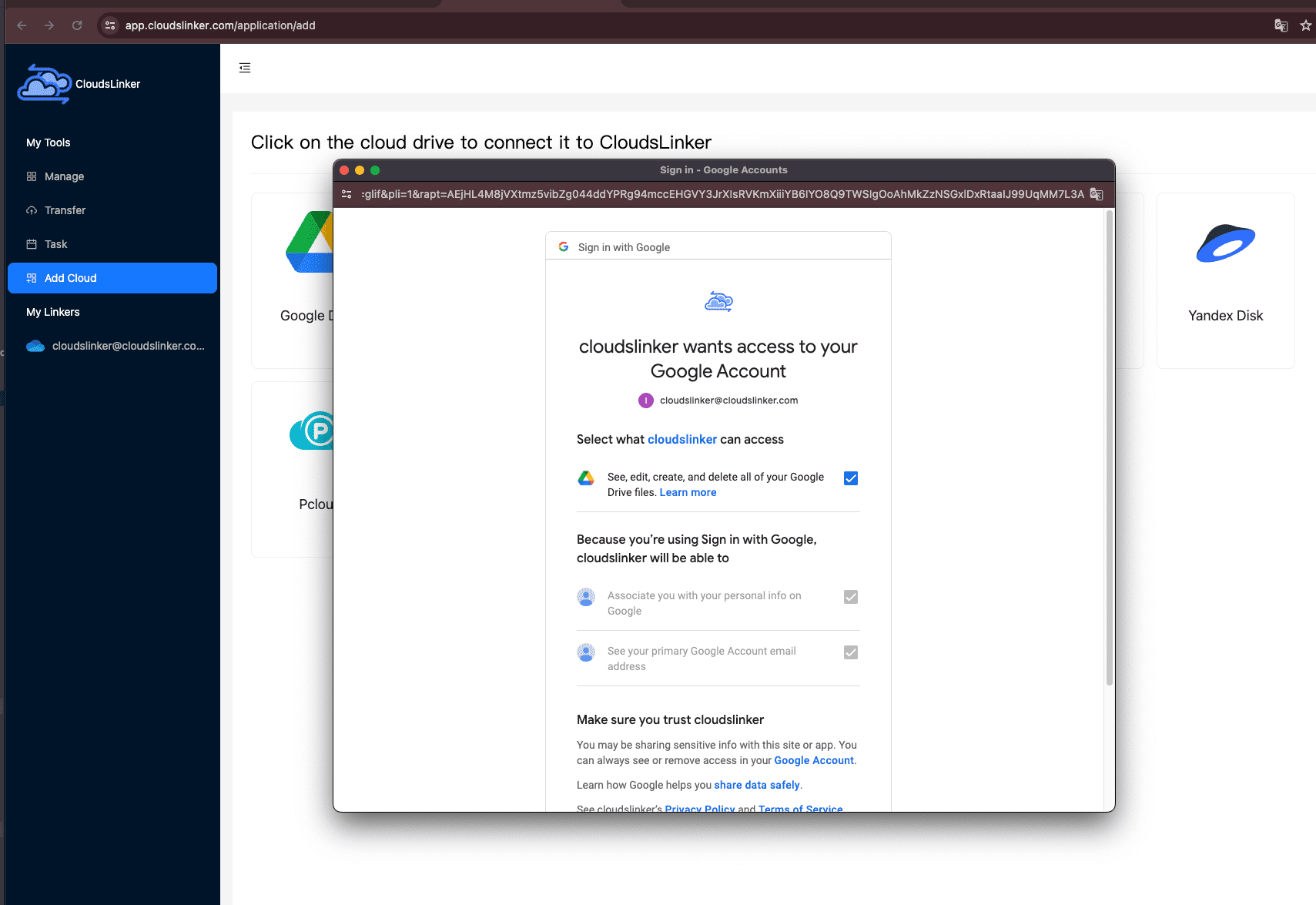
Step 1: Connect Google Drive
Sign in at app.cloudslinker.com, click Add Cloud, and select Google Drive. Approve access on Google's authorization page to link the account.
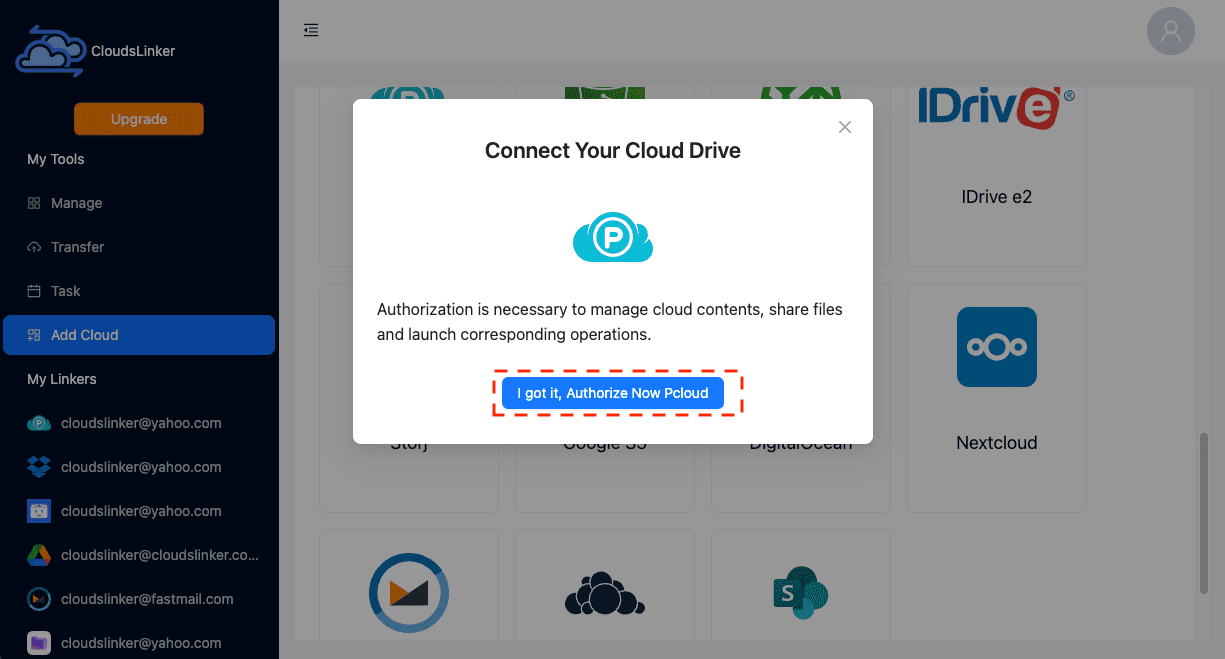
Step 2: Connect pCloud
Click Add Cloud again and select pCloud. If prompted, choose your data region (US or EU), then authorize on pCloud's official sign-in page to link the account.
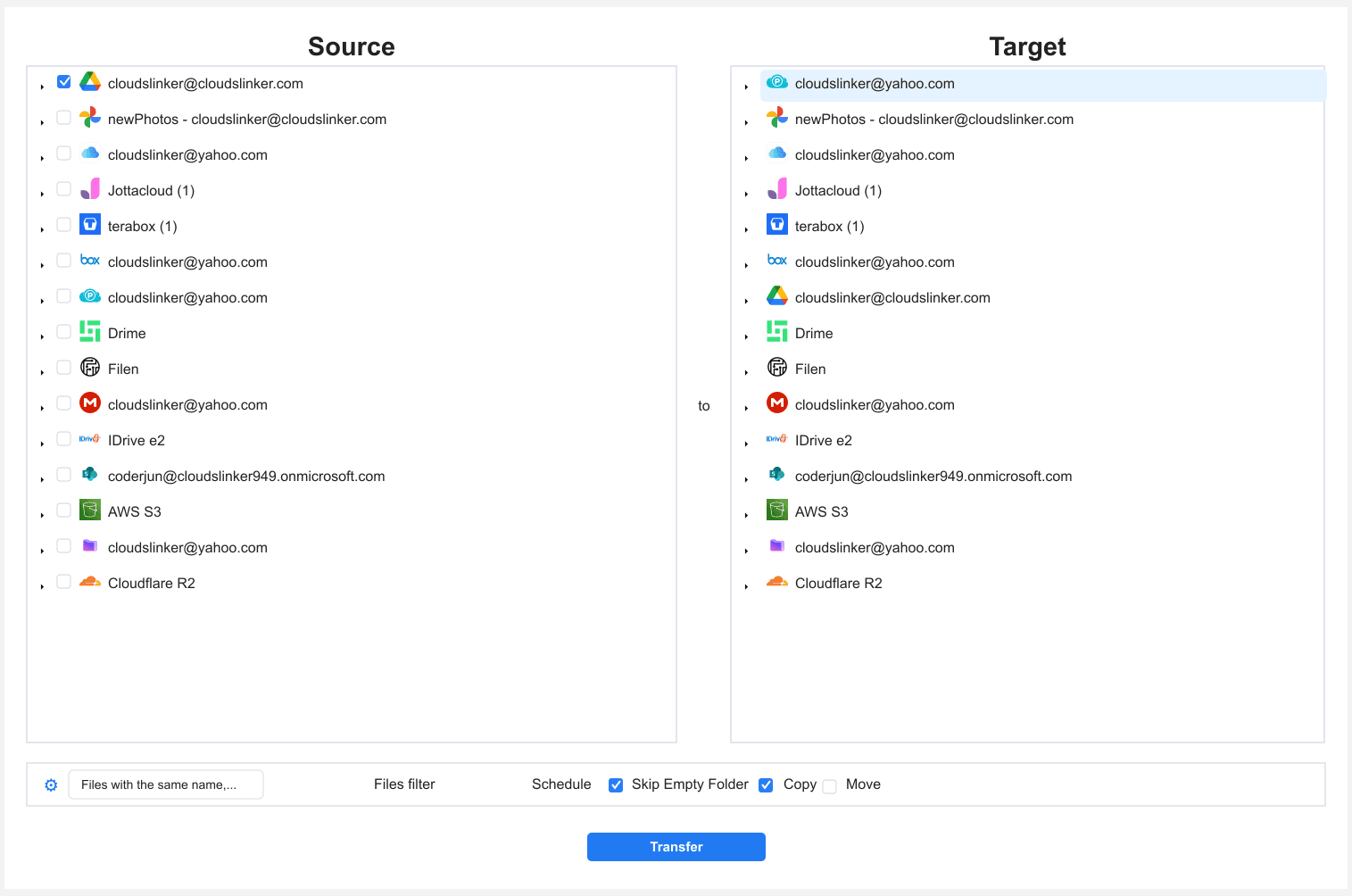
Step 3: Configure the Transfer
Open the Transfer section. Select Google Drive as the source and browse to the files or folders to move. On the destination side, select pCloud and choose the target folder.
Filters let you include only certain file types or a date range, and you can pick Copy or Move mode. Copy keeps the Google Drive originals in place.
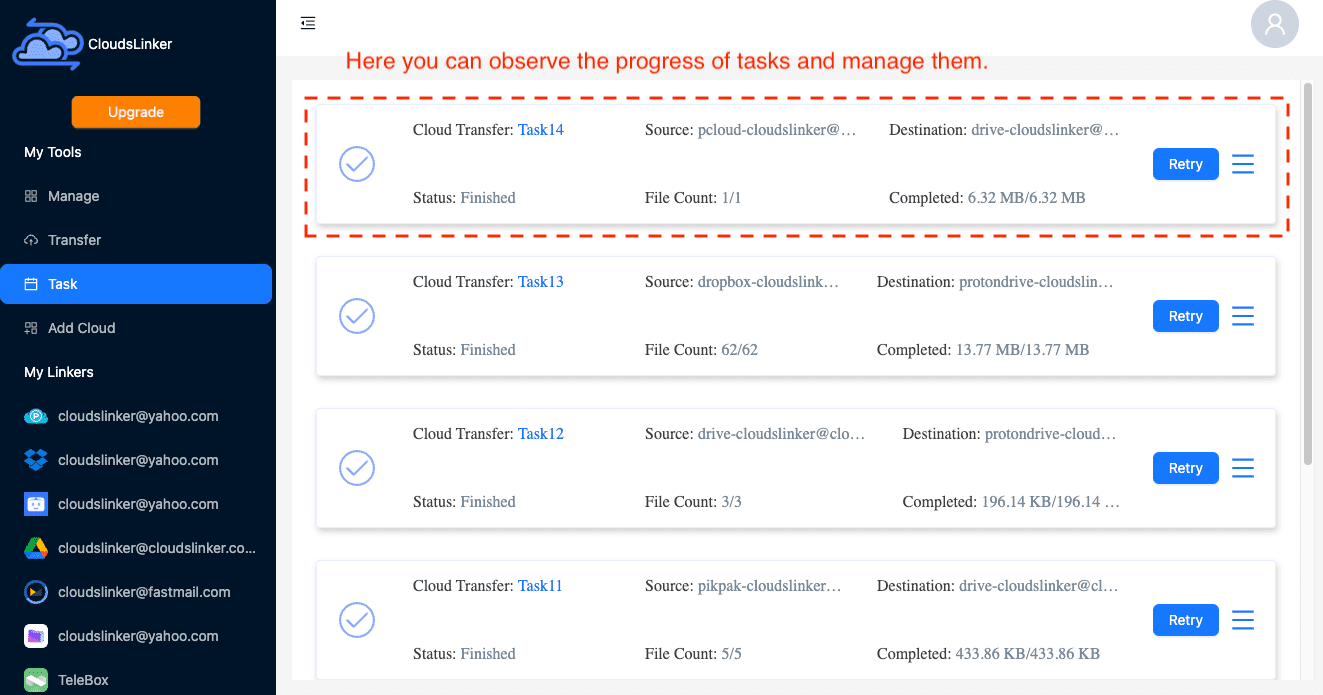
Step 4: Start and Monitor the Transfer
Start the task and track it in the Task List, which shows transferred size, speed, and remaining items. The transfer runs in the cloud, so you can close the browser and review the result when it finishes.
Comparing the Ways to Transfer From Google Drive to pCloud
| Method | Ease of Use | Speed | Best For | Uses Local Bandwidth | Skill Level |
|---|---|---|---|---|---|
| Web Browser | ★★★★★ | ★★★☆☆ | Small archives | Yes | Beginner |
| Desktop Apps | ★★★★☆ | ★★★☆☆ | Gradual, selective moves | Yes | Beginner |
| Rclone | ★★☆☆☆ | ★★★★☆ | Large libraries, export control | Yes | Advanced |
| CloudsLinker | ★★★★★ | ★★★★★ | Large, one-time archive moves | No | Beginner |
A small archive moves fine in a browser. Desktop apps help with a gradual switch, and Rclone gives control over export formats for native Google files. For a large one-time migration without local bandwidth, CloudsLinker runs everything server-side.
- Decide on Google file formats first: Docs and Sheets must export to Office or PDF; choose the format before moving so you do not end up with empty links.
- Choose the pCloud region carefully: EU or US is set at account creation and cannot be changed later, which matters for data residency.
- Crypto is a separate step: Transfers land in regular storage; move sensitive files into the Crypto folder yourself afterward.
- Match capacity to your library: Compare Drive usage to your 500 GB, 2 TB, or 10 TB plan before a full move.
- Check Shared with me items: Files shared by others are not in your Drive storage; copy them to My Drive first if you want them moved.
- Verify before deleting: Use Copy mode, confirm files open in pCloud, then clear them from Google Drive.
Frequently Asked Questions
Watch: Transfer Google Drive Files to pCloud
Screen recording of the server-to-server route: connect Google Drive and pCloud to CloudsLinker, select what to move, and start the transfer with no local download.
Conclusion
Pick the method by data size and how technical you want to get. A browser download and upload covers a small archive. Running Google Drive for desktop alongside pCloud Drive suits a gradual, selective move. Rclone gives scriptable control for large libraries. To move a large Drive without using your own bandwidth or keeping a device on, CloudsLinker runs the transfer server-side. For a one-time archive migration, the hands-off cloud route usually saves the most effort.
Online Storage Services Supported by CloudsLinker
Transfer data between over 58 cloud services with CloudsLinker

OneDrive

Google Drive

Google Photos

Shared Drive

OneDrive for Business

Dropbox

Box

Mega

pCloud

Yandex

ProtonDrive

AWS

GCS

iDrive

Storj

DigitalOcean

Wasabi

1fichier

PikPak

TeleBox

OpenDrive

Backblaze B2

Fastmail file

SharePoint

Nextcloud

ownCloud

Premiumize me

HiDrive

Put.io

Sugar Sync

Jottacloud

Seafile

Ftp

SFtp

NAS

WebDav

4shared

Icedrive

Cloudflare R2

Scaleway

Hetzner Object Storage

Synology C2 Object Storage

S3 Compatible

Doi

iCloud Drive

iCloud Photos

FileLU

Zoho WorkDrive

Telia Cloud / Sky

Drime

Filen

TeraBox

Internxt

Degoo

Gofile

Pixeldrain

Shade

Koofr
Didn' t find your cloud service? Be free to contact: [email protected]
Further Reading
Effortless FTP connect to google drive: Transfer Files in 3 Easy Ways
Learn More >
Google Photos to OneDrive: 3 Innovative Transfer Strategies
Learn More >
Google Photos to Proton Drive: 3 Effective Transfer Techniques
Learn More >