How to Transfer Files from Google Drive to Telia Sky / Cloud in 2026
Step-by-step instructions to migrate your files from Google Drive to Telia Sky / Cloud in 2026, keeping your folder layout intact and moving data with minimal hassle.
Introduction
Google Drive remains one of the most widely adopted cloud storage platforms for individuals and businesses alike, thanks to its seamless integration with Google Workspace and intuitive interface. Yet, there are scenarios where you might want to consolidate, back up, or relocate data to a different cloud platform—especially services like Telia Sky / Cloud that offer unlimited storage and strong regional privacy protections under Norwegian law. This guide walks through how to safely and efficiently transfer your files from Google Drive to Telia Sky / Cloud without unnecessary manual download/upload steps.
Telia Sky (also branded as Telia Cloud in some Nordic markets) is a cloud service aimed at people who want their files to be backed up automatically and available on every device, without worrying about quotas or file types. As long as you are a Telia internet or mobile customer, you can store essentially all your photos, videos and documents in one place and access them from phone, tablet or desktop.
Unlike generic cloud drives that meter you by gigabytes, Telia Sky focuses on unlimited storage and simple backup. Your data is stored on servers in Norway under strict local privacy rules, which is a big plus if you care about where your files actually live and how they are protected. Combined with automatic sync clients and mobile apps, it works both as a long-term archive and as a day-to-day file library.
- Unlimited Storage: Keep as many photos, videos and documents as you like without constantly monitoring remaining space.
- Automatic Backup & Sync: Desktop and mobile apps can back up folders and camera rolls in the background so your Google Drive exports and local files are always mirrored to the cloud.
- Access on Every Device: Log in from web, phone or computer and pick up exactly where you left off, whether you’re browsing family albums or work archives.
- Strong Privacy & Local Hosting: Files are stored on Norwegian servers and handled under some of the world’s strictest privacy regulations, which is reassuring for both personal and business use.
- All File Types Welcome: Photos, videos, raw project folders, ZIP archives, design files and office documents can all be stored in the same account without format limitations.
Once your data has been moved from Google Drive using a cloud-to-cloud tool like CloudsLinker, Telia Sky / Cloud becomes a single, dependable home for your library – a place where large backups, everyday working files and family photos can comfortably coexist.
Google Drive has become one of the most widely used cloud storage platforms in the world, largely because it blends storage, collaboration and productivity into a single ecosystem. Whether you’re working with Google Docs, Sheets and Slides, attaching files in Gmail or sharing resources across teams, Drive quietly sits in the background as the central hub where everything lives.
What makes Google Drive especially powerful is how naturally it fits into everyday workflows. Files can be created online, edited from anywhere, shared instantly with colleagues, and synchronized across multiple devices without complex setup. For education, business or personal use, it offers a flexible environment where documents, media files and project folders are always within reach, as long as you are connected.
- Deep Google Workspace Integration: Seamlessly connects with Docs, Sheets, Slides, Gmail and other Google services for smooth daily collaboration.
- Real-Time Collaboration: Multiple users can edit the same file simultaneously, leave comments and track changes without confusion.
- Cross-Device Availability: Access your files from web, desktop sync clients or mobile apps, ensuring your data follows you wherever you go.
- Secure Sharing & Permissions: Easily grant view or edit rights, generate share links and manage access at a detailed level.
- Supports a Wide Range of File Types: From documents and PDFs to images, media files, archives and large project folders, Google Drive handles it all.
Over time, many users begin considering a secondary or alternative home for their data — whether to reduce storage limits, move content closer to Nordic privacy regulations, or create a long-term backup archive. That’s why transferring files from Google Drive to Telia Sky / Cloud has become an increasingly practical option for people who want both convenience and peace of mind.
Google Drive has served millions of users extremely well as a collaboration-friendly cloud platform, especially thanks to Google Docs, Sheets and Slides. However, not everyone is looking for a “productivity-first” cloud service. Many users and families simply want a secure, reliable place to store everything they care about – without worrying about storage quotas, scattered files or where their data is physically hosted. That’s where Telia Sky / Cloud starts to stand out.
- Storage Limits vs. Unlimited Space: Google Drive plans are bound by storage tiers, which means you eventually have to upgrade, reorganize or delete. Telia Sky / Cloud focuses on truly unlimited storage, making it easier to keep photos, videos, backups and archives without constantly checking available space.
- Privacy & Data Location: With Google Drive, data is typically stored across global data centers. Telia Sky / Cloud stores your files on servers in Norway, protected under strict Nordic privacy regulations — an attractive benefit for users who prefer clearer regional data control.
- Backup-Oriented Rather Than App-Centric: Google Drive excels at online productivity and collaboration, while Telia Sky / Cloud is built more like a dependable long-term vault. Automatic backups, simple device syncing and a “set-it-and-forget-it” design make it ideal for people who mainly want safety and convenience.
For anyone who has outgrown Google Drive’s storage limits, wants files stored in the Nordic region, or simply prefers an unlimited and straightforward cloud experience, moving data from Google Drive to Telia Sky / Cloud becomes a natural and future-proof step.
Before moving your files from Google Drive to Telia Sky / Cloud, it’s worth spending a few minutes making sure everything is organized and ready. A little preparation helps ensure the migration runs smoothly, avoids unnecessary clutter being transferred, and makes it easier to keep your data tidy once it arrives in its new cloud home.
- Review Your Google Drive Structure: Take a quick look through your existing folders and decide what truly needs to be migrated. Old downloads, temporary files or outdated project folders may be better left behind instead of moving everything blindly.
- Check Access & Permissions: Make sure your Google account has full access to the files you’re transferring and that shared items are visible to your Drive. If you’re using a work or school account, confirm that external data transfer is allowed by your organization.
- Keep a Safety Copy: Although cloud-to-cloud transfers are generally reliable, it’s always smart to keep an extra backup of important files — either locally or in another storage location — before you begin the migration.
How to Transfer Files from Google Drive to Telia Sky / Cloud
Why Use CloudsLinker for Google Drive → Telia Migration?
Moving data manually from Google Drive into Telia Sky / Cloud can quickly become inefficient — downloading files to your computer, waiting for uploads to finish, worrying about interruptions and duplicate content. CloudsLinker eliminates that hassle by transferring files directly in the cloud, without consuming your local bandwidth and while keeping the migration organized and traceable.
Step 1: Sign in to CloudsLinker
Visit app.cloudslinker.com and log in (or create an account if this is your first time). Once inside the dashboard, click Add Cloud to begin connecting Google Drive and Telia Sky / Cloud.
Step 2: Add Google Drive as the Source
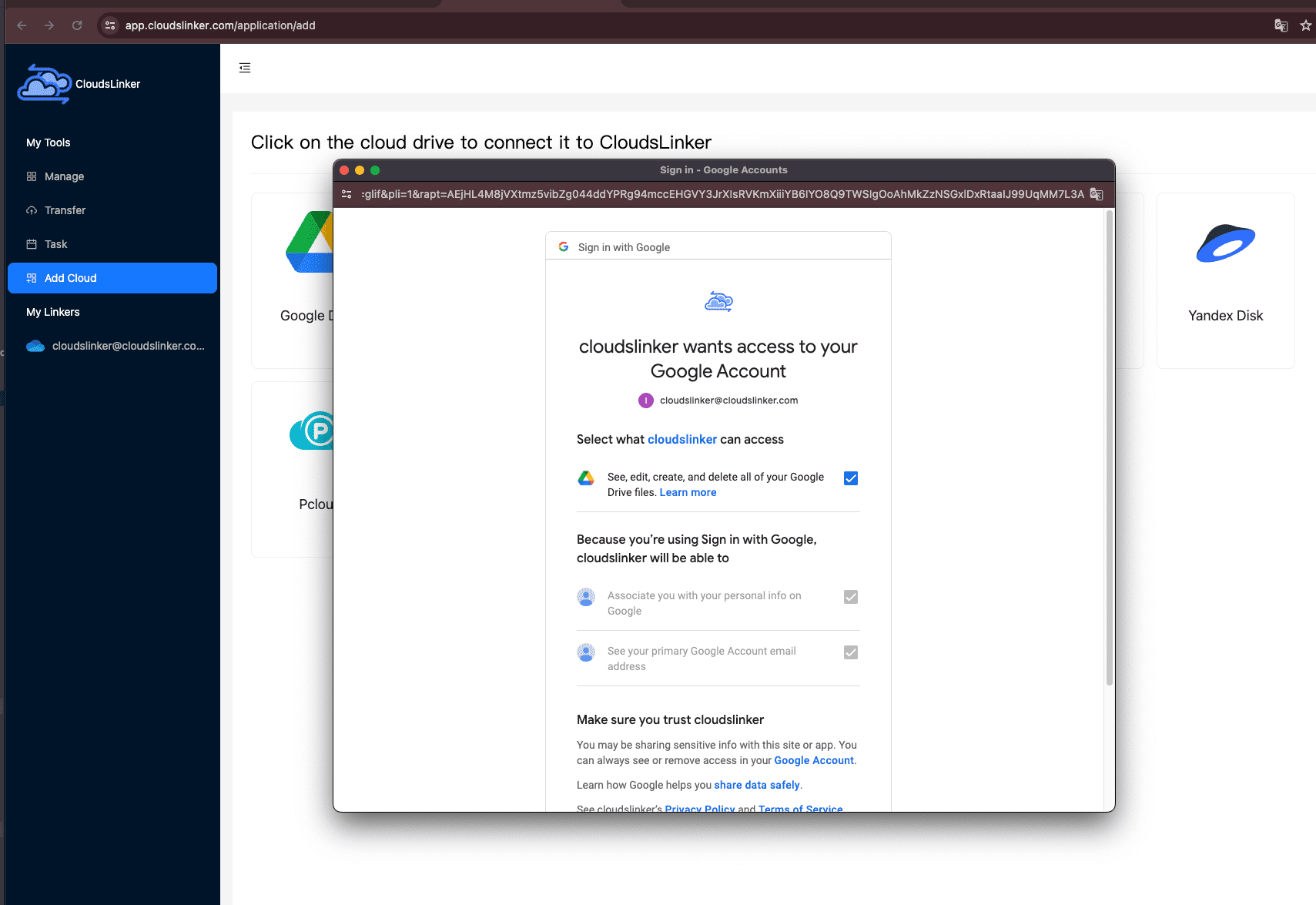
In Add Cloud, choose Google Drive. Continue through the Google OAuth login page and grant permission so CloudsLinker can read your files (only for transfer purposes).
After authorization, Google Drive will appear in your cloud list and can now be selected as the source storage.
Step 3: Add Telia Sky / Cloud as the Destination
Return to Add Cloud and select Telia Sky / Cloud. Since Telia requires local authorization, you will need to download the CloudsLinker local authorization client.

After installation, open the client, locate Telia,
then choose your region (no for Norway or se for Sweden).
Once selected, click Add. A browser window will open to guide you through
Telia’s
official login and authorization process.
When authorization is completed, return to CloudsLinker and you’ll see Telia Sky / Cloud successfully added to your connected clouds.

Step 4: Create a Transfer Task
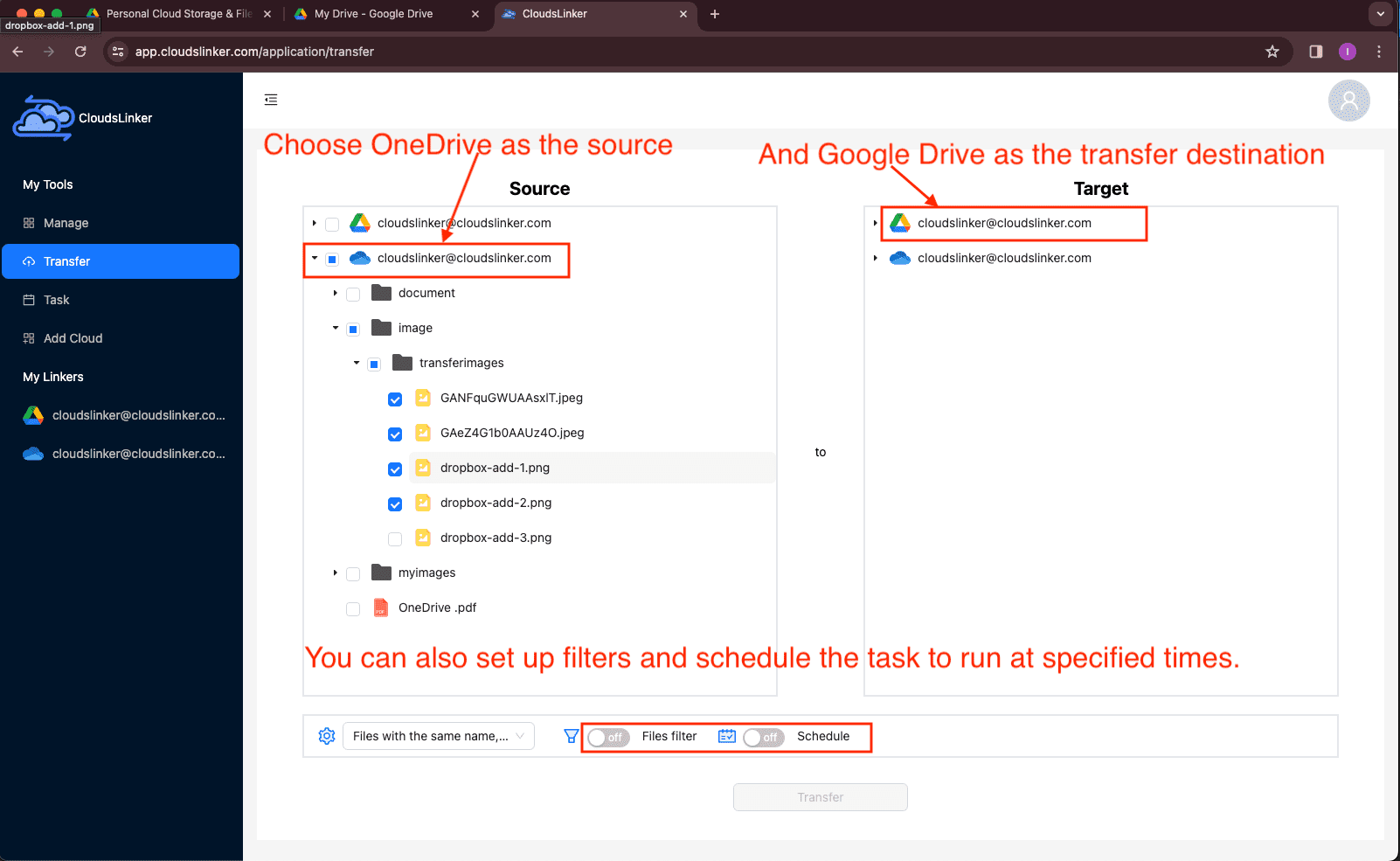
Open the Transfer section. Set Google Drive as the source and Telia Sky / Cloud as the destination, then browse and select the folders or files you want to migrate.
If your Google Drive is large, it’s usually better to start with one or two main folders first. Once you confirm everything is landing correctly in Telia, you can continue migrating the remaining data.
Step 5: Configure Transfer Options
Before launching the job, review your transfer preferences:
- Choose Copy or Move mode (copy is recommended for your first run).
- Handle duplicates by skipping or overwriting existing files.
- Filter file types if you only want to transfer certain categories.
- Schedule the task if you plan ongoing Google Drive → Telia synchronization.
When everything looks right, click Start Transfer.
Step 6: Monitor Task Progress
Head over to the Tasks panel to track live progress. You’ll be able to see transfer speed, completion percentage, and can pause or resume if needed.
If anything fails, review the task details. Common causes include expired authorization, permission issues, or network interruptions during Telia authorization. Simply fix the issue and rerun the affected portion.
Step 7: Verify Files in Telia Sky / Cloud
Once complete, open Telia Sky / Cloud and verify:
- Folder structure matches your Google Drive selection.
- Important folders contain the correct number of files.
- Files open normally.
If any specific folder needs to be re-transferred, simply run a targeted transfer for that directory instead of repeating the whole migration.
With direct cloud-to-cloud transmission, CloudsLinker makes transferring from Google Drive to Telia Sky / Cloud far easier to manage, especially when dealing with large libraries or repeated data movement.
Frequently Asked Questions
no for Norway or se for Sweden.
Selecting the wrong region may cause the authorization page to fail or prevent transfers
from running correctly.
Conclusion
Migrating your content from Google Drive over to Telia Sky / Cloud doesn’t need to be a drawn-out chore. With a clear migration plan and the right toolset, you can execute the transfer reliably while preserving the structure of your data. Once your files reside in Telia Sky / Cloud, you’ll benefit from unlimited storage options, cross-device access, and peace of mind knowing your files are stored securely within the Nordic region’s privacy framework, simplifying access and collaboration going forward.
Online Storage Services Supported by CloudsLinker
Transfer data between over 48 cloud services with CloudsLinker

OneDrive

Google Drive

Google Photos

Shared Drive

OneDrive for Business

Dropbox

Box

Mega

pCloud

Yandex

ProtonDrive

AWS

GCS

iDrive

Storj

DigitalOcean

Wasabi

1fichier

PikPak

TeleBox

OpenDrive

Backblaze B2

Fastmail file

SharePoint

Nextcloud

ownCloud

Premiumize me

HiDrive

Put.io

Sugar Sync

Jottacloud

Seafile

Ftp

SFtp

NAS

WebDav

4shared

Icedrive

Cloudflare R2

Scaleway

Doi

iCloud Drive

iCloud Photos

FileLU

Zoho WorkDrive

Telia Cloud / Sky

Drime

Filen
Didn' t find your cloud service? Be free to contact: [email protected]
Further Reading
Effortless FTP connect to google drive: Transfer Files in 3 Easy Ways
Learn More >
Google Photos to OneDrive: 3 Innovative Transfer Strategies
Learn More >
Google Photos to Proton Drive: 3 Effective Transfer Techniques
Learn More >