Google Drive to TeraBox: Trading 15 GB Free for 1 TB on a Realistic Migration
Move files from Google Drive (15 GB free) to TeraBox (1 TB free, 4 GB file cap). Three honest methods, the limits that actually bite, and a step-by-step walkthrough.
Introduction
Google Drive's 15 GB free tier shares space with Gmail and Google Photos, so the working ceiling for files alone is often closer to 8–10 GB before mail attachments and photo backups push the account over. TeraBox advertises 1 TB free — orders of magnitude more raw capacity — and that headline alone is what brings most users to a migration. The trade-off is real: TeraBox caps a single free file at 4 GB and limits the practical free archive to about 80 GB once the 20-large-file ceiling kicks in, downloads on the free tier throttle to roughly 200–800 KB/s, and there is no public OAuth API, so any third-party transfer tool must authenticate through a browser session cookie. This guide walks through three methods that actually work for a Google Drive → TeraBox move, including what each one costs in time, bandwidth, and trust.
Google Drive is the file-storage layer of Google Workspace. The free tier provides 15 GB shared across Drive, Gmail, and Google Photos, with paid tiers under Google One starting at $1.99/month for 100 GB and rising to 2 TB for $9.99/month and 5 TB for $24.99/month.
- Per-file upload cap: 5 TB on paid plans; 750 GB/day API upload quota per user.
- OAuth-based access: third-party tools authenticate through
accounts.google.comwith revocable scopes. - Native formats: Google Docs, Sheets, and Slides do not exist as files outside Drive — they must be exported on the way out.
- Trash retention: 30 days, after which files are unrecoverable.
- Region: US-controlled infrastructure; subject to the US CLOUD Act.
TeraBox is a consumer cloud-storage service operated by Flextech Inc., the international spin-off of Baidu Netdisk. It markets a 1 TB free tier and, as of 2026, reports more than 700 million registered users, concentrated in South and Southeast Asia.
- Free tier: 1024 GB advertised, but capped at roughly 20 large files of 4 GB each — a practical ceiling near 80 GB.
- Premium: $2.99/month for 2 TB and a 20 GB single-file limit; Premium+ at $3.33/month.
- Free download throttle: roughly 200–800 KB/s with one concurrent file at a time.
- Connection: no public OAuth — authentication uses the browser login cookie (
ndus,ndut_fmt) exported from a logged-in session. - Service split:
terabox.com(international) and Baidu Netdisk (China) are separate accounts.
The economics tell the headline story, but the per-file caps and the API access model are what actually shape a migration. The table below is the short version.
| Feature | Google Drive | TeraBox |
|---|---|---|
| Free tier | 15 GB shared with Gmail and Google Photos | 1 TB advertised; ~80 GB practical (20 × 4 GB cap) |
| Max single file | 5 TB on paid plans; 5 GB for Google Docs exports to other formats | 4 GB (Free) / 20 GB (Premium) |
| Paid storage entry point | $1.99/mo for 100 GB (Google One Basic) | $2.99/mo for 2 TB (Premium, annual) |
| Connection method | OAuth via accounts.google.com |
Browser cookie (EditThisCookie or DevTools export) |
| Free download speed | No published throttle | ~200–800 KB/s, one file at a time |
| API rate limit | Per-user / per-project quotas; 750 GB/day upload | Not publicly documented; HTTP 429 on abuse |
| Native productivity formats | Google Docs, Sheets, Slides (Drive-only) | None; storage only |
| Trash retention | 30 days | Not publicly documented |
| Region / jurisdiction | US (CLOUD Act applies) | Singapore / Asia infrastructure; operator HQ in the British Virgin Islands |
A few checks before the first byte moves will save the most time later, especially because TeraBox surfaces failed uploads quietly and the cookie connection has rougher edges than a standard OAuth grant.
- Inventory files larger than 4 GB on Google Drive. They will not upload on a free TeraBox account. Use Drive's storage view sorted by size, or the search filter
larger:4G, to find them. Either split them locally or upgrade to TeraBox Premium ($2.99/month) before transferring. - Decide what to do with Google Docs, Sheets, and Slides. They are not regular files — they need to be exported as
.docx,.xlsx, or.pdfbefore TeraBox can store them in a usable form. Method 2 (Google Takeout) handles this automatically; Methods 1 and 3 require you to export manually first. - Sign in to
www.terabox.com, not the Chinese mainland Baidu Netdisk. The two services use separate accounts. The cookie fromterabox.comonly authenticates the international service. - Estimate whether you need TeraBox Premium up front. The 80 GB practical free ceiling is the realistic one for media archives. If your Google Drive export is near or above that, the $2.99/month Premium plan is usually cheaper than spending a weekend reorganizing the upload.
Method 1: Browser Download from Google Drive, Web Upload to TeraBox
Step 1: Select and Download Files from Google Drive
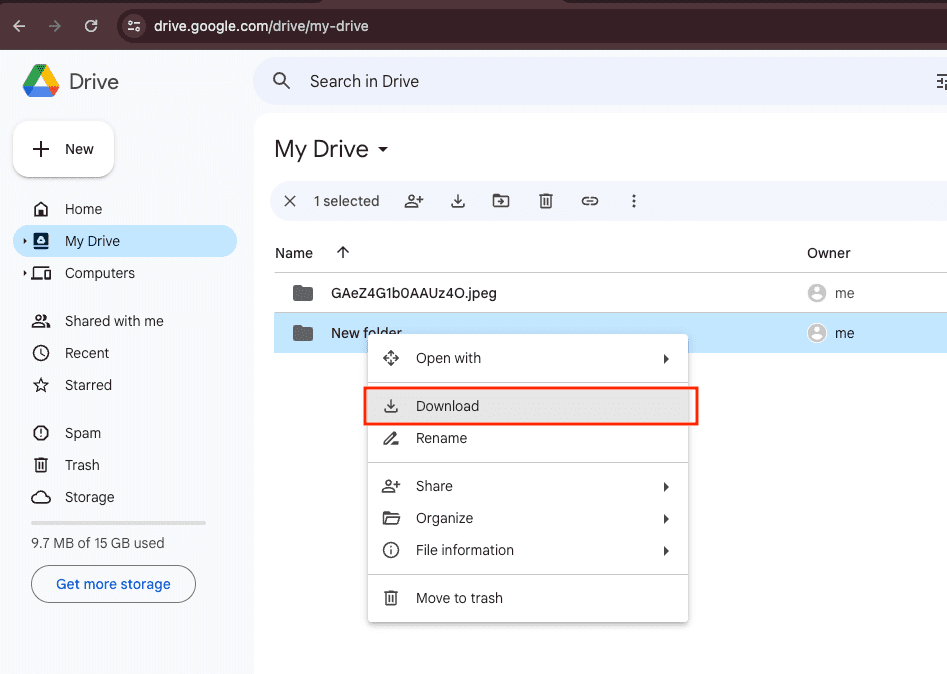
Sign in at drive.google.com. Select the files or folders you want to migrate — hold Ctrl (Windows) or Command (macOS) for multi-select, or right-click a folder and choose Download. Drive bundles folder downloads into a ZIP archive on the fly. Files larger than 2 GB sometimes split into multiple ZIP parts; verify the count before extracting.
Native Google formats (.gdoc, .gsheet, .gslides) are exported automatically during the ZIP build — Docs become .docx, Sheets become .xlsx, Slides become .pptx. Drive applies a 5 GB cap on the conversion step; very large Sheets occasionally fall back to .tsv or partial exports.
Step 2: Verify and Extract the Local Archive
Once the ZIP arrives, extract it locally and run a quick file count against what Drive showed. On macOS or Linux, find ./google-drive-export -type f | wc -l gives a single number you can compare. On Windows, sort the extracted folder by file count from the Properties dialog. This is the only step where you have a chance to spot a partial Google export before the data crosses into TeraBox.
Step 3: Upload to TeraBox via the Web App
Open terabox.com in a browser and sign in. Use Upload → Upload Folder for batches, or drag and drop into the file list. TeraBox's free tier rejects any single file above 4 GB with a non-obvious error message — if an upload silently disappears from the queue, that is almost always why. Premium accounts can push files up to 20 GB.
Free uploads on TeraBox are not as throttled as downloads, but the service does cap concurrent uploads from a single browser session, so a folder of a few thousand small files takes longer than a single multi-GB file. Leave the tab open and the screen unlocked — TeraBox pauses uploads when the browser is backgrounded for too long.
This method is fine for working files in the low-tens-of-gigabytes range. It needs no extra accounts and no tooling, but it is bound by your local download speed from Google and your upload speed to TeraBox, and the browser must stay awake for both halves of the round trip.
Method 2: Google Takeout Export, Then Upload to TeraBox
Step 1: Request a Google Takeout Export
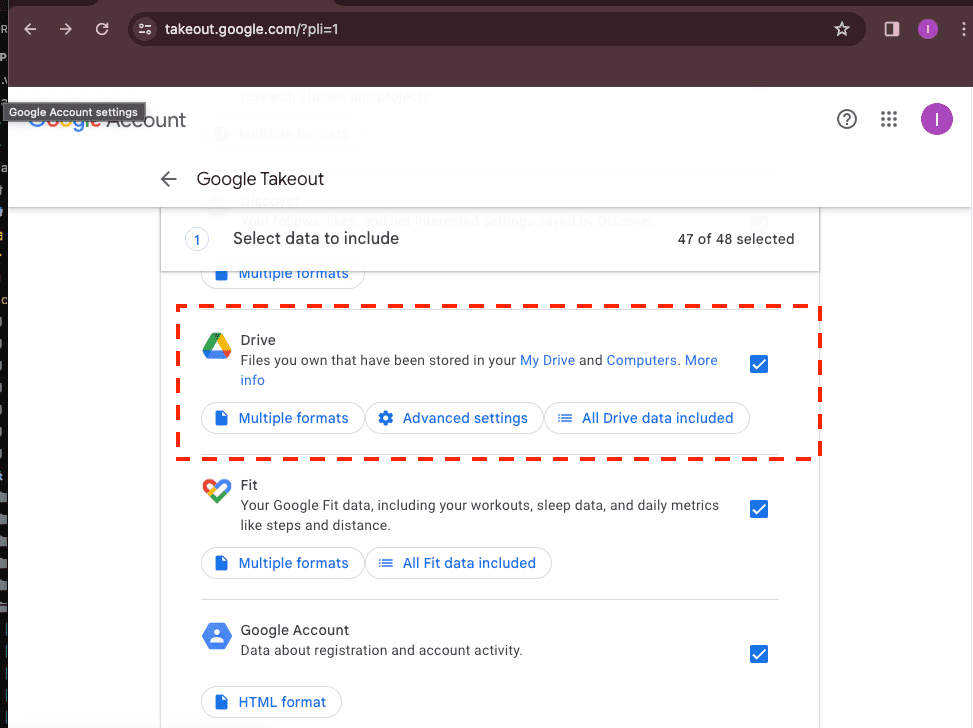
Open takeout.google.com, click Deselect all, then re-select Drive. Optionally restrict the export to specific folders if your Drive is large. On the next screen, choose the delivery method (typically Send download link via email), the file type (ZIP is more universally compatible than TGZ), and the archive size (1 GB, 2 GB, 4 GB, 10 GB, or 50 GB).
Pick the 4 GB archive size — that matches the TeraBox free-tier per-file cap, so the resulting parts can upload one-by-one without splitting later. If you have TeraBox Premium, 10 GB or 50 GB parts work and reduce the file count you have to manage on the upload side.
Step 2: Wait for the Export and Download Locally
Google Takeout is asynchronous. Small Drives complete in minutes; multi-hundred-GB exports can take a day or more. Google emails a notification with a download link when the archive is ready. The link expires in seven days, so download promptly. Each part lands as a separate ZIP archive — keep them in the same directory so the file numbering stays intact if you ever need to reassemble them.
Step 3: Upload Archive Parts to TeraBox
Sign in at terabox.com, create a destination folder (for example, /Backups/google-takeout-2026-05/), then upload the archive parts. Because Takeout already sized them to fit the 4 GB free-tier cap, each part should land without the silent-drop behavior described in Method 1.
The trade-off here is that the data is now stored as ZIP archives — to read a single file later you have to download the relevant part, extract it locally, and pull the file out. That is fine for cold archive (which is mostly what Takeout is good for) and awkward for working files (which Method 1 or Method 3 handle better).
Takeout is the right pick when the goal is a one-shot snapshot of your Drive — for example, before downgrading a Google One subscription, or as part of a yearly archive cycle. It is the wrong pick if you plan to keep working from the data, because retrieving anything specific means re-extracting an archive part.
Method 3: Transfer Google Drive to TeraBox Directly in the Cloud
Cloud-to-Cloud Transfer Without Local Downloads
CloudsLinker moves files directly between Google Drive and TeraBox on its own servers. Your machine does not need to be online for the duration, and TeraBox's per-session free-tier throttle does not apply because the read happens inside the data center, not over your home connection.
Step 1: Connect Google Drive (OAuth)
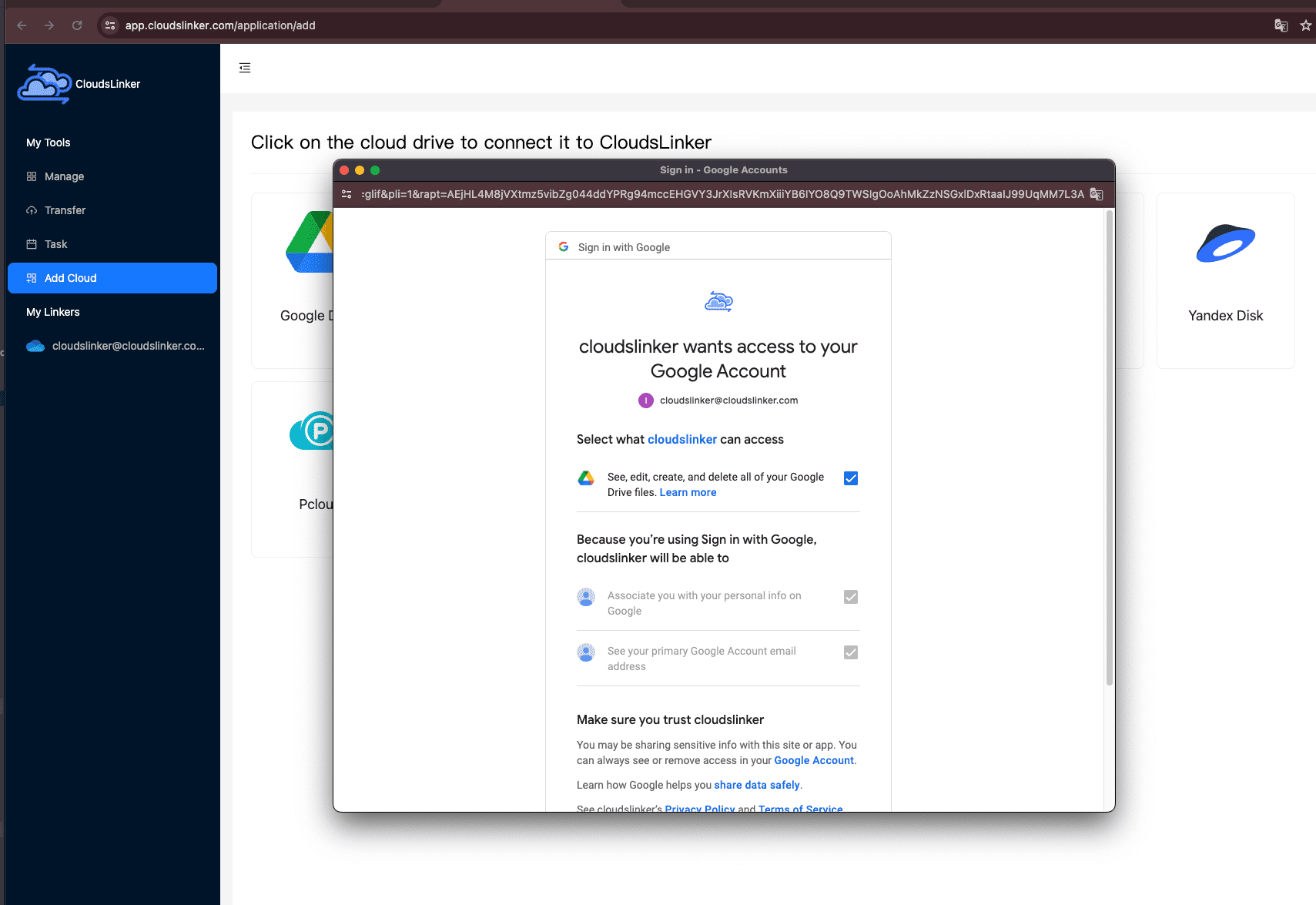
In CloudsLinker, click Add Cloud → Google Drive. The browser redirects to accounts.google.com for the standard OAuth consent screen. Sign in, review the requested scopes (read and write file metadata and content), and approve. The token is account-scoped and revocable from myaccount.google.com → Security → Third-party apps with account access.
If your Google Drive belongs to a Workspace org with admin restrictions, the OAuth grant may need to be approved by a Workspace admin from the Google Admin console before it succeeds.
Step 2: Connect TeraBox (Browser Cookie)
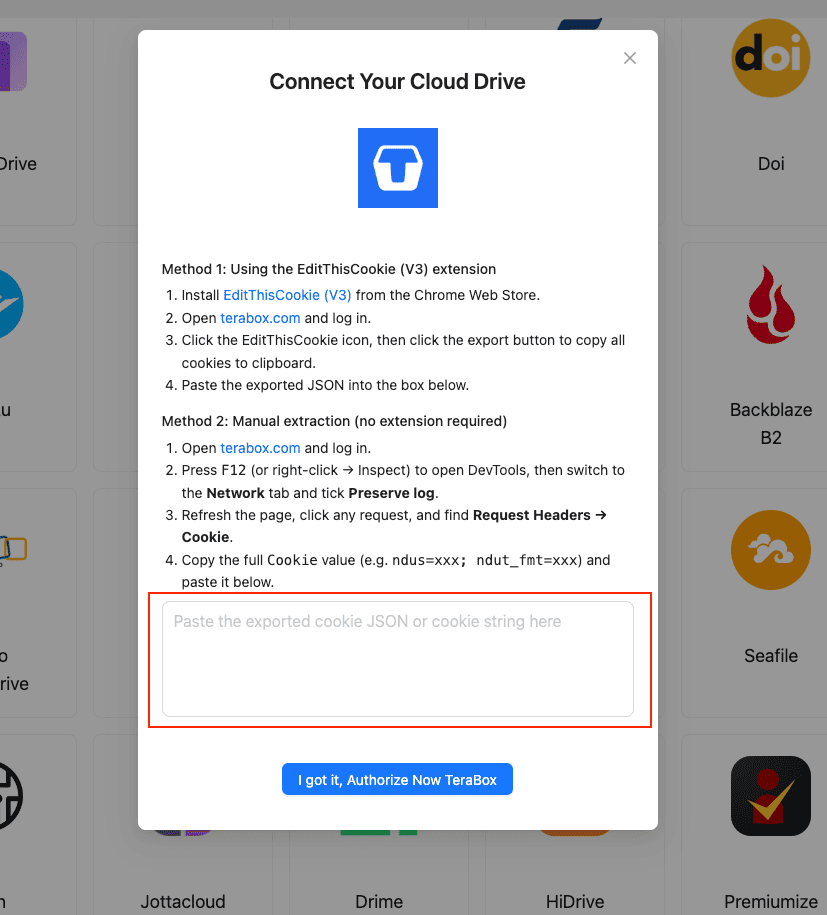
TeraBox does not publish an OAuth or developer API, so the connection uses the same browser session cookie your logged-in TeraBox tab already has. The recommended path is the EditThisCookie (V3) Chrome extension:
- Install EditThisCookie (V3) from the Chrome Web Store.
- Open
www.terabox.comin the same browser and confirm you are logged in. - Click the EditThisCookie icon → Export. The cookie set is copied to your clipboard as JSON.
- In CloudsLinker, click Add Cloud → TeraBox → enter a display name → paste the JSON into the cookie field → Confirm.
If you cannot install an extension, the DevTools fallback works: open DevTools (F12) → Network → tick Preserve log → refresh the page → click any request → copy the full Cookie header value (typically ndus=...; ndut_fmt=...) and paste that string into CloudsLinker.
Step 3: Configure the Transfer
Open the Transfer section. Select your connected Google Drive as the source and browse to the folders you want to move. On the destination side, select TeraBox and pick or create a target directory.
Apply filters to keep oversized files out of a free TeraBox account: a file-size filter at 4 GB for free tier or 20 GB for Premium catches anything that would fail on the destination. Modification-date filters help when archiving — for example, only files older than 12 months. Choose Copy to leave the Drive originals in place, or Move to delete them after a successful transfer.
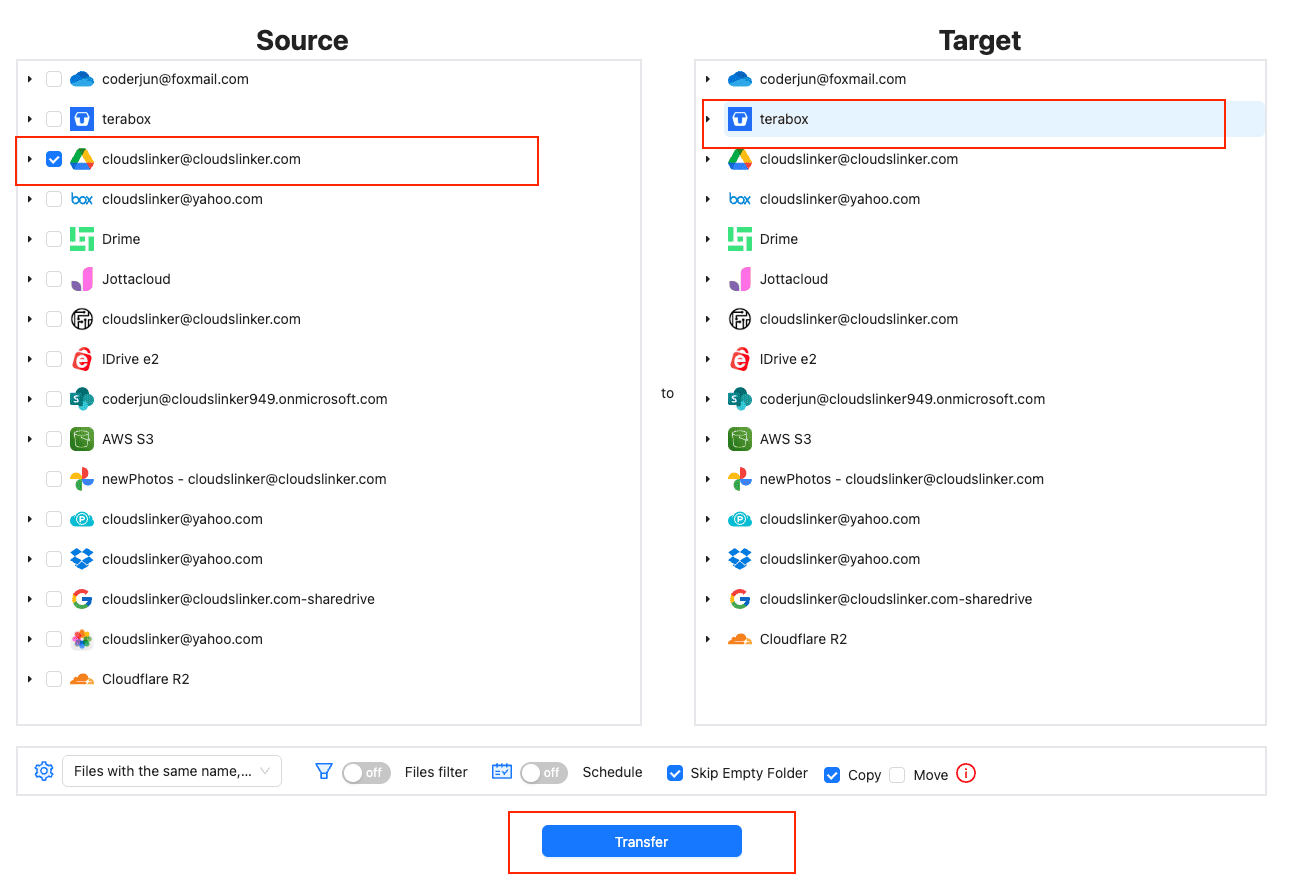
Step 4: Start and Monitor the Transfer
Click Start. The Task List shows transferred size, current speed, files per second, and remaining items. The transfer runs entirely in the cloud — closing the browser does not stop it. If your TeraBox cookie expires mid-job (logout, password change, or extended inactivity), the task pauses and CloudsLinker emails you to paste a fresh cookie instead of failing every queued file.
Practical throughput is shaped mostly by Google's per-user API quotas (which are generous for read-only Drive workloads) and TeraBox's undocumented rate behavior. CloudsLinker handles HTTP 429 with exponential backoff so a long job survives short throttles instead of failing. After the run, download the transfer log (CSV with file path, size, status, timestamp) for your records.
Comparing the Three Ways to Transfer Google Drive to TeraBox
None of these methods is uniformly better — they trade off in different ways. The table below shows where each one fits.
| Method | Ease of Use | Speed | Best For | Uses Local Bandwidth | Skill Level |
|---|---|---|---|---|---|
| Browser Download + TeraBox Web Upload | Very Low | Bound by home upload | Working files under ~30 GB | Yes | Beginner |
| Google Takeout + Manual Upload | Low | One-shot, async on Google's side | Cold archive of an entire Drive | Yes | Beginner |
| CloudsLinker (Cloud-to-Cloud) | Low | Server-side; bypasses TeraBox throttle | Datasets above ~50 GB or unattended jobs | No | Beginner |
For a few gigabytes, Method 1 wins on simplicity. For a one-time full archive of a Drive that is mostly cold, Takeout's batched ZIPs are the cleanest path. Once the dataset is large enough that you stop wanting to babysit a browser tab — or once the 200–800 KB/s TeraBox free-tier throttle starts mattering on the upload side — CloudsLinker is the practical choice.
- Run a 1 GB test folder first. Pick a representative folder with mixed file types and migrate it end-to-end before committing to the full move. The TeraBox free tier silently drops files over 4 GB; a small dry run surfaces that before the big upload.
- Convert Google Docs / Sheets / Slides before copying. Methods 1 and 3 see native Google formats as zero-byte placeholders unless they are exported first. Use File → Download → Microsoft Word/Excel/PowerPoint in Drive, or let Takeout (Method 2) do the conversion automatically.
- Match Takeout archive size to the destination's per-file cap. 4 GB parts for free TeraBox; 10 GB or 20 GB parts for Premium. Larger parts mean fewer files to manage but only work past the free-tier ceiling.
- Treat the TeraBox cookie like a password. It is account-equivalent for API access. Do not paste it into a screenshot, do not commit it, and rotate the TeraBox password if you suspect the cookie leaked — a password change invalidates the old session immediately.
- Keep the Google Drive originals until you have spot-checked TeraBox. Open three or four sample files on TeraBox after the transfer to confirm they downloaded and opened correctly. Only delete from Drive once verification is done — Drive's 30-day trash is your last safety net.
-
Plan around the international vs Chinese TeraBox split. Cookies from
terabox.comonly work for the international service. If your account is on Baidu Netdisk, the migration path is different — neither this guide nor CloudsLinker's TeraBox connector covers it. -
Revoke access after a one-shot move. On Google:
myaccount.google.com→ Security → Third-party apps with account access. On TeraBox: log out of the source browser session or change the password — both invalidate the exported cookie immediately.
Frequently Asked Questions
.docx, Sheets to .xlsx, Slides to .pptx — because Google's native formats are not real files. Method 2 (Google Takeout) does this automatically. Methods 1 and 3 either export them on the fly during the ZIP build (Method 1) or skip them as zero-byte placeholders (Method 3); for Method 3 you should pre-convert important Docs in Drive before running the job.
accounts.google.com. You see a Google-hosted consent screen showing the requested scopes, and the resulting token is account-scoped and revocable from myaccount.google.com at any time. CloudsLinker does not see your Google password — Google authenticates you and hands back a token. The same applies if you later disconnect Drive: revoking the token is one click on Google's side and instantly cuts CloudsLinker's access.
www.terabox.com in the source browser or change the TeraBox password. Either action invalidates the cookie on TeraBox's side instantly and CloudsLinker's stored copy stops working at the same moment.
Watch: Transfer Files from Google Drive to TeraBox with CloudsLinker
A walkthrough of the cloud-to-cloud method, including connecting Google Drive via OAuth, pasting the TeraBox cookie, configuring filters for the 4 GB free-tier cap, and monitoring the transfer in the Task List.
Conclusion
The right method depends on dataset size and how much time you want to spend supervising. For a few gigabytes of working files, the browser download + TeraBox web upload path is fine — slow on the upload side because of TeraBox's free-tier throttle, but it needs no extra accounts or tools. For a full Google Drive export of mixed file types and you have a fast home connection, Google Takeout produces a single archive set you can upload once. For anything past 50 GB or any case where you do not want to keep a machine online for hours, CloudsLinker runs the move server-side: it pulls from Google Drive over OAuth, and pushes into TeraBox using the cookie you exported, with retries and backoff on TeraBox's undocumented rate-limit responses. Whichever path you pick, inventory files larger than 4 GB on the Google Drive side first — they will not fit on a free TeraBox account.
Online Storage Services Supported by CloudsLinker
Transfer data between over 55 cloud services with CloudsLinker

OneDrive

Google Drive

Google Photos

Shared Drive

OneDrive for Business

Dropbox

Box

Mega

pCloud

Yandex

ProtonDrive

AWS

GCS

iDrive

Storj

DigitalOcean

Wasabi

1fichier

PikPak

TeleBox

OpenDrive

Backblaze B2

Fastmail file

SharePoint

Nextcloud

ownCloud

Premiumize me

HiDrive

Put.io

Sugar Sync

Jottacloud

Seafile

Ftp

SFtp

NAS

WebDav

4shared

Icedrive

Cloudflare R2

Scaleway

Doi

iCloud Drive

iCloud Photos

FileLU

Zoho WorkDrive

Telia Cloud / Sky

Drime

Filen

TeraBox

Internxt

Degoo

Gofile

Pixeldrain

Shade

Koofr
Didn' t find your cloud service? Be free to contact: [email protected]
Further Reading
Effortless FTP connect to google drive: Transfer Files in 3 Easy Ways
Learn More >
Google Photos to OneDrive: 3 Innovative Transfer Strategies
Learn More >
Google Photos to Proton Drive: 3 Effective Transfer Techniques
Learn More >