Leaving the Walled Garden: Moving iCloud Drive Files to Degoo
Get files out of iCloud Drive and into Degoo's cross-platform storage — manual iCloud.com downloads vs an Apple ID-authenticated CloudsLinker transfer.
Introduction
Degoo runs the same on an Android phone, a Samsung tablet or any browser — which is exactly what iCloud Drive doesn't do well the day you carry a non-Apple device. Apple's 5 GB free tier is the smallest of any major cloud, iCloud+ pricing climbs to $9.99 a month for 2 TB, and access from outside the ecosystem funnels through iCloud.com's web interface with its 10 GB per-file upload ceiling. Degoo counters with 20 GB free, 5 TB for the same $9.99, and store apps on Google Play, Huawei and Samsung. For a switcher — or a mixed-device household — relocating the iCloud Drive archive to Degoo removes the platform lock. Two methods below, including the Apple ID + 2FA connection details that make the automated one work.
iCloud Drive is Apple's file storage, seamless on Apple hardware and deliberately thin everywhere else. Every Apple ID gets 5 GB free — shared with device backups and photos — and iCloud+ scales from 50 GB at $0.99/mo to 12 TB at $59.99/mo. Non-Apple access runs through iCloud.com or a limited Windows client.
- 5 GB free; 2 TB at $9.99/mo (iCloud+)
- 50 GB max file; 10 GB cap on web uploads
- Desktop & Documents sync on macOS
- Advanced Data Protection = optional E2E mode
Degoo is platform-agnostic consumer storage from Sweden — apps on Google Play, the App Store, Huawei AppGallery and Samsung Galaxy Store, plus a web app for subscribers. Pricing is volume-first: 20 GB free, 500 GB at $2.99/mo, 5 TB at $9.99/mo. No desktop sync client on any OS, which suits archive use.
- 4× Apple's free tier; 5 TB at iCloud's 2 TB price
- Identical experience on Android and iOS
- Paid Top Secret folder for zero-knowledge storage
- 90-day inactivity deletion on free accounts
| Feature | iCloud Drive | Degoo |
|---|---|---|
| Free storage | 5 GB (shared with backups + photos) | 20 GB (ads; 90-day activity rule) |
| $9.99/mo buys | 2 TB (iCloud+) | 5 TB (Ultimate) |
| Max single file | 50 GB (10 GB via web upload) | 256 MB free / 50 GB subscription |
| Android support | Browser only | Native app |
| Practical export throughput | ~50–200 GB/day (throttled) | No download metering |
| Connection in CloudsLinker | Apple ID + 2FA code | Account email + password |
Sources: Apple: manage iCloud storage, Apple: iCloud+ plans, Degoo: plans, Degoo Help Center: Account limits.
Two Apple-side switches decide whether the migration is smooth: 'Access iCloud Data on the Web' must be on, and Advanced Data Protection (if you enabled it) must be off for the duration — with ADP active, web endpoints can't read file content. Convert must-keep iWork documents to portable formats while still on a Mac. Then plan the Degoo landing: tier sized to the archive, and awareness that a full iCloud exit runs multiple days at Apple's throttled 50–200 GB/day pace. Files sit in iCloud's Recently Deleted for 30 days after cleanup, which is your rollback window.
Method 1: Download via iCloud.com, Upload to Degoo
Step 1: Download from iCloud.com
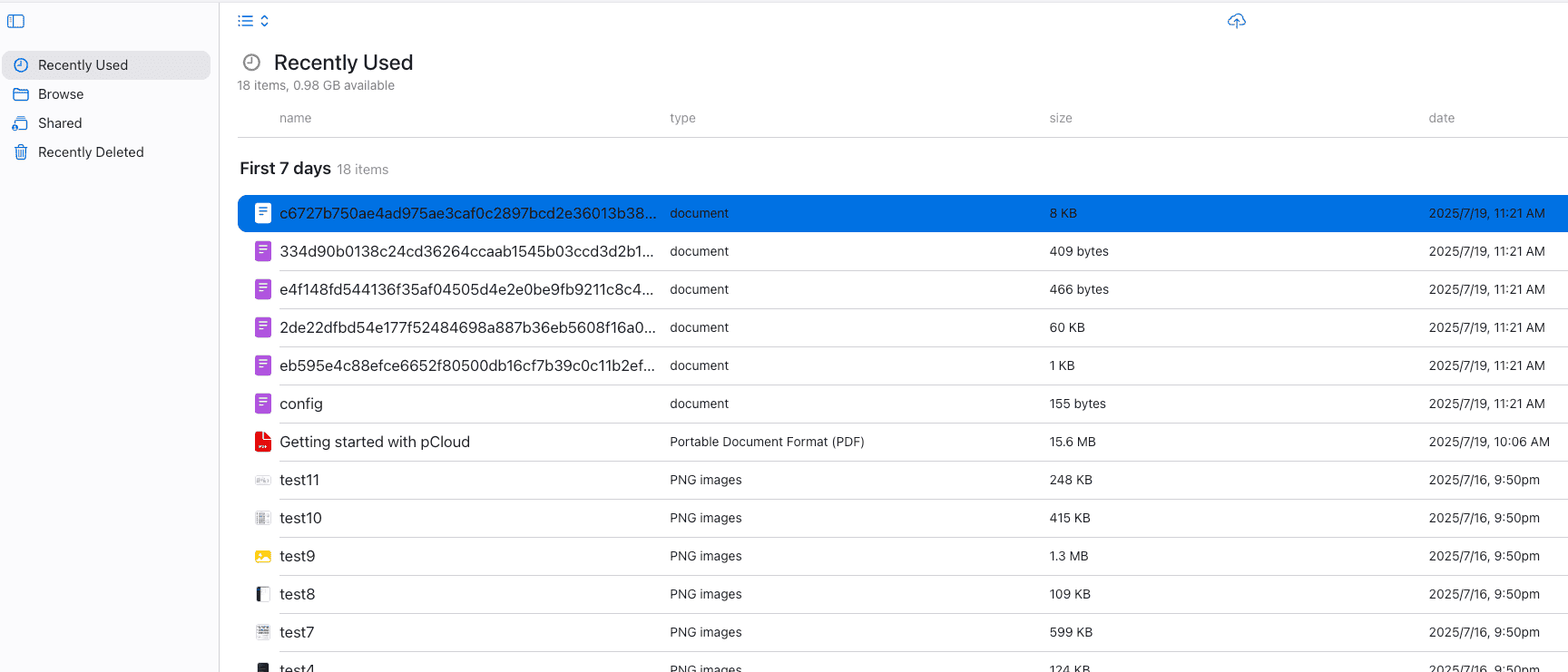
Sign in at icloud.com/iclouddrive (Apple ID + 2FA) and download folders — the web app zips them on the fly. Downloads are single-threaded per selection and throttle on sustained volume; a Mac's synced local iCloud Drive folder is the faster source when available.
Step 2: Upload to Degoo
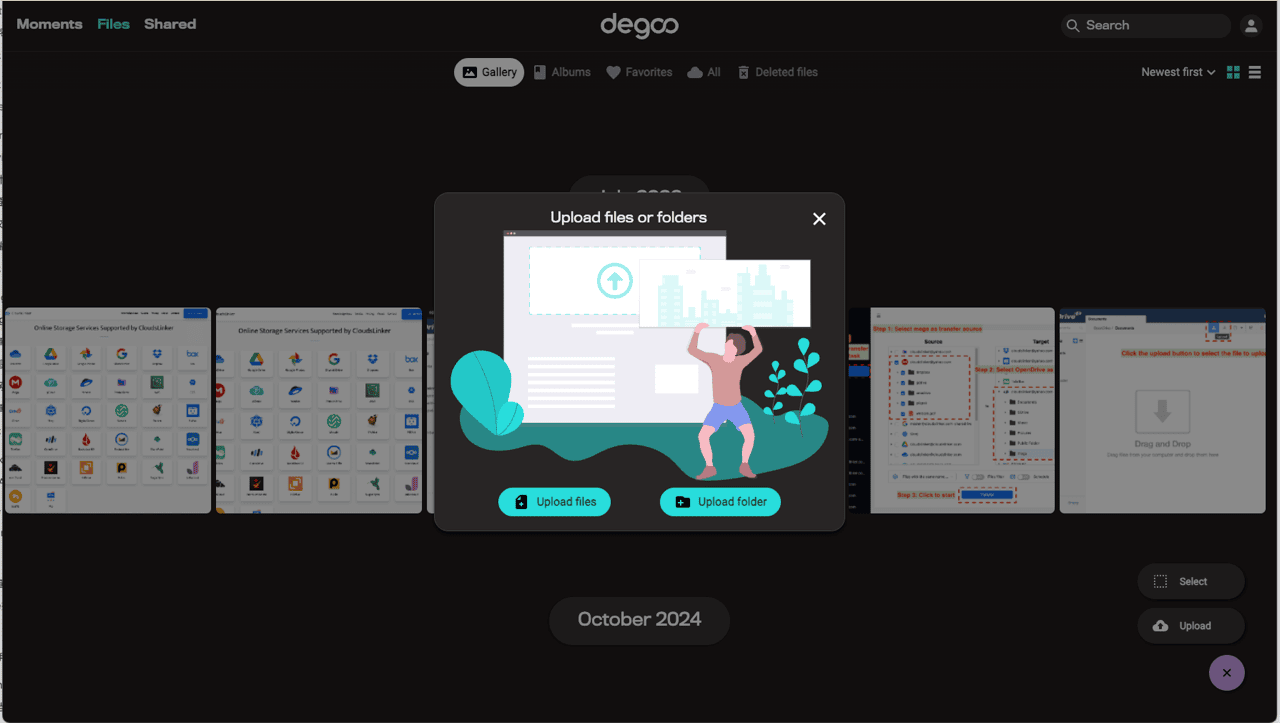
Extract and upload through app.degoo.com (paid) or the Degoo mobile app (free). On an Android-only household this means browser downloads from iCloud and app uploads to Degoo on the same device — possible, tedious, and capped by phone storage in between.
Fine for documents; grim for a 300 GB Desktop & Documents archive. The next method removes both the local hop and the supervision.
Method 2: Apple ID-Authenticated Transfer with CloudsLinker
Apple gives no export tool — this is the workaround that scales
CloudsLinker authenticates with your Apple ID the way a browser does — password plus the 2FA code from a trusted device — then reads iCloud Drive through its web endpoints and streams straight into Degoo. Apple's session throttling caps the pace, not your patience: the job spreads a multi-hundred-GB exit across days on its own, pausing and resuming around Apple's limits while both your Macs and your Androids stay out of it.
Step 1: Connect iCloud Drive
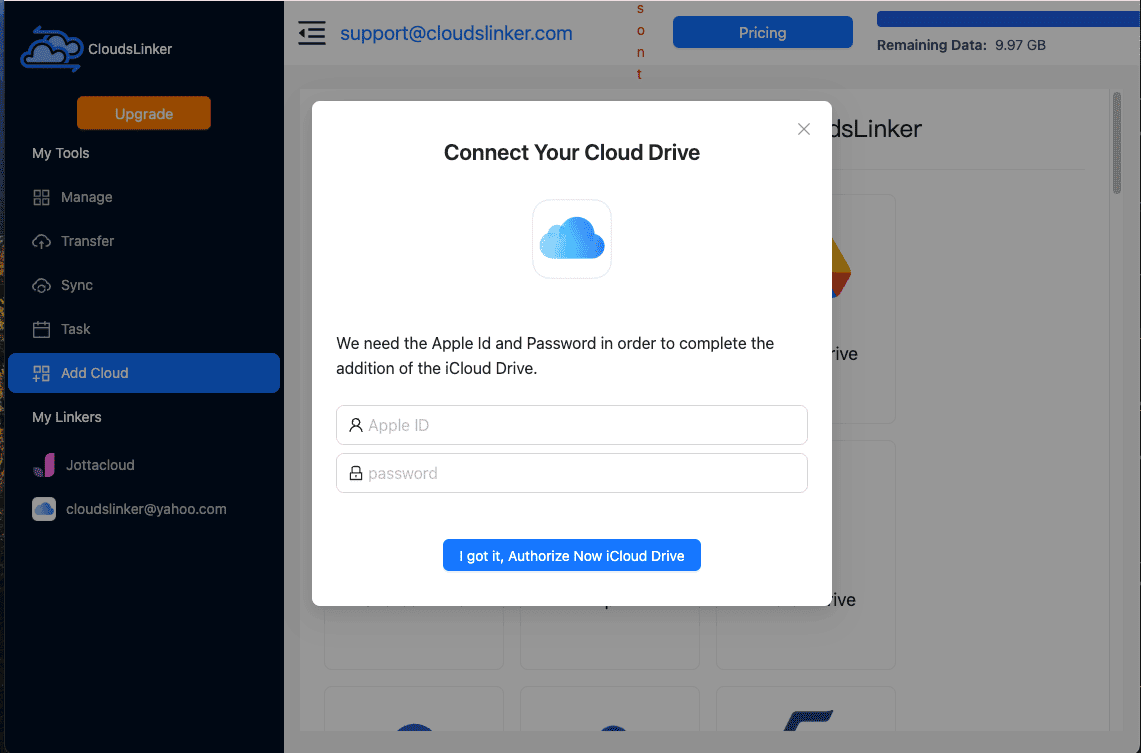
Click Add Cloud → iCloud Drive. Enter your Apple ID and password; a 6-digit verification code appears on your trusted iPhone, iPad or Mac — type it in to complete the session. (No code arriving? Generate one manually from the device's Apple Account security settings.)
Step 2: Connect Degoo
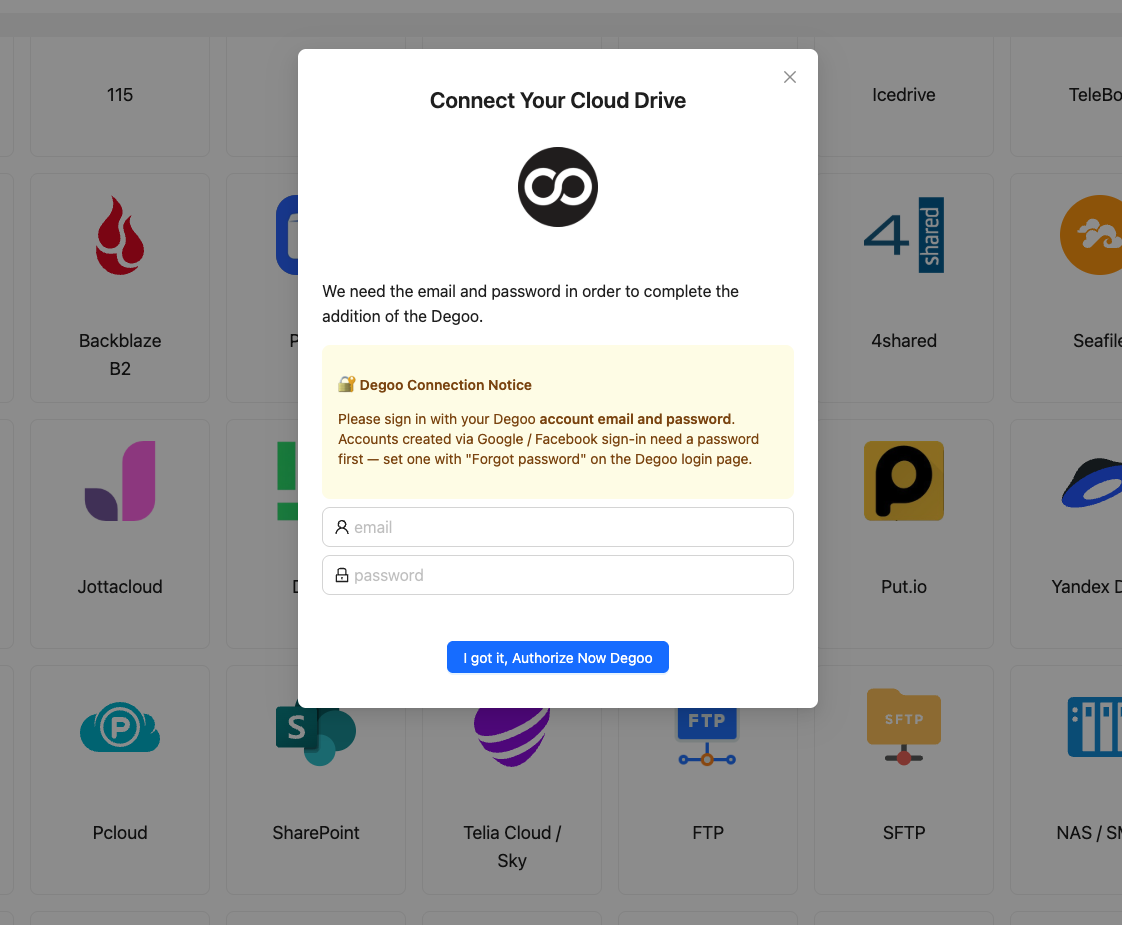
Click Add Cloud → Degoo, sign in with the Degoo email and password, confirm. That's the entire ceremony on this side — no 2FA, no OAuth — and the cached session persists for follow-up runs.
Step 3: Configure the Transfer
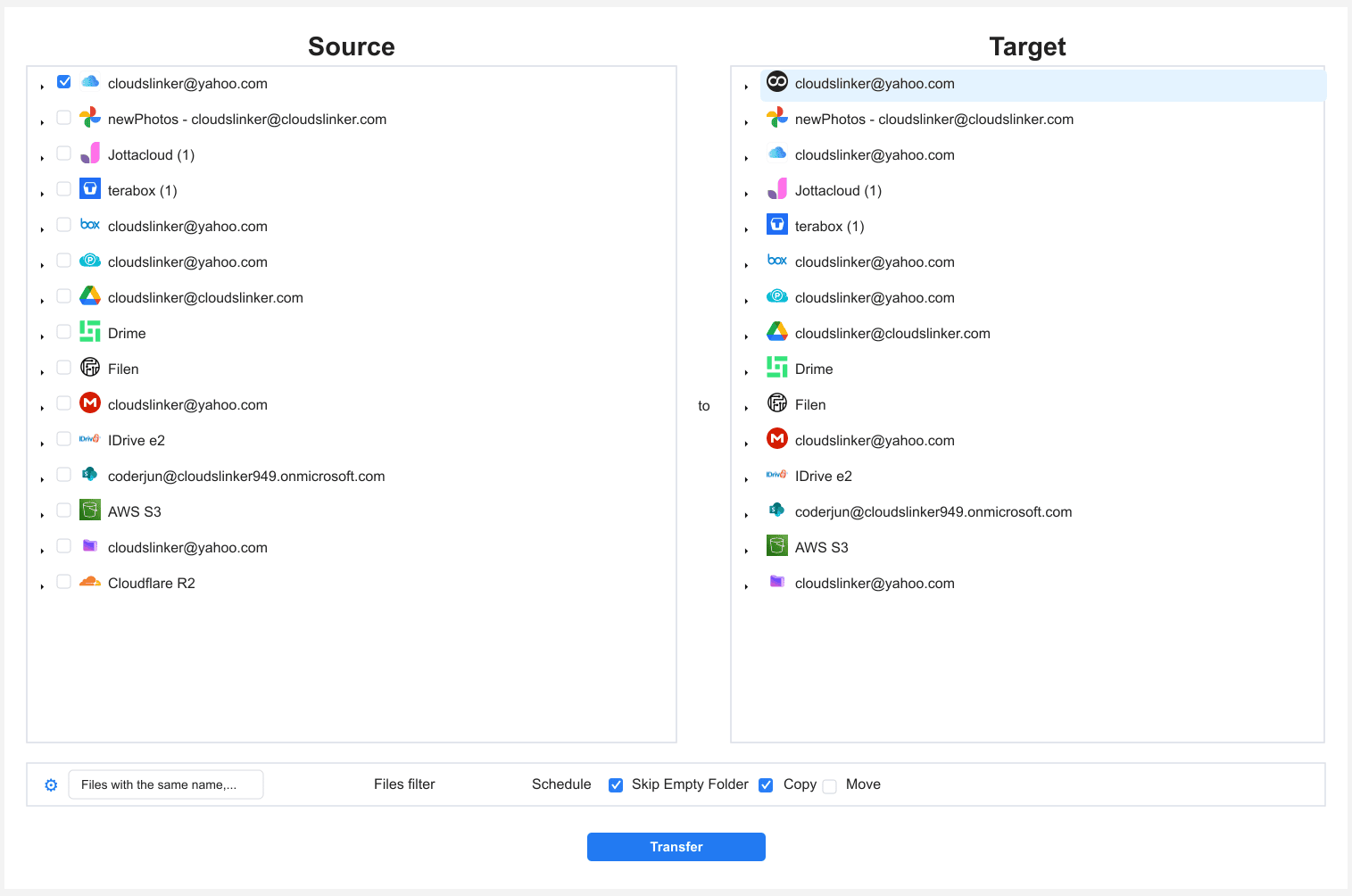
In Transfer, set iCloud Drive as source. Desktop, Documents, and app folders appear as a normal tree — tick what moves. Choose the Degoo destination folder.
Filters rarely matter for size here (iCloud's 50 GB max equals Degoo's subscription cap), but type filters help skip .pages/.numbers packages you've decided to export by hand instead. Copy first, delete iCloud-side later.
Step 4: Start and Monitor the Transfer
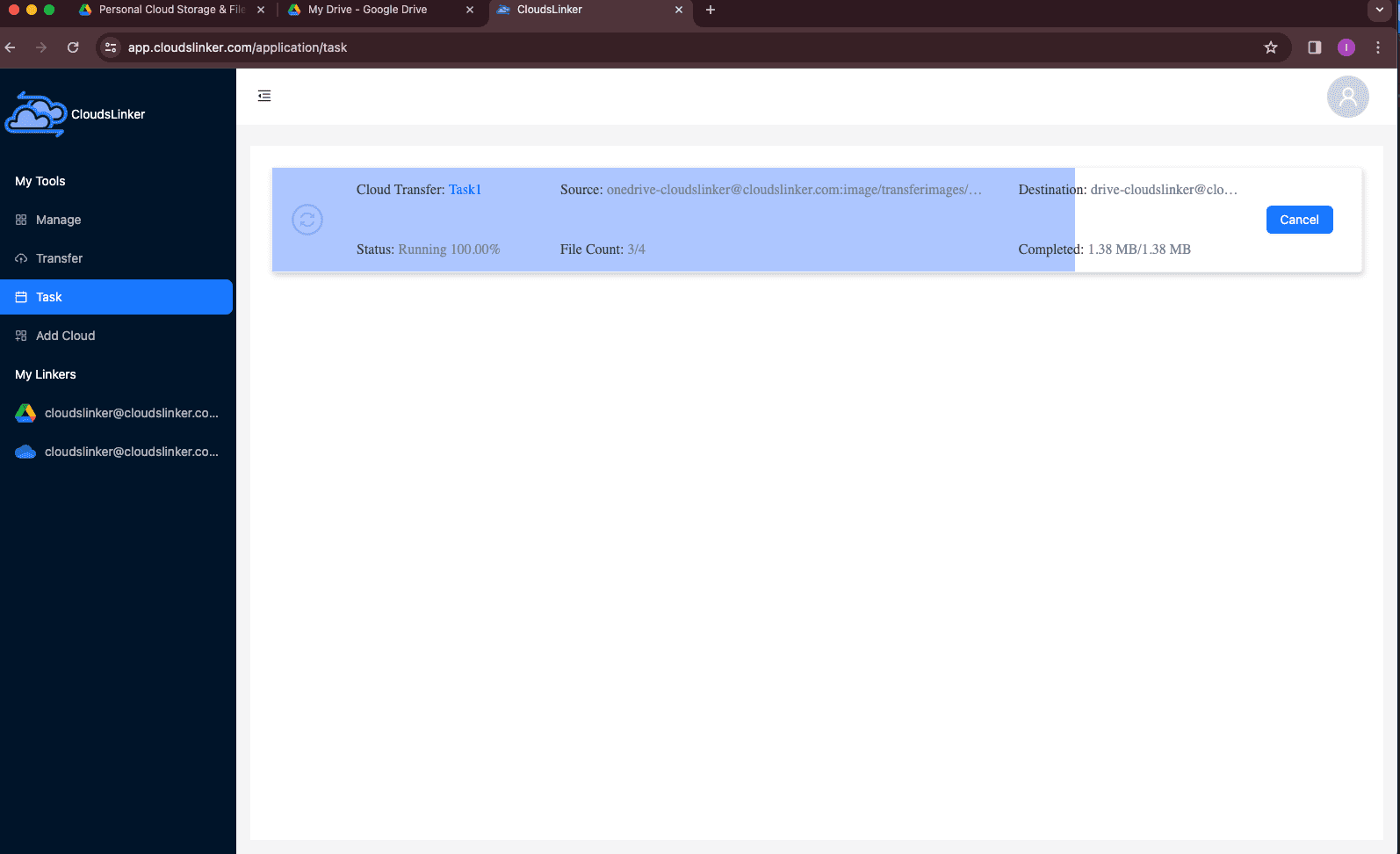
Start and let it run. The Task List shows daily progress through Apple's throttle window; multi-day jobs re-establish the session automatically. If Apple prompts a re-verification mid-job, the task flags it and waits for a fresh 2FA code.
Comparing the Ways to Transfer From iCloud Drive to Degoo
| Method | Ease of Use | Speed | Best For | Uses Local Bandwidth | Skill Level |
|---|---|---|---|---|---|
| iCloud.com download / upload | Medium | Slow, supervised | A few folders; one-off documents | Yes — twice | Basic |
| CloudsLinker | Easy (one 2FA code) | Apple-throttled but unattended | Full archives; non-Apple households | No | Basic |
- Flip the two Apple switches first: 'Access iCloud Data on the Web' on, Advanced Data Protection off (temporarily). Both live in your Apple ID / iCloud settings, and both silently break web-based transfers when set wrong.
- Convert iWork documents before leaving: .pages and .numbers files transfer intact but open nowhere outside Apple software. Export to .docx/.xlsx/PDF from the iWork apps while you still have them.
- Budget days, not hours: Apple's throttling makes 50–200 GB/day the realistic ceiling per Apple ID. Start the job before the weekend, not the night before the Mac goes to its new owner.
- Desktop & Documents are the usual payload: if macOS synced them, they're the top-level folders of the same names — often 90% of the account's bulk.
- Downgrade iCloud+ only after the 30-day window: deleted files wait in Recently Deleted for 30 days; keep the subscription through one full cycle as a rollback option.
- Sign the session out afterwards: the CloudsLinker connection appears in your Apple ID's device/session list — remove it there once the migration is done.
Frequently Asked Questions
Conclusion
A folder or two leaves iCloud fine through icloud.com's download button. A real archive — the kind accumulated by years of Mac desktop syncing — deserves the server-side route: CloudsLinker signs in with your Apple ID (2FA code from a trusted device), reads iCloud Drive's web endpoints, and fills Degoo without your bandwidth in the path. Disable Advanced Data Protection for the duration if you've enabled it, keep expectations calibrated by Apple's throttling (plan for 50–200 GB/day), and verify in Degoo before emptying the iCloud side.
Online Storage Services Supported by CloudsLinker
Transfer data between over 58 cloud services with CloudsLinker

OneDrive

Google Drive

Google Photos

Shared Drive

OneDrive for Business

Dropbox

Box

Mega

pCloud

Yandex

ProtonDrive

AWS

GCS

iDrive

Storj

DigitalOcean

Wasabi

1fichier

PikPak

TeleBox

OpenDrive

Backblaze B2

Fastmail file

SharePoint

Nextcloud

ownCloud

Premiumize me

HiDrive

Put.io

Sugar Sync

Jottacloud

Seafile

Ftp

SFtp

NAS

WebDav

4shared

Icedrive

Cloudflare R2

Scaleway

Hetzner Object Storage

Synology C2 Object Storage

S3 Compatible

Doi

iCloud Drive

iCloud Photos

FileLU

Zoho WorkDrive

Telia Cloud / Sky

Drime

Filen

TeraBox

Internxt

Degoo

Gofile

Pixeldrain

Shade

Koofr
Didn' t find your cloud service? Be free to contact: [email protected]
Further Reading
Effortless FTP connect to google drive: Transfer Files in 3 Easy Ways
Learn More >
Google Photos to OneDrive: 3 Innovative Transfer Strategies
Learn More >
Google Photos to Proton Drive: 3 Effective Transfer Techniques
Learn More >