iCloud Drive to Google Drive: 4 Ways to Transfer Files for Cross-Platform Access (2026)
Move files from iCloud Drive to Google Drive via browser, desktop sync, Rclone, or automated cloud-to-cloud transfer for cross-platform, Workspace-ready access.
Introduction
Google Drive's strength is reach: the same file opens on Android, Windows, ChromeOS, and any browser, and it plugs straight into Google Docs, Sheets, and the wider Workspace suite. That matters the moment you collaborate with people who aren't on Apple hardware—iCloud Drive's sharing and co-editing stay comfortable only inside Finder, the Files app, and a handful of Apple apps. If you've started working with a team on Google Docs, switched to an Android phone, or simply want files reachable without an Apple device nearby, iCloud Drive's ecosystem boundaries turn into daily friction. Moving your data to Google Drive removes that boundary. This guide covers four ways to make the move—manual browser transfers, desktop sync clients, Rclone for scripted control, and a cloud-to-cloud transfer that needs no local downloads.
iCloud Drive is Apple's built-in cloud storage, designed to sync files across iPhone, iPad, and Mac, with lighter access through iCloud.com and iCloud for Windows.
- Apple ecosystem sync: Files stay in step across iPhone, iPad, and Mac via Finder and the Files app.
- Web and Windows access: Reachable at iCloud.com and through iCloud for Windows, though lighter than on Apple devices.
- 5 GB free, shared with backups, Photos, and Mail; upgrades run up to 12 TB through iCloud+.
- Files up to 50 GB each, with end-to-end encryption available through Advanced Data Protection.
Google Drive is Google's cloud storage, tied into Gmail, Google Photos, and the Workspace apps, and reachable on nearly any platform.
- 15 GB free, shared across Gmail, Google Photos, and Drive; more via Google One.
- Cross-platform by default: Android, iOS, Windows, macOS, ChromeOS, and any browser.
- Real-time collaboration in Google Docs, Sheets, and Slides with comments and suggestions.
- Workspace and third-party integration: Gmail, Meet, plus apps like Slack, Zoom, and Asana.
- Individual files up to 5 TB on paid plans.
Both services cover the basics of storing and syncing files, but they optimize for different priorities. The table below sets the practical differences side by side before you choose a transfer method.
| Feature | iCloud Drive | Google Drive |
|---|---|---|
| Free Storage | 5 GB (shared with Photos, Mail, backups) | 15 GB (shared with Gmail, Photos) |
| Platform Reach | Best on iPhone, iPad, Mac; lighter on Web and Windows | Android, iOS, Windows, macOS, ChromeOS, Web |
| Collaboration | Co-edit in Pages, Numbers, Keynote | Real-time editing in Docs, Sheets, Slides |
| Third-Party Integration | Mostly Apple apps | Extensive (Slack, Zoom, Asana, and more) |
| Max File Size | 50 GB | 5 TB (paid plans) |
| Best Fit | All-Apple households | Cross-platform and collaborative work |
The reason to switch is rarely storage size alone. It usually comes down to where the files need to be reachable and who you work with. Google Drive earns its place when your workflow crosses platforms or involves shared editing.
- Cross-platform access: The same file opens on Android, Windows, ChromeOS, or a browser, without needing an Apple device on hand.
- Real-time collaboration: Google Docs, Sheets, and Slides let several people edit at once with comments and suggested edits—useful when collaborators aren't on Apple apps.
- Workspace integration: Drive ties directly into Gmail, Meet, and Calendar, keeping attachments and shared files in one place.
- Broad third-party support: Tools like Slack, Zoom, and Asana connect to Drive natively, which iCloud Drive does not match outside Apple's own apps.
- Higher single-file ceiling: Paid Drive plans accept files up to 5 TB, against iCloud's 50 GB limit—relevant for video projects and large archives.
If your files mostly stay on Apple devices, iCloud Drive is fine as is. Once the work spreads to other platforms or shared documents, Drive removes the friction—and the methods below cover how to get your data there.
Start by checking how much data sits in iCloud Drive and whether it fits Google Drive's 15 GB free tier, which is shared with Gmail and Google Photos. Large libraries usually mean upgrading to a Google One plan before you begin.
For any method that reads your iCloud files—including the browser route and CloudsLinker—turn on Access iCloud Data on the Web in your Apple ID settings (Settings → [your name] → iCloud → Access iCloud Data on the Web). Without it, iCloud Drive content cannot be reached outside Apple devices.
On a Mac, confirm that files are actually downloaded rather than kept as "Optimize Mac Storage" placeholders. Right-click a folder and choose Download Now so the real data—not a stub—gets transferred.
Method 1: Download and Upload via Web Browser
Step 1: Download Files from iCloud Drive
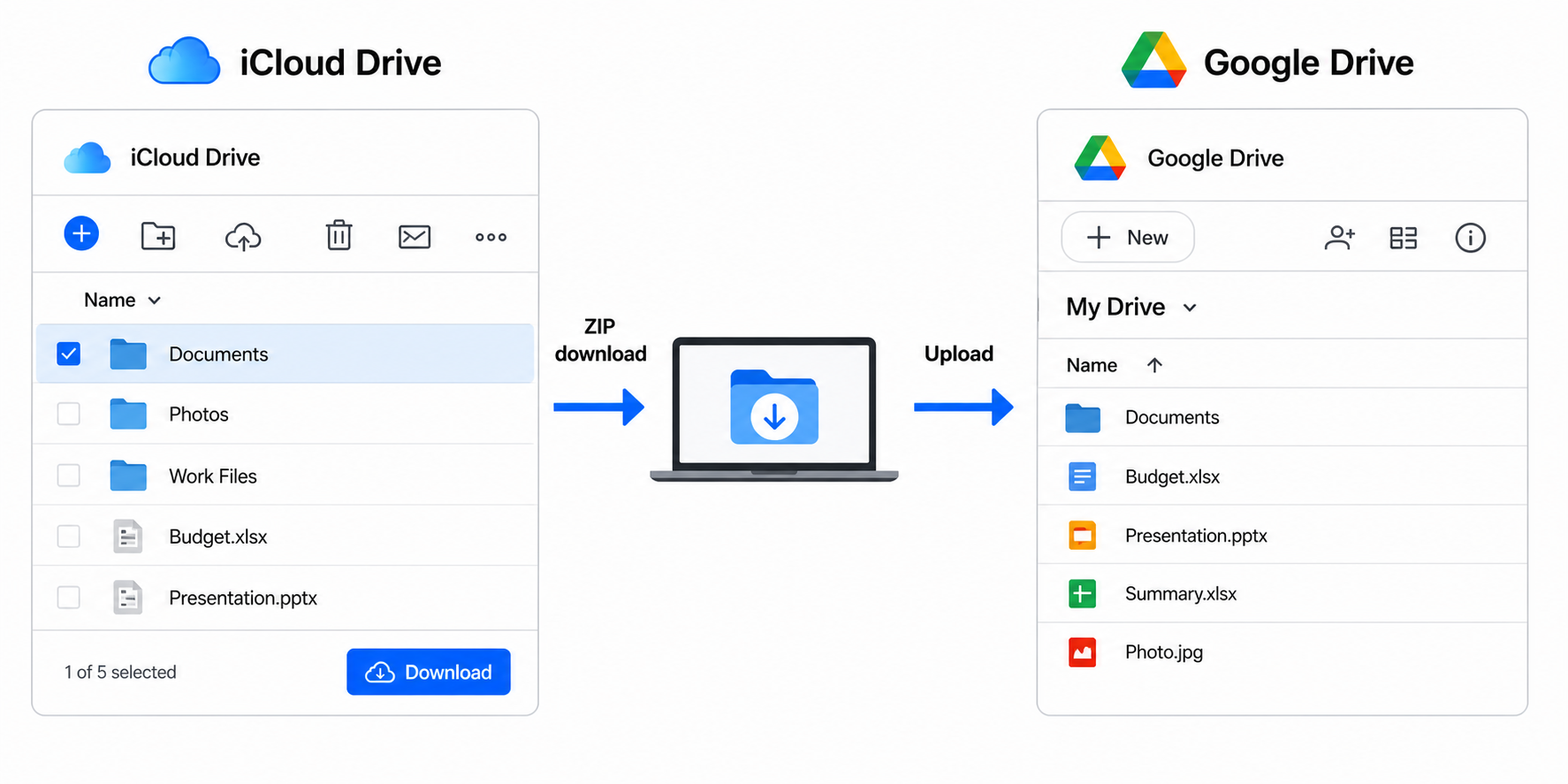
Open iCloud.com
and sign in with your Apple ID. Select the files or folders you want to move—hold Command
on Mac or Ctrl on Windows to pick several—then click the download icon. Folders arrive as
ZIP files, so unzip them locally before the next step.
Step 2: Upload to Google Drive
Go to drive.google.com, sign in, and either drag your files into the window or use New → File upload or Folder upload. Recreate your folder layout as you go so documents stay organized.
The browser route needs no extra software, which makes it fine for a small set of files. It runs through your local connection in both directions, so a large library will be slow and consume a lot of bandwidth.
Method 2: Move Files Using Desktop Apps
Step 1: Open Your iCloud Drive Folder
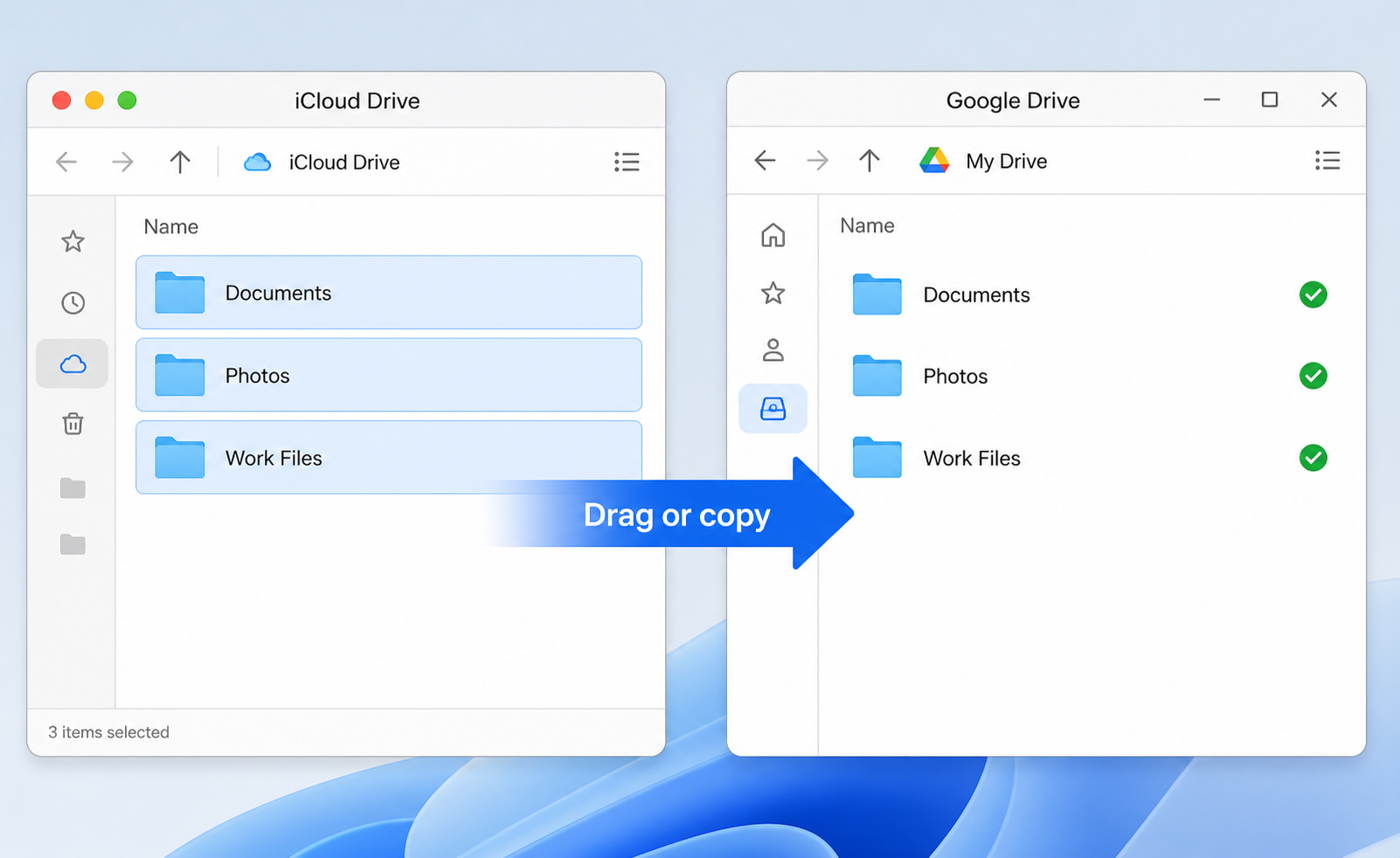
On a Mac, iCloud Drive sits in the Finder sidebar. On Windows, install iCloud for Windows to get the same folder in File Explorer. Confirm the files are downloaded locally, not kept as online-only placeholders, before continuing.
Step 2: Drop Them into Google Drive for Desktop
Install Google Drive for desktop and sign in. It mounts Drive as a folder or drive letter. Drag files from the iCloud Drive folder into the Google Drive folder, and they upload to the cloud in the background.
This approach suits people who already keep both clouds synced to a computer. It still copies data down from iCloud and back up to Google, so you need free disk space and time proportional to the library size.
Method 3: Command-Line Transfer with Rclone
Step 1: Configure Both Remotes
Rclone is an open-source
command-line tool with backends for both
iCloud Drive and
Google Drive. Run
rclone config and add two remotes: one using the iclouddrive backend (Apple ID
plus a two-factor code) and one using the drive backend (browser OAuth).
Step 2: Run the Copy
With both remotes ready, copy a folder directly:
rclone copy icloud:/Documents gdrive:/Documents --progress
Add --dry-run first to preview the operation, or swap copy for sync
to mirror a folder so the destination matches the source exactly.
Rclone rewards users comfortable with a terminal: it can filter, schedule, and resume interrupted jobs. The setup—especially generating an iCloud token—takes patience, and transfers still pass through the machine running rclone unless you run it on a server.
Method 4: Direct Cloud-to-Cloud Transfer with CloudsLinker
Cloud-to-Cloud Transfer Without Local Downloads
CloudsLinker moves files directly between iCloud's and Google's servers. Data does not pass through your device, and the job continues even if you close the browser.
Step 1: Connect iCloud Drive
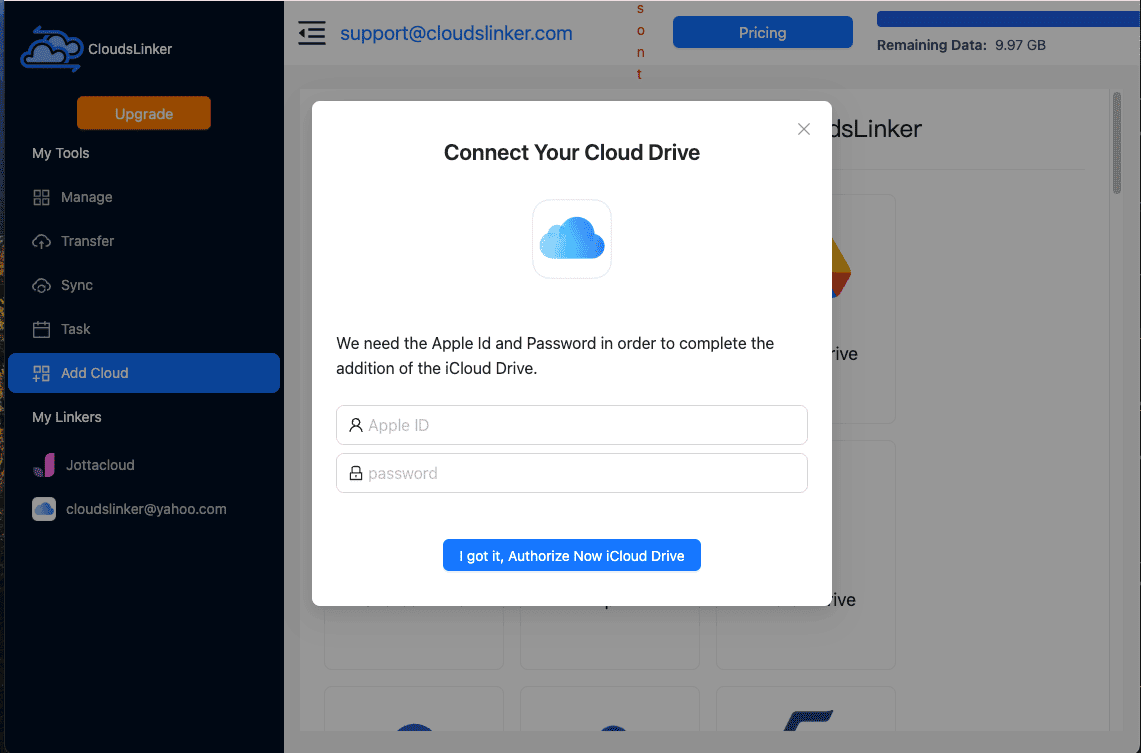
At app.cloudslinker.com, click Add Cloud and choose iCloud Drive. Enter your Apple ID and password, then the six-digit code from a trusted Apple device. Make sure Access iCloud Data on the Web is enabled in your Apple ID settings first, or the connection cannot read your files.
Step 2: Connect Google Drive
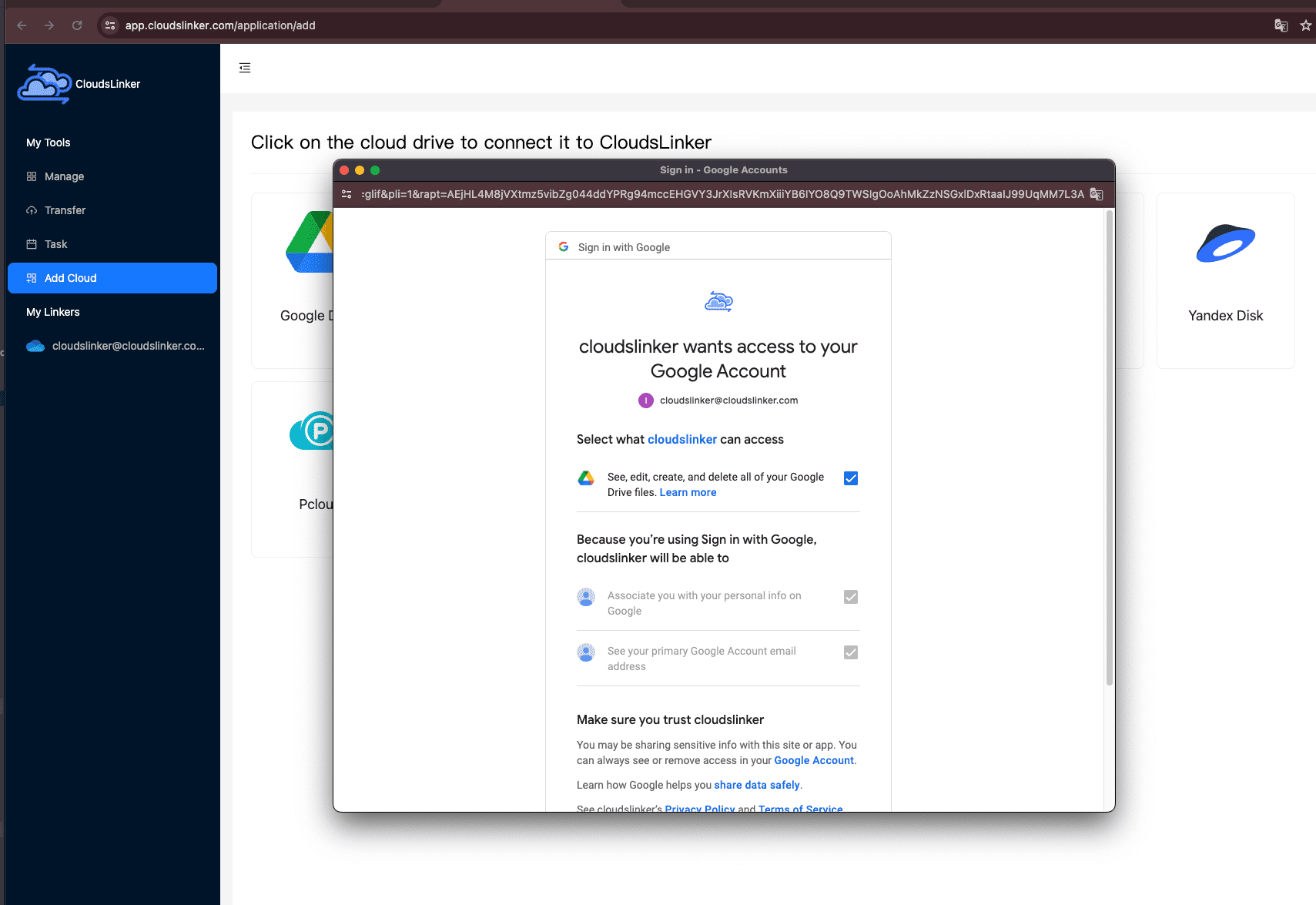
Choose Google Drive from the list. CloudsLinker redirects to Google's OAuth page, where you sign in and approve access. After approval you return to CloudsLinker with the account linked, and no password is stored—only a revocable access token.
Step 3: Configure the Transfer
Open the Transfer tab. Pick iCloud Drive as the source and select the files or folders to move; choose Google Drive as the destination and the target folder. Optional filters limit the job by file type or date, and you can pick Copy (keep originals) or Move (remove them after a successful transfer).
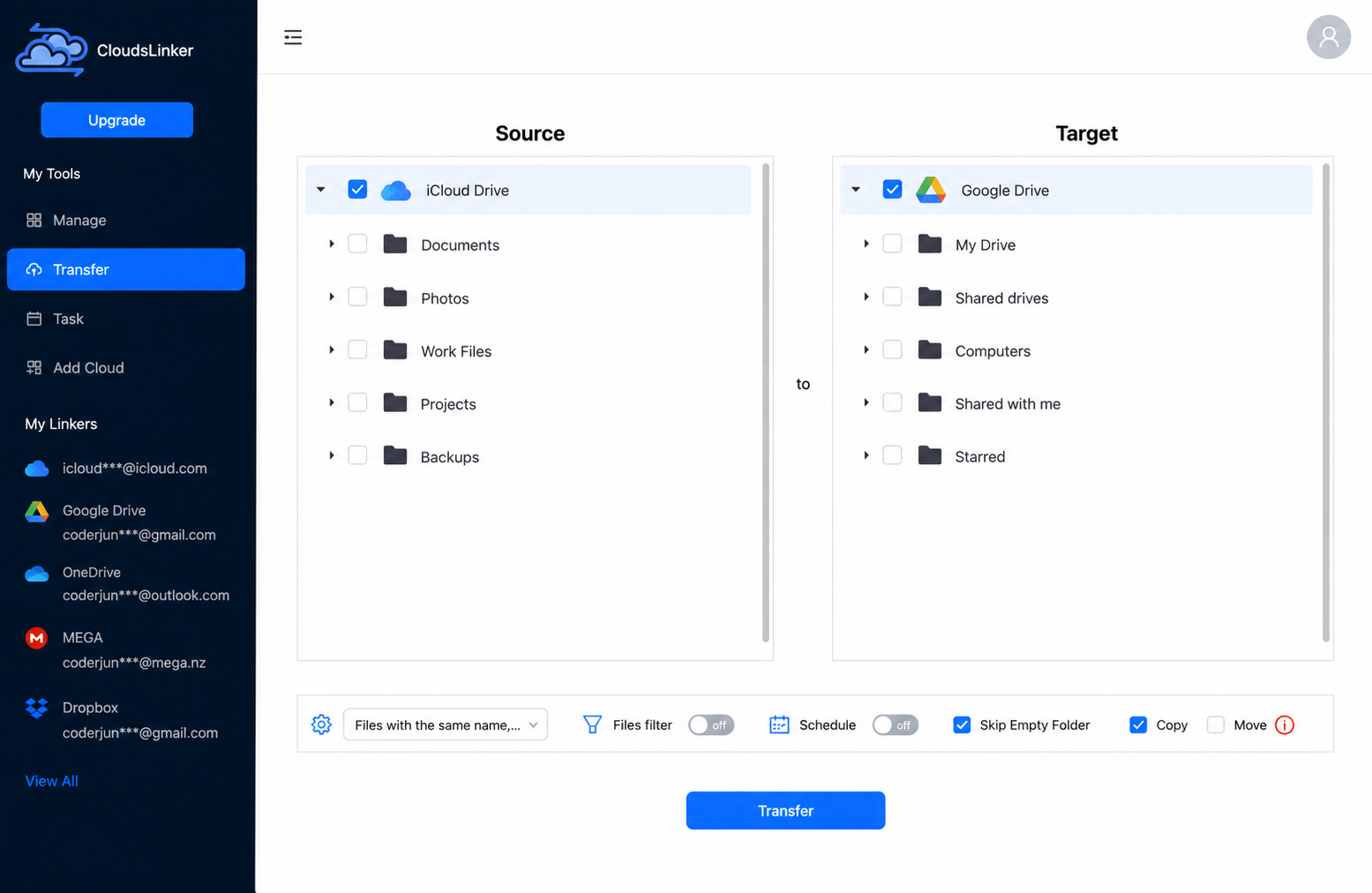
Step 4: Start and Monitor the Transfer
Start the transfer and follow it in the Task List, which reports transferred size, speed, and remaining items. Because the work runs in the cloud, you can close the tab or shut down your computer while it finishes, then check the completion report when you return.
Moving Between Other Clouds?
CloudsLinker also connects OneDrive, Dropbox, Box, MEGA, and S3-compatible storage for direct transfers that skip local downloads. The source and destination can be any supported pair.
Comparing the Ways to Transfer From iCloud Drive to Google Drive
No single method is best for everyone. The choice depends on how much data you move, whether you want command-line control, and how much you care about local bandwidth. This breakdown helps you decide:
| Method | Ease of Use | Speed | Best For | Uses Local Bandwidth | Skill Level |
|---|---|---|---|---|---|
| Web Browser (Manual) | ★★★★★ | ★★★☆☆ | Small, one-time transfers | Yes | Beginner |
| Desktop Apps | ★★★★☆ | ★★★☆☆ | Files already synced locally | Yes | Beginner–Intermediate |
| Rclone (CLI) | ★★☆☆☆ | ★★★★★ | Scripted or repeat transfers | Yes / No (if run on a server) | Advanced |
| CloudsLinker (Cloud) | ★★★★★ | ★★★★★ | Large libraries, no local bandwidth | No | Beginner |
For a few documents, the browser or desktop apps get the job done with no setup. For scripted control, Rclone is strong but technical. For a large library or to keep the transfer off your own device and connection, CloudsLinker runs the move entirely in the cloud.
- Enable web access first: Turn on "Access iCloud Data on the Web" in Apple ID settings, or both the browser method and CloudsLinker will fail to see your iCloud Drive.
- Download placeholders on Mac: If you use "Optimize Mac Storage," some files are stubs. Right-click → Download Now before any manual transfer.
- Check Drive's shared 15 GB: Google Drive's free quota is shared with Gmail and Photos. Review usage and upgrade Google One before a large move.
- Plan your folders: iCloud folder trees don't map to Drive automatically with manual methods. Recreate the structure, or let CloudsLinker mirror it.
- Apple file formats: .pages, .numbers, and .key files transfer as-is. Convert them to Google formats after the move if you want to edit them in Workspace.
- Copy before move: Use Copy mode for the first run and verify the files in Drive before deleting anything from iCloud.
- Large libraries: For hundreds of gigabytes, a cloud-side transfer avoids tying your device and home connection to the job for hours.
Watch: Transfer Files from iCloud to Google Drive
A walkthrough of three of the methods in this guide, from downloading and re-uploading in the browser to a direct cloud-to-cloud transfer with CloudsLinker.
Frequently Asked Questions
Conclusion
The right method depends on volume and how much you want to touch the files. For a handful of documents, downloading from iCloud.com and uploading to Drive in a browser is enough. If you already sync both clouds to a computer, the desktop-app route reuses what's there. Rclone suits scripted or repeat transfers where command-line control matters. For a large library—or to avoid tying up your bandwidth and device—CloudsLinker moves data directly between iCloud and Google's servers and keeps running after you close the tab. Match the method to your library size and technical comfort.
Online Storage Services Supported by CloudsLinker
Transfer data between over 60 cloud services with CloudsLinker

OneDrive

Google Drive

Google Photos

Google Takeout

Shared Drive

OneDrive for Business

Dropbox

Box

Mega

pCloud

Yandex

ProtonDrive

AWS

GCS

iDrive

Storj

DigitalOcean

Wasabi

1fichier

PikPak

TeleBox

OpenDrive

Backblaze B2

Fastmail file

SharePoint

Nextcloud

ownCloud

Premiumize me

HiDrive

Put.io

Sugar Sync

SmugMug

Jottacloud

Seafile

Ftp

SFtp

NAS

WebDav

4shared

Icedrive

Cloudflare R2

Scaleway

Hetzner Object Storage

Synology C2 Object Storage

S3 Compatible

Doi

iCloud Drive

iCloud Photos

FileLU

Zoho WorkDrive

Telia Cloud / Sky

Drime

Filen

TeraBox

Internxt

Degoo

Gofile

Pixeldrain

Shade

Koofr
Didn' t find your cloud service? Be free to contact: [email protected]
Further Reading
Effortless FTP connect to google drive: Transfer Files in 3 Easy Ways
Learn More >
Google Photos to OneDrive: 3 Innovative Transfer Strategies
Learn More >
Google Photos to Proton Drive: 3 Effective Transfer Techniques
Learn More >