Post-Quantum Privacy for Your iCloud Files: Moving iCloud Drive to Internxt
Move iCloud Drive files to Internxt's zero-knowledge, post-quantum encrypted storage. Manual export and a server-side cloud transfer compared.
Introduction
Internxt encrypts every file with AES-256 before it leaves your device, holds no readable copy of your data, and has already deployed post-quantum cryptography — the Spanish company cannot decrypt what you store even under legal compulsion. That design attracts one specific user: someone whose iCloud Drive holds tax records, medical scans or legal documents, and who wants encryption that does not depend on trusting the provider. Apple's standard iCloud protection keeps decryption keys on its own servers unless you enable Advanced Data Protection, and even then the ecosystem assumes you stay inside Apple hardware. This guide covers two ways to make the move: a manual export through iCloud.com, and a server-side transfer with CloudsLinker that handles large libraries without touching your local bandwidth.
iCloud Drive is Apple's file storage layer, woven into macOS Finder and the iOS Files app. Every Apple ID gets 5 GB free — shared with device backups and Photos — with iCloud+ tiers from 50 GB ($0.99/mo) to 12 TB ($59.99/mo).
- 5 GB free, shared with backups and Photos
- iCloud+ tiers: 50 GB to 12 TB, monthly billing only
- 50 GB maximum single file size
- Keys held by Apple unless ADP is enabled
Internxt is a Spanish zero-knowledge cloud: files are encrypted with AES-256 on your device before upload, the company holds no decryption keys, and its stack already uses post-quantum cryptography. Plans run 1 TB / 3 TB / 5 TB, with one-time lifetime purchases as an alternative to subscriptions.
- Zero-knowledge AES-256 + post-quantum encryption
- Essential 1 TB, Premium 3 TB, Ultimate 5 TB
- Lifetime plans available (one-time payment)
- Third-party access on Ultimate only; 40 GB per-file cap
| Feature | iCloud Drive | Internxt |
|---|---|---|
| Encryption model | Server-side; end-to-end only with ADP opt-in | Zero-knowledge by default, post-quantum ready |
| Free allowance | 5 GB (shared with backups + Photos) | Free tier available; paid plans start at 1 TB |
| Storage plans | $0.99/50 GB to $59.99/12 TB per month | 1 / 3 / 5 TB subscriptions or lifetime one-time purchase |
| Max single file | 50 GB | 40 GB via third-party (rclone) access |
| Ecosystem | Deep macOS / iOS integration | Web, desktop and mobile apps; no OS lock-in |
| Connection in CloudsLinker | Apple ID + 2FA code | Account credentials (Ultimate plan required) |
Sources: Apple: iCloud+ plans and pricing, Internxt: pricing.
Turn on Access iCloud Data on the Web in your iPhone or Mac's iCloud settings — without it, neither iCloud.com nor any transfer tool can read your Drive. Decide what actually needs zero-knowledge storage: documents, archives and finished projects benefit; files that Apple apps open daily (Pages documents in active edit, app-synced data) should stay. Check for any single file between 40 and 50 GB — iCloud allows them, Internxt's third-party access does not — and split or exclude those. Finally, confirm your Internxt account is on the Ultimate tier, since that is the only plan Internxt's integration accepts for external connections.
Method 1: Export via iCloud.com and Re-upload
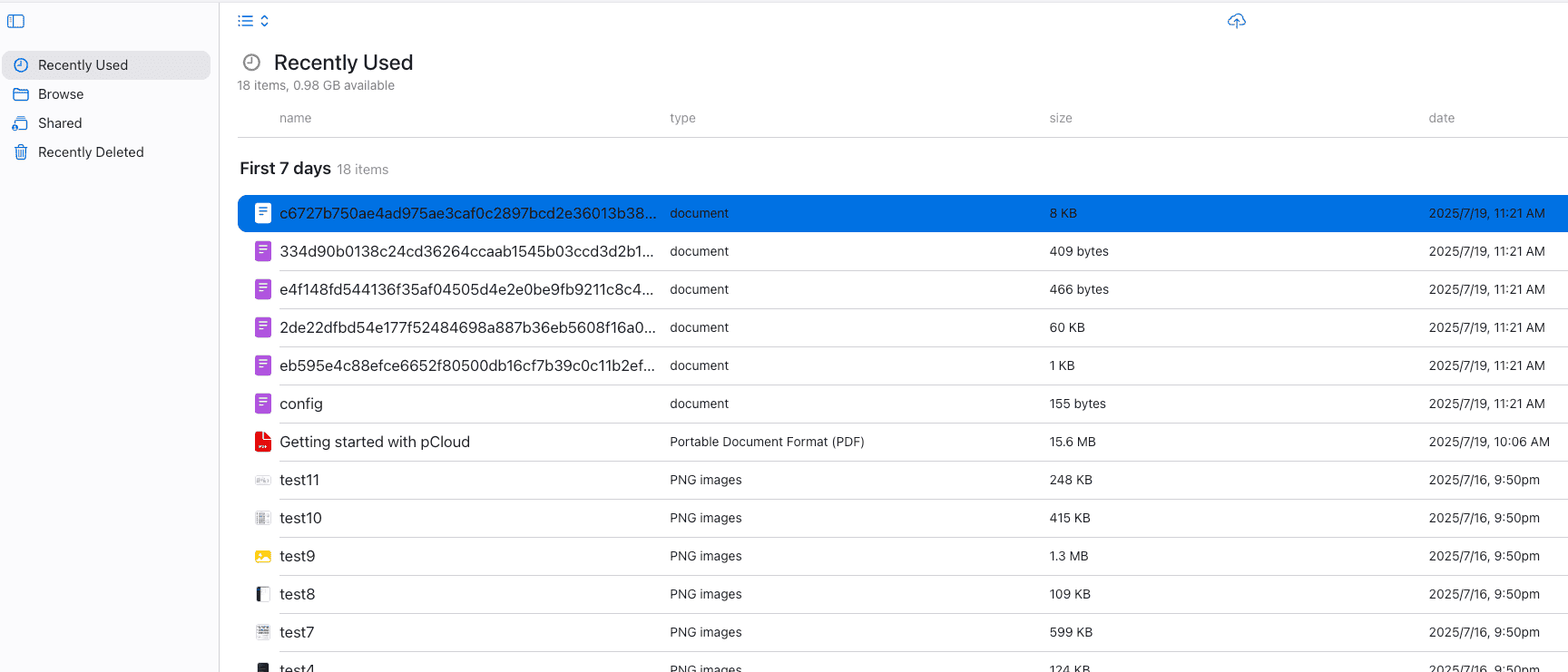
Step 1: Download from iCloud.com
Sign in at iCloud.com, open Drive, select folders and click the download icon. Folder selections arrive as ZIP archives; large libraries split into several.
Step 2: Upload into Internxt Drive
Extract the archives, sign in at drive.internxt.com, create a destination folder and drag the extracted content in. Encryption happens in the browser during upload, which makes this slower than a plain cloud upload of the same size.
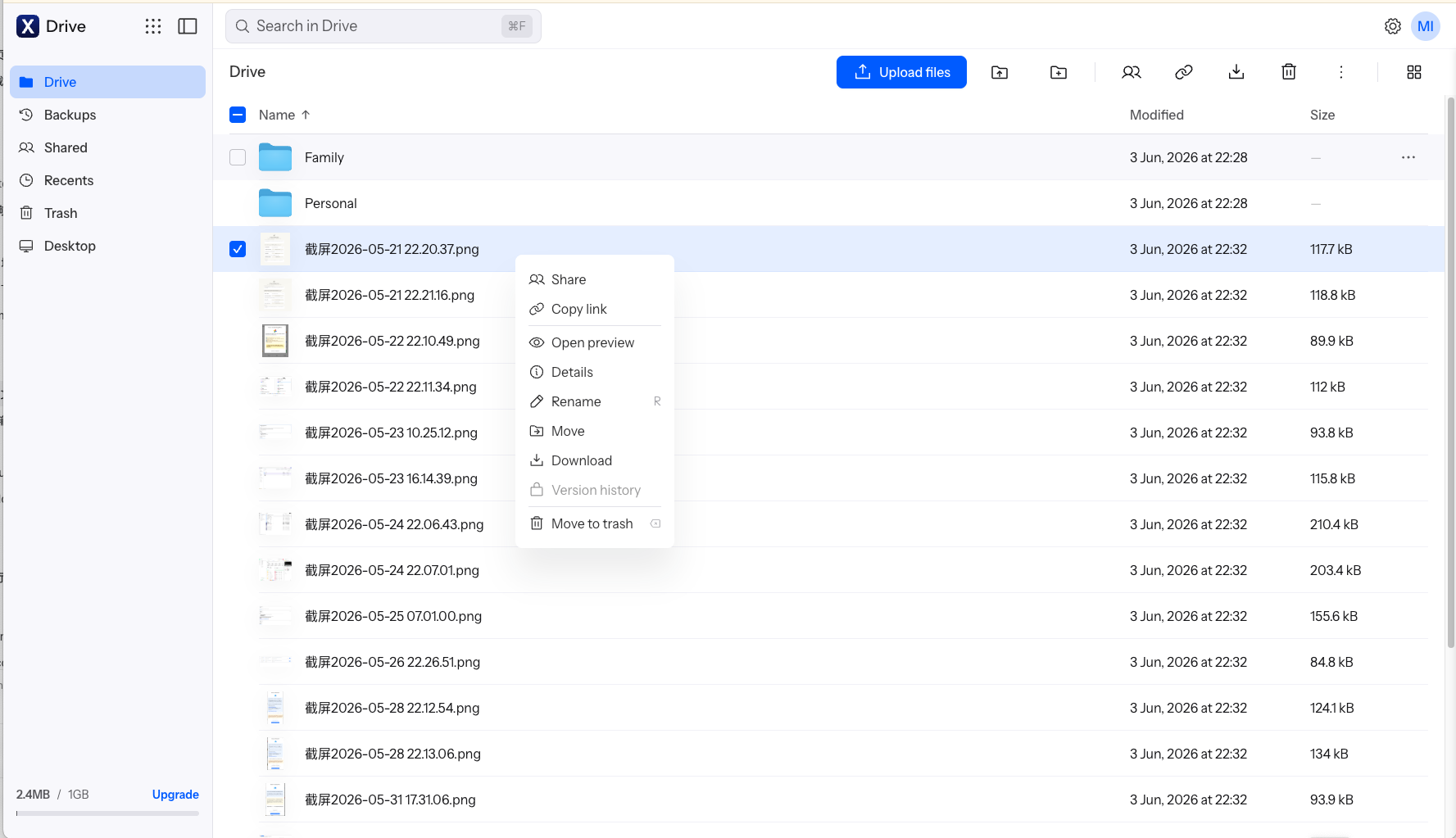
Every byte crosses your connection twice, plus browser-side encryption overhead. Fine for a documents folder; painful for a couple hundred gigabytes.
Method 2: Transfer iCloud Drive to Internxt in the Cloud
An authorized iCloud session, written straight into the vault
CloudsLinker signs in to iCloud the same way iCloud.com does — Apple ID plus a trusted-device code — and writes each file into Internxt through its encrypted protocol, all server-side. No ZIP archives to re-assemble, no double pass over your home connection, and the folder tree arrives intact.
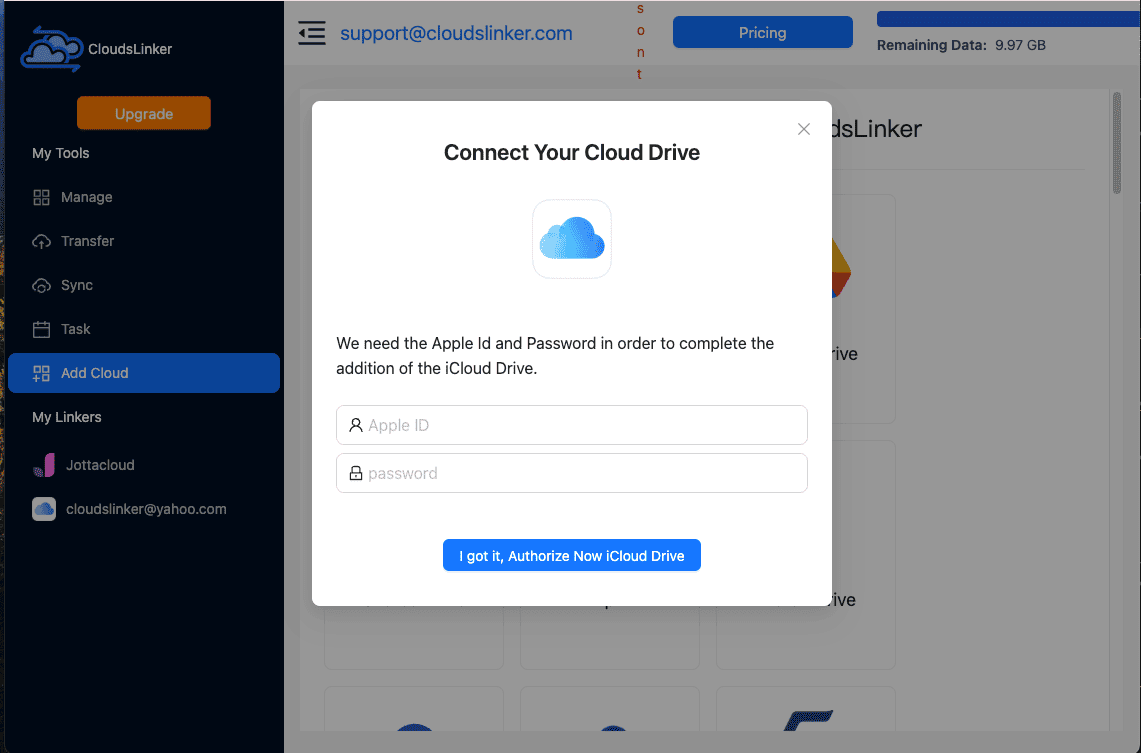
Step 1: Connect iCloud Drive
Click Add Cloud → iCloud Drive. Enter your Apple ID and password, then the 6-digit verification code that appears on your iPhone, iPad or Mac. If no code arrives, generate one manually from your device's Apple Account security settings.
Step 2: Connect Internxt
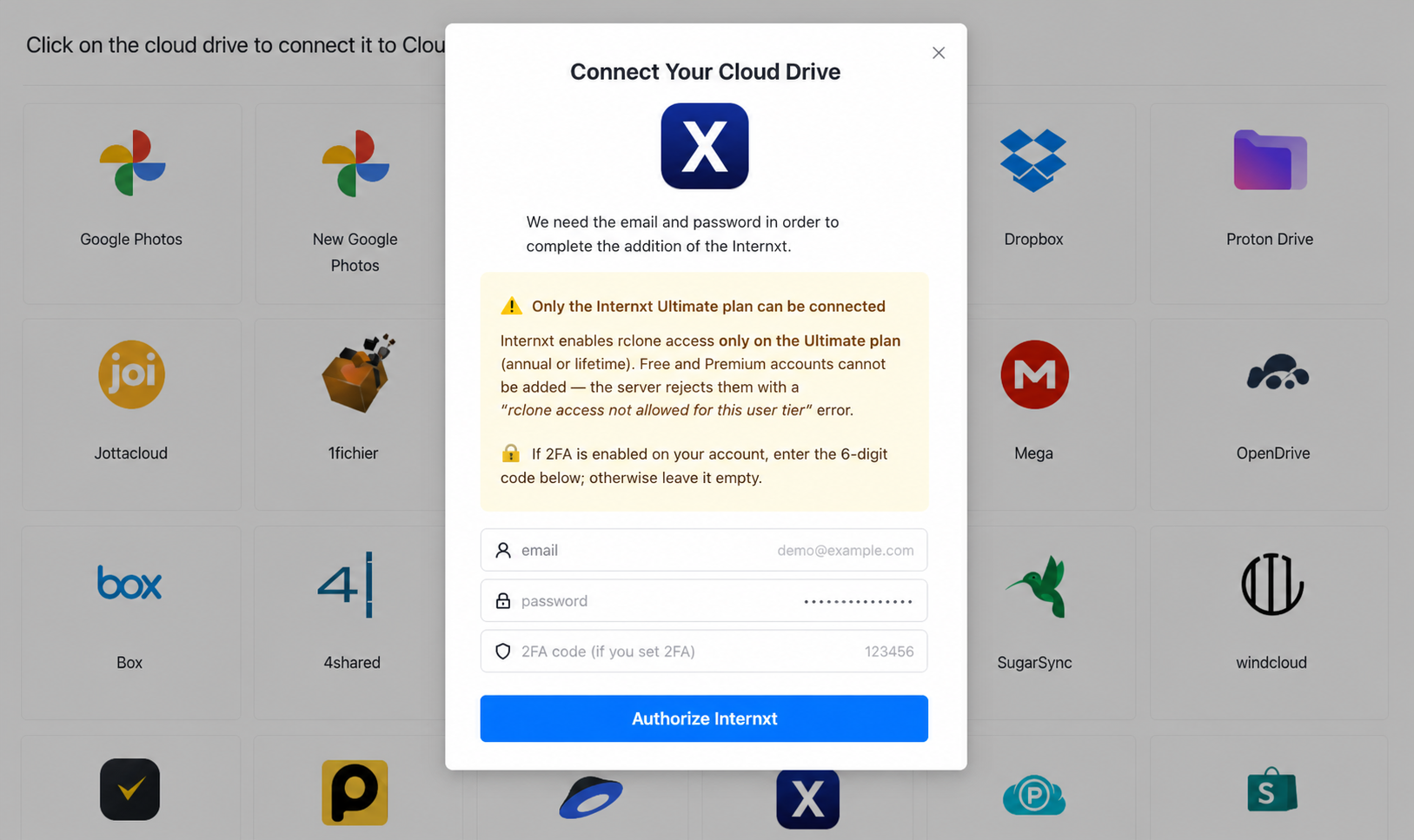
Click Add Cloud → Internxt. Enter your Internxt email and password, plus your 2FA code if enabled. The dialog rejects Free, Essential and Premium accounts — Internxt opens third-party access only on Ultimate.
Step 3: Configure the Transfer
In the Transfer section, set iCloud Drive as the source and tick the folders holding your sensitive documents. Set Internxt as the destination and choose a target folder. Filters restrict the job by type, size or date — for instance, PDFs and images only. Copy mode leaves iCloud untouched for verification before any cleanup.
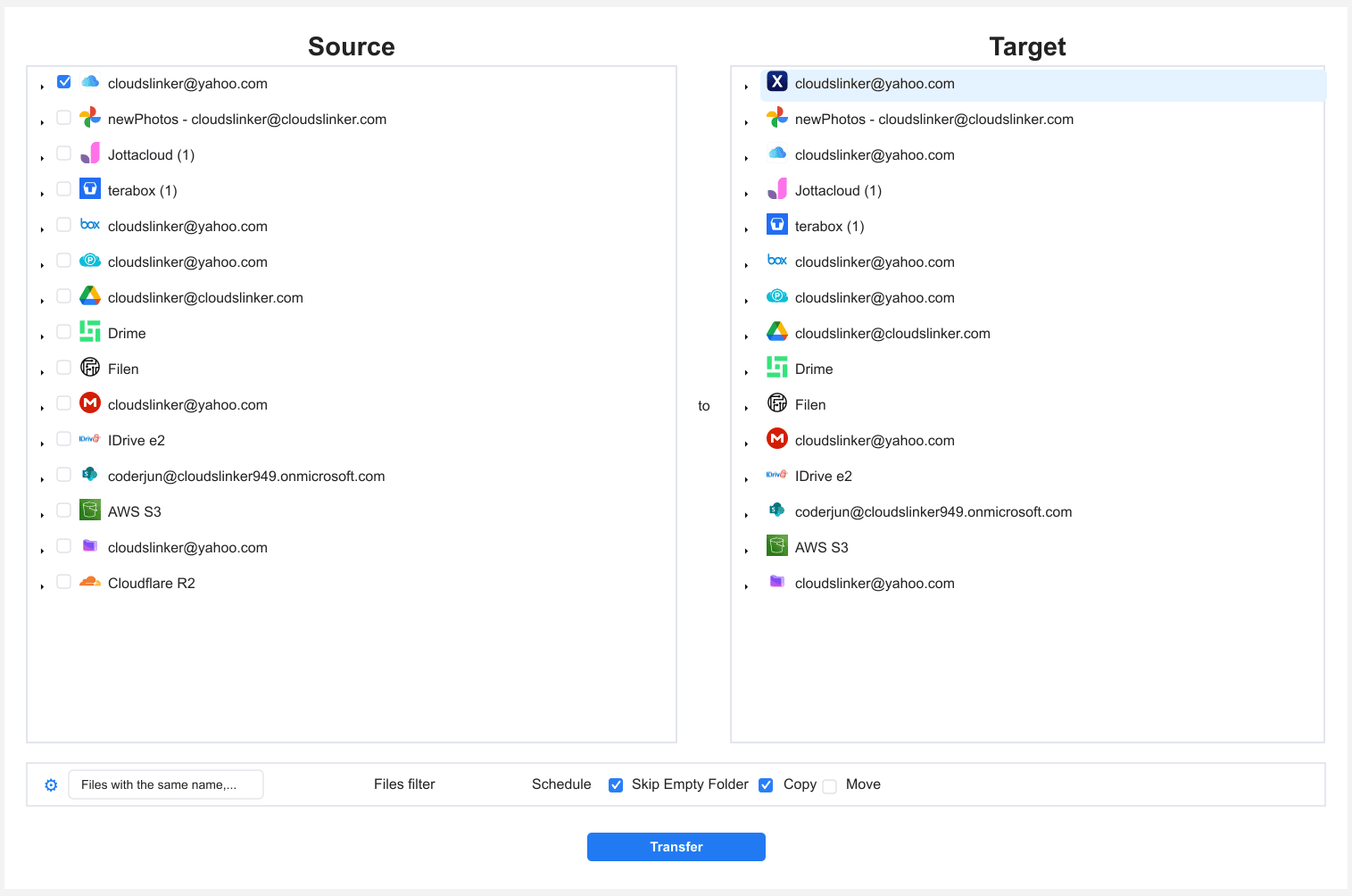
Step 4: Start and Monitor the Transfer
Start the job and watch the Task List — files done, current speed, and anything skipped. The copy runs entirely on CloudsLinker's servers; closing the browser or sleeping your Mac changes nothing.
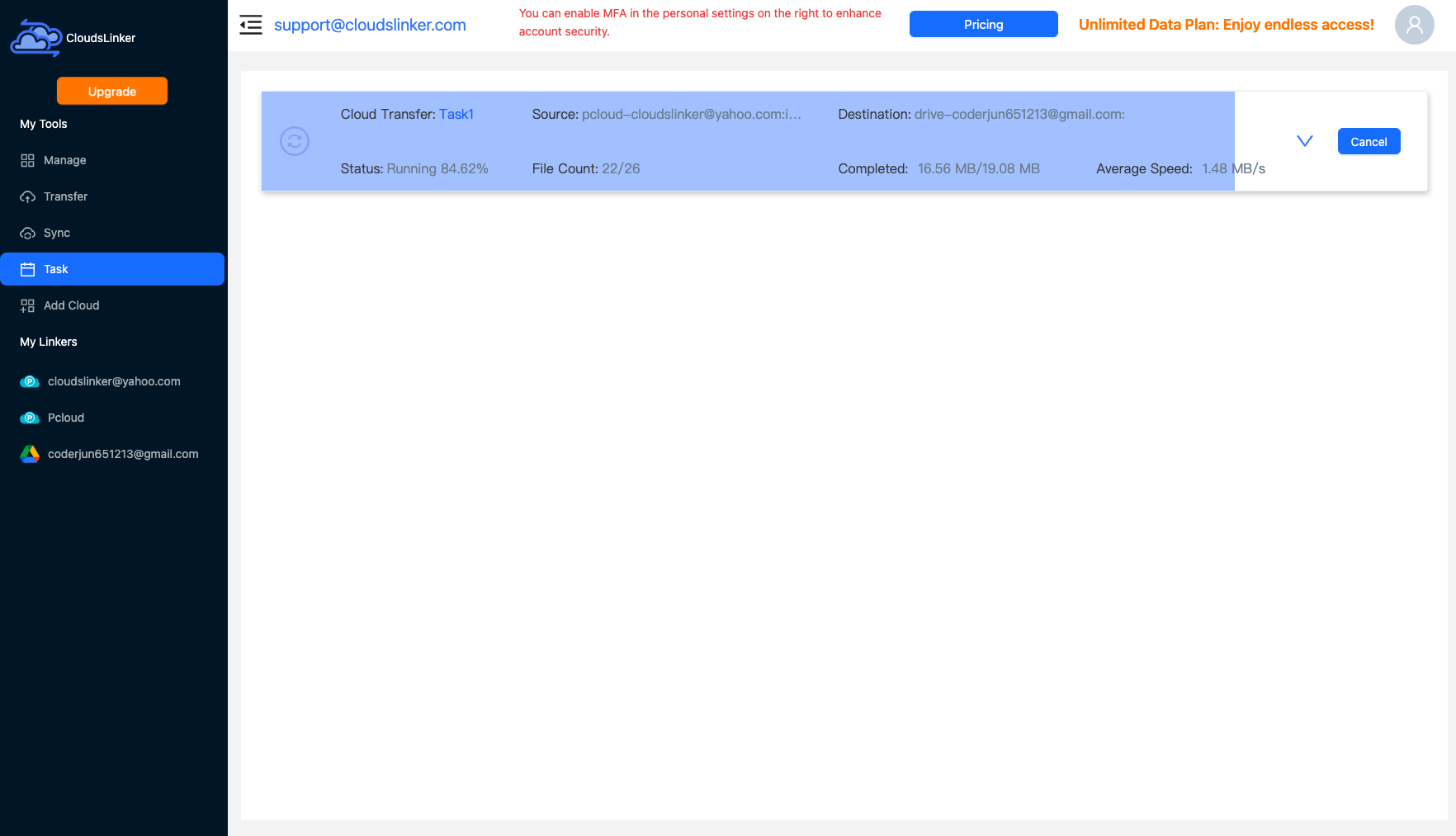
Comparing the Ways to Transfer From iCloud Drive to Internxt
| Method | Ease of Use | Speed | Best For | Uses Local Bandwidth | Skill Level |
|---|---|---|---|---|---|
| iCloud.com export + web upload | Medium | Slow (double pass + browser encryption) | A few GB of documents | Yes — twice | Basic |
| CloudsLinker | Easy | Fast (server-side) | Full libraries, preserved folder trees | No | Basic |
- Enable web access first: the 'Access iCloud Data on the Web' toggle in iCloud settings gates everything — iCloud.com and transfer tools alike read nothing while it's off.
- Mind the 40 GB ceiling: iCloud accepts single files up to 50 GB but Internxt's third-party access stops at 40 GB. Hunt down oversized video exports and disk images before starting, not after.
- Convert iWork documents: .pages, .numbers and .keynote files transfer as-is but open nowhere outside Apple's ecosystem. Export active ones to Office or PDF formats if you plan to leave Apple entirely.
- Ultimate is non-negotiable: Internxt's integration rejects lower tiers at connection time. Upgrade (or use a lifetime Ultimate deal) before scheduling the migration, not during.
- Expect encryption overhead on writes: Internxt encrypts per-file as data lands, so a 500 GB job runs somewhat slower than the same bytes into an unencrypted cloud. The Task List's speed figure reflects this.
- Keep Apple-app working files in iCloud: anything an iPhone app syncs continuously (scanner apps, note attachments) re-appears in iCloud after you move it. Migrate finished archives, not live app folders.
- Verify before downgrading iCloud+: spot-check files in Internxt Drive, then drop the iCloud tier — deleted iCloud files linger 30 days in Recently Deleted, giving you a safety window.
Frequently Asked Questions
Conclusion
A few gigabytes of documents move fine through iCloud.com's download button and Internxt's web uploader — just plan around ZIP re-assembly. For a full Drive library, CloudsLinker connects to iCloud with your Apple ID plus a 2FA code and writes into Internxt's encrypted storage server-side, keeping folder structure intact. Two constraints to respect before starting: the Internxt connection requires an Ultimate plan, and no single file over 40 GB can cross in one pass. Files you actively edit on Apple devices should stay in iCloud; the archive belongs in the vault.
Online Storage Services Supported by CloudsLinker
Transfer data between over 58 cloud services with CloudsLinker

OneDrive

Google Drive

Google Photos

Shared Drive

OneDrive for Business

Dropbox

Box

Mega

pCloud

Yandex

ProtonDrive

AWS

GCS

iDrive

Storj

DigitalOcean

Wasabi

1fichier

PikPak

TeleBox

OpenDrive

Backblaze B2

Fastmail file

SharePoint

Nextcloud

ownCloud

Premiumize me

HiDrive

Put.io

Sugar Sync

Jottacloud

Seafile

Ftp

SFtp

NAS

WebDav

4shared

Icedrive

Cloudflare R2

Scaleway

Hetzner Object Storage

Synology C2 Object Storage

S3 Compatible

Doi

iCloud Drive

iCloud Photos

FileLU

Zoho WorkDrive

Telia Cloud / Sky

Drime

Filen

TeraBox

Internxt

Degoo

Gofile

Pixeldrain

Shade

Koofr
Didn' t find your cloud service? Be free to contact: [email protected]
Further Reading
Effortless FTP connect to google drive: Transfer Files in 3 Easy Ways
Learn More >
Google Photos to OneDrive: 3 Innovative Transfer Strategies
Learn More >
Google Photos to Proton Drive: 3 Effective Transfer Techniques
Learn More >