How to Migrate Files from iDrive e2 to Zoho WorkDrive in 2026
Learn how to transfer your files from iDrive e2 to Zoho WorkDrive seamlessly, ensuring a smooth migration process with minimum downtime.
Introduction
More and more businesses are making the shift from object-storage platforms like iDrive e2 to collaboration-focused ecosystems such as Zoho WorkDrive. While iDrive e2 is great for scalable S3-compatible storage, teams often need real-time collaboration, granular access controls, and workflow-driven document management — areas where Zoho WorkDrive truly shines. This guide walks you through everything you need to know to migrate your data from iDrive e2 to Zoho WorkDrive with minimal disruption, preserving folder structures and preventing data loss.
Zoho WorkDrive is designed for organizations that need more than just a place to store files. Rather than functioning like a traditional bucket-style archive, WorkDrive offers a productive collaboration hub where teams can create, share, and organize documents, media, and project files without workflow friction.
One of its biggest strengths is how tightly it integrates with the wider Zoho ecosystem — Zoho CRM, Zoho Projects, Zoho Writer, Zoho Sheets, and many more. For companies relying on Zoho apps, moving file storage to WorkDrive creates a unified working environment, reducing context switching and improving visibility across departments.
- Team Collaboration: Shared Team Folders allow members to co-edit in real time, review changes via version history, and keep everyone aligned.
- TrueSync File Access: Access cloud files directly from your desktop without consuming storage — ideal for large media libraries.
- Enterprise-Grade Security: Advanced encryption, role-based permissions, and detailed admin dashboards make compliance simple.
- Support for 200+ File Formats: View and preview documents, graphics, audio, and video without needing external apps.
- Native Zoho Integration: Sync WorkDrive effortlessly with your daily business apps to automate file routing and approval workflows.
In short, Zoho WorkDrive creates a secure and efficient workspace where files don’t just sit — they actively support team collaboration and business processes.
IDrive® e2 is a modern, scalable, and cost-effective cloud object storage solution designed for businesses and developers who need powerful data storage with Amazon S3 API compatibility. It’s built to handle everything from small backups to petabyte-scale unstructured data without the limitations of traditional file hierarchy storage. :contentReference[oaicite:0]{index=0}
Instead of acting like a simple file archive, IDrive e2 uses a flat object storage structure where each file is treated as an independent object with unique metadata and identifiers. This approach enables faster retrieval, unlimited scalability, and flexible access methods via standard S3-compatible APIs, making it ideal for backup, archiving, media workflows, analytics, and application storage. :contentReference[oaicite:1]{index=1}
- S3-Compatible Object Storage: Full compatibility with Amazon S3 API lets you use existing tools, libraries, and apps that support S3 without changes. :contentReference[oaicite:2]{index=2}
- Highly Scalable & Durable: Designed to store from terabytes to petabytes of data with high availability and durability, suitable for growing data needs. :contentReference[oaicite:3]{index=3}
- Flexible & Cost-Effective Pricing: Pay-as-you-go pricing with simple per-GB charges and optional yearly savings for predictable budgets. :contentReference[oaicite:4]{index=4}
- Web-Based Console & Access Anywhere: Manage buckets, monitor usage, and control access from a centralized web interface, accessible globally. :contentReference[oaicite:5]{index=5}
- Security & Compliance Features: Supports object locking, permission controls, and secure access workflows to protect data from accidental deletion or unauthorized access. :contentReference[oaicite:6]{index=6}
In short, IDrive e2 delivers a secure, scalable, and developer-friendly object storage platform that integrates easily with modern applications and workflows — ensuring your data is always accessible and protected. :contentReference[oaicite:7]{index=7}
iDrive e2 offers reliable object storage and S3 compatibility, making it attractive for pure file archiving and backup. However, as organizations evolve toward more connected workflows, many find themselves needing something beyond centralized storage — a platform that helps teams actually work together on the files they store.
- Built for Team Productivity: Unlike traditional object storage, WorkDrive supports simultaneous editing, document comments, and structured team libraries.
- Transparent Data Governance: Activity logs, retention rules, and member-level analytics make compliance and oversight effortless.
- Seamless Integration: WorkDrive plugs directly into the Zoho suite and popular external business tools, eliminating disconnected processes across departments.
For companies that have outgrown static storage and now prioritize collaboration and workflow efficiency, Zoho WorkDrive becomes a natural next step — especially when scaling across teams or managing frequent document changes.
Beyond features, many teams consider the economics of keeping data on iDrive e2 versus moving day-to-day work into Zoho WorkDrive. Used correctly, the combination can reduce overall spend while giving teams a better toolset for collaboration.
Understanding iDrive e2’s Pricing Model
iDrive e2 follows a straightforward pay-as-you-go object storage model: you pay for the total storage capacity you consume, with free uploads, downloads, and API requests.:contentReference[oaicite:5]{index=5} This makes it very attractive for bulk data retention, off-site backups, and archival workloads where the primary cost driver is raw capacity, not collaboration features.
- Ideal for keeping large backups, logs, and rarely accessed archives.
- Costs are mostly tied to how many terabytes you store over time.
- No extra fees for egress and API calls, which is helpful for backup/restore operations.:contentReference[oaicite:6]{index=6}
How Zoho WorkDrive Plans Are Structured
Zoho WorkDrive uses a per-user, per-team subscription model. Pricing tiers (Starter, Team, Business) bundle storage quotas, collaboration features, and admin controls into one license, with shared TB-level storage for the entire team.:contentReference[oaicite:7]{index=7} In practice, this means you pay primarily for the number of users and the collaboration capabilities, rather than for raw storage alone.
- Team-wide storage pools starting from several terabytes per team.
- Features like Team Folders, detailed audit logs, and advanced sharing controls bundled into the license.
- Desktop sync and TrueSync, which reduce the need for additional third-party sync tools.:contentReference[oaicite:8]{index=8}
Avoid Using iDrive e2 as a “Makeshift Collaboration Drive”
If you currently use iDrive e2 as a shared file system for everyday collaboration, you may be paying for storage while still missing key essentials: online editing, version history, granular sharing, and user-level permissions. Those gaps are often filled with extra SaaS tools, custom scripts, or manual workflows — all of which carry hidden costs in time and maintenance.
Moving active projects to Zoho WorkDrive consolidates many of these needs into one platform: your team pays for a collaboration suite instead of stitching together multiple services around an object storage bucket.
Using CloudsLinker to Control Migration Costs
A common concern is whether migrating data from iDrive e2 to Zoho WorkDrive will increase your monthly bills. The migration itself does not change your Zoho WorkDrive pricing — that is determined by your chosen plan and number of users.:contentReference[oaicite:9]{index=9}
CloudsLinker runs migrations entirely in the cloud and is billed separately based on its own transfer plans. You can use it to perform a one-time consolidation of active data into WorkDrive while leaving bulk archives in iDrive e2. In many cases, this “active on WorkDrive, archive on iDrive e2” mix offers a better balance between productivity and long-term storage costs.
Before initiating your move from other cloud platforms to Zoho WorkDrive, organizing your files and familiarizing yourself with WorkDrive’s capabilities will ensure a faster and safer migration process.
Sort and Organize Your Files
-
Remove Unnecessary Files: Clean up outdated or redundant files in your current cloud storage to simplify the transfer and reduce total size. -
Organize by Category: Arrange your files into folders by project, type, or priority. This structure can easily be replicated within Zoho WorkDrive’s folder and Team Folder layout.
Understand Zoho WorkDrive Capabilities
-
Get Familiar with WorkDrive: Explore the web interface and desktop/mobile apps to understand features like secure link sharing, Team Folders, and desktop access with sync. -
Plan Your Folder Layout: Decide how to map or improve your current folder hierarchy when migrating into Zoho WorkDrive to take advantage of its organized team structure and version history.
Ensure Your Files Are Backed Up
- Backing up your current cloud data before migration is critical. Use external drives or a temporary cloud backup to protect against accidental loss during the transfer.
How to Migrate Files to Zoho WorkDrive
Why Choose CloudsLinker for Cloud-to-Cloud Data Migration?
When migrating from an object storage service like iDrive e2 to a collaboration-driven platform such as Zoho WorkDrive, traditional methods like downloading and re-uploading can take days and introduce file integrity risks. CloudsLinker eliminates those issues with a secure, end-to-end cloud-to-cloud transfer channel that never consumes your local bandwidth. It supports more than 20 services, including Zoho WorkDrive, Google Drive, Dropbox, OneDrive, MEGA, pCloud, and Proton Drive. Transfer jobs are queued and verified automatically, making even multi-TB migrations manageable without manual supervision.
Step 1: Adding Zoho WorkDrive to CloudsLinker
Begin by logging in to CloudsLinker. Navigate to Add Cloud and select Zoho WorkDrive as your destination.
Select the appropriate WorkDrive region for your account (us, eu,
jp, in, etc.). Continue with the OAuth login and grant approval for
secure access.
Once connected, Zoho WorkDrive will appear in your cloud list and can be set as the migration target.

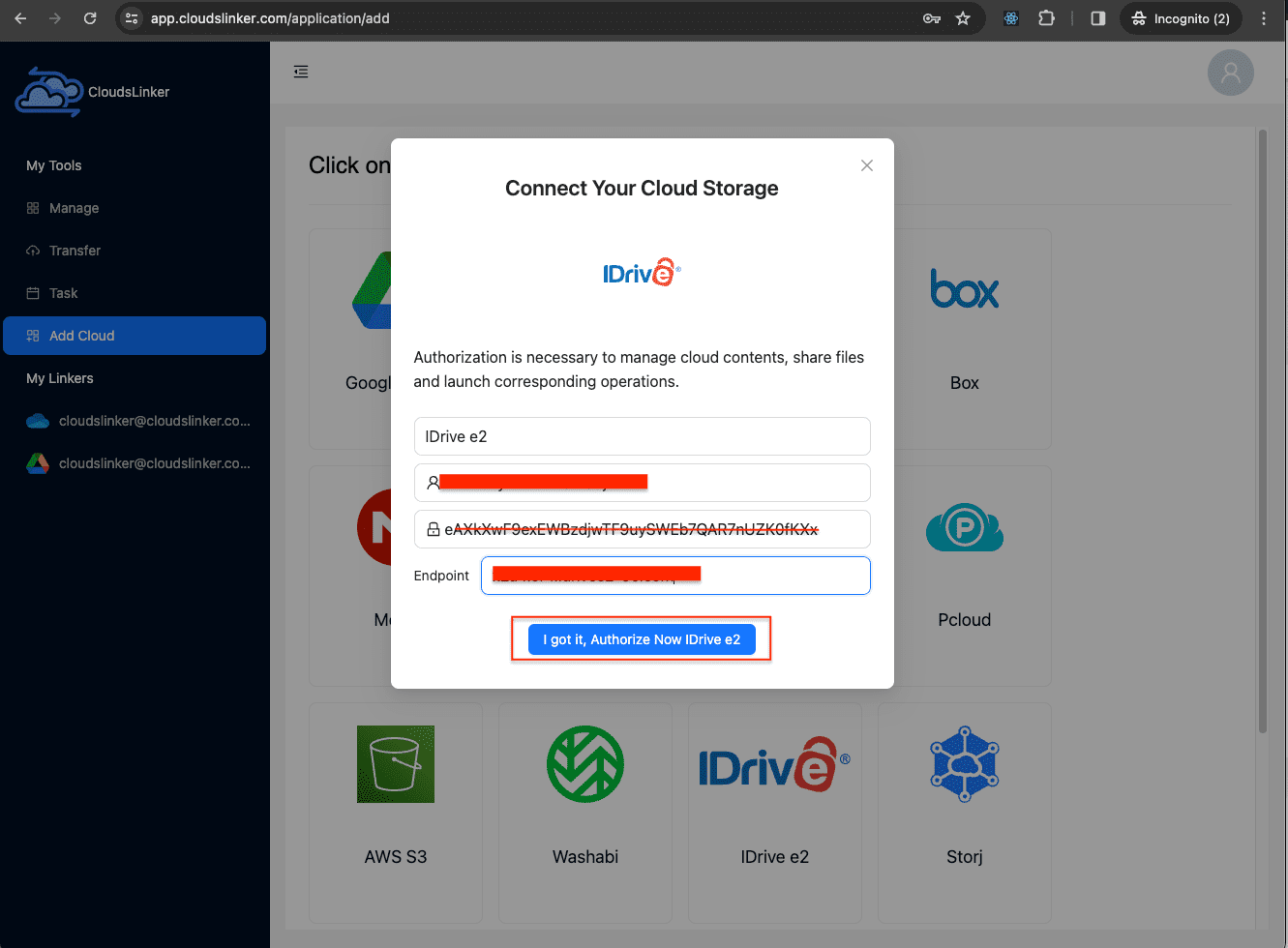
Step 2: Adding iDrive e2 to CloudsLinker
Now add your iDrive e2 account as the source storage. In the Add
Cloud section,
choose iDrive e2 and enter your access_key_id,
secret_access_key,
and endpoint. CloudsLinker will test your connection instantly and list the
available buckets.
If you use multiple buckets for archiving or backups, all of them will appear — you can migrate from a single bucket or from multiple buckets in parallel.
Step 3: Initiating the Migration
Open the Transfer panel and choose iDrive e2 as the source and Zoho WorkDrive as the destination. Select the folders you want to migrate and configure options such as:
- Copy / Move mode
- Skip duplicate files or overwrite
- Filter specific formats such as PDFs, videos, or audio files
Click Start Transfer to launch the migration job.

Step 4: Monitoring the Transfer
Track migration in real time under the Tasks panel. You can pause, resume, or cancel transfers independently — helpful for large buckets or multi-TB archives from iDrive e2.
Step 5: Verifying Completion
Once complete, verify your files directly in Zoho WorkDrive. Open folders and sample files to ensure accurate transfer, preserved structure, and correct metadata. If any directory needs to be re-migrated, you can rerun a targeted transfer rather than starting over.
With automated retries, task scheduling, and high-speed parallel transfers, CloudsLinker makes the shift from iDrive e2 to Zoho WorkDrive smooth and predictable — ideal for personal users, freelancers, and businesses consolidating multi-cloud storage into a centralized workspace.
Not every organization has to choose between iDrive e2 or Zoho WorkDrive. In many cases, the most sustainable approach is a hybrid cloud strategy: keep your long-term backup and archive on iDrive e2, and run your daily collaboration on Zoho WorkDrive.
When to Keep Data on iDrive e2
iDrive e2 is an S3-compatible object storage service designed for large, durable repositories of data. Its use cases typically include data archiving, backup, and disaster recovery, where files are written once and rarely changed.:contentReference[oaicite:1]{index=1} Because pricing is based on the amount of storage you use, with free ingress and egress and no API request fees, it works well for organizations that need to retain large datasets over long periods.:contentReference[oaicite:2]{index=2}
- Long-term backups of application data, databases, and media assets.
- Regulatory or compliance archives that must be kept but are rarely accessed.
- Immutable backups using object lock features to protect against ransomware.:contentReference[oaicite:3]{index=3}
When Zoho WorkDrive Should Be Your “Working Area”
Zoho WorkDrive, on the other hand, is built around team collaboration, version history, and structured content management. Team Folders, unlimited version tracking, granular permissions, and desktop sync with TrueSync make it ideal for files that are edited and shared every day.:contentReference[oaicite:4]{index=4}
- Active project documents, proposals, and client deliverables.
- Files that multiple team members need to co-edit, comment on, or review regularly.
- Content that must be searchable by keywords, tags, or metadata for quick retrieval.
A Practical Hybrid Example
One common pattern is to treat Zoho WorkDrive as the “live workspace” and iDrive e2 as the “cold archive”:
- During a project, all working files live in Zoho WorkDrive Team Folders for easy sharing and editing.
- Each month or quarter, completed projects are exported or copied back to iDrive e2 for long-term backup and archive.
- This keeps WorkDrive lean and fast for daily collaboration on Zoho WorkDrive, while iDrive e2 handles the cheap, durable storage layer in the background.
Using CloudsLinker, you can automate parts of this hybrid strategy — for example, by periodically copying older folders from Zoho WorkDrive back to iDrive e2, or refreshing WorkDrive with the latest data pulled from archived buckets.
Frequently Asked Questions
us, eu, jp, in), and authentication
must match your
account’s region. Selecting the wrong region can cause OAuth token rejection or stalled
transfers,
so choosing the correct one ensures consistent and stable API connectivity throughout the
migration.
Step-by-Step Video: Move idrive e2 Files to Zoho WorkDrive
Prefer watching over reading? In this walkthrough, we’ll guide you through the full process of transferring files from idrive e2 into Zoho WorkDrive. The video covers everything—from using a web browser for quick uploads to setting up automated transfers with CloudsLinker. You’ll also see practical tips for avoiding sync errors, managing large folders, and making sure your files stay organized across Apple devices. Whether you’re new to cloud storage or just want the easiest route, this guide has you covered.
Conclusion
Migrating from iDrive e2 to Zoho WorkDrive doesn’t have to be stressful or time-consuming. With the right tools and preparation, businesses and individual users can move their data smoothly while keeping permissions and organization intact. Once the transfer is complete, Zoho WorkDrive immediately unlocks a more team-oriented environment — shared libraries, version history, and productivity-focused integrations — allowing you to collaborate faster and smarter.
Online Storage Services Supported by CloudsLinker
Transfer data between over 48 cloud services with CloudsLinker

OneDrive

Google Drive

Google Photos

Shared Drive

OneDrive for Business

Dropbox

Box

Mega

pCloud

Yandex

ProtonDrive

AWS

GCS

iDrive

Storj

DigitalOcean

Wasabi

1fichier

PikPak

TeleBox

OpenDrive

Backblaze B2

Fastmail file

SharePoint

Nextcloud

ownCloud

Premiumize me

HiDrive

Put.io

Sugar Sync

Jottacloud

Seafile

Ftp

SFtp

NAS

WebDav

4shared

Icedrive

Cloudflare R2

Scaleway

Doi

iCloud Drive

iCloud Photos

FileLU

Zoho WorkDrive

Telia Cloud / Sky

Drime

Filen
Didn' t find your cloud service? Be free to contact: [email protected]
Further Reading
Effortless FTP connect to google drive: Transfer Files in 3 Easy Ways
Learn More >
Google Photos to OneDrive: 3 Innovative Transfer Strategies
Learn More >
Google Photos to Proton Drive: 3 Effective Transfer Techniques
Learn More >