From Encrypted Vault to Client-Ready Links: Moving Internxt Files to Dropbox
Transfer files from Internxt to Dropbox for link sharing, client delivery and app integrations. Manual export and server-side transfer compared.
Introduction
Dropbox built its reputation on frictionless sharing: a link anyone can open, folder invites with edit rights, and integrations with thousands of apps from Slack to Adobe. None of that exists inside Internxt, and deliberately so — a zero-knowledge provider cannot preview, index or hand out your files because it cannot read them. The friction shows up when work stored in the vault needs to reach other people: a designer delivering assets, a videographer sending cuts, a team that standardized on Dropbox. At that point the encrypted archive has to become shareable storage. Two pair-specific rules shape the move: Internxt allows third-party access only on its Ultimate plan, and caps files at 40 GB through that access. Here is the manual route and the server-side one.
Internxt is a Spanish zero-knowledge cloud storing files under AES-256 encryption applied on your device — the provider cannot read, preview or share your data. Tiers run Essential 1 TB, Premium 3 TB, Ultimate 5 TB, plus one-time lifetime plans.
- Client-side AES-256, post-quantum protocols
- 1 / 3 / 5 TB tiers and lifetime purchases
- No link previews or app integrations by design
- External access: Ultimate plan, 40 GB per file
Dropbox is the sharing-first cloud: permission-controlled links, folder invites, Dropbox Transfer for handoffs, and integrations across thousands of apps. Free accounts get 2 GB; Plus provides 2 TB at $9.99/month billed annually.
- 2 GB free; Plus 2 TB at $9.99/mo (annual)
- 350 GB max file via browser upload
- Links, folder invites, 100 GB Dropbox Transfer
- OAuth access for transfer tools
| Feature | Internxt | Dropbox |
|---|---|---|
| Sharing | Basic encrypted links only | Permissioned links, invites, 100 GB Transfer |
| Encryption model | Zero-knowledge; user holds keys | AES-256 at rest; Dropbox holds keys |
| Free tier | Free tier available | 2 GB |
| Paid storage | 1 / 3 / 5 TB; lifetime options | Plus 2 TB at $9.99/mo (annual billing) |
| Max single file | 40 GB via third-party access | 350 GB browser upload; larger via desktop app |
| Connection in CloudsLinker | Account credentials (Ultimate required) | Dropbox OAuth |
Sources: Internxt: pricing, Dropbox: plan comparison.
Separate deliverables from masters before touching any tool: the whole point of this pair is that shareable content goes to Dropbox while private archives stay encrypted. Verify the Internxt account is on Ultimate — lower tiers cannot open third-party access — and scan the outbound folders for files over 40 GB, which need the web downloader instead. On the Dropbox side, match the plan to the payload (2 GB free versus 2 TB on Plus), and pre-create the client or project folder structure if you want incoming files to land in a specific layout.
Method 1: Download from Internxt and Re-upload
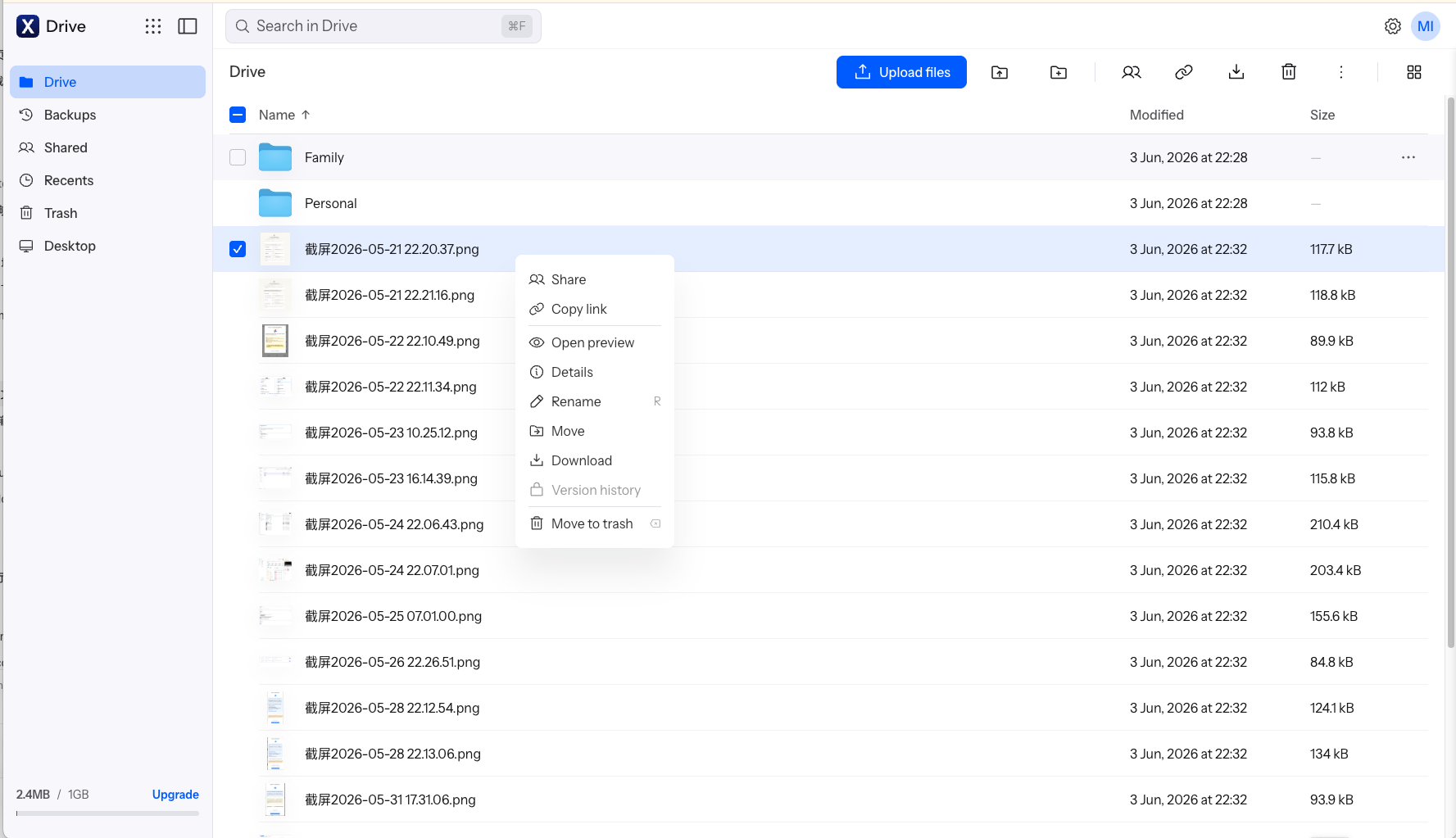
Step 1: Download from drive.internxt.com
At drive.internxt.com, select the delivery folders and click Download. Decryption happens in the browser during the download, so large selections take longer than their size suggests.
Step 2: Upload into Dropbox
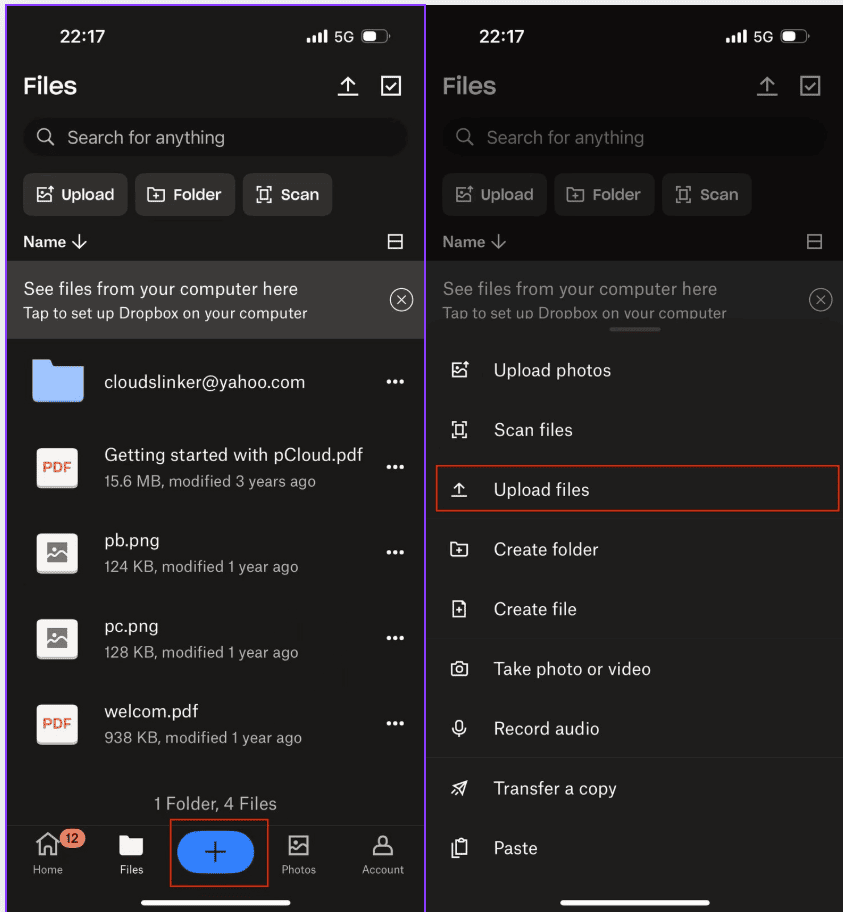
Sign in at dropbox.com, open the destination folder and drag the files in — the browser handles single files up to 350 GB. Alternatively, drop everything into the Dropbox folder on your desktop and let the sync client upload.
Fine for one delivery. As a recurring workflow, every handoff costs a decrypt-download and a re-upload across your own connection.
Method 2: Transfer Internxt to Dropbox in the Cloud
Deliverables out of the vault without the local round-trip
CloudsLinker connects to Internxt with Ultimate-plan credentials and to Dropbox over OAuth, then copies server-to-server: no browser decryption session to babysit, and folder hierarchies arrive ready to share. For repeat deliveries, the same two connections are reused — only the folder selection changes.
Step 1: Connect Internxt
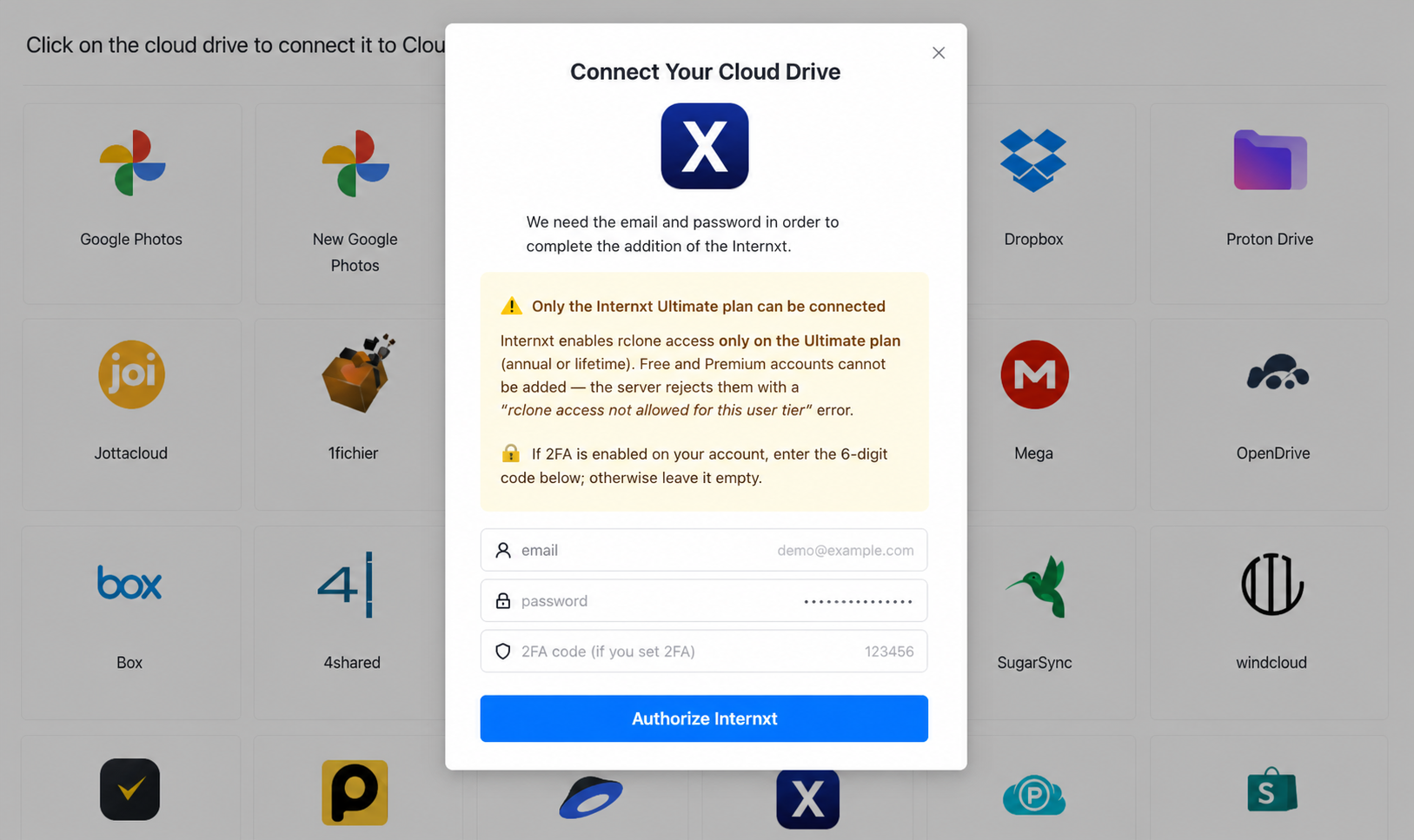
Click Add Cloud → Internxt and sign in with your account email, password, and 2FA code if enabled. Internxt's integration accepts Ultimate accounts only.
Step 2: Connect Dropbox
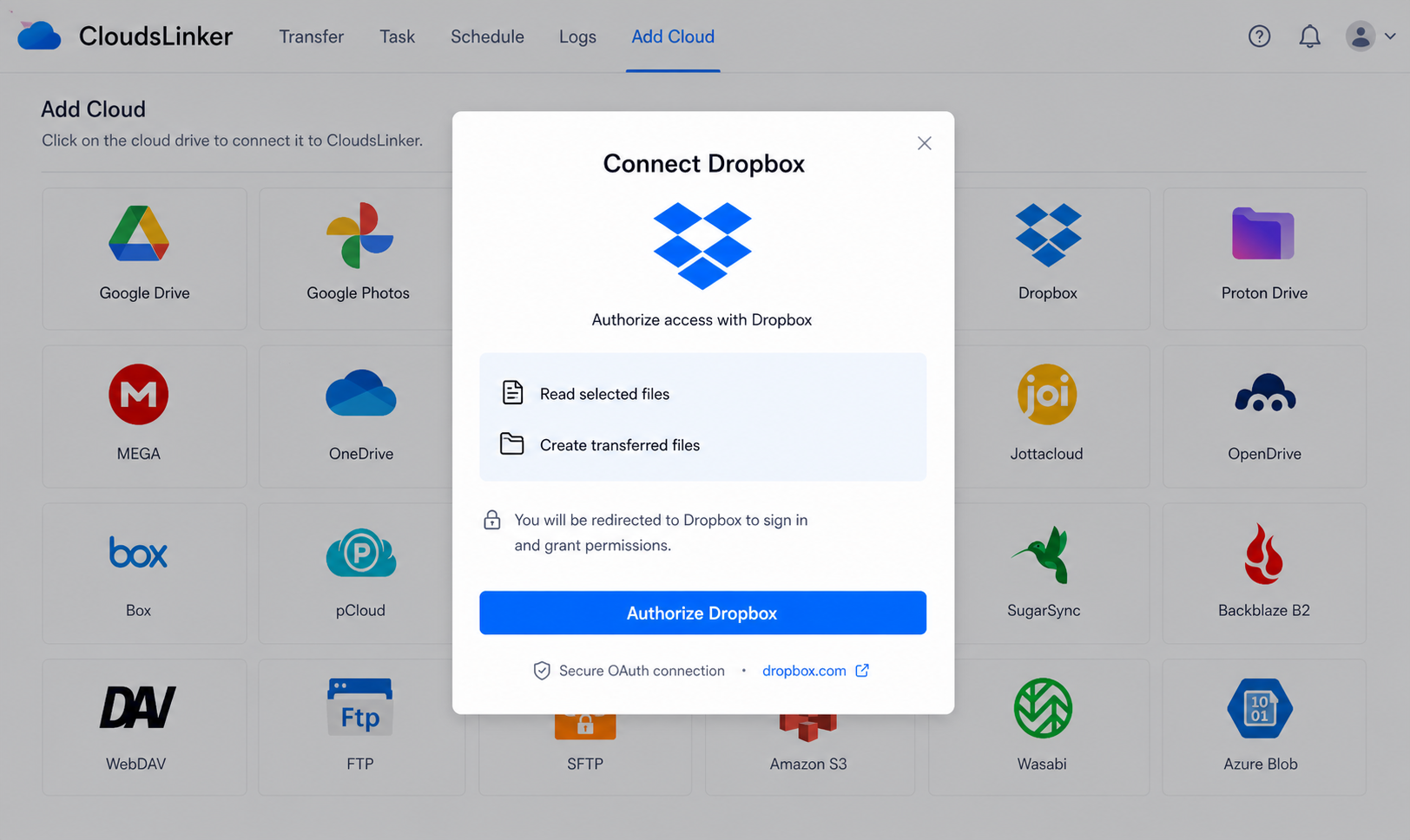
Click Add Cloud → Dropbox, sign in on Dropbox's authorization page and approve. The grant appears under Dropbox's connected apps, where it can be revoked at any time.
Step 3: Configure the Transfer
Set Internxt as the source and tick the delivery folders; set Dropbox as the destination and choose the client or project folder. Filters by type, size or date keep the job tight — final renders only, for instance. Copy mode leaves the vault originals untouched.
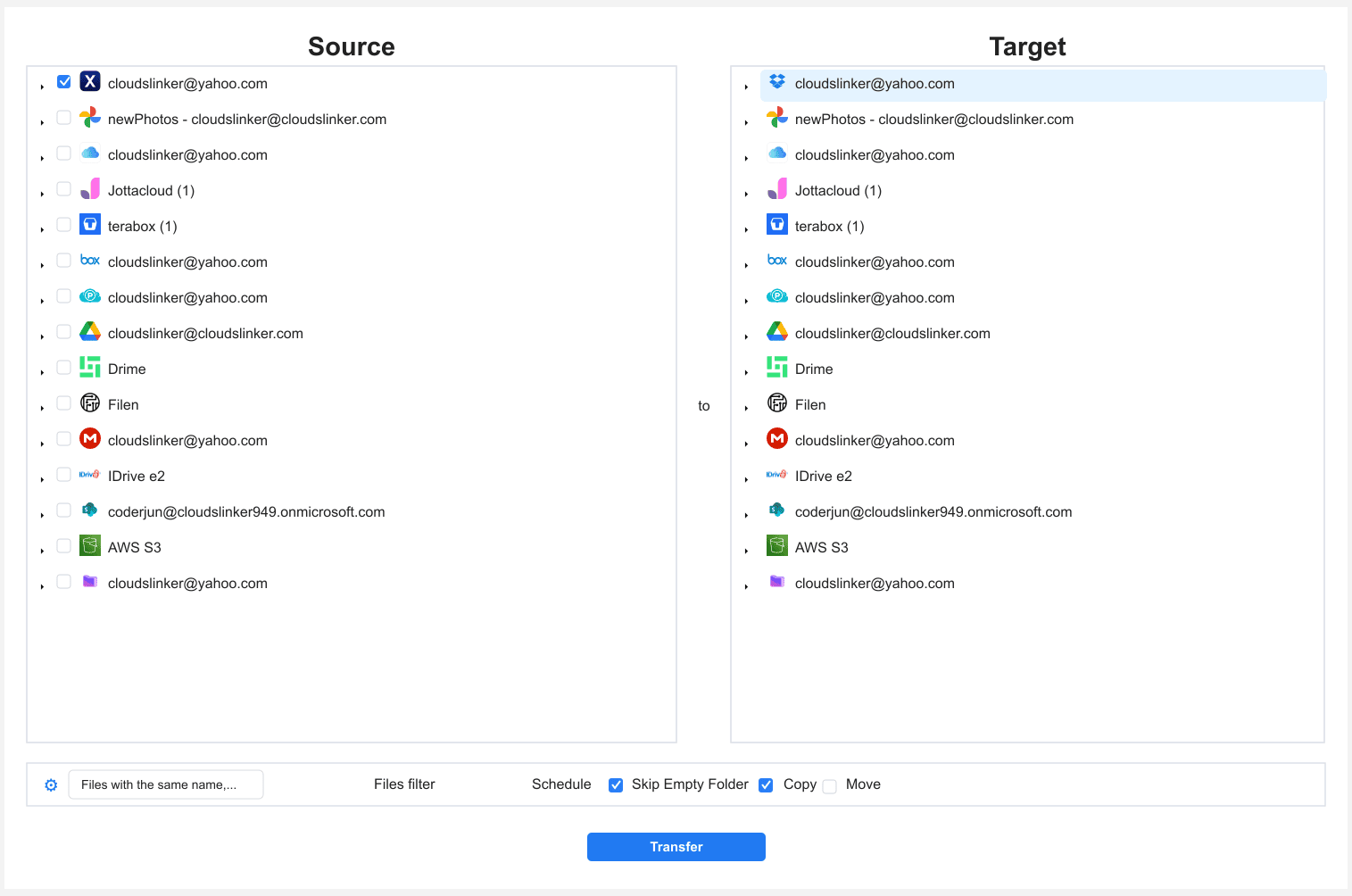
Step 4: Start and Monitor the Transfer
Start the job and watch the Task List. When it completes, the files are already in Dropbox's ecosystem — generate links or a Dropbox Transfer directly, with no upload wait.
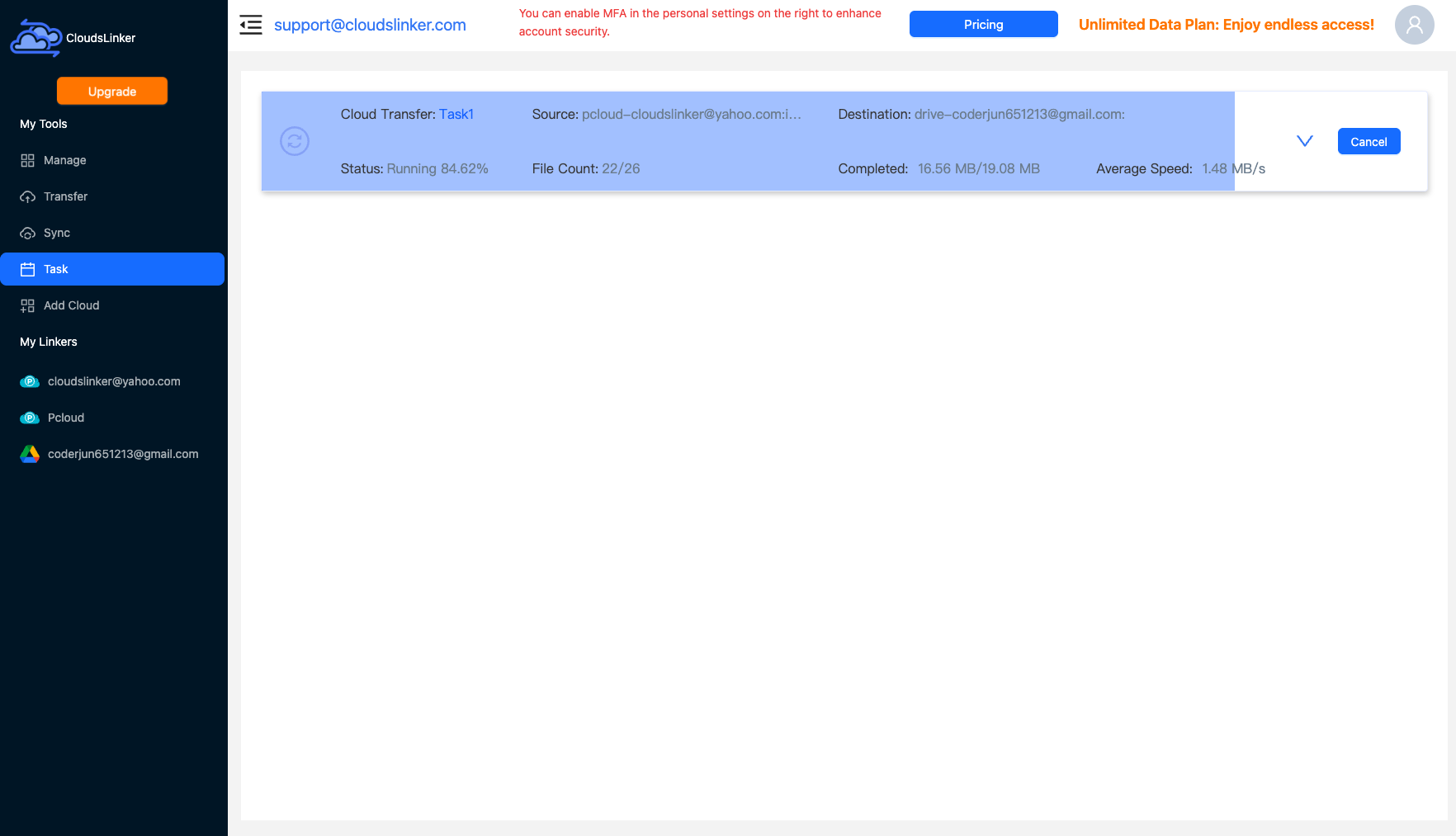
Comparing the Ways to Transfer From Internxt to Dropbox
| Method | Ease of Use | Speed | Best For | Uses Local Bandwidth | Skill Level |
|---|---|---|---|---|---|
| Web download / upload | Medium | Slow (decrypt + double pass) | One-off deliveries; 40 GB+ files | Yes — twice | Basic |
| CloudsLinker | Easy | Fast (server-side) | Recurring deliveries, archive migrations | No | Basic |
- Split deliverables from masters: publish finished work to Dropbox, keep source files and archives zero-knowledge encrypted in Internxt. The two services solve different problems — use both deliberately.
- Check for 40 GB+ files up front: Internxt's external-access cap binds before Dropbox's 350 GB browser limit ever matters. Long-form video masters usually need the side channel.
- Keep Ultimate active until the move completes: a mid-migration downgrade closes third-party access and stalls the job.
- Pre-build the Dropbox folder layout: client-facing structure matters when links go out. Create the hierarchy first so transferred folders land in their final, shareable place.
- Use link permissions from day one: default Dropbox links allow viewing by anyone with the URL. Set view/edit rights and expiry on client links rather than sharing raw folder links.
- Watch the 2 GB free ceiling: a single project folder can exceed free Dropbox. Activate Plus (2 TB) before the transfer rather than discovering quota exhaustion mid-job.
- Verify, then prune the vault: after spot-checking the Dropbox copy, delete only what you truly no longer need encrypted — lifetime Internxt storage costs nothing extra to keep as the master archive.
Frequently Asked Questions
Conclusion
A single delivery folder moves fine by hand — download from drive.internxt.com, upload to dropbox.com, send the link. Recurring deliveries or a full archive migration justify CloudsLinker: it reads Internxt with your Ultimate credentials, writes into Dropbox over OAuth, and preserves the folder tree without a local decrypt-and-reupload cycle. Move only what needs to be shared — files that leave Internxt trade zero-knowledge privacy for Dropbox's convenience, and the right split is usually deliverables in Dropbox, masters and archives in the vault.
Online Storage Services Supported by CloudsLinker
Transfer data between over 58 cloud services with CloudsLinker

OneDrive

Google Drive

Google Photos

Shared Drive

OneDrive for Business

Dropbox

Box

Mega

pCloud

Yandex

ProtonDrive

AWS

GCS

iDrive

Storj

DigitalOcean

Wasabi

1fichier

PikPak

TeleBox

OpenDrive

Backblaze B2

Fastmail file

SharePoint

Nextcloud

ownCloud

Premiumize me

HiDrive

Put.io

Sugar Sync

Jottacloud

Seafile

Ftp

SFtp

NAS

WebDav

4shared

Icedrive

Cloudflare R2

Scaleway

Hetzner Object Storage

Synology C2 Object Storage

S3 Compatible

Doi

iCloud Drive

iCloud Photos

FileLU

Zoho WorkDrive

Telia Cloud / Sky

Drime

Filen

TeraBox

Internxt

Degoo

Gofile

Pixeldrain

Shade

Koofr
Didn' t find your cloud service? Be free to contact: [email protected]
Further Reading
Effortless FTP connect to google drive: Transfer Files in 3 Easy Ways
Learn More >
Google Photos to OneDrive: 3 Innovative Transfer Strategies
Learn More >
Google Photos to Proton Drive: 3 Effective Transfer Techniques
Learn More >