Internxt to Google Drive: Move Files Back for Collaboration (2026)
Transfer files from Internxt to Google Drive when you need real-time collaboration and sharing. Compare a manual browser move with a direct cloud-to-cloud transfer.
Introduction
Internxt is built for private, encrypted storage — but that same zero-knowledge design means no Google Docs co-editing, no shared-link analytics, and no deep integration with the apps a team uses every day. When a project shifts from personal archiving to active collaboration, Google Drive is often where the files need to be. Moving data from Internxt to Google Drive trades provider-blind encryption for real-time editing, granular sharing and a large app ecosystem. This guide covers two ways to do it: a manual browser transfer and a direct cloud-to-cloud method. Note the trade-off — once files land in Drive they are no longer zero-knowledge encrypted.
Quick Navigation
Overview of Internxt
Internxt is an open-source cloud storage service from Valencia, Spain, built around zero-knowledge encryption. Files are encrypted on your device before upload, and since 2024 Internxt adds Kyber-512 post-quantum cryptography on top of AES-256. It offers a 1 GB free tier up to Ultimate at 5 TB, with stackable lifetime plans.
That privacy-first design is excellent for storage but limiting for teamwork. There is no native real-time document editing and no rich third-party app ecosystem. When files need active collaboration, they often have to move to a platform like Google Drive — which is what this guide does.
Key Features of Internxt
- Zero-knowledge encryption: Files are encrypted client-side; Internxt holds no keys and cannot read your data.
- Post-quantum security: Kyber-512 over AES-256 protects against future quantum attacks.
- Lifetime plans: One-time pricing (€135–€585) for up to 5 TB, stackable to 100 TB.
- Open source: Client code is public on GitHub and was audited by Securitum in 2024.
Where Internxt Falls Short for Teamwork
Internxt protects data well, but its privacy model leaves out the collaboration features many projects depend on.
- No real-time co-editing: There is no equivalent of Google Docs multi-user editing inside Internxt.
- Limited integrations: Few third-party apps connect to Internxt compared with Drive's large ecosystem.
Why Google Drive as the Destination
Google Drive is the storage core of Google Workspace, giving 15 GB free shared across Drive, Gmail and Photos, with Google One upgrades to 2 TB and beyond. Its defining strength is collaboration: Docs, Sheets and Slides support real-time multi-user editing, comments and version history.
Drive also connects to hundreds of third-party apps and to the wider Google ecosystem — Gmail, Calendar, Meet — making it the practical home for files that a team actively works on together. The trade-off is privacy: Drive is not zero-knowledge, and Google holds the keys.
What Google Drive Offers
- Real-time collaboration: Multiple people edit Docs, Sheets and Slides simultaneously with live comments.
- Granular sharing: Share by link or person with view, comment or edit permissions and expiry options on Workspace.
- Huge app ecosystem: Hundreds of integrations connect to Drive through its API for signing, automation and more.
- Workspace integration: Tight links to Gmail, Calendar and Meet streamline team workflows.
Benefits of Landing Files in Google Drive
- Editable in place: Documents can be co-authored directly rather than downloaded and re-uploaded.
- Easy, controllable sharing: Share with specific people and set permissions, which suits active projects.
- Familiar to collaborators: Most teammates already have a Google account, lowering friction.
Why Move from Internxt to Google Drive?
Bringing files from Internxt into Google Drive prioritizes collaboration over provider-blind privacy:
- Enable co-editing: Convert and edit documents live in Google Docs, Sheets and Slides.
- Simplify sharing: Use Drive's permission model to share with named collaborators quickly.
- Plug into your tools: Connect the files to the Google and third-party apps your team already uses.
- Reduce friction: Collaborators access files without needing an Internxt account.
Keep Internxt for your private archive, but when a set of files becomes a shared, actively edited project, Google Drive is the more practical home — accepting that the data is no longer zero-knowledge once it lands there.
Preparing to Transfer from Internxt to Google Drive
A few checks keep the move smooth, starting with Internxt's access requirement:
- Confirm Internxt Ultimate: Reading your Internxt account with a transfer tool requires rclone access, which is Ultimate-only. Free, Essential and Premium accounts return a 'rclone access not allowed for this user tier' error.
- Check Google Drive space: Make sure your Drive (free 15 GB or a Google One tier) has room for the incoming files. Upgrade if needed.
- Understand the privacy change: Files leaving Internxt's zero-knowledge vault become readable to Google under Drive's standard encryption. Move only what you are comfortable sharing into that model.
With Ultimate access confirmed and enough Drive space, either method below will complete the move.
How to Transfer Files from Internxt to Google Drive
The first method is a manual browser transfer; the second uses CloudsLinker to move files directly between the clouds.
Method 1: Manual Download and Upload via Browser
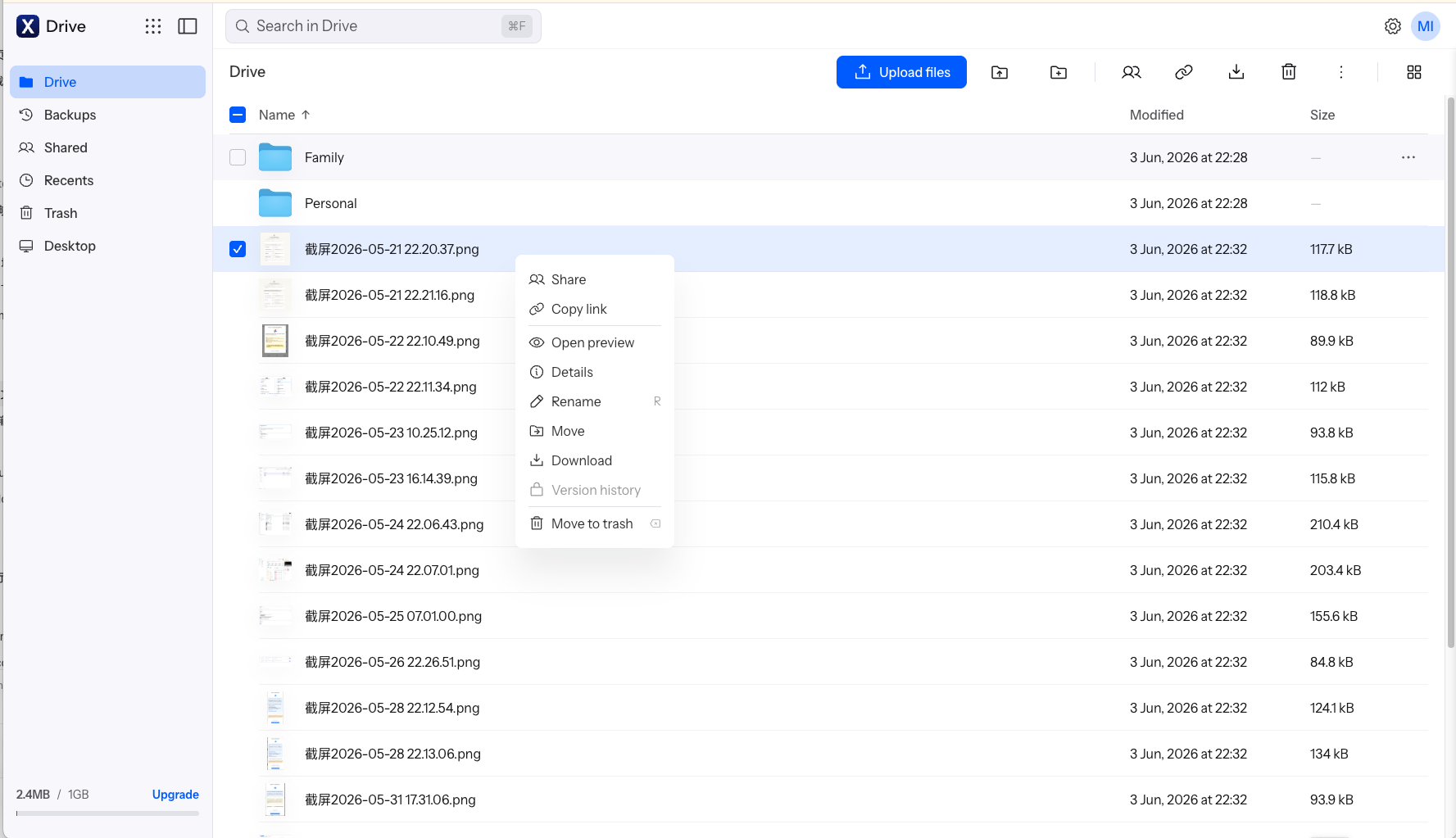
Step 1: Download from Internxt
Sign in at drive.internxt.com, select the files or folders to move, and download them. Internxt decrypts the files in your browser as they download to your device.
Step 2: Open Google Drive
Go to drive.google.com and sign in to the Google account that will own the files.
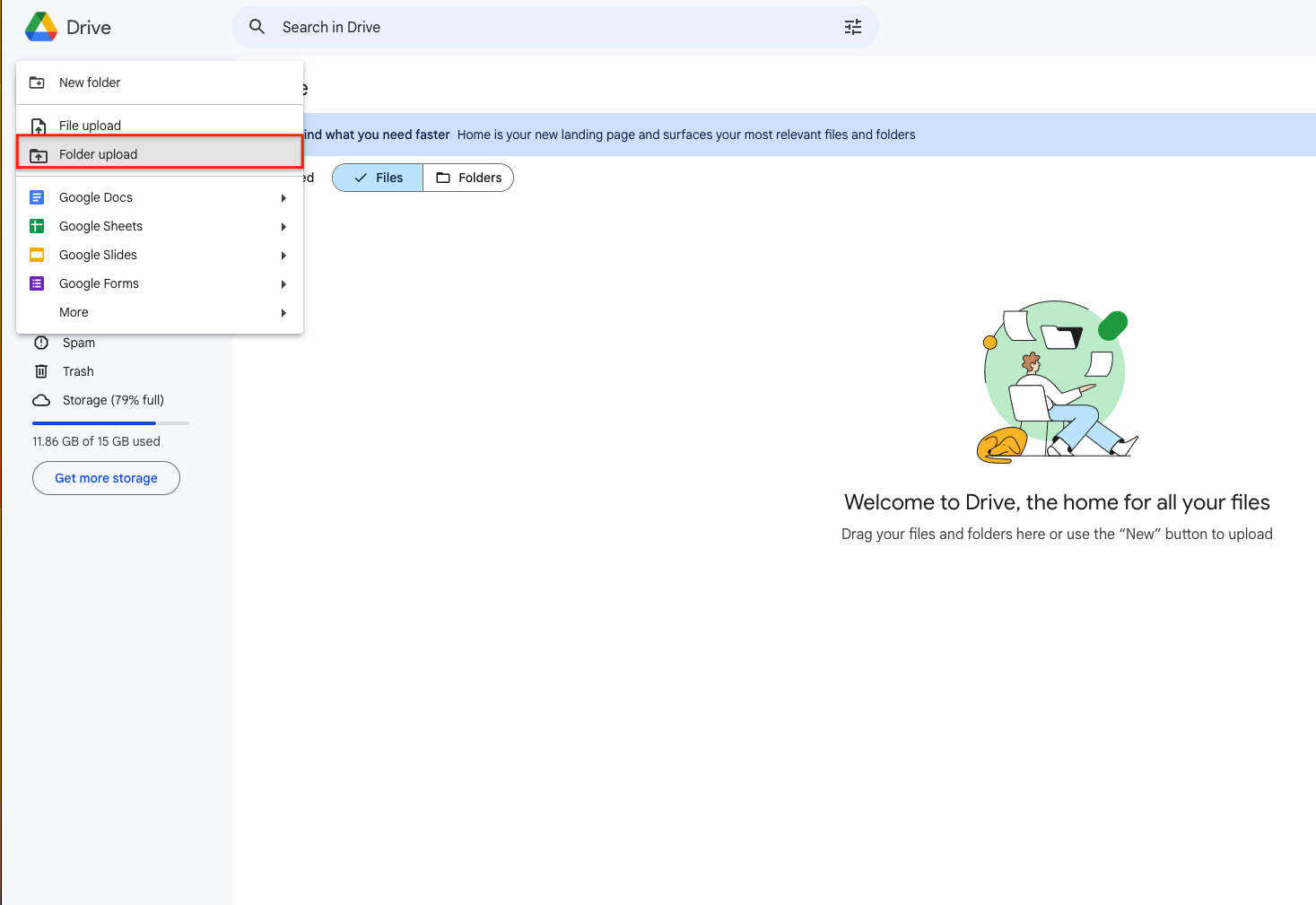
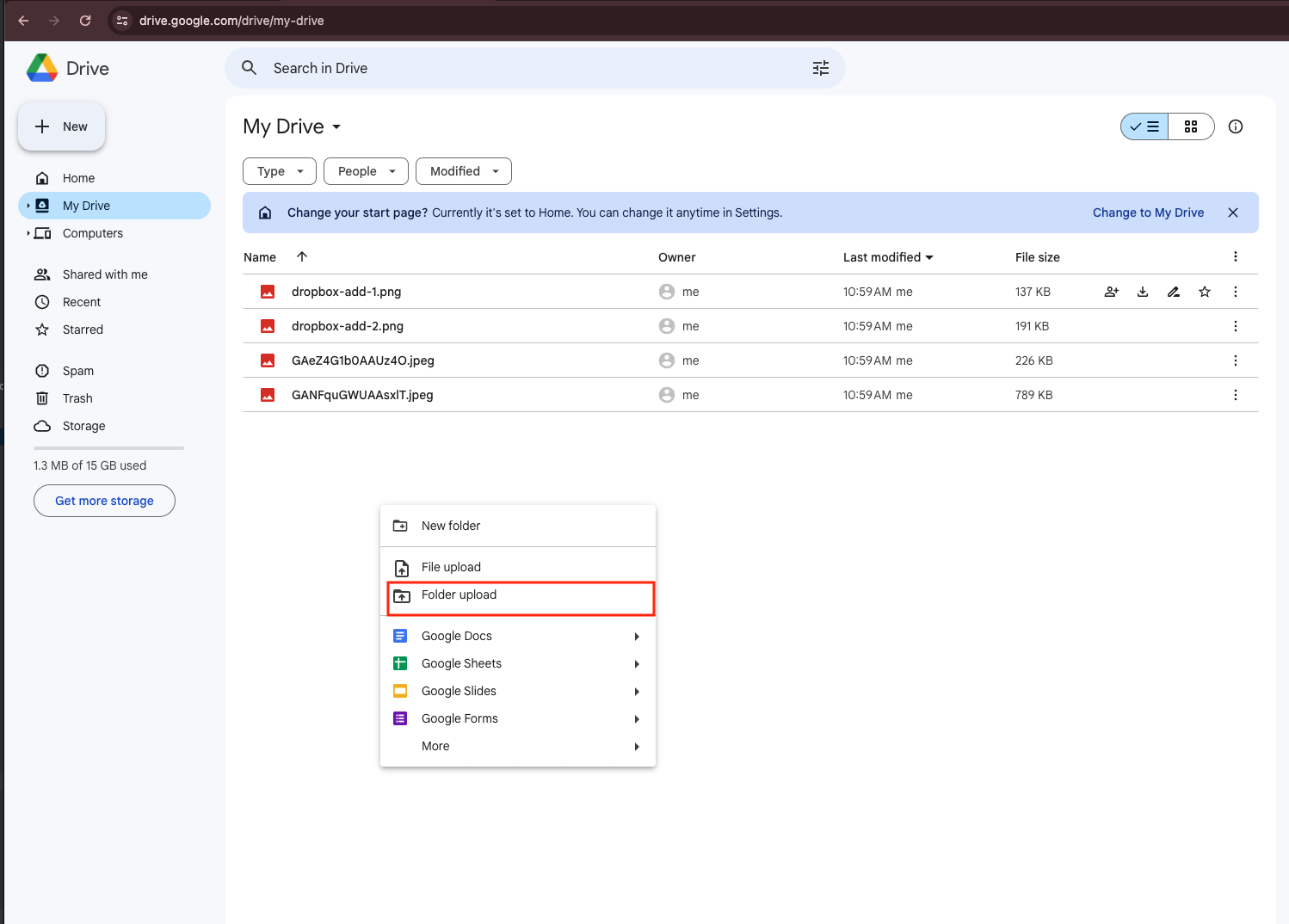
Step 3: Upload to Google Drive
Drag the downloaded files into Drive or use New > File upload / Folder upload. To make documents editable, right-click and choose Open with > Google Docs/Sheets/Slides to convert them.
No extra tools are required, but each file is routed through your computer twice — once down from Internxt, once up to Drive — so large libraries are slow on a typical connection.
Method 2: Transfer Internxt to Google Drive Directly with CloudsLinker
Cloud-to-cloud transfer without local downloads
CloudsLinker moves files directly between Internxt and Google Drive on the server side. Data does not pass through your device, and the transfer continues after you close the browser.
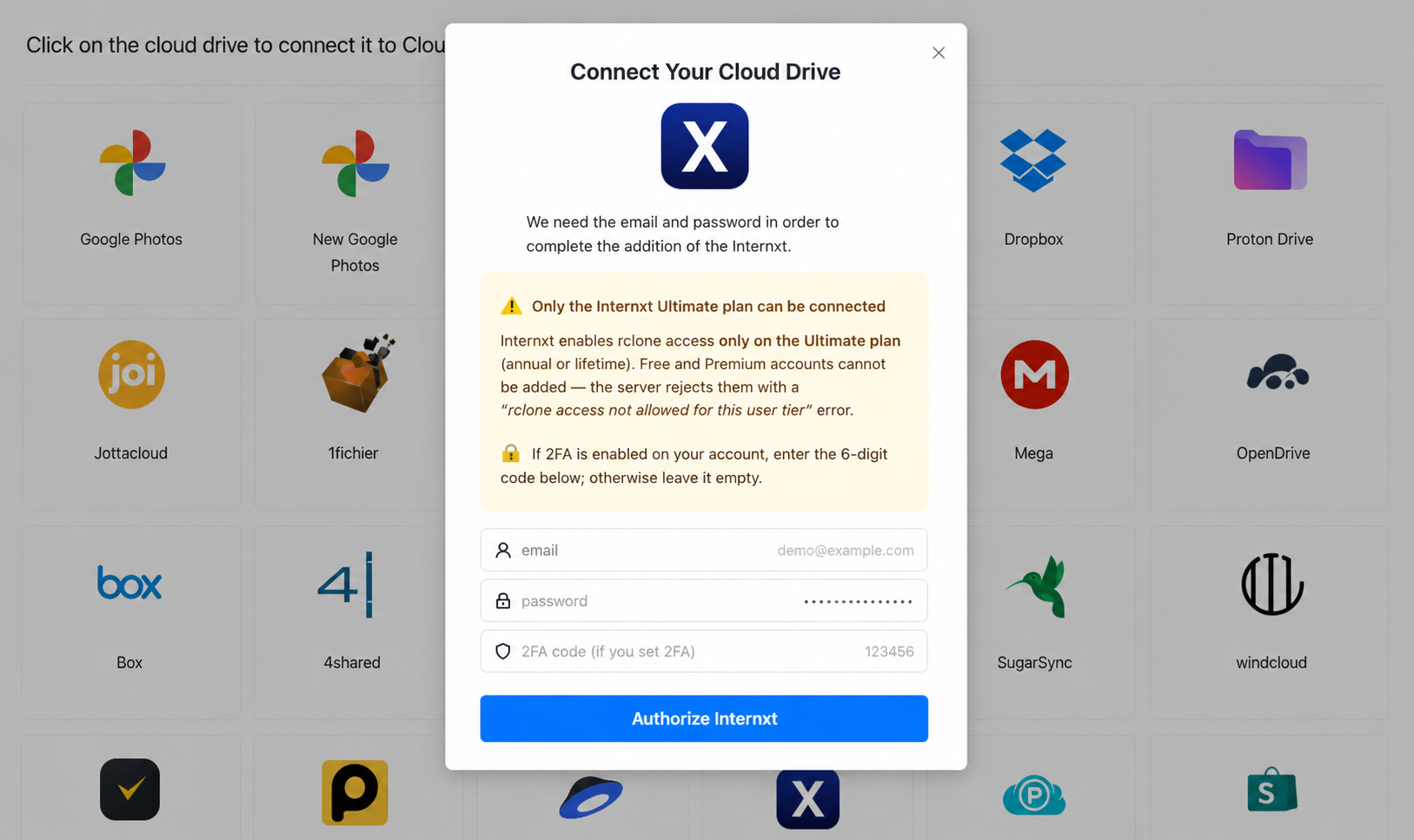
Step 1: Connect Internxt
Sign in to CloudsLinker, click Add Cloud and select Internxt. Enter your email and password plus a 6-digit 2FA code if enabled. The account must be on the Ultimate plan, or the connection is refused.
Step 2: Connect Google Drive
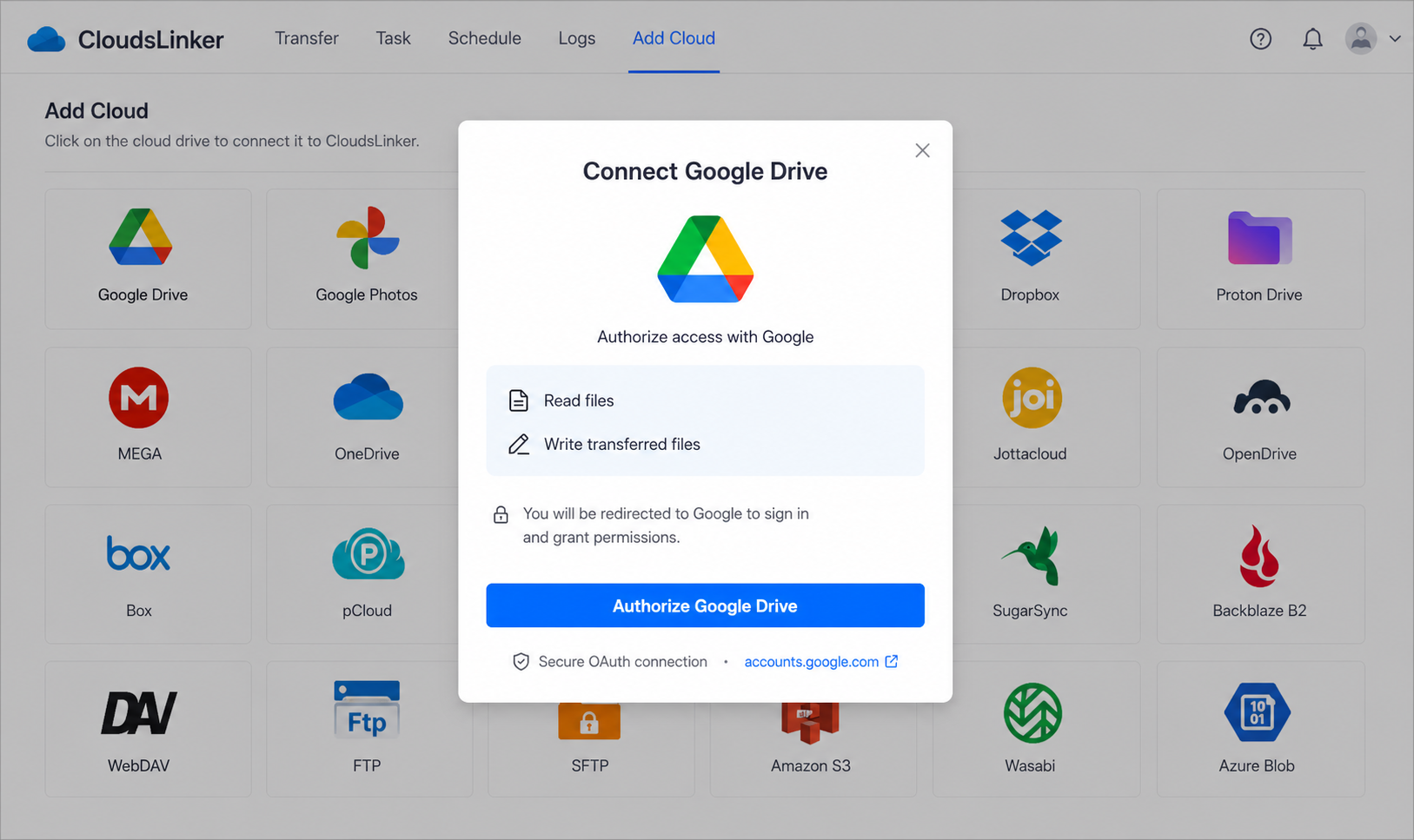
Click Add Cloud again and choose Google Drive. Approve access through Google's official sign-in at accounts.google.com, then return to CloudsLinker with Drive connected.
Step 3: Configure the transfer
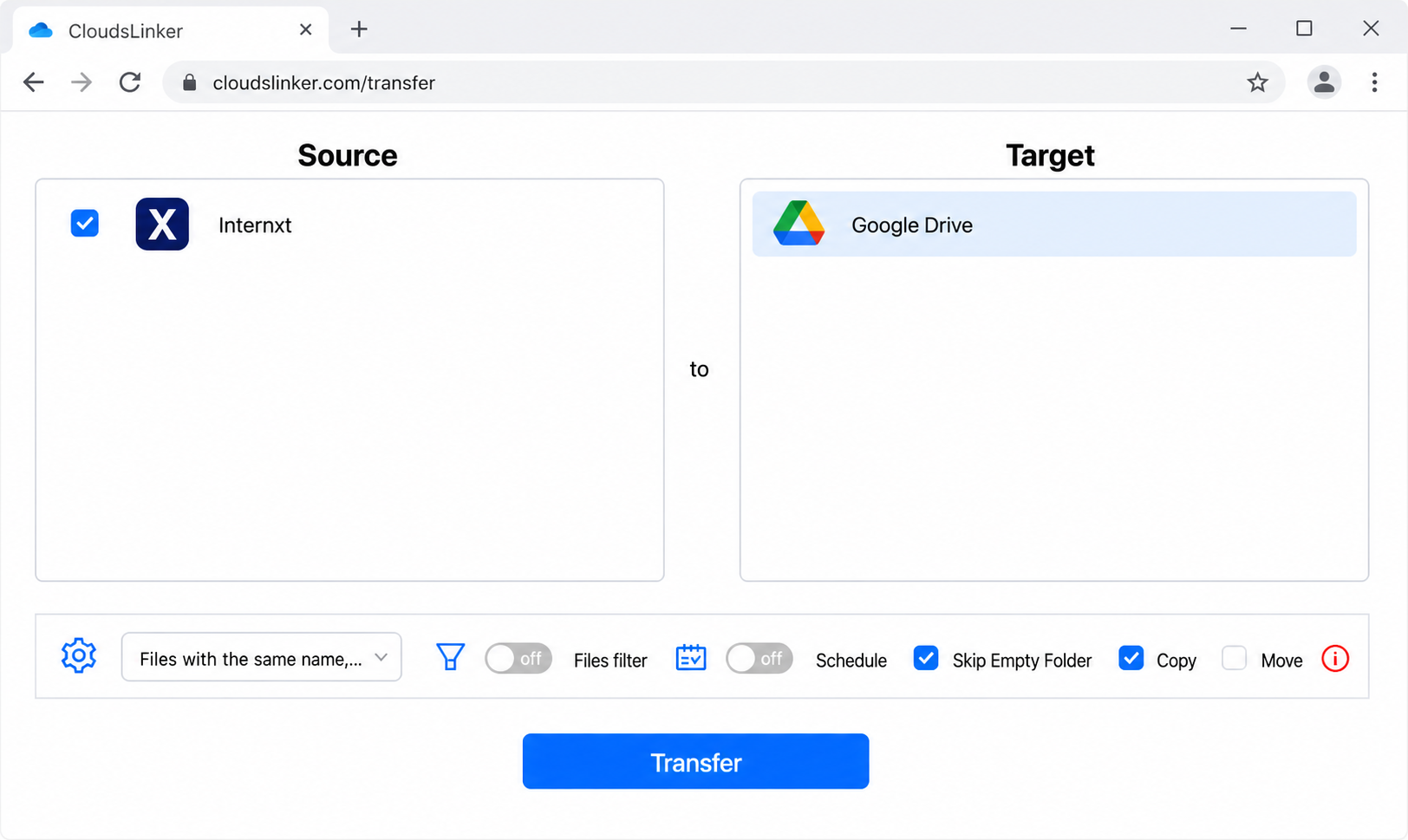
In the Transfer section, set Internxt as the source and pick the files or folders to move; set Google Drive as the destination directory. Apply optional filters and choose Copy or Move mode.
Step 4: Start and monitor
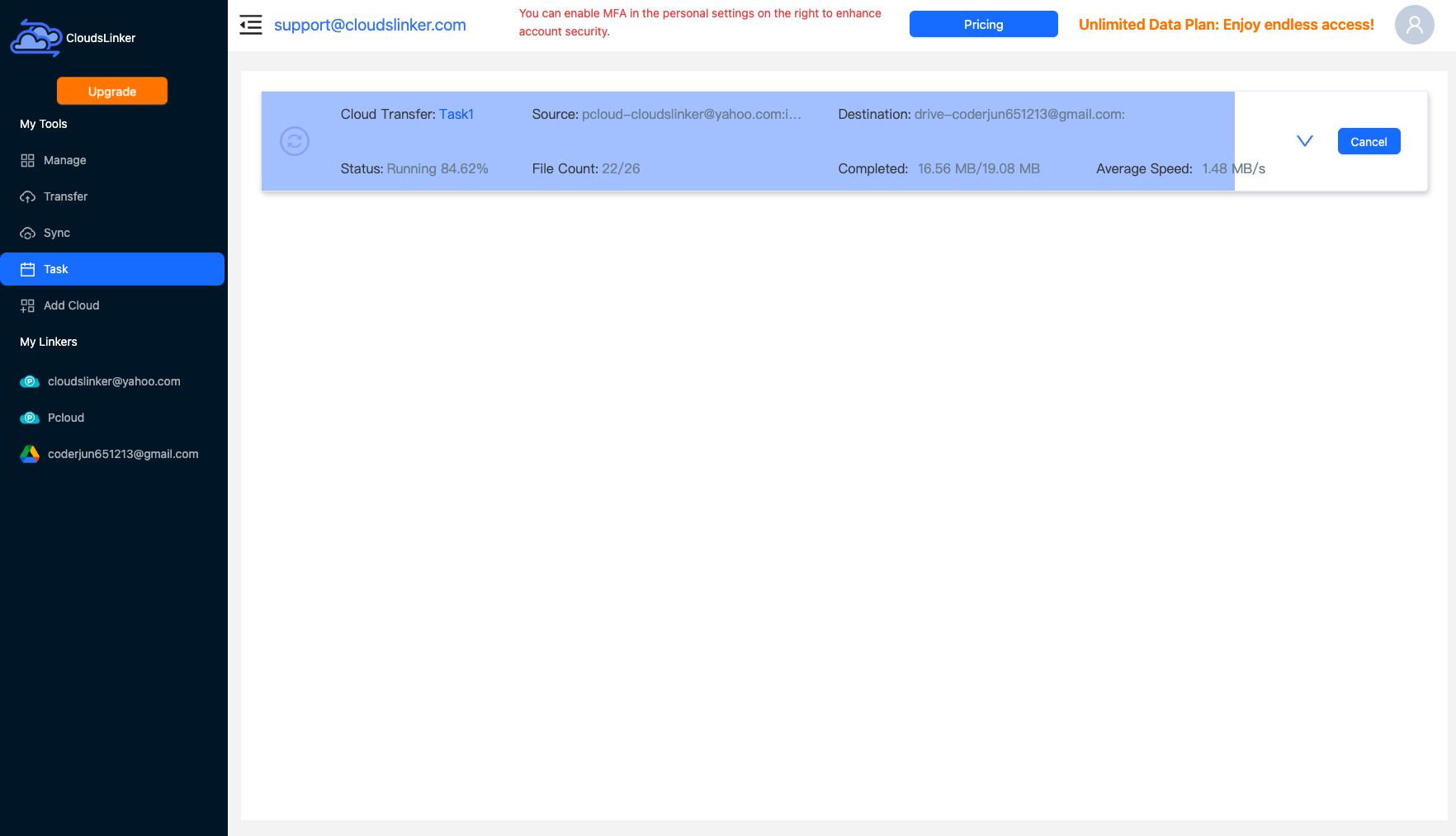
Begin the transfer and track it in the Task List, which reports size, speed and remaining items. The job runs in the cloud without keeping your device online.
After Moving to Google Drive
Set up files for collaboration
Make the most of Drive once files arrive:
- Convert documents to Google formats: Open Office files as Google Docs/Sheets/Slides to enable real-time co-editing.
- Set sharing permissions: Share with specific people and set view, comment or edit access for each.
Decide what stays in Internxt
Keep your private archive intact:
- Retain sensitive originals: Leave anything that should stay zero-knowledge encrypted in Internxt rather than copying it to Drive.
- Use Copy, not Move, when unsure: Copy mode keeps the Internxt originals so your encrypted archive is untouched.
Internxt to Google Drive — Frequently Asked Questions
Do I need Internxt Ultimate to read my files for transfer?
Will my files still be zero-knowledge encrypted in Google Drive?
Can I edit my files in Google Docs after the transfer?
Is there a file size limit reading from Internxt?
Does the transfer keep my folder structure?
How is each connection secured?
Conclusion
If you only need to share a few files, downloading them from Internxt and uploading to Drive by hand is quick enough. For a larger move, a direct CloudsLinker transfer is faster and runs unattended. Keep in mind that Internxt's rclone access — required for either tool to read your Internxt account — works only on the Ultimate plan, and that files leaving Internxt's zero-knowledge vault are protected by Google's standard encryption once in Drive.
Online Storage Services Supported by CloudsLinker
Transfer data between over 58 cloud services with CloudsLinker

OneDrive

Google Drive

Google Photos

Shared Drive

OneDrive for Business

Dropbox

Box

Mega

pCloud

Yandex

ProtonDrive

AWS

GCS

iDrive

Storj

DigitalOcean

Wasabi

1fichier

PikPak

TeleBox

OpenDrive

Backblaze B2

Fastmail file

SharePoint

Nextcloud

ownCloud

Premiumize me

HiDrive

Put.io

Sugar Sync

Jottacloud

Seafile

Ftp

SFtp

NAS

WebDav

4shared

Icedrive

Cloudflare R2

Scaleway

Hetzner Object Storage

Synology C2 Object Storage

S3 Compatible

Doi

iCloud Drive

iCloud Photos

FileLU

Zoho WorkDrive

Telia Cloud / Sky

Drime

Filen

TeraBox

Internxt

Degoo

Gofile

Pixeldrain

Shade

Koofr
Didn' t find your cloud service? Be free to contact: [email protected]
Further Reading
Effortless FTP connect to google drive: Transfer Files in 3 Easy Ways
Learn More >
Google Photos to OneDrive: 3 Innovative Transfer Strategies
Learn More >
Google Photos to Proton Drive: 3 Effective Transfer Techniques
Learn More >