When Zero-Knowledge Gets in the Way: Moving Internxt Files to OneDrive
Transfer files from Internxt's encrypted storage to OneDrive for Office integration, real-time co-editing and sharing. Manual and cloud methods.
Introduction
OneDrive's value is everything zero-knowledge encryption deliberately prevents: Word documents that co-edit in real time, folders shared with a click, previews that render in the browser, and an operating system (Windows) that treats the drive as local. Internxt's architecture makes all of that impossible by design — the provider cannot render a preview of a file it cannot decrypt, and sharing means handing over keys. Users hit this wall when an encrypted archive turns into a working project: suddenly the vault needs to become a workspace. Moving files back is the answer, with two caveats specific to this pair — Internxt only opens third-party access on its Ultimate plan, and no single file over 40 GB crosses in one piece. Both methods below respect those limits.
Internxt is a Spanish zero-knowledge cloud that encrypts files with AES-256 on your device before upload and holds no decryption keys. Plans span Essential 1 TB, Premium 3 TB and Ultimate 5 TB, with lifetime one-time purchases as an option.
- Zero-knowledge AES-256 + post-quantum encryption
- 1 / 3 / 5 TB tiers; lifetime plans available
- No server-side previews, co-editing or app ecosystem
- Third-party access: Ultimate only, 40 GB per-file cap
OneDrive is Microsoft's cloud storage, built into Windows and the Microsoft 365 suite: real-time co-editing in Word, Excel and PowerPoint, browser previews for most formats, and link-based sharing with permission controls.
- 5 GB free; 1 TB with Microsoft 365 Personal ($6.99/mo)
- 250 GB maximum single file
- Office co-editing, previews, Files On-Demand
- OAuth access for transfer tools
| Feature | Internxt | OneDrive |
|---|---|---|
| Encryption model | Zero-knowledge; only you hold keys | Server-side; Microsoft holds keys |
| Collaboration | None by design — no previews or co-editing | Real-time Office co-editing, browser previews |
| Storage plans | 1 / 3 / 5 TB; lifetime purchases available | 5 GB free; 1 TB with M365 Personal ($6.99/mo) |
| Max single file | 40 GB via third-party access | 250 GB |
| OS integration | Desktop and mobile apps, no OS lock-in | Native in Windows Explorer, Files On-Demand |
| Connection in CloudsLinker | Account credentials (Ultimate plan required) | Microsoft OAuth |
Sources: Internxt: pricing, Microsoft: OneDrive restrictions and limitations.
Confirm two Internxt-side gates before anything else: the account must be on the Ultimate tier for third-party access, and no file in the migration set can exceed 40 GB. Then decide what genuinely needs to leave — this move trades zero-knowledge privacy for collaboration, so the right candidates are active project folders, not the whole vault. On the OneDrive side, verify the quota: 5 GB free will not hold much, and 1 TB with Microsoft 365 Personal is the realistic landing zone. If 2FA is enabled on Internxt, have the authenticator app ready when connecting.
Method 1: Download from Internxt and Re-upload
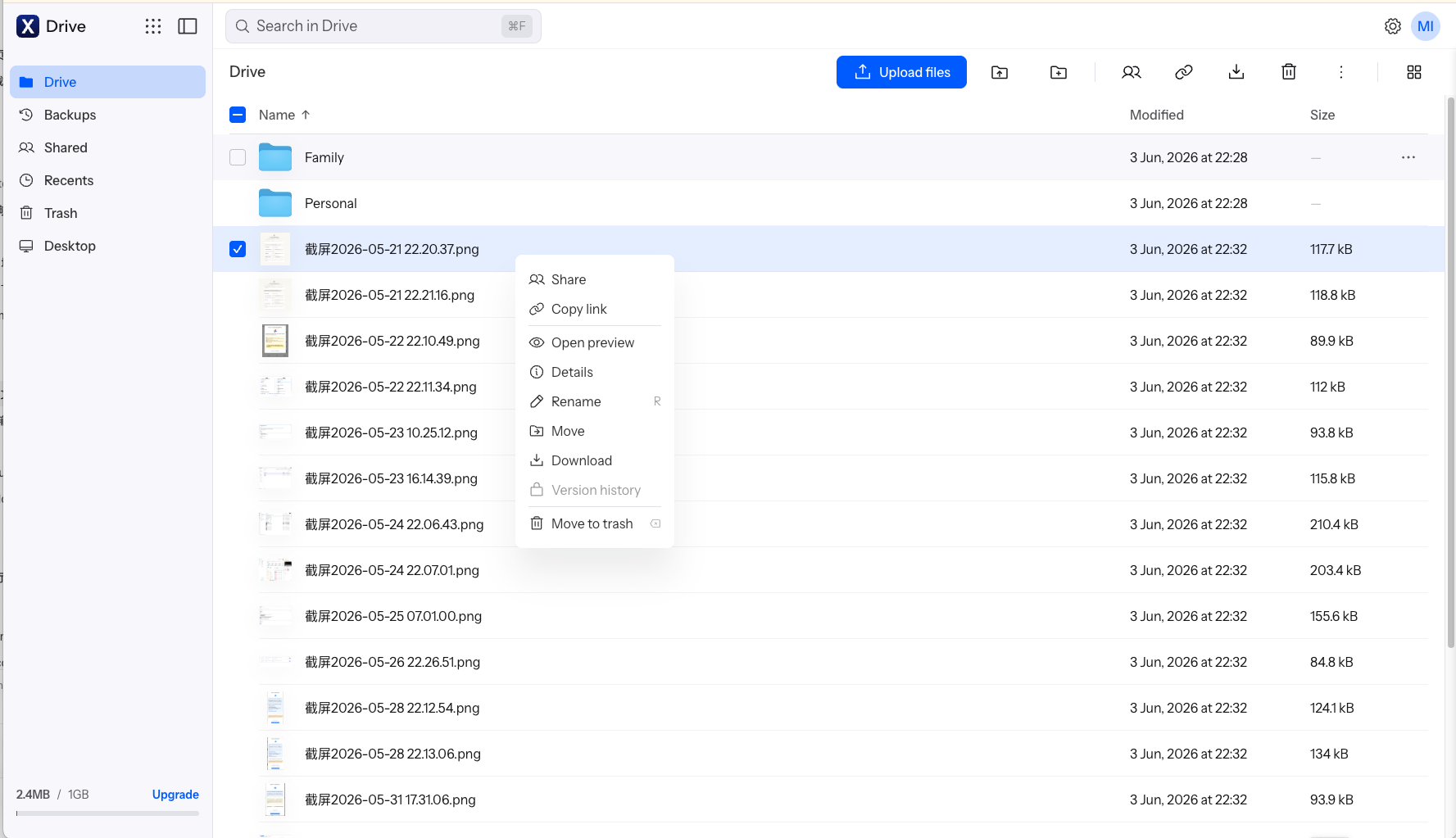
Step 1: Download from drive.internxt.com
Sign in at drive.internxt.com, select folders and click Download. Files decrypt in the browser as they come down, which adds noticeable overhead on large selections.
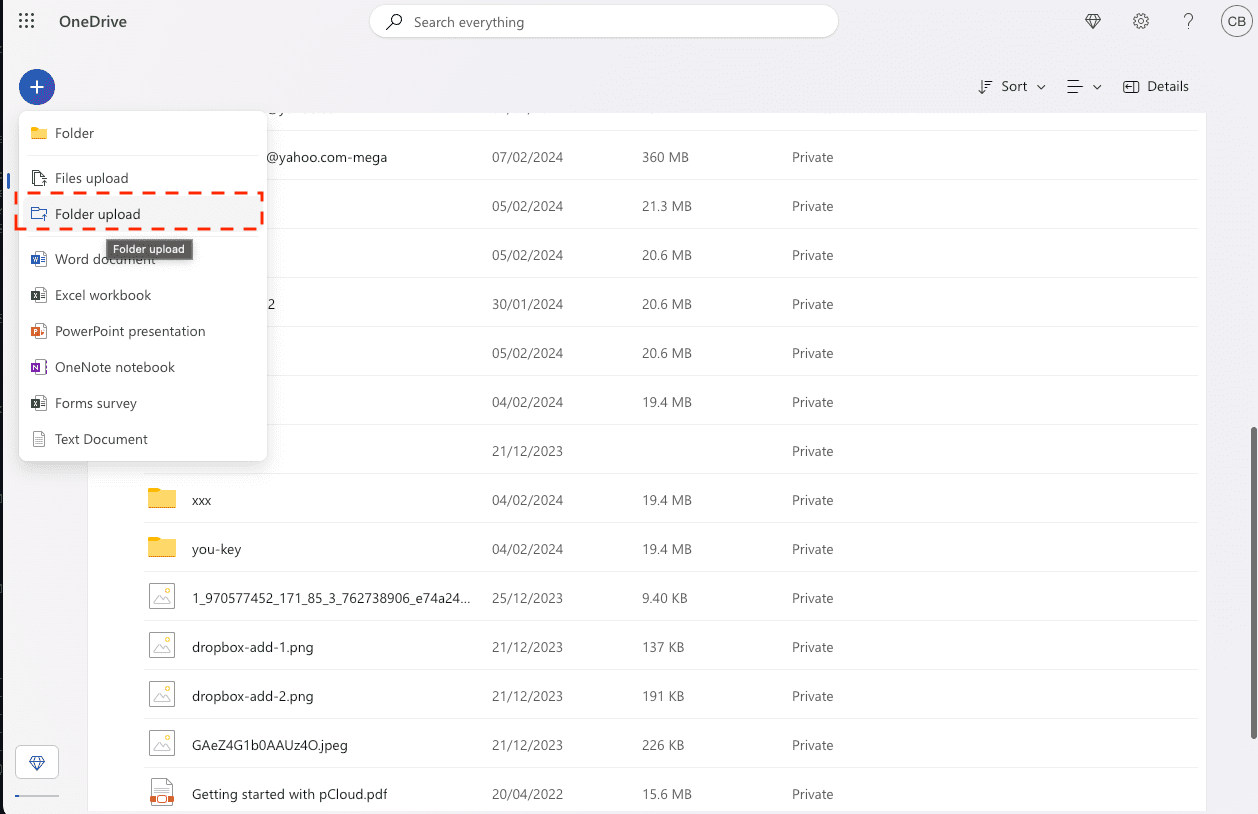
Step 2: Upload into OneDrive
At onedrive.live.com, create a destination folder and drag the downloaded content in — or drop it into the OneDrive folder in Windows Explorer and let the sync client push it.
Reasonable for a project folder. For most of a terabyte, browser-side decryption plus a double pass over your connection stretches this into days.
Method 2: Transfer Internxt to OneDrive in the Cloud
Vault to workspace in one server-side pass
CloudsLinker authenticates to Internxt with your Ultimate-plan credentials, reads each file through Internxt's own access protocol, and writes it into OneDrive over Microsoft's OAuth API — no local decryption step, no ZIP handling, and the 40 GB per-file boundary is the only size rule to plan around.
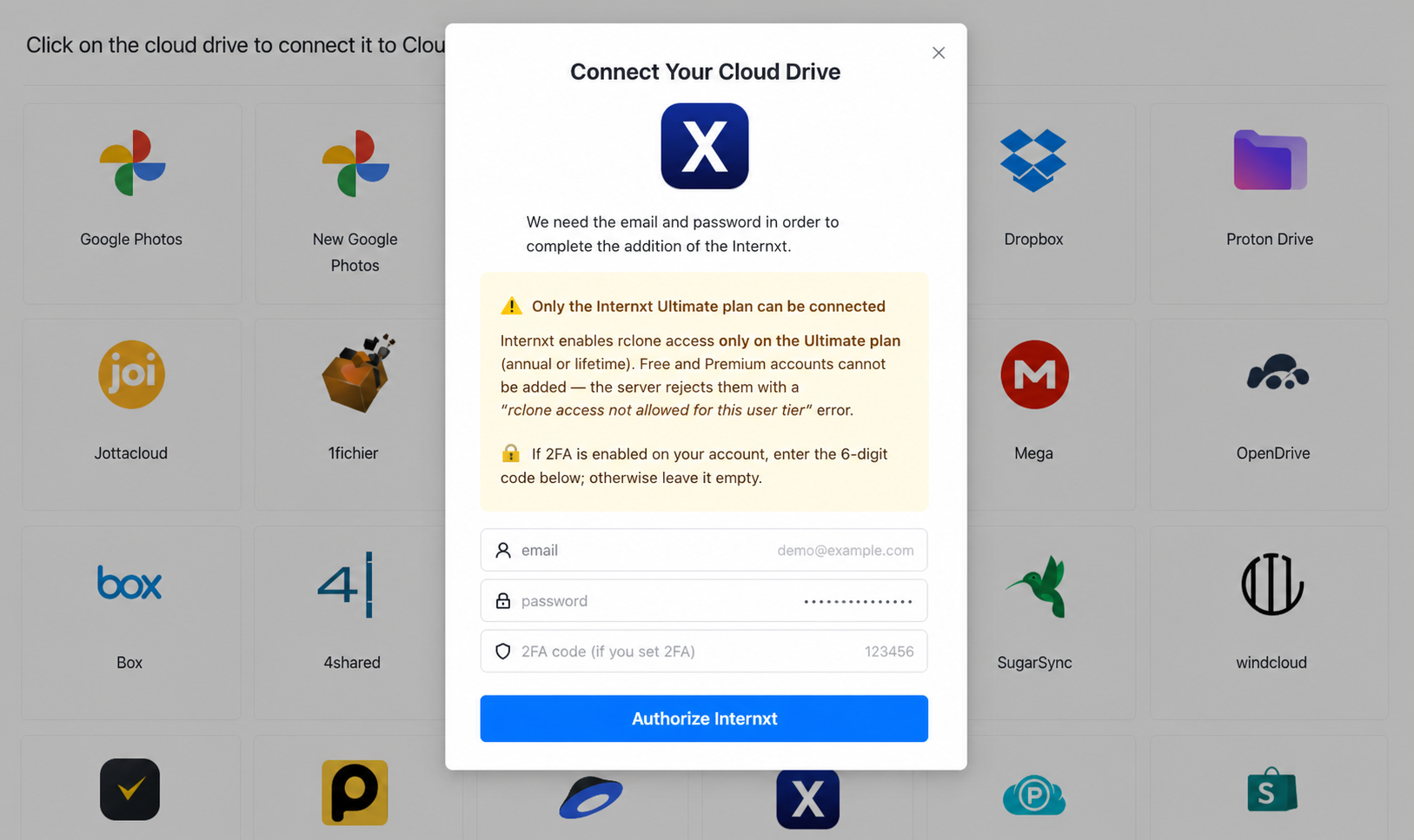
Step 1: Connect Internxt
Click Add Cloud → Internxt. Enter your Internxt email and password, plus the 2FA code if your account uses one. Connection succeeds only on the Ultimate tier — lower plans are rejected by Internxt's integration.
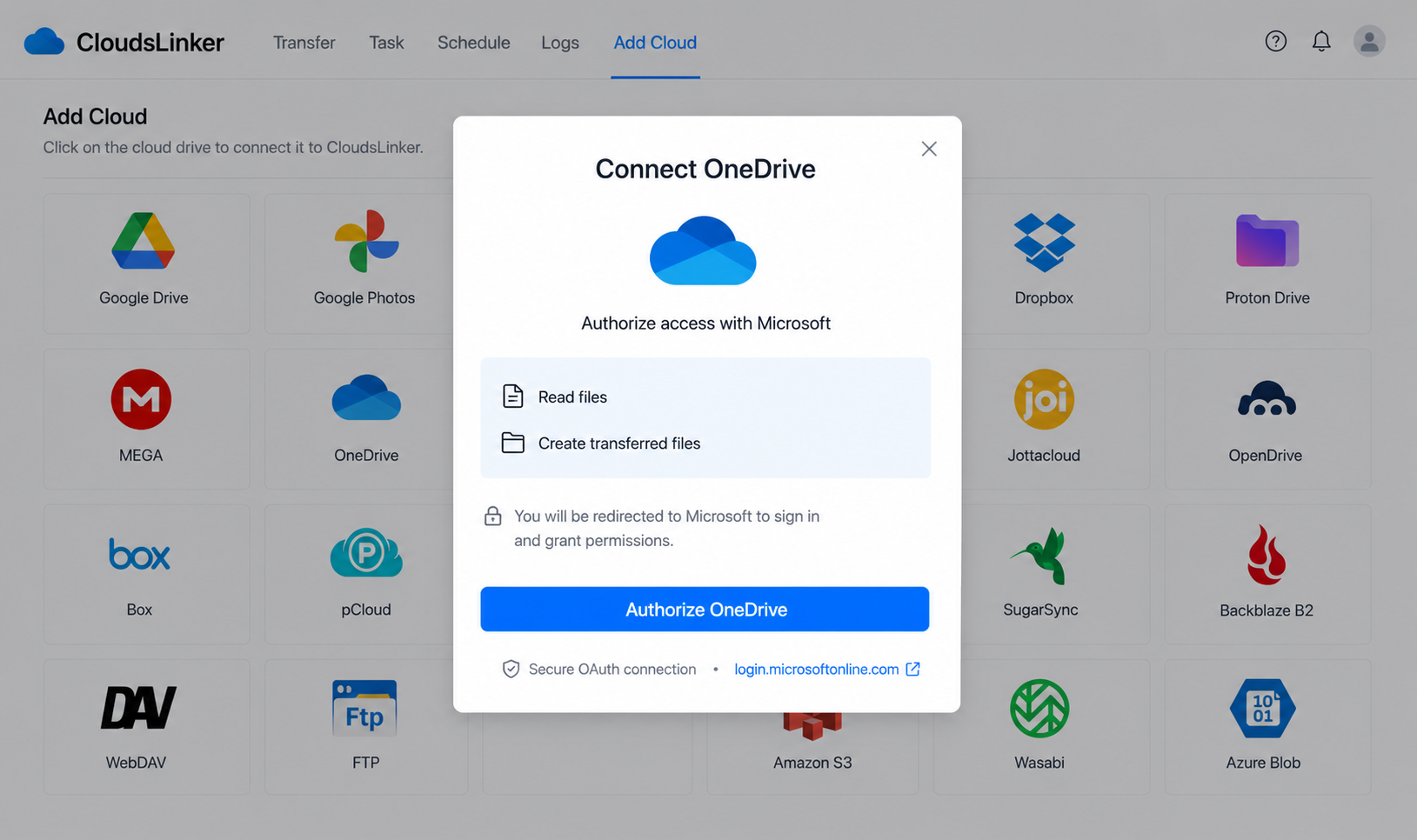
Step 2: Connect OneDrive
Click Add Cloud → OneDrive. Approve access on Microsoft's consent page and, if prompted, choose the personal drive resource. No password is shared with CloudsLinker; the OAuth grant is revocable from your Microsoft account.
Step 3: Configure the Transfer
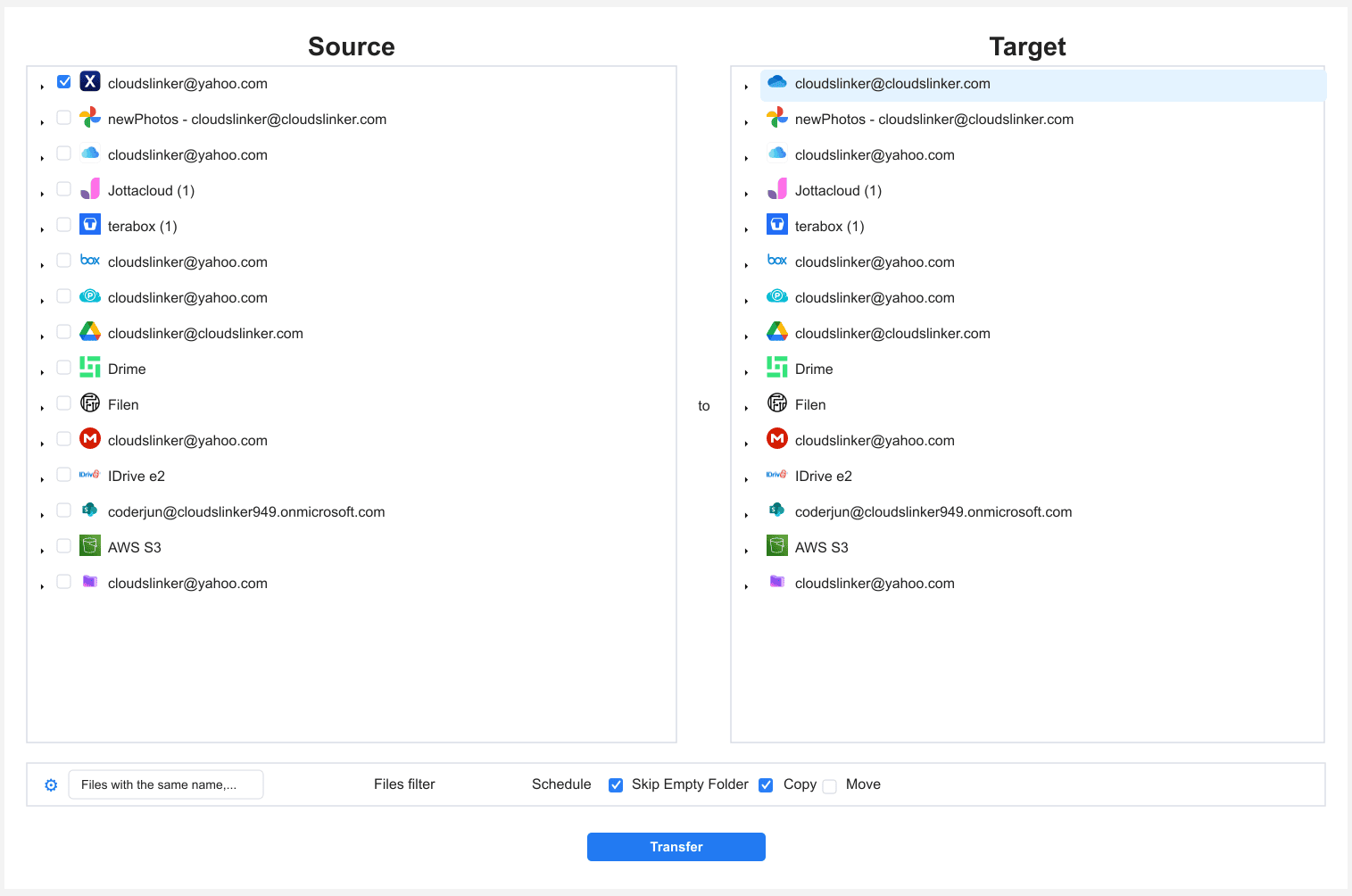
In the Transfer section, set Internxt as the source and tick the project folders leaving the vault. Set OneDrive as the destination and pick a target folder. Type, size and date filters narrow the selection; Copy mode keeps the encrypted originals in place until you've verified the landing.
Step 4: Start and Monitor the Transfer
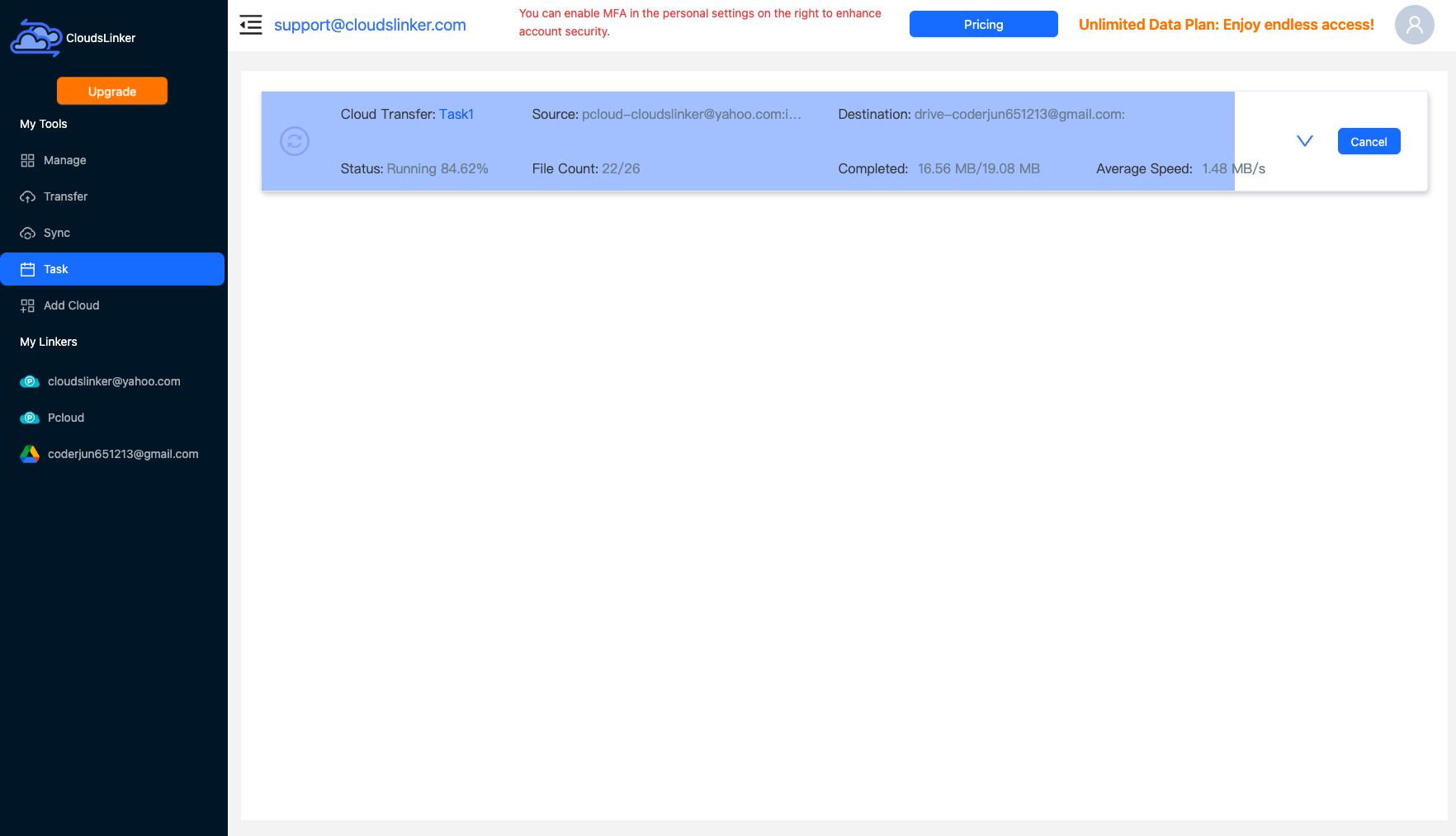
Start the job and follow the Task List — completed files, current speed, and any skips (an over-40 GB file shows up here rather than failing silently). Everything runs server-side; your machine can disconnect.
Comparing the Ways to Transfer From Internxt to OneDrive
| Method | Ease of Use | Speed | Best For | Uses Local Bandwidth | Skill Level |
|---|---|---|---|---|---|
| Web download / upload | Medium | Slow (browser decryption + double pass) | A project folder or two; files over 40 GB | Yes — twice | Basic |
| CloudsLinker | Easy | Fast (server-side) | Archive-to-workspace migrations at scale | No | Basic |
- Move folders, not the vault: every file that leaves Internxt loses zero-knowledge protection. Migrate what needs OneDrive's co-editing and sharing; leave the tax archive and scans encrypted.
- Audit for 40 GB+ files first: the third-party access cap applies on the way out. Pull oversized video or disk images through the Internxt web downloader separately.
- Size the landing zone: a 1 TB vault does not fit OneDrive's free 5 GB. Activate Microsoft 365 Personal (1 TB) before starting, not when the job stalls at quota.
- Keep Ultimate active through the move: if the Internxt subscription downgrades mid-migration, third-party access closes and the job halts. Renew first, migrate second.
- Use Copy, verify, then clean up: keep the encrypted originals until OneDrive's copy is spot-checked — then delete from Internxt deliberately rather than trusting Move mode on a one-way door.
- Re-share from scratch: any Internxt share links die with the move. Recreate sharing in OneDrive, where links carry permission levels and expiry options.
- Consider what replaces the vault: if some files still need zero-knowledge storage after the move, keep the Internxt account for those instead of closing it — a smaller tier may suffice.
Frequently Asked Questions
Conclusion
For a project folder or two, downloading from drive.internxt.com and re-uploading to OneDrive works, with browser decryption as the tax. For a real archive-to-workspace migration, CloudsLinker reads Internxt with your account credentials and writes into OneDrive over Microsoft OAuth, server-side, keeping the folder tree intact. Be deliberate about what leaves the vault: files move from storage where nobody but you holds keys to storage where Microsoft does. Documents that need collaboration belong in OneDrive; the tax archive can stay encrypted.
Online Storage Services Supported by CloudsLinker
Transfer data between over 58 cloud services with CloudsLinker

OneDrive

Google Drive

Google Photos

Shared Drive

OneDrive for Business

Dropbox

Box

Mega

pCloud

Yandex

ProtonDrive

AWS

GCS

iDrive

Storj

DigitalOcean

Wasabi

1fichier

PikPak

TeleBox

OpenDrive

Backblaze B2

Fastmail file

SharePoint

Nextcloud

ownCloud

Premiumize me

HiDrive

Put.io

Sugar Sync

Jottacloud

Seafile

Ftp

SFtp

NAS

WebDav

4shared

Icedrive

Cloudflare R2

Scaleway

Hetzner Object Storage

Synology C2 Object Storage

S3 Compatible

Doi

iCloud Drive

iCloud Photos

FileLU

Zoho WorkDrive

Telia Cloud / Sky

Drime

Filen

TeraBox

Internxt

Degoo

Gofile

Pixeldrain

Shade

Koofr
Didn' t find your cloud service? Be free to contact: [email protected]
Further Reading
Effortless FTP connect to google drive: Transfer Files in 3 Easy Ways
Learn More >
Google Photos to OneDrive: 3 Innovative Transfer Strategies
Learn More >
Google Photos to Proton Drive: 3 Effective Transfer Techniques
Learn More >