Jottacloud to Drime: Norway to France Without Giving Up GDPR Hosting
Move Jottacloud files to Drime when you want French hosting, stronger sharing controls, or a different price point. Includes browser and cloud-to-cloud methods.
Introduction
Jottacloud and Drime both serve the European market under GDPR, so a migration between them is usually about fit rather than compliance. Jottacloud leans toward unlimited storage plans with a simpler feature set; Drime trades unlimited for end-to-end encryption, finer sharing controls, and workspace features like password-protected expiring links. Users typically switch when their needs shift from raw backup capacity to collaboration or when the Jottacloud price point no longer matches their actual usage. This guide covers two practical methods for moving files: a manual browser export and a cloud-to-cloud transfer through CloudsLinker.
Jottacloud is a Norwegian cloud storage provider known for unlimited-capacity personal plans and green data centers powered by hydroelectric energy. Data is stored in Norway, which sits within the European Economic Area and is covered by GDPR through the EEA agreement.
- Hosting: Norwegian data centers.
- Plans: unlimited personal storage option plus tiered plans.
- Sync client: Windows, Mac, Linux, iOS, Android.
- Photo features: automatic mobile photo backup with face recognition.
- Authorization for tools: personal login token generated from account security settings.
Drime is a French cloud storage workspace with end-to-end encryption, fixed-tier storage plans, and collaboration features including password-protected, expiring shared links.
- Hosting: French data centers.
- Plans: tiered storage, not unlimited.
- Encryption: end-to-end on stored files and shared links.
- Sharing: expiry, password and download-limit controls.
- Collaboration: shared folders, notes, file requests.
The two services differ more in philosophy than in compliance. Jottacloud optimizes for capacity — large personal backups stored cheaply in Norway. Drime optimizes for encryption and sharing control, trading raw capacity for workspace features.
| Feature | Jottacloud | Drime |
|---|---|---|
| Data center location | Norway (EEA, GDPR) | France (EU, GDPR) |
| Plan model | Unlimited personal tier available | Tiered storage plans |
| Encryption at rest | Server-side | End-to-end |
| Share link controls | Basic link sharing | Password, expiry, download limit, access log |
| Primary strength | Large personal backups at a flat price | Encrypted collaboration and controlled sharing |
On the Jottacloud side
- Check actual usage before migrating. Jottacloud's unlimited plan often includes years of backup data — most of it may not need to move.
- Separate backup from working data: Jottacloud backup folders contain machine-specific files (system folders, sync artifacts) that are rarely worth migrating.
- Generate a personal login token: log into jottacloud.com, open account security settings, and create a Personal Login Token. Save it safely — you only see it once.
On the Drime side
- Confirm plan capacity: Drime is not unlimited, so pick a tier that fits the subset of data you actually want to migrate.
- Create a migration folder such as
/Jottacloud-Archive/so the imported tree stays separate from existing content. - Generate a developer token: Drime → avatar → Settings → Developer → Create Token.
Method 1: Browser Download from Jottacloud and Upload to Drime
Step 1: Download from Jottacloud
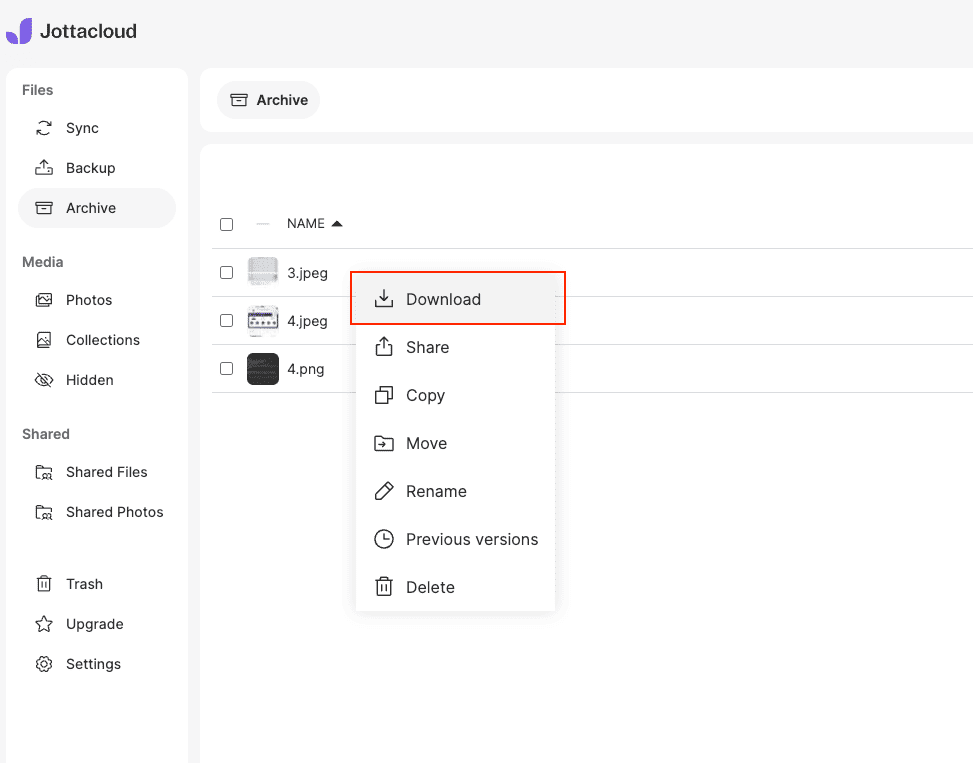
Open jottacloud.com and sign in. Navigate to Archive for manually organized files or to Sync for files synced from a device. Select the folders or files you want to move and click Download. Multiple items package as a ZIP archive.
Skip the Backup section unless you specifically want to rescue machine backup data. Backup folders contain device-scoped content that rarely makes sense to migrate into a different provider.
Step 2: Upload to Drime
Extract the ZIP. Open the Drime web dashboard, navigate to your target folder, and drag the extracted content in. Drime encrypts files during upload and preserves folder structure exactly as it was laid out in the archive.
Method 2: Cloud-to-Cloud Transfer with CloudsLinker
Move Jottacloud Without Local Downloads
CloudsLinker connects Jottacloud using its personal login token and pushes data directly into Drime. This is the more practical approach when you are moving photo archives or working folders in the hundreds-of-gigabytes range.
Step 1: Connect Jottacloud
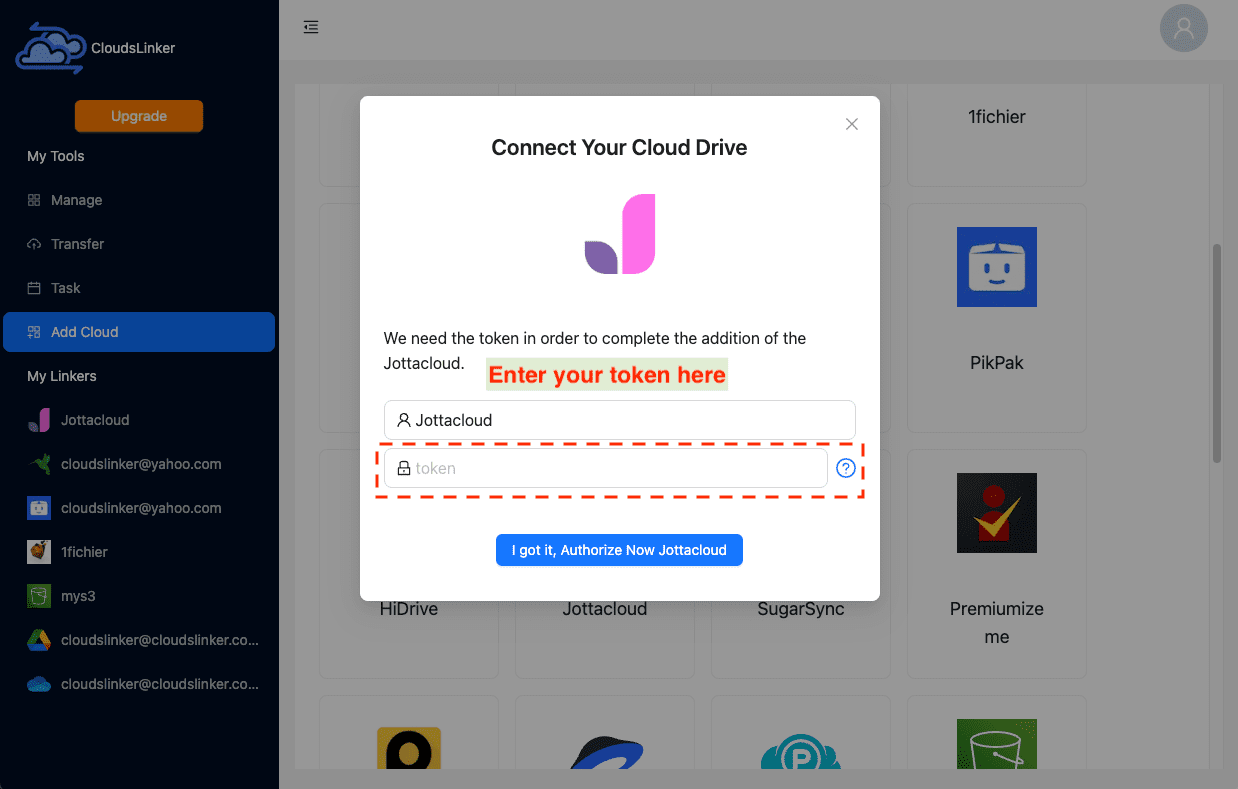
In CloudsLinker, click Add Cloud and select Jottacloud. Paste the personal login token you generated from Jottacloud → Account Security → Personal Login Token. Confirm. Jottacloud appears as a connected source.
Step 2: Connect Drime
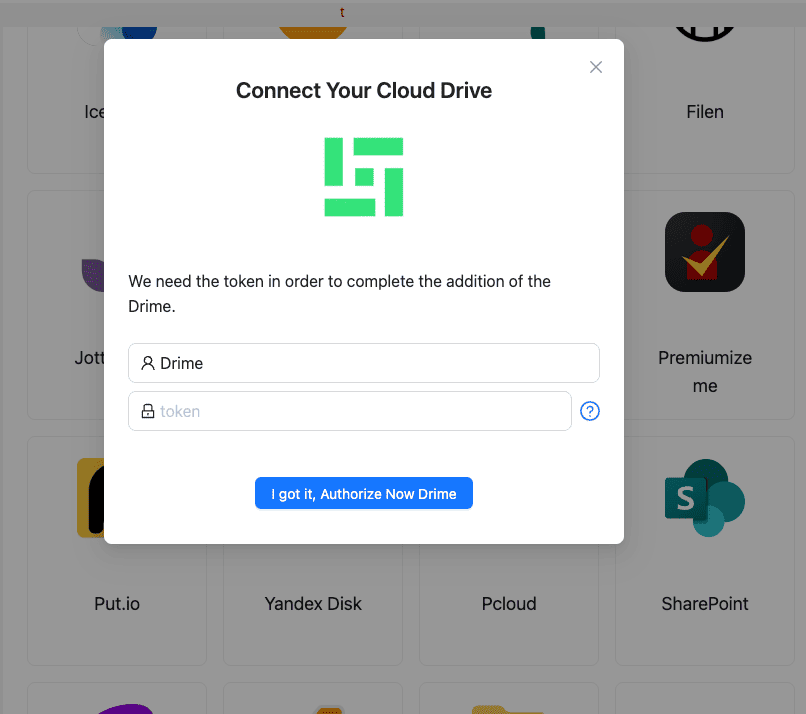
Click Add Cloud and pick Drime. Paste the developer token from Drime → Settings → Developer. Confirm and Drime is ready as a destination.
Step 3: Configure the Transfer
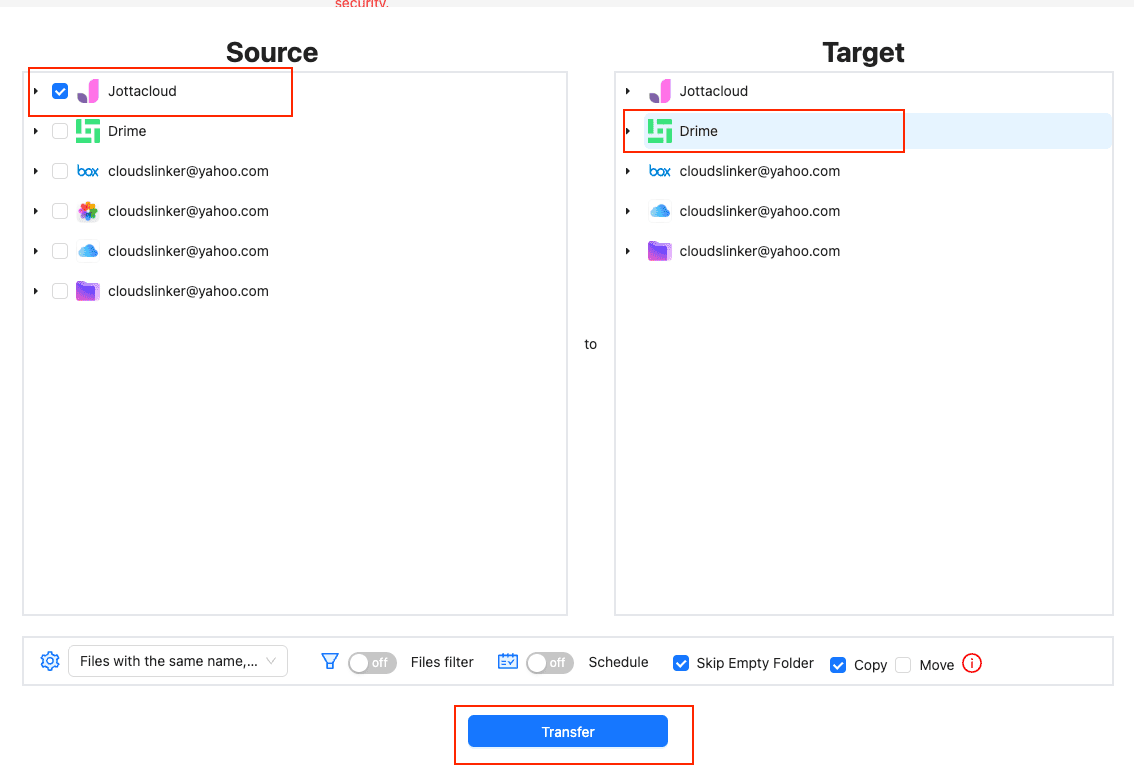
Open the Transfer section. Select Jottacloud as the source and browse into the Archive or Sync folders you want to move. Avoid Backup folders unless you have a specific reason to migrate them. Select the Drime target directory on the destination side.
Use filters to skip extensions you do not need (e.g., .tmp, .lnk) or to
limit the transfer to files modified in a particular date range. Start with Copy
mode.
Step 4: Start and Monitor
Start the task. Track progress from the Task List. Transfers continue on CloudsLinker servers even if you close the browser. Once complete, verify file counts and a sample of files in Drime before deleting anything in Jottacloud.
Method Comparison
| Method | Ease of Use | Speed | Best For | Uses Local Bandwidth | Skill Level |
|---|---|---|---|---|---|
| Browser Download + Upload | ★★★★☆ | ★★☆☆☆ | Small Archive folders, one-off exports | Yes | Beginner |
| CloudsLinker | ★★★★★ | ★★★★★ | Photo libraries, multi-hundred-GB archives, hands-off moves | No | Beginner |
- Separate Archive, Sync and Backup: Jottacloud stores these as distinct spaces with different semantics. Archive and Sync folders translate cleanly into Drime; Backup folders usually do not.
- Audit real usage before choosing a Drime plan: Jottacloud unlimited plans obscure how much data you actually have. Check usage in the Jottacloud settings panel before committing to a Drime tier.
- Rotate the Jottacloud token after migration: the personal login token grants read access to the account. Generate a new one (or delete the existing one) in Jottacloud's account security settings once the migration is finished.
- Mind the 30-day deletion window: Jottacloud keeps deleted files in trash for 30 days. Do not clear the trash until Drime is fully verified.
-
Skip sync artifacts: files like
.DS_Store,Thumbs.dbanddesktop.inicarry over unless you filter them out at the CloudsLinker task level. - Reissue share links: existing Jottacloud share links stop working once files are removed. Rebuild the shares in Drime with password and expiry controls.
Frequently Asked Questions
/Archive/ and /Sync/
folder structure in Drime so the mental model carries over.
Conclusion
For a few gigabytes of documents, the browser route through Jottacloud's web interface is direct enough. For larger archives — photo backups, video libraries, multi-year working folders — CloudsLinker avoids the download-then-upload bottleneck by connecting both services through their official authorization methods (Jottacloud personal login token, Drime developer token). Whichever path you pick, verify Drime contents before clearing Jottacloud storage, because Jottacloud's 30-day trash retention gives you a fallback window, not an indefinite one.
Online Storage Services Supported by CloudsLinker
Transfer data between over 58 cloud services with CloudsLinker

OneDrive

Google Drive

Google Photos

Shared Drive

OneDrive for Business

Dropbox

Box

Mega

pCloud

Yandex

ProtonDrive

AWS

GCS

iDrive

Storj

DigitalOcean

Wasabi

1fichier

PikPak

TeleBox

OpenDrive

Backblaze B2

Fastmail file

SharePoint

Nextcloud

ownCloud

Premiumize me

HiDrive

Put.io

Sugar Sync

Jottacloud

Seafile

Ftp

SFtp

NAS

WebDav

4shared

Icedrive

Cloudflare R2

Scaleway

Hetzner Object Storage

Synology C2 Object Storage

S3 Compatible

Doi

iCloud Drive

iCloud Photos

FileLU

Zoho WorkDrive

Telia Cloud / Sky

Drime

Filen

TeraBox

Internxt

Degoo

Gofile

Pixeldrain

Shade

Koofr
Didn' t find your cloud service? Be free to contact: [email protected]
Further Reading
Effortless FTP connect to google drive: Transfer Files in 3 Easy Ways
Learn More >
Google Photos to OneDrive: 3 Innovative Transfer Strategies
Learn More >
Google Photos to Proton Drive: 3 Effective Transfer Techniques
Learn More >