Jottacloud to Filen: Swap Norwegian Capacity for Zero-Knowledge Encryption
Move files from Jottacloud to Filen to gain client-side encryption. Covers the Jottacloud web download, desktop client bridge, and CloudsLinker cloud-to-cloud transfer.
Introduction
Jottacloud built its reputation on near-unlimited personal storage hosted in Norway, which suits long-term backups and bulky media libraries. Filen takes a different stance: every file is encrypted on the client, so the service — located in Germany — cannot read its customers' content even in principle. Users often move in this direction when the priority shifts from raw capacity to secrecy, for example after starting to store tax records, contracts, or private photos that probably should never have been server-readable in the first place. This guide covers two practical paths: a manual download from the Jottacloud web client paired with re-upload to Filen, and a direct cloud-to-cloud transfer through CloudsLinker.
Jottacloud is a Norwegian cloud storage service known for generous personal plans and automated device backups. Files are stored under Norwegian jurisdiction, which keeps them within EEA data protection norms even though Norway is not an EU member.
- Unlimited personal storage: paid personal plans advertise unlimited capacity.
- Norwegian hosting: servers under EEA data protection rules.
- Device backup: desktop and mobile clients include backup features.
- Version history: file versions retained for a defined period.
- Server-side encryption: at rest, with provider-managed keys.
Filen is a German end-to-end encrypted cloud storage service. Encryption runs on the client before files leave the device, so the service stores only ciphertext and cannot read file contents or filenames.
- Client-side encryption: AES-256 + RSA, keys held on the client.
- Zero-knowledge architecture: provider sees ciphertext only.
- Flat storage plans: tiered pricing by quota, not unlimited.
- 2FA required for API-based access used by migration tools.
- EU data residency: servers in Germany.
Jottacloud leans on capacity and regional hosting; Filen leans on secrecy. Choosing between them is mostly a question of whether the primary value is "lots of storage in Norway" or "storage the provider cannot read".
| Feature | Jottacloud | Filen |
|---|---|---|
| Encryption model | Server-side, provider-managed keys | Client-side, keys never leave the device |
| Data residency | Norway (EEA) | Germany (EU) |
| Plan model | Unlimited personal; tiered business | Flat tiers, 10 GB free to multi-TB paid |
| Built-in device backup | Yes, via desktop and mobile clients | Manual or sync-folder based |
| Best-fit use case | Large media or device backup archive | Private archive where secrecy matters most |
On the Jottacloud side
- Check actual usage: open the Jottacloud web dashboard → Settings to see used storage. Unlimited plans still show consumption.
- Separate Archive from Sync: Jottacloud distinguishes archive data (backed up) from synced data (two-way). Decide which to migrate — the archive side can be very large.
- Empty the Trash: deleted items still consume account quota for the 30-day retention window.
- Generate a personal login token: sign in to jottacloud.com → account security → Personal login token → create new. Save the token for CloudsLinker.
On the Filen side
- Pick a Filen plan that fits: Filen is not unlimited, so confirm the tier covers current Jottacloud usage plus a buffer.
- Enable 2FA: required for CloudsLinker to connect. Use an authenticator app.
- Store the recovery key: Filen's zero-knowledge design means the provider cannot help recover a lost password.
- Plan the new folder structure: Filen holds plain folders — flatten or mirror the Jottacloud layout as preferred.
Method 1: Download from Jottacloud and Upload to Filen
Step 1: Download from the Jottacloud Web Client
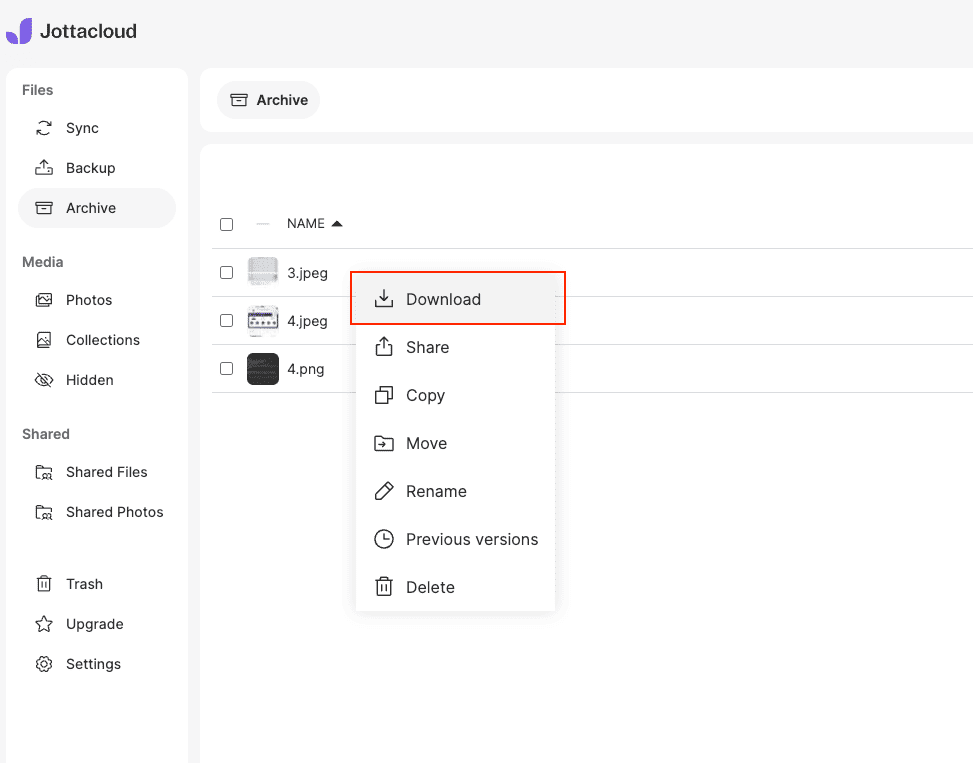
Sign in to jottacloud.com and browse to the folders to move. Select files or folders and click Download. Folder downloads come down as ZIP archives. For very large folders, download in batches to keep ZIP file sizes manageable.
Step 2: Extract and Review Locally
Unzip the archive. Folder hierarchy is preserved. If the downloaded selection includes archive-only folders from Jottacloud's backup feature, confirm they contain the expected files before uploading — backup snapshots can include versions of the same file over time.
Step 3: Upload to Filen
Open the Filen web app or desktop client, sign in, and drag the extracted folder into the chosen target location. Encryption happens on the client before each file is sent, so the initial upload benefits from a reasonably fast CPU as well as upstream bandwidth.
Method 2: Cloud-to-Cloud Transfer with CloudsLinker
Move Jottacloud Content Directly into Filen
CloudsLinker connects Jottacloud through a personal login token and Filen through account credentials with 2FA. Files move server-to-server without touching local disk, which matters when a Jottacloud archive runs into hundreds of gigabytes.
Step 1: Connect Jottacloud
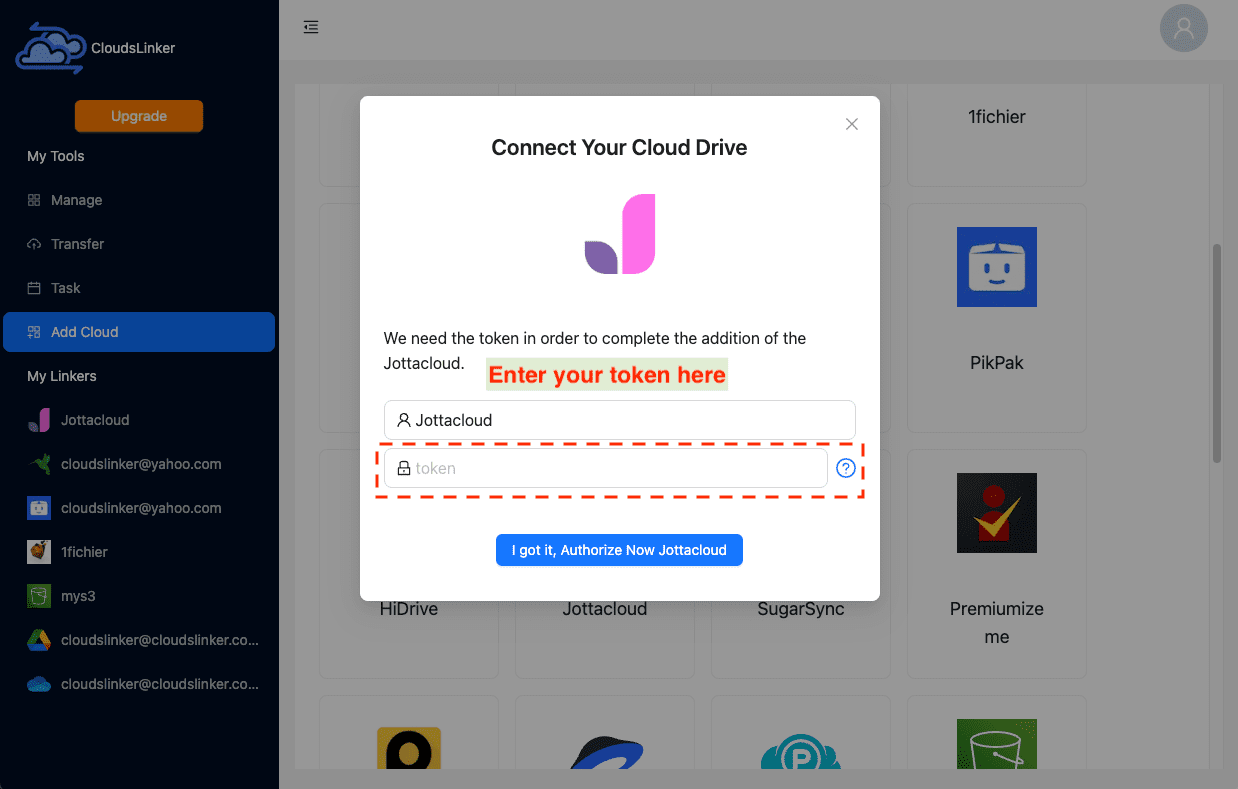
Sign in to jottacloud.com, open account security settings, and generate a Personal login token. Copy the token. In CloudsLinker, click Add Cloud → Jottacloud, paste the token, and confirm. Jottacloud appears as a connected source once the token is validated.
Step 2: Connect Filen
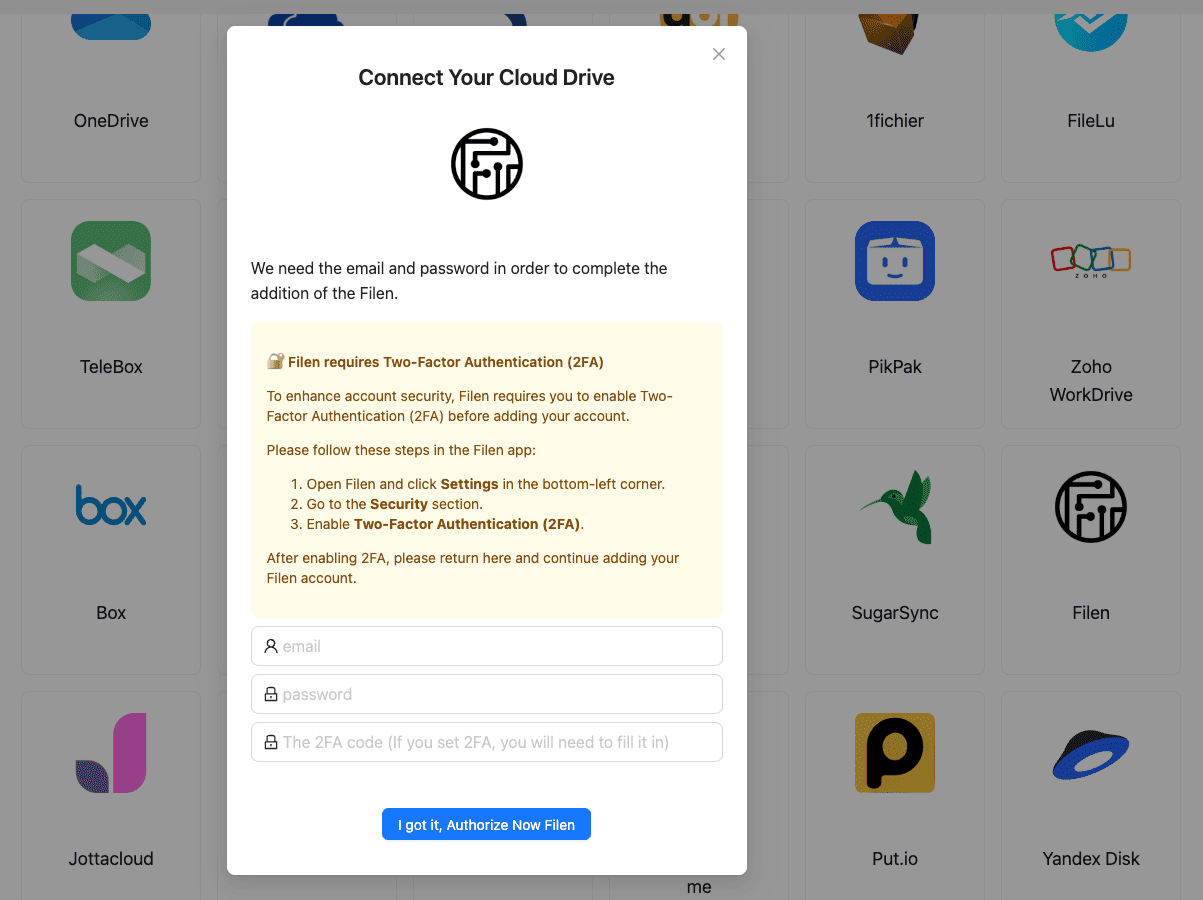
Click Add Cloud again and select Filen. Enter the Filen account email and master password, then enter the 2FA code from an authenticator app. After authentication, Filen is ready as a destination in the cloud list.
Step 3: Configure the Transfer
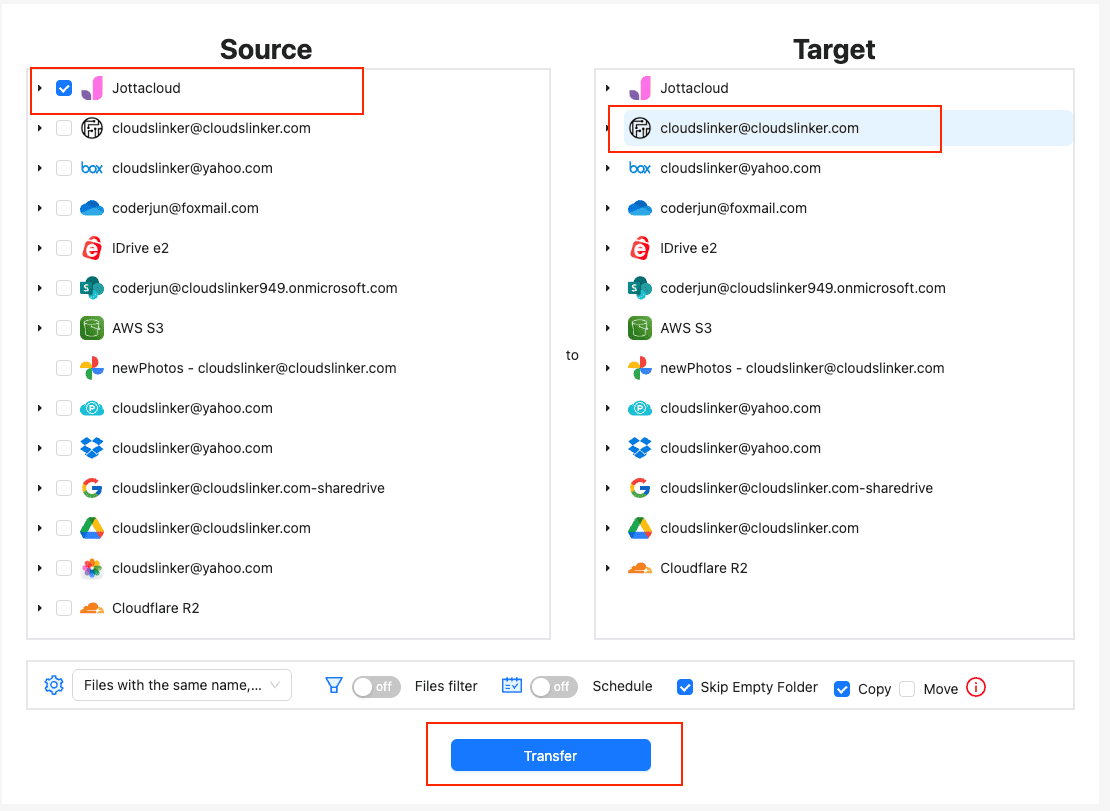
Open the Transfer section. Select the Jottacloud connection as the source and browse to the folders to move. Set the destination to the target Filen folder. Filters allow exclusion by file type, path, or modification date — useful for skipping backup snapshots and keeping only the current content.
Keep Copy mode for the first run. Jottacloud's 30-day trash retention gives a fallback window if something goes wrong; a later Move pass can clean up the source once the Filen copy has been verified.
Step 4: Start and Monitor
Start the task. Progress, speed, and remaining items show up in the Task List. The transfer runs on CloudsLinker infrastructure, so closing the browser does not interrupt it. After completion, open Filen, sample a few files, and only then clean up anything on the Jottacloud side.
Comparing the Ways to Transfer From Jottacloud to Filen
| Method | Ease of Use | Speed | Best For | Uses Local Bandwidth | Skill Level |
|---|---|---|---|---|---|
| Browser Download + Upload | ★★★★☆ | ★★☆☆☆ | Single folder, under 20 GB | Yes | Beginner |
| CloudsLinker | ★★★★★ | ★★★★★ | Large archives, unattended migrations | No | Beginner |
- Decide what to do with Backup and Archive folders: Jottacloud's archive area may contain point-in-time backups. Filen has no equivalent, so migrated backups become static copies — still useful, but without automated retention.
- Save the Filen recovery key: a lost password on a zero-knowledge account cannot be reset by the provider. Keep the recovery key in a password manager or an offline location.
- Track capacity carefully: Jottacloud's unlimited plans have no obvious ceiling, but Filen's plans do. Measure actual usage first and pick the tier accordingly.
- Preserve meaningful structure: if the Jottacloud layout is shaped by device backup or Sync folders, consider consolidating into project- or topic-based folders on Filen instead of mirroring device names.
- Mind version history: Jottacloud keeps file versions for a fixed window. Only the current version transfers to Filen. If historical versions are important, export them explicitly before migrating.
- Test with a small folder: before clearing the full Jottacloud account, migrate one folder end to end and verify file integrity and structure on the Filen side.
Frequently Asked Questions
Conclusion
A small Jottacloud footprint — a handful of folders or a few gigabytes — can move through the browser without extra tooling. For backups in the tens or hundreds of gigabytes, CloudsLinker avoids the local download-and-upload bottleneck by connecting Jottacloud through its personal login token and Filen through email, password, and 2FA. Before clearing Jottacloud content, verify a sample on the Filen side and confirm the Filen recovery key is stored somewhere safe — zero-knowledge storage has no fallback if the password is lost.
Online Storage Services Supported by CloudsLinker
Transfer data between over 58 cloud services with CloudsLinker

OneDrive

Google Drive

Google Photos

Shared Drive

OneDrive for Business

Dropbox

Box

Mega

pCloud

Yandex

ProtonDrive

AWS

GCS

iDrive

Storj

DigitalOcean

Wasabi

1fichier

PikPak

TeleBox

OpenDrive

Backblaze B2

Fastmail file

SharePoint

Nextcloud

ownCloud

Premiumize me

HiDrive

Put.io

Sugar Sync

Jottacloud

Seafile

Ftp

SFtp

NAS

WebDav

4shared

Icedrive

Cloudflare R2

Scaleway

Hetzner Object Storage

Synology C2 Object Storage

S3 Compatible

Doi

iCloud Drive

iCloud Photos

FileLU

Zoho WorkDrive

Telia Cloud / Sky

Drime

Filen

TeraBox

Internxt

Degoo

Gofile

Pixeldrain

Shade

Koofr
Didn' t find your cloud service? Be free to contact: [email protected]
Further Reading
Effortless FTP connect to google drive: Transfer Files in 3 Easy Ways
Learn More >
Google Photos to OneDrive: 3 Innovative Transfer Strategies
Learn More >
Google Photos to Proton Drive: 3 Effective Transfer Techniques
Learn More >