Getting Around MEGA's Daily Download Cap by Moving Files to PikPak
Transfer files from MEGA to PikPak's 10 TB library: manual download and upload, or a direct cloud-to-cloud copy with CloudsLinker.
Introduction
MEGA's free tier throttles downloads to roughly 5 GB a day per IP address, a limit that becomes a real problem the moment a library needs to move somewhere else in one sitting. PikPak doesn't inherit that constraint, and it adds something MEGA has no version of: pulling files directly from a magnet link, torrent, or Telegram forward onto its own servers. Someone who already keeps a downloaded-media library in PikPak but still has files parked in MEGA — sent by someone else, or set up years ago for the encryption — ends up splitting one library across two apps with different access models. MEGA has no official export tool aimed at other clouds, so files move by hand or through a connector that authenticates to both accounts directly.
MEGA is a New Zealand-based cloud service built around end-to-end, zero-knowledge encryption — files are encrypted on the device before upload, and MEGA's servers only ever see ciphertext.
- Free tier: 20 GB base storage, plus temporary bonus storage for new accounts.
- Paid tiers: Pro Lite 400 GB, Pro I 2 TB, Pro II 8 TB, Pro III 16 TB.
- Free download cap: roughly 5 GB per day per IP.
- Access: account email and password, with optional 2FA.
PikPak is a cloud-side downloader: paste a magnet link, torrent, or direct URL, and the file downloads on PikPak's servers instead of a local device.
- Free tier: 6 GB. Premium unlocks 10 TB.
- Cloud download: magnet, torrent, and URL sources; most complete in under 60 seconds.
- Telegram bot: forwards saved media directly into PikPak.
- Access: account email and password.
MEGA and PikPak solve different problems: one prioritizes encryption, the other prioritizes capturing content from links. Moving from one to the other trades security posture for capability, not the other way around.
| Feature | MEGA | PikPak |
|---|---|---|
| Primary strength | End-to-end, zero-knowledge encryption | Cloud-side downloading from magnet/torrent/Telegram |
| Encryption | Client-side; MEGA cannot read file content | None — PikPak can access stored content |
| Free tier | 20 GB base storage | 6 GB |
| Paid storage ceiling | 16 TB (Pro III) | 10 TB (Premium) |
| Free-tier download limit | ~5 GB per day per IP | No fixed daily cap; a monthly transfer quota applies |
| Best for | Privacy-sensitive storage | Torrent/magnet/Telegram media hub |
Understand the trade-off first
Files lose MEGA's end-to-end encryption once they land in PikPak — PikPak does not offer client-side encryption, and its staff or infrastructure can technically access stored content. This move fits downloaded media and general files, not anything that needs to stay zero-knowledge.
On the MEGA side
- Check the free-tier download cap: roughly 5 GB per day per IP. A Pro plan or CloudsLinker's account-level access removes the practical bottleneck for larger libraries.
- Have MEGA 2FA ready if enabled — the 6-digit code is required at connection time.
On the PikPak side
- Confirm free space: the free tier caps at 6 GB; a Premium plan is needed for a full archive.
- Set a direct password if the PikPak account was created through Google or Facebook sign-in — third-party tools need real account credentials, not a social login token.
Method 1: Manual Download From MEGA and Upload to PikPak
Step 1: Download From MEGA
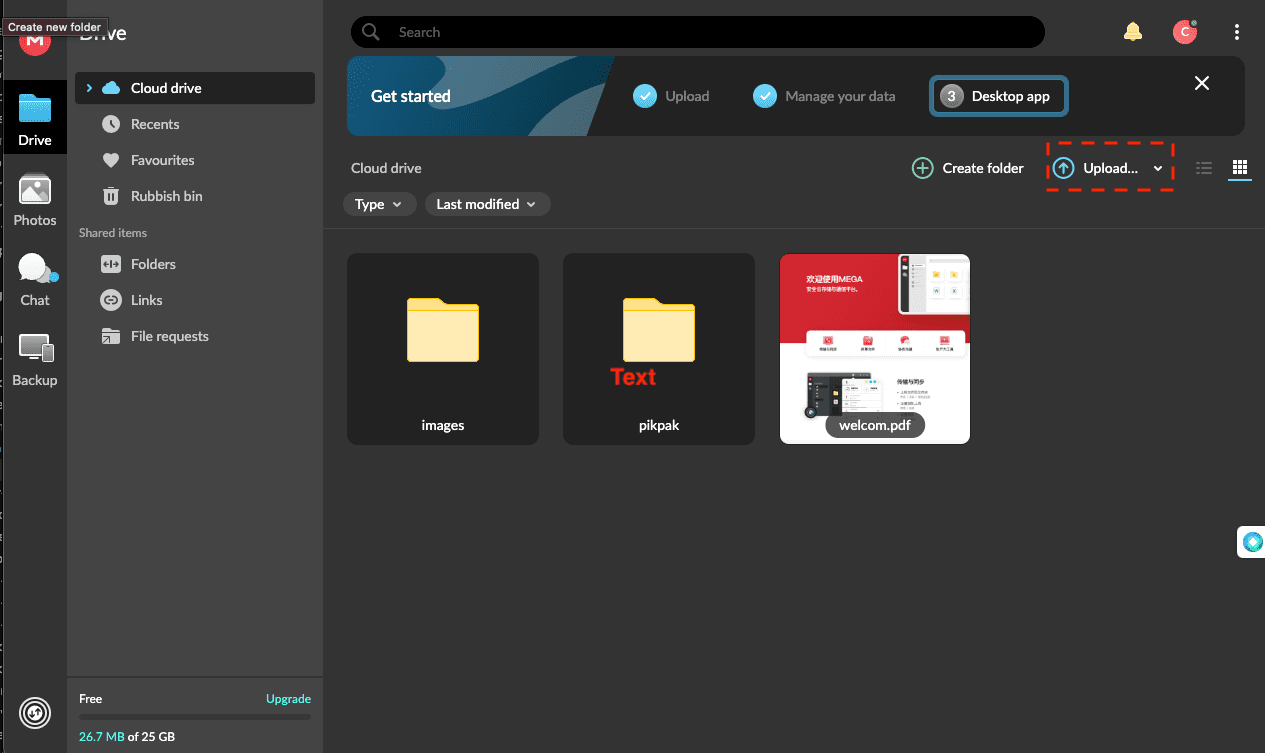
Open mega.nz and sign in. MEGA decrypts files in-browser using the account key. Select files or folders and download them — folders package as ZIP archives. Free accounts should download in batches to stay under the daily download cap.
Step 2: Upload to PikPak
Extract the ZIP if needed, then upload through PikPak's web client or app. The web client caps individual uploads at 4 GB; the desktop client raises that to 20 GB per file.

Method 2: Cloud-to-Cloud Transfer With CloudsLinker
Move MEGA to PikPak Without Local Downloads
CloudsLinker connects to MEGA and PikPak with each service's own account credentials, then transfers files directly between the two. The job runs on CloudsLinker's servers and continues after the browser closes.
Step 1: Connect MEGA
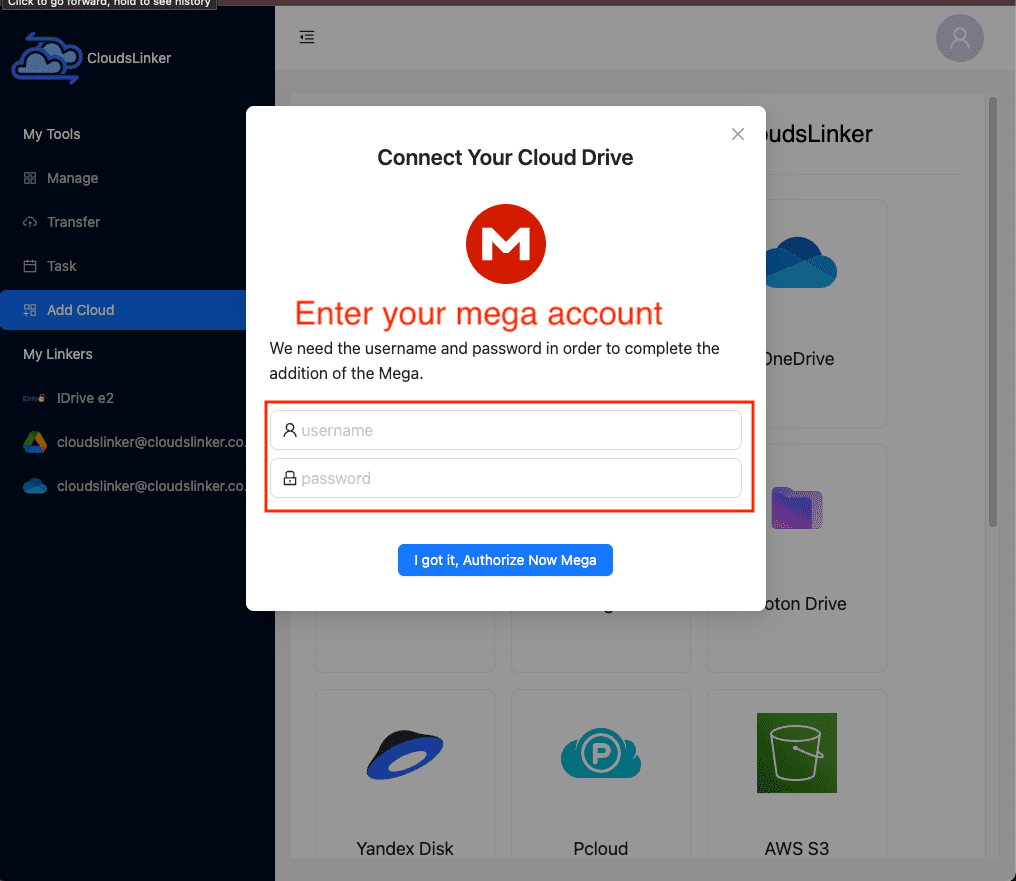
In CloudsLinker, click Add Cloud and select MEGA. Enter the MEGA email and password. If MEGA 2FA is enabled, enter the 6-digit code from the authenticator app when prompted.
Step 2: Connect PikPak
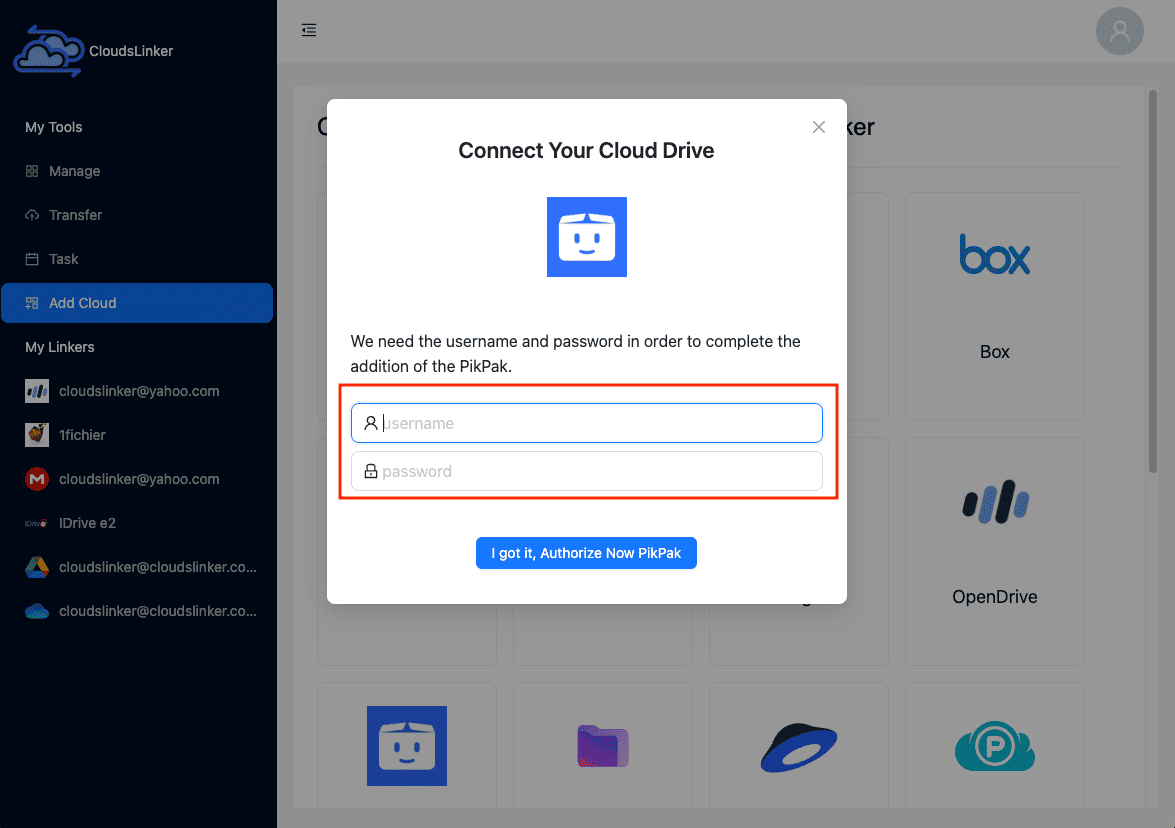
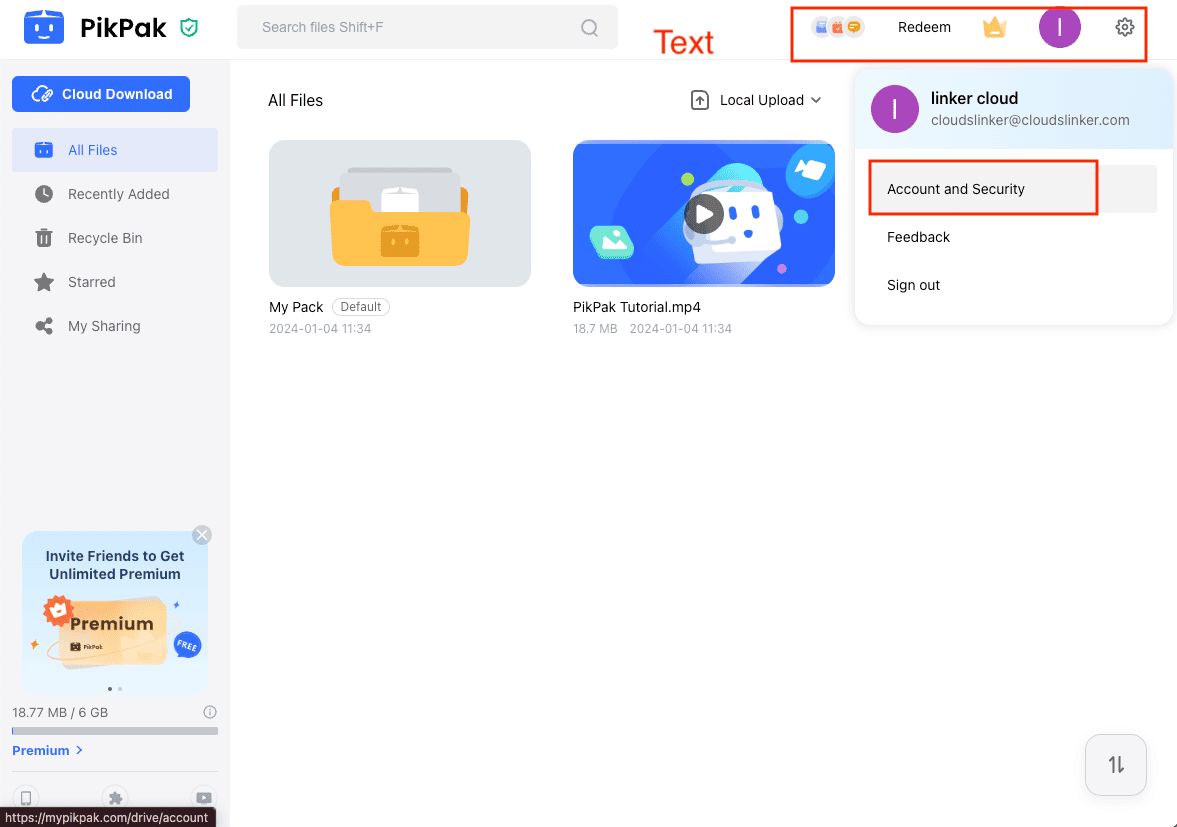
Click Add Cloud and select PikPak. Enter the PikPak account email and password. If the account was created through Google or Facebook sign-in, set a direct password first: PikPak avatar → Account and Security → Password.
Step 3: Configure the Transfer
Open the Transfer section. Select MEGA as the source and browse to the folders to move. Select PikPak as the destination and choose the target folder. Filter by file type or size if only part of the account needs to move, and use Copy to keep the MEGA originals in place.

Step 4: Start and Monitor
Click start and track progress from the Task List. CloudsLinker paces the transfer against MEGA's quota and resumes automatically if it's throttled. Spot-check a few files in PikPak once the job finishes before removing anything from MEGA.
Comparing the Ways to Transfer From MEGA to PikPak
| Method | Ease of Use | Speed | Best For | Uses Local Bandwidth | Skill Level |
|---|---|---|---|---|---|
| Manual Download + Upload | ★★★☆☆ | ★★☆☆☆ | Small batches within the daily download cap | Yes | Beginner |
| CloudsLinker | ★★★★★ | ★★★★☆ | Full MEGA accounts, larger libraries | No | Beginner |
- Confirm nothing needs to stay zero-knowledge encrypted: once files leave MEGA, PikPak can technically access their content.
- Plan around the free-tier download cap: ~5 GB per day per IP makes manual downloads slow for large libraries; CloudsLinker or a temporary Pro upgrade removes the bottleneck.
- Check PikPak's free space first: the free tier is only 6 GB — a Premium plan is needed for anything close to a full MEGA archive.
- Mind the upload caps on PikPak's side: 4 GB per file on the web client, 20 GB on the desktop client, 1,000 files per day on any client.
- Keep MEGA 2FA ready: if enabled, the connection step will ask for a 6-digit code from the authenticator app.
- Set a direct PikPak password early: accounts created via Google or Facebook sign-in need a dedicated password before a third-party tool can connect.
- Verify after transfer: open a sample of files in PikPak to confirm content and folder structure before clearing anything out of MEGA.
Frequently Asked Questions
Conclusion
For a small batch of files, downloading from MEGA and uploading through PikPak's web client works, though MEGA's free-tier download cap makes this slow for anything beyond a few gigabytes a day. For a full MEGA account, CloudsLinker connects both with their native credentials and runs the copy account-to-account, respecting MEGA's quotas along the way. Either way, remember that files lose MEGA's end-to-end encryption once they land in PikPak — check that nothing sensitive is on the move before starting, and confirm a sample of files opens correctly afterward.
Online Storage Services Supported by CloudsLinker
Transfer data between over 58 cloud services with CloudsLinker

OneDrive

Google Drive

Google Photos

Shared Drive

OneDrive for Business

Dropbox

Box

Mega

pCloud

Yandex

ProtonDrive

AWS

GCS

iDrive

Storj

DigitalOcean

Wasabi

1fichier

PikPak

TeleBox

OpenDrive

Backblaze B2

Fastmail file

SharePoint

Nextcloud

ownCloud

Premiumize me

HiDrive

Put.io

Sugar Sync

Jottacloud

Seafile

Ftp

SFtp

NAS

WebDav

4shared

Icedrive

Cloudflare R2

Scaleway

Hetzner Object Storage

Synology C2 Object Storage

S3 Compatible

Doi

iCloud Drive

iCloud Photos

FileLU

Zoho WorkDrive

Telia Cloud / Sky

Drime

Filen

TeraBox

Internxt

Degoo

Gofile

Pixeldrain

Shade

Koofr
Didn' t find your cloud service? Be free to contact: [email protected]
Further Reading
Effortless FTP connect to google drive: Transfer Files in 3 Easy Ways
Learn More >
Google Photos to OneDrive: 3 Innovative Transfer Strategies
Learn More >
Google Photos to Proton Drive: 3 Effective Transfer Techniques
Learn More >