OneDrive for Business to Filen: Move Work Files to Zero-Knowledge Encrypted Storage
Shift OneDrive for Business files to Filen for client-side encrypted storage. Use browser download, the OneDrive sync client, or CloudsLinker's cloud-to-cloud transfer.
Introduction
Filen encrypts every file on the client before upload, so the service — and anyone with access to it — stores only ciphertext. For teams carrying sensitive documents in OneDrive for Business, that model changes the threat surface: compliance audits, subpoenas against the storage provider, and Microsoft 365 admin access all stop being paths to cleartext. OneDrive for Business does its own job well, but anchoring data inside a Microsoft 365 tenant means that admin permissions, per-seat licensing, and tenant-wide policies govern every file. Three practical routes cover typical migration sizes: a browser download from the OneDrive web client, a bridge through the OneDrive sync folder on desktop, and a cloud-to-cloud transfer via CloudsLinker when the volume is too large to route through a laptop.
OneDrive for Business is Microsoft's enterprise file storage service, tied to a Microsoft 365 tenant. Each licensed user receives a personal OneDrive, and tenant admins control sharing, retention, and data loss prevention policies centrally.
- Per-seat licensing: typically 1 TB per user, scaling with license count.
- Office integration: real-time co-authoring with Word, Excel, PowerPoint.
- Tenant admin controls: retention, eDiscovery, sharing restrictions.
- Version history: automatic versioning on document changes.
- Encryption: at rest with Microsoft-managed keys.
Filen is an end-to-end encrypted cloud storage service hosted in Germany. Files are encrypted on the client before leaving the device, so the service never sees file contents or filenames in cleartext.
- Client-side encryption: AES-256 + RSA, keys held on the client.
- Zero-knowledge model: the provider cannot read stored content.
- Folder-based storage: plain files and folders, no co-authoring.
- 2FA: required for API-based access used by migration tools.
- Plans: 10 GB free, paid plans up to multi-terabyte flat pricing.
The two services optimize for different outcomes. OneDrive for Business is built around Microsoft 365 collaboration and centralized admin control; Filen is built around encrypted storage that the provider cannot inspect.
| Feature | OneDrive for Business | Filen |
|---|---|---|
| Encryption model | Provider-managed keys, server-side | Client-side, keys never leave the device |
| Licensing | Per seat, bundled with Microsoft 365 | Flat storage plans, not per user |
| Collaboration | Real-time Office co-editing | File-level sharing only |
| Data residency | Tenant-configurable, Microsoft regions | Germany, EU data centers |
| Best-fit use case | Active team collaboration inside Microsoft 365 | Private archive or shared storage with stronger secrecy |
On the OneDrive for Business side
- Check used storage: OneDrive → Settings → More settings → Storage Metrics to see per-folder usage.
- Audit sharing links: identify which files rely on Microsoft-side sharing links — those have to be reissued on Filen after migration.
- Resolve checked-out files: any file locked by Office co-authoring should be closed before export so the latest version is copied.
- Confirm admin policies: if DLP or sensitivity labels are in place, make sure external export is permitted for the folders being moved.
On the Filen side
- Choose a plan with headroom: Filen storage is flat-priced, so pick the tier closest to current OneDrive usage with a small buffer.
- Enable 2FA: required for CloudsLinker. Use an authenticator app.
- Save the recovery key: zero-knowledge means the provider cannot help with a lost password.
- Plan folder structure: Filen has no SharePoint-like permissions, so consider consolidating folders by project rather than by user.
Method 1: Download from OneDrive for Business and Upload to Filen
Step 1: Download from the OneDrive Web Client
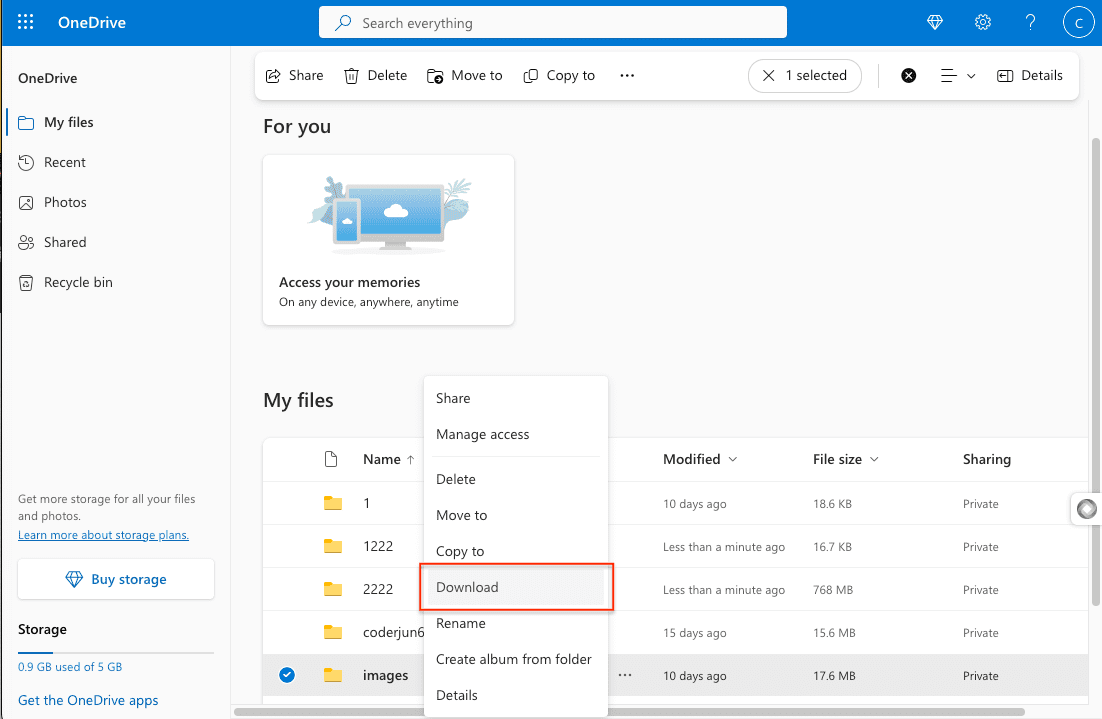
Open office.com and sign in to the work account. Go to OneDrive, navigate to the folder to migrate, and select files or folders. Click Download. Multiple items or folders come down as a ZIP archive.
OneDrive for Business has a practical per-download limit around 250 GB or 10,000 files per ZIP, and files with certain characters in their names may be skipped. For larger exports, split the selection into batches.
Step 2: Extract Locally
Unzip the archive. Modified timestamps are typically preserved; created timestamps may be reset to the extraction time depending on the archive tool. If timestamps matter, use an archive tool that preserves both.
Step 3: Upload to Filen
Open the Filen web app or desktop client, sign in, and drag the extracted folder into the target location. Filen encrypts files on the client before upload, so the initial upload throughput depends on CPU as well as bandwidth.
Method 2: OneDrive Sync Client as a Bridge
Use the synced folder as a staging area
If OneDrive Sync is already installed on Windows or Mac, the OneDrive folder on disk already contains a local copy of work files. That folder can be used directly as a source for Filen's desktop client or web upload.
Step 1: Force a Full Local Download
In File Explorer or Finder, right-click the OneDrive folders to migrate and choose Always keep on this device. OneDrive replaces the online-only placeholders with full local copies. Wait until every file shows as fully downloaded.
Step 2: Install the Filen Desktop Client
Install the Filen desktop app and sign in. Create a destination folder inside Filen that mirrors the OneDrive structure you want to keep.
Step 3: Upload from the Synced Folder
Drag the contents of the local OneDrive folder into the Filen destination folder. Filen uploads and encrypts in parallel; network drops are handled with automatic retries. Once the upload finishes, spot-check a handful of files, then consider turning off OneDrive Sync for the migrated folders to reclaim local disk space.
Method 3: Cloud-to-Cloud Transfer with CloudsLinker
Move OneDrive for Business Content Without Staging It Locally
CloudsLinker connects OneDrive for Business through Microsoft OAuth and Filen through email, password, and 2FA, then moves files directly between the two. No local download, no per-ZIP size cap, and the transfer keeps running when the browser is closed.
Step 1: Connect OneDrive for Business
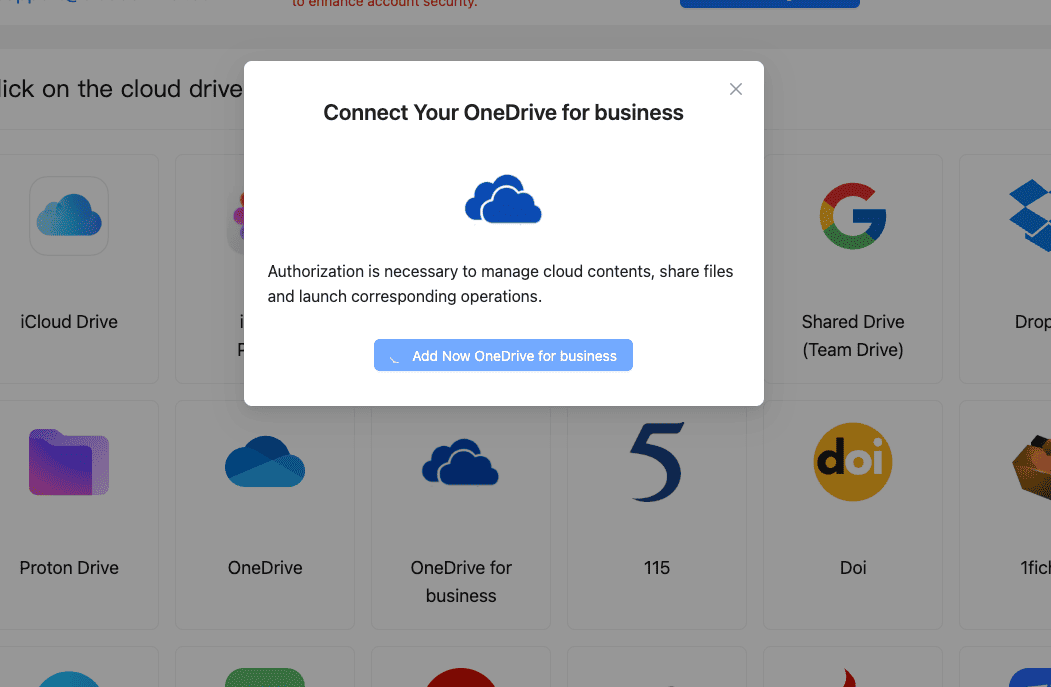
In CloudsLinker, click Add Cloud and choose OneDrive for Business. The browser redirects to Microsoft's sign-in page. Sign in with the work account, approve the requested permissions, and return to CloudsLinker. If the tenant has multiple drives attached, pick the correct sub-drive when prompted.
Step 2: Connect Filen
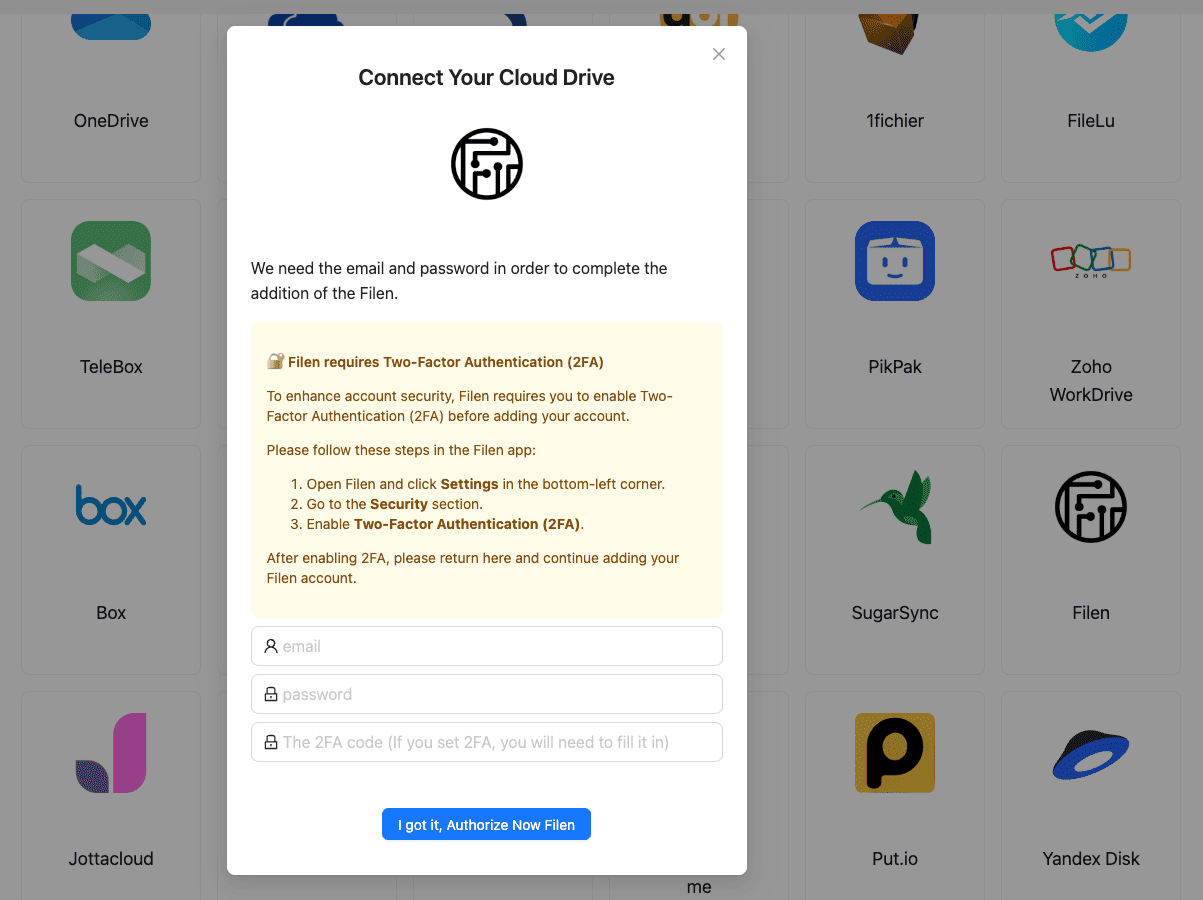
Click Add Cloud again and select Filen. Enter the Filen account email and master password, then the 2FA code from the authenticator app. Filen's zero-knowledge model means CloudsLinker uses the credentials only to authenticate against Filen's API — stored file content remains end-to-end encrypted on the Filen side.
Step 3: Configure the Transfer
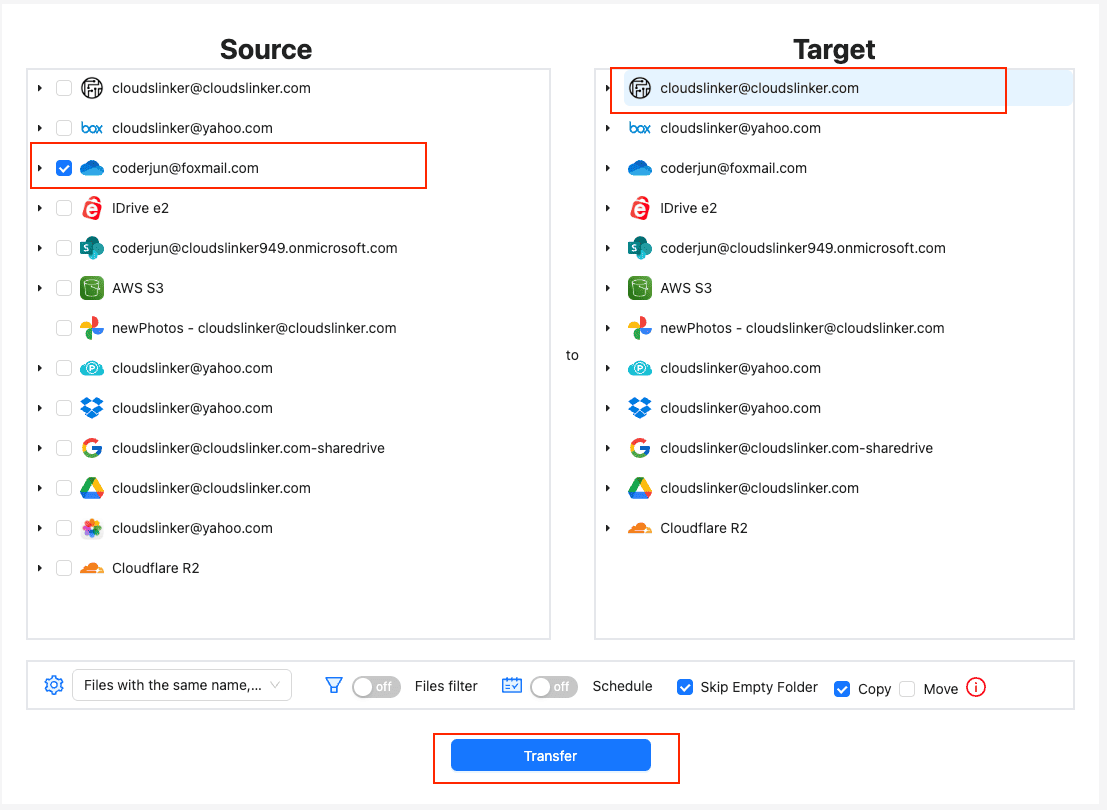
Open the Transfer section. Select the OneDrive for Business connection as the source and browse to the folders to migrate. On the destination side, select the Filen folder. Filters let you skip specific file types, exclude sub-folders, or limit by modification date.
Use Copy mode during the first run so OneDrive remains a fallback. A later Move pass can clear OneDrive content once the Filen copy has been verified.
Step 4: Start and Monitor
Start the task and open the Task List. Progress, transferred size, and remaining items are reported in real time. The transfer runs entirely on CloudsLinker servers, so closing the laptop or ending the browser session does not stop it. After completion, open Filen and verify a sample of folders before clearing OneDrive data.
Comparing the Ways to Transfer From OneDrive for Business to Filen
| Method | Ease of Use | Speed | Best For | Uses Local Bandwidth | Skill Level |
|---|---|---|---|---|---|
| Browser Download + Upload | ★★★★☆ | ★★☆☆☆ | Single user, under 20 GB | Yes | Beginner |
| OneDrive Sync Bridge | ★★★☆☆ | ★★★☆☆ | Users with OneDrive already synced on desktop | Yes | Intermediate |
| CloudsLinker | ★★★★★ | ★★★★★ | Large migrations, multiple users, hands-off moves | No | Beginner |
- Back up sharing links before deleting OneDrive content: Microsoft-side share links do not carry over to Filen. Export a list of active shares and reissue Filen share links for the recipients who still need access.
- Convert Office documents carefully: Word, Excel, and PowerPoint files transfer as-is, but real-time co-authoring does not continue on Filen. Communicate the change to collaborators so they download and re-upload instead of editing in place.
- Watch for OneNote notebooks: OneNote files on OneDrive are not standard documents. Export them to PDF or .one format from the OneNote client before migration.
- Respect tenant DLP policies: if the tenant enforces DLP or labeled sensitivity, coordinate with the IT admin before running a large export — an audit log entry will be generated.
- Preserve timestamps where possible: CloudsLinker copies modification timestamps to Filen. ZIP-based exports may reset created timestamps depending on the archive tool used.
- Run a test folder first: pick a non-critical folder, transfer it end to end, and verify permissions, file contents, and timestamps in Filen before scaling up.
Frequently Asked Questions
Conclusion
For a single user's document folder, the browser download is the shortest path. Teams that already have OneDrive Sync set up can stage files through the synced folder without extra tooling. When the migration spans tens or hundreds of gigabytes, or multiple users, CloudsLinker moves data directly between Microsoft and Filen servers and runs unattended. Whatever the method, record the Filen recovery key before uploading — zero-knowledge storage cannot be recovered by the provider — and keep the OneDrive copy intact until the Filen side has been verified.
Online Storage Services Supported by CloudsLinker
Transfer data between over 58 cloud services with CloudsLinker

OneDrive

Google Drive

Google Photos

Shared Drive

OneDrive for Business

Dropbox

Box

Mega

pCloud

Yandex

ProtonDrive

AWS

GCS

iDrive

Storj

DigitalOcean

Wasabi

1fichier

PikPak

TeleBox

OpenDrive

Backblaze B2

Fastmail file

SharePoint

Nextcloud

ownCloud

Premiumize me

HiDrive

Put.io

Sugar Sync

Jottacloud

Seafile

Ftp

SFtp

NAS

WebDav

4shared

Icedrive

Cloudflare R2

Scaleway

Hetzner Object Storage

Synology C2 Object Storage

S3 Compatible

Doi

iCloud Drive

iCloud Photos

FileLU

Zoho WorkDrive

Telia Cloud / Sky

Drime

Filen

TeraBox

Internxt

Degoo

Gofile

Pixeldrain

Shade

Koofr
Didn' t find your cloud service? Be free to contact: [email protected]
Further Reading
Effortless FTP connect to google drive: Transfer Files in 3 Easy Ways
Learn More >
Google Photos to OneDrive: 3 Innovative Transfer Strategies
Learn More >
Google Photos to Proton Drive: 3 Effective Transfer Techniques
Learn More >