OneDrive to Box: When Your Team Needs Compliance-Grade Sharing Across Every Platform
Four practical methods to move files from OneDrive to Box, covering browser transfers, Box Drive sync, Rclone, and cloud-to-cloud migration with CloudsLinker.
Introduction
Box stands out from general-purpose cloud storage by treating compliance and cross-platform collaboration as first-class features — HIPAA, FedRAMP, and GDPR support come built in, and the platform runs identically on Windows, macOS, Linux, iOS, and Android. If your team has outgrown OneDrive's Microsoft-centric ecosystem or needs granular permission controls that work outside of SharePoint, moving files to Box is a reasonable next step. The four methods below range from straightforward browser transfers to fully automated cloud-to-cloud workflows, so you can pick whichever fits the size of your migration and the level of oversight you want.
OneDrive is Microsoft's cloud storage service, bundled with every Microsoft 365 subscription and deeply integrated into Windows, Office apps, and Teams. Personal accounts start with 5 GB of free storage, while business plans typically include 1 TB per user.
- Windows integration: OneDrive is built into File Explorer on Windows 10 and 11.
- Office co-authoring: Real-time editing in Word, Excel, and PowerPoint directly from OneDrive.
- Personal Vault: An extra-security folder requiring identity verification.
- Version history: Restore previous file versions for up to 30 days.
Box is a cloud content management platform used by enterprises, government agencies, and educational institutions. It focuses on secure collaboration, regulatory compliance, and integrations with a wide range of third-party tools.
- Cross-platform parity: Native apps for Windows, macOS, Linux, iOS, and Android, plus a full web interface.
- Compliance certifications: Meets GDPR, HIPAA, FedRAMP, and SOC 2 requirements.
- Granular permissions: Seven permission levels per folder, with watermarking and access expiration.
- 1,500+ integrations: Works with Slack, Salesforce, Zoom, Microsoft 365, and Google Workspace.
| Feature | OneDrive | Box |
|---|---|---|
| Free Storage | 5 GB | 10 GB (free personal plan) |
| Platform Support | Windows, macOS, iOS, Android, Web | Windows, macOS, Linux, iOS, Android, Web |
| Compliance | SOC 1/2, ISO 27001 | GDPR, HIPAA, FedRAMP, SOC 2, GxP |
| Collaboration | Microsoft 365 co-authoring | Microsoft 365, Google Workspace, and 1,500+ integrations |
| Permission Model | Owner, editor, viewer | Seven levels with watermarking, expiration, and download restrictions |
| Best Fit | Microsoft-centric teams | Cross-platform teams needing regulatory compliance |
OneDrive works well when every team member lives inside Microsoft 365. Once collaborators use different operating systems or different productivity suites, the friction grows. Box addresses several gaps that matter for mixed-platform and compliance-sensitive teams.
- Regulatory compliance out of the box: HIPAA, FedRAMP, and GxP certifications are available on standard Box plans, whereas OneDrive typically requires additional Microsoft licensing and configuration.
- Linux desktop support: Box Drive has a native Linux client. OneDrive does not offer an official Linux app, which forces Linux users into browser-only access.
- Granular folder permissions: Box provides seven distinct permission levels per folder — including restricted download, watermarked preview, and time-limited access — compared to OneDrive's three-tier model.
- Vendor-neutral integrations: Box connects natively with both Microsoft 365 and Google Workspace, along with Slack, Salesforce, and Zoom, so your file platform does not lock you into a single vendor's ecosystem.
- Metadata-driven workflows: Box supports custom metadata templates and automated workflows (Box Relay), which help regulated industries maintain audit trails without manual tracking.
The methods below cover four ways to get your OneDrive data into Box, from simple browser transfers to unattended cloud-to-cloud migration.
Start by reviewing your OneDrive storage. Open onedrive.live.com and check total usage, identify shared folders, and note any files stored in the Personal Vault (these must be unlocked before they can be exported).
On the Box side, verify that your account has enough capacity. The free personal plan offers 10 GB with a 250 MB per-file upload limit. Business plans raise both limits significantly. If your OneDrive library exceeds the available Box quota, consider upgrading before starting the migration.
Creating a clear folder structure in Box ahead of time — such as a top-level OneDrive Import folder — helps keep transferred files organized and separate from any existing content in your Box account.
Method 1: Download from OneDrive, Upload to Box via Browser
Step 1: Download Files from OneDrive
Open OneDrive
in your browser and sign in. Navigate to the folders you want to migrate.
Select individual files with Ctrl (Windows) or Command (Mac),
or select an entire folder by checking its checkbox.
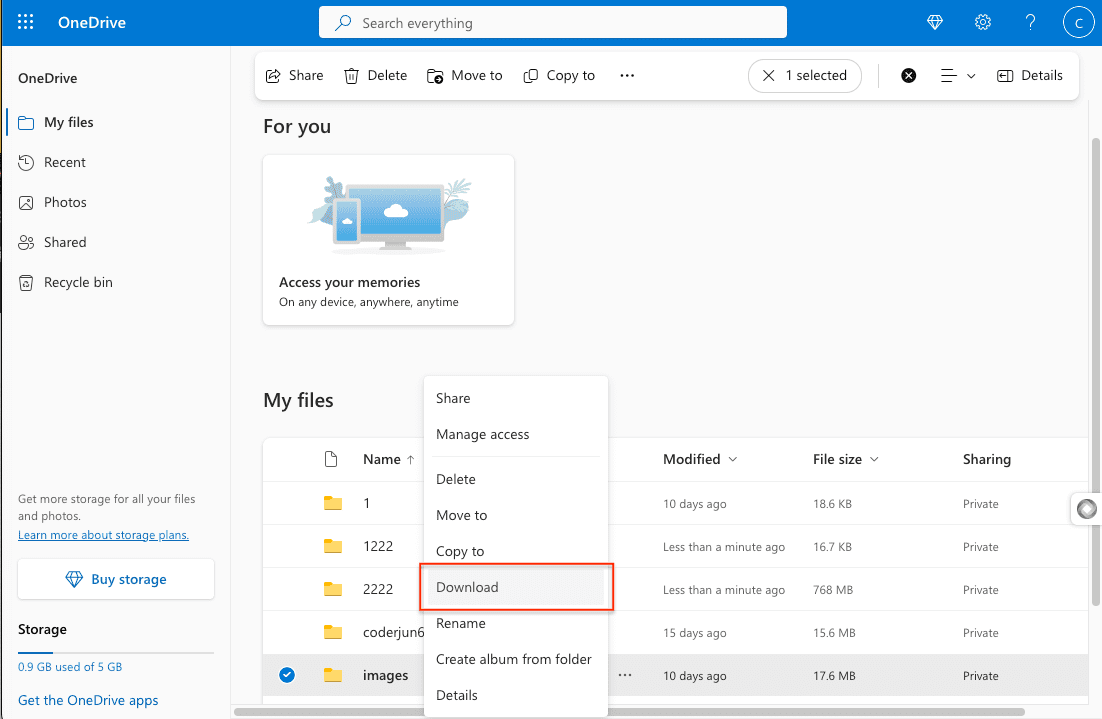
Click Download in the toolbar. OneDrive packages selected items into a ZIP archive. Once the download completes, extract the ZIP to preserve the original folder hierarchy.
Step 2: Upload to Box
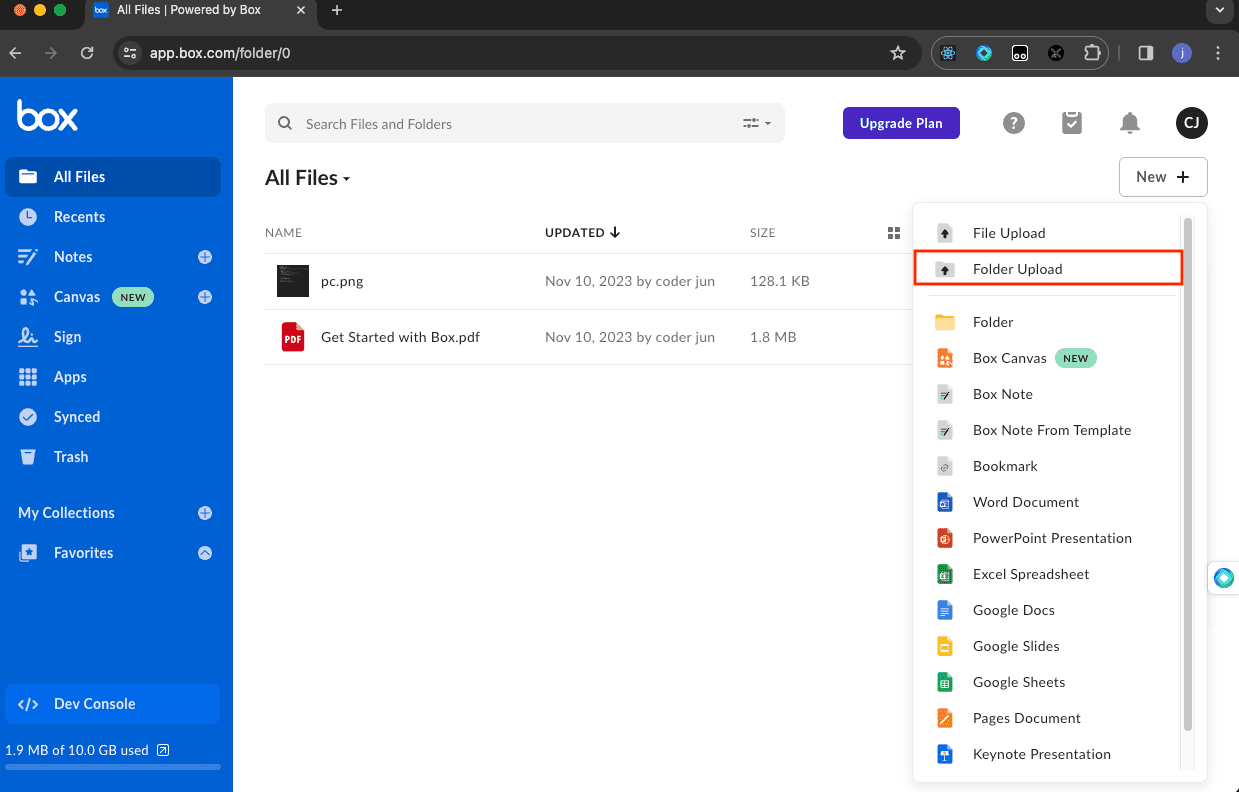
Sign in to Box and navigate to the destination folder. Click Upload in the top-right corner and select files or folders, or drag them directly into the browser window.
Keep in mind that the free Box plan limits individual file uploads to 250 MB. Files larger than this require a paid plan or a different transfer method.
This approach is practical for small, one-time transfers. For larger libraries or recurring migrations, the methods below avoid the download-then-upload bottleneck.
Method 2: Sync Through Box Drive Desktop App
Step 1: Install Box Drive and OneDrive Desktop
Download and install Box Drive on your computer. If you haven't already, make sure OneDrive's desktop client is also set up and syncing the folders you want to move.
Both applications create local mount points: OneDrive appears in File Explorer (Windows) or Finder (Mac), and Box Drive adds a separate Box drive letter or mount point.
Step 2: Copy Files Between the Two Drives
Open your file manager and navigate to the OneDrive folder. Select the files or directories you want to transfer. Copy them (not move, unless you intend to remove them from OneDrive) and paste into the Box Drive folder.
Box Drive uploads the copied files in the background. Progress appears in the Box Drive system tray icon. Large transfers may take a while depending on your internet speed, since data flows through your local machine.
This method is well suited for users who already have both desktop clients installed and prefer a familiar drag-and-drop workflow. It depends on a stable local connection throughout the transfer, and ties up bandwidth on your machine.
Method 3: Transfer with Rclone (Command Line)
Step 1: Install Rclone and Configure Both Remotes
Rclone is an
open-source command-line tool for syncing files between cloud providers. Download it from
rclone.org/downloads,
then run rclone config to set up two remotes.
-
OneDrive remote: Select
onedriveas the storage type. Complete the OAuth browser flow to authorize Rclone. For detailed steps, see the Rclone OneDrive documentation. -
Box remote: Select
boxas the storage type. Complete the OAuth browser flow. See the Rclone Box documentation for full instructions.
Step 2: Run the Transfer
With both remotes configured, run:
rclone copy onedrive: box:OneDriveBackup --progress
This copies all files from your OneDrive root into a OneDriveBackup folder in
Box. Replace copy with sync if you want Box to mirror OneDrive
exactly (files deleted from OneDrive will also be deleted from Box). Add
--dry-run first to preview changes without moving data.
Rclone handles large libraries well and supports bandwidth throttling, logging, and scheduled runs via cron. It requires comfort with the command line and a machine that stays online for the duration of the transfer.
Method 4: Cloud-to-Cloud Transfer with CloudsLinker
Cloud-to-Cloud Transfer Without Local Downloads
CloudsLinker transfers files directly between OneDrive and Box servers. Data does not pass through your local device, and the process continues even if you close the browser or shut down your computer.
Step 1: Connect OneDrive
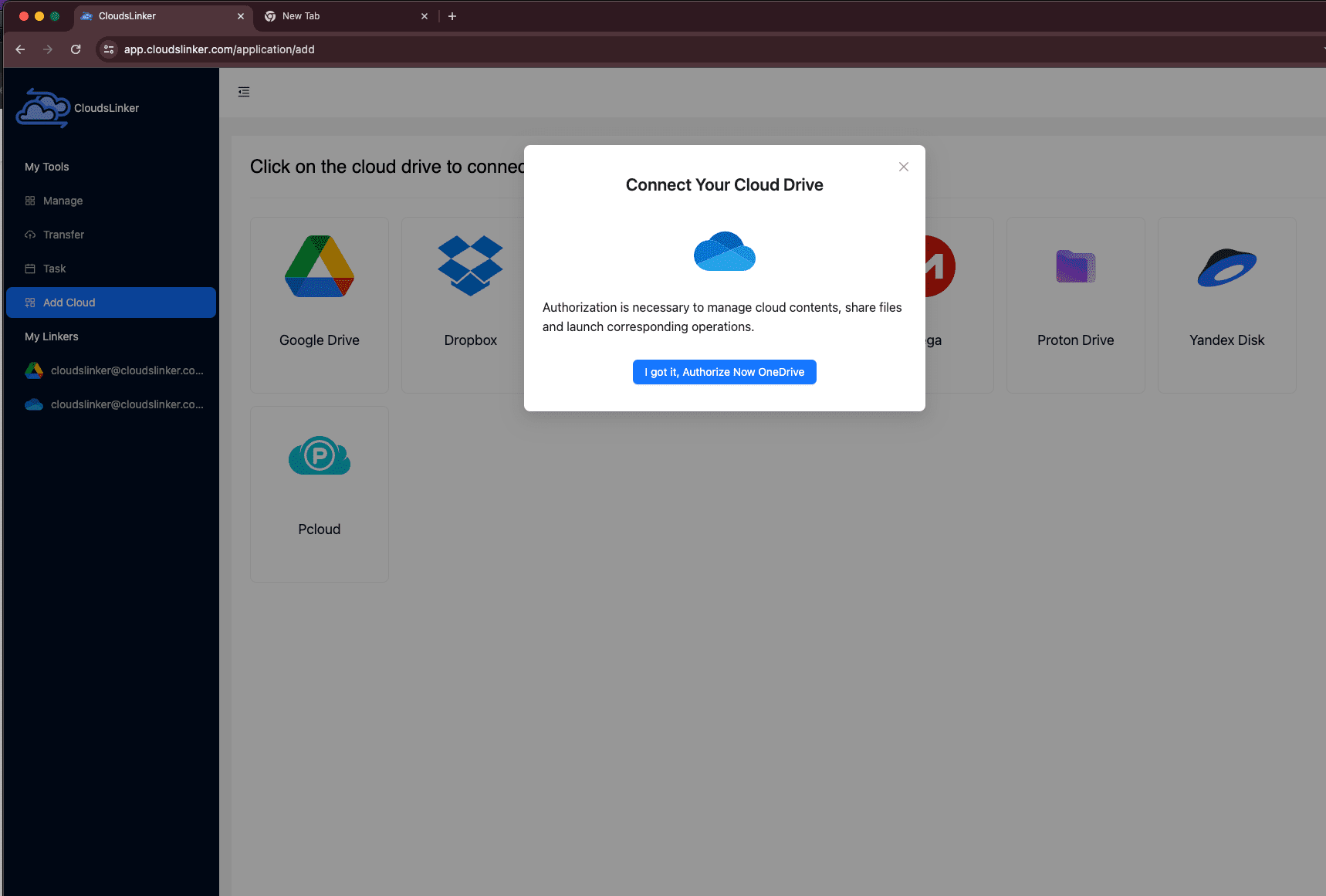
Sign in to CloudsLinker and click Add Cloud. Select OneDrive from the list. Your browser will redirect to Microsoft's authorization page. Sign in with your Microsoft account and approve access. If your account includes multiple drives, select the one you want to use after authorization completes.
Step 2: Connect Box
Click Add Cloud again and select Box. You will be redirected to Box's official login page. Sign in and authorize CloudsLinker to write files to your Box account. Once connected, Box appears as an available destination in the dashboard.

Step 3: Configure the Transfer
Open the Transfer section. Select your connected OneDrive as the source and browse to the files or folders you want to move. On the destination side, select Box and choose or create the target folder.
CloudsLinker supports file filtering by type or modification date, and offers both Copy and Move modes. Move mode removes the source files from OneDrive after a successful transfer — use it only when you are certain the data is no longer needed in OneDrive.

Step 4: Start and Monitor the Transfer
Click start. Track progress from the Task List, which shows transferred size, current speed, and remaining items. The transfer runs entirely on CloudsLinker's servers — your device does not need to stay online. You can also cancel an in-progress task from the same page if needed.
After the transfer completes, open Box and verify that folders and files have arrived in the expected location.
Transferring Between Other Clouds?
CloudsLinker also supports Google Drive, Dropbox, iCloud Drive, S3-compatible storage, WebDAV servers, and many other services. All transfers run cloud-to-cloud without consuming local bandwidth.
Comparing the Four Ways to Transfer from OneDrive to Box
| Method | Ease of Use | Speed | Best For | Uses Local Bandwidth | Skill Level |
|---|---|---|---|---|---|
| Browser Download & Upload | ★★★★★ | ★★☆☆☆ | Small batches or one-time personal transfers | Yes | Beginner |
| Box Drive Desktop Sync | ★★★★☆ | ★★★☆☆ | Users who already have both desktop clients installed | Yes | Beginner |
| Rclone (CLI) | ★★☆☆☆ | ★★★★☆ | Large datasets, scripting, and scheduled syncs | Yes | Advanced |
| CloudsLinker (Cloud-to-Cloud) | ★★★★★ | ★★★★★ | Bulk migrations without tying up a local machine | No | Beginner |
- Unlock the Personal Vault first: Files inside OneDrive's Personal Vault are not accessible to third-party tools or bulk downloads. Move them to a regular folder before migrating.
- Check the per-file upload limit on Box: Free Box accounts cap individual file uploads at 250 MB. Business plans raise this to 5 GB or more. Verify your plan before transferring large files.
- Preserve your folder structure: Create a matching directory layout in Box before uploading, or let CloudsLinker replicate it automatically during the transfer.
- Handle shared files separately: Files shared with you in OneDrive may not transfer with the same sharing permissions. Re-share them in Box after migration.
- Start with a test batch: Transfer a small folder first to verify that file names, folder nesting, and any special characters are handled correctly.
- Consider timing for large migrations: If you are using a cloud-to-cloud tool, start large transfers during off-peak hours to reduce the chance of API throttling on either side.
Frequently Asked Questions
Conclusion
For a handful of folders, downloading from OneDrive and uploading to Box through a browser gets the job done in minutes. Box Drive works better for ongoing sync, especially when team members need desktop-level access. Rclone fits automated or large-scale transfers where scripting matters. And for bulk migrations that should not depend on a local machine staying online, CloudsLinker handles the data movement entirely in the cloud.
Online Storage Services Supported by CloudsLinker
Transfer data between over 48 cloud services with CloudsLinker

OneDrive

Google Drive

Google Photos

Shared Drive

OneDrive for Business

Dropbox

Box

Mega

pCloud

Yandex

ProtonDrive

AWS

GCS

iDrive

Storj

DigitalOcean

Wasabi

1fichier

PikPak

TeleBox

OpenDrive

Backblaze B2

Fastmail file

SharePoint

Nextcloud

ownCloud

Premiumize me

HiDrive

Put.io

Sugar Sync

Jottacloud

Seafile

Ftp

SFtp

NAS

WebDav

4shared

Icedrive

Cloudflare R2

Scaleway

Doi

iCloud Drive

iCloud Photos

FileLU

Zoho WorkDrive

Telia Cloud / Sky

Drime

Filen
Didn' t find your cloud service? Be free to contact: [email protected]
Further Reading
Effortless FTP connect to google drive: Transfer Files in 3 Easy Ways
Learn More >
Google Photos to OneDrive: 3 Innovative Transfer Strategies
Learn More >
Google Photos to Proton Drive: 3 Effective Transfer Techniques
Learn More >