Offloading OneDrive to Degoo's 5 TB Plan: A Practical Migration Guide
Move files from OneDrive to Degoo server-to-server with CloudsLinker — free your Microsoft 365 quota and archive into Degoo's 5 TB Ultimate tier.
Introduction
Degoo sells one thing well: bulk consumer storage at a low price, with 5 TB on the Ultimate plan for $9.99 a month and a 20 GB free tier to start. A OneDrive account tied to Microsoft 365 stops at 1 TB per user, and the 5 GB free tier fills up after a single phone backup. When old project folders, camera dumps and video archives crowd out the documents you actually collaborate on, moving the cold data to a cheaper shelf makes sense. This guide covers two working ways to get files from OneDrive into Degoo — a manual download-and-upload route, and a server-side transfer with CloudsLinker that avoids re-downloading anything through your own connection.
OneDrive is Microsoft's cloud storage, woven into Windows and Microsoft 365. Free accounts get 5 GB; a Microsoft 365 subscription raises that to 1 TB per user, with files synced through the built-in desktop client and edited directly in Office apps.
- 5 GB free; 1 TB per user with Microsoft 365
- 250 GB maximum single file size
- Native Windows / Office integration
- Version history and 30-day recycle bin (93 days for Business)
Degoo is a Sweden-based, mobile-first cloud built around phone photo backup, priced for bulk: 20 GB free, 500 GB for $2.99/mo (Pro), and 5 TB for $9.99/mo (Ultimate). There is no desktop sync client — data flows in through the mobile apps, the paid web uploader, or a cloud-to-cloud service.
- 20 GB free (expandable via referrals), ads on free tier
- Per-file cap: 256 MB free / 50 GB on paid subscriptions
- Zero-knowledge "Top Secret" folder on paid plans
- Free-tier files deleted after 90 days of inactivity
| Feature | OneDrive | Degoo |
|---|---|---|
| Free storage | 5 GB | 20 GB (ads; 90-day inactivity deletion) |
| Headline paid tier | 1 TB per user with Microsoft 365 | 5 TB at $9.99/mo (Ultimate) |
| Max single file | 250 GB | 256 MB free / ~1 GB lifetime / 50 GB subscription |
| Desktop sync client | Yes (Windows / macOS) | None — mobile apps + paid web uploader |
| Zero-knowledge encryption | No (Personal Vault is not zero-knowledge) | Paid "Top Secret" folder only |
| Connection in CloudsLinker | Microsoft OAuth | Account email + password |
Sources: Microsoft: OneDrive restrictions and limitations, Microsoft storage quotas, Degoo: plans, Degoo Help Center: Account limits.
Check three numbers before you start. First, the total size of what you're moving — right-click the folders in OneDrive and add up the sizes, then make sure your Degoo plan can hold it (20 GB free, 500 GB Pro, 5 TB Ultimate). Second, your largest single file: anything above your Degoo plan's per-file cap (256 MB free, 50 GB on subscriptions) will be rejected, so plan to filter or split those. Third, decide whether this archive will sit untouched for months — if so, a paid Degoo plan avoids the free tier's 90-day inactivity deletion. Emptying the OneDrive recycle bin and skipping OneNote notebooks (which don't export as regular files) also saves wasted transfer volume.
Method 1: Manual Download and Re-upload
Step 1: Download files from OneDrive
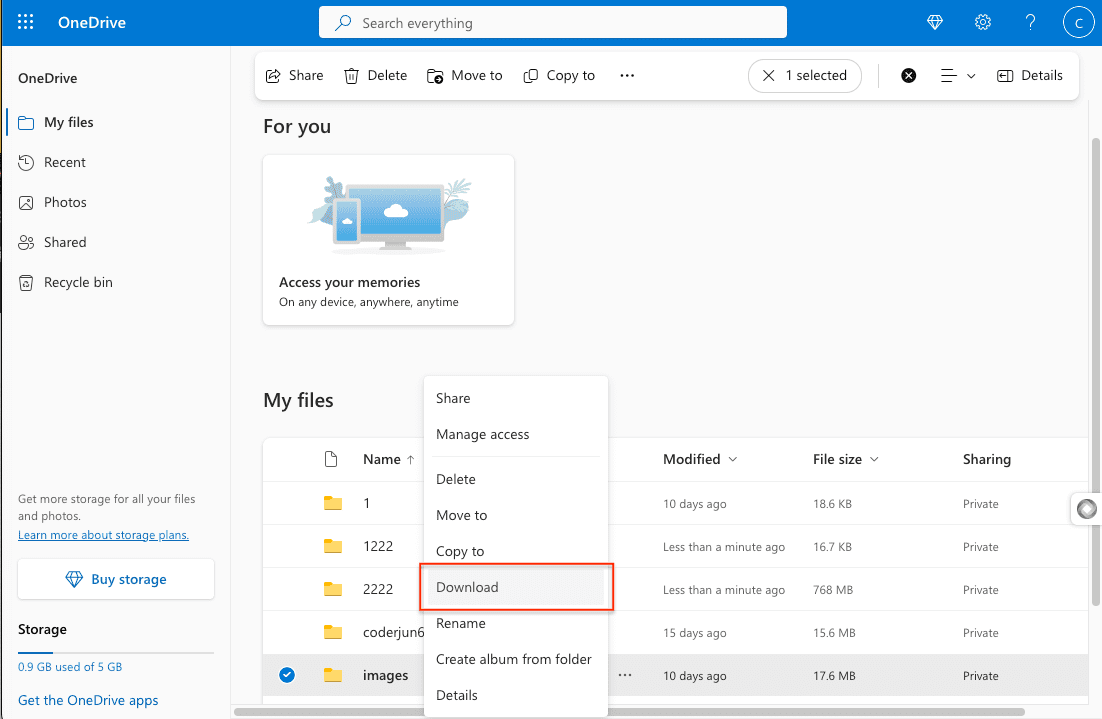
Sign in at onedrive.live.com, select the folders you want to move, and click Download. OneDrive packages multi-folder selections as ZIP archives — large selections are split into several ZIPs, and you'll need enough local disk space to hold and extract everything.
Step 2: Upload to Degoo
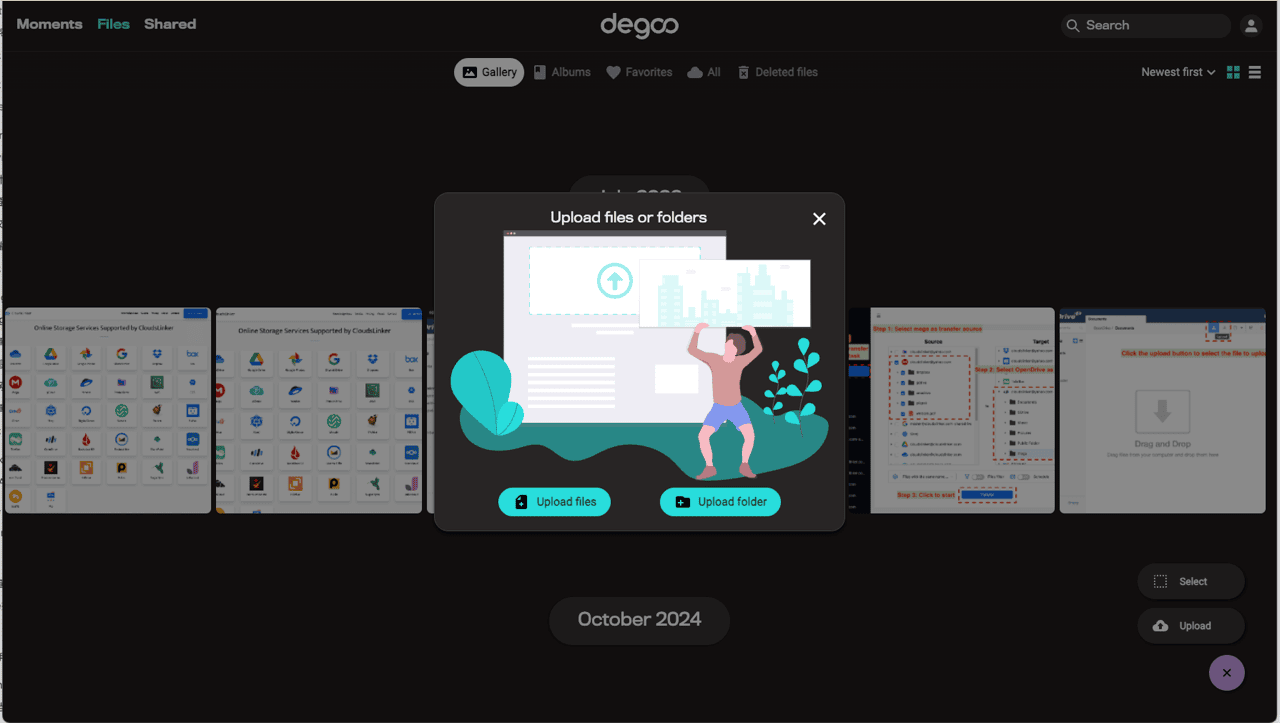
Extract the ZIPs, then upload through Degoo's web app at app.degoo.com — available on paid plans. On the free plan, uploads go through the Degoo mobile app, which means copying the files to your phone first; for anything beyond a few gigabytes this becomes the bottleneck. Remember the per-file cap: 256 MB on free accounts.
This route is workable for a few documents. It doubles the transfer volume (download, then upload), depends on your home bandwidth in both directions, and free-tier users are pushed through the phone — which is why the next method exists.
Method 2: Transfer OneDrive to Degoo Directly in the Cloud
Skip the double download — and the missing desktop client
CloudsLinker copies OneDrive files into Degoo server-to-server, which matters more here than for most destinations: Degoo has no desktop sync client to drag files into, and its web uploader is paid-plan-only. CloudsLinker connects to OneDrive via Microsoft OAuth and to Degoo with account credentials, then moves the data on its own infrastructure — your 1 TB Microsoft 365 quota drains into Degoo's 5 TB tier without a single byte passing through your connection.
Step 1: Connect OneDrive
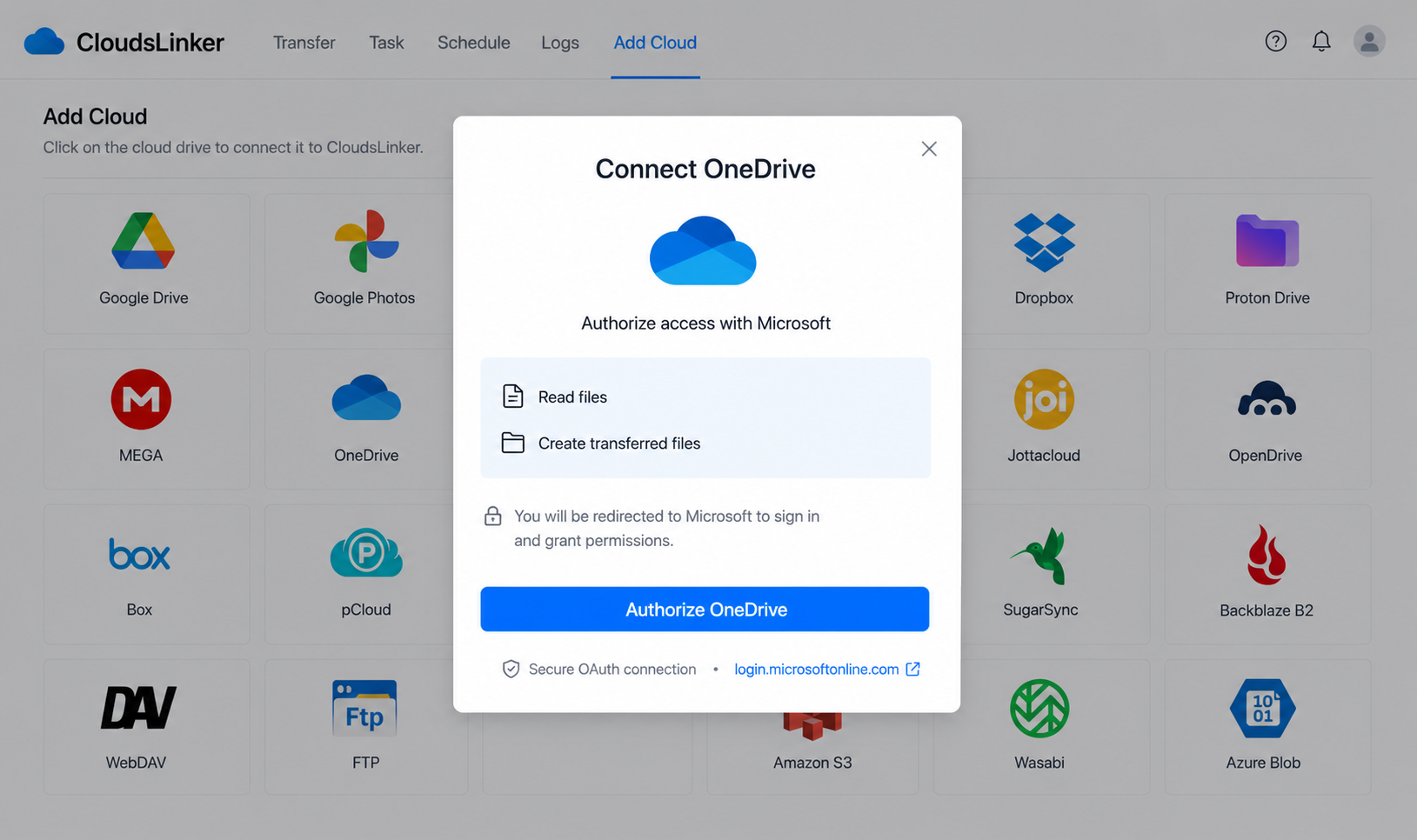
In CloudsLinker, click Add Cloud and choose OneDrive. A Microsoft sign-in window opens at login.microsoftonline.com — authenticate there and approve access. CloudsLinker receives a scoped token; your password stays with Microsoft. If your account has several drives, pick the drive resource to connect after authorization.
Step 2: Connect Degoo
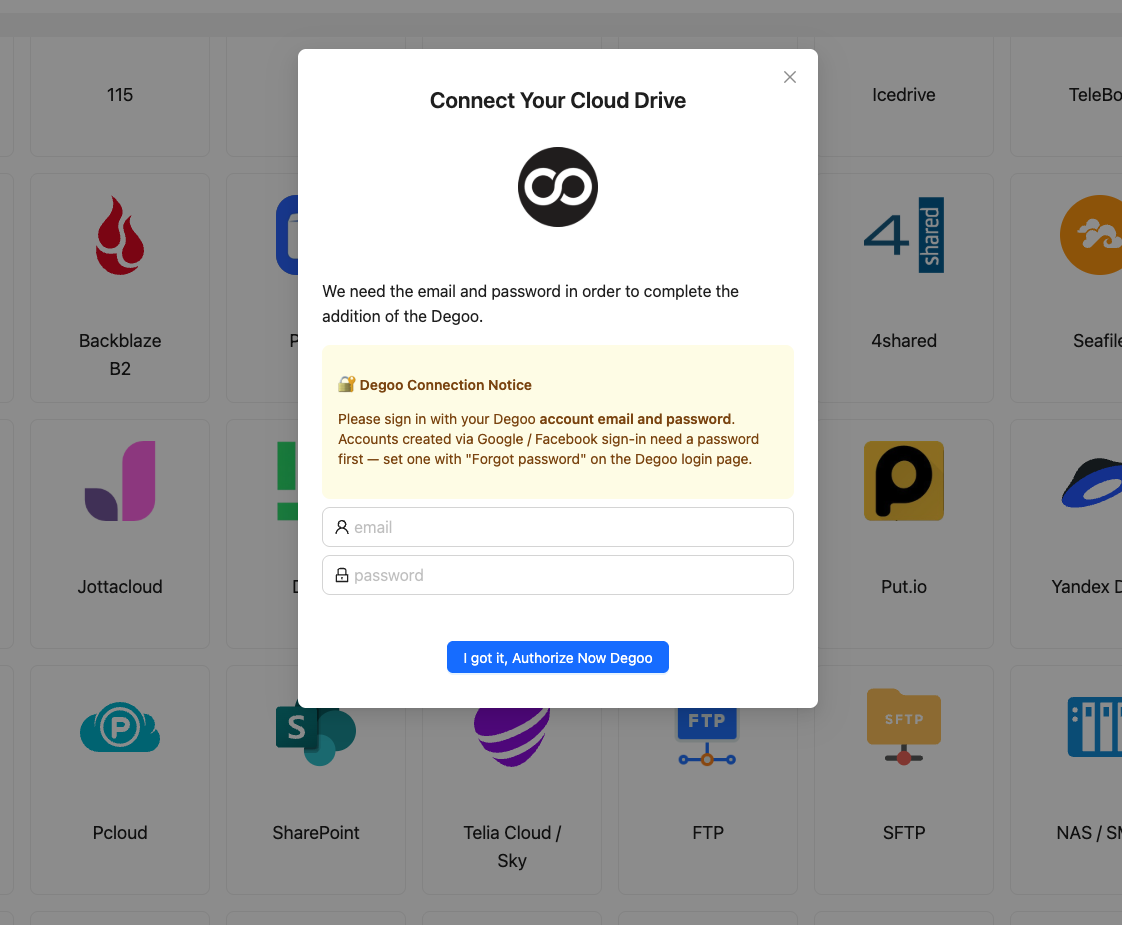
Click Add Cloud again and choose Degoo. Enter a display name, your Degoo account email, and your password, then confirm. CloudsLinker validates the login against Degoo's API and caches a session token, so subsequent jobs won't re-authenticate. Note that files in Degoo's zero-knowledge Top Secret folder stay invisible to any third-party tool.
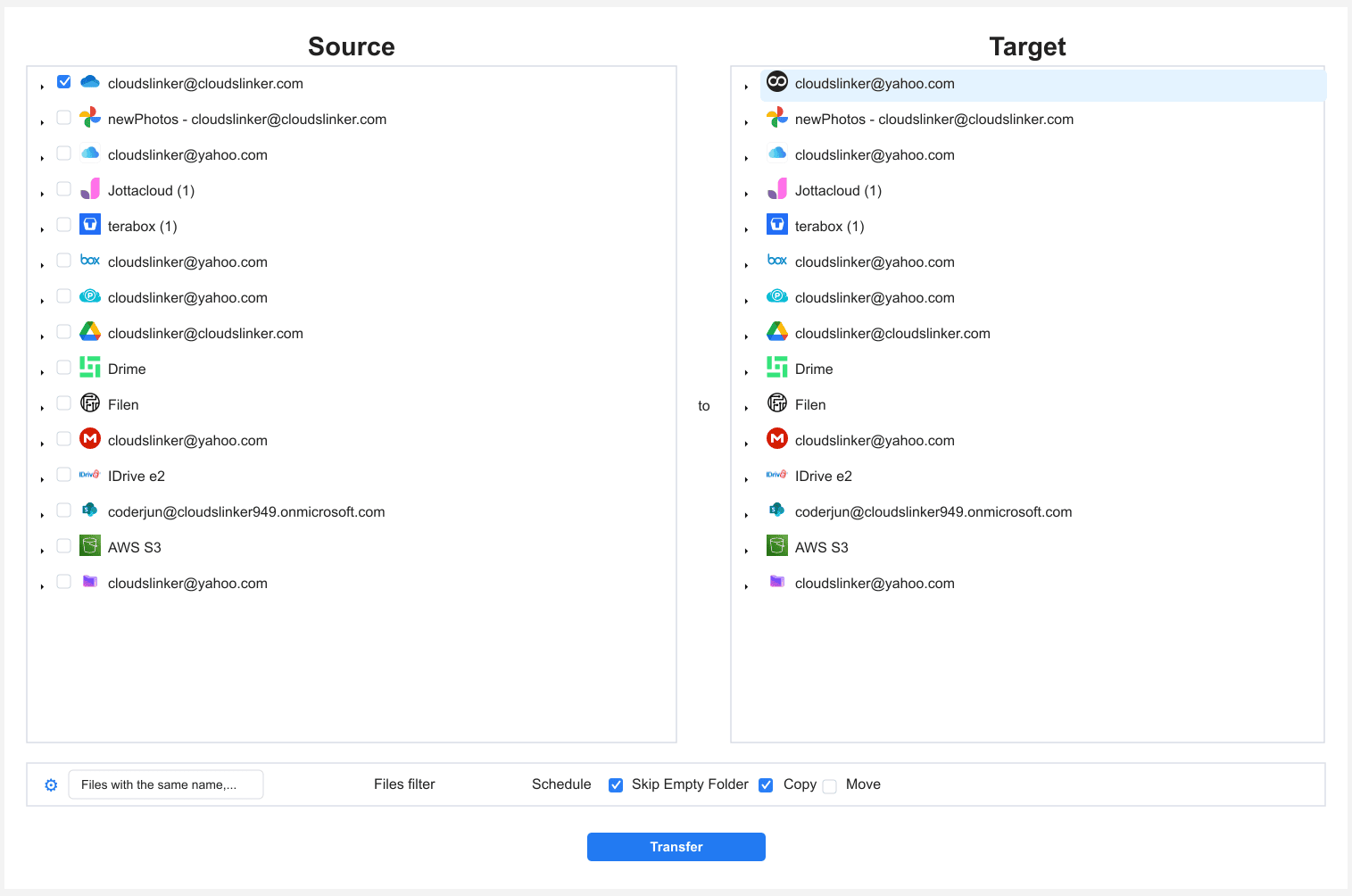
Step 3: Configure the Transfer
Open the Transfer section. Select your connected OneDrive as the source and browse to the folders you want to move. On the destination side, select Degoo and choose the target directory.
Set a size filter to exclude files above your Degoo plan's per-file cap (50 GB on subscriptions, 256 MB on free), and choose Copy rather than Move for the first run — keep the OneDrive originals until the result is verified.
Step 4: Start and Monitor the Transfer
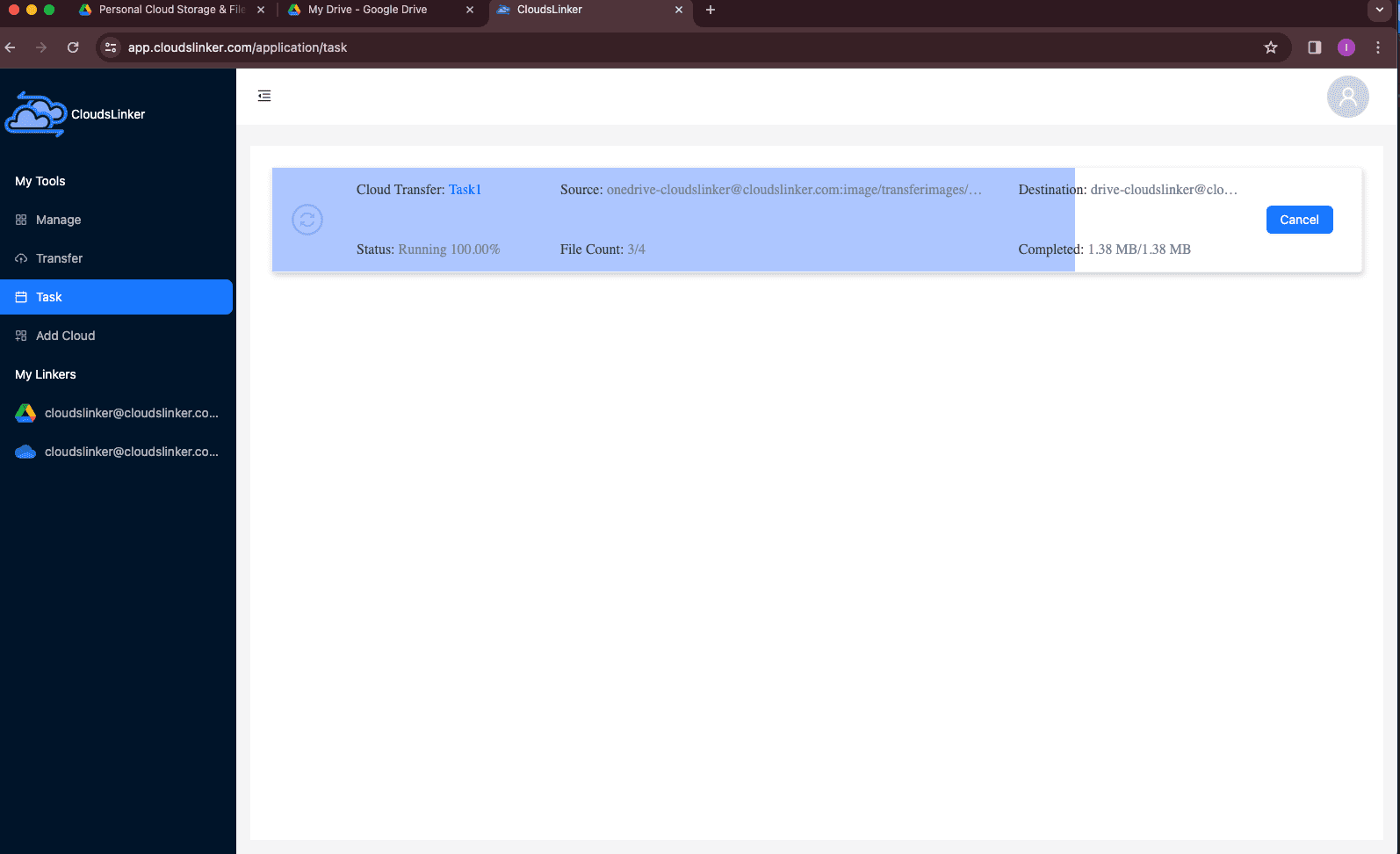
Click start. Track progress from the Task List, which shows transferred size, speed, and remaining items. The transfer runs entirely in the cloud — close the browser, shut the laptop; the job continues either way.
Comparing the Ways to Transfer From OneDrive to Degoo
| Method | Ease of Use | Speed | Best For | Uses Local Bandwidth | Skill Level |
|---|---|---|---|---|---|
| Manual download / re-upload | Medium | Slow (double transfer) | A few small files; paid Degoo web uploader | Yes — twice | Basic |
| CloudsLinker | Easy | Fast (server-side) | Bulk archives; free Degoo accounts; unattended jobs | No | Basic |
- Filter by file size first: OneDrive tolerates single files up to 250 GB; Degoo subscriptions cap at 50 GB per file. A size filter in the transfer settings keeps oversized files from failing the job.
- Size the Degoo plan to the job: 500 GB (Pro, $2.99/mo) covers most document archives; camera and video collections usually need the 5 TB Ultimate tier at $9.99/mo.
- Don't archive to a free Degoo account and walk away: the 90-day inactivity deletion applies to free tiers only. Either stay on a paid plan or open the Degoo app now and then.
- Export OneNote notebooks separately: they're stored as package items in OneDrive and won't arrive as usable files in any third-party transfer. Regular Office documents transfer fine.
- Expect upload-date timestamps in Degoo: Degoo's API doesn't accept original modification times, so don't rely on dates for sorting after the move — folder structure is the reliable index.
- Run Copy, verify, then clean up: compare item counts in the CloudsLinker task report before deleting anything from OneDrive; OneDrive's recycle bin holds deletions for 30 days (93 for Business) as a safety net.
Watch: Transfer OneDrive Files to Degoo with CloudsLinker
A start-to-finish demonstration of the server-side route: authorizing OneDrive through Microsoft's OAuth page, connecting Degoo with account credentials, selecting folders with a size filter, and following the copy in the Task List without downloading anything locally.
Frequently Asked Questions
login.microsoftonline.com. You sign in with Microsoft directly; CloudsLinker receives a scoped access token and never sees your password. Revoke it any time from your Microsoft account's app permissions page.
Conclusion
For a handful of documents, the manual route works: download from onedrive.com, upload through Degoo's web app or mobile app. For anything measured in tens of gigabytes — or for a free Degoo account where the web uploader isn't available — CloudsLinker is the practical path: OAuth into OneDrive, credentials into Degoo, and the copy runs on CloudsLinker's servers while your laptop stays closed. Filter out files above your Degoo plan's per-file cap before starting, and keep the OneDrive originals until you've verified the item counts match.
Online Storage Services Supported by CloudsLinker
Transfer data between over 58 cloud services with CloudsLinker

OneDrive

Google Drive

Google Photos

Shared Drive

OneDrive for Business

Dropbox

Box

Mega

pCloud

Yandex

ProtonDrive

AWS

GCS

iDrive

Storj

DigitalOcean

Wasabi

1fichier

PikPak

TeleBox

OpenDrive

Backblaze B2

Fastmail file

SharePoint

Nextcloud

ownCloud

Premiumize me

HiDrive

Put.io

Sugar Sync

Jottacloud

Seafile

Ftp

SFtp

NAS

WebDav

4shared

Icedrive

Cloudflare R2

Scaleway

Hetzner Object Storage

Synology C2 Object Storage

S3 Compatible

Doi

iCloud Drive

iCloud Photos

FileLU

Zoho WorkDrive

Telia Cloud / Sky

Drime

Filen

TeraBox

Internxt

Degoo

Gofile

Pixeldrain

Shade

Koofr
Didn' t find your cloud service? Be free to contact: [email protected]
Further Reading
Effortless FTP connect to google drive: Transfer Files in 3 Easy Ways
Learn More >
Google Photos to OneDrive: 3 Innovative Transfer Strategies
Learn More >
Google Photos to Proton Drive: 3 Effective Transfer Techniques
Learn More >