Moving Files from OneDrive to Filen: Practical Options That Actually Work
Shifting data out of OneDrive and into Filen doesn’t have to mean long waits or complicated steps. This guide looks at two proven migration paths — from hands-on local transfers to fully automated cloud-based workflows — helping you move your files securely while staying in control of time and bandwidth.
Introduction
As concerns around data ownership and privacy continue to grow, Filen has become an attractive destination for users looking for strong client-side encryption without sacrificing usability. If you’re coming from OneDrive, the way you approach the migration matters more than the destination itself. A personal account with a few documents calls for a very different strategy than a workspace holding years of shared files. Some people prefer full manual control, while others want the transfer to run quietly in the background. Below, we walk through two dependable ways to move files from OneDrive into Filen — including command-line workflows built on tools like Rclone and cloud-managed transfers handled entirely online through platforms such as CloudsLinker. Each method balances speed, visibility, and effort differently, so you can choose based on how involved you want to be.
OneDrive is Microsoft’s cloud storage service, closely tied to the Windows operating system and Microsoft 365 ecosystem. For many users, it acts as the default place where documents, photos, and project files quietly accumulate over time. Files stored in OneDrive can be accessed across devices and shared with others, making it a common choice for both personal use and team collaboration.
- Native Windows integration: Built directly into modern Windows systems.
- Office collaboration: Designed to work seamlessly with Word, Excel, and PowerPoint.
- Automatic syncing: Desktop folders stay in sync without manual uploads.
- Sharing controls: Granular permissions for links and folders.
- Scalable storage: Paid plans support large individual files and growing libraries.
Filen takes a very different approach to cloud storage. Instead of focusing on productivity tools or document editing, it is built around privacy and encryption from the ground up. Files are encrypted on the user’s device before being uploaded, which means the platform itself has no access to file contents.
- End-to-end encryption: Data is protected before it ever reaches the cloud.
- Zero-knowledge design: Filen cannot see or scan stored files.
- Multi-platform clients: Available on desktop, mobile, and the web.
- Secure file sharing: Encrypted links with optional passwords.
- Backup-oriented workflow: Well suited for long-term, private storage.
While both services store files online, they are designed with very different priorities in mind. OneDrive is optimized for collaboration and tight integration with Microsoft tools, whereas Filen focuses on encrypted storage and user-controlled privacy. This difference becomes especially relevant when planning how data should be migrated.
| Feature | OneDrive | Filen |
|---|---|---|
| Primary Goal | File sync and collaboration | Private, encrypted storage |
| Encryption | Server-managed encryption | Client-side, end-to-end encryption |
| Platform Integration | Deep Microsoft 365 ecosystem | Independent storage with sync apps |
| Third-Party Access | Wide API and app support | Focused on desktop and CLI workflows |
| Best Fit | Shared work, documents, teams | Secure backups and sensitive data |
Users moving away from collaboration-heavy environments often find Filen better aligned with privacy, long-term storage, and personal data protection goals.
Before starting the transfer, it’s worth reviewing what currently lives in your OneDrive. Check total storage usage, identify folders that are no longer needed, and note whether your files are personal or shared with others. This quick audit helps avoid moving unnecessary data and reduces migration time.
On the Filen side, confirm that your account is ready — whether you plan to use the web interface or a desktop client. Make sure uploads work as expected and test encryption settings with a small batch of files before committing to a full transfer.
Planning ahead can prevent common issues such as duplicated folders or broken structures. Some users rely on command-line tools like Rclone for precise control, while others prefer a browser-based, server-handled approach using CloudsLinker to move data directly between clouds. Choosing the right method early makes the entire process far smoother.
Method 1: Download from OneDrive and Upload to Filen Manually
Step 1: Download Files from OneDrive
Start by opening the OneDrive web interface in your browser and signing in to the account that
contains
the files you want to move. Navigate through your folders and decide which items should be
transferred
to Filen. For multiple selections, hold Ctrl on Windows or Command on
macOS while
clicking individual files or folders.
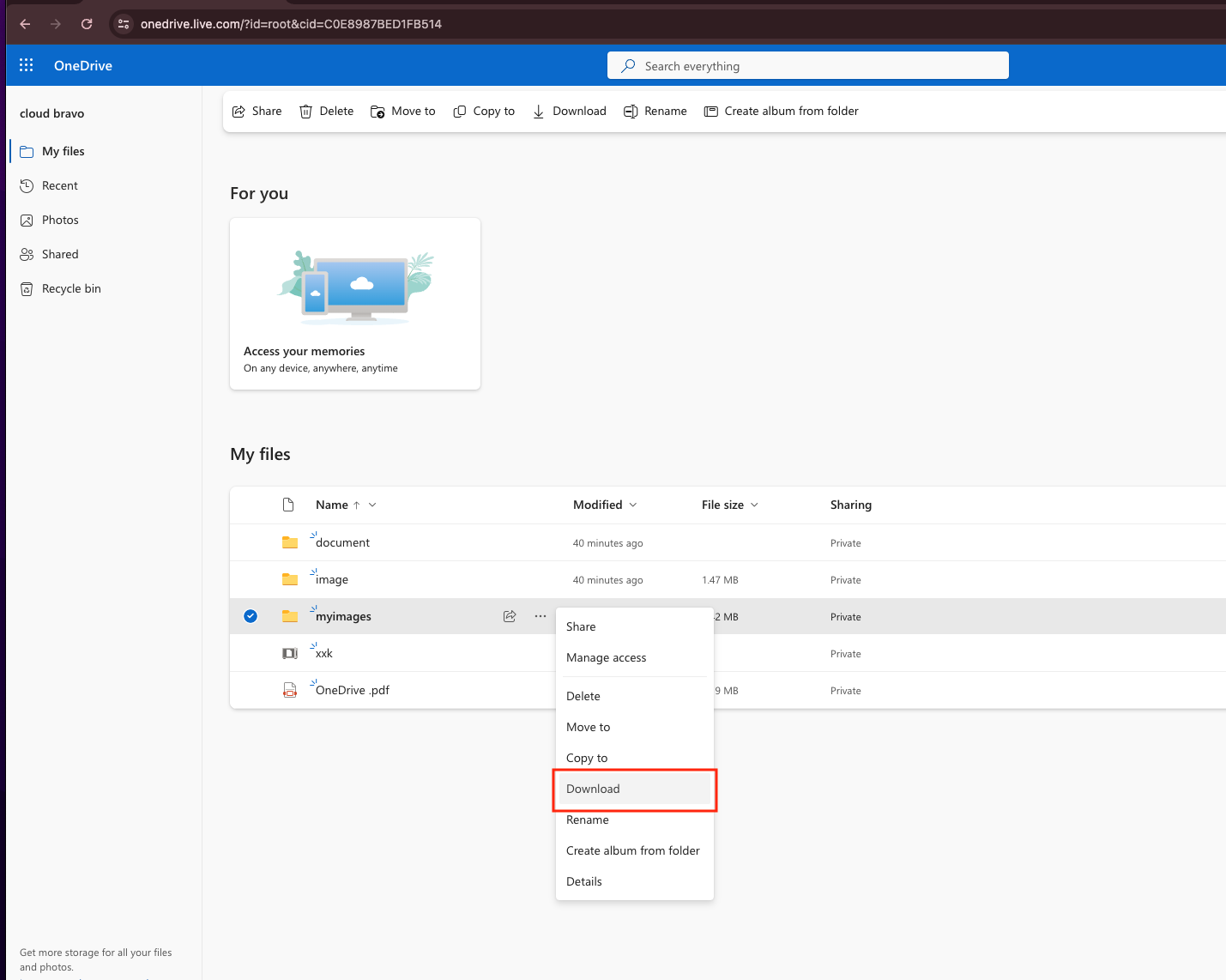
After making your selection, right-click and choose Download. OneDrive will prepare the selected content and, in the case of folders, compress everything into a ZIP file. Once the download completes, extract the archive on your computer so the original directory structure is preserved.
Step 2: Upload the Files into Filen
Next, sign in to the Filen web dashboard and open the location where you want your OneDrive files to live. Many users create a dedicated folder for migrated data to keep things tidy and easy to identify later.
You can now drag the extracted files and folders directly into the browser window, or use Filen’s upload option to select them manually. During this process, files are encrypted locally before being uploaded, so your data is protected from the very start of the transfer.
This method is straightforward and works best for small libraries, occasional transfers, or users who prefer to stay fully in control of each step. That said, manually downloading and uploading becomes time-consuming for larger OneDrive accounts. If you’re dealing with many gigabytes of data or want the transfer to run unattended, command-line tools like Rclone or browser-based cloud transfer platforms such as CloudsLinker are usually more efficient and reliable.

Method 2: Direct Cloud-to-Cloud Transfer Using CloudsLinker
Overview: Move OneDrive Files to Filen Without Using Your Computer
CloudsLinker is a browser-based transfer service that connects cloud storage providers directly to
each
other. Instead of downloading files locally and uploading them again, transfers run entirely on
remote
servers. This approach supports more than 40 cloud platforms, including
OneDrive and Filen.
Step 1: Sign In and Connect OneDrive
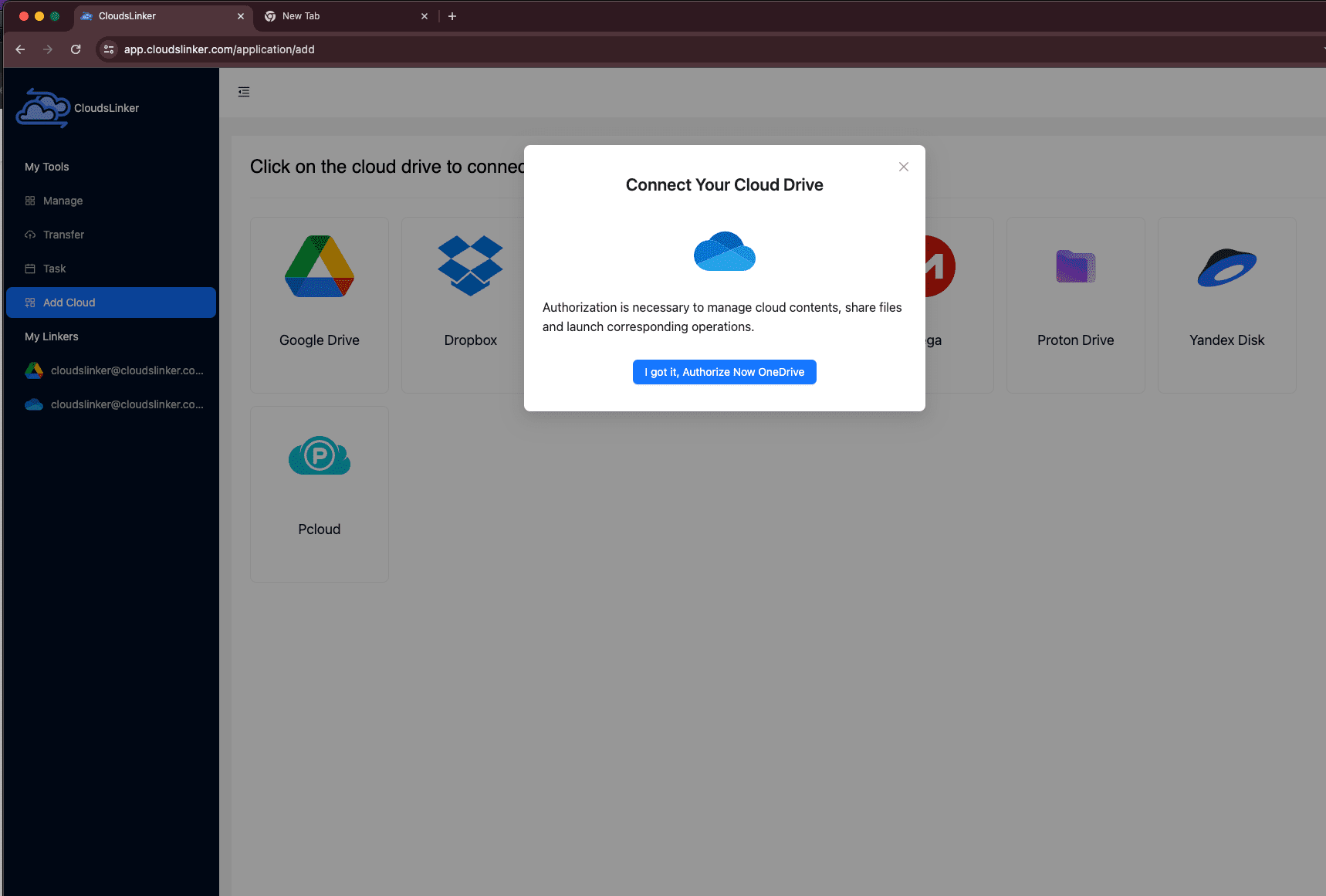
Visit app.cloudslinker.com and log in to your account. If you’re new to the platform, creating an account only takes a short moment. From the main dashboard, click Add Cloud and select OneDrive from the list.
You’ll be redirected to Microsoft’s official authorization page, where you can approve access securely. Once the authorization is complete, your OneDrive storage will appear in CloudsLinker as a connected source. The connection process is similar to adding Google Drive and does not require any manual configuration.
Step 2: Add Filen as the Destination (2FA Recommended)
Next, add Filen as the destination cloud. Click Add Cloud, choose Filen, and sign in using the email address and password associated with your Filen account.
For better account protection, enabling two-factor authentication (2FA) in Filen before connecting is strongly recommended. You can enable this by opening Filen, going to Personal Settings → Security, and turning on 2FA.
After successful authentication, Filen will appear in CloudsLinker as an available destination storage.

Step 3: Configure the Transfer Task
Open the Transfer section and select your connected OneDrive as the source. Browse and choose the folders or files you want to move. On the destination side, select Filen and specify the target folder where the data should be stored.

Optional rules such as file-type filters, exclusion patterns, or date-based conditions can be applied if you don’t need to migrate everything. This is useful for skipping old archives or focusing only on active project folders.
Step 4: Start the Transfer and Track Progress
Launch the task and monitor its status from the Task List. You’ll see real-time details such as transfer speed, completed size, and estimated remaining time. Because the task runs entirely in the cloud, it continues even if you close your browser or shut down your computer.
Once the transfer finishes, a detailed report highlights successful items and any files that may require manual review. Your OneDrive data will now be stored inside Filen under its end-to-end encryption model.
For users who want a fully automated migration — without local bandwidth limits, unstable downloads, or long-running browser uploads — CloudsLinker provides a reliable way to move data directly from OneDrive to Filen.
Need to Transfer Between Other Cloud Services?
CloudsLinker also supports transfers between services such as Dropbox, MEGA, WebDAV, and S3-compatible storage. All tasks run cloud-to-cloud, allowing large migrations to complete in the background without tying up your local device.
Comparing the 3 Ways to Transfer from Google Drive to Filen
Moving files from Google Drive into Filen is not a one-size-fits-all process. Some users only need to move a few folders once, while others are migrating entire archives into a privacy-focused environment. The three methods below represent the most practical options, each suited to a different type of workflow.
| Method | Ease of Use | Speed | Best For | Uses Local Bandwidth | Skill Level |
|---|---|---|---|---|---|
| Web Browser (Manual) | ★★★★★ | ★★★☆☆ | Small moves, quick one-time transfers | Yes | Beginner |
| Google Takeout + Upload | ★★★★☆ | ★★☆☆☆ | Full exports, offline backups, pre-migration review | Yes | Beginner |
| CloudsLinker (Cloud-to-Cloud) | ★★★★★ | ★★★★★ | Large libraries, long-running migrations, recurring transfers | No | Beginner |
If you only need to move a few folders, browser downloads are usually enough. If you want a verified local archive before uploading into Filen, Google Takeout offers an official export route. For larger migrations or situations where you don’t want your computer involved at all, CloudsLinker is typically the most efficient option since transfers run fully in the cloud.
Comparing the Available Ways to Move Files from OneDrive to Filen
Migrating data from OneDrive into Filen is not a single-click operation for everyone. Some users only need to relocate a few folders, while others are moving years of accumulated data into an encrypted storage environment. The methods below represent the most commonly used approaches, each suited to a different scale and level of involvement.
| Method | Ease of Use | Speed | Best For | Uses Local Bandwidth | Skill Level |
|---|---|---|---|---|---|
| Browser Download & Upload | ★★★★★ | ★★★☆☆ | Small folders, occasional one-time transfers | Yes | Beginner |
| Local Sync + Upload | ★★★★☆ | ★★★☆☆ | Users who want a local copy before migration | Yes | Beginner |
| CloudsLinker (Cloud-to-Cloud) | ★★★★★ | ★★★★★ | Large libraries, unattended or long-running transfers | No | Beginner |
For quick transfers, downloading files through the browser and uploading them to Filen is often sufficient. If you prefer keeping a verified local copy before uploading, syncing OneDrive to your computer first can offer more control. When dealing with large datasets or unstable local connections, cloud-based tools like CloudsLinker usually provide the fastest and least disruptive experience.
Moving files into an end-to-end encrypted platform like Filen is generally smooth, but a bit of preparation can help avoid interruptions or unnecessary rework:
- Ensure files are fully available: Verify that OneDrive files are downloaded and not marked as online-only placeholders before exporting or syncing.
- Decide on folder structure early: Planning how your data should appear in Filen saves time after the upload is complete.
- Secure your Filen account: Enable two-factor authentication (2FA) and confirm access before authorizing large transfers.
- Account for local limitations: Browser uploads rely on your internet connection and system stability. If either is unreliable, cloud-to-cloud transfers reduce risk.
- Run a test migration: Upload a small folder first to confirm naming, structure, and encryption behavior.
- Choose tools that scale: Large libraries benefit from methods that support resuming, logging, and long-running tasks.
Whether you’re migrating personal documents or extensive project archives, understanding how OneDrive delivers files and how Filen encrypts uploads will make the transition more predictable.
Frequently Asked Questions
Step-by-Step Video: Transfer Files from OneDrive to Filen
If you prefer learning by watching, this video walks you through the full process of transferring files from OneDrive to Filen. It demonstrates how to connect both cloud accounts, select source folders, configure transfer options, and complete the migration without downloading data to your local device. This approach is efficient, reliable, and well suited for both personal file libraries and larger data sets.
Conclusion
Migrating from OneDrive to Filen isn’t about finding the “best” method — it’s about finding the right one for your situation. If you’re comfortable working locally and want maximum transparency, syncing or scripted transfers can make sense. If your connection is limited or you don’t want your computer tied up for hours or days, a cloud-based approach can quietly handle the heavy lifting for you. No matter which route you choose, starting with a small test run is a smart way to confirm permissions, folder structure, and speed before committing to the full migration.
Online Storage Services Supported by CloudsLinker
Transfer data between over 48 cloud services with CloudsLinker

OneDrive

Google Drive

Google Photos

Shared Drive

OneDrive for Business

Dropbox

Box

Mega

pCloud

Yandex

ProtonDrive

AWS

GCS

iDrive

Storj

DigitalOcean

Wasabi

1fichier

PikPak

TeleBox

OpenDrive

Backblaze B2

Fastmail file

SharePoint

Nextcloud

ownCloud

Premiumize me

HiDrive

Put.io

Sugar Sync

Jottacloud

Seafile

Ftp

SFtp

NAS

WebDav

4shared

Icedrive

Cloudflare R2

Scaleway

Doi

iCloud Drive

iCloud Photos

FileLU

Zoho WorkDrive

Telia Cloud / Sky

Drime

Filen
Didn' t find your cloud service? Be free to contact: [email protected]
Further Reading
Effortless FTP connect to google drive: Transfer Files in 3 Easy Ways
Learn More >
Google Photos to OneDrive: 3 Innovative Transfer Strategies
Learn More >
Google Photos to Proton Drive: 3 Effective Transfer Techniques
Learn More >