OneDrive to NAS: Escape Microsoft 365's Shrinking Default Storage
Move files from OneDrive to a NAS over SMB using four methods — browser, Synology/QNAP sync, Rclone, and CloudsLinker.
Introduction
A NAS's capacity comes from the drives you install, not from a Microsoft 365 licensing tier that can change without much notice. Microsoft tightened the default OneDrive storage allocation on newly created Microsoft 365 tenants in 2026, so a fresh account can start with a lower ceiling than an older one provisioned under the previous default. Someone managing a large media or project archive who runs into that changed allowance has no lever to pull beyond upgrading the Microsoft 365 plan itself. OneDrive's file-size limit was raised to 250 GB per file, which is generous, but the storage pool around it is still bound to whatever the tenant's licensing currently allows. Moving a static archive onto a NAS trades that dependency for hardware you control outright. The methods below cover the move.
OneDrive is Microsoft's cloud storage service, bundled with Windows and Microsoft 365. Personal plans start at 5 GB free, and the per-file upload limit is 250 GB.
- Subscription-tied capacity: Storage allowance follows the Microsoft 365 licensing tier.
- 2026 default tightened: Newly created tenants get a lower default storage ceiling than before.
- Files On-Demand: Keeps placeholders locally and downloads files when opened.
- Windows integration: Built into File Explorer and the Windows sign-in.
- File-size ceiling: 250 GB per file, raised from 100 GB.
A NAS is a device with its own drives that shares files over your network through the SMB protocol. Brands include Synology, QNAP, Asustor, and TrueNAS.
- One-time hardware cost: No recurring licensing tier once purchased.
- Local network speed: Gigabit access on the same network.
- High file-size ceiling: Bound by the file system, commonly many terabytes.
- Full ownership: Capacity and access rules are entirely yours to set.
- Expandable: Add drives instead of buying a bigger licensing tier.
OneDrive's capacity is set by whichever Microsoft 365 licensing tier applies at the time, including recent changes to new-tenant defaults. A NAS's capacity is set by the drives installed and does not depend on a vendor's licensing decisions.
| Feature | OneDrive | NAS (SMB) |
|---|---|---|
| Cost Model | Recurring Microsoft 365 subscription | One-time hardware plus drives |
| Max File Size | 250 GB per file | Bound by file system, commonly many terabytes |
| Default Storage Trend | Tightened for newly created tenants in 2026 | Set once by the drives you install |
| Access Speed | Limited by internet connection | Local gigabit on the LAN |
| Remote Access | Built in via Microsoft account | Requires setup (VPN, port forwarding) |
| Best Fit | Active Microsoft 365 collaboration | Long-term archives, self-hosting |
Sources: OneDrive plans and pricing, Harvard IT: new OneDrive storage limits
Self-hosting on a NAS appeals once OneDrive's storage allowance stops feeling predictable. Common reasons:
- Capacity you set, not Microsoft: Drives you install are not affected by future changes to default tenant storage.
- No recurring licensing fee: A NAS replaces an ongoing Microsoft 365 storage cost with a one-time hardware purchase.
- Local speed for large files: Editing archives over gigabit beats waiting on a download from OneDrive.
- Data stays on your premises: Files live on hardware you own rather than a Microsoft-managed tenant.
- Self-hosted services: Many NAS units run their own backup, media, and photo apps alongside file storage.
If owning the hardware fits your situation, the method depends on whether the NAS is reachable only on the local network or also from the internet.
Confirm how your NAS is reachable. A device on the local network works with a browser copy, a NAS vendor sync app, or Rclone running on the NAS. A cloud-based transfer with CloudsLinker can only reach it with a public IP, port forwarding, or a VPN, so decide that before picking a method.
Create a destination shared folder on the NAS with an account that has write permission, and note the host IP address. Check that SMB is enabled in the NAS's network settings and that the volume has enough free space.
On the OneDrive side, check which folders are set to Files On-Demand and mark the ones you are moving as Always keep on this device, or use Rclone or CloudsLinker, which read files directly from OneDrive's servers regardless of local sync state.
Method 1: Download and Copy over SMB
Step 1: Download Files from OneDrive
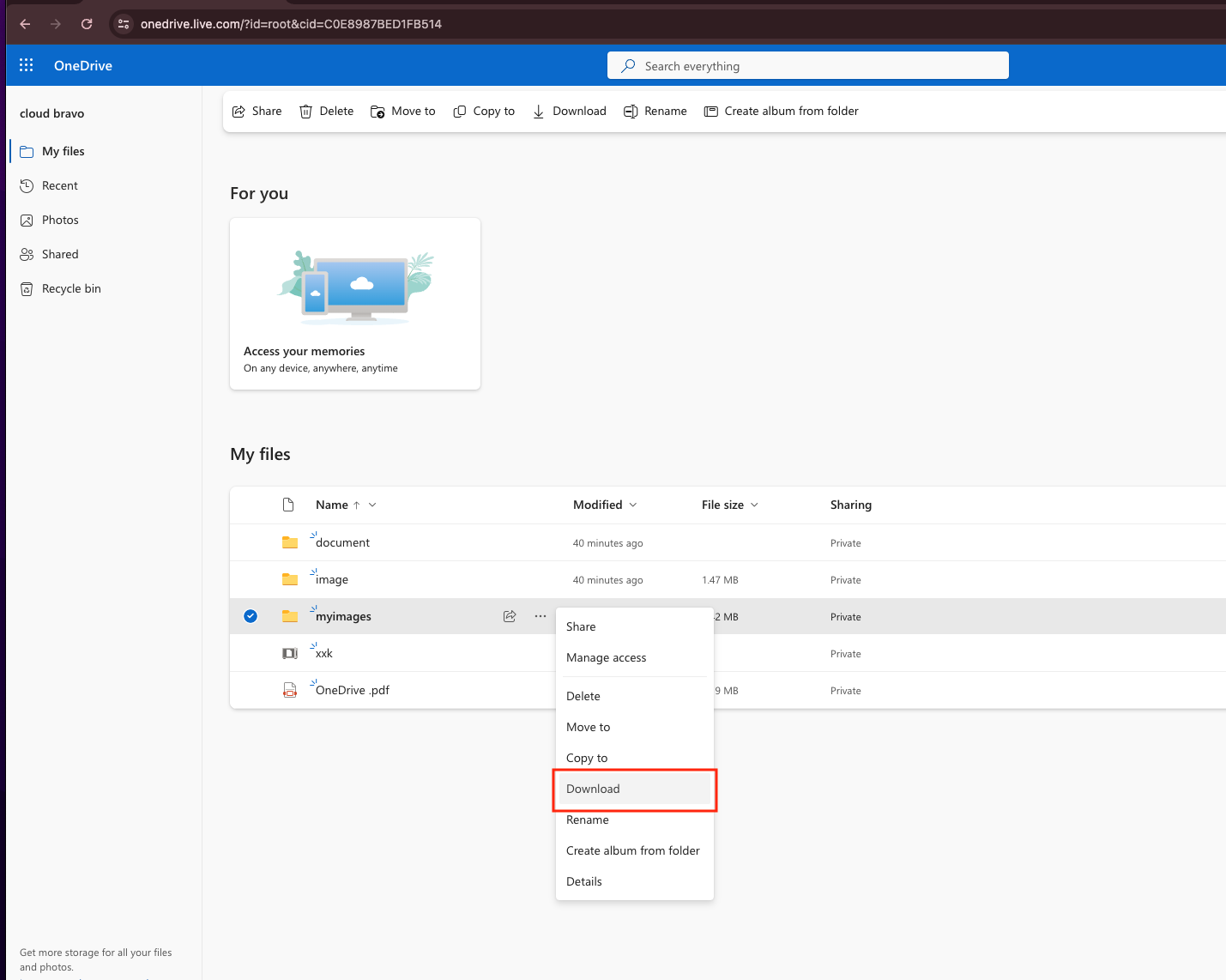
Open OneDrive on the web and sign in. Select the files or folders to move, then choose Download. OneDrive packages folders into a ZIP archive that must be extracted locally once the download finishes.
Step 2: Map the NAS Share and Copy the Files
In Windows File Explorer, right-click This PC, choose Map network drive, and enter \\NAS-IP-address\share with the NAS account credentials. On macOS, use Finder's Cmd+K and enter smb://NAS-IP-address instead. Drag the extracted files into the mapped location.
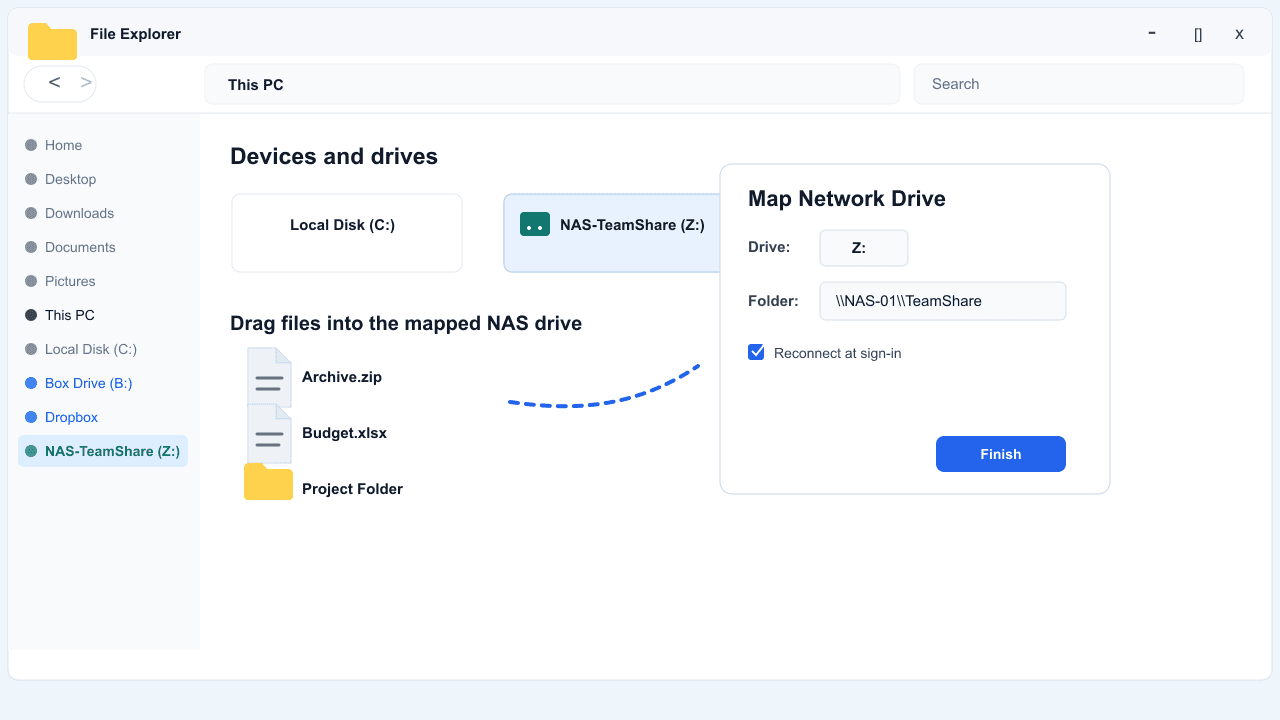
This is the most direct method and needs no extra software. Because the same data downloads and then re-uploads through your computer, a large OneDrive account is slow this way.
Method 2: NAS Sync App (Synology Cloud Sync, QNAP HBS)
Step 1: Install the Cloud Sync App on the NAS
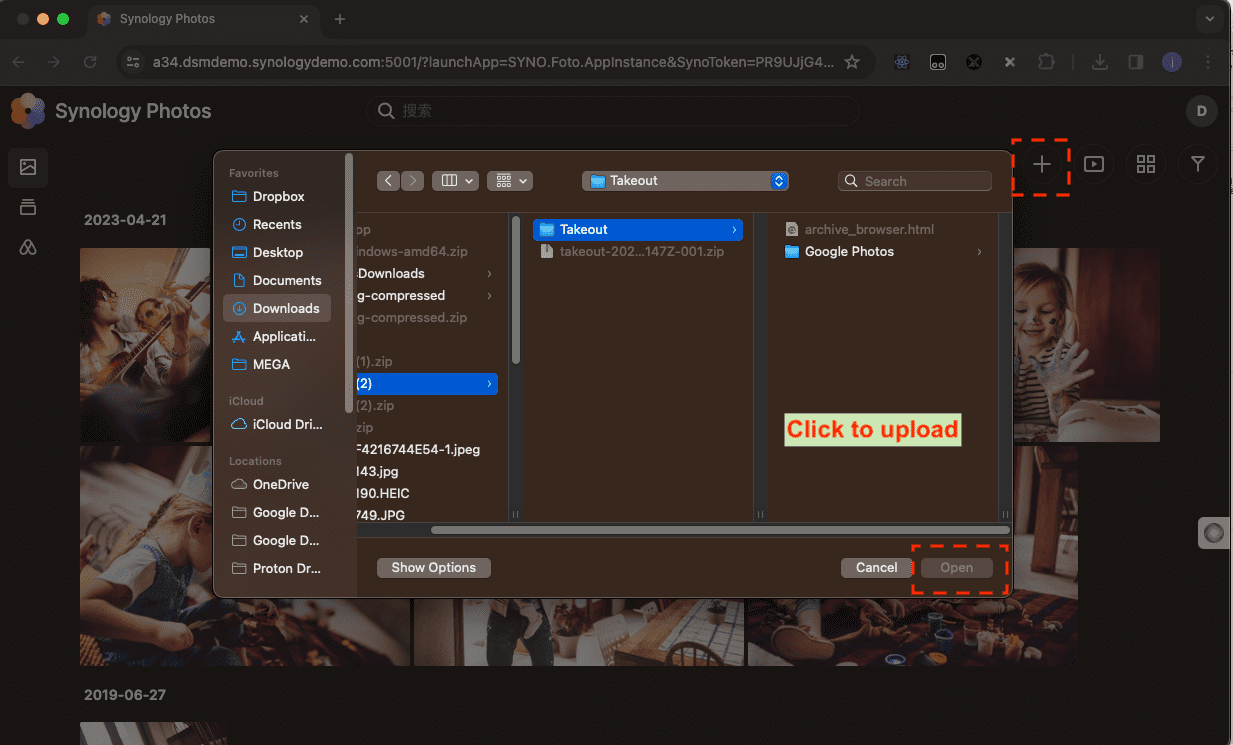
Most NAS brands offer an app that connects directly to OneDrive. On Synology this is Cloud Sync; on QNAP it is Hybrid Backup Sync (HBS 3). Install it from the NAS package center and open it.
Step 2: Authorize OneDrive and Set the Sync Direction
Sign in to Microsoft through the app's OAuth flow, choose the OneDrive folders to pull, and set the sync direction to download remote changes only so files move onto the NAS. Pick a local shared folder as the target and start the task.
This is the most practical method for a NAS behind a home router, since the device pulls files itself without exposing it to the internet. The app runs on the NAS, so your computer does not need to stay on.
Method 3: Command-Line Transfer with Rclone
Step 1: Configure a OneDrive Remote
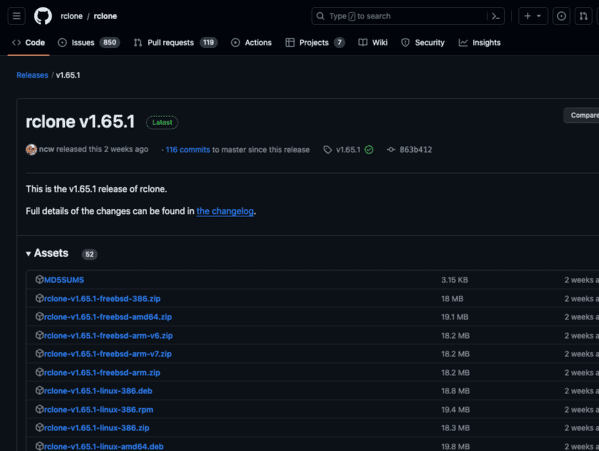
Rclone can run on the NAS itself or on a computer with the share mounted. Run rclone config, add a onedrive remote, and complete Microsoft's OAuth flow. On the NAS, install Rclone through the package center or a container.
Step 2: Copy to the NAS
Copy directly to a local NAS path, or to an SMB remote if Rclone runs elsewhere:
rclone copy onedrive:/Documents /volume1/archive --progressrclone copy onedrive:/Projects nas-smb:/Projects --progress
The first command copies into a locally mounted NAS volume; the second writes to an SMB remote configured in Rclone. Add --dry-run to preview the result first.
Running Rclone on the NAS keeps the transfer off your personal computer entirely and supports scheduling through cron. The trade-off is comfort with the command line and the NAS package system.
Method 4: Cloud-to-Cloud Transfer with CloudsLinker
Transfer Without Using Your Computer
CloudsLinker moves files from OneDrive to a NAS server-side, so the transfer does not depend on your computer staying on. This method requires the NAS to be reachable over the internet — a public IP, port forwarding, or a VPN.
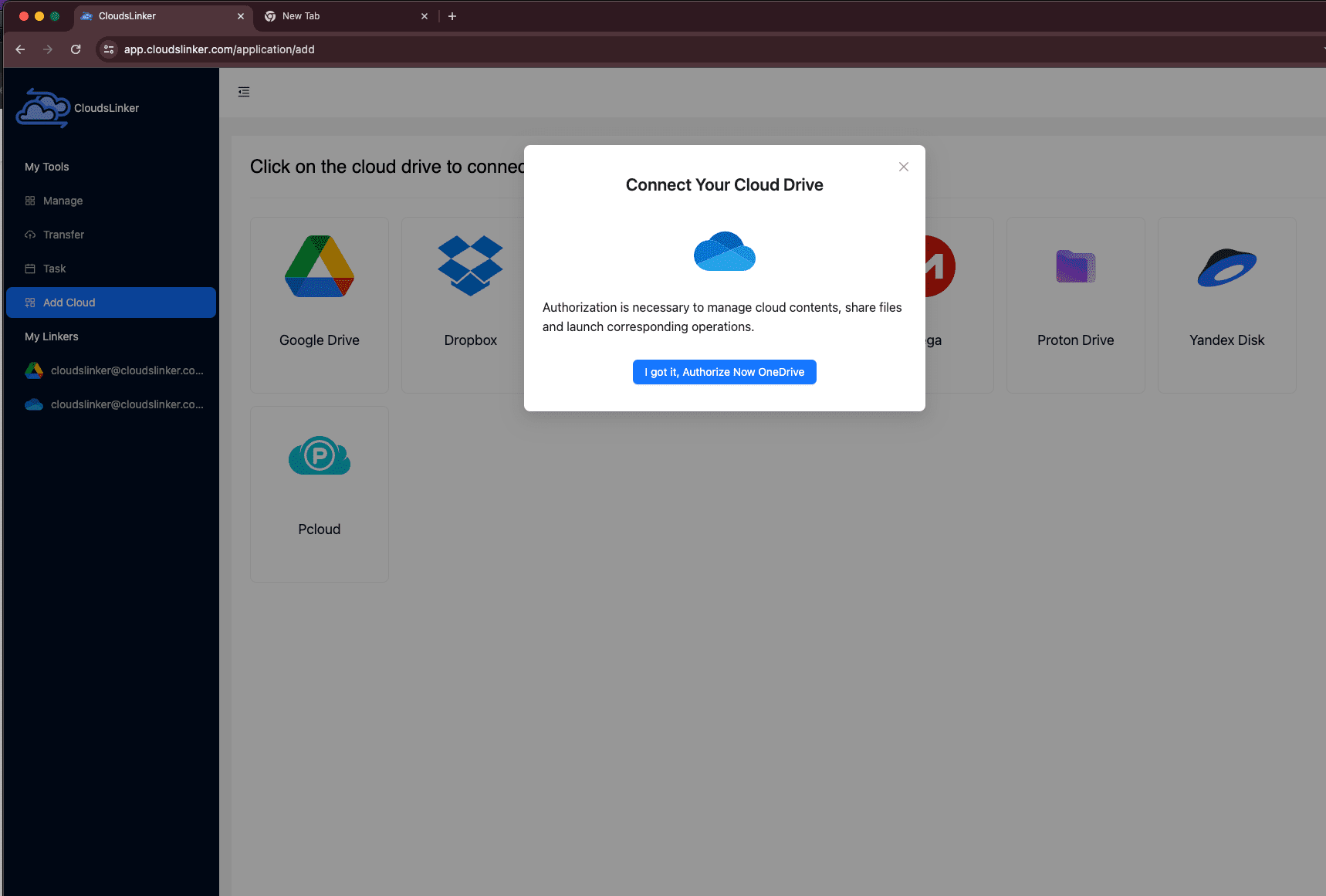
Step 1: Connect OneDrive
Sign in at app.cloudslinker.com, click Add Cloud, and select OneDrive. Approve access on Microsoft's authorization page, and select the specific drive if your account exposes more than one.
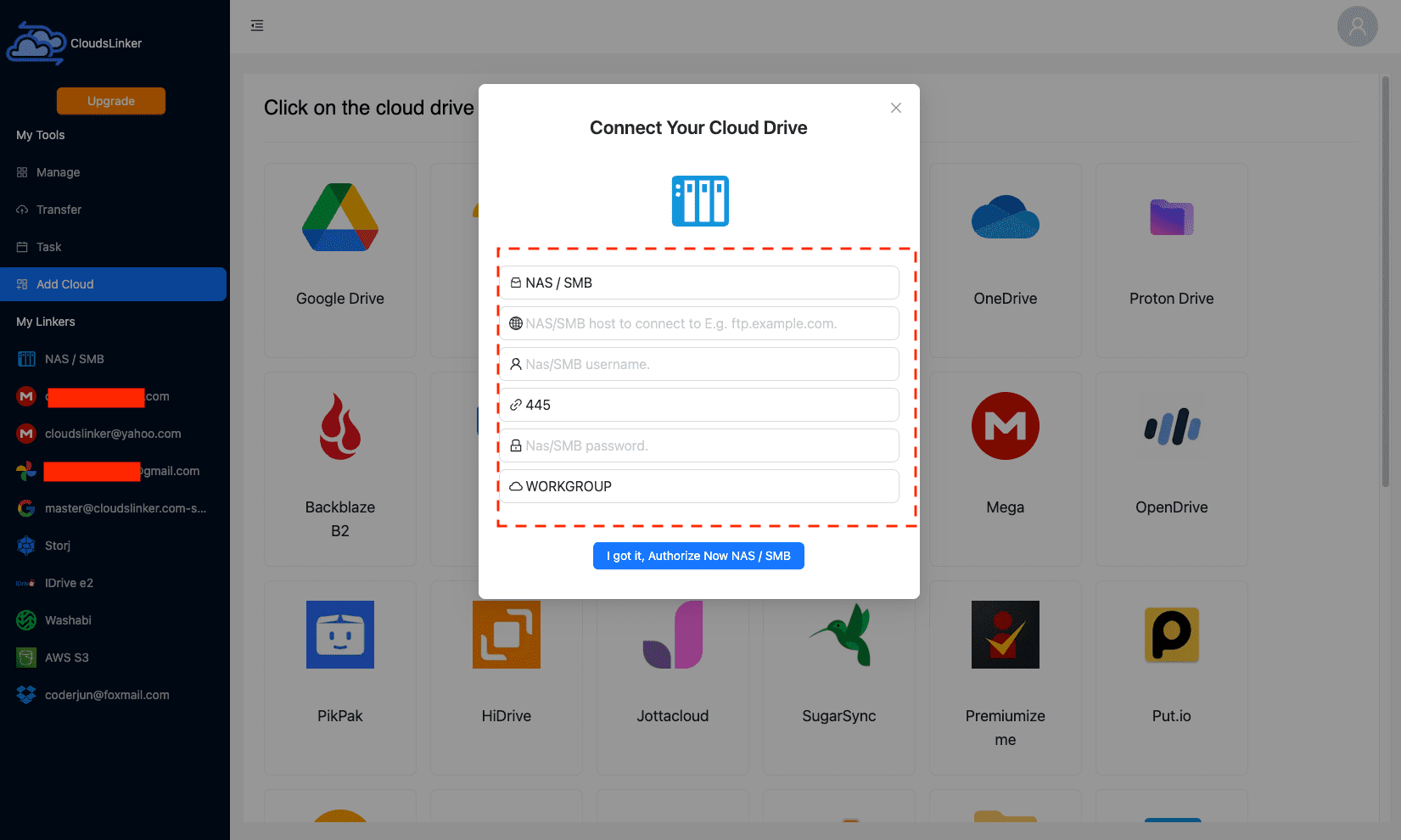
Step 2: Connect the NAS over SMB
Click Add Cloud again and select NAS / SMB. Enter a display name, the NAS host IP address, a username and password with write access, and port 445.
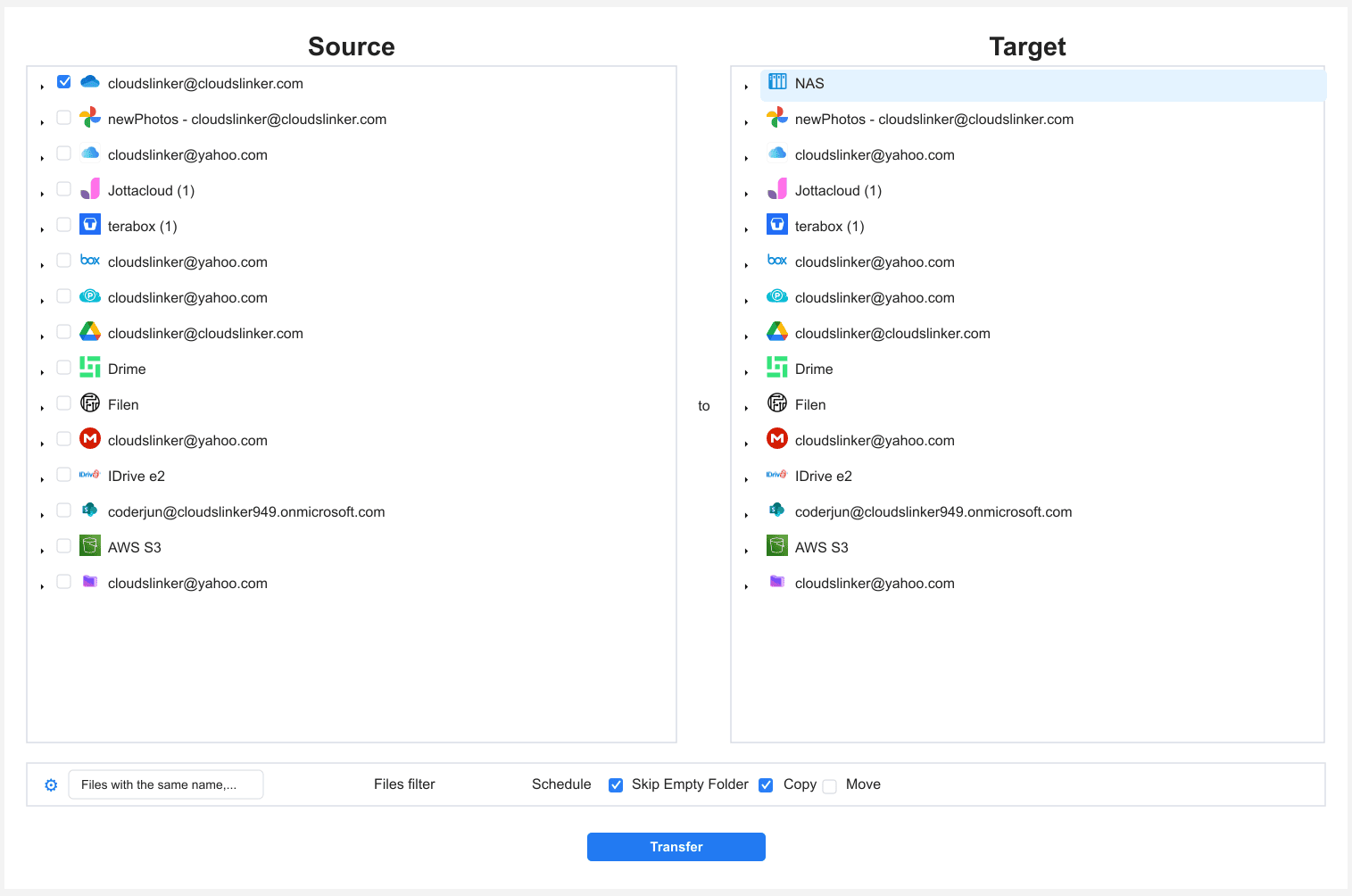
Step 3: Configure the Transfer
Open the Transfer section. Select OneDrive as the source and browse to the folders to move. On the destination side, select the NAS and choose the target shared folder.
Filters let you limit the move to certain file types or a date range, and Copy or Move mode controls whether the OneDrive originals remain.
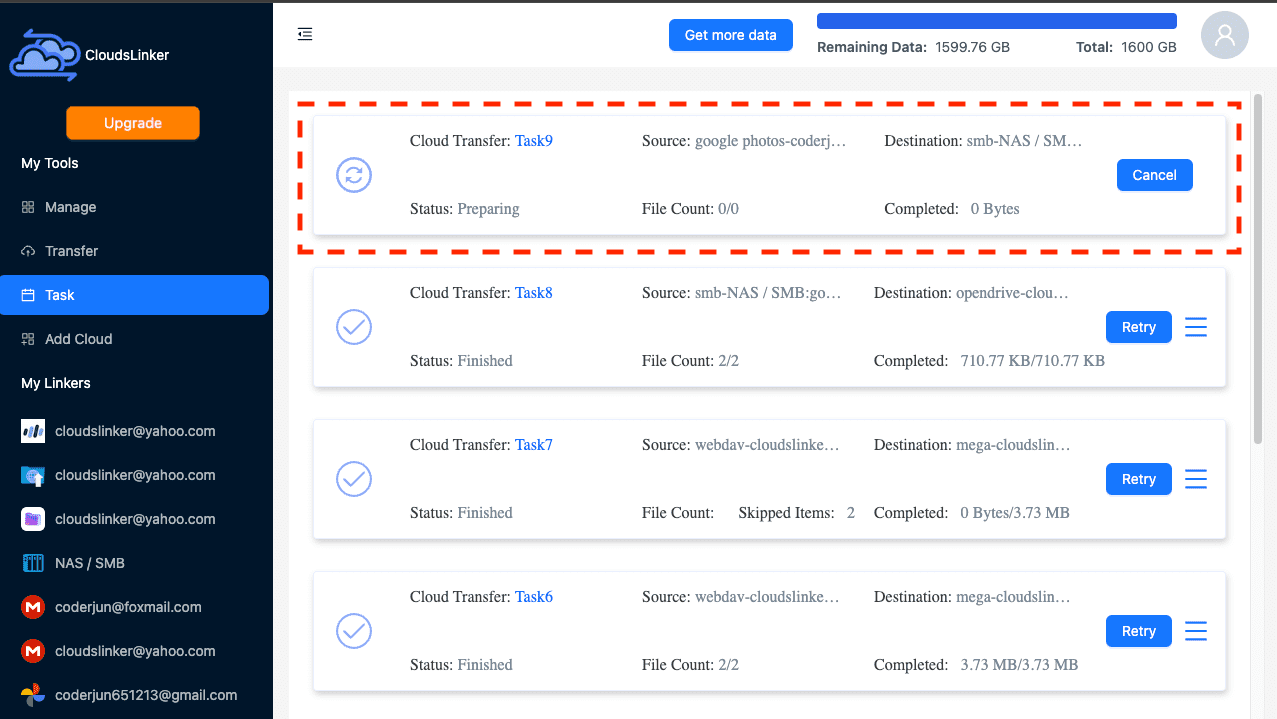
Step 4: Start and Monitor the Transfer
Start the task and track it in the Task List, which shows transferred size, speed, and any skipped items. The transfer runs server-side between OneDrive and the NAS.
Comparing the Ways to Transfer From OneDrive to a NAS
| Method | Ease of Use | Speed | Best For | Needs Public NAS | Skill Level |
|---|---|---|---|---|---|
| Download + SMB Copy | ★★★★★ | ★★★☆☆ | Small sets of files | No | Beginner |
| NAS Sync App | ★★★★☆ | ★★★★☆ | Home NAS behind a router | No | Intermediate |
| Rclone | ★★☆☆☆ | ★★★★☆ | Large libraries, scheduling | No | Advanced |
| CloudsLinker | ★★★★★ | ★★★★★ | Internet-reachable NAS, hands-off | Yes | Beginner |
For most home setups behind a router, a NAS sync app such as Synology Cloud Sync is the natural choice, since the device pulls files itself. Rclone suits technical users who want scheduling. If the NAS is already reachable over the internet, CloudsLinker moves files server-side without using your computer.
- Download online-only files first: Files On-Demand placeholders contain no data until downloaded; set folders to "Always keep on this device" before a manual copy.
- Match the method to your network: A local-only NAS suits a vendor sync app or Rclone; only an internet-reachable NAS works with a cloud service.
- Avoid opening port 445 to the public: Use a VPN or the NAS vendor's secure remote access instead of exposing raw SMB.
- Check the tenant's current storage allowance: If your OneDrive account was created after the 2026 default change, confirm your actual quota before assuming the older, larger default applies.
- Use the NAS app for home setups: Cloud Sync or HBS pulls directly and avoids routing data through your computer.
- Keep a backup until verified: Keep the OneDrive copy or a second backup until you confirm the files are intact on the NAS.
Frequently Asked Questions
Conclusion
Match the method to your network setup and how much data is moving. A browser download paired with a mapped network drive covers a small set of files. Synology Cloud Sync or QNAP's Hybrid Backup Sync pulls directly from OneDrive and suits most home or office NAS setups behind a router. Rclone gives scriptable control for a large or scheduled migration. CloudsLinker moves an entire OneDrive account straight to the NAS without a computer staying on — but only if the NAS is reachable from the internet through a public IP, port forwarding, or a VPN. Choose based on where the NAS sits on your network.
Online Storage Services Supported by CloudsLinker
Transfer data between over 58 cloud services with CloudsLinker

OneDrive

Google Drive

Google Photos

Shared Drive

OneDrive for Business

Dropbox

Box

Mega

pCloud

Yandex

ProtonDrive

AWS

GCS

iDrive

Storj

DigitalOcean

Wasabi

1fichier

PikPak

TeleBox

OpenDrive

Backblaze B2

Fastmail file

SharePoint

Nextcloud

ownCloud

Premiumize me

HiDrive

Put.io

Sugar Sync

Jottacloud

Seafile

Ftp

SFtp

NAS

WebDav

4shared

Icedrive

Cloudflare R2

Scaleway

Hetzner Object Storage

Synology C2 Object Storage

S3 Compatible

Doi

iCloud Drive

iCloud Photos

FileLU

Zoho WorkDrive

Telia Cloud / Sky

Drime

Filen

TeraBox

Internxt

Degoo

Gofile

Pixeldrain

Shade

Koofr
Didn' t find your cloud service? Be free to contact: [email protected]
Further Reading
Effortless FTP connect to google drive: Transfer Files in 3 Easy Ways
Learn More >
Google Photos to OneDrive: 3 Innovative Transfer Strategies
Learn More >
Google Photos to Proton Drive: 3 Effective Transfer Techniques
Learn More >